Quick answer
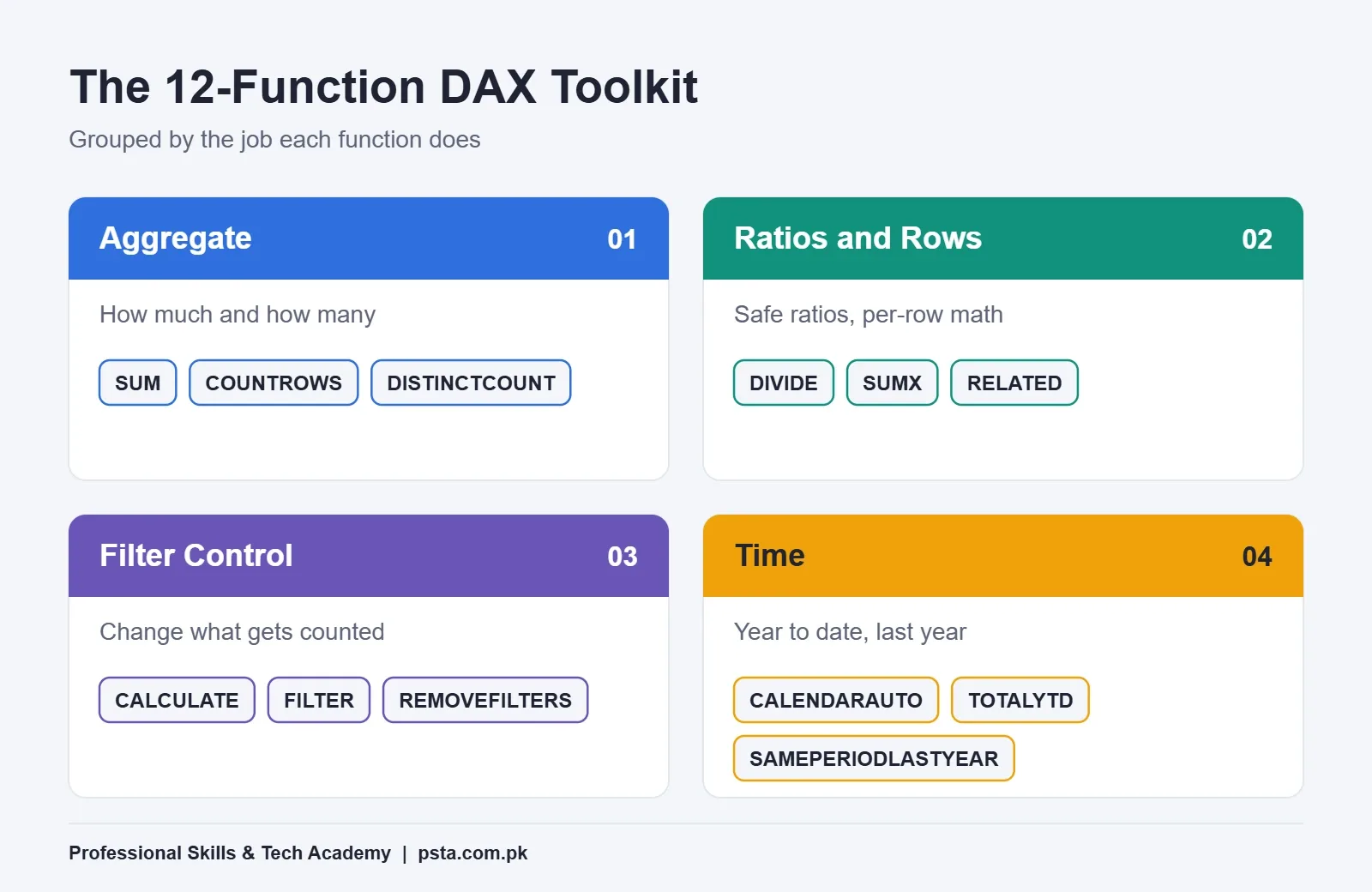
DAX is the formula language behind Power BI measures. Beginners can cover most dashboards with 12 functions: SUM, COUNTROWS, DISTINCTCOUNT, DIVIDE, SUMX, RELATED, CALCULATE, FILTER, REMOVEFILTERS, CALENDARAUTO, TOTALYTD and SAMEPERIODLASTYEAR. Learn them in layers, from simple totals to filter control and time intelligence, and practice in the free Power BI Desktop.
Key takeaways
- • Write a measure for anything that should respond to slicers; use a calculated column only for labels you group or filter by.
- • DIVIDE returns BLANK instead of an error when the denominator is zero or blank.
- • SUMX calculates each row first, then adds, so it handles quantity times price.
- • CALCULATE changes the filters on a number, and REMOVEFILTERS lets a total ignore a slicer.
- • For a July to June year, build a date table and pass "6/30" to TOTALYTD.
- • Power BI Desktop is free, so you can learn every function here without a paid license.
Table of contents 24 sections
- What Is DAX, and Why Does Power BI Need It?
- The Practice Model Used in This Guide
- Measure or Calculated Column: Which Should You Write?
- Counting and Adding: SUM, COUNTROWS and DISTINCTCOUNT
- SUM
- COUNTROWS
- DISTINCTCOUNT
- Safe Ratios With DIVIDE
- Row-by-Row Math With SUMX and RELATED
- SUMX
- RELATED
- CALCULATE: How Do You Change the Filters on a Number?
- FILTER for Conditions on a Measure
- REMOVEFILTERS for Share of Total
- Time Intelligence for a July to June Financial Year
- Build the Date Table First
- TOTALYTD
- SAMEPERIODLASTYEAR
- DAX for Beginners: The 12 Functions at a Glance
- In What Order Should You Learn DAX Functions?
- Which Mistakes Slow Beginners Down Most?
- What Does Power BI Cost While You Learn?
- Practicing DAX on Real Datasets at PSTA
- Rebuild the Practice Model From a Blank File
In almost every DAX for beginners class, someone asks a version of this in the second week: "Why does my total change every time I click a slicer, and how do I make one number ignore it?" The answer is DAX itself, and it gets much easier once you see that a dozen functions do most of the daily work.
This explainer walks through those 12 functions using one small practice model, so every formula connects to the one before it. You can rebuild the whole thing in the free Power BI Desktop app.
In this guide, you'll learn:
- What DAX is and how a measure differs from a calculated column
- The counting, ratio and row-by-row functions behind most report cards
- How CALCULATE changes filters, and how to remove one on purpose
- How to set up time intelligence for Pakistan's July to June financial year
- A sensible order for learning the rest
What Is DAX, and Why Does Power BI Need It?
DAX stands for Data Analysis Expressions. It's the formula language you use inside Power BI to create measures, calculated columns and calculated tables. If you've written Excel formulas, the syntax will look familiar. Microsoft's guide to measures in Power BI Desktop says the DAX library holds over 200 functions, operators and constructs, and that they're built for related tables rather than a single grid of cells.
That last point is the real difference from Excel. An Excel formula points at cells. A DAX formula points at columns and tables, and the result depends on which filters are active when a visual asks for it. Click a branch in a slicer and every measure on the page recalculates for that branch. Nothing needs to be copied down. Most of DAX for beginners comes down to understanding those active filters.
Power BI can add up a numeric column on its own when you drag it onto a chart. Microsoft's tutorial on creating your own measures calls these automatic measures, with Sum as the default. They're fine for a quick look. As soon as you need net sales, a margin, a share of total or last year's figure, you write the DAX yourself, and that's where Power BI measures come in.
The Practice Model Used in This Guide
To keep things concrete, picture this example: a rice and cooking-oil distributor with three branches, in Abbottabad, Mansehra and Haripur. The owner keeps sales in Excel and wants a dashboard. Your model has three tables:
| Table | Key Columns | One Row Means |
|---|---|---|
| Sales | OrderDate, ProductID, BranchID, CustomerID, Qty, UnitPrice, Discount | One line on an invoice |
| Products | ProductID, ProductName, Category, CostPrice | One item, such as a 5 kg rice bag |
| Date | Date, Month, Quarter, FiscalYear | One calendar day |
Sales links to Products through ProductID and to Date through OrderDate. Both are many-to-one relationships: many invoice lines point to one product and one day. Keep this shape in mind, because several functions below only work when these links exist.
Measure or Calculated Column: Which Should You Write?
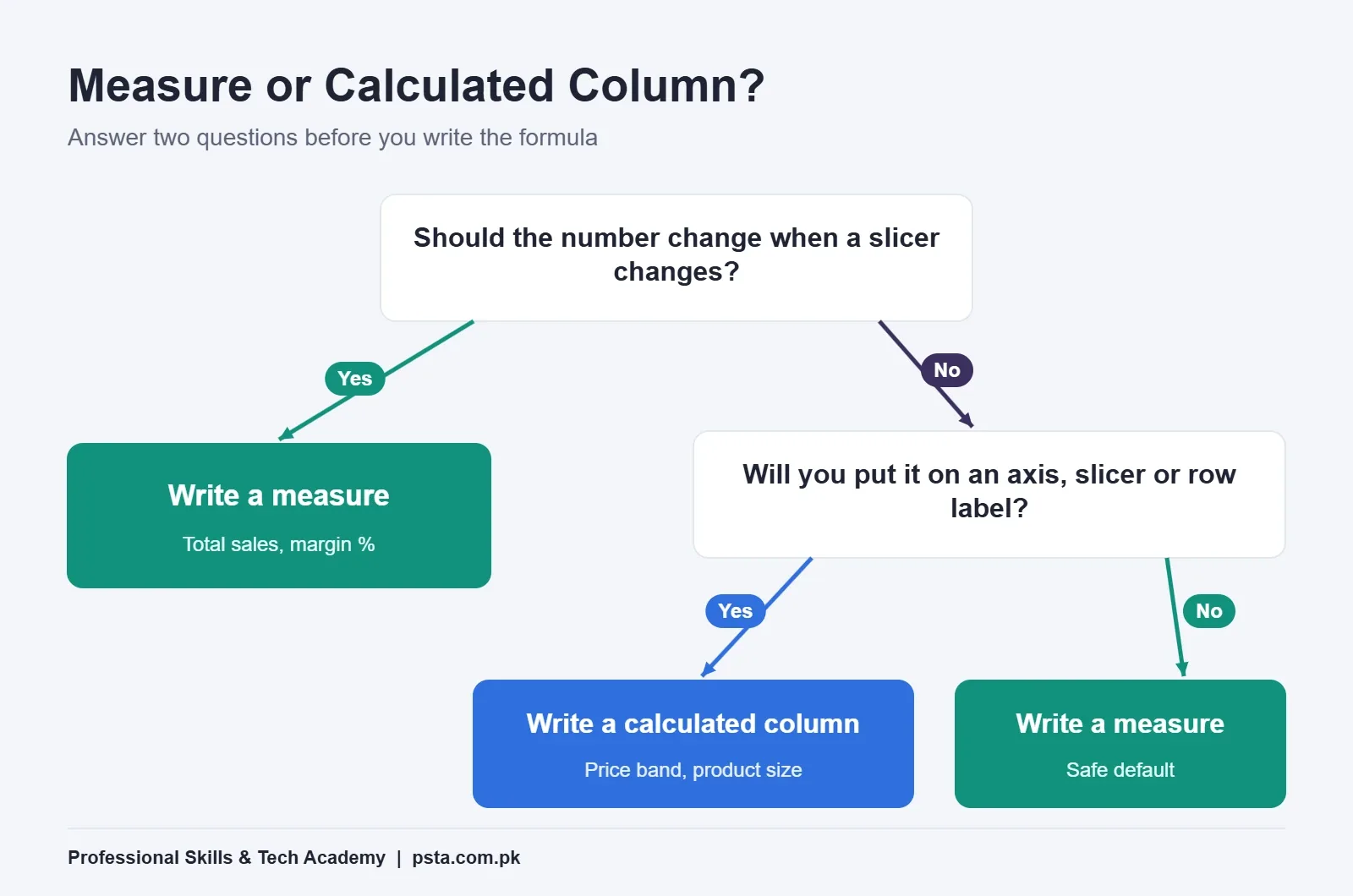
The calculated column vs measure choice is the first decision you make, and beginners often get it backwards. A calculated column works row by row and gives every row of a table its own stored value. A measure doesn't belong to any row. It's worked out when a visual needs it, using whatever filters the report has at that moment.
A simple rule works for most cases. If the number should respond to slicers and filters, such as total sales, average order value or profit margin, write a measure. If you need a label you can put on an axis, a slicer or a row heading, such as a price band like "Under Rs. 1,000", write a calculated column.
When in doubt, start with a measure. Most of the numbers a manager asks for are totals and ratios, and those belong in measures.
Counting and Adding: SUM, COUNTROWS and DISTINCTCOUNT
These three answer the most common dashboard questions: how much, how many lines and how many different things.
SUM
SUM adds up one numeric column in the current filter context. Here's a measure for total units sold:
Units Sold = SUM ( Sales[Qty] )SUM only accepts a column. You can't multiply two columns inside it, which is why SUMX appears later in this guide.
COUNTROWS
COUNTROWS counts the rows of a table. Because each Sales row is an invoice line, this gives you the number of lines sold:
Invoice Lines = COUNTROWS ( Sales )DISTINCTCOUNT
DISTINCTCOUNT counts unique values in a column. The distributor wants to know how many different shops bought from each branch this month:
Active Customers = DISTINCTCOUNT ( Sales[CustomerID] )Put all three in a table visual next to Branch and you already have a useful first report.
Safe Ratios With DIVIDE
Ratios cause beginners more errors than anything else, usually because a branch or month has no sales and the formula tries to divide by zero. DIVIDE handles that for you. Microsoft's DAX best-practice note on DIVIDE explains that it returns BLANK when the denominator is zero or BLANK, unless you supply a third argument as an alternate result.
Avg Units per Line = DIVIDE ( [Units Sold], [Invoice Lines] )The same note recommends DIVIDE over a longer IF test because it's shorter and better optimized. It also suggests keeping the plain / operator when you divide by a constant, such as [Units Sold] / 12, since that division can't fail. Leaving the result as BLANK is usually the better design too: visuals hide blank groups by default, so empty branches don't clutter the chart.
Row-by-Row Math With SUMX and RELATED
The Sales table has quantity and unit price but no revenue column. You could add one as a calculated column, but an iterator is cleaner.
SUMX
According to Microsoft's SUMX reference page, SUMX takes a table, evaluates an expression for each row, then adds the results. It only counts numbers and ignores blanks, text and logical values.
Revenue =
SUMX ( Sales, Sales[Qty] * Sales[UnitPrice] - Sales[Discount] )
The page also advises using plain SUM when you don't need a row-by-row calculation. Treat SUMX as the tool for "multiply first, then add".
RELATED
Profit needs the cost price, which sits in the Products table. RELATED fetches a value from the "one" side of a many-to-one relationship. The RELATED documentation notes that it needs a row context, which means it works in a calculated column or inside an iterator such as SUMX or FILTER.
Gross Profit =
SUMX (
    Sales,
    Sales[Qty] * ( Sales[UnitPrice] - RELATED ( Products[CostPrice] ) )
        - Sales[Discount]
)
If RELATED returns an error, check the relationship between Sales and Products first. In class, a missing relationship is the usual cause. Now a margin measure is one line: Margin % = DIVIDE ( [Gross Profit], [Revenue] ).
CALCULATE: How Do You Change the Filters on a Number?
This is the function that answers the question at the top of this guide. Microsoft's CALCULATE reference describes it as evaluating an expression in a modified filter context. Each filter you pass is added if that column isn't filtered yet, and replaces the existing filter if it is.
Cooking Oil Revenue =
CALCULATE ( [Revenue], Products[Category] = "Cooking Oil" )
Place this next to Branch and each row shows cooking-oil revenue for that branch. The branch filter stays. Only the category filter is forced.
FILTER for Conditions on a Measure
A simple column condition, like the one above, goes straight into CALCULATE. When the condition is more complex, such as "products whose revenue is above Rs. 500,000", wrap a table in FILTER and pass that instead:
Revenue From Big Sellers =
CALCULATE (
    [Revenue],
    FILTER ( VALUES ( Products[ProductName] ), [Revenue] > 500000 )
)
REMOVEFILTERS for Share of Total
To show each branch's share of company revenue, the denominator must ignore the branch filter. REMOVEFILTERS does exactly that:
Branch Share % =
DIVIDE (
    [Revenue],
    CALCULATE ( [Revenue], REMOVEFILTERS ( Sales[BranchID] ) )
)
The CALCULATE reference lists REMOVEFILTERS beside ALL and ALLEXCEPT, and prefers REMOVEFILTERS where it's supported. If you'd rather add a filter without overwriting the one already there, wrap it in KEEPFILTERS. That's the full answer to "how do I make one number ignore the slicer".
Time Intelligence for a July to June Financial Year
Owners in Pakistan think in financial years. The tax year here runs from 1 July to 30 June, as the overview of taxation in Pakistan notes, so "year to date" in a sales meeting usually means since 1 July, not since 1 January. Time intelligence DAX handles this, but only with a proper date table.
Build the Date Table First
Microsoft's date table guidance lists the rules: one date column with unique values, no blanks, no missing dates, and full years. For classic time intelligence, you also mark it as a date table. CALENDARAUTO builds one from every date in your model, and its optional argument sets the last month of the year, so 6 fits a June year-end:
Date = CALENDARAUTO ( 6 )If you'd rather set the range yourself, CALENDAR takes a start and an end date. Either way, add Month, Quarter and FiscalYear columns afterwards, then link Date[Date] to Sales[OrderDate].
TOTALYTD
TOTALYTD returns a running total from the start of the year. The TOTALYTD reference shows an optional year-end argument written as "month/day", which defaults to 31 December. For a Pakistani business, pass "6/30":
Revenue FYTD = TOTALYTD ( [Revenue], 'Date'[Date], "6/30" )SAMEPERIODLASTYEAR
For growth against last year, SAMEPERIODLASTYEAR shifts the current dates back by one year. Microsoft's SAMEPERIODLASTYEAR page says the result is the same as DATEADD with minus one year. You always use it inside CALCULATE:
Revenue LY =
CALCULATE ( [Revenue], SAMEPERIODLASTYEAR ( 'Date'[Date] ) )

Growth % = DIVIDE ( [Revenue] - [Revenue LY], [Revenue LY] )
Notice how Growth % reuses three earlier measures. That's the habit worth building: small, named measures that you combine, instead of one giant formula nobody can debug.
DAX for Beginners: The 12 Functions at a Glance
Here's the full set from this guide in one table. Keep it open while you practice.
| Function | Group | What It Does | Practice Measure |
|---|---|---|---|
| SUM | Aggregate | Adds one numeric column | Units Sold |
| COUNTROWS | Aggregate | Counts rows in a table | Invoice Lines |
| DISTINCTCOUNT | Aggregate | Counts unique values | Active Customers |
| DIVIDE | Ratio | Divides and returns BLANK on zero | Margin % |
| SUMX | Iterator | Calculates per row, then adds | Revenue |
| RELATED | Iterator helper | Fetches a value from a linked table | Gross Profit |
| CALCULATE | Filter control | Evaluates with changed filters | Cooking Oil Revenue |
| FILTER | Filter control | Returns rows that meet a condition | Revenue From Big Sellers |
| REMOVEFILTERS | Filter control | Clears filters on a column or table | Branch Share % |
| CALENDARAUTO | Time | Builds a full-year date table | Date table |
| TOTALYTD | Time | Running total from year start | Revenue FYTD |
| SAMEPERIODLASTYEAR | Time | Shifts dates back one year | Revenue LY |
In What Order Should You Learn DAX Functions?
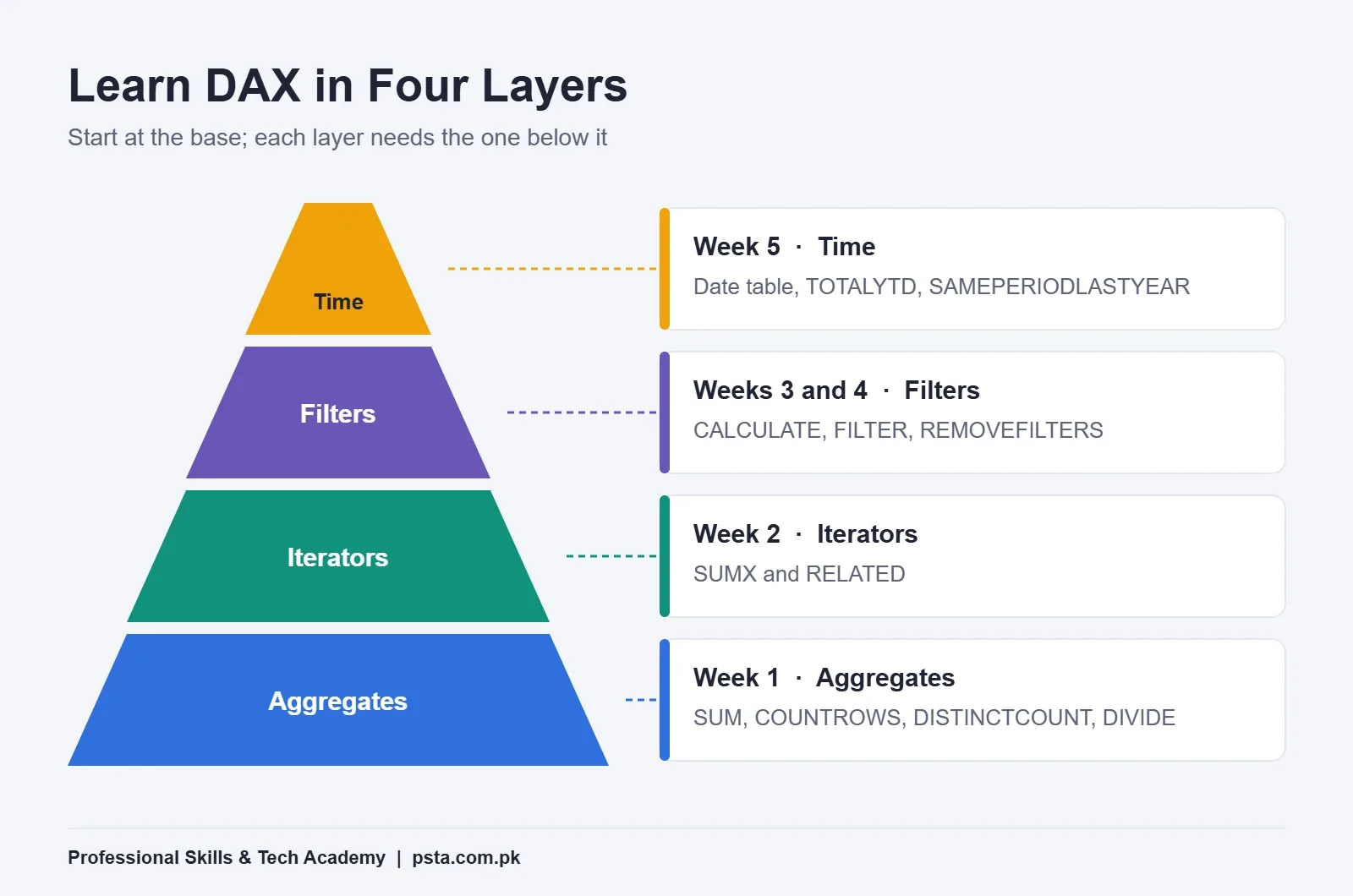
A good DAX for beginners plan works in layers. Each layer depends on the one beneath it, and skipping ahead is why many people find CALCULATE confusing.
- Week 1, aggregates: SUM, COUNTROWS, DISTINCTCOUNT and DIVIDE. Get comfortable with how a slicer changes their results.
- Week 2, iterators: SUMX and RELATED. Learn what "row context" means by writing Revenue and Gross Profit yourself.
- Weeks 3 and 4, filter control: CALCULATE, FILTER and REMOVEFILTERS. Build share-of-total and category measures until you can predict results before you press Enter.
- Week 5, time: a marked date table, then TOTALYTD and SAMEPERIODLASTYEAR.
This order also follows Microsoft's exam outline. The PL-300 study guide, with skills effective from 20 April 2026, weights "Model the data" at 25 to 30% and lists single aggregation measures, the CALCULATE function and time intelligence measures under it. If certification is your goal, our earlier guide to Power BI certification in Pakistan covers the exam itself.
Quick measures can help along the way. Microsoft's tutorial points out that Power BI shows the DAX a quick measure writes, so you can create one, then read its formula and rewrite it by hand.
Which Mistakes Slow Beginners Down Most?
From marking student files, the same few problems come up again and again:
- Using a calculated column for a total. It won't respond to slicers the way you expect. Turn it into a measure.
- Relying on the automatic date hierarchy. Microsoft's date table guidance doesn't recommend Auto date/time for most models. Build your own Date table early.
- Writing one huge formula. Split it into named measures, as Growth % does above.
- Forgetting the relationship. RELATED and most cross-table filters fail quietly without one.
- Hard-coding the year-end. If the client runs a July to June year, every year-to-date measure needs "6/30".
Still weighing up tools? Read our Power BI vs Excel breakdown to see which job suits each. Many analysts also pull data with SQL first, which our SQL vs PL/SQL guide introduces.
What Does Power BI Cost While You Learn?
Nothing, for the part covered here. Microsoft's Power BI pricing page says Power BI Desktop costs nothing to download, and every DAX formula in this guide runs in Desktop. Sharing reports online with colleagues needs a paid license: the same page prices Pro at $14 a user each month and Premium Per User at $24, with yearly billing. For practice and a portfolio, Desktop is enough.
Practicing DAX on Real Datasets at PSTA
DAX clicks fastest when someone checks your measures against the numbers you expected. If you're looking for a Power BI course in Pakistan that works this way, our Power BI Course: Data Analytics & Dashboards is an 8-week, beginner-level program. Its modules move from data connectivity and Power Query into data modeling, a dedicated DAX module on measures and columns, dashboards, the Power BI Service and security, and they end with business case projects.
Tuition for this course is listed at Rs. 32,000 at the time of writing. Our campus sits in Mandian, Abbottabad, near FIMS College on Old College Road. If you live outside the city, live online seats are open too, and a new group begins monthly. If Excel itself still feels shaky, consider starting with the Office Automation course, which builds those basics first. To reserve a seat, use the admission form, browse all courses, or send your questions on WhatsApp to +92 314 5424399.
Rebuild the Practice Model From a Blank File
Here's one practical exercise to close this DAX for beginners guide. Open Power BI Desktop, type a 20-row Sales table and a five-row Products table by hand, link them, and write Units Sold, Revenue, Gross Profit and Branch Share % from this guide. Then add a slicer and check each result with a calculator. Once those four numbers match, the core ideas of DAX are working on your own data, and the rest of this list will follow much faster.
Frequently asked questions
Is DAX hard to learn for beginners?
The basics are not hard. If you can write an Excel SUM or IF formula, measures like total sales and margin will feel familiar within a few days. The harder part is filter context, meaning how slicers and CALCULATE change what a measure counts. Most learners get comfortable with it after a few weeks of steady practice on one dataset they understand well.
Can I learn DAX without knowing Excel formulas?
Yes, but some Excel experience helps. DAX borrows names such as SUM, IF and DATE, so Excel users read formulas faster. If you have never used formulas, spend a week on basic Excel functions and simple tables first. Then move to Power BI Desktop, where you can start with automatic measures and quick measures before writing DAX by hand.
What is the difference between SUM and SUMX in DAX?
SUM adds the values in one column. SUMX goes through a table row by row, calculates an expression for each row, then adds the results. Use SUM for a column that already holds the number you want, such as quantity. Use SUMX when you must calculate first, for example quantity multiplied by unit price minus discount.
Why does my DAX measure show a blank instead of a number?
Usually the current filters leave no matching rows, or a DIVIDE has a zero or blank denominator, which returns BLANK by design. Check whether a slicer or page filter excludes the data, and confirm the relationship between your fact table and lookup table exists. A missing relationship is one of the most common reasons a measure looks empty.
Do I need a paid Power BI license to practice DAX?
No. Power BI Desktop is a free download, and every DAX function covered in this guide works in it. You need a paid license such as Power BI Pro only when you want to publish and share reports with colleagues through the Power BI service. For learning and for building a portfolio, Desktop is enough.
How long does it take to learn DAX well enough for a job?
For a junior analyst role, plan on roughly six to eight weeks of regular practice alongside Power Query and data modeling. That is enough to write totals, ratios, CALCULATE measures and year-to-date figures confidently. Deeper topics such as context transition and calculation groups come with project experience, so build two or three complete dashboards while you learn.
Which DAX functions should I learn first?
Start with SUM, COUNTROWS, DISTINCTCOUNT and DIVIDE, because they answer most basic report questions. Next learn SUMX and RELATED for row-by-row calculations across tables. Then move to CALCULATE, FILTER and REMOVEFILTERS. Leave time intelligence until last, since TOTALYTD and SAMEPERIODLASTYEAR need a proper date table and a working relationship first.
Sources & references
- CALCULATE function (DAX) learn.microsoft.com
- DAX: DIVIDE function vs divide operator learn.microsoft.com
- SUMX function (DAX) learn.microsoft.com
- RELATED function (DAX) learn.microsoft.com
- TOTALYTD function (DAX) learn.microsoft.com
- Date table guidance for Power BI learn.microsoft.com
- Study guide for Exam PL-300 learn.microsoft.com
- Power BI pricing microsoft.com
Last reviewed & updated on by Umar Qureshi. Written by the PSTA team in Abbottabad, Pakistan.

Umar Qureshi

Power BI Course: Data Analytics & Dashboards
Turn this guide into a career: hands-on training with real projects, online across Pakistan or on-campus in Abbottabad · 8 Weeks.



Comments
No comments yet — ask a question or share your experience.