Quick answer
A laptop for video editing needs four things: a recent processor (Intel 11th Gen or Ryzen 3000 and newer is comfortable), 16GB of RAM, a graphics chip with 8GB of memory, and an SSD. Current Premiere and After Effects versions also need Windows 11 version 24H2. CapCut runs on far less.
Key takeaways
- • After Effects and DaVinci Resolve both list 16GB of RAM as their Windows minimum; Premiere's 8GB minimum covers HD only.
- • Premiere 26.0 asks for 4GB of GPU memory and recommends 8GB.
- • Current Adobe apps need Windows 11 version 24H2, and Windows 10 support ended on October 14, 2025.
- • Processor generation matters more than the Core i5 or i7 badge.
- • A fast SSD for apps and cache beats a bigger hard drive.
- • Check your current laptop in Settings and Task Manager before buying a new one.
Table of contents 19 sections
- Laptop for Video Editing: What the Official Requirements Say
- Myths About Brand and Processor
- Myth 1: You Need a MacBook to Edit Properly
- Myth 2: Any Core i7 Beats Any Core i5
- How Much RAM and Graphics Memory Do You Really Need?
- Myth 3: 8GB of RAM Is Enough for Any Editor
- Myth 4: The Graphics Card Doesn't Matter for Editing
- Is a Used Windows 10 Laptop Still a Safe Buy?
- Myth 5: An Older Windows 10 Laptop Is a Safe Bargain
- Myths About Phone Footage and Storage
- Myth 6: Phone Footage Is Light, So Any Laptop Can Edit It
- Myth 7: A Bigger Hard Drive Beats a Smaller SSD
- Does Professional Work Need a Workstation Budget?
- Myth 8: Serious Editing Needs a Workstation Price Tag
- Three Spec Tiers Matched to the Work You'll Do
- How to Check Your Current Laptop in 10 Minutes
- Questions to Ask Before You Pay at a Laptop Shop
- Where Your Laptop Fits in PSTA's Video Editing Course
- Run the Ten-Minute Check Before You Spend Anything
Answer three questions about the laptop you own or plan to buy. How much RAM does it have? How many gigabytes of memory does its graphics chip have? Can it run Windows 11 version 24H2? If any answer is "I'm not sure", you're in the right place, because those three numbers decide whether a laptop for video editing feels smooth or keeps freezing on the timeline.
Shopkeepers, YouTube comments and older classmates all hand out advice on this, and much of it is out of date. In this article, I test eight popular beliefs against the official 2026 requirements published by Adobe, Blackmagic Design, CapCut and Microsoft.
Here's what you'll be able to do after reading:
- Read a spec sheet and spot the four numbers that matter for editing
- Tell which beliefs about MacBooks, Core i7 chips and hard drives are wrong
- Match a spec tier to the work you plan to do, from Reels to 4K
- Check the laptop you already own in about 10 minutes
- Ask a seller the right questions before you hand over any money
Laptop for Video Editing: What the Official Requirements Say
When you read the Premiere Pro system requirements or the DaVinci Resolve system requirements, you'll see two levels: minimum and recommended. The minimum means the app will open and work with simple HD footage. The recommended level is where editing starts to feel comfortable. Adobe says plainly that its minimum specs for Premiere are meant for editing HD video, not 4K.
Here are the Windows numbers from each vendor's own page, checked this month:
| App (version) | Minimum RAM | Graphics memory | Windows version | Processor floor |
|---|---|---|---|---|
| Adobe Premiere 26.0 | 8GB (16GB recommended for HD, 32GB+ for 4K) | 4GB minimum, 8GB recommended | Windows 11 v24H2 | Intel 6th Gen or Ryzen 1000 with AVX2 |
| After Effects 26.2 | 16GB (32GB+ for 4K) | 4GB minimum, 8GB recommended | Windows 11 v24H2 | Intel 6th Gen or Ryzen 1000 with AVX2 |
| DaVinci Resolve 21.0.1 | 16GB (32GB with Fusion) | Integrated GPU, or 4GB on a discrete card | Windows 10 Creators Update or later | Not listed; needs OpenCL 1.2 or CUDA 12.8 |
| CapCut desktop | 4GB | Intel HD Graphics 4000 or better | Windows 10 or later | Intel Core i3 or better |
Sources: Adobe Premiere technical requirements, After Effects system requirements, Blackmagic Design's DaVinci Resolve 21.0.1 readme (dated June 22, 2026) and CapCut's Windows download guide.
Notice the spread. CapCut asks for very little, while After Effects and Resolve both start at 16GB. So the right laptop depends on the software you'll learn, and that should be settled before you shop.
Myths About Brand and Processor
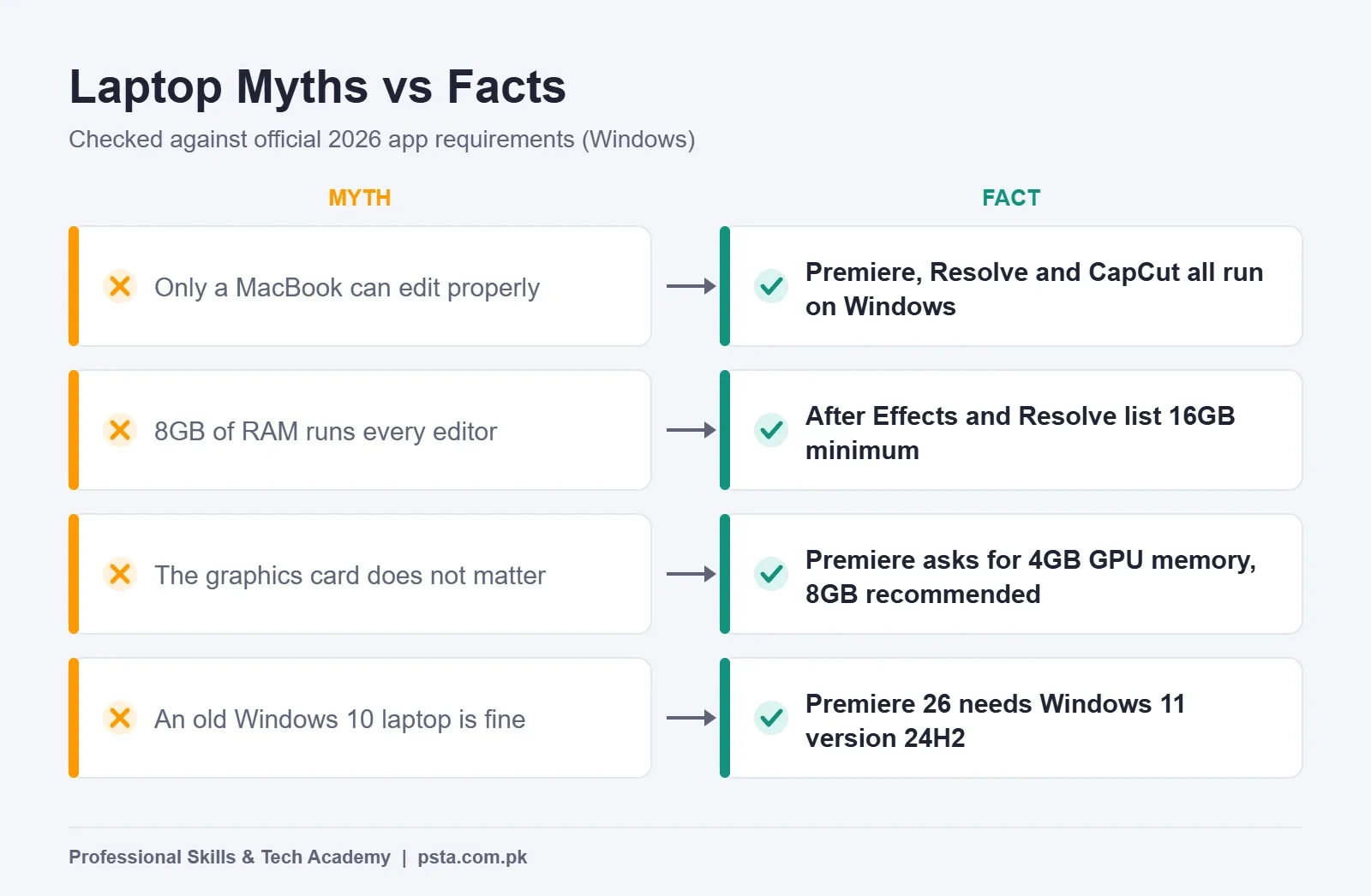
Myth 1: You Need a MacBook to Edit Properly
Fact: Premiere, After Effects, DaVinci Resolve and CapCut all run on Windows. Macs are good editing machines, but they aren't the only route. Resolve 21 on a Mac also needs Apple Silicon and macOS 15 Sequoia or later, so an older Intel MacBook from the used market won't run the current version at all.
For most students in Pakistan, a Windows laptop is easier to repair and upgrade locally. Many models let you add RAM or a second SSD later. A MacBook's memory can't be upgraded after purchase, so you'd have to buy the right amount on day one.
Myth 2: Any Core i7 Beats Any Core i5
Fact: The generation matters more than the badge. A fourth-generation Core i7 from years ago falls below Adobe's floor, which is an Intel 6th Gen or AMD Ryzen 1000 Series chip with AVX2 support. Adobe's recommended level is an Intel 11th Gen or newer chip with Quick Sync, or a Ryzen 3000 Series or newer.
Quick Sync is Intel's built-in hardware for handling common video formats such as H.264 and HEVC. When it's available, scrubbing through phone footage is lighter work for the processor. So a recent Core i5 can feel faster in Premiere than an old Core i7. Always read the full model number, such as i5-1135G7, where the first digits show the generation.
How Much RAM and Graphics Memory Do You Really Need?
Myth 3: 8GB of RAM Is Enough for Any Editor
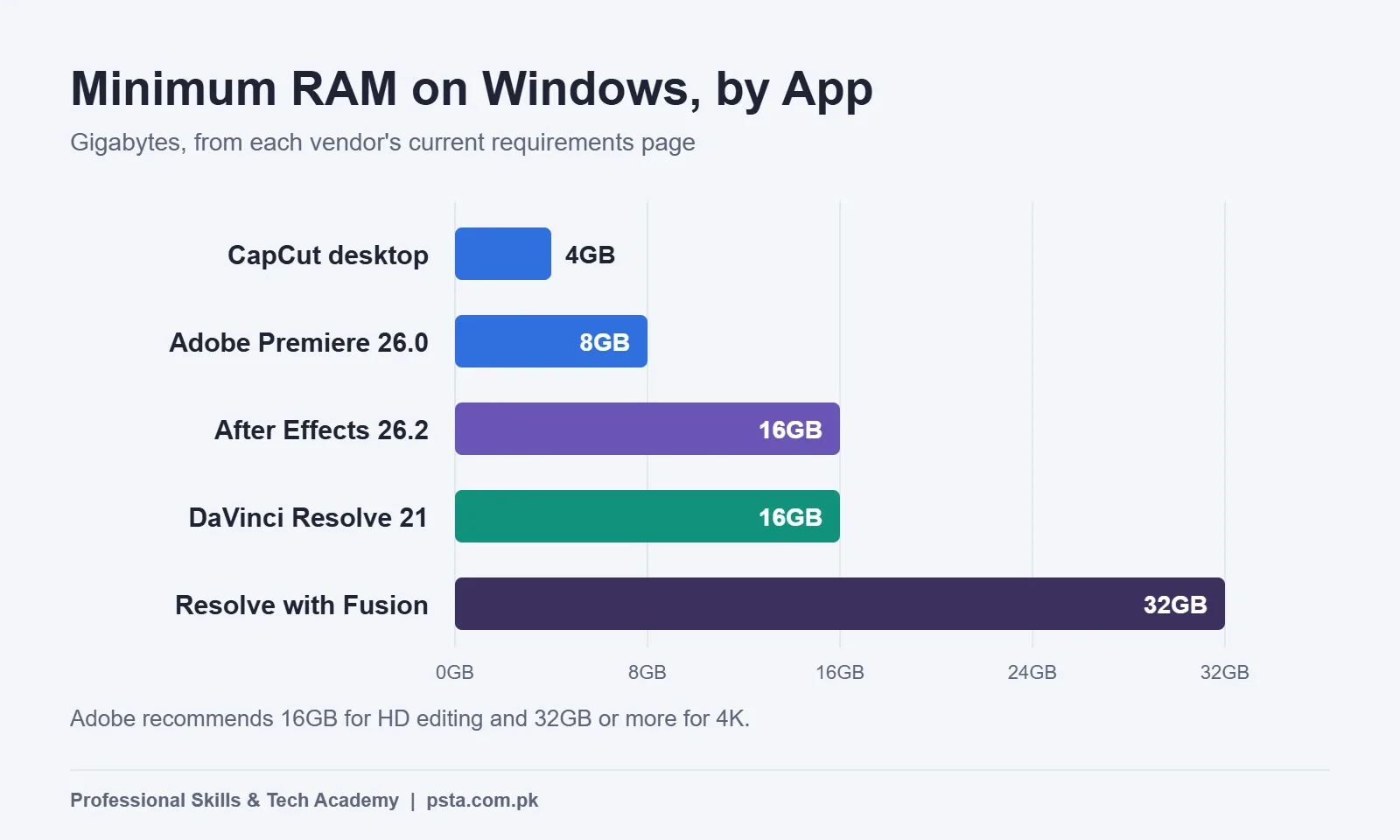
Fact: 8GB is Premiere's absolute minimum for HD, and it's below the minimum for After Effects and DaVinci Resolve on Windows. Both of those list 16GB. Resolve asks for 32GB once you use Fusion, its built-in effects page. Adobe recommends 32GB or more for 4K in both Premiere and After Effects.
In class, I see the same pattern again and again. An 8GB laptop opens Premiere fine, then slows to a crawl when the student adds music, titles and a browser with tutorials open. RAM is the first thing to upgrade if your laptop has a free slot. RAM for video editing depends on the app, so check the chart below against the software you plan to learn.
Myth 4: The Graphics Card Doesn't Matter for Editing
Fact: Modern editors push effects, color work and playback onto the graphics chip. Premiere's minimum is 4GB of GPU memory, and 8GB is recommended. The supported list covers NVIDIA cards from the Maxwell generation (2014) onward, plus Intel and AMD graphics with at least 4GB.
Resolve is more relaxed on paper. It accepts an integrated GPU, or a discrete card with at least 4GB of VRAM. If you use an NVIDIA card with Resolve, Blackmagic asks for the NVIDIA Studio driver 581.57 or newer. When you compare a GPU for video editing, look up the exact model and its memory before the brand. A label that says "graphics card included" tells you nothing useful.
Is a Used Windows 10 Laptop Still a Safe Buy?
Myth 5: An Older Windows 10 Laptop Is a Safe Bargain
Fact: Microsoft ended support for Windows 10 on October 14, 2025, according to its Windows 11 specifications page. That alone is a security concern. For editors, there's a second problem. Premiere 26.0 and After Effects 26.2 both list Windows 11 version 24H2 as the required operating system.
A laptop can only move to Windows 11 if it meets Microsoft's rules. These include TPM 2.0, UEFI firmware with Secure Boot, and a processor on Microsoft's compatible list. Some older imported laptops sold in local markets fail the processor check. Ask the seller to show you Windows 11 running on the actual machine, or check the processor name against Microsoft's list before you pay.
A used laptop for video editing can still be a smart buy. Just make sure it clears the Windows 11 bar, has at least 16GB of RAM or a free slot, and has an SSD.
Myths About Phone Footage and Storage
Myth 6: Phone Footage Is Light, So Any Laptop Can Edit It
Fact: Small files aren't the same as easy files. Apple explains in its guide to HEIF and HEVC media that the High Efficiency setting records video in HEVC, which saves storage while keeping quality. The trade-off is that tightly compressed video takes more work to decode during playback.
That's why a phone clip can stutter on a laptop that plays a larger file smoothly. You have two practical fixes. Pick a laptop with hardware decoding, such as an Intel chip with Quick Sync. Or, on an iPhone, open Settings, then Camera, then Formats, and choose Most Compatible, which records H.264 instead. Many Android phones offer a similar HEVC on or off switch in their camera settings.
Myth 7: A Bigger Hard Drive Beats a Smaller SSD
Fact: Speed matters more than size for the drive that runs your apps. Adobe recommends a fast internal SSD for the app and its cache, plus a separate high-speed drive for media. Premiere also can't be installed on removable flash storage.
A sensible setup on a budget looks like this: a 512GB SSD inside the laptop for Windows, apps and the current project, and an external drive for finished projects and raw footage archives. If the laptop has a second internal slot, you can add another SSD later.
Does Professional Work Need a Workstation Budget?
Myth 8: Serious Editing Needs a Workstation Price Tag
Fact: High-end editing workstations exist, but they're built for heavy studio work. Puget Systems, a US workstation builder, lists a mobile workstation for Premiere starting at $4,946.20 on its recommended systems page. That configuration pairs 96GB of RAM with a 24GB NVIDIA RTX 5090 Mobile.
A beginner cutting YouTube vlogs, Reels and wedding highlights doesn't need that. Adobe's recommended level, 16GB of RAM and 8GB of graphics memory for HD, covers most early freelance work. Spend on the four key numbers first, then on a decent screen, and skip extras like RGB keyboards.
Three Spec Tiers Matched to the Work You'll Do
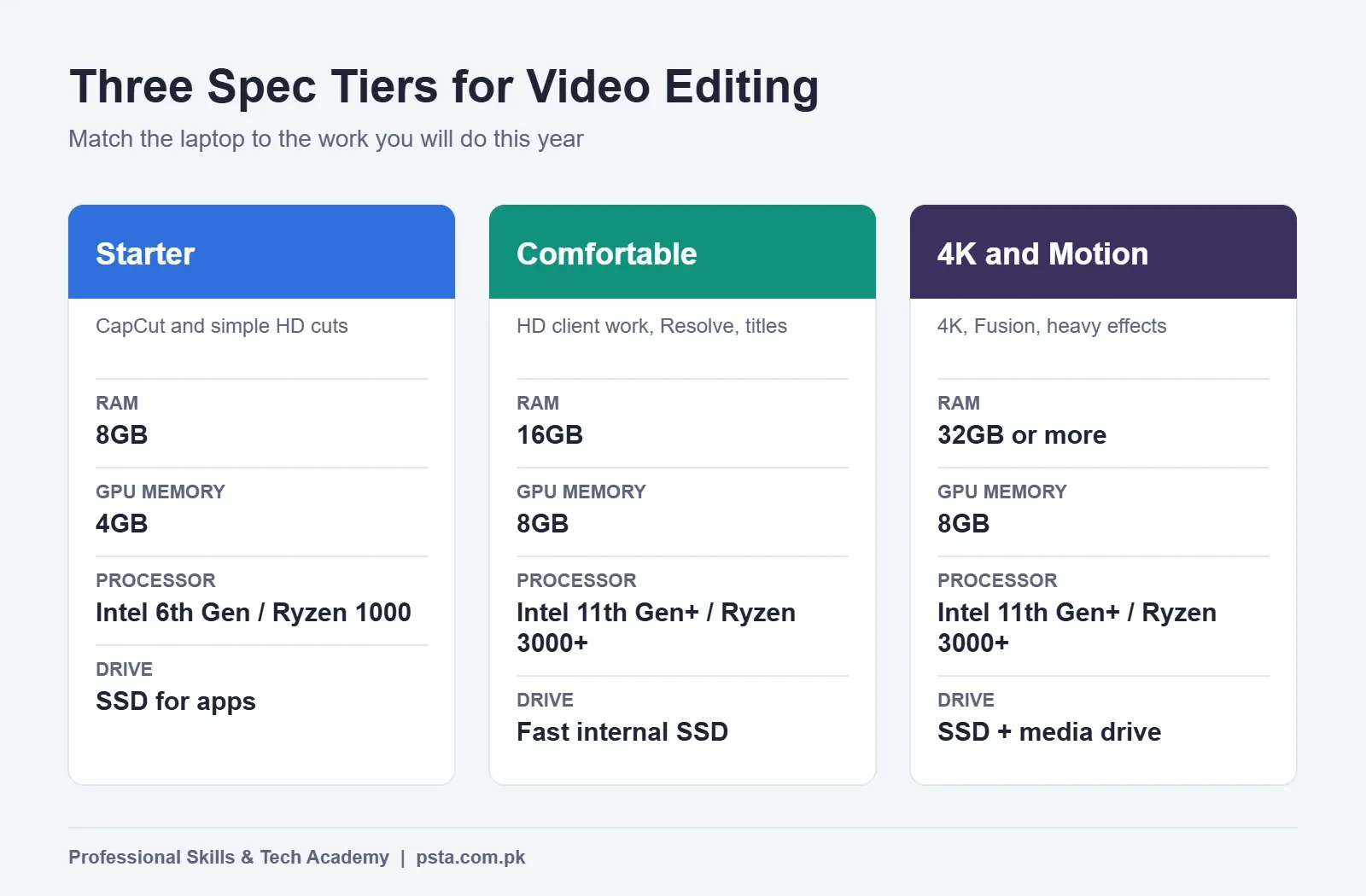
Instead of chasing the "best" laptop for video editing, choose the tier that fits your next six to 12 months of work. These video editing laptop specs come straight from the vendor requirements quoted earlier.
| Tier | Good for | Processor | RAM | Graphics memory | Storage |
|---|---|---|---|---|---|
| Starter | CapCut, simple HD cuts in Premiere | Intel 6th Gen or Ryzen 1000 with AVX2 (Windows 11 compatible) | 8GB | 4GB | SSD for apps |
| Comfortable | HD client work, Resolve, After Effects titles | Intel 11th Gen+ with Quick Sync, or Ryzen 3000+ | 16GB | 8GB | Fast internal SSD for apps and cache |
| 4K and Motion | 4K edits, Fusion, heavier After Effects work | Intel 11th Gen+ with Quick Sync, or Ryzen 3000+ | 32GB or more | 8GB | SSD plus a separate fast media drive |
If you're unsure, aim for the Comfortable tier. It meets the minimum for every app in this article, apart from Resolve's Fusion page, and Adobe's recommended level for HD. It also leaves room to grow before you need 4K.
How to Check Your Current Laptop in 10 Minutes
You may not need a new laptop at all. Run these checks on the one you have:
- Find the processor and RAM. Open Settings, then System, then About. Note the processor name and the installed RAM.
- Check the Windows version. On the same page, scroll to Windows specifications. You need Windows 11 version 24H2 or later for current Adobe apps.
- Read the graphics memory. Open Task Manager with Ctrl + Shift + Esc, go to Performance, and click each GPU entry. Look at "Dedicated GPU memory".
- Look at the drive type. In the same Performance tab, each disk shows its type, such as SSD or HDD.
- Count free RAM slots. Under Performance, then Memory, the "Slots used" line shows whether you can add a stick.
- Compare with the tier table. If you fall short only on RAM or storage, an upgrade may cost far less than a new machine.
Questions to Ask Before You Pay at a Laptop Shop
Whether you buy new or used, from a market in Rawalpindi, Lahore or Peshawar, or online, ask these questions and get the answers on the screen, not just from the seller:
- What is the full processor model number, and which generation is it?
- Is Windows 11 installed and activated, and which version is it?
- How much RAM is installed, and is there a free slot or soldered memory?
- Which graphics chip is inside, and how much dedicated memory does it have?
- Is the main drive an SSD, and is there a second drive slot?
- Does the battery hold a charge for a full editing session during load-shedding?
- Will the shop let you open a sample project and play it back before you pay?
The last question is the most useful. Carry a short phone clip on a USB drive and play it on the timeline in a free editor such as CapCut or DaVinci Resolve. Two minutes of real playback tells you more than any spec sticker.
Where Your Laptop Fits in PSTA's Video Editing Course
Our video editing and VFX course takes 12 weeks and assumes no prior experience. Most of the work happens in Adobe Premiere Pro, with After Effects added for titles, keying and motion graphics. Along the way you grade color, clean up sound, and learn which export settings each social platform expects. Everyone finishes by cutting a one-minute showreel to attach to Fiverr or Upwork profiles.
You pay Rs. 22,000 for the full course at the current discounted rate (the regular price is Rs. 25,000), and two installments are allowed. Abbottabad students attend at the Mandian campus on Old College Road. If you live elsewhere in Pakistan, join the same sessions live over the internet, or combine both modes. A new group begins each month.
A practical note on hardware: since After Effects lists 16GB of RAM as its minimum, plan for the Comfortable tier if you'll do the motion graphics modules at home. If your laptop is below that today, bring it to a class and we'll check it together before you spend anything. You can also pair editing with our Graphic Designing course or the Social Media Marketing & Meta Ads course, since clients often want thumbnails and ads alongside their videos.
Still choosing your software? Read our Premiere Pro vs DaVinci Resolve comparison, brush up on terms with the video editing glossary for beginners, or see what channels need to earn in our YouTube monetization checklist. Every other PSTA program is listed on our courses page.
Run the Ten-Minute Check Before You Spend Anything
Your one action for today: open Settings and Task Manager on your current laptop and write down four details: processor generation, RAM, dedicated GPU memory and drive type. Put them next to the tier table above to see where your laptop for video editing falls short. That short list will show you whether you need a RAM upgrade, a new SSD or a different machine.
If you'd like help reading the results, or want to know when the next batch starts, send your laptop specs to PSTA on WhatsApp (+92 314 5424399), or reserve a seat through the admission page. There's no pressure to decide on the spot.
Frequently asked questions
Is 8GB RAM enough for video editing?
It is enough for CapCut and for simple HD edits in Adobe Premiere, which lists 8GB as its minimum. It falls short for After Effects and DaVinci Resolve, which both list 16GB on Windows. If you plan to edit for clients, treat 16GB as your starting point and check whether the laptop has a free slot for an upgrade.
Can I edit videos on a laptop without a graphics card?
Yes, for light work. DaVinci Resolve accepts an integrated GPU, and CapCut asks only for Intel HD Graphics 4000 or better. Premiere wants at least 4GB of GPU memory, so integrated graphics may struggle there. Expect slower effects, playback and exports than on a laptop with a dedicated card that has 8GB of memory.
Which processor should I choose for video editing on a budget?
Look at the generation before the i5 or i7 label. Adobe recommends an Intel 11th Gen or newer chip with Quick Sync, or an AMD Ryzen 3000 Series or newer. A recent Core i5 that meets this usually handles phone footage better than an older Core i7 without modern hardware decoding.
Can I still use Windows 10 for video editing?
Older app versions may still open, but it's a weak long-term choice. Microsoft ended Windows 10 support on October 14, 2025, and Premiere 26.0 and After Effects 26.2 require Windows 11 version 24H2. DaVinci Resolve 21 still lists Windows 10, but upgrading is the safer plan if your hardware qualifies for Windows 11.
Is a MacBook better than a Windows laptop for editing?
Not automatically. Premiere, After Effects, DaVinci Resolve and CapCut all run on Windows. An Apple Silicon MacBook is a strong editing machine, but its memory can't be upgraded later, and Resolve 21 needs macOS 15 Sequoia or later. Decide based on the software you'll learn, your budget and local repair options.
How much storage do I need for video editing?
Adobe recommends a fast internal SSD for the app and its cache, plus a separate high-speed drive for media. For most beginners, a 512GB internal SSD for Windows, apps and the current project works well, with an external drive for archived footage. Premiere can't be installed on removable flash storage.
Do I need a powerful laptop to join PSTA's video editing course?
No. The course is designed for complete beginners, and you can start on a basic laptop. Because After Effects lists 16GB of RAM as its minimum, a Comfortable-tier laptop makes home practice smoother. If you're unsure about your machine, share its specs with us on WhatsApp before you buy anything new.
Sources & references
- Adobe Premiere technical requirements helpx.adobe.com
- After Effects system requirements helpx.adobe.com
- About DaVinci Resolve 21.0.1 (Blackmagic Design) blackmagicdesign.com
- How to Download CapCut for Windows capcut.com
- Windows 11 Specifications (Microsoft) microsoft.com
- Using HEIF or HEVC Media on Apple Devices support.apple.com
- Recommended Systems for Adobe Premiere Pro (Puget Systems) pugetsystems.com
Last reviewed & updated on by Umar Qureshi. Written by the PSTA team in Abbottabad, Pakistan.

Umar Qureshi

Mastering Video Editing & Visual Effects (VFX)
Turn this guide into a career: hands-on training with real projects, online across Pakistan or on-campus in Abbottabad · 12 Weeks.

Comments
No comments yet — ask a question or share your experience.