Quick answer
The parts of a computer fall into six groups: input devices, the CPU and GPU, RAM, storage, output devices, and power and cooling, all joined by the motherboard. RAM holds open work and clears at shutdown, while storage keeps files permanently. Windows 11 needs at least 4 GB RAM, 64 GB storage and TPM 2.0.
Key takeaways
- • Sort each component by its job: input, processing, memory, storage, output, or power and cooling.
- • RAM is temporary working space; storage keeps your files after the power goes off.
- • An SSD is the most noticeable upgrade for an old office PC that still runs on a hard disk.
- • DDR4 and DDR5 RAM use different slots, so check the motherboard before buying an upgrade.
- • Microsoft lists 4 GB RAM, 64 GB storage, TPM 2.0 and UEFI Secure Boot as Windows 11 minimums.
Table of contents 16 sections
- How Are the Parts of a Computer Grouped?
- The Motherboard: Where Every Part Plugs In
- CPU Functions: The Part That Does the Thinking
- What Does the GPU Do?
- RAM vs Storage: Which One Makes a PC Faster?
- DDR4 and DDR5 RAM
- Storage Devices: Hard Disk, SATA SSD and NVMe SSD
- Input and Output Devices: A Quick Glossary
- Input Devices
- Output Devices
- What Happens Inside When You Press the Power Button?
- Power Supply, Cooling and the Case
- Ports and Connectors You'll Use Every Day
- Does Your PC Meet Windows 11's Hardware Requirements?
- Learning Computer Hardware in PSTA's DIT Program
- Label the Parts of One Real Computer This Week
Try this quick test on the parts of a computer before you read any further. Which part holds your open Word file while you type? Which part keeps that file after you shut down? And which part does the actual calculating when you press Enter in an Excel formula?
If you answered RAM, the SSD and the CPU, you're already ahead of many students who sit their first DIT practical. If you hesitated on even one, this glossary is for you. It explains each component in plain words, shows how the pieces work together, and points out the details that examiners and computer shop staff actually ask about.
After reading this, you'll be able to:
- Name every major component inside the case and say what it does in one sentence
- Tell input, output and storage devices apart without guessing
- Explain the difference between RAM and storage, the question that trips up most beginners
- Read the key lines on a PC or laptop spec sheet before you spend money
- Check whether a machine meets Windows 11's minimum hardware requirements
How Are the Parts of a Computer Grouped?
Textbooks often list components in one long column, which makes them hard to remember. A better method is to sort each part by the job it does. Every computer, from a basic office desktop to a gaming laptop, has parts that take information in, parts that process it, parts that remember it and parts that show the result.
Two more groups keep everything running: the power supply and the cooling system. The motherboard connects all six. Once you know which group a component belongs to, its function is usually obvious from the name of the group.
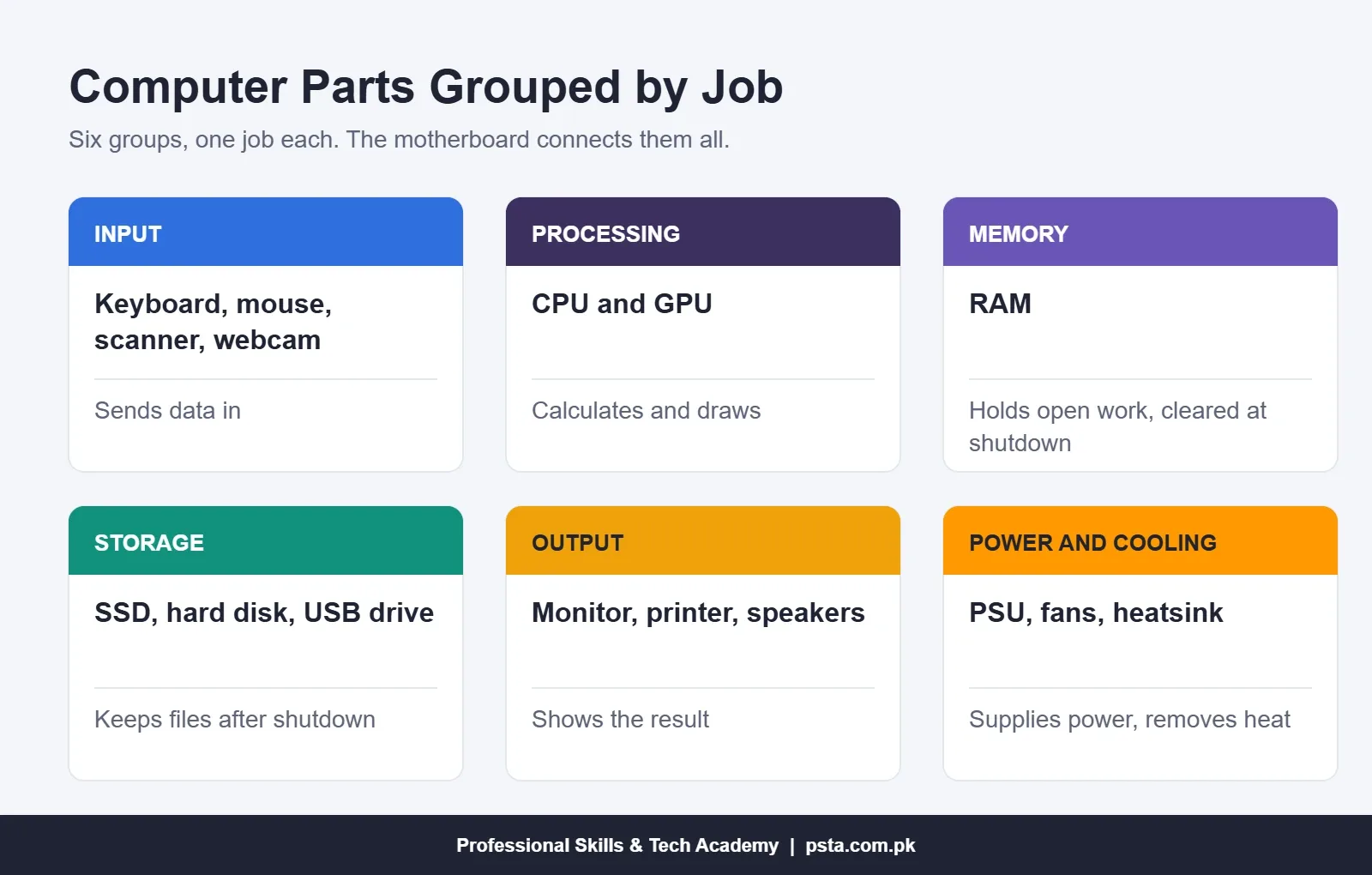
Here's the same grouping of the parts of a computer as a quick-reference table. Keep it open while you revise for a test.
| Group | Main Parts | Job in One Line | Lost If It Fails |
|---|---|---|---|
| Input | Keyboard, mouse, scanner, webcam, microphone | Sends your instructions and data into the computer | You can't control the machine or enter data |
| Processing | CPU, GPU | Carries out calculations and instructions | The computer won't start or display anything |
| Memory | RAM | Holds open programs and files while you work | The PC beeps or fails to boot |
| Storage | SSD, hard disk, USB flash drive | Keeps Windows, software and files after shutdown | Windows won't load, files may be lost |
| Output | Monitor, printer, speakers, projector | Shows or plays the result | The computer works but you can't see or hear it |
| Power and cooling | PSU, fans, heatsink | Supplies safe power and removes heat | Random shutdowns or no power at all |
The Motherboard: Where Every Part Plugs In
The motherboard is the large printed circuit board fixed to the inside of the case. Think of it as the road network of a city. It doesn't do the work itself, but nothing reaches anywhere without it.
On a typical desktop board you'll find these landmarks:
- CPU socket: the square seat that holds the processor, usually under a fan.
- RAM slots: two or four long, thin slots beside the socket.
- M.2 slot: a short slot that holds a stick-shaped NVMe SSD flat against the board.
- SATA ports: small L-shaped connectors for 2.5-inch SSDs, hard disks and DVD drives.
- PCIe slots: long slots for a graphics card, Wi-Fi card or extra ports.
- CMOS battery: a coin cell that keeps the date, time and firmware settings when the PC is unplugged.
The board also stores the firmware, the small program that checks your hardware and hands control to Windows. Modern boards use UEFI firmware, the newer replacement for the old BIOS. Exam papers still use the word BIOS, so learn both names.
A practical tip from the lab: if a PC in your office keeps showing the wrong date every morning, the CMOS battery is the first thing to check. It's cheap and takes two minutes to replace.
CPU Functions: The Part That Does the Thinking
The CPU, or central processing unit, reads instructions from programs and carries them out. When Excel adds a column of 500 fee payments, the CPU does the arithmetic. When you open Chrome, the CPU runs the instructions that start it.
Three terms appear on almost every spec sheet:
- Cores: separate processing units inside one chip. More cores let the computer handle more tasks at once, such as a video export running while you browse.
- Threads: streams of work each core can juggle. Many processors run two threads per core.
- Clock speed: measured in GHz, it tells you roughly how many cycles a core completes each second. Compare clock speeds only between processors of the same generation.
Inside the CPU, examiners like to ask about two units. The arithmetic logic unit (ALU) does math and comparisons. The control unit (CU) fetches each instruction and directs the other parts. Together with small, very fast memory called registers and cache, they make up the processor.
What Does the GPU Do?
The GPU, or graphics processing unit, draws everything you see on the screen. Office laptops use integrated graphics built into the CPU, which is enough for Word, Excel and web browsing. Video editors, 3D designers and gamers usually need a dedicated graphics card with its own memory. If you plan to learn Premiere Pro or AutoCAD seriously, this is the line on the spec sheet to read twice.
RAM vs Storage: Which One Makes a PC Faster?
This is the single most confused pair in computer fundamentals. Both are measured in gigabytes, and shopkeepers sometimes say "memory" for both. They do very different jobs.
RAM (random access memory) is the computer's working desk. Every program you open and every file you edit sits in RAM while you use it. It's extremely fast, but it's volatile: switch the power off and everything in it disappears. That's why unsaved work vanishes during load-shedding if your PC has no UPS.
Storage is the filing cabinet. Windows, your software, your photos and your saved assignments stay there for years, with or without power. When you press Ctrl+S, the file is copied from RAM to storage.
So which one makes a PC feel faster? Usually both, for different reasons. Too little RAM makes the computer slow down when you open many tabs or programs together. A slow hard disk makes everything slow to start, including Windows itself.
DDR4 and DDR5 RAM
You'll see DDR4 and DDR5 on most current spec sheets. According to AnandTech's report on the JEDEC DDR5 standard, DDR5 launched at DDR5-4800 speeds against DDR4's official top grade of DDR4-3200, and it runs at 1.1 volts instead of 1.2. The two types use different slots, so a DDR4 stick will not fit a DDR5 motherboard. Always check which type a board supports before buying an upgrade.
Storage Devices: Hard Disk, SATA SSD and NVMe SSD
Storage comes in three common forms, and the difference in speed is large enough that you'll feel it on day one.
- Hard disk drive (HDD): stores data on spinning magnetic platters. It's cheap per gigabyte and still useful for backups and CCTV recorders, but slow as a main drive.
- SATA SSD: uses flash chips with no moving parts and connects through the same SATA port as a hard disk. Replacing an old HDD with one is the most noticeable upgrade for an aging office PC.
- NVMe SSD: also flash-based, but it plugs into the M.2 slot and talks to the CPU over PCIe lanes, which makes it much faster again.
To give you a sense of scale, Samsung's launch announcement for its 990 PRO lists sequential reads of up to 7,450 MB/s over PCIe 4.0. In the company's own game-loading test, the same map loaded in about 1 second on that drive, about 4 seconds on a SATA SSD and about 28 seconds on a hard disk. Treat those as one manufacturer's figures, not a universal rule, but the gap is real.
USB flash drives and memory cards are storage too. They're removable, so many syllabuses call them secondary or portable storage.
Input and Output Devices: A Quick Glossary
Peripherals are the parts of a computer you plug in outside the case, and a simple test sorts them. If information travels from you into the machine, it's input. If it travels from the computer out to you, it's output.
Input Devices
- Keyboard: enters text, numbers and shortcut commands.
- Mouse or touchpad: moves the pointer and selects items.
- Scanner: turns paper documents, such as CNIC copies for an admission file, into digital images.
- Webcam and microphone: capture video and sound for online classes and interviews.
- Barcode reader: reads product codes at shop counters and pharmacies.
Output Devices
- Monitor: displays text, images and video. Size, resolution and panel type matter for designers.
- Printer: puts documents on paper. Laser printers suit offices with heavy printing; inkjets handle color photos.
- Speakers and headphones: play sound.
- Projector: shows the screen on a wall for classrooms and meetings.
Some devices do both jobs. A touchscreen takes your taps as input and shows the result as output. A multifunction printer scans (input) and prints (output). If a test asks you to classify one of these, say "both" and explain why.
What Happens Inside When You Press the Power Button?
Knowing the order in which the parts of a computer work together helps you diagnose faults and answer viva questions in your own words. Here's what happens from the power button to a saved file.
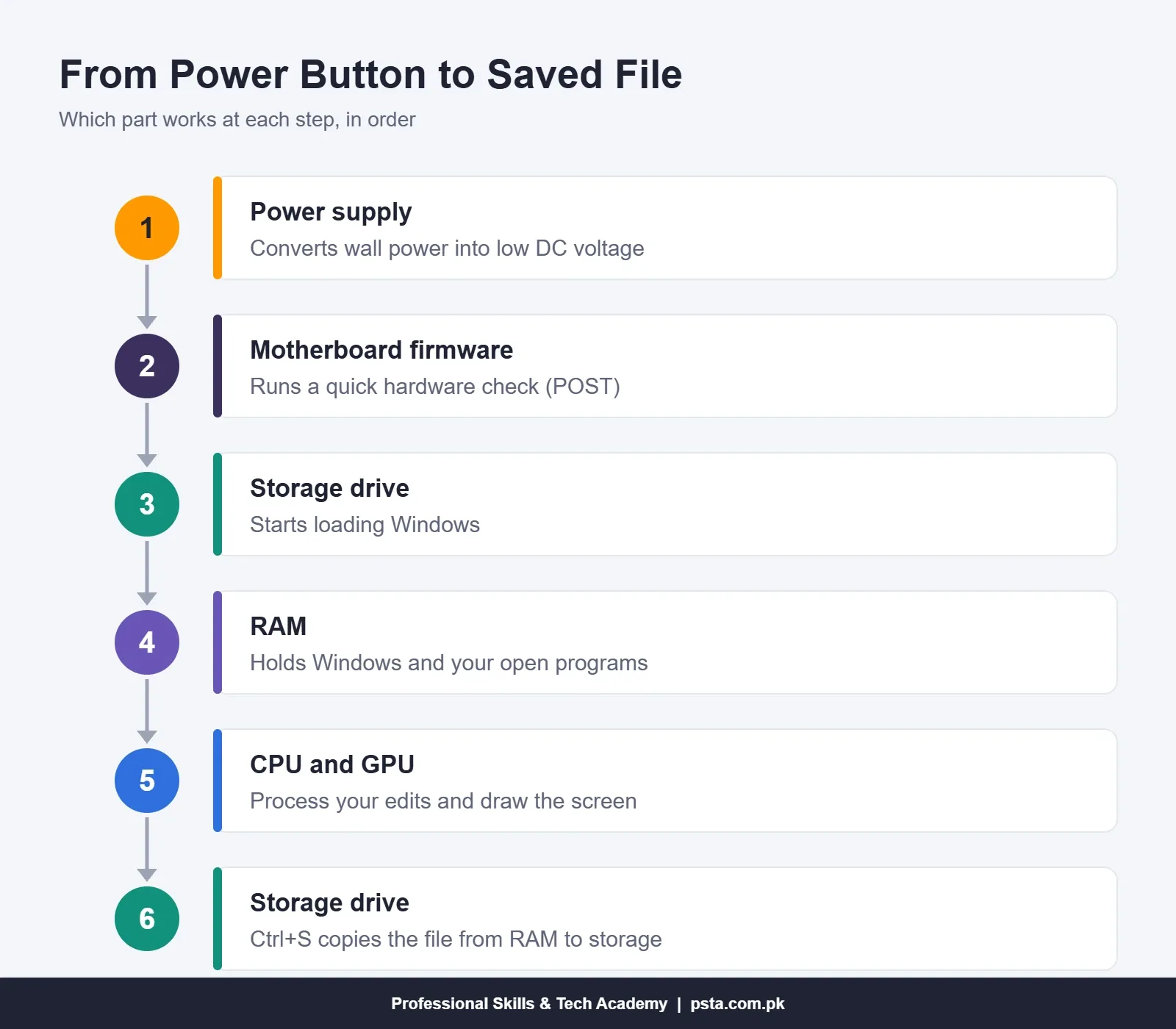
- The power supply converts wall electricity into the low DC voltages the components need.
- The firmware on the motherboard runs a quick hardware check, often called POST.
- The firmware finds the storage drive and starts loading Windows.
- Windows copies itself and your programs from storage into RAM.
- You open a file. The CPU processes your edits and the GPU draws them on the monitor.
- You press Ctrl+S, and the changes are written from RAM back to storage.
This sequence also tells you where to look when something goes wrong. No lights or fans at all point to power. Fans spinning with a black screen and beeps often point to RAM or graphics. A message saying no boot device was found points to storage.
Power Supply, Cooling and the Case
These are the parts of a computer most people ignore until they fail, and in Pakistan's heat and voltage swings they fail more often than students expect.
The power supply unit (PSU) sits at the top or bottom of the case. A weak or poor-quality unit causes random restarts, especially after you add a graphics card. Check its wattage before any upgrade.
The heatsink and fans pull heat away from the CPU and GPU. Dust blocks airflow, and a clogged heatsink makes a processor slow itself down to stay safe. Cleaning the fans before summer is a simple habit that keeps lab and office PCs stable.
The case, or chassis, holds everything and guides air from front to back. It also carries the front USB ports and audio jacks.
Outside the case, a UPS keeps the computer running for a few minutes during power cuts so you can save and shut down. It isn't a computer component in the textbook sense, but in most Pakistani homes and offices it's essential.
Ports and Connectors You'll Use Every Day
Ports are the sockets that connect external devices. These are the ones you'll meet most often:
- USB-A: the familiar rectangular port for flash drives, keyboards and mice.
- USB-C: the small, reversible oval port on newer laptops and phones. It can carry data, video and charging power, depending on the device.
- HDMI and DisplayPort: send video to monitors, TVs and projectors.
- VGA: the older blue video port still found on many office monitors and projectors.
- Ethernet (RJ-45): wired network connection to a router or switch.
- 3.5 mm audio jack: headphones and microphones.
USB speeds have been labeled in confusing ways over the years. The USB Implementers Forum has moved toward naming ports by speed. Its October 2022 announcement introduced USB 80Gbps through the USB4 Version 2.0 specification, alongside the existing 40Gbps and 20Gbps levels. For everyday work, the label printed beside the port matters more than the version name.
Does Your PC Meet Windows 11's Hardware Requirements?
This is where the glossary becomes useful in real life. Before installing Windows 11 on a lab or office machine, check the parts against Microsoft's list. The figures below come from Microsoft's Windows 11 system requirements page.
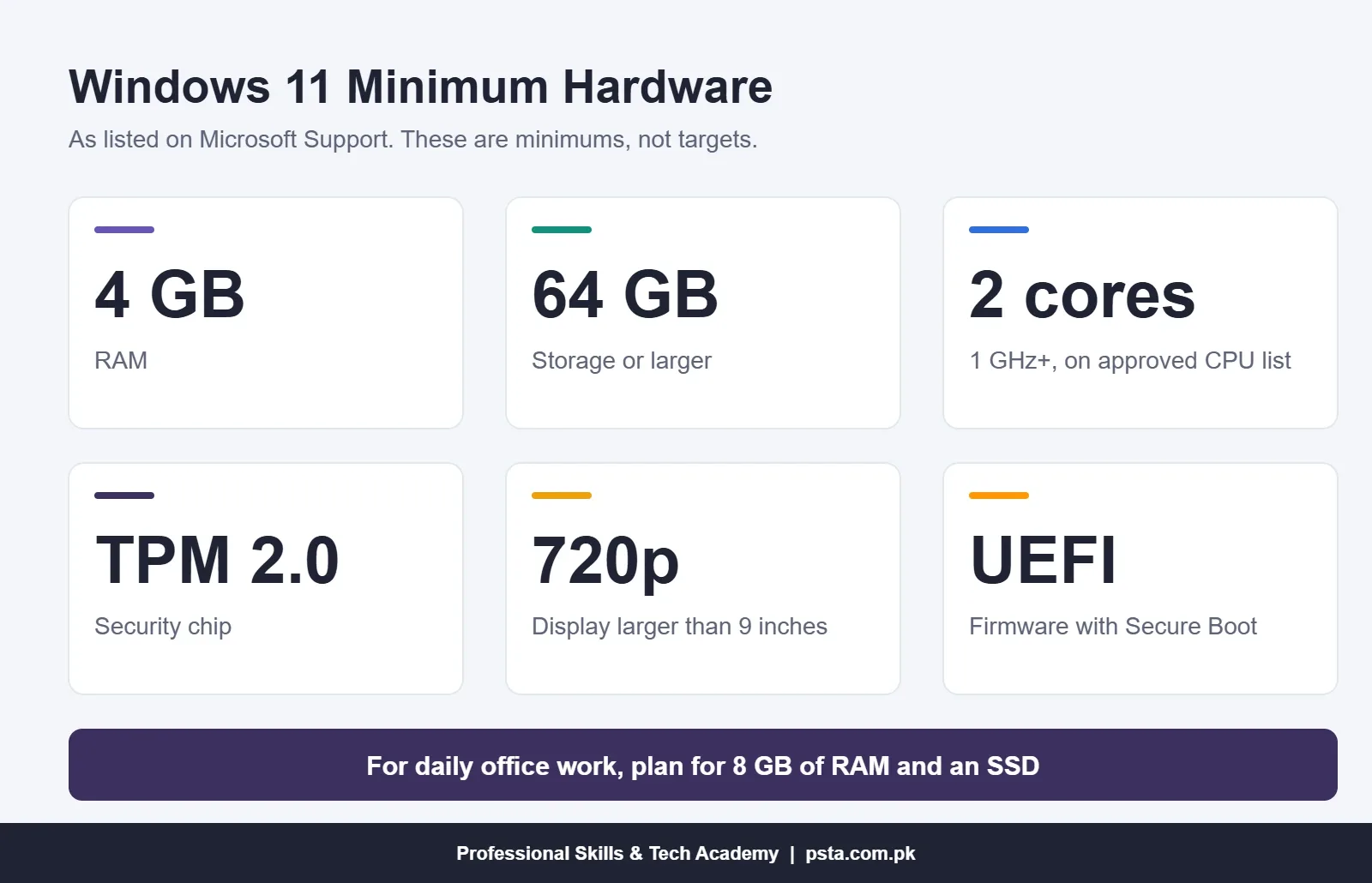
- Processor: 1 GHz or faster, 2 or more cores, and on Microsoft's approved CPU list.
- RAM: 4 GB.
- Storage: 64 GB or larger.
- Firmware: UEFI with Secure Boot capability.
- Security chip: TPM version 2.0.
- Graphics and display: DirectX 12 compatible, and a 720p screen larger than 9 inches.
These are minimums, not recommendations. A 4 GB machine will install Windows 11, but expect it to struggle once Chrome, Word and Excel are open together. For daily office work, plan for 8 GB of RAM and an SSD. If an older PC fails the check, look at the processor and TPM lines first before you promise anyone an upgrade.
Learning Computer Hardware in PSTA's DIT Program
Reading about the parts of a computer is a useful start. Opening a case, seating RAM correctly and installing Windows yourself is what makes the knowledge stick. That hands-on work is part of the Diploma in Information Technology (DIT) at PSTA.
According to the course page, the diploma runs for one year over two semesters and suits complete beginners. The first semester covers basic IT and communication tools, operating systems (installation, maintenance and tools), computer networking, Python basics and office automation. One of the listed projects is a fresh Windows installation on a lab PC from a bootable USB you prepare yourself, followed by driver setup.
The fee shown is Rs. 2,000 per month (regular Rs. 2,500), and you can study at the Mandian campus on Old College Road in Abbottabad, join live classes online, or mix both. If you only need office skills and a shorter course, the 12-week Office Automation course also begins with an introduction to computers and operating systems.
You can compare options on the full course list, read about jobs after DIT in Pakistan, or go through the admission page when you're ready. Not sure which class time suits your college hours? PSTA's WhatsApp line, +92 314 5424399, can talk you through the current slots.
Label the Parts of One Real Computer This Week
Pick any desktop at home, school or work. With the power cable unplugged, open the side panel and find six things: the motherboard, CPU cooler, RAM sticks, storage drive, power supply and CMOS battery. Write each name on a sticky note and say its job aloud.
Then open Settings, go to System and select About to see the processor and installed RAM. Match those lines to the parts you just found. Ten minutes of this beats an hour of memorizing definitions, and it prepares you for the hardware questions in the DIT viva and in computer operator tests.
Frequently asked questions
What are the main parts of a computer?
Most syllabuses name the CPU, motherboard, RAM, storage drive and power supply as the core components inside the case. Input devices such as the keyboard and mouse, and output devices such as the monitor and printer, connect from outside. Some exam papers group them as input, processing, storage and output instead, so match your answer to the wording of the question.
Is RAM an input or output device?
Neither. RAM is primary memory, a working area where the computer keeps programs and files while you use them. Input devices send data into the computer and output devices show results, but RAM sits inside the system between storage and the CPU. Because it loses its contents when the power goes off, it is also described as volatile memory.
Which part of a computer is called its brain?
The CPU, or central processing unit, is usually called the brain because it reads and carries out the instructions in every program. Inside it, the arithmetic logic unit handles calculations and comparisons, while the control unit fetches instructions and directs the other parts. The GPU helps by drawing images, but the CPU still controls the overall work.
Is a hard disk primary or secondary storage?
A hard disk is secondary storage. Primary memory means RAM, which the CPU uses directly while programs run. Secondary storage, which includes hard disks, SSDs, USB flash drives and memory cards, keeps data permanently even when the computer is switched off. Exam questions often test this exact difference, so remember that permanent storage is always secondary.
How can I check my computer's processor and RAM in Windows?
Open Settings, select System, then About. The Device specifications section shows the processor name and installed RAM. For more detail, press Ctrl+Shift+Esc to open Task Manager and select the Performance tab, which shows CPU cores, memory in use, and each storage drive. These two screens answer most spec questions without opening the case.
Can I upgrade the RAM in my laptop?
Sometimes. Many laptops have one or two removable RAM slots, but some thin models have memory soldered to the board, which cannot be upgraded. Check the manufacturer's manual or support page for your exact model, note whether it uses DDR4 or DDR5, and confirm the maximum supported amount before you buy a new stick.
What is the difference between hardware and software?
Hardware is every physical part you can touch, such as the CPU, RAM, keyboard and monitor. Software is the set of programs and instructions that tells the hardware what to do, such as Windows, MS Word and Chrome. Neither is useful alone: hardware needs software to run tasks, and software needs hardware to run on.
Sources & references
- Windows 11 System Requirements - Microsoft Support support.microsoft.com
- DDR5 Memory Specification Released - AnandTech anandtech.com
- Samsung Unveils High-Performance 990 PRO SSD - Samsung Newsroom news.samsung.com
- USB-IF Announces USB 80Gbps (USB4 Version 2.0) - USB Implementers Forum usb.org
Last reviewed & updated on by Umar Qureshi. Written by the PSTA team in Abbottabad, Pakistan.

Umar Qureshi

Diploma in Information Technology (DIT) – 1 Year Certified Program
Turn this guide into a career: hands-on training with real projects, online across Pakistan or on-campus in Abbottabad · 1 Year.


Comments
No comments yet — ask a question or share your experience.