
Quick answer
Power Query is the data-cleaning tool built into Excel 2016 and later for Windows, Microsoft 365 and Power BI. You connect to a file, clean it in the editor, and each click is saved as a step. When new data arrives, you press Refresh and the same cleaning runs again.
Key takeaways
- • Power Query is on the Data tab in Excel 2016 and later for Windows and in every Microsoft 365 plan.
- • Each click is saved as an Applied Step, so next month's file is cleaned with one Refresh.
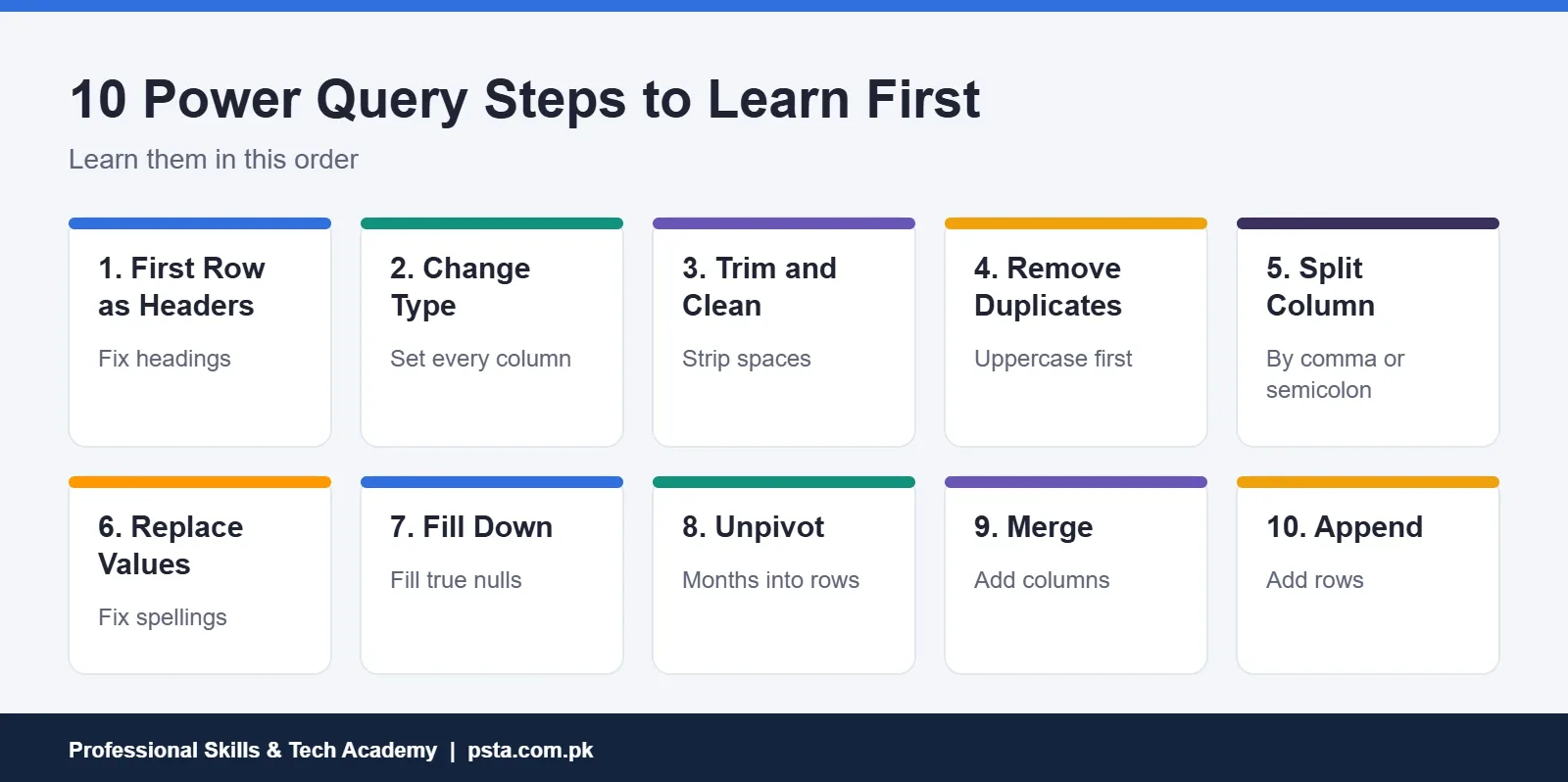
- • Ten steps cover most office cleaning: headers, types, trim, duplicates, split, replace, fill, unpivot, merge and append.
- • Day-first Pakistani dates need Change Type > Using Locale, or the workbook's Regional Settings.
- • Merge adds columns from a matching table; Append stacks tables to add rows.
Table of contents 22 sections
- What Is Power Query, in Plain Terms?
- Where Can You Find Power Query in Excel and Power BI?
- How Does a Query Work From Source to Sheet?
- Power Query for Beginners: The 10 Steps You'll Use Most
- 1. Use First Row as Headers
- 2. Change Type
- 3. Trim and Clean
- 4. Remove Duplicates
- 5. Split Column by Delimiter
- 6. Replace Values
- 7. Fill Down
- 8. Unpivot Columns
- 9. Merge Queries
- 10. Append Queries
- Why Do Dates Break in Pakistani Files?
- Merge or Append: Which One Do You Need?
- Combining a Folder of Monthly Files
- Do You Need to Learn the M Language?
- Mistakes That Break a Query on Refresh
- Where Power Query Saves Time in Office Work
- Practicing Power Query in PSTA's Power BI Course
- Clean One Real File This Week
Power Query for beginners comes down to one idea: you clean a messy file once and Power Query records every click as a step. Next month, you press Refresh instead of doing the work again. Microsoft's own Power Query overview says the tool offers over 350 types of data transformations. You'll use about ten of them for most office and analyst work.
This guide explains those ten in plain language, using the kind of files you actually meet at work in Pakistan: bank statement exports, branch-wise sales sheets and fee records with dates typed every possible way.
By the end, you'll be able to answer:
- What Power Query is, and how it differs from Excel formulas
- Where to find it in your version of Excel or Power BI
- Which ten steps handle most cleaning jobs, and when to use each
- Why dates break on Pakistani files and how to fix them for good
- What to avoid so a query keeps working when the data changes
What Is Power Query, in Plain Terms?
Power Query is a data preparation engine built into Excel and Power BI. You connect to a source, such as a CSV file or a folder of workbooks, and shape it in the Power Query Editor. Each change you make (removing a column, fixing a type, filtering rows) is saved in a list called Applied Steps.
Two points matter most for a beginner. First, Power Query never edits your source file. It reads the file, applies the steps and loads a clean copy into a sheet or a data model. Second, the steps repeat. When next month's file arrives with the same layout, you replace it and click Refresh. The same cleaning runs in seconds.
That's the real difference from formulas. If you've ever tried to clean data in Excel with helper columns and TRIM formulas, you know each fix lives in one cell. A query fixes the whole table before it ever reaches the sheet, and it remembers how.
Where Can You Find Power Query in Excel and Power BI?
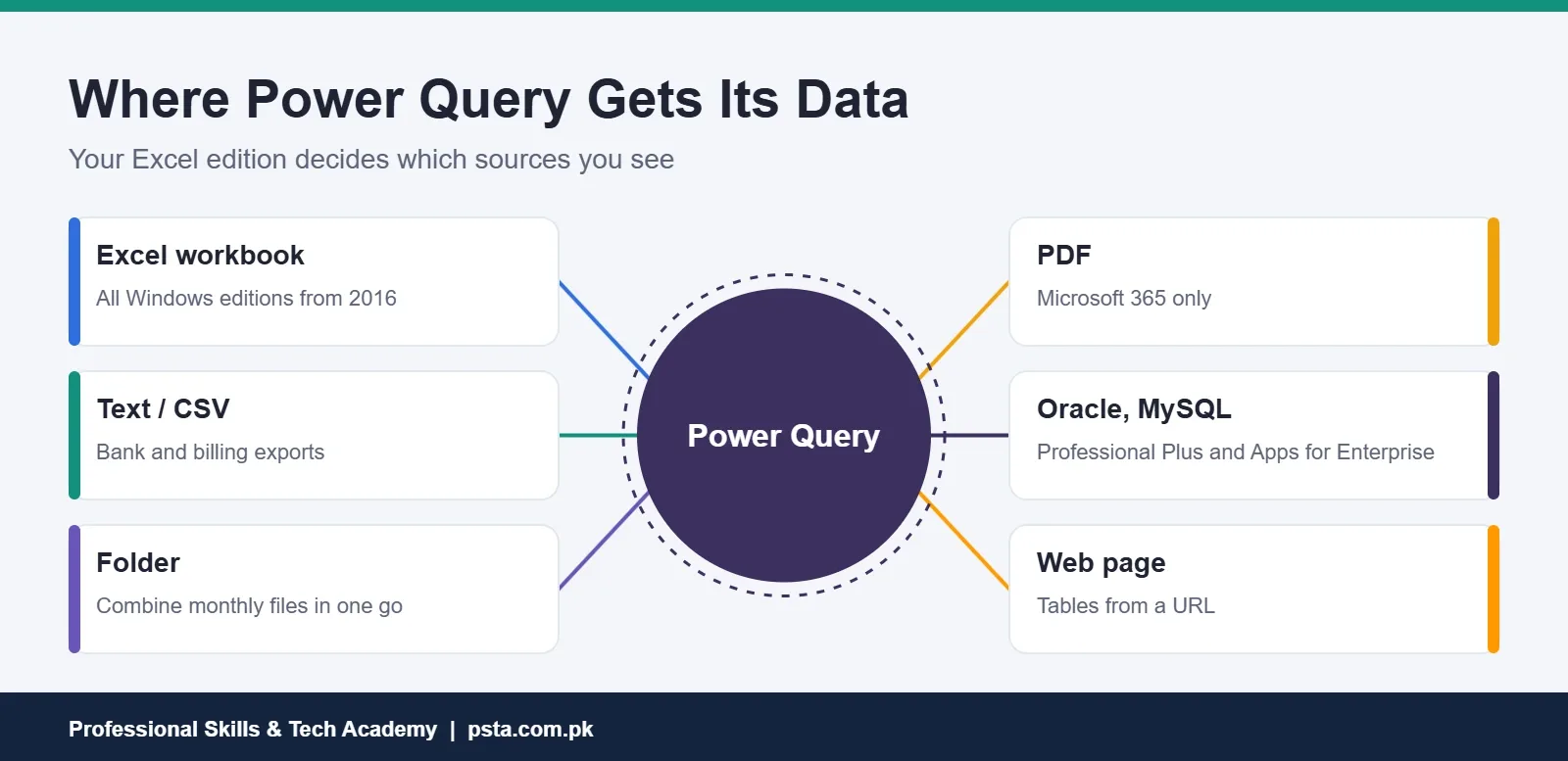
To find Power Query in Excel for Windows, open the Data tab and look for the Get & Transform Data group. Microsoft's page on Power Query data sources in Excel versions confirms it's in every standalone Windows version from Excel 2016 onward. It's also in all Microsoft 365 plans. In Power BI Desktop, the same editor opens when you select Transform data.
Your version decides which sources you can connect to. This matters if you work on an older office PC.
| Excel version | Power Query? | Points to know |
|---|---|---|
| Microsoft 365 (Windows) | Yes, full feature set | Only edition with the PDF connector and fuzzy merge |
| Excel 2019 (Windows) | Yes | JSON connector included; no fuzzy merge |
| Excel 2016 (Windows) | Yes | Core connectors only, no JSON |
| Excel for Mac (Microsoft 365) | Yes, via Get Data | Fewer sources; some refresh only |
| Excel for Android or iPhone | No | Open the file on a computer instead |
One more detail from the same Microsoft page: database connectors such as Oracle, MySQL and PostgreSQL ship with Professional Plus and Microsoft 365 Apps for Enterprise, not with the Home or Business editions. If your office laptop can't see the Oracle option, the license is the likely reason, not your settings.
How Does a Query Work From Source to Sheet?
Every query follows the same three stages. Picture them as a short pipeline:
- Get data. Pick the source: a workbook, a CSV, a whole folder, a web page or a database.
- Transform. Clean and reshape in the Power Query Editor. Each action adds a step to Applied Steps on the right.
- Load. Choose Close & Load to send the result to a worksheet table, a PivotTable or the data model.
You can click any step in Applied Steps to see the table as it looked at that point. If a step is wrong, delete it with the small cross next to its name, and every later step reruns on the corrected data. This makes Power Query forgiving. You're never more than one click away from undoing a mistake, even an old one.
Power Query for Beginners: The 10 Steps You'll Use Most
Out of hundreds of options, these ten handle most everyday cleaning jobs in office files. Learn them in this order.
1. Use First Row as Headers
Exports from banking portals and billing software often bring headings in as the first data row. On the Home tab, select Use First Row as Headers. If there are junk lines above the real headings, use Remove Rows > Remove Top Rows first.
2. Change Type
Power Query guesses column types, and it guesses wrong more often than you'd like. Set each column yourself: Whole Number for quantities, Decimal Number for amounts, Date for dates and Text for codes like CNIC-style IDs or roll numbers with leading zeros.
3. Trim and Clean
Under Transform > Format, Trim removes extra spaces at the start and end of text, and Clean removes non-printing characters. Run both on name and city columns before any matching. "Abbottabad " with a trailing space won't match "Abbottabad".
4. Remove Duplicates
Select the column or columns that define a unique record, then choose Remove Rows > Remove Duplicates on the Home tab. Microsoft's duplicates guide warns that Power Query is case-sensitive, so "Ali Traders" and "ALI TRADERS" survive as two rows. Convert the column to uppercase first.
5. Split Column by Delimiter
When one cell holds "Ahmed Khan, Mansehra", split it by comma into two columns. The Advanced options also let you split into rows, which helps when a cell lists several items separated by semicolons.
6. Replace Values
Fix spelling variations ("Isb", "Islamabad", "ISLAMABAD") or swap a placeholder like "N/A" for a blank. Right-click the column and pick Replace Values. Each replacement becomes its own step, so you can see exactly what changed.
7. Fill Down
Reports printed for humans often show a branch or date once, then leave the rows below empty. Transform > Fill > Down copies the value into the empty cells beneath it. It only fills true nulls. If cells look empty but hold blank text, replace the blank with null first.
8. Unpivot Columns
A sheet with one column per month (Jan, Feb, Mar and so on) looks tidy but is hard to analyze. Unpivot turns those month columns into two: Attribute (the month) and Value (the amount). Select the columns you want to keep, such as Branch, and choose Unpivot Other Columns. Microsoft's unpivot guide notes this option also picks up new month columns on refresh.
9. Merge Queries
Merge brings columns from a second table into the first, based on a matching column. It's the Power Query version of XLOOKUP, but it works on whole tables. More on this below.
10. Append Queries
Append stacks tables on top of each other, such as January's sales under December's. Columns are matched by name, not position.
Why Do Dates Break in Pakistani Files?
Dates cause more broken queries than anything else. Most offices in Pakistan write dates day first, as in 05/03/2026 for 5 March. If your Windows region is set to United States, Power Query reads the same text as May 3. Dates after the 12th of the month then fail completely and show as errors.
Microsoft's help on setting a locale in Power Query explains the rule: by default, Power Query uses your operating system's locale. You have two fixes:
- For one column: right-click the date column, choose Change Type > Using Locale, set the type to Date and pick a day-first locale such as English (United Kingdom).
- For the whole workbook: go to Data > Get Data > Query Options > Regional Settings under Current Workbook and set the locale there.
If both are set, the column-level locale wins. We suggest the column fix for shared files, because it travels with the query and doesn't depend on anyone's PC settings.
Merge or Append: Which One Do You Need?
Beginners mix these two up because both live in the Combine group on the Home tab. The quick test: if you want more columns, merge. If you want more rows, append.
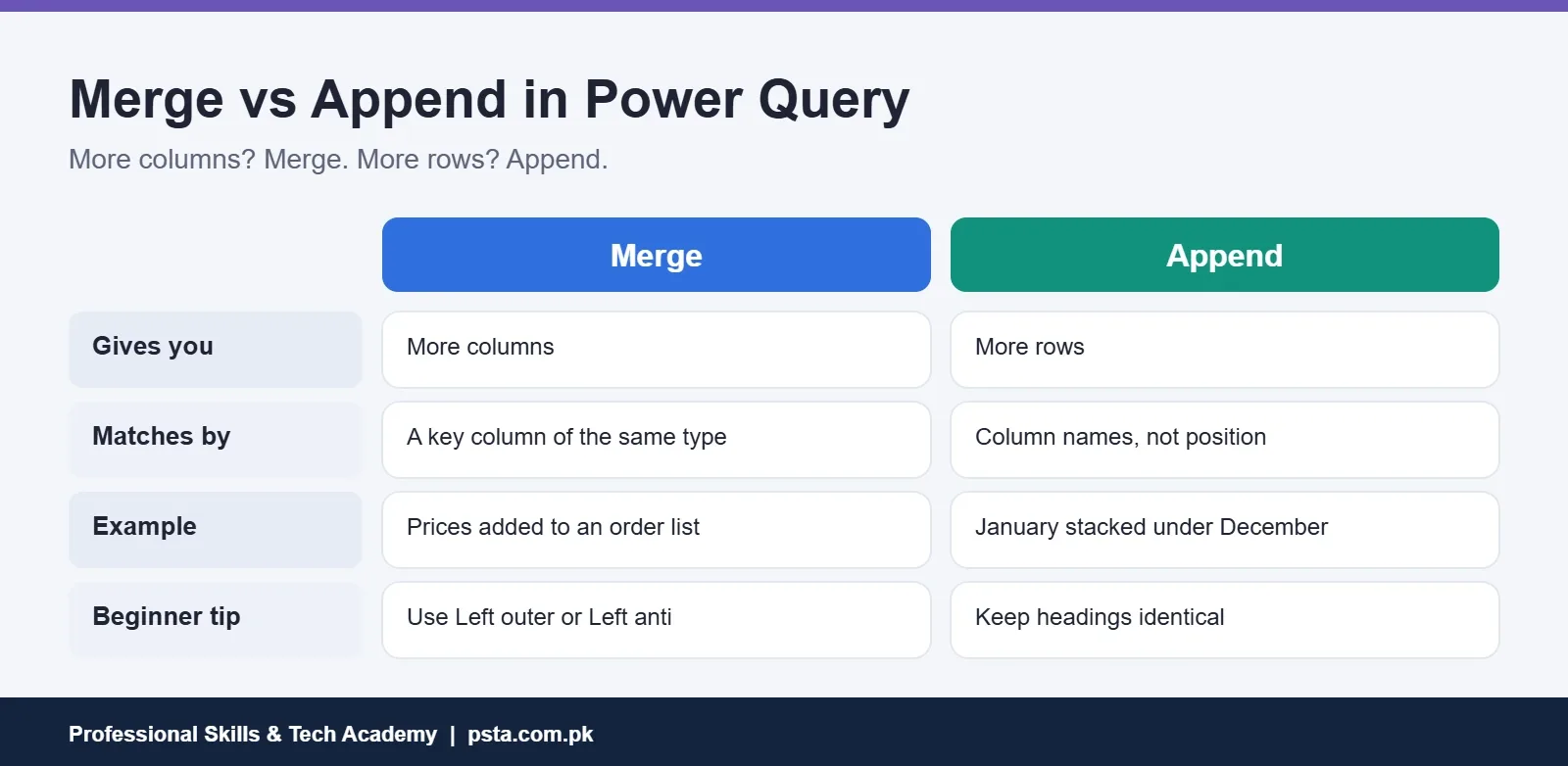
The merge queries overview lists six join kinds. You'll use two of them for most beginner work:
- Left outer keeps every row from your main table and adds matching details where they exist. Use it to add product prices to an order list.
- Left anti keeps only rows with no match. Use it to find students who appear in the admission list but not in the fee list.
The matching columns must have the same data type, so set types before you merge. A text "105" won't match a number 105.
Combining a Folder of Monthly Files
Here's a realistic example. A distributor in Peshawar receives one CSV per branch each month, and someone copies them into a master sheet by hand. With Power Query, you put all the files in one folder. Then choose Get Data > From File > From Folder, and select Combine & Transform Data.
Power Query then builds a helper query called Transform Sample File. Clean that sample once, and the same steps apply to every file in the folder, as Microsoft's combine files overview describes. Next month, drop the new CSVs in the folder and refresh.
The catch is structure. Every file needs the same columns with the same headings. If one branch renames "Qty" to "Quantity", that file's quantities land in a separate column or break a later step. Agree on a fixed template with whoever sends the files.
Do You Need to Learn the M Language?
Not at the start. If you're following a Power Query for beginners plan, leave M until the menus feel easy. Every click you make writes a line of M, Power Query's formula language, behind the scenes. You can see it in View > Advanced Editor, but you can do months of useful work without typing any of it.
M becomes worth learning when you need a custom column the menus can't build. It also helps when you tidy a query someone else wrote. A sensible path is to open the Advanced Editor after each practice session and read what your clicks produced. You'll pick up the patterns without forcing it.
Mistakes That Break a Query on Refresh
A query that works today and fails next month usually has one of these problems:
- Renaming source headings. Steps refer to columns by name. If the sender changes a heading, the step fails.
- Removing columns instead of choosing columns. "Remove Columns" names the columns it drops. "Choose Columns" names the ones it keeps, which is safer when new columns appear.
- Filtering on a typed value that changes. A filter on "October" will quietly return nothing in November.
- Moving the source file. If the path changes, update it in the Source step instead of rebuilding the query.
- Skipping Change Type. Letting Power Query guess types leads to text amounts that won't sum.
Where Power Query Saves Time in Office Work
Here are common office tasks where Power Query fits well. Treat them as examples, not promises about any specific job:
- Accounts: cleaning bank statement CSVs before reconciliation, with dates fixed through locale.
- Sales: combining branch or salesperson files into one table for a monthly PivotTable.
- Schools and academies: matching admission lists against fee records with a left anti merge to find unpaid students.
- Online sellers: tidying order exports, splitting customer address and city, and counting orders by city.
If you already know Excel well, Power Query is the natural next skill. If you're heading toward data analysis, it's the first half of Power BI. Our Power BI vs Excel comparison explains how the two fit together. After cleaning comes modeling, which our DAX for beginners guide covers.
Practicing Power Query in PSTA's Power BI Course
Power Query has its own module, Advanced Data Transformation with Power Query, in PSTA's Power BI Course: Data Analytics & Dashboards. The course runs for 8 weeks at beginner level. After Power Query, it moves on to data modeling, DAX, dashboards and publishing through the Power BI Service, with business case projects along the way. The current fee listed on the course page is Rs. 32,000.
Classes run at the Abbottabad campus, online for students in other cities, or as a hybrid of the two. If your Excel basics are still shaky, the Office Automation course is a gentler first step. You can compare all options on the courses page, and when you're ready, the online admission form takes a few minutes. For batch timings, message us on WhatsApp at +92 314 5424399.
Clean One Real File This Week
Pick one file you already clean by hand every month. Load it through Data > From Table/Range or From Text/CSV, apply headers, types, trim and remove duplicates, then load it back. Next month, swap in the new file and press Refresh. This one exercise covers the core of Power Query for beginners. Seeing a monthly chore finish in seconds will teach you more than any list of features.
Frequently asked questions
Do I have to buy Power Query separately?
No. Power Query is built into every standalone Windows version of Excel from 2016 onward and into all Microsoft 365 plans, where it appears as Get & Transform Data on the Data tab. Power BI Desktop uses the same editor under Transform data. Which data sources you can connect to depends on your edition, so check the connector list if one seems to be missing.
Does Power Query change my original Excel or CSV file?
No. Power Query reads the source, applies your steps and loads a cleaned copy into a sheet, a PivotTable or the data model. The original file stays exactly as it was. That's why you can safely delete or edit steps while learning, and why the same query can process a fresh copy of the file next month.
Can I use Power Query on a Mac?
Yes, in Excel for Microsoft 365 on Mac, through the Get Data command on the Data tab. The Mac version supports fewer sources than Windows. Text and CSV, Excel workbooks, XML, JSON and SharePoint lists can be imported, while some sources, such as SQL Server and local folders, support refresh only. Power Query isn't available in Excel for Android or iPhone.
Why do my dates turn into errors in Power Query?
Usually the file writes dates day first, like 25/10/2026, while Power Query reads them using your computer's region, which may be set to United States. Fix it by right-clicking the column, choosing Change Type, then Using Locale, and picking a day-first locale such as English (United Kingdom). You can also set the locale for the whole workbook under Query Options.
Why does Remove Duplicates leave some duplicates behind?
Power Query compares text case-sensitively, so entries like Ali Traders and ALI TRADERS count as different values. Extra spaces cause the same problem. Before removing duplicates, run Trim and Clean on the column and convert it to uppercase or lowercase. Then select the column, or the set of columns that defines a unique record, and remove duplicates.
How long does it take to learn the basics of Power Query?
It depends on practice more than talent. If you use the ten core steps on real files a few times a week, they usually start to feel natural within a few weeks. Combining folders, merges and the M language take longer. Practicing on a file you already clean by hand every month is the quickest way to make the steps stick.
Can Power Query read data from a PDF?
Only in Excel for Microsoft 365 on Windows, according to Microsoft's list of data sources by Excel version. The PDF connector isn't part of Excel 2016 or 2019. If your office uses an older version, ask the sender for the data in Excel or CSV format, or export it from the source system instead of copying it out of a PDF.
Sources & references
- What is Power Query? (Microsoft Learn) learn.microsoft.com
- Power Query data sources in Excel versions (Microsoft Support) support.microsoft.com
- Merge queries overview (Microsoft Learn) learn.microsoft.com
- Unpivot columns (Microsoft Learn) learn.microsoft.com
- Combine files overview (Microsoft Learn) learn.microsoft.com
- Working with duplicate values (Microsoft Learn) learn.microsoft.com
- Set a locale or region for data in Power Query (Microsoft Support) support.office.com
Last reviewed & updated on by Umar Qureshi. Written by the PSTA team in Abbottabad, Pakistan.

Umar Qureshi

Power BI Course: Data Analytics & Dashboards
Turn this guide into a career: hands-on training with real projects, online across Pakistan or on-campus in Abbottabad · 8 Weeks.



Comments
No comments yet — ask a question or share your experience.