
Quick answer
Mail merge in Word turns one letter and one Excel sheet into a personalized copy for every row. Put column names in row 1, then use the Mailings tab: Start Mail Merge, Select Recipients, Insert Merge Field, Preview Results and Finish & Merge. Fix rupee amounts and dates with field switches.
Key takeaways
- • Clean the Excel sheet first: column names in row 1, one row per record, no blank rows, file saved and closed.
- • Format roll numbers and other codes with leading zeros as Text, or the zeros disappear in the merge.
- • Excel formatting doesn't carry over; add \# and \@ switches to merge fields in Word for amounts and dates.
- • Rules such as If...Then...Else and Skip Record If let one template handle arrears and paid families.
- • Email merge needs an email program like Outlook and can't send attachments, CC or BCC.
Table of contents 14 sections
- What Is Mail Merge in Word, and When Is It Worth Using?
- The Example: Fee Reminders for a 240-Student School
- Prepare the Excel Sheet Before You Open Word
- Mail Merge in Word: The Step-by-Step Walkthrough
- Why Do Fees and Dates Look Wrong After the Merge?
- How Do You Add a Line Only for Families With Arrears?
- If...Then...Else for the Arrears Sentence
- Skip Record If for Families Who Have Paid
- Sending the Same Merge by Email
- Labels, Envelopes and Class Lists From the Same Sheet
- Mistakes That Waste a Ream of Paper
- Where Will You Use Mail Merge at Work?
- Practicing Mail Merge in PSTA's Office Automation Course
- Try It With Five Rows Tonight
Can Word really print 240 fee reminders from one Excel sheet, with every name, class and amount correct, without anyone retyping a single line? Yes. That is the whole job of mail merge in Word, and once your sheet is tidy, the merge itself is a few minutes of clicking on one tab.
Students in our office classes usually meet this feature when a boss hands them a long list and a short deadline. The clicks aren't the hard part. What catches people out are small things: rupee amounts that lose their commas, dates in the wrong order, roll numbers that drop a zero. This guide follows one realistic job from the first cell to the last printed page, so you see those problems before they cost you a ream of paper.
In this walkthrough, you'll learn:
- How to set up an Excel sheet that Word reads correctly the first time
- The eight Mailings tab steps for letters, in order
- The field switches that fix rupee amounts, dates and capital letters
- How to print an arrears line only for families who owe older dues
- When to send by email instead, and what Word can't attach
What Is Mail Merge in Word, and When Is It Worth Using?
Mail merge joins two files. The main document holds the text that stays the same for everyone: letterhead, body, signature. The data source holds what changes from person to person: names, classes, amounts, dates. You place merge fields in the main document as placeholders, and Word produces one finished copy for every row of data.
According to Microsoft's mail merge overview, you can merge into letters, email messages, envelopes, labels or a directory (one long list built from all records). The data can come from an Excel sheet, your Outlook contacts, another database Word can connect to, or a list you type during the merge.
My rule of thumb in class: if the same document goes to more than about 15 people and only a few details change, merge it. For five letters, copying and editing by hand is often quicker. For 50 or 500, there's no contest.
The Example: Fee Reminders for a 240-Student School
To keep this practical, we'll follow one made-up but very typical job. A private school in Abbottabad has 240 students. The accounts clerk keeps fee records in Excel and needs a printed reminder for every family that hasn't paid November's fee. Families with older unpaid dues should get one extra sentence about them.
Here is the sheet the clerk works from. Every column has a clear job in the letter.
| Column | Sample value | Used for |
|---|---|---|
| StudentName | Hamza Ali | Name in the letter body |
| FatherName | Ali Raza | Greeting line ("Dear Mr. Ali Raza") |
| Class | 7-B | Identifies the student |
| RollNo | 0412 | Reference number (the leading zero matters) |
| Fee | 4500 | Amount due this month |
| Arrears | 2000 or 0 | Extra sentence only when above zero |
| DueDate | 10 November 2026 | Last date to pay |
| Paid | Yes or No | Leaves out families who already paid |
| ParentEmail | [email protected] | The email version of the reminder |
Notice that the father's name sits in its own column. Microsoft suggests naming columns to match the fields you'll need and keeping parts of a name separate, so you can write "Dear Mr. Raza" later without editing 240 cells.
Prepare the Excel Sheet Before You Open Word
When a mail merge from Excel goes wrong, the spreadsheet is usually the cause. Between Microsoft's guide to mail merge using an Excel spreadsheet and its page on preparing the Excel data source, the checklist is short:
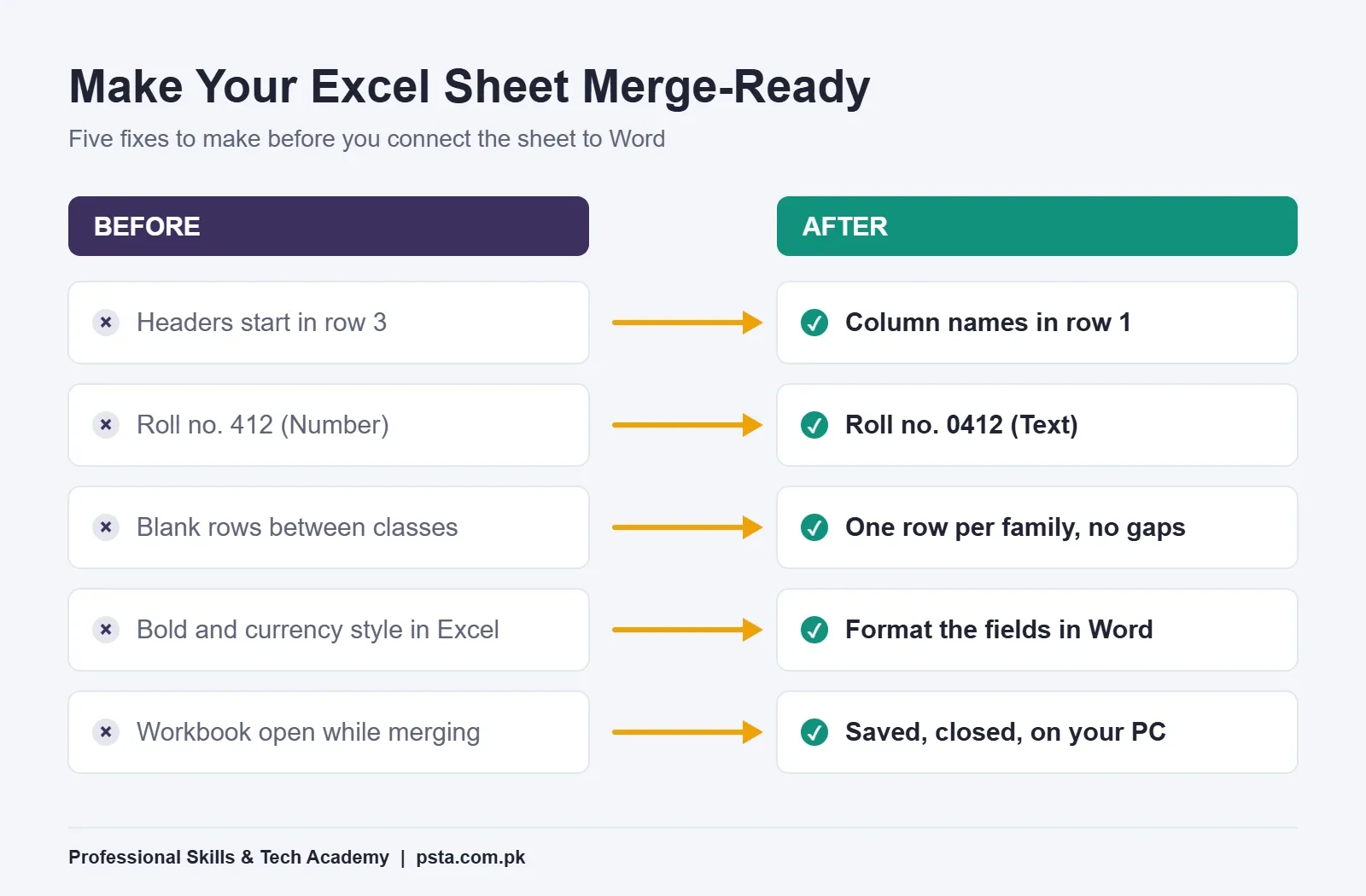
- Column names go in row 1. Each name should be unique. I'd also avoid spaces in them, because "DueDate" is easier to spot in a field code than "Due Date".
- One row per family, no blank rows. Microsoft's checklist asks for no blank rows, so delete any gaps you left between classes.
- Keep the list on the first sheet of the workbook.
- Save the file on your own computer. Microsoft says to keep the Excel file on the local machine.
- Finish your edits first. Make every change, save, and close the workbook before you connect it to Word.
- Format codes with leading zeros as Text. Microsoft's example is postal codes: unless the column is text, a code like 00399 loses its zeros in the merge. Roll numbers and employee codes behave the same way.
- Be careful with percentages. Percentage formatting multiplies the stored value by 100. If a column of marks percentages arrives wrong, format that column as text.
One more habit saves a lot of confusion. Microsoft's classic Excel-to-Word article explains that formatting you apply in the data source isn't kept in the merge. Bold text, colored cells and currency styles in Excel don't travel. You format the fields in Word instead, which we'll do shortly.
Mail Merge in Word: The Step-by-Step Walkthrough
Open your school letterhead or a blank document and work through the Mailings tab from left to right. These steps match Word for Microsoft 365, Word 2024, 2021, 2019 and 2016.
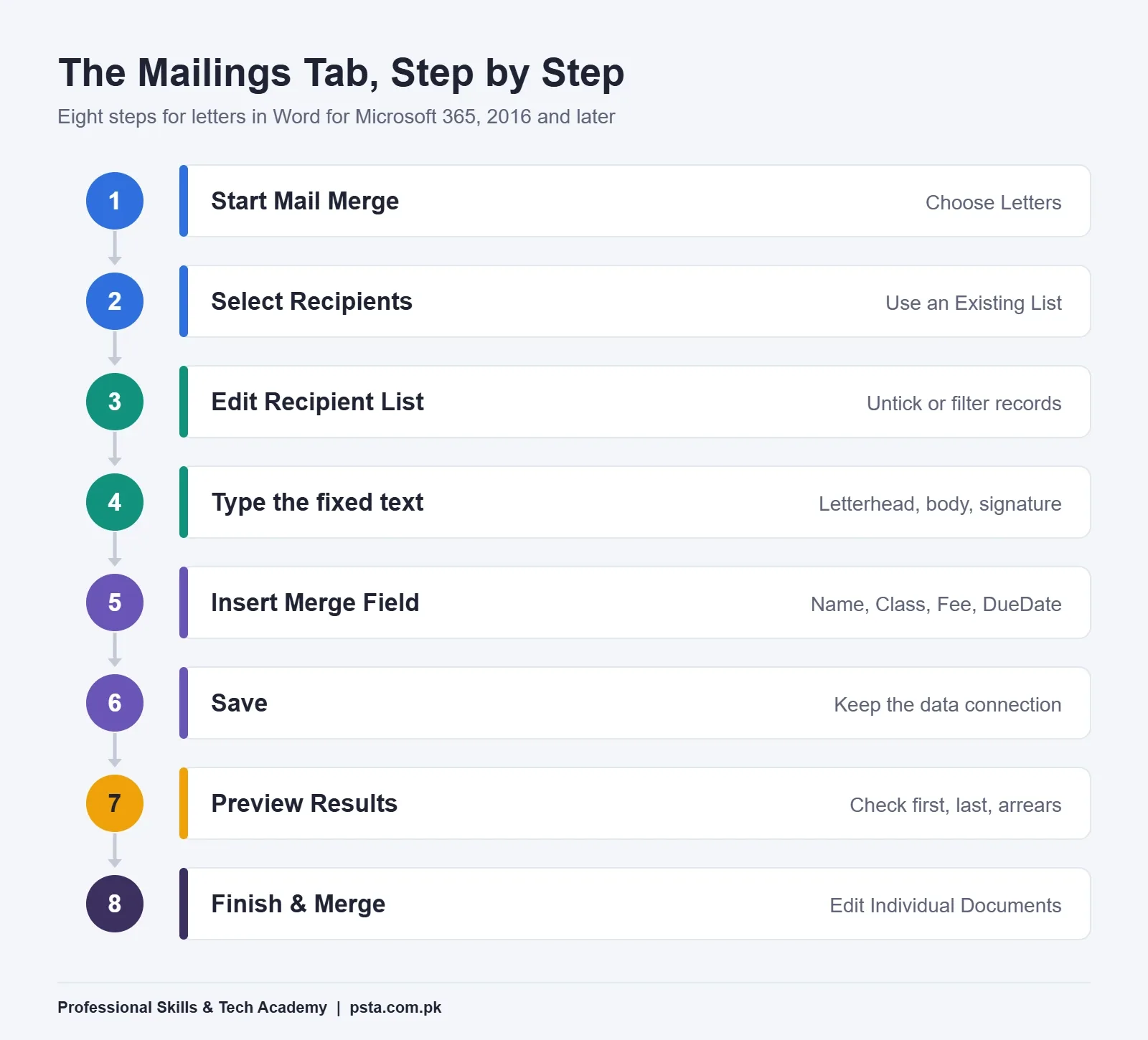
- Start the merge. Go to Mailings, then Start Mail Merge, then Letters.
- Connect the sheet. Choose Select Recipients, then Use an Existing List. Browse to the workbook and pick the sheet that holds your list.
- Filter the list. Choose Edit Recipient List. In the Mail Merge Recipients box, clear the tick for anyone who shouldn't get a letter, or use the column filter and sort to find names faster.
- Type the fixed text. Write the letter as you normally would, leaving gaps where the student's details will go.
- Insert merge fields. Put the cursor in each gap and choose Insert Merge Field, then StudentName, Class, Fee and so on. Address Block and Greeting Line are ready-made blocks; for a short school letter, single fields usually look cleaner.
- Save the main document. Use File, then Save, before you go further.
- Preview the results. Click Preview Results and step through with the Next and Previous arrows. Check the first record, the last one and anyone with arrears.
- Finish and merge. Choose Finish & Merge. Edit Individual Documents builds one new file with every letter so you can scan it before printing. Print Documents sends the letters straight to the printer. Both let you pick all records, the current one, or a range.
When you reopen the saved letter next month, Word asks whether to keep the connection to the data source. Choose Yes, update the Excel sheet, and the same template works again with new figures.
Why Do Fees and Dates Look Wrong After the Merge?
Your preview shows "4500" instead of "4,500", or a date in an order you didn't choose. Word reads the value Excel stores, not the format you see on screen. Microsoft's article on dates and currency that merge incorrectly gives the fix: add a picture switch to the merge field itself.
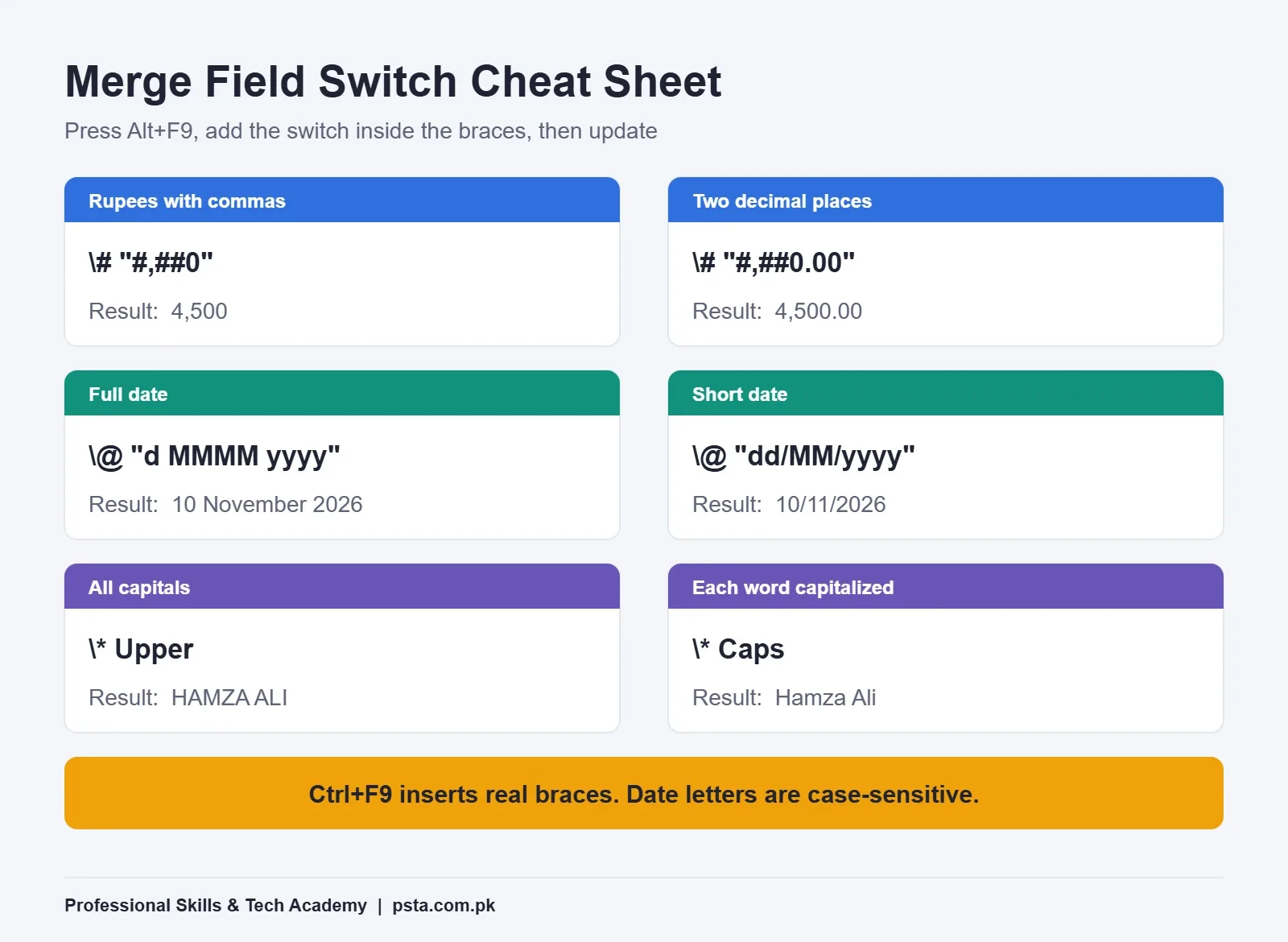
- Click inside the field and press Alt+F9 to show field codes. You'll see something like
{ MERGEFIELD Fee }. - Type the switch just before the closing brace.
- Press Alt+F9 again to hide the codes, then press F9 on the field to update it, and check the preview.
| What you want | Field code | Result |
|---|---|---|
| Rupees with commas | { MERGEFIELD Fee \# "#,##0" } |
4,500 (type "Rs. " before the field) |
| Two decimal places | { MERGEFIELD Fee \# "#,##0.00" } |
4,500.00 |
| Full date | { MERGEFIELD DueDate \@ "d MMMM yyyy" } |
10 November 2026 |
| Short date | { MERGEFIELD DueDate \@ "dd/MM/yyyy" } |
10/11/2026 |
| Name in capitals | { MERGEFIELD StudentName \* Upper } |
HAMZA ALI |
| First letter of each word capital | { MERGEFIELD StudentName \* Caps } |
Hamza Ali |
Two cautions. Microsoft notes that the date picture switch is case-sensitive and needs quotation marks, so "MMMM" gives the month name while lowercase letters mean something else. And don't type the curly braces from your keyboard. Microsoft's guide to inserting and viewing fields says to press Ctrl+F9, which inserts real field braces, and then type the code between them. The \* Upper and \* Caps switches come from Microsoft's page on formatting field results.
How Do You Add a Line Only for Families With Arrears?
This is where mail merge stops being a copy machine and starts making decisions. Under Mailings, the Rules button holds nine options. Microsoft lists them as Ask, Fill-in, If...Then...Else, Merge Record #, Merge Sequence #, Next Record, Next Record If, Set Bookmark and Skip Record If. Our fee letter needs two of them.
If...Then...Else for the Arrears Sentence
Place the cursor where the extra sentence belongs. Choose Rules, then If...Then...Else. Set the field to Arrears, the comparison to Greater than, and the value to 0. In the first box, type "Please also clear your previous dues." Leave the second box empty. Families with no arrears simply won't see the sentence.
Behind the dialog box, Word writes an IF field like this:
{ IF { MERGEFIELD Arrears } > 0 "Please also clear your previous dues." "" }
Microsoft's IF field reference explains the details: put a space on each side of the operator, wrap any text of more than one word in quotation marks, and know that leaving out the false text shows nothing when the test fails.
Skip Record If for Families Who Have Paid
Choose Rules, then Skip Record If. Set the field to Paid, the comparison to Equal to, and the value to Yes. You could untick these families in the recipient list instead, but a rule stays inside the document. Next month, when the clerk updates the sheet, the same rule leaves out whoever has paid.
A third rule is handy for record-keeping. Merge Sequence # numbers each merged letter in order, which gives you a running reference you can match against a dispatch register.
Sending the Same Merge by Email
If parents have shared email addresses, you can skip the printer. Start with Mailings, then Start Mail Merge, then E-mail Messages, and build the message the same way. According to Microsoft's email merge guide, you need a MAPI-compatible email program such as Outlook set up on the computer, and an email address for every person on the list.
At Finish & Merge, choose Send E-mail Messages. Set the To box to the ParentEmail column, type a subject line, pick HTML or Plain text, and choose all records or a range. Each parent gets a separate message with only their own address on the To line.
Know the limits before you promise anything to your principal. Word's email merge can't add attachments, so a PDF fee voucher won't go out this way; Microsoft suggests including a link instead. There's no CC or BCC option either. Before the real send, add one row with your own address and send just that record to yourself.
Labels, Envelopes and Class Lists From the Same Sheet
The fee sheet you've already cleaned can feed other jobs too. Here's how each Start Mail Merge option fits school and office work:
| Output | Typical use | Watch out for |
|---|---|---|
| Letters | Fee reminders, appointment letters, experience certificates | Preview the longest name so it doesn't push text to a second page |
| E-mail Messages | Result notices, class schedules | No attachments, no CC or BCC |
| Envelopes | Posting letters to parents or clients | Pick the exact envelope size before you insert fields |
| Labels | Roll-number stickers, file folder labels | Choose the label product that matches your sheet; Next Record fields move to the next student on each label |
| Directory | One class list or contact sheet with every record | Everything lands in one document, not one page per person |
Mistakes That Waste a Ream of Paper
These are the problems I see most often when students run their first real merge, with the fix for each.
| What you see | Likely cause | Fix |
|---|---|---|
| A field shows nothing for every record | The column was renamed or the sheet replaced after you inserted fields | Use Match Fields, or delete and reinsert the field |
| Letters show { MERGEFIELD Fee } in braces | Field codes are switched on | Press Alt+F9; this display doesn't affect the merge |
| Roll number 0412 prints as 412 | The column is formatted as a number | Format the column as Text in Excel and reconnect |
| Changes in Excel don't appear | The workbook was edited while connected | Save and close Excel, then reopen the Word file |
| Paid families still get letters | The Paid column has "yes", "Yes " and "YES" mixed | Clean the column with one consistent value |
| 240 pages printed with one typo | Printed before checking | Print the current record first, then the rest |
Microsoft's classic article backs up the first two fixes: fields don't carry over to a data source without a matching column, and braces on screen only mean field codes are showing.
Where Will You Use Mail Merge at Work?
Once you can merge, you start seeing the pattern everywhere. A school office sends fee reminders and result card covers. An HR assistant prepares 30 interview call letters or offer letters from a shortlist. An NGO prints training certificates with each participant's name and certificate number. A shop sends customers a letter about a new branch.
For office job seekers, it's a skill worth showing rather than listing. If an interviewer gives you a practical test, being able to turn a list into finished letters in a few minutes stands out. Pair it with the habits in our basic computer skills checklist and the speed drills in our Excel shortcut keys guide. If you're preparing for a government post, our computer operator test preparation post covers what those tests usually include.
Practicing Mail Merge in PSTA's Office Automation Course
Mail merge in Word sits right where your Word and Excel skills meet, so it only clicks once you're comfortable with both. Our Certified Office Automation Course builds that base over 12 weeks at beginner level. The Word module covers letters, CVs, formatting and page setup. The Excel module covers tables, formulas, formatting and charts, and the office tasks module adds reports, data entry and formatting records properly.
It costs Rs. 12,000 against a regular Rs. 15,000, and you can split that into 2 installments. Classes run face to face at the PSTA campus (Mandian, Old College Road, across from FIMS College, Abbottabad) or as live sessions over the internet, and you can combine the two. A new batch starts every month, with slots between 9:00 AM and 9:30 PM, Monday to Saturday. You finish with a PSTA certificate that anyone can check at psta.com.pk/certificate.
If typing speed holds you back, the English and Urdu typing course pairs well with it. Planning a longer route? Our one-year DIT diploma covers office automation too, alongside networking, programming and design. Our post on jobs after DIT shows where that route leads.
Try It With Five Rows Tonight
Don't wait for a 240-record job to learn mail merge in Word. Make a five-row sheet with a name, an amount and a date. Write a three-line letter, merge it, then add one \# switch and one If...Then...Else rule. Preview all five records. If it works on five, it will work on 500.
When you're ready to practice Word and Excel with an instructor beside you, see the full course list or start your admission online. Questions about batch timings are welcome on WhatsApp at +92 314 5424399.
Frequently asked questions
Which Word versions support mail merge from Excel?
Microsoft's current guides cover Word for Microsoft 365, Word 2024, Word 2021, Word 2019 and Word 2016. The Mailings tab steps are the same across these versions on Windows, so a guide written for one will work on the others. Older versions such as Word 2007 also have mail merge, but some menu names differ.
Why does my Excel date show the wrong format after a mail merge?
Word reads the value Excel stores, not the format you see on screen. Press Alt+F9 to show the field code and add a date picture switch, for example \@ "d MMMM yyyy" for 10 November 2026. The letters in the switch are case-sensitive, and the picture must be inside quotation marks.
Can I attach a PDF to each email in a Word mail merge?
No. Microsoft's email merge guide says Word can't add attachments, and it doesn't support CC or BCC either. Each person gets a separate message with only their address on the To line. If parents or clients need a file, upload it somewhere safe and include a link in the message.
Do I need Outlook to send a mail merge by email?
You need a MAPI-compatible email program set up on the computer, and Microsoft names Outlook as the usual example. Your Excel sheet also needs an email address column filled in for every recipient. Test first by sending one record to your own address before you send to the full list.
How do I stop the leading zero disappearing from roll numbers?
Format that column as Text in Excel before you connect it to Word. Microsoft gives postal codes as the example: stored as numbers, a code like 00399 loses its zeros during the merge. Roll numbers, employee codes and account references behave the same way, so set them to Text early.
Can mail merge print different text for different people?
Yes. Use Mailings, then Rules, then If...Then...Else. Word checks a condition in your data, such as Arrears greater than 0, and prints one piece of text when it is true and another, or nothing, when it is false. Skip Record If can also leave out rows that match a condition.
Is mail merge useful for office and computer operator jobs?
It is a practical skill for any role that sends the same document to many people, such as school admin, HR and accounts. It shows you can combine Word and Excel accurately. If you get a practical test, finishing a list of letters quickly and without errors makes a strong impression.
Sources & references
- Mail merge using an Excel spreadsheet (Microsoft Support) support.microsoft.com
- Prepare your Excel data source for a Word mail merge (Microsoft Support) support.microsoft.com
- Use mail merge for bulk email, letters, labels, and envelopes (Microsoft Support) support.microsoft.com
- Use mail merge in Word to send bulk email messages (Microsoft Support) support.microsoft.com
- Set the rules for a mail merge (Microsoft Support) support.microsoft.com
- Field codes: IF field (Microsoft Support) support.microsoft.com
- Date, Phone Number, and Currency fields are merged incorrectly (Microsoft Support) support.microsoft.com
- Insert, edit, and view fields in Word (Microsoft Support) support.microsoft.com
Last reviewed & updated on by Umar Qureshi. Written by the PSTA team in Abbottabad, Pakistan.

Umar Qureshi

Certified Office Automation Course: Master MS Office & Computer Basics
Turn this guide into a career: hands-on training with real projects, online across Pakistan or on-campus in Abbottabad · 12 Weeks.



Comments
No comments yet — ask a question or share your experience.