Quick answer
To install WordPress on localhost, install XAMPP 8.2.12 in C:\xampp, start Apache and MySQL, copy WordPress 7.1.3 into htdocs, and create a utf8mb4 database in phpMyAdmin. Then run the installer with user root and an empty password. The first attempt takes about 30 minutes and costs nothing.
Key takeaways
- • XAMPP 8.2.12 ships PHP 8.2.12, below the PHP 8.3+ WordPress recommends, which is fine for practice but not for your live host.
- • Install XAMPP in C:\xampp, not Program Files, to avoid permission errors.
- • Use database user root with an empty password locally, and a utf8mb4 collation.
- • If Apache will not start, port 80 is usually taken by IIS or Skype.
- • XAMPP is for development only; move finished sites to real hosting before clients use them.
Table of contents 24 sections
- Why Practice on Localhost Before Buying Hosting?
- What You Need Before You Start
- XAMPP, LocalWP or Studio: Which Local Tool Fits You?
- How to Install WordPress on Localhost With XAMPP: 9 Steps
- Step 1: Download XAMPP for Windows
- Step 2: Install It in C:\xampp
- Step 3: Start Apache and MySQL
- Step 4: Download WordPress
- Step 5: Copy WordPress Into htdocs
- Step 6: Create a Database in phpMyAdmin
- Step 7: Connect WordPress to the Database
- Step 8: Fill In Your Site Details
- Step 9: Log In and Check the Dashboard
- Five Settings to Change Right After Installing
- Why Won't Apache or MySQL Start? Fixes for Common Errors
- Apache Won't Start (Port 80 Is Busy)
- "Error Establishing a Database Connection"
- Files Won't Save or Plugins Won't Install
- MySQL Stops Right After Starting
- Is a Localhost Site Safe, and Can Anyone Else See It?
- Moving Your Local Site to Live Hosting
- Practice Projects for Your First Local Site
- Building Client-Ready Sites in PSTA's WordPress Classes
- Tonight: Turn Both XAMPP Lights Green
Example scenario: Hamza, a second-year student in Abbottabad, wants to learn WordPress but doesn't want to pay for hosting before he knows what he's doing. A shop owner has also asked him for a sample site. If you install WordPress on localhost first, you can build, break and rebuild that sample on your own laptop for free, and pay for hosting only when the site is ready to show the world.
This guide uses the free XAMPP package on Windows, because it's what most Pakistani students and computer labs already use. It also shows two lighter tools in case XAMPP gives you trouble.
In the next 15 minutes of reading, you'll learn:
- What your laptop needs and which versions to download in 2026
- The nine steps to install WordPress on localhost with XAMPP, with the exact values to type
- How to fix the errors that stop most beginners, such as Apache refusing to start
- When LocalWP or Studio is a better choice than XAMPP
- How a local practice site turns into a live site later
Why Practice on Localhost Before Buying Hosting?
"Localhost" simply means your own computer acting as a web server. Your browser talks to software running on the same machine, so no domain, hosting plan or internet connection is needed once everything is installed.
That matters for three practical reasons. First, it costs nothing, which leaves your budget for a domain and hosting when a client is ready to pay. Second, mistakes are cheap. If a plugin breaks the site, you delete the folder and start again in five minutes. Third, it keeps working during load-shedding on a charged laptop or a weak mobile connection, because pages load from your own disk.
The trade-off is that nobody else can see your local site. It's a workshop, not a shop window. When you're ready to show a client, you'll move it to real hosting, which we cover near the end.
What You Need Before You Start
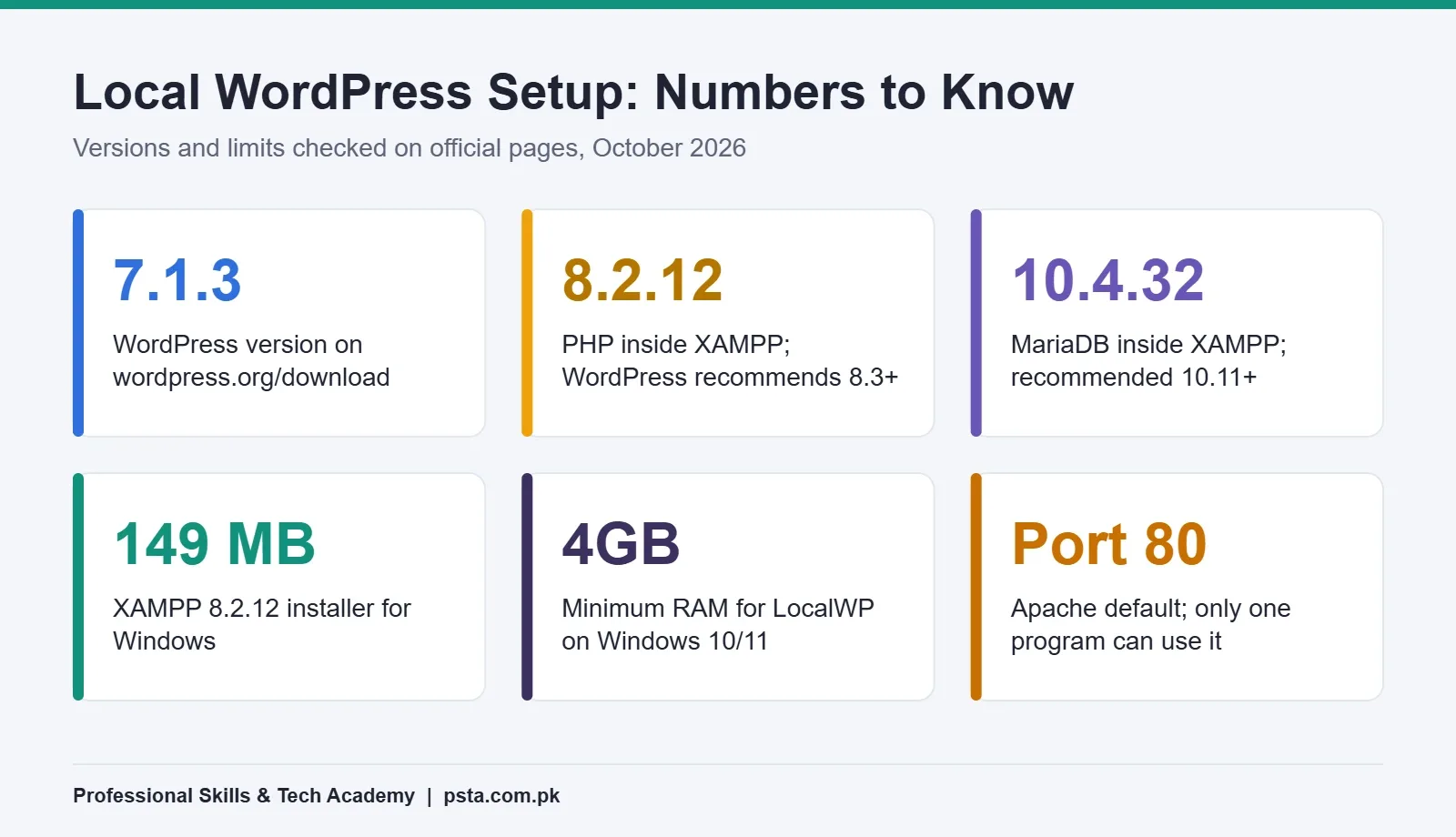
Any Windows 10 or Windows 11 laptop that runs a browser smoothly can handle a local WordPress site. Before you install WordPress on localhost, download the items below and see how their versions compare with what WordPress itself recommends.
| Item | What You'll Use | What WordPress Recommends |
|---|---|---|
| WordPress | Version 7.1.3, from wordpress.org | The current release |
| PHP | 8.2.12 (bundled in XAMPP 8.2.12) | 8.3 or greater |
| Database | MariaDB 10.4.32 (bundled in XAMPP) | MySQL 8.0+ or MariaDB 10.11+ |
| Web server | Apache 2.4.58 (bundled in XAMPP) | Apache or Nginx |
| Download size | About 149 MB for the XAMPP installer | Not applicable |
Notice the gap. According to the official WordPress requirements page, the recommended setup is PHP 8.3 or greater with MySQL 8.0 or MariaDB 10.11. The newest Windows build on the Apache Friends download page is XAMPP 8.2.12, and its component list shows PHP 8.2.12 and MariaDB 10.4.32, released in November 2023.
For learning, that's fine. WordPress still runs on these older versions. Just remember that your live host should run PHP 8.3 or newer, and test your site there before handing it to a client.
XAMPP, LocalWP or Studio: Which Local Tool Fits You?
XAMPP isn't the only way to run WordPress on your laptop. Two newer tools set up a site with a few clicks. Each one teaches you something different.
| Tool | Best For | What You Should Know |
|---|---|---|
| XAMPP | Learning how WordPress, PHP and the database fit together | Manual setup; you create the database yourself in phpMyAdmin |
| LocalWP | Making many test sites quickly | Free; needs 64-bit Windows 10 or 11, at least 4GB RAM and 1.5GB disk space |
| Studio by WordPress.com | Light laptops and quick client demos | Free and open source; runs on WordPress Playground, so it doesn't need Apache or MySQL |
The LocalWP installation guide lists those requirements and warns that Windows Defender will show several pop-ups the first time you create a site. Studio came to Windows in May 2024, as Search Engine Journal reported.
My advice to students is to do the XAMPP route at least once. When a live site later shows "Error establishing a database connection," you'll know exactly which piece has failed, because you connected those pieces with your own hands.
How to Install WordPress on Localhost With XAMPP: 9 Steps
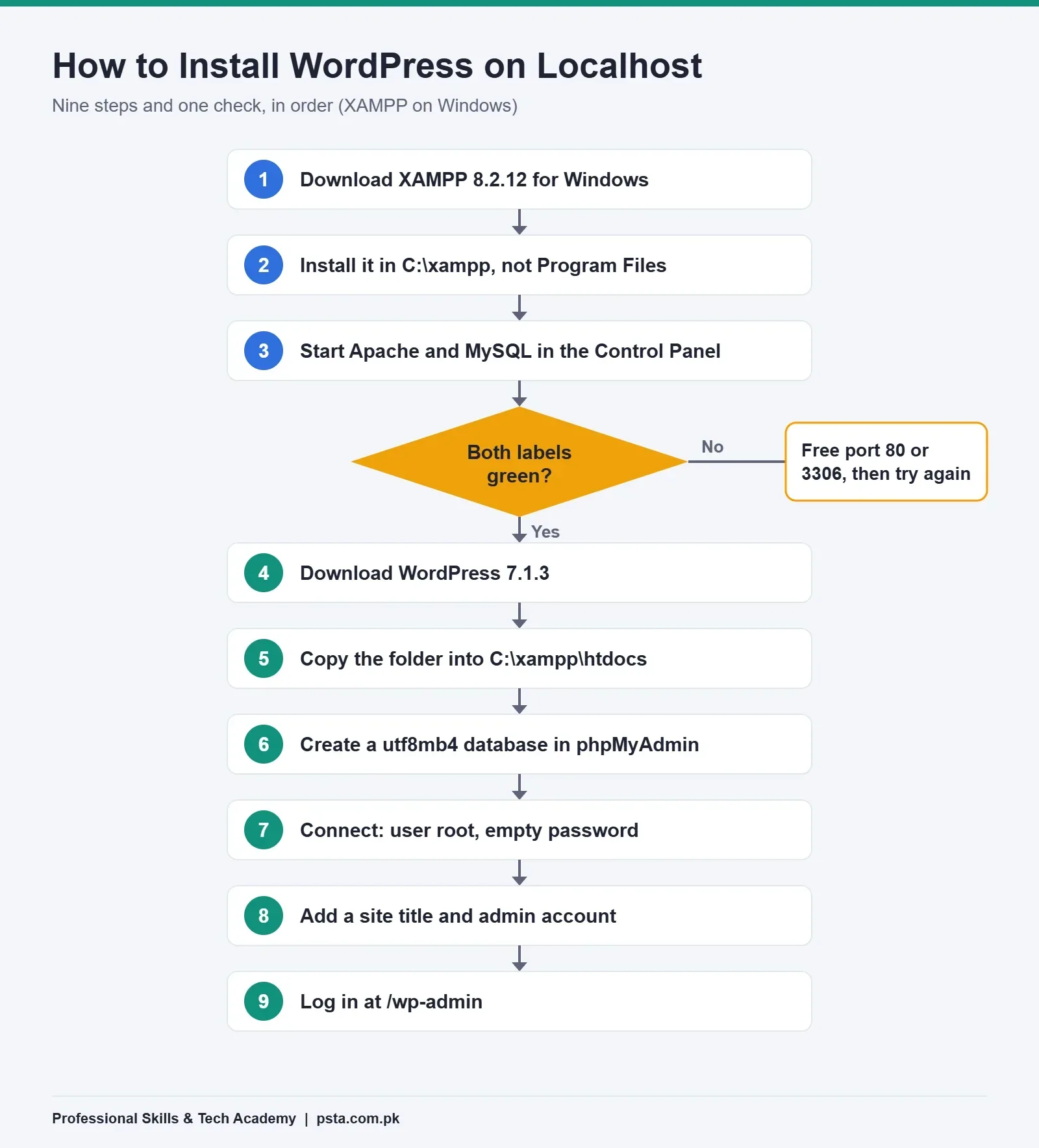
Set aside about 30 minutes for your first attempt. After that, a fresh site takes five.
Step 1: Download XAMPP for Windows
Go to apachefriends.org and download the Windows installer for XAMPP 8.2.12. It's the version with the newest PHP. If your antivirus asks, allow the installer to run.
Step 2: Install It in C:\xampp
Keep the default folder, C:\xampp. Don't install into C:\Program Files. The XAMPP Windows FAQ explains that you don't get full write permission there, even as an administrator, which causes strange errors later. You only need Apache, MySQL, PHP and phpMyAdmin from the component list.
Step 3: Start Apache and MySQL
Open the XAMPP Control Panel and click Start next to Apache and MySQL. Both labels should turn green. Then open your browser and visit http://localhost. If the XAMPP welcome page appears, your local server is working.
Step 4: Download WordPress
Get the latest zip from wordpress.org/download. At the time of writing, that's WordPress 7.1.3. Always take it from wordpress.org, never from a "free themes" site, which may bundle modified files.
Step 5: Copy WordPress Into htdocs
Extract the zip. You'll get a folder named wordpress. Rename it to something short, such as shopdemo, and move it into C:\xampp\htdocs. Everything inside htdocs is served by Apache, so this site will open at http://localhost/shopdemo.
Step 6: Create a Database in phpMyAdmin
Visit http://localhost/phpmyadmin and click Databases. Type a name, such as shopdemo_db, choose utf8mb4_general_ci as the collation, and click Create. The official WordPress install guide suggests utf8mb4_general_ci when your language isn't listed. It also recommends naming databases the way your future host does, often with a prefix and underscore, so the move goes smoothly.
Step 7: Connect WordPress to the Database
Open http://localhost/shopdemo. Pick a language, click Let's Go, and enter these details:
- Database name: shopdemo_db
- Username: root
- Password: leave it empty (XAMPP's root user has no password by default)
- Database host: localhost
- Table prefix: change wp_ to something like sd_
Click Submit, then Run the installation. WordPress writes your wp-config.php file for you.
Step 8: Fill In Your Site Details
Enter a site title, an admin username (not "admin"), a strong password and your email. Even locally, practice good habits. The same choices will matter on a live site that attackers can reach.
Step 9: Log In and Check the Dashboard
Go to http://localhost/shopdemo/wp-admin and sign in. If you see the dashboard, you've done it. Bookmark this address, because it's where you'll spend most of your practice time.
Five Settings to Change Right After Installing
A fresh install works, but it isn't ready for real practice. Make these changes before adding content:
- Timezone: In Settings, then General, choose Karachi so scheduled posts publish at the right hour.
- Permalinks: In Settings, then Permalinks, choose "Post name" for clean addresses like /contact.
- Sample content: Delete the "Hello world" post, the sample page and the default comment.
- Unused themes and plugins: Keep one default theme as a backup and remove the rest.
- Your profile: Set a display name so posts don't show your login username.
These five steps are the same ones you'll repeat on every client site, so getting used to them now saves time later.
Why Won't Apache or MySQL Start? Fixes for Common Errors
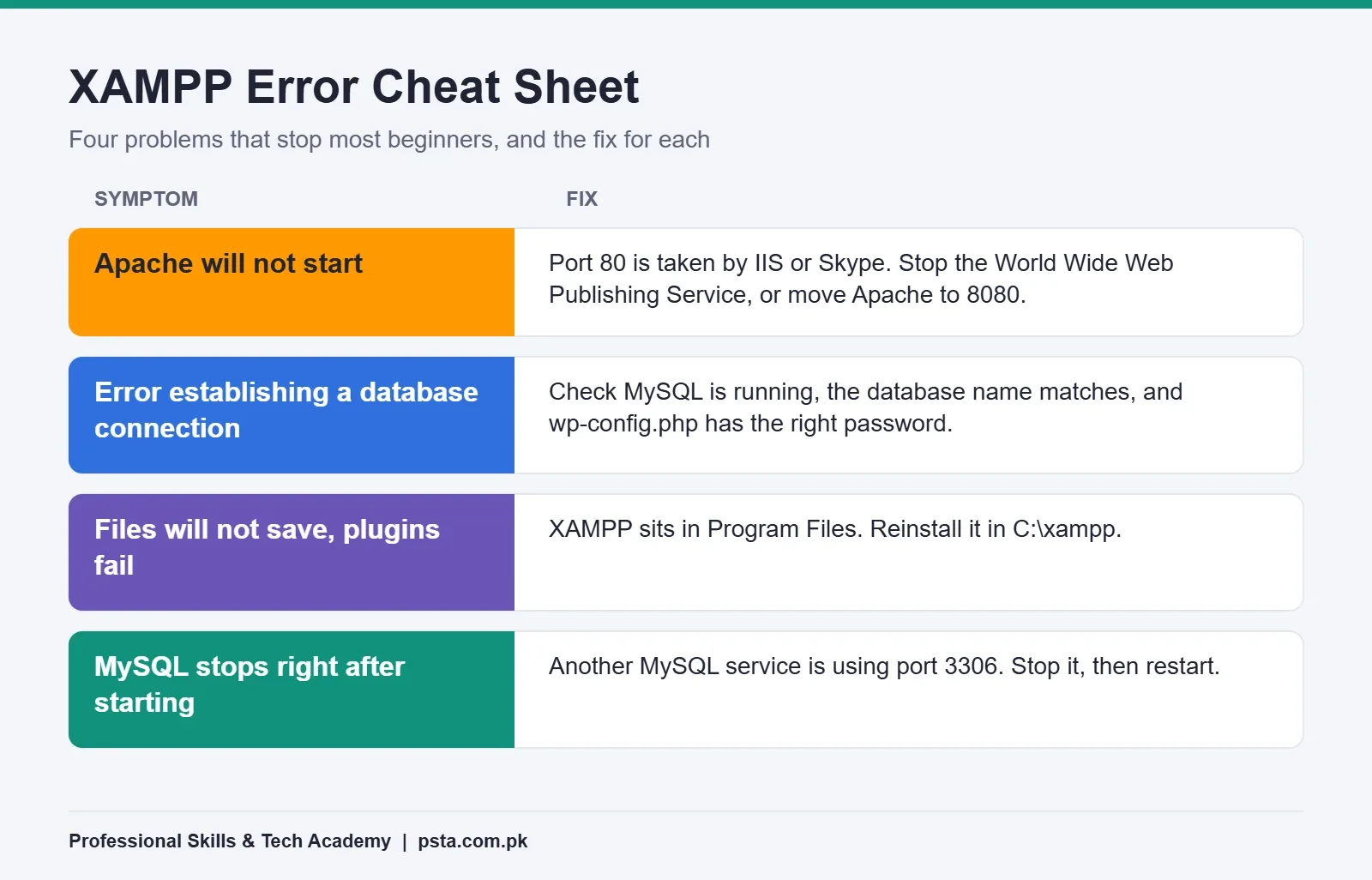
Most beginners hit at least one of these. None of them means your laptop is the problem.
Apache Won't Start (Port 80 Is Busy)
Port 80 is Apache's default port in XAMPP, and only one program can use it at a time. The XAMPP FAQ names two usual culprits: Microsoft IIS, which some Windows installs run on port 80, and Skype. Stop and disable the World Wide Web Publishing Service in Windows Services, or close Skype, then start Apache again. If you can't free the port, change Apache's port to 8080 in its config file and open http://localhost:8080 instead.
"Error Establishing a Database Connection"
Check three things in order. Is MySQL running in the Control Panel? Is the database name in wp-config.php spelled exactly as in phpMyAdmin? Did you set a root password after installing? If so, the password field in wp-config.php has to match.
Files Won't Save or Plugins Won't Install
This usually means XAMPP is inside Program Files. Uninstall it and reinstall in C:\xampp, as in Step 2.
MySQL Stops Right After Starting
Another database program, often a separate MySQL install from a university course, may be using port 3306. Stop that service, or close the other program, and try again. Keep backups of your htdocs folder and export your database from phpMyAdmin each week, so a crash never costs you more than a few days of work.
Is a Localhost Site Safe, and Can Anyone Else See It?
By default, only you can open it. That's the main safety feature. Still, the XAMPP FAQ is clear that XAMPP is meant for development only, not for running a public website. Its root database user has no password, and several settings are left open to make learning easier.
So follow two rules. Never forward your router's ports to make a XAMPP site public, and never put a client's real customer data on it. If you need to show a draft to a client, Studio can share up to five free demo sites on a temporary address, which expire seven days after their last update. Otherwise, move the site to real hosting.
Moving Your Local Site to Live Hosting
When the site is finished, the move follows a fixed pattern:
- Export the database from phpMyAdmin as a .sql file.
- Zip your site folder from htdocs.
- Create a new database and user in your hosting control panel.
- Upload and extract the files, then import the .sql file.
- Update the database details in wp-config.php.
- Replace every http://localhost/shopdemo address with the real domain, using a search-and-replace plugin that handles serialized data.
Many students skip the manual route and use a migration plugin. That works, but do it by hand once so you understand what the plugin does. Before you buy a plan, read our breakdown of what a WordPress website costs in Pakistan, and if you're still a student, compare the free hosting options for students. Once the site is live, run through our WordPress security checklist, because the open settings that were harmless on localhost aren't harmless online.
Practice Projects for Your First Local Site
An empty install teaches very little. Give yourself a realistic brief instead. Here are three that match common requests from small businesses in Pakistan:
- A clinic site: doctor profiles, timings, a contact form and a Google Maps embed.
- A school site: admissions page, fee notice, gallery and announcements as posts.
- A clothing shop: WooCommerce with 10 products, size options and cash on delivery.
Build each one in its own htdocs folder with its own database. Three finished local sites, shown through screenshots or a short screen recording, make a far better first portfolio than certificates alone.
Building Client-Ready Sites in PSTA's WordPress Classes
If you'd like guided practice, PSTA's Complete WordPress Website Development Course starts exactly where this guide ends. It's a 12-week, beginner-level course with no coding required. Right now the course page shows a fee of Rs. 22,000, down from the usual Rs. 25,000.
The modules start with domain, hosting and installation. They then cover Elementor and Gutenberg design, must-have plugins, WooCommerce, SEO and speed, and security. The last module is freelancing and portfolio building. Classes run at our Abbottabad campus and live online, and a hybrid option lets you combine the two. Batches open monthly, so you won't wait long to begin.
Students who'd rather code custom websites from scratch than configure WordPress should look at the Full-Stack Web Development course. You can compare every program on the courses page, and when you've decided, the admission form takes a few minutes. Want to ask about class timings first? Send a WhatsApp to +92 314 5424399 and our team will reply.
Tonight: Turn Both XAMPP Lights Green
Skip the full setup for now. This evening, do only Steps 1 to 3: install XAMPP in C:\xampp and get Apache and MySQL running with green labels. If one refuses, use the fixes above. Once both lights are green, the remaining six steps take less time than a cup of chai.
Frequently asked questions
Is XAMPP free for installing WordPress?
Yes. XAMPP is free to download from apachefriends.org, and WordPress is free from wordpress.org. The only cost is your time and disk space, since the Windows installer is about 149 MB. You only start paying when you buy a domain and hosting to put the finished site online for other people to visit.
Can I install WordPress on localhost without internet?
You need internet once, to download XAMPP and WordPress. After that, the site runs from your own computer, so pages load during outages or on a weak connection. Some tasks still need internet, such as installing new themes or plugins from the dashboard, loading Google Fonts or embedding maps.
What are the phpMyAdmin username and password in XAMPP?
On a fresh XAMPP install, the database user is root and the password is empty, so you leave the password field blank in the WordPress installer. The XAMPP FAQ lists this as a security gap. It is acceptable on a laptop that only you use, but never on a machine other people can reach.
Why does localhost/phpmyadmin not open?
Usually Apache or MySQL is not running. Open the XAMPP Control Panel and check that both show green. If Apache will not start, another program such as IIS or Skype is probably using port 80. Free the port or move Apache to 8080, then open localhost:8080/phpmyadmin instead.
Is LocalWP or Studio better than XAMPP for beginners?
They are faster to set up, because they create the database and settings for you. LocalWP needs 64-bit Windows 10 or 11 and at least 4GB of RAM, while Studio runs without Apache or MySQL. XAMPP takes longer, but it teaches you how WordPress, PHP and the database connect, which helps when live sites fail.
Which PHP version should I use for WordPress on XAMPP?
Use the newest XAMPP build, which ships PHP 8.2.12. WordPress recommends PHP 8.3 or greater, so 8.2 is slightly behind but works for practice. Before handing a site to a client, check that your live host runs PHP 8.3 or newer and test the site there.
Can I build a WooCommerce shop on localhost?
Yes. You can install WooCommerce, add products, set up shipping zones and test the cart and checkout pages locally. Cash on delivery works fine for testing. Online payment gateways usually need a public web address to confirm payments, so test those on a staging copy of the site on real hosting.
How do I move WordPress from localhost to live hosting?
Export the database from phpMyAdmin, zip your site folder, then create a database on your host. Upload and extract the files, import the database, and update wp-config.php with the new details. Finally, replace every localhost address with your real domain using a search-and-replace tool that handles serialized data.
Sources & references
- WordPress Requirements wordpress.org
- Download WordPress wordpress.org
- How to Install WordPress (Advanced Administration Handbook) developer.wordpress.org
- XAMPP Downloads (Apache Friends) apachefriends.org
- XAMPP Windows FAQ (Apache Friends) apachefriends.org
- XAMPP (Wikipedia) en.wikipedia.org
- Install Local (LocalWP Docs) localwp.com
- WordPress Releases a Way to Build Sites on a Windows Desktop (Search Engine Journal) searchenginejournal.com
Last reviewed & updated on by Umar Qureshi. Written by the PSTA team in Abbottabad, Pakistan.

Umar Qureshi
Complete WordPress Website Development Course: Beginner to Pro
Turn this guide into a career: hands-on training with real projects, online across Pakistan or on-campus in Abbottabad · 12 Weeks.


Comments
No comments yet — ask a question or share your experience.