Quick answer
Most WordPress hacks use known flaws in plugins, so updates come first. Keep core, plugins and themes current, delete unused extras, use strong passwords with two-factor login, remove old users, turn off the file editor, keep tested off-site backups and review your hosting. Check the site monthly and verify versions by hand.
Key takeaways
- • Patchstack found 96% of 2024 WordPress vulnerabilities in plugins and 4% in themes.
- • WordPress 7.1.3, released October 6, 2026, is the latest version on WordPress.org.
- • National CERT advised checking WordPress versions by hand after the July 2026 core flaws.
- • Two-factor login and removing old users close the most common login risks.
- • A backup only counts once you have restored it successfully.
- • A 30-minute monthly routine keeps the whole checklist working.
Table of contents 12 sections
- Why Do WordPress Sites in Pakistan Get Hacked?
- The WordPress Security Checklist at a Glance
- Checks 1 to 3: Keep Core, Plugins and Themes Current
- Checks 4 to 6: Lock Down Logins and User Accounts
- Checks 7 and 8: Tighten Files and Settings
- Check 9: Install Plugins and Themes Only From Trusted Sources
- Check 10: Keep Backups You Can Actually Restore
- Check 11: Ask Your Host the Right Questions
- How Do You Know If Your Site Is Already Hacked?
- A Maintenance Rhythm That Fits a Small Business
- Learn Site Security in PSTA's WordPress Course
- Log In and Check Three Numbers Today
Here is an example many web freelancers in Pakistan will recognize. A clinic in Abbottabad paid for a WordPress website two years ago. Nobody has logged in since launch, and one morning patients searching for the clinic land on a gambling page instead. The developer has moved on, the hosting login sits in an old email account, and nobody knows when the last backup was taken.
Almost every step of that story could have been prevented with a short WordPress security checklist and 30 minutes a month. This guide gives you that checklist, ordered by priority, with the reasons behind each item. You will learn:
- Where most WordPress attacks actually come from, based on current data
- Twelve checks that cover updates, logins, files, plugins, backups and hosting
- What Pakistan's National CERT told site owners to do after the July 2026 core flaws
- How to spot a site that has already been compromised, and what to do first
- A simple weekly, monthly and quarterly routine you can hand to a client
Why Do WordPress Sites in Pakistan Get Hacked?
Most attacks are not personal. Automated bots scan thousands of sites for known weaknesses and break into whichever ones have not been fixed. A small shop's site is a target simply because it runs the same software as everyone else.
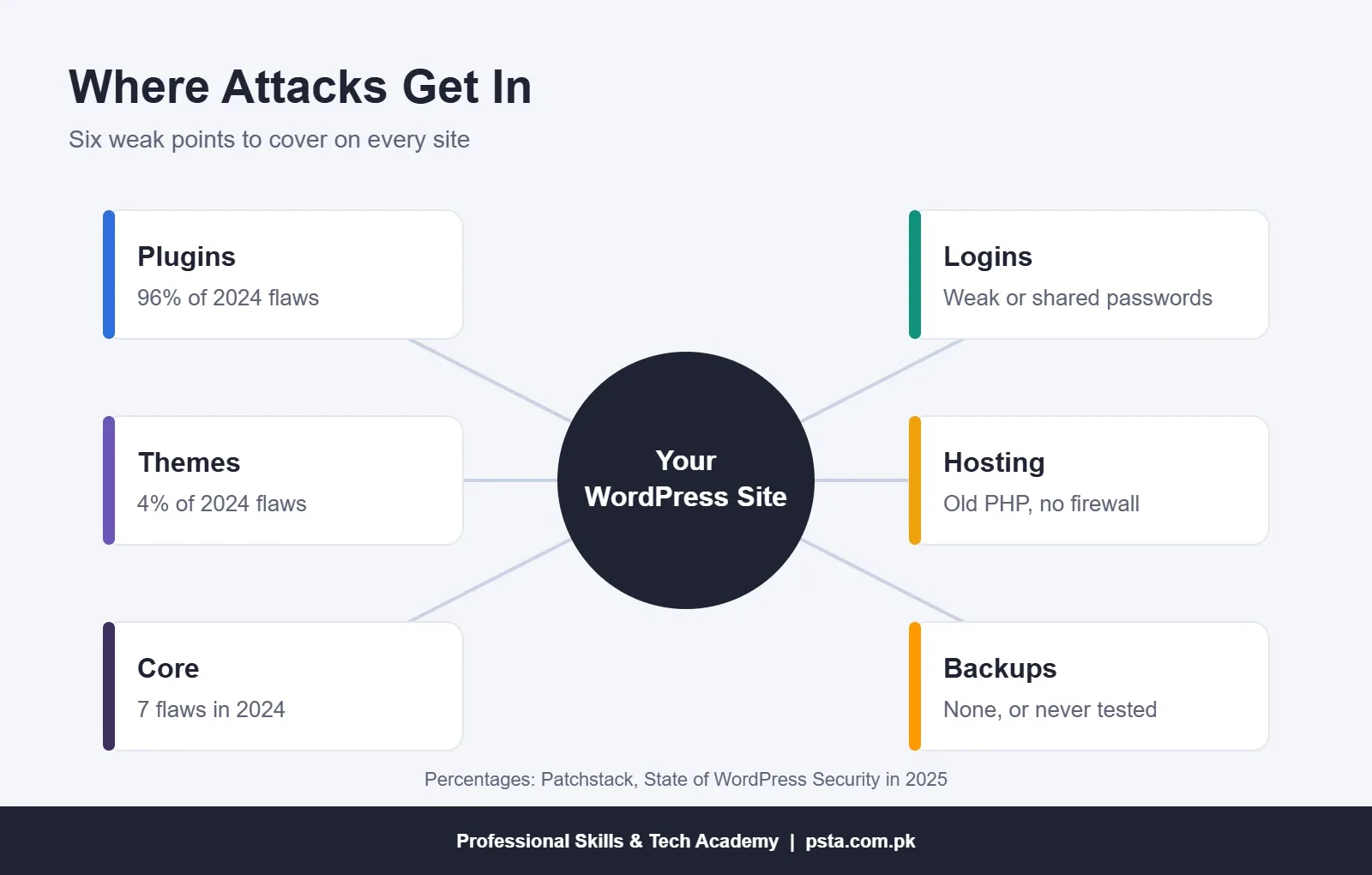
The weak points are well documented. Patchstack's State of WordPress Security in 2025 report counted 7,966 new vulnerabilities in the WordPress ecosystem during 2024. Of those, 96% were in plugins, 4% were in themes and only 7 were in WordPress core. The same report found that 33% were not fixed before they were made public, and 43% could be exploited without logging in.
Core flaws are rare, but they do happen. In July 2026, Pakistan's National CERT issued an advisory on two critical WordPress core vulnerabilities that could be chained to take over a site without a login. Business Recorder reported that exploitation began within hours of disclosure. Updating closed the hole, but only on sites where someone was watching.
The WordPress Security Checklist at a Glance
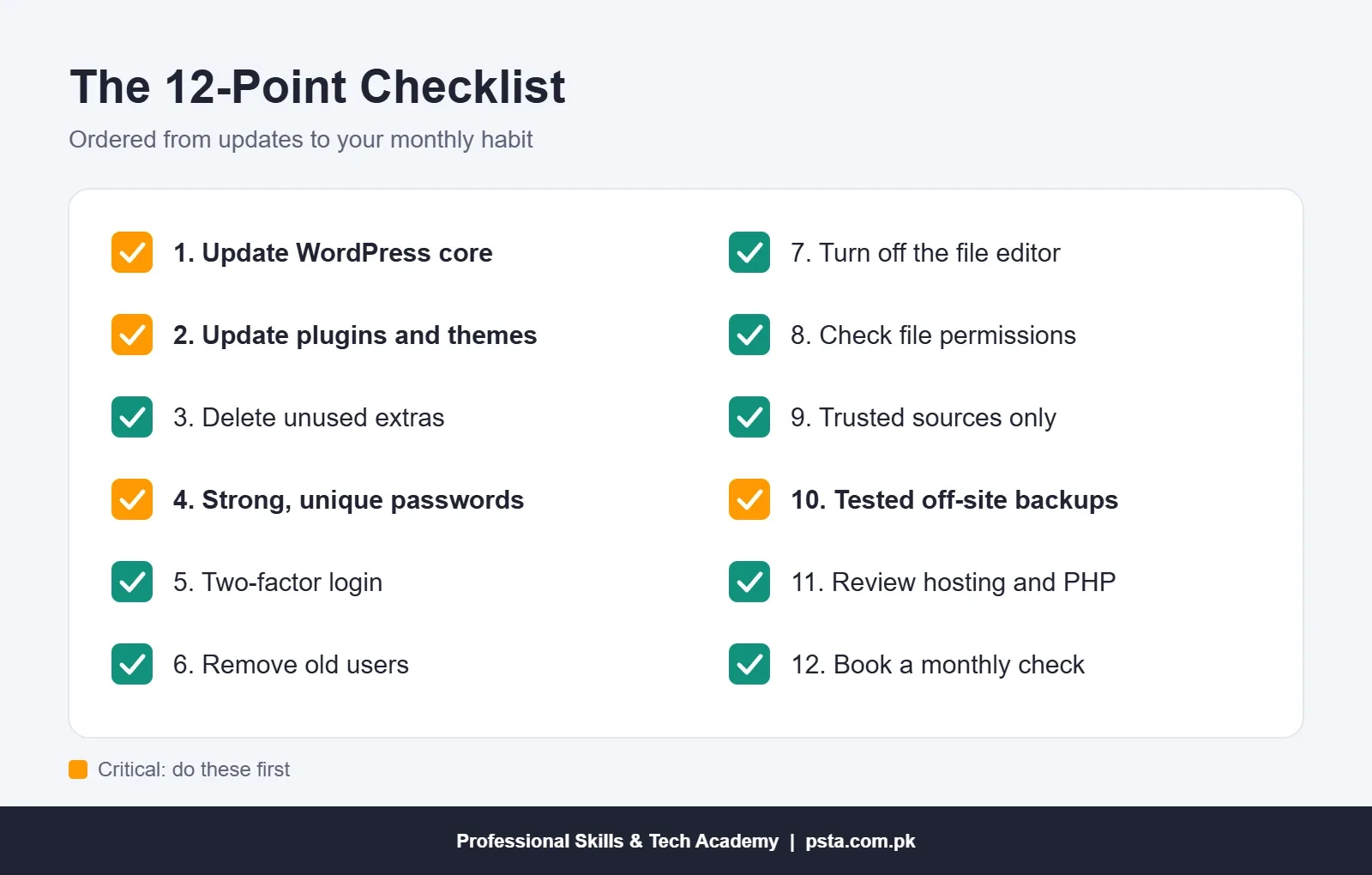
Use this table as your master list. Items marked Critical prevent the most damaging problems, so do those today if you can only do a few.
| # | Check | Priority | Time Needed |
|---|---|---|---|
| 1 | WordPress core on the latest version | Critical | 5 minutes |
| 2 | All plugins and themes updated | Critical | 10 minutes |
| 3 | Unused plugins and themes deleted | High | 5 minutes |
| 4 | Strong, unique passwords for every admin | Critical | 10 minutes |
| 5 | Two-factor login for admin accounts | High | 15 minutes |
| 6 | Old users removed and roles reduced | High | 10 minutes |
| 7 | Dashboard file editor turned off | Medium | 5 minutes |
| 8 | File permissions checked with your host | Medium | 15 minutes |
| 9 | Plugins and themes only from trusted sources | High | Ongoing |
| 10 | Off-site backups, tested by a real restore | Critical | 30 minutes |
| 11 | Hosting, PHP version and firewall reviewed | Medium | 20 minutes |
| 12 | A monthly check booked in your calendar | High | 2 minutes |
Checks 1 to 3: Keep Core, Plugins and Themes Current
Updates close the holes that bots look for, so they come first on any WordPress security checklist. The official releases page lists WordPress 7.1.3 as the latest version, released on October 6, 2026, with security releases for older branches on the same day.
- Open Dashboard > Updates and note the version you are running.
- Take a backup before any large update.
- Update WordPress core, then plugins, then themes.
- Open the homepage, a contact form and the checkout (if you have one) to confirm nothing broke.
- Delete any plugin or theme you are not using, rather than just deactivating it.
Do not assume automatic updates have run. The National CERT advisory told administrators to check the running version on every public site by hand, because automatic updates can be blocked in managed setups. It named 7.0.2, 6.9.5 and 6.8.6 as the patched versions for each branch at that time.
Checks 4 to 6: Lock Down Logins and User Accounts
Stolen or guessed passwords are the second common way in. WordPress's own hardening guide advises long passwords that avoid your name, site name and dictionary words, and it recommends avoiding obvious usernames such as "admin".
- Passwords: use a password manager and a different password for WordPress, hosting, the domain account and email.
- Two-factor login: the free Two Factor plugin on WordPress.org supports authenticator app codes, email codes and backup codes, and it lists more than 100,000 active installations.
- Users: go to Users and remove accounts for former staff, old developers and test logins. Give content writers the Editor or Author role, not Administrator.
When a project ends, ask the developer to hand over every login, including hosting and domain. Then change those passwords yourself. This one habit prevents the situation in the clinic example.
Checks 7 and 8: Tighten Files and Settings
If someone does get into the dashboard, you want to limit what they can change. WordPress includes a built-in editor for theme and plugin code, and the hardening guide suggests turning it off with one line in wp-config.php:
define( 'DISALLOW_FILE_EDIT', true );
The guide is clear that this will not stop every attack, but it closes a common route after a stolen login. For file permissions, the same guide says files should be writable only by your own account where possible, with the web server given write access only where it needs it, such as the uploads folder. Most shared hosts in Pakistan set this for you, so ask support to confirm rather than changing permissions blindly.
On a brand-new install, also change the default wp_ database table prefix during setup. Changing it on a live site is riskier, so leave that to an experienced developer.
Check 9: Install Plugins and Themes Only From Trusted Sources
Since WordPress plugins carry most of the risk, be strict about which ones you allow. The hardening guide recommends installing only from WordPress.org or well-known companies and removing anything you do not use.
Before installing a plugin, look at three things on its page: when it was last updated, which WordPress version it is tested up to, and how many active installations it has. A plugin with no update in over a year deserves a second look.
Avoid "nulled" premium themes and plugins shared in Facebook groups or download sites. They are pirated copies, they cannot receive official updates, and they are a common way hidden code reaches a site. If a client cannot afford a premium license, a free, well-maintained alternative is the safer choice.
Fewer plugins also mean fewer updates to track. Before adding one, ask whether a setting in WordPress or your theme already does the job. A typical small business site needs a form plugin, an SEO plugin, a backup tool and a security or two-factor plugin. Anything beyond that should earn its place.
Check 10: Keep Backups You Can Actually Restore
No WordPress security checklist is complete without this item, because a backup is your way back when everything else fails. The hardening guide recommends regular backups of both files and the database, stored in a trusted location, with dated copies kept over time. Dated copies matter because a hack is often found weeks after it happened. Good WordPress backups also save you from failed updates and accidental deletions.
- Back up the database daily if the site takes orders or bookings, and weekly for a simple brochure site.
- Store copies away from the server, for example in Google Drive or Dropbox, not only in the hosting account.
- Keep at least several weeks of dated copies.
- Restore one backup to a test subdomain every quarter. An untested backup is a guess.
Check 11: Ask Your Host the Right Questions
Your hosting plan affects security as much as anything inside WordPress. Send these questions to your host's support team and keep the answers on file:
- Which PHP version is the site using, and is it still supported?
- Are accounts on the shared server isolated from each other?
- Is there a web application firewall, and does it include WordPress-specific rules?
- How often does the host back up the account, and how long are copies kept?
- Can you get an SSL certificate renewed automatically?
A firewall helps, but treat it as a second layer, not a replacement for updates. Patchstack's report noted that the popular hosting firewalls it looked at failed to block one major plugin attack in early 2024, because generic rules did not understand the WordPress-specific flaw.
How Do You Know If Your Site Is Already Hacked?
Watch for these warning signs: redirects to unrelated sites on mobile, strange pages in Google results for your domain, new admin users you did not create, a sudden slowdown, or a warning from your host or Google Search Console.
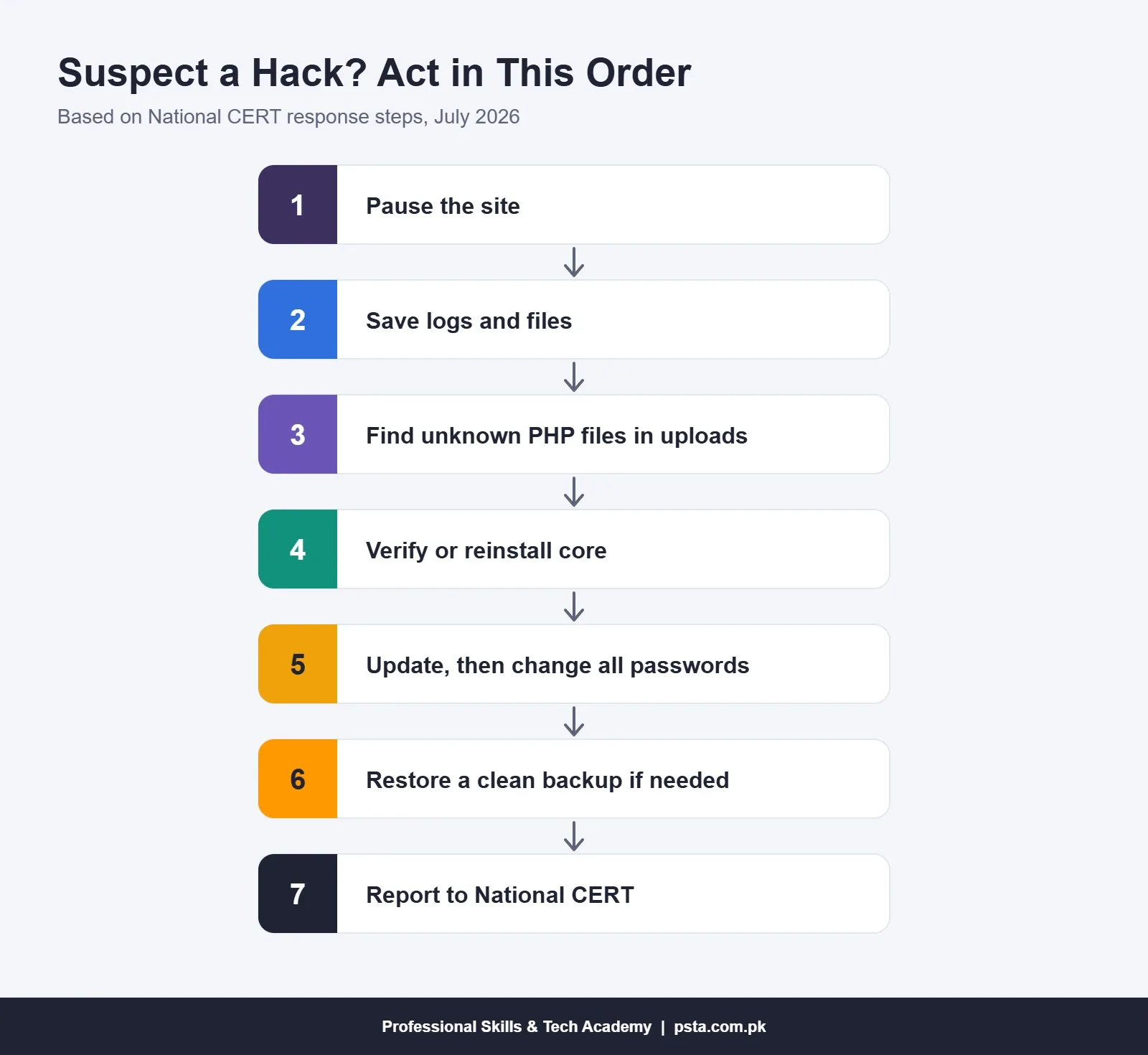
A hacked WordPress site gets worse the longer it stays online, so if you see one of these signs, act in this order. The steps follow the response actions in the National CERT advisory:
- Put the site in maintenance mode or ask your host to suspend it temporarily.
- Save server logs and a copy of the current files before changing anything.
- Look for unknown
.phpfiles, especially inside/wp-content/uploads/. - Compare core files with official checksums, or reinstall core from WordPress.org.
- Update everything, then change every admin, hosting and database password.
- Restore a clean backup if the damage is wide.
- Report confirmed incidents to National CERT using the reporting channels listed on pkcert.gov.pk.
A Maintenance Rhythm That Fits a Small Business
Security is a habit, not a one-time setup. This schedule keeps the checklist alive without taking over your week, and it is easy to sell to clients as a monthly care plan.
| How Often | Task |
|---|---|
| Weekly | Apply plugin and theme updates, check the homepage and forms |
| Monthly | Confirm core version, review users, check backup dates |
| Quarterly | Test-restore a backup, delete unused plugins, review hosting answers |
| After any alert | Follow the National CERT steps above the same day |
Print the WordPress security checklist table above and keep it next to this schedule, so whoever does the monthly check ticks the same 12 items each time. If you build sites for others, write this routine into your proposal. Clients understand a clear monthly task list, and it protects your reputation as well as their site. Our WordPress website cost guide shows where maintenance fits in a realistic budget.
Learn Site Security in PSTA's WordPress Course
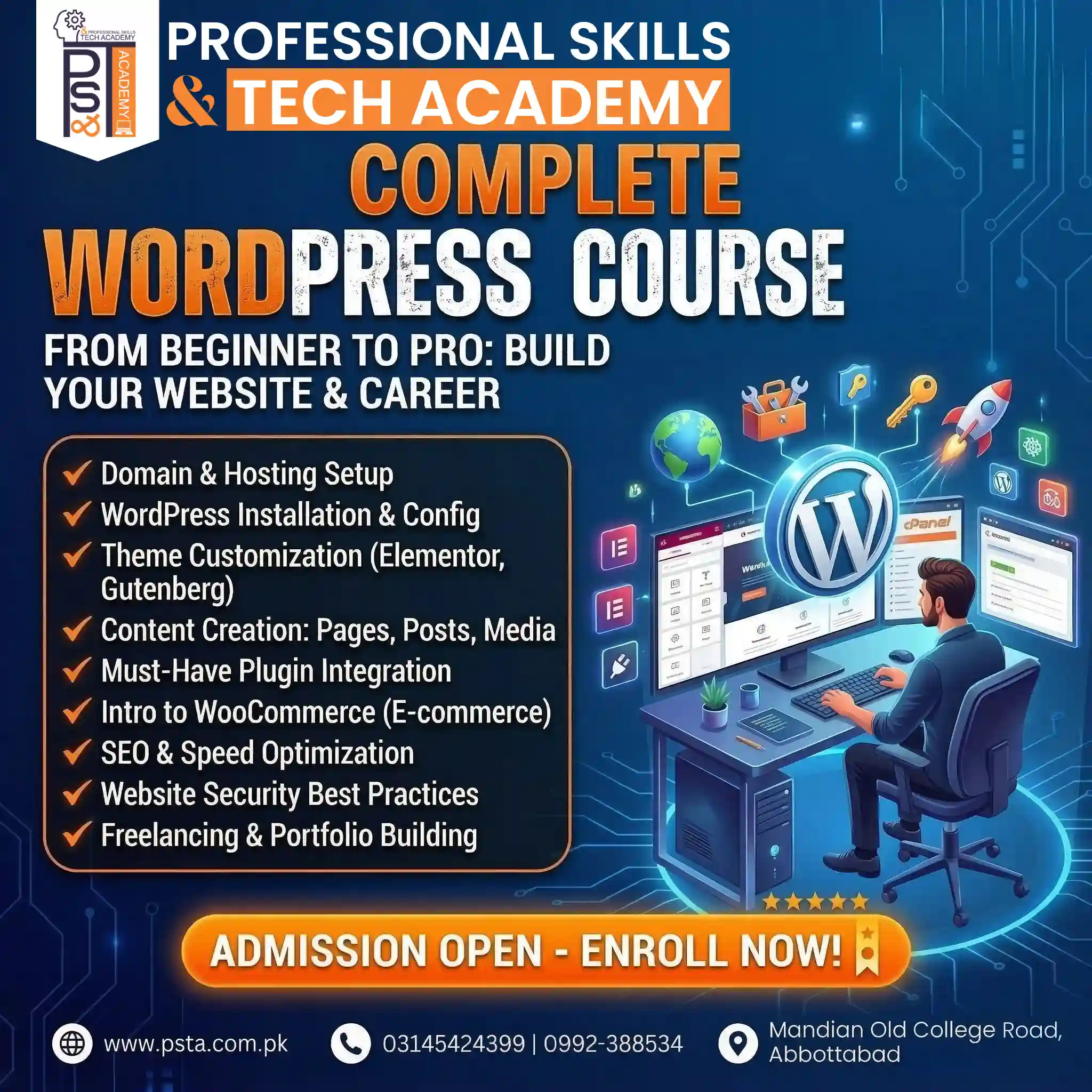
Most security mistakes happen at setup, when hosting, plugins and user roles are chosen in a hurry. PSTA's Complete WordPress Website Development Course includes a module on website security best practices, alongside domain and hosting setup, essential plugins, WooCommerce, SEO and speed.
- Duration: 12 weeks, starting from beginner level with no coding required.
- Fee: Rs. 22,000 (regular Rs. 25,000).
- Study options: classes at our Abbottabad campus near FIMS College on Old College Road, Mandian, or live online, or a combination.
- Batches: a new one starts every month.
If you want to go deeper into how attacks work, our ethical hacking and cyber security course explains the attacker's side, and the Full-Stack Web Development course suits students who want to build custom applications. You can compare every option on the courses page, message us on WhatsApp (+92 314 5424399) about timings, or go straight to admission.
Log In and Check Three Numbers Today
Open your WordPress dashboard and write down three things: the WordPress version, the number of pending plugin updates and the date of your last off-site backup. If the version is behind, updates are waiting or you cannot find a recent backup, you know exactly where to start this week.
Frequently asked questions
How often should I update WordPress plugins?
Check for plugin and theme updates at least once a week, and apply security updates as soon as they appear. Take a backup before larger updates, then test your homepage, forms and checkout. If a plugin has had no update for a long time, look for a maintained replacement.
Is a security plugin enough to protect a WordPress site?
No single plugin covers everything. A security plugin can add login protection and scanning, but it cannot replace updates, strong passwords, tested backups and good hosting. Treat it as one layer in the checklist rather than the whole plan, and keep the plugin itself updated.
Are nulled WordPress themes safe to use?
No. Nulled themes and plugins are pirated copies of paid products. They cannot receive official updates, and they are a common way hidden code reaches a site. Use the free version from WordPress.org, a well-maintained free alternative, or buy a proper license.
What did National CERT advise about WordPress in 2026?
In July 2026, National CERT warned of two critical WordPress core flaws that could be chained to take over sites without a login. It advised updating to a patched version, checking the running version on every public site by hand, updating plugins and themes, and rotating admin passwords.
How do I know if my WordPress site has been hacked?
Common signs include redirects to unrelated sites, unfamiliar pages in Google results for your domain, admin users you did not create, a sudden slowdown, and warnings from your host or Search Console. Unknown PHP files in the uploads folder are another strong signal.
How much does WordPress maintenance cost in Pakistan?
Prices vary by freelancer, agency and site size, so ask for a written list of tasks rather than comparing totals alone. A fair care plan should include updates, backups with test restores, user reviews and a response plan if the site is compromised.
Sources & references
- Patchstack: State of WordPress Security in 2025 patchstack.com
- National CERT Pakistan: WordPress Core Advisory pkcert.gov.pk
- Business Recorder: Govt Warns of Critical WordPress Flaws brecorder.com
- WordPress.org: Releases wordpress.org
- WordPress Developer Resources: Hardening WordPress developer.wordpress.org
- WordPress.org: Two Factor Plugin wordpress.org
Last reviewed & updated on by Umar Qureshi. Written by the PSTA team in Abbottabad, Pakistan.

Umar Qureshi
Complete WordPress Website Development Course: Beginner to Pro
Turn this guide into a career: hands-on training with real projects, online across Pakistan or on-campus in Abbottabad · 12 Weeks.
Comments
No comments yet — ask a question or share your experience.