Quick answer
The most useful MS Word shortcut keys for assignments are Ctrl+5 for 1.5 spacing, Ctrl+J to justify, Ctrl+Alt+1, 2 and 3 for headings, Ctrl+Spacebar and Ctrl+Q to clear pasted formatting, Ctrl+Enter for page breaks, F9 to update a table of contents and F12 to save a PDF copy.
Key takeaways
- • Press Ctrl+S, Ctrl+Z and Ctrl+Shift+8 before any big formatting change.
- • Ctrl+5 sets 1.5 line spacing and Ctrl+J justifies, so two keys format a whole selected document.
- • Only heading styles (Ctrl+Alt+1, 2, 3) feed Word's automatic table of contents.
- • Ctrl+Spacebar and Ctrl+Q strip messy formatting from pasted text without retyping it.
- • Use Ctrl+Enter for page breaks and F9 to update the table of contents before printing.
- • If F-key shortcuts fail on a laptop, try holding Fn or switching the keyboard to English (US).
Table of contents 17 sections
- The Example: A 12-Page Assignment Due Tomorrow Morning
- Before You Start: Three Keys That Protect Your Work
- Stage 1: Move and Select Text Without the Mouse
- Stage 2: Set Spacing and Alignment in One Stroke Each
- Stage 3: Apply Headings That Build the Table of Contents
- Stage 4: Clean Up Text Pasted From WhatsApp, PDFs and Websites
- Stage 5: Page Breaks, Footnotes and Page Numbers
- Stage 6: Build the Table of Contents and Check Everything
- Stage 7: Save a Copy, Export and Print
- Which MS Word Shortcut Keys Should You Learn First?
- Why Don't Some Shortcuts Work on My Laptop?
- The Function Keys Are Set to Media Controls
- Your Keyboard Layout Isn't US English
- You Used the Numeric Keypad
- Another Program Took the Shortcut
- Practicing Word the Office Way at PSTA
- Format One Old Assignment This Evening
A few dozen MS Word shortcut keys are enough to format a complete university assignment without touching the mouse, and they work the same on an old lab PC and a new laptop. Microsoft's own shortcut reference applies to every Word release from Word 2016 through Word for Microsoft 365, so the keys you practice today will not go out of date when your college upgrades Office.
Long shortcut lists are easy to find and hard to remember. This guide on MS Word shortcut keys takes a different route. We will format one example assignment from a blank page to a printed copy, and you will meet each shortcut at the exact moment you need it. That is how keys stick.
Work through it once with your own document open, and you will come away knowing:
- The three safety keys to press before anything else
- Which shortcuts handle spacing, alignment and headings in one stroke
- How to clean up text pasted from WhatsApp, a PDF or a website
- The keys for page breaks, footnotes and an automatic table of contents
- Why a few shortcuts fail on many laptops, and the quick fix
The Example: A 12-Page Assignment Due Tomorrow Morning
Here is a realistic example, not a real student. Ayesha is in the fourth semester of a BS program. Her group has emailed her five sections of a report, each typed by a different person in a different font. She has one evening to turn it into a single, clean document.
Her department follows a formatting sheet much like the one the University of Sahiwal publishes for BS, MS and PhD theses. That guideline asks for Times New Roman 12 for body text, 1.5 line spacing, justified paragraphs, headings in bold at 14, 13 and 12 points, and a plain page number centered at the bottom of each page. Your own department may differ, so check its sheet first. The method for assignment formatting in Word stays the same.
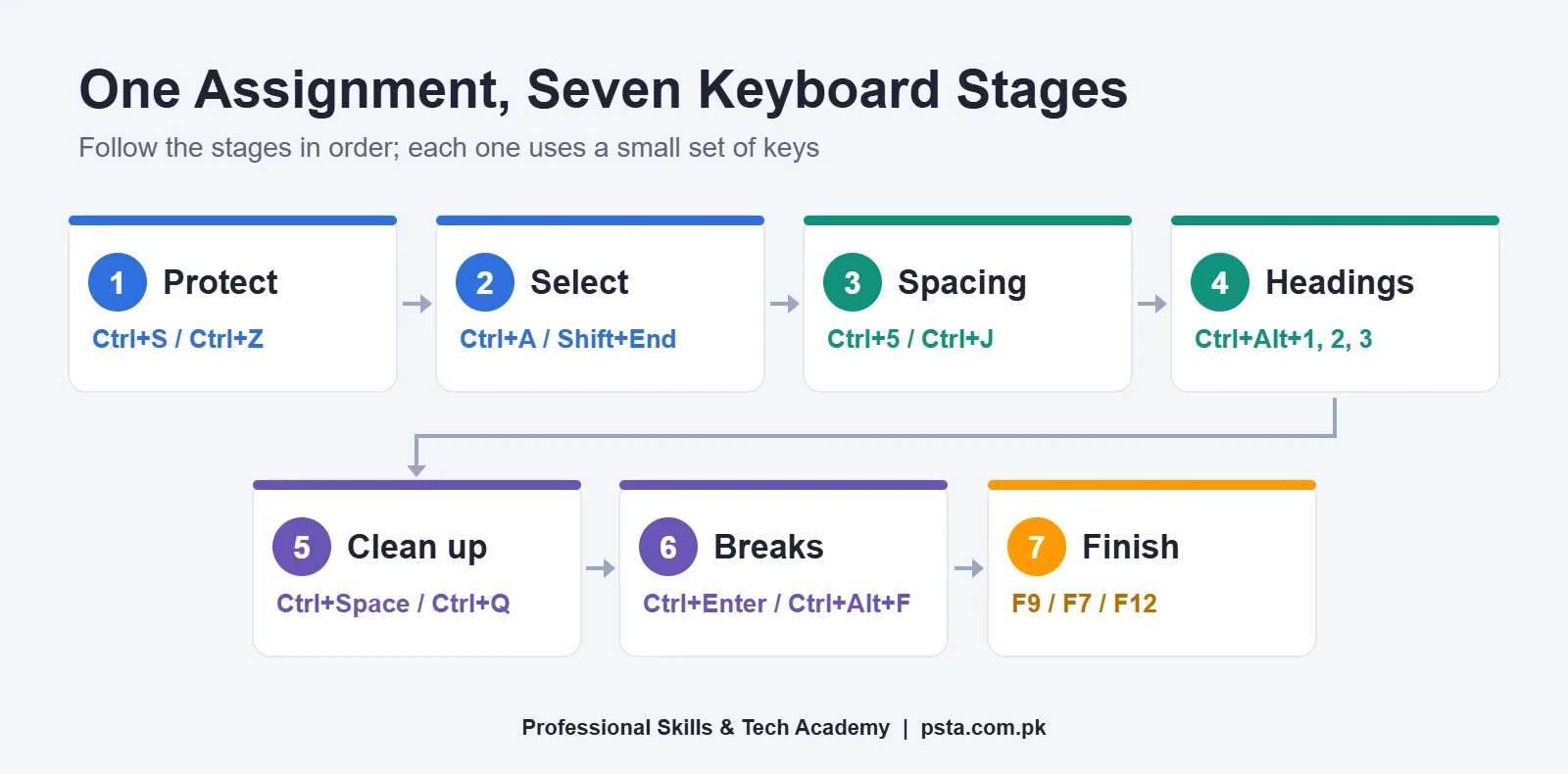
We will follow Ayesha's evening in seven stages. Each stage uses a small set of keys, and you can stop after any stage with a better document than you started with.
Before You Start: Three Keys That Protect Your Work
Before formatting a single line, learn the three shortcuts that save you when something goes wrong.
- Ctrl+S saves the file. Press it every few minutes, and always before a big change such as Replace All.
- Ctrl+Z undoes your last action, and Ctrl+Y redoes it. You can press Ctrl+Z several times to step back through recent changes.
- Ctrl+Shift+8 shows the hidden marks: paragraph symbols, spaces and tabs. Use the 8 on the top row, not the numeric keypad.
The third key matters more than students expect. Most "Word is acting strange" problems are caused by things you can't see, such as five empty paragraphs used as a gap or a tab where a space should be. With formatting marks in Word visible, you can see the problem and delete it. Microsoft explains the same toggle as the Show/Hide ¶ button on the Home tab, and you can set some marks to stay on permanently under File > Options > Display.
Stage 1: Move and Select Text Without the Mouse
Ayesha's first job is to paste the five sections into one file and tidy the joins. Dragging with a mouse across 12 pages is slow and often grabs one line too many. The keyboard is more precise, and these six MS Word shortcut keys cover nearly all the moving and selecting she needs.
| Shortcut | What it does | When Ayesha uses it |
|---|---|---|
| Ctrl+Home / Ctrl+End | Jumps to the start or end of the document | Pasting each new section at the bottom |
| Ctrl+Shift+Right arrow | Selects the next word | Grabbing a misspelled name |
| Shift+End | Selects to the end of the line | Removing a leftover "Typed by Ali" note |
| Ctrl+Shift+Home | Selects from the cursor to the top | Clearing an old cover page |
| Ctrl+Backspace | Deletes the word to the left | Fixing typos while typing |
| Ctrl+A | Selects the whole document | Applying one font to everything |
The pattern is easy to learn. Ctrl makes a movement jump by a word or a whole document instead of a letter. Adding Shift turns any movement into a selection. Once that clicks, you can guess many Word keyboard shortcuts on your own.
Stage 2: Set Spacing and Alignment in One Stroke Each
With everything in one file, Ayesha presses Ctrl+A and sets the font to Times New Roman 12 from the Home tab. Now the paragraphs need the required spacing and alignment.
- Ctrl+5 is the shortcut key for 1.5 line spacing. Ctrl+1 returns to single spacing and Ctrl+2 sets double.
- Ctrl+J justifies the paragraph, so both edges line up.
- Ctrl+E centers text, which suits the title page. Ctrl+L and Ctrl+R align left and right.
- Ctrl+M indents a paragraph and Ctrl+Shift+M removes that indent. Ctrl+T creates a hanging indent, which many reference lists use.
Here's a habit worth copying. Ayesha keeps the selection in place after Ctrl+A, presses Ctrl+5 and then Ctrl+J. Two MS Word shortcut keys format all 12 pages. Afterwards, she clicks into the title page and presses Ctrl+E for the title lines only.
For tables, she switches the rows inside the table back to single spacing with Ctrl+1. Tables at 1.5 spacing take up too much room and look loose on paper.
Stage 3: Apply Headings That Build the Table of Contents
This is the stage most students skip, and it causes the most trouble later. Making a heading bold and larger does not make it a heading in Word's eyes. Only a heading style does. According to Microsoft's table of contents guide, the automatic table is built from text that uses the Heading 1, Heading 2 and Heading 3 styles.
Three MS Word shortcut keys do the job:
- Place the cursor in a chapter title and press Ctrl+Alt+1 for Heading 1.
- Press Ctrl+Alt+2 on each section title inside a chapter.
- Press Ctrl+Alt+3 on smaller subsections.
If you press one by mistake, Ctrl+Shift+N returns the paragraph to the Normal style. To match the font sizes your department wants, change the style itself rather than each heading. Press Ctrl+Shift+S to open the Apply Styles pane, choose Modify, and set Heading 1 to Times New Roman 14 bold. Every Heading 1 in the document updates together.
That last point saves real time. If a teacher later asks for chapter titles in 16 points, you change one style instead of hunting through 12 pages.
Stage 4: Clean Up Text Pasted From WhatsApp, PDFs and Websites
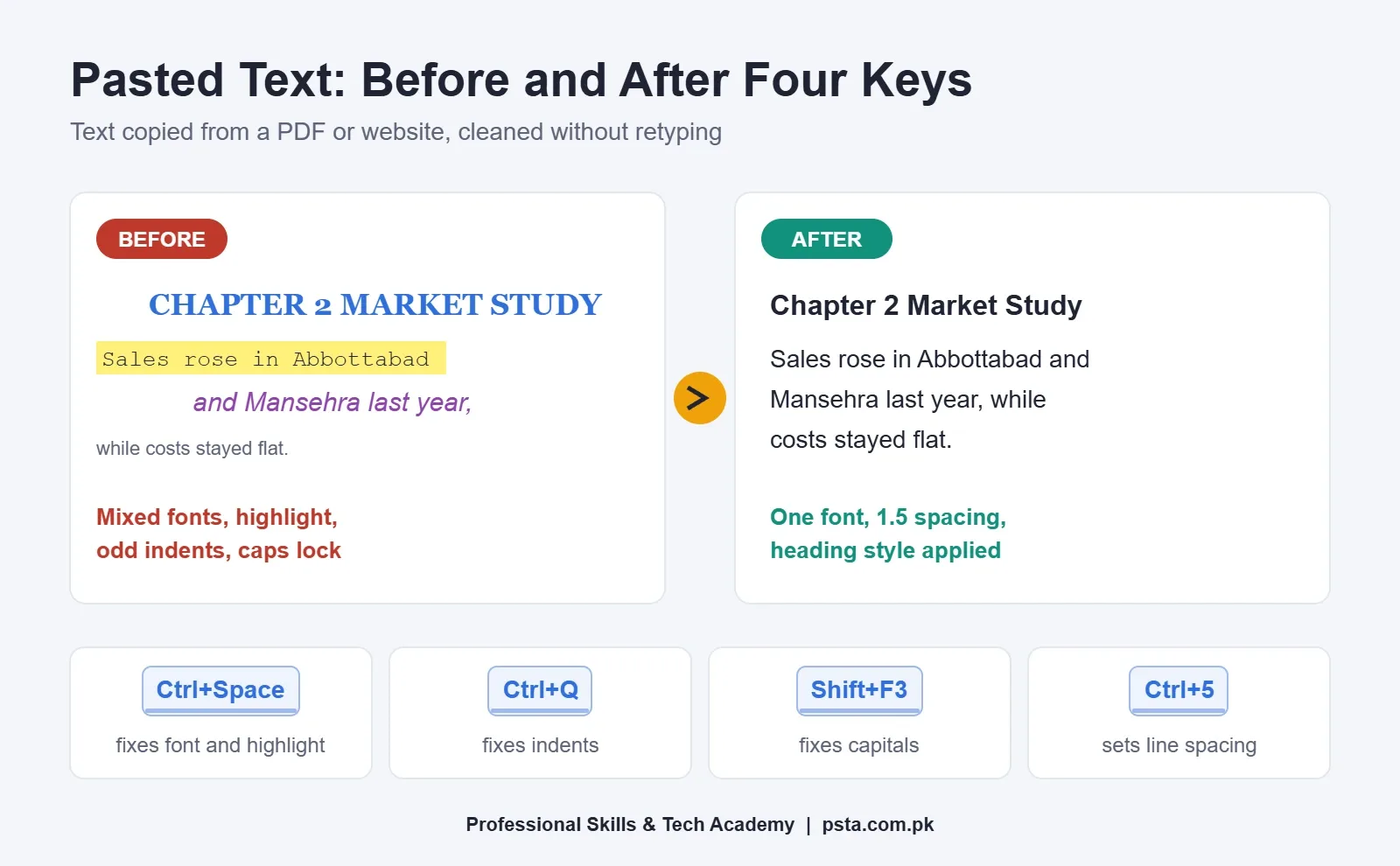
Ayesha's group members copied parts of their sections from PDFs and web pages. The text arrived with odd fonts, highlighted words, strange indents and random capital letters. Retyping it is not necessary. Four MS Word shortcut keys strip the mess away.
- Ctrl+Spacebar removes character formatting such as a stray font, color or highlight, and leaves the paragraph's style in place.
- Ctrl+Q removes manual paragraph formatting, such as strange indents and spacing.
- Shift+F3 changes the case of selected text. Press it repeatedly to cycle through lowercase, UPPERCASE and capitalized words, which fixes a heading someone typed with Caps Lock on.
- Ctrl+H opens Replace. Ayesha uses it to swap a misspelled company name throughout the report in one go.
When one paragraph finally looks right, you can copy its look to others. Microsoft's Format Painter help page describes Ctrl+Alt+C to copy a format and Ctrl+Alt+V to paste it. Unlike the paintbrush button, you can keep pasting the same format onto different paragraphs without copying it again.
A word of caution on Replace. Before clicking Replace All, press Ctrl+S. If the replacement hits words you didn't expect, Ctrl+Z will usually bring them back, but a saved copy is the safer net.
Stage 5: Page Breaks, Footnotes and Page Numbers
Each chapter should start on a fresh page. Many students press Enter until the cursor reaches the next page. That works until someone adds a line above it, and then every chapter slides out of place.
Press Ctrl+Enter instead. It inserts a real page break, and the next chapter will always begin at the top of a page, however much text you add before it. With formatting marks visible, you will see the break labeled clearly.
Two more keys finish the academic touches:
- Ctrl+Alt+F inserts a footnote at the cursor and moves you to the bottom of the page to type it.
- Ctrl+K inserts a hyperlink, useful for online sources in your references.
Page numbers need a short mouse trip, because Word has no single shortcut that sets up centered footer numbering. Go to Insert, then Page Number, then Bottom of Page, and pick the centered option. To hide the number on the title page, Microsoft's guide to starting page numbering later says to open the footer, tick Different First Page and delete the number there. It also suggests setting Start at to 0 under Format Page Numbers, so the page after the cover shows 1.
Inside a header or footer you can also press Alt+Shift+P to insert a page number field at the cursor.
Stage 6: Build the Table of Contents and Check Everything
Because Ayesha applied heading styles in Stage 3, building the table of contents in Word takes seconds. She moves to the blank page after the cover and presses Alt, then S, to open the References tab without the mouse. From Table of Contents she picks an automatic style, and Word lists every chapter and section with its page number.
Any later edit can move headings to new pages. Click inside the table and press F9 to update the selected field. Microsoft's guide gives the mouse route too: right-click the table and choose Update Field. Make this the last thing you do before printing.
Next, the checks:
- Press F7 to open the Editor pane for spelling and grammar.
- Press Shift+F7 for the Thesaurus when a word repeats too often.
- Press Ctrl+F to open the Navigation pane. Its headings list doubles as a quick outline check: if a chapter title is missing there, it has no heading style.
- Press Ctrl+G to jump straight to a page number your teacher mentions in feedback.
The Navigation pane check is the one teachers notice. A table of contents with a missing chapter usually means one heading was formatted by hand.
Stage 7: Save a Copy, Export and Print
Ayesha's teacher wants a PDF on the portal and a printed copy on her desk. Press F12 to open the Save As dialog. Pick PDF from the file type list and give it a clear name, such as Group3-Marketing-Report-Final. Keep the Word file too, because you can't easily edit a PDF if the teacher asks for changes.
Then press Ctrl+P to open Print. Check the page count and preview before sending the job. At a print shop in Saddar or near your campus, a quick look at the preview avoids paying twice for pages with a broken table.
Which MS Word Shortcut Keys Should You Learn First?
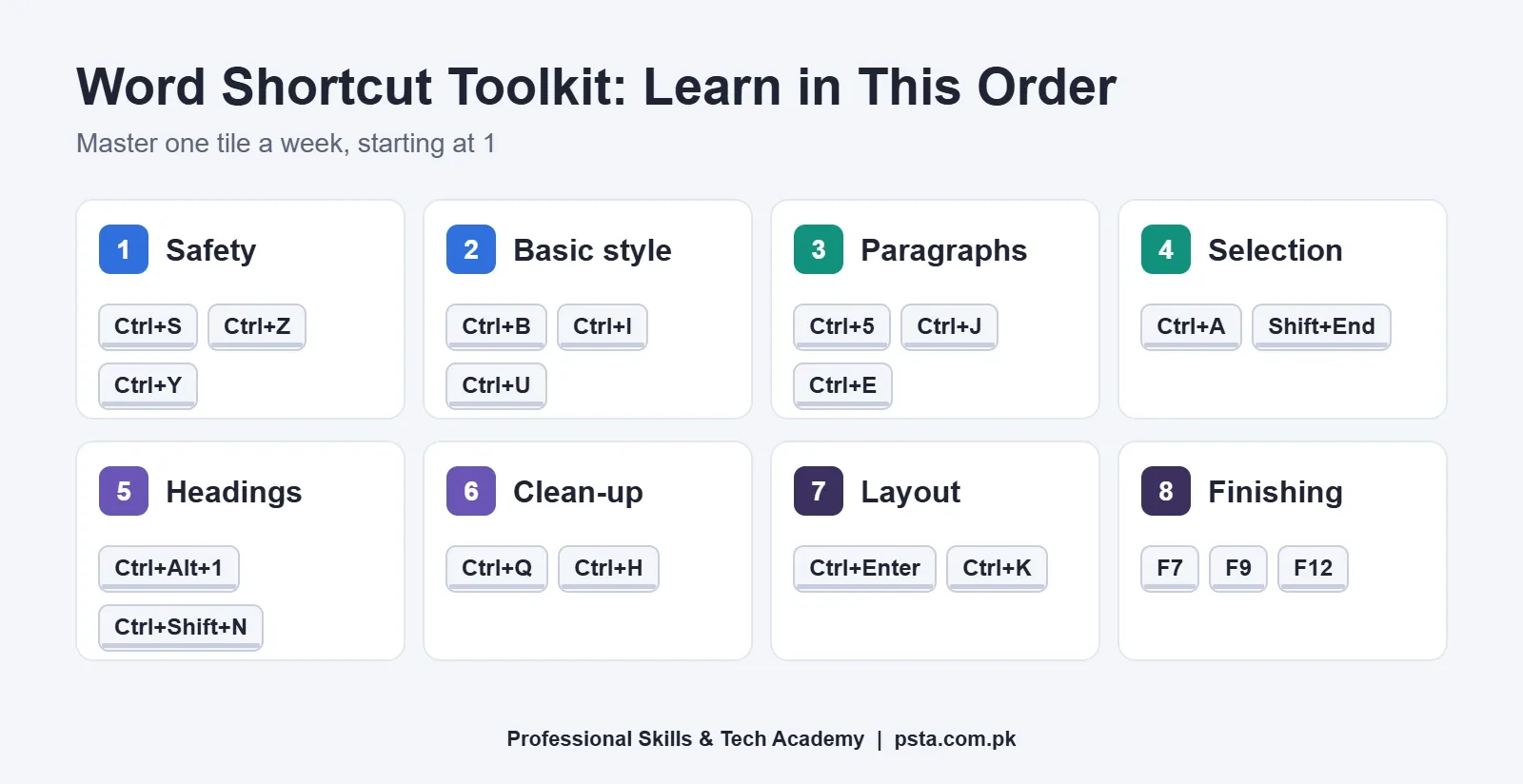
You don't need all of them in week one. In our classes, the order below works well for beginners, because each group builds on the last. Learn a row, use it for a week of real work, then add the next.
| Order | Group | Keys | Why it comes here |
|---|---|---|---|
| 1 | Safety | Ctrl+S, Ctrl+Z, Ctrl+Y | Makes experiments risk-free |
| 2 | Basic style | Ctrl+B, Ctrl+I, Ctrl+U | Used in every document |
| 3 | Paragraphs | Ctrl+5, Ctrl+1, Ctrl+J, Ctrl+E | Covers most formatting rules |
| 4 | Selection | Ctrl+A, Ctrl+Shift+arrows, Shift+End | Speeds up every other key |
| 5 | Headings | Ctrl+Alt+1, 2, 3 and Ctrl+Shift+N | Feeds the table of contents |
| 6 | Clean-up | Ctrl+Spacebar, Ctrl+Q, Shift+F3, Ctrl+H | Rescues pasted text |
| 7 | Layout | Ctrl+Enter, Ctrl+Alt+F, Ctrl+K | Stops chapters drifting |
| 8 | Finishing | F7, F9, F12, Ctrl+P | Checks and delivers the file |
A practical test: if you can reach row 5 without looking at this table, you are well prepared for the Word questions in computer operator tests. Our computer operator test preparation guide shows how Word questions appear in those exams.
Why Don't Some Shortcuts Work on My Laptop?
This is the question we hear most in the lab. The MS Word shortcut keys are typed correctly, but nothing happens. There are four usual causes.
The Function Keys Are Set to Media Controls
On many laptops, F7, F9 and F12 control volume or brightness by default. Hold the Fn key with the function key, or switch the function-key mode in the laptop's settings or BIOS. The exact method depends on the brand, so check your model's manual.
Your Keyboard Layout Isn't US English
Microsoft notes that its shortcut list refers to the US keyboard layout, and keys on other layouts might not fully match. If you added an Urdu keyboard for typing assignments, switch the input language on the taskbar back to English (US) before using shortcuts that rely on symbols.
You Used the Numeric Keypad
Ctrl+Shift+8 only works with the 8 on the top row. Microsoft's list says this specifically.
Another Program Took the Shortcut
Screen recorders, graphics drivers and some chat apps register their own global shortcuts, often with Ctrl+Alt. If Ctrl+Alt+1 does nothing, close those programs one at a time and test again.
Practicing Word the Office Way at PSTA
Reading about MS Word shortcut keys helps. Using them on real documents with someone checking your work helps far more. PSTA's Certified Office Automation Course is a 12-week beginner program covering computer basics, English and Urdu typing, Word, Excel and PowerPoint. In the Word module you produce letters, applications and a CV with proper page setup, and one of the course projects is a multi-page office report that combines text, a table and a chart.
At the time of writing, this program costs Rs. 12,000 against a regular fee of Rs. 15,000, and you may split it into two installments. Classes run on campus at Mandian, Old College Road, opposite FIMS College, Abbottabad, and live online for learners elsewhere in Pakistan. A hybrid of the two is also possible. Fresh batches open monthly.
If your typing is still slow, the English and Urdu typing course is a sensible companion, since shortcuts save the most time when your fingers already know the keyboard. For a longer qualification, the one-year DIT diploma includes office automation alongside other IT subjects. Fees and timings for every program sit on our full course list, and you can apply through the online admission page whenever it suits you. Questions about timings can go to us on WhatsApp at +92 314 5424399.
Already comfortable in Word? Our Excel shortcut keys guide and the mail merge walkthrough are good next reads.
Format One Old Assignment This Evening
Open any assignment you submitted last semester. Press Ctrl+Shift+8 and look at the hidden marks. Then redo it using only Stages 2 and 3: Ctrl+A, Ctrl+5, Ctrl+J, and heading styles with Ctrl+Alt+1 and Ctrl+Alt+2. Finally, insert an automatic table of contents. If it lists every chapter correctly on the first try, your headings are right, and the rest of these keys will come with practice.
Frequently asked questions
What is the shortcut key for 1.5 line spacing in MS Word?
Select the paragraphs and press Ctrl+5 to apply 1.5 line spacing. Ctrl+1 switches back to single spacing and Ctrl+2 applies double spacing. To change the whole document at once, press Ctrl+A first. Remember that tables usually look better at single spacing, so you may want to reset table rows with Ctrl+1 afterwards.
How do I make a table of contents in Word using the keyboard?
First give every chapter title a heading style with Ctrl+Alt+1, and sections Ctrl+Alt+2 or Ctrl+Alt+3. Then put the cursor where the table should go, press Alt and then S to open the References tab, and pick an automatic table from Table of Contents. After later edits, click inside the table and press F9 to update it.
Why is Ctrl+Alt+1 not working in my Word document?
The most common reasons are a keyboard layout other than English (US) or another program, such as a screen recorder or graphics driver, using the same combination. Switch the input language back to English (US) and close background apps one by one. If it still fails, apply Heading 1 from the Styles gallery on the Home tab instead.
What is the difference between Ctrl+Spacebar and Ctrl+Q in Word?
Ctrl+Spacebar removes character formatting, such as a stray font, color, bold or highlight, from the selected text. Ctrl+Q removes paragraph formatting, such as odd indents and spacing applied by hand. When you clean up text pasted from a PDF or website, select it and press both keys, then apply the correct style.
Do these MS Word shortcut keys work in Word 2016 and Word 2019?
Yes. Microsoft's keyboard shortcut reference for Word applies to Word 2016, 2019, 2021, 2024 and Word for Microsoft 365. Most of the keys in this guide have worked the same way for many versions. Microsoft also notes the list assumes a US keyboard layout, so a few keys may differ on other layouts.
How do I insert a page break in Word without pressing Enter many times?
Press Ctrl+Enter at the point where the new page should begin. Word inserts a proper page break, so the next chapter always starts at the top of a page even if you add text above it later. Turn on formatting marks with Ctrl+Shift+8 to see existing breaks and remove stray empty paragraphs.
How can I copy formatting in Word without clicking Format Painter?
Select text that already has the look you want and press Ctrl+Alt+C to copy its formatting. Then select the target text and press Ctrl+Alt+V to paste that formatting. Microsoft notes you can keep pasting the same format onto several places without copying it again, which is handy for headings typed by hand.
Sources & references
- Keyboard shortcuts in Word (Microsoft Support) support.microsoft.com
- Create a table of contents (Microsoft Support) support.microsoft.com
- Use the Format Painter (Microsoft Support) support.microsoft.com
- Show or hide tab marks in Word (Microsoft Support) support.microsoft.com
- Start page numbering later in your document (Microsoft Support) support.microsoft.com
- BS, MS and PhD Thesis Formatting Guidelines (University of Sahiwal) uosahiwal.edu.pk
Last reviewed & updated on by Umar Qureshi. Written by the PSTA team in Abbottabad, Pakistan.

Umar Qureshi

Certified Office Automation Course: Master MS Office & Computer Basics
Turn this guide into a career: hands-on training with real projects, online across Pakistan or on-campus in Abbottabad · 12 Weeks.
Comments
No comments yet — ask a question or share your experience.