Quick answer
Learn Excel shortcut keys in four levels: moving and selecting (Ctrl + Arrow), entering data (Ctrl + Enter, Ctrl + E), formatting (Ctrl + 1) and formulas (Alt + =, F4). Practice each level for a few days before adding the next, and use the Fn key if F2 or F4 do nothing on a laptop.
Key takeaways
- • Learn shortcuts in four levels instead of memorizing one long list.
- • Ctrl + Arrow and Ctrl + Shift + Arrow replace most scrolling and dragging.
- • Ctrl + Alt + V, then V, pastes values in every Excel version; Ctrl + Shift + V does it in newer Microsoft 365 builds.
- • On many laptops, F2, F4 and F12 need the Fn key or Fn Lock.
- • About 20 minutes a day for 14 days on one practice file builds real speed.
Table of contents 13 sections
- How Should You Learn Excel Shortcut Keys?
- Level 1: Moving Around and Selecting Data
- Level 2: Typing, Filling and Pasting Faster
- How Flash Fill Saves an Afternoon
- Which Key Pastes Values Only?
- Level 3: Formatting Numbers, Dates and Borders
- Level 4: Formulas, Filters and Quick Reports
- Why Does an Excel Shortcut Do Nothing on Your Laptop?
- The Alt Key Trick for Commands Without a Shortcut
- A 14-Day Drill Plan for Office Job Seekers
- What Do Office Job Ads in Pakistan Ask For?
- Practicing These Keys in PSTA's Office Automation Course
- Move Your Mouse Out of Reach for Two Days
Before you read any list of Excel shortcut keys, try one. Open a sheet with a few hundred rows, click any cell in the first column and press Ctrl + Down Arrow. Excel lands on the last filled cell in a blink, where scrolling with the mouse would have taken several seconds. Now press Ctrl + Shift + Up Arrow and the whole column above you is selected.
That small test shows how shortcuts pay off. They don't make you type faster. They cut out the hunting, dragging and clicking between keystrokes, which is where most office time goes. This guide sorts 42 Excel shortcut keys into four levels so you learn them in a sensible order, not as one long list you forget by Friday.
Here is what you'll get from it:
- 42 Windows shortcuts checked against Microsoft's current shortcut page, split into four levels
- Real office tasks for each key, from fee registers to stock lists
- Fixes for the common laptop problem where F2 and F4 seem dead
- The new paste-values key in Microsoft 365, and the older method that works everywhere
- A 14-day drill plan you can finish in about 20 minutes a day
How Should You Learn Excel Shortcut Keys?
Learn them in layers, and only add a new layer when the old one feels automatic. Most beginners print a sheet of 100 shortcuts, stick it on the wall and use three of them. The rest never turn into habit because there was no reason to reach for them.
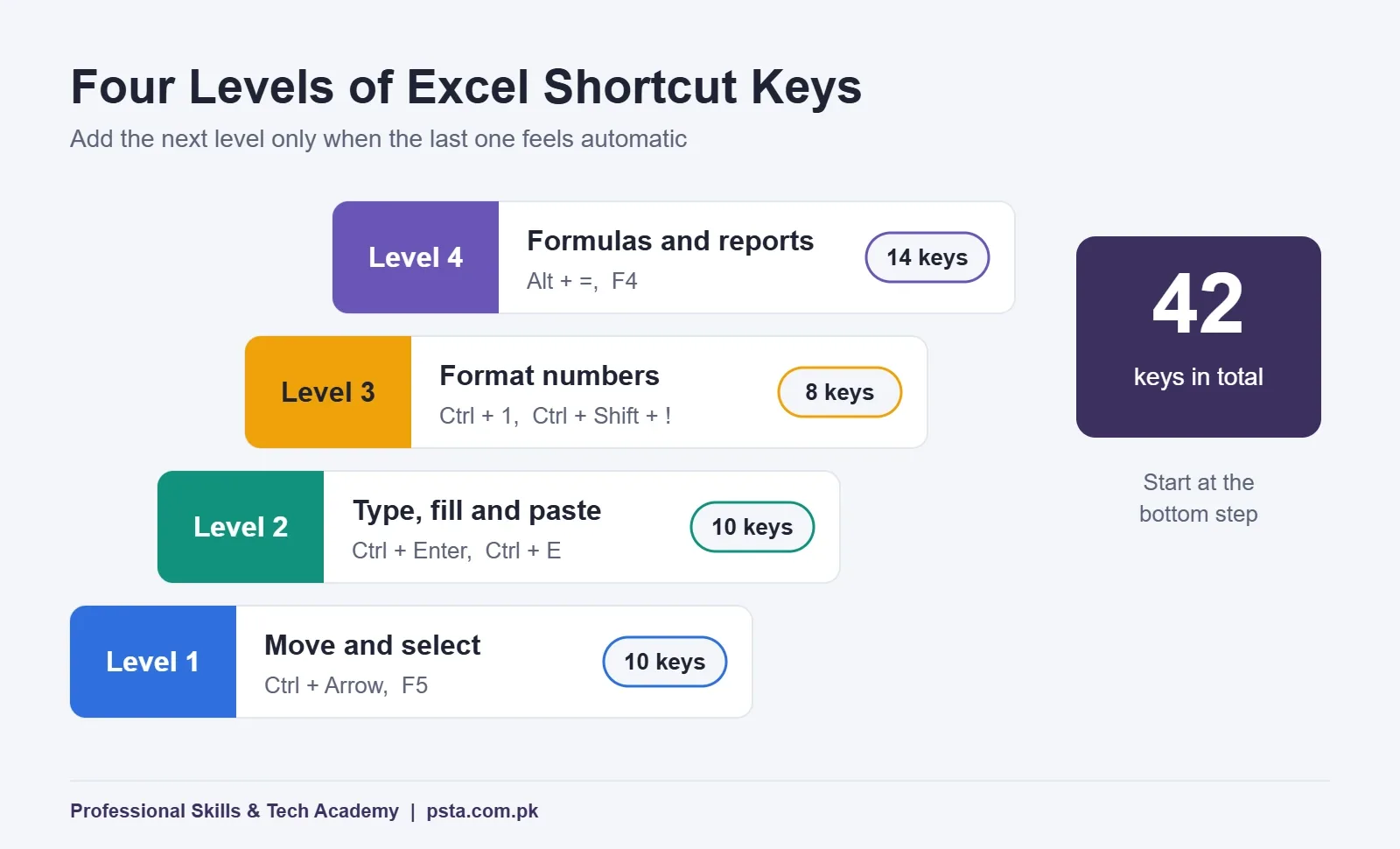
The four levels below follow the order in which office work actually happens. You open a file and move around it. Then you enter data and make it presentable. Finally, you total it, filter it and hand it over. Each level has 8 to 14 keys. Spend a few days on each one before moving on.
A note on how shortcuts are written. "Ctrl + Shift + :" means hold Ctrl and Shift together, then tap the colon key. "Alt, H, H" with commas means press and release each key in turn. Many lists of MS Excel shortcut keys mix Windows and Mac combinations, but every key here is for Excel on Windows. Microsoft's own Keyboard shortcuts in Excel page lists them for Excel for Microsoft 365, 2024, 2021, 2019 and 2016. So the same keys work in the versions most Pakistani offices still run.
Level 1: Moving Around and Selecting Data
The first 10 Excel shortcut keys replace the scroll wheel and click-and-drag selection. Master them first, because every later level depends on selecting the right cells quickly.
| Shortcut | What It Does | Office Example |
|---|---|---|
| Ctrl + Arrow key | Jumps to the edge of the current block of data | Reach the last student in a 600-row fee register |
| Ctrl + Home | Goes to cell A1 | Return to the header row after checking totals |
| Ctrl + End | Goes to the last used cell on the sheet | Find where a colleague's data really ends |
| Ctrl + Page Down / Page Up | Moves to the next or previous sheet | Flip between monthly sheets in a sales file |
| F5 | Opens Go To, where you type a cell address | Jump straight to cell K250 |
| Ctrl + Shift + Arrow key | Selects up to the last filled cell | Select a whole column of phone numbers |
| Ctrl + Spacebar | Selects the entire column | Widen or format a column in one go |
| Shift + Spacebar | Selects the entire row | Highlight one employee's record |
| Ctrl + A | Selects the current data block; press again to widen the selection | Copy a full table to another file |
| Ctrl + S | Saves the workbook | Save every few minutes, before the power goes |
One habit makes these keys far more useful: keep your data free of empty rows. Ctrl + Arrow stops at the first blank cell, so a single empty row in the middle of a list makes it stop halfway. If a jump lands somewhere odd, that is usually the reason.
Ctrl + End is also a good health check. If it lands far below your real data, someone formatted or typed in cells further down. Deleting those extra rows keeps the file smaller and printing cleaner.
Level 2: Typing, Filling and Pasting Faster
Level 2 holds the Excel shortcuts for data entry, so this is where operators gain the most. These Excel shortcut keys reduce the number of times you retype the same thing.
| Shortcut | What It Does | Office Example |
|---|---|---|
| F2 | Edits the active cell with the cursor at the end | Fix a spelling without retyping the name |
| Alt + Enter | Starts a new line inside the same cell | Write a two-line address in one cell |
| Ctrl + Enter | Fills every selected cell with what you typed | Type "Abbottabad" once for 40 selected rows |
| Ctrl + D | Copies the top cell of a selection downward | Copy a formula down a salary column |
| Ctrl + ; | Enters today's date | Date-stamp a stock entry |
| Ctrl + Shift + : | Enters the current time | Log when a parcel left the shop |
| Ctrl + E | Runs Flash Fill | Split full names into first names |
| Ctrl + Z / Ctrl + Y | Undo, and repeat the last action | Undo a wrong paste; repeat a fill color |
| Ctrl + Alt + V | Opens Paste Special; press V for values only | Paste totals without their formulas |
| Ctrl + ' | Copies the formula from the cell above | Reuse a formula exactly, without shifting references |
How Flash Fill Saves an Afternoon
Say column A holds customer entries like "Ahmed Raza, Mansehra" and you need only the city in column B. Type "Mansehra" next to the first entry, move to the cell below and press Ctrl + E, the Flash Fill shortcut. Excel spots the pattern and fills the rest of the column. Microsoft's Flash Fill guide shows the same idea in reverse, joining first and last names into one column. If nothing happens, check that Automatic Flash Fill is switched on in Excel's advanced options.
Always scan the result. Flash Fill guesses from examples, so an odd entry such as a missing comma can produce a wrong value. Give it two examples instead of one when your data is messy.
Which Key Pastes Values Only?
The paste values shortcut that works in every version is Ctrl + Alt + V, then V, then Enter. It drops the formulas and keeps the numbers, which matters when you send a sheet to someone who doesn't need your workings.
Newer Microsoft 365 builds add a one-step option. The Office Insider team announced that Ctrl + Shift + V pastes values in Excel for Windows, starting with Beta Channel builds of Version 2210. If you work on Excel 2016, 2019 or 2021, that key won't do the same thing, so learn the Paste Special route as well. It is also the one examiners and older colleagues will expect.
Level 3: Formatting Numbers, Dates and Borders
Formatting is where the mouse wastes the most time. Each option sits two or three clicks deep in the ribbon. These 8 keys cover nearly everything a monthly report needs.
| Shortcut | What It Does | Office Example |
|---|---|---|
| Ctrl + 1 | Opens the Format Cells dialog | Set custom date or number formats |
| Ctrl + Shift + ! | Number format with two decimals and a thousands separator | Show 125000 as 125,000.00 in a salary sheet |
| Ctrl + Shift + % | Percentage format with no decimals | Show 0.18 as 18% for a discount column |
| Ctrl + Shift + # | Date format | Clean up a column of joining dates |
| Ctrl + Shift + & | Adds an outline border | Box the totals row before printing |
| Ctrl + Shift + _ | Removes the outline border | Undo borders copied from another file |
| Ctrl + 9 / Ctrl + 0 | Hides selected rows or columns | Hide a working column before sharing |
| Alt, H, H | Opens the fill color menu | Shade the header row |
A tip from class: apply number formats to the whole column with Ctrl + Spacebar first, then press Ctrl + Shift + !. New rows you add later will pick up the format automatically, so your rupee figures stay consistent all month.
Level 4: Formulas, Filters and Quick Reports
The last 14 keys help you total, check and summarize data. They're also the keys that show an interviewer you've used Excel for real work, not just typing.
| Shortcut | What It Does | Office Example |
|---|---|---|
| Alt + = | Inserts a SUM formula | Total a column of daily sales |
| F4 | Cycles a reference through $A$1, A$1, $A1 and A1 | Lock a tax rate cell before copying a formula |
| Shift + F3 | Opens Insert Function | Find VLOOKUP or COUNTIF when you forget the spelling |
| Ctrl + ` | Shows formulas instead of results | Check which cells are typed and which are calculated |
| F9 / Shift + F9 | Recalculates all workbooks, or only the active sheet | Refresh results when calculation is set to manual |
| Ctrl + T | Turns a range into a Table | Get banded rows and filter buttons at once |
| Ctrl + Shift + L | Turns filters on or off | Show only pending fee payments |
| Alt + Down Arrow | Opens the filter drop-down on a header cell | Pick one branch from a filter list |
| Alt + F1 | Creates a chart on the same sheet | Quick chart of monthly expenses |
| Ctrl + Shift + Plus / Ctrl + Minus | Inserts or deletes cells, rows or columns | Add a row for a new employee |
| Shift + F11 | Inserts a new worksheet | Add a sheet for next month |
| F12 | Opens Save As | Save a copy before big changes |
| Shift + F2 | Adds or edits a note | Explain why a figure was adjusted |
| F7 | Runs spell check | Check names and headings before printing |
Ctrl + Shift + L comes from the filter tips on Excel Campus, which also shows that after Alt + Down Arrow you can press S to sort A to Z or O to sort Z to A. Every other key in the four tables appears on Microsoft's official list.
F4 deserves extra practice. When you write =B2*$E$1 to apply a rate in E1 to every row, F4 adds the dollar signs for you. Without them, copying the formula down shifts E1 to E2, E3 and so on, and the totals go wrong without any warning.
Why Does an Excel Shortcut Do Nothing on Your Laptop?
When Excel keyboard shortcuts seem broken, Excel itself is rarely at fault. It's the most common complaint in our computer lab. Here are the usual causes, in the order to check them:
- The Fn key. Many laptops set the top row to brightness and volume by default. Hold Fn with F2, F4 or F12, or look for an Fn Lock key (often Fn + Esc) so the F-keys work on their own.
- You're still editing a cell. Most shortcuts don't run while the cursor is blinking inside a cell. Press Enter or Esc first.
- Another program has taken the key. Screen recorders, translation tools and some graphics drivers grab combinations such as Ctrl + Alt + Arrow. Close them and test again.
- The keyboard layout changed. If you switch between English and Urdu input, symbols like ; and : can move. Switch back to English (Alt + Shift changes layout on many PCs) before using symbol shortcuts.
- It's a different version. Some newer keys, like the one-step paste values, only exist in recent Microsoft 365 builds.
The Alt Key Trick for Commands Without a Shortcut
Not every command has one of the standard Excel shortcut keys. For the rest, tap Alt once and small letters appear over each ribbon tab. Microsoft's list shows Alt, H for the Home tab, Alt, N for Insert, Alt, P for Page Layout, Alt, A for Data, Alt, W for View and Alt, M for Formulas. Keep pressing the letters shown and you can reach almost any button.
A few Home tab sequences from the official list are worth learning by heart: Alt, H, B for the borders menu, Alt, H, A, C to center text, and Alt, H, D, C to delete a column. Because these letters stay the same, your fingers learn the path after a week of use.
If you also prepare letters and CVs, the same Alt method works in Word and PowerPoint. That is one reason our basic computer skills checklist treats keyboard control as a core office skill.
A 14-Day Drill Plan for Office Job Seekers
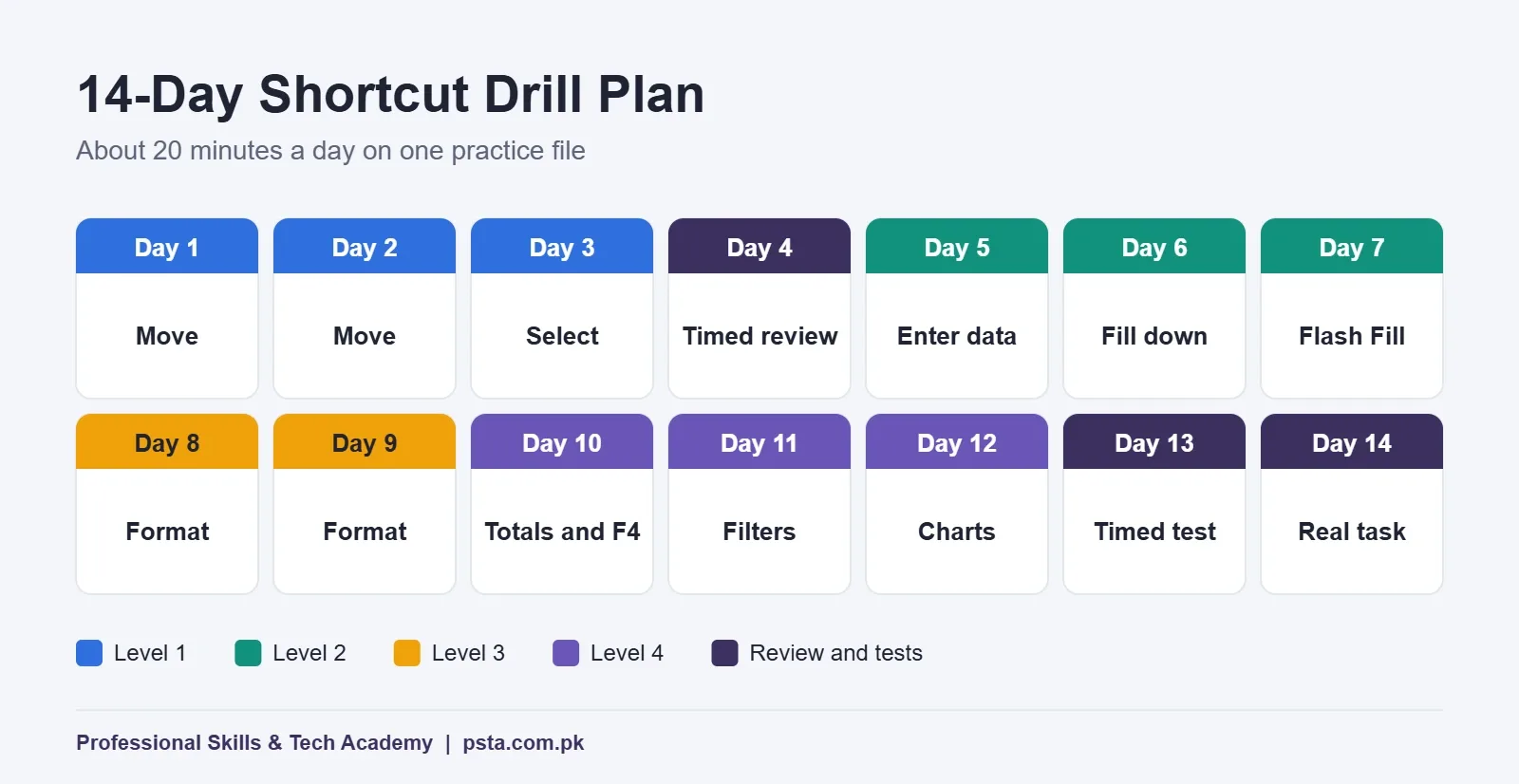
Reading a table won't build speed. Short daily drills will. Use one practice file with at least 300 rows, such as a dummy salary sheet or stock list. Then follow this plan for about 20 minutes a day.
| Days | Focus | Daily Drill |
|---|---|---|
| 1–3 | Level 1 | Move to all four corners of the data and select five columns without touching the mouse |
| 4 | Review | Repeat days 1–3 and time yourself on the same file |
| 5–7 | Level 2 | Enter 30 new records using Ctrl + Enter, Ctrl + D and Ctrl + ;, then split names with Ctrl + E |
| 8–9 | Level 3 | Format a raw sheet into a printable report using only keys |
| 10–12 | Level 4 | Add totals with Alt + =, lock a rate with F4, filter with Ctrl + Shift + L and chart with Alt + F1 |
| 13 | Timed test | Rebuild the whole report from raw data against a timer |
| 14 | Real task | Do one genuine job, such as your own monthly budget, without the mouse |
Write down your day-4 and day-13 times. Seeing the drop is the best reason to keep going. Shortcuts can't make up for hunting for letters. If your typing itself is slow, work on it in parallel with the habits in our post on how to increase typing speed.
What Do Office Job Ads in Pakistan Ask For?
Job ads rarely list Excel shortcut keys by name, but they almost always ask for Excel. A computer operator vacancy at Pakistan Railways headquarters on the National Job Portal asked for proficiency in Word, Excel, PowerPoint and Outlook, plus InPage Urdu. A private computer operator ad from Lahore on Rozee.pk, posted on October 15, 2026, said the role "requires strong proficiency in Microsoft Excel" and asked for accurate typing.
In practical tests, that proficiency shows up as speed and accuracy on a real file. Candidates who reach for the mouse for every selection tend to run out of time. If you're preparing for this kind of test, pair this guide with our Excel interview questions post for the formula side, and the salary sheet walkthrough for a realistic practice file.
If you want proof of skill beyond a local certificate, our guide to MOS certification in Pakistan explains Microsoft's own exams. Those tests are task-based, so keyboard fluency helps there too.
Practicing These Keys in PSTA's Office Automation Course
Shortcuts stick fastest when someone watches you work and stops you each time you reach for the mouse. That is how we teach Excel in the Certified Office Automation Course. The course page lists these details:
- Duration and level: 12 weeks, designed for beginners
- Fee: Rs. 12,000 against the usual Rs. 15,000, split into 2 installments
- Modes: classes in Abbottabad, live online from any city, or a mix of both, and batches start monthly
- Excel coverage: tables, formulas, formatting and charts, plus a timed data entry task and a monthly expense or sales sheet project
- Also included: Windows basics, English and Urdu typing practice, Word and PowerPoint
Students aiming for computer operator posts often add the English and Urdu typing course. If a one-year diploma suits you better, DIT adds networking and web basics on top of office skills. You can compare everything on the courses page, see batch details on the admission page, or drop us a line on WhatsApp (+92 314 5424399) with the class timing you prefer. Our classrooms sit opposite FIMS College on Old College Road, Mandian.
Move Your Mouse Out of Reach for Two Days
Here's a simple way to start using Excel shortcut keys today. Push your mouse to the far side of the desk for the next two working days. Use it only when no key will do the job. Keep the Level 1 table open on a second screen or printed beside you. It will feel slow on the first morning. By the second afternoon, Ctrl + Arrow and Ctrl + Shift + Arrow will be automatic, and you'll be ready for Level 2.
Frequently asked questions
Which Excel shortcut keys should a beginner learn first?
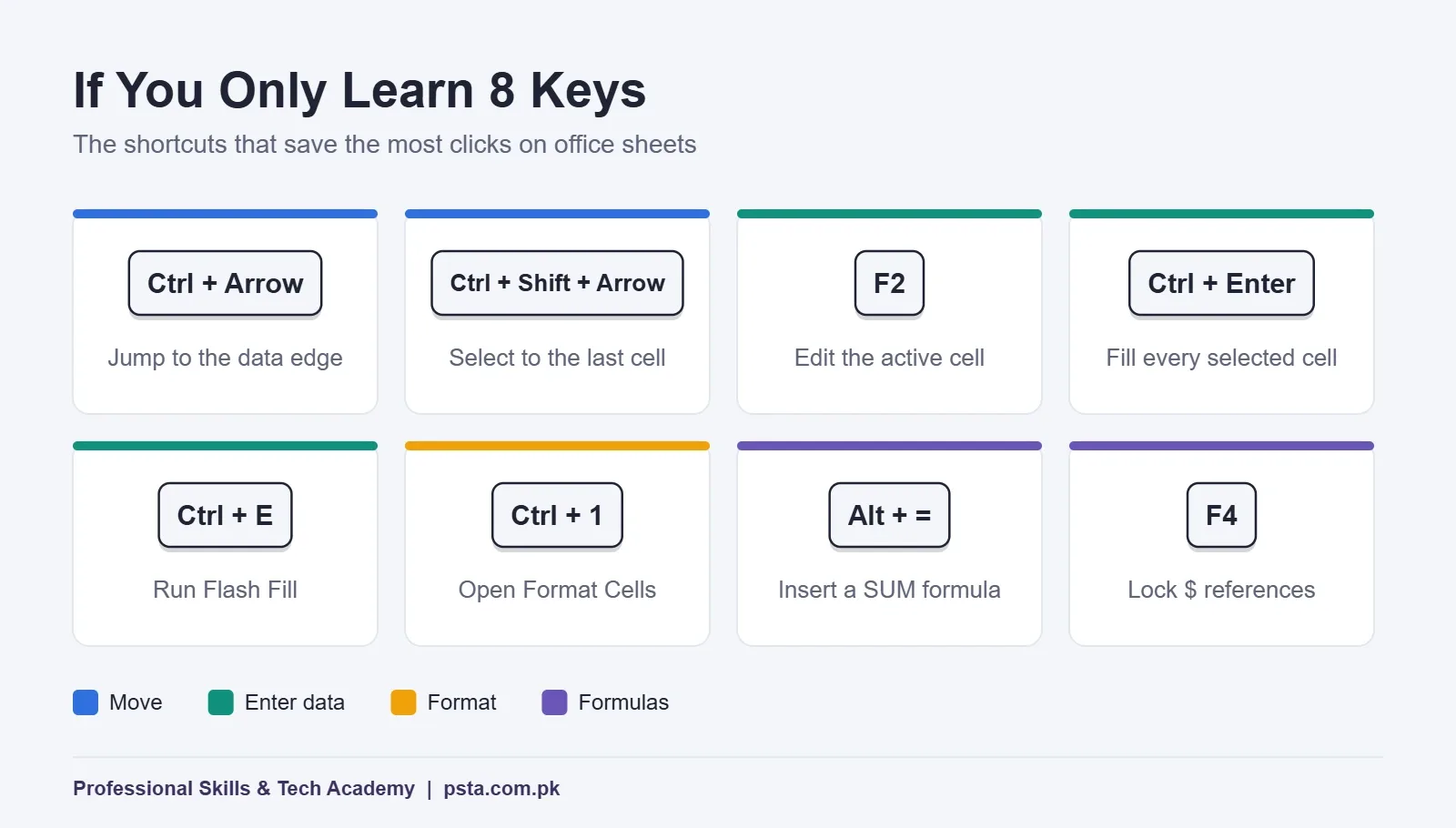
Start with movement and selection: Ctrl + Arrow to jump to the edge of your data, Ctrl + Shift + Arrow to select it, Ctrl + Home and Ctrl + End. Then add F2, Ctrl + Enter and Ctrl + E for data entry. These few keys remove most of the scrolling and dragging that slows beginners down, and every other shortcut builds on them.
What is the shortcut to paste values only in Excel?
In every Excel version from 2016 onward, press Ctrl + Alt + V to open Paste Special, then V and Enter. That pastes the results without formulas. Newer Microsoft 365 builds also support Ctrl + Shift + V for a one-step paste of values, but it will not behave the same way in Excel 2016, 2019 or 2021.
Why do F2 and F4 not work in Excel on my laptop?
Most laptops assign the top row to brightness, volume and similar controls. Hold the Fn key while pressing F2 or F4, or switch on Fn Lock, which is often Fn + Esc depending on the brand. Also make sure you are not still typing inside a cell, because many shortcuts only work after you press Enter or Esc.
What does F4 do in an Excel formula?
While you edit a formula, F4 cycles the selected cell reference through four forms: $A$1, A$1, $A1 and A1. The dollar sign locks the column, the row or both, so the reference stays fixed when you copy the formula. Outside a formula, F4 repeats your last action, such as applying the same fill color again.
Do the same Excel shortcuts work on a Mac?
Some do, but many Mac shortcuts use the Command key and a few are completely different. Microsoft keeps a separate macOS tab on its official Excel shortcuts page, so check there if you work on a MacBook. If your office or job test uses a Windows PC, practice the Windows keys in this guide first and learn the Mac versions later.
How long does it take to learn Excel shortcut keys?
If you practice about 20 minutes a day on a real file, two weeks is a realistic target for the core keys, which is why the drill plan in this guide runs for 14 days. The trick is to add one small group at a time and stop using the mouse for those tasks. Reading a long list once rarely sticks; daily use does.
Is there a keyboard shortcut for filters in Excel?
Yes. Select any cell in your header row and press Ctrl + Shift + L to switch filters on or off. Then press Alt + Down Arrow on a header cell to open its filter list, use the arrow keys and Spacebar to tick items, and press Enter. Ctrl + T is another option, since a Table adds filter buttons automatically.
Sources & references
- Keyboard shortcuts in Excel (Microsoft Support) support.microsoft.com
- Using Flash Fill in Excel (Microsoft Support) support.microsoft.com
- New paste options when using keyboard shortcuts (Microsoft 365 Insider) insider.office.com
- 7 Keyboard Shortcuts for the Filter Drop Down Menus (Excel Campus) excelcampus.com
- Computer Operator, Pakistan Railways (National Job Portal) njp.gov.pk
- Computer Operator job, Lahore (Rozee.pk) rozee.pk
Last reviewed & updated on by Umar Qureshi. Written by the PSTA team in Abbottabad, Pakistan.

Umar Qureshi

Certified Office Automation Course: Master MS Office & Computer Basics
Turn this guide into a career: hands-on training with real projects, online across Pakistan or on-campus in Abbottabad · 12 Weeks.



Comments
No comments yet — ask a question or share your experience.