
Quick answer
Use XLOOKUP when everyone who opens the file has Microsoft 365, Excel 2021 or Excel 2024. It matches exactly by default, looks in any direction and has a built-in not-found message. Use VLOOKUP, always ending with FALSE, when a file may be opened in Excel 2016 or 2019, which lack XLOOKUP.
Key takeaways
- • XLOOKUP isn't available in Excel 2016 or 2019; it's in Microsoft 365, Excel 2021, Excel 2024, the web and mobile apps.
- • VLOOKUP defaults to approximate match, so end ordinary lookups with FALSE.
- • XLOOKUP matches exactly by default and can return a column to the left of the search column.
- • XLOOKUP's if_not_found argument replaces IFERROR without hiding other errors.
- • A search_mode of -1 makes XLOOKUP return the last match, such as a student's latest payment.
- • Office 2016 and Office 2019 reached end of support on October 14, 2025.
Table of contents 14 sections
- What Do VLOOKUP and XLOOKUP Actually Do?
- VLOOKUP vs XLOOKUP at a Glance
- Syntax Side by Side
- Four Worked Examples on One Fee Sheet
- Example 1: Finding a Student's Fee by Roll Number
- Example 2: Looking Up to the Left
- Example 3: Handling Missing Values Cleanly
- Example 4: Finding the Latest Payment
- Approximate Matches for Grade Bands
- Which Excel Versions Have XLOOKUP?
- So Which Should You Learn First?
- Common Lookup Errors and How to Fix Them
- Practicing Lookups in PSTA's Office Automation Course
- Rewrite One Old Formula Today
In the VLOOKUP vs XLOOKUP debate, a common belief is that XLOOKUP has made VLOOKUP useless, so beginners can skip the older function. That's only half right. XLOOKUP is easier and safer in almost every way, but Microsoft says it isn't available in Excel 2016 or Excel 2019. If your office PC or a client's file uses one of those versions, XLOOKUP simply won't work there.
So the smart move is to understand both. This guide compares the two using one simple fee sheet and shows the same lookup written both ways. It also helps you decide which to use on the computer in front of you.
You'll find:
- The syntax of both functions, explained argument by argument
- Four worked examples, including a left lookup VLOOKUP can't do
- How each handles missing values and approximate matches
- Which Excel versions include XLOOKUP
- The errors you'll meet most and how to fix them
What Do VLOOKUP and XLOOKUP Actually Do?
Both functions answer the same kind of question. Find this value in one column, then bring back a related value from the same row. Give them a roll number, and they return the student's name or fee. Give them a product code, and they return its price.
The difference is in how you tell Excel where to look. VLOOKUP asks for a whole table and a column number. XLOOKUP asks for two separate columns: the one to search and the one to return. That small change fixes most of VLOOKUP's old problems.
VLOOKUP vs XLOOKUP at a Glance
| Feature | VLOOKUP | XLOOKUP |
|---|---|---|
| Default match | Approximate (if the last argument is left out) | Exact |
| Lookup direction | Lookup column must be the first column of the table | Any direction, left or right |
| Return column | Counted by number (2, 3, 4...) | Selected as a range |
| Inserting a column | Can break the column number | Ranges adjust automatically |
| Not found | #N/A; wrap in IFERROR | Built-in if_not_found argument |
| Search from bottom | Not available | search_mode -1 |
| Excel versions | All current versions | Microsoft 365, Excel 2021, Excel 2024, web and mobile |
The table above sums up Microsoft's own documentation for VLOOKUP and XLOOKUP. Even Microsoft's VLOOKUP page now suggests trying XLOOKUP, which it describes as an improved version that works in any direction.
Syntax Side by Side
Here's how each function is built. Optional arguments are in square brackets.
=VLOOKUP(lookup_value, table_array, col_index_num, [range_lookup])
- lookup_value: what you're searching for, such as a roll number.
- table_array: the whole table. The search column must be its first column.
- col_index_num: which column to return, counting the first column as 1.
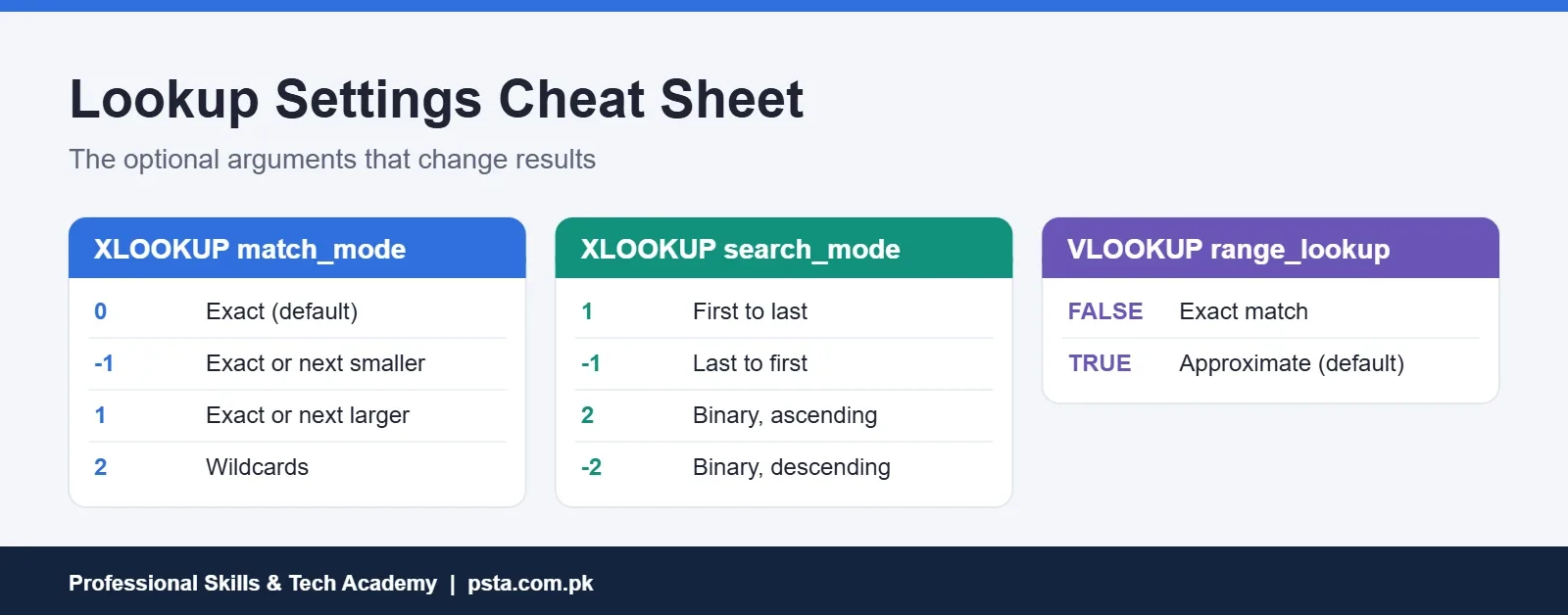
- range_lookup: FALSE for an exact match, TRUE for approximate. If you leave it out, Excel assumes TRUE.
=XLOOKUP(lookup_value, lookup_array, return_array, [if_not_found], [match_mode], [search_mode])
- lookup_array: the single column to search.
- return_array: the single column to bring back.
- if_not_found: text to show when there's no match, such as "Not found."
- match_mode: 0 for exact (the default), -1 or 1 for the next smaller or larger item, 2 for wildcards.
- search_mode: 1 searches top to bottom, -1 bottom to top, and 2 or -2 run a binary search on sorted data.
Four Worked Examples on One Fee Sheet
Each example below uses the same school fee sheet, so you can rebuild it in a few minutes and follow along.
Example 1: Finding a Student's Fee by Roll Number
Picture a fee sheet with roll numbers in column A, names in B, classes in C and monthly fees in D. The data runs from row 2 to row 241. You type a roll number in G2 and want the fee in H2.
With VLOOKUP, the formula is =VLOOKUP(G2,$A$2:$D$241,4,FALSE). The 4 means "the fourth column of the table," and FALSE forces an exact match.
With XLOOKUP, it's =XLOOKUP(G2,$A$2:$A$241,$D$2:$D$241). There's no column number to count and no FALSE to remember, because exact match is the default.
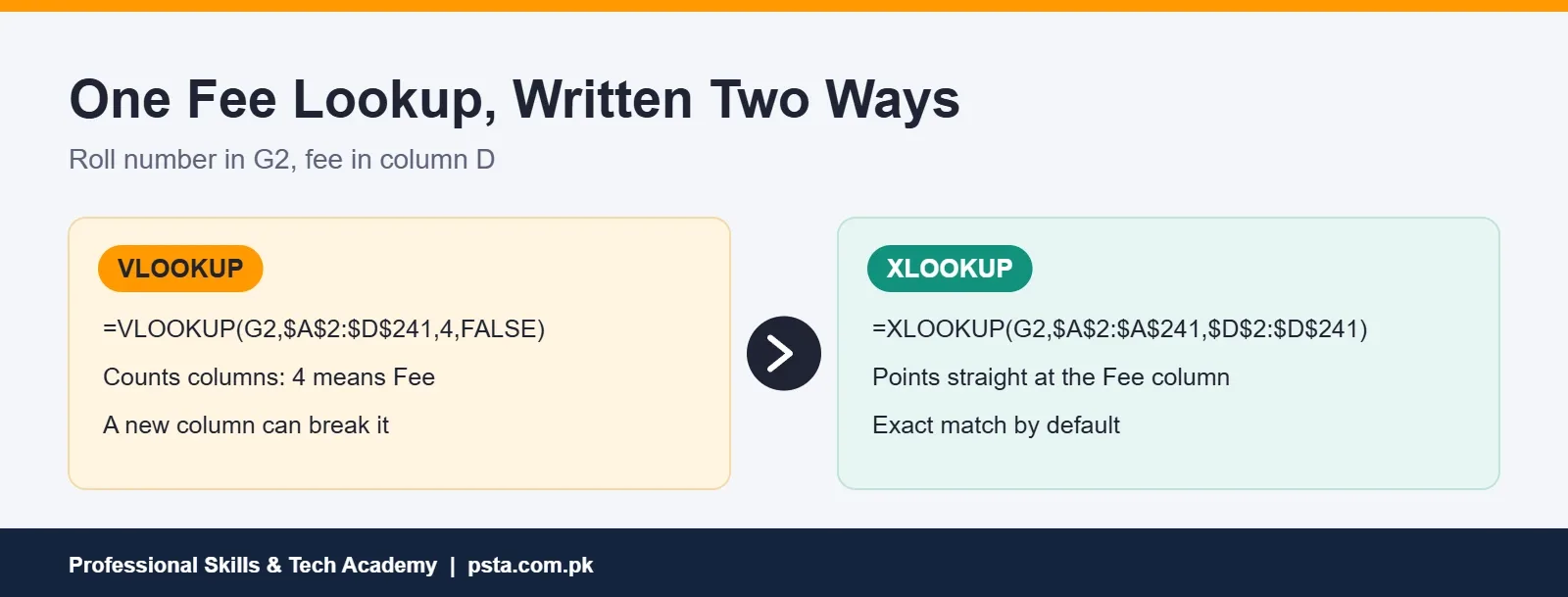
Both use dollar signs to lock the ranges, which Microsoft recommends so the formula doesn't shift when you fill it down. The real difference shows up later. If someone inserts a "Section" column between Class and Fee, the VLOOKUP keeps returning column 4, which is now Section. The XLOOKUP still points at the fee column, because Excel adjusts the range for you.
Example 2: Looking Up to the Left
Now reverse the question. You have a student's name and need the roll number, which sits to the left of the name column.
VLOOKUP can't do this, because the search column must be the first column of the table. Your options are to move columns around or switch to an INDEX and MATCH combination.
XLOOKUP doesn't care about direction: =XLOOKUP(G3,$B$2:$B$241,$A$2:$A$241) searches names in column B and returns roll numbers from column A. For office files you don't control, such as exports from a fee or HR system, that flexibility saves real time.
Example 3: Handling Missing Values Cleanly
When a roll number isn't in the sheet, both functions return #N/A by default. On a printed fee report, that looks like a mistake.
With VLOOKUP, the usual fix is to wrap it: =IFERROR(VLOOKUP(G2,$A$2:$D$241,4,FALSE),"Not found"). The catch is that IFERROR hides every error, including real problems such as a typo in the range.
XLOOKUP has the message built in: =XLOOKUP(G2,$A$2:$A$241,$D$2:$D$241,"Not found"). Only a missing match triggers the message. Other errors still show, so you can spot and fix them.
Example 4: Finding the Latest Payment
Fee records often have several rows per student, one for each payment. Say column A holds roll numbers and column E holds payment dates, with new payments added at the bottom.
VLOOKUP always returns the first match it finds from the top, which here is the oldest payment. XLOOKUP can search in reverse: =XLOOKUP(G2,$A$2:$A$900,$E$2:$E$900,"No payment",0,-1). The -1 search mode starts at the last row and works upward, so you get the most recent date.
Getting the same result with VLOOKUP means sorting the data first or building a helper column. For a monthly fee report, XLOOKUP's version takes one formula and no extra steps.
Approximate Matches for Grade Bands
Approximate matching is useful when you look up a band rather than an exact value. A common example is a grading table: 0 for F, 50 for D, 60 for C, 70 for B and 80 for A.
- VLOOKUP:
=VLOOKUP(E2,$J$2:$K$6,2,TRUE). Microsoft notes that the first column must be sorted for approximate matching, or you'll get wrong answers without any error. - XLOOKUP:
=XLOOKUP(E2,$J$2:$J$6,$K$2:$K$6,,-1). A match_mode of -1 returns the exact value or the next smaller one. The two commas skip the if_not_found argument.
Here's where VLOOKUP's default bites beginners. If you forget the last argument on an ordinary lookup, VLOOKUP quietly uses approximate match. On an unsorted list of roll numbers, it can return another student's fee with no warning at all. That single habit, always typing FALSE, prevents most VLOOKUP disasters.
Which Excel Versions Have XLOOKUP?
According to Microsoft's XLOOKUP page, the function isn't available in Excel 2016 or Excel 2019. You'll find it in Excel for Microsoft 365 on Windows and Mac, Excel 2021, Excel 2024, Excel for the web and the mobile apps.
There's another reason to check your version. Microsoft's lifecycle announcement confirms that Office 2016 and Office 2019 reached end of support on October 14, 2025. That means no more security updates or fixes. Microsoft's end of support notice adds that the apps keep running, but with growing security risk. Offices still using them are due an upgrade. Until that happens, VLOOKUP is the function that works everywhere.
To check your version, open File > Account in Excel and look under Product Information.
So Which Should You Learn First?
If you're starting today, learn XLOOKUP first. It has fewer arguments to get wrong, exact match by default and no column counting. Then spend an afternoon on VLOOKUP. You'll meet it in older files, in office tests and on PCs that still run Excel 2016 or 2019. In short, the VLOOKUP vs XLOOKUP choice depends on who will open the file.
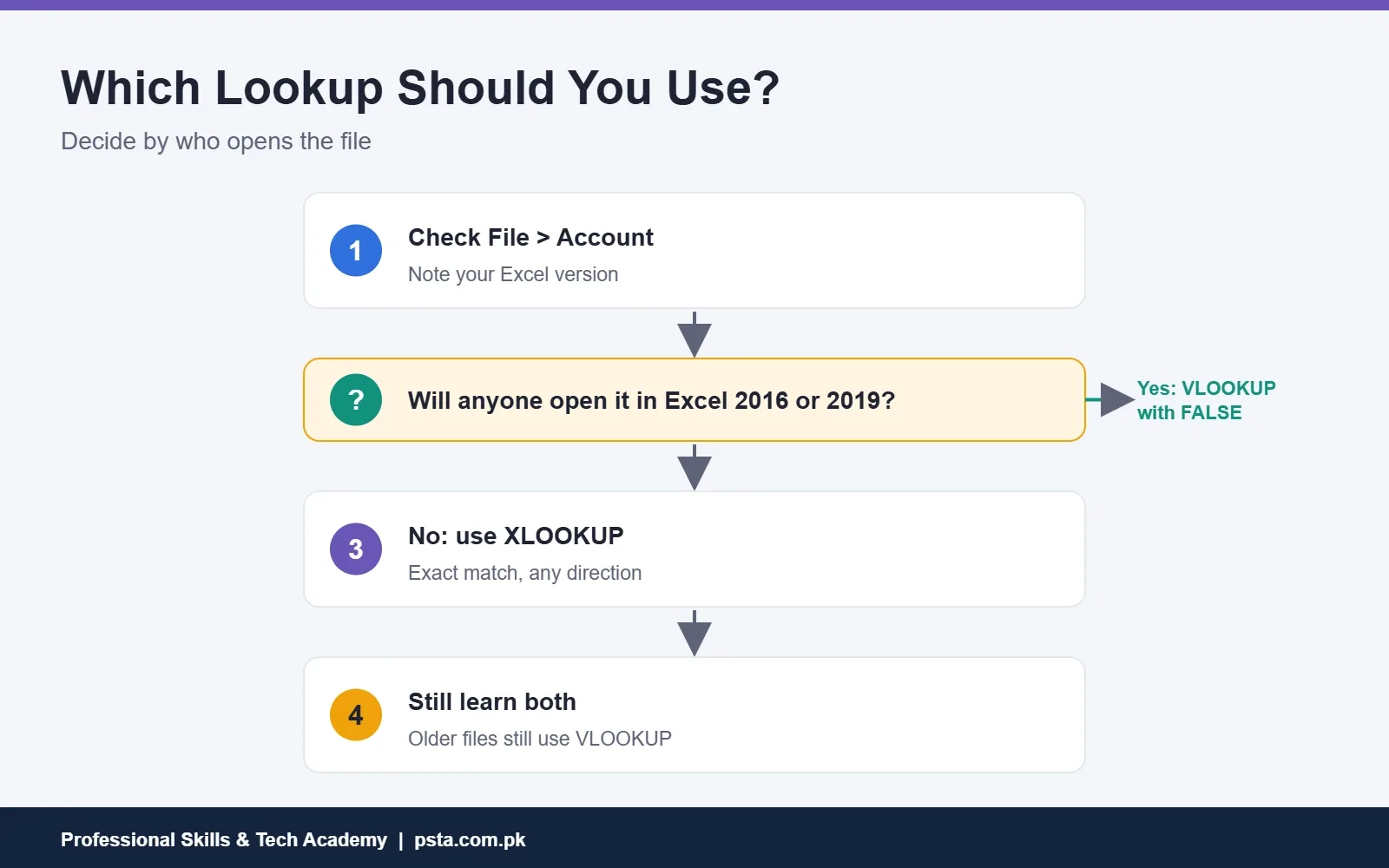
One practical tip for shared files: if a colleague or client might open your workbook in Excel 2016 or 2019, stick to VLOOKUP or INDEX and MATCH in that file. A formula they can't calculate is worse than an older one that works.
Common Lookup Errors and How to Fix Them
- #N/A: the value wasn't found. Check for extra spaces with TRIM, and make sure numbers aren't stored as text in one column and as numbers in the other.
- #REF! in VLOOKUP: the column number is larger than the number of columns in the table. Count again or widen the range.
- Wrong answer, no error: VLOOKUP is doing an approximate match. Add FALSE as the last argument.
- #SPILL!: Microsoft's VLOOKUP page lists this when an entire column is used as the lookup value. Point the formula at a single cell, such as G2.
- #NAME?: often caused by text typed without quotation marks, such as Not found instead of "Not found", or a misspelled function name.
- Formula stops working after you add a column: a VLOOKUP column number is now pointing at the wrong column. Update the number or switch to XLOOKUP.
Lookups often appear in office job tests and interviews. Our list of Excel interview questions for office jobs includes more practice, and the Excel shortcut keys guide will help you build test sheets faster.
Practicing Lookups in PSTA's Office Automation Course
Excel formulas, tables and charts are part of PSTA's Certified Office Automation course, alongside Word, PowerPoint, English and Urdu typing and office reporting tasks. It's a 12-week beginner course, and the course page lists the fee as Rs. 12,000, with a final practical exam and certificate at the end.
If you already know your way around Excel and want to move into dashboards, the Power BI course is the next step. Classes are held on the Abbottabad campus, online across Pakistan, or as a mix of both. Compare programs on the all courses page and start your application through admissions. You can also send a quick message on WhatsApp (+92 314 5424399) for the next batch date.
Rewrite One Old Formula Today
Open a workbook you already use and find one VLOOKUP. Check that it ends with FALSE. Then, if your Excel has XLOOKUP, rewrite it next to the original and compare the results row by row. Once both match, insert a column inside the table and watch which formula keeps working. That five-minute test teaches the VLOOKUP vs XLOOKUP difference better than any comparison chart.
Frequently asked questions
Is XLOOKUP better than VLOOKUP?
For most new work, yes. XLOOKUP matches exactly by default, can look left or right, doesn't need a column number and has a built-in message for missing values. VLOOKUP still matters because XLOOKUP isn't available in Excel 2016 or 2019, so any file that might open in those versions should use VLOOKUP or INDEX and MATCH.
Why does my VLOOKUP return the wrong value?
The most common cause is a missing last argument. If you leave out range_lookup, VLOOKUP uses approximate match, and on an unsorted column it can return a value from the wrong row without any error. End ordinary lookups with FALSE, and check that numbers aren't stored as text in one of the columns.
How do I know if my Excel has XLOOKUP?
Open File, then Account, and check the product name under Product Information. Microsoft 365, Excel 2021, Excel 2024, Excel for the web and the mobile apps include XLOOKUP. Excel 2016 and Excel 2019 don't. You can also start typing =XLO in a cell and see whether Excel suggests the function.
Can VLOOKUP look to the left?
No. VLOOKUP only searches the first column of the table you give it and returns a value from a column to its right. To return a value from the left, rearrange the columns, use an INDEX and MATCH combination, or use XLOOKUP, which accepts separate search and return columns in any order.
What is the XLOOKUP formula for an exact match?
The basic form is =XLOOKUP(lookup_value, lookup_array, return_array). Exact match is the default, so you don't need any extra arguments. For example, =XLOOKUP(G2,$A$2:$A$241,$D$2:$D$241) finds the roll number in G2 within column A and returns the matching fee from column D. Add a fourth argument, such as "Not found", if you want a message instead of #N/A.
Should I learn VLOOKUP or XLOOKUP for office job tests?
Learn both. XLOOKUP is easier to use correctly, but many existing workbooks still contain VLOOKUP, and a test computer may run an older Excel version. Practice the same lookups both ways until you can write each one without notes, and always end VLOOKUP with FALSE for exact matches.
Sources & references
- XLOOKUP function (Microsoft Support) support.microsoft.com
- VLOOKUP function (Microsoft Support) support.microsoft.com
- Products reaching end of support on October 14, 2025 (Microsoft Learn) learn.microsoft.com
- End of support for Office 2016 and Office 2019 (Microsoft Support) support.microsoft.com
Last reviewed & updated on by Umar Qureshi. Written by the PSTA team in Abbottabad, Pakistan.

Umar Qureshi

Certified Office Automation Course: Master MS Office & Computer Basics
Turn this guide into a career: hands-on training with real projects, online across Pakistan or on-campus in Abbottabad · 12 Weeks.


Comments
No comments yet — ask a question or share your experience.