Quick answer
To speed up a WordPress site, measure mobile results in PageSpeed Insights first, then fix things in order: run PHP 8.3 or newer, enable one caching plugin, resize and convert images to WebP without lazy-loading the hero image, delete unused plugins, and clean the database after a backup. Aim for LCP under 2.5 seconds.
Key takeaways
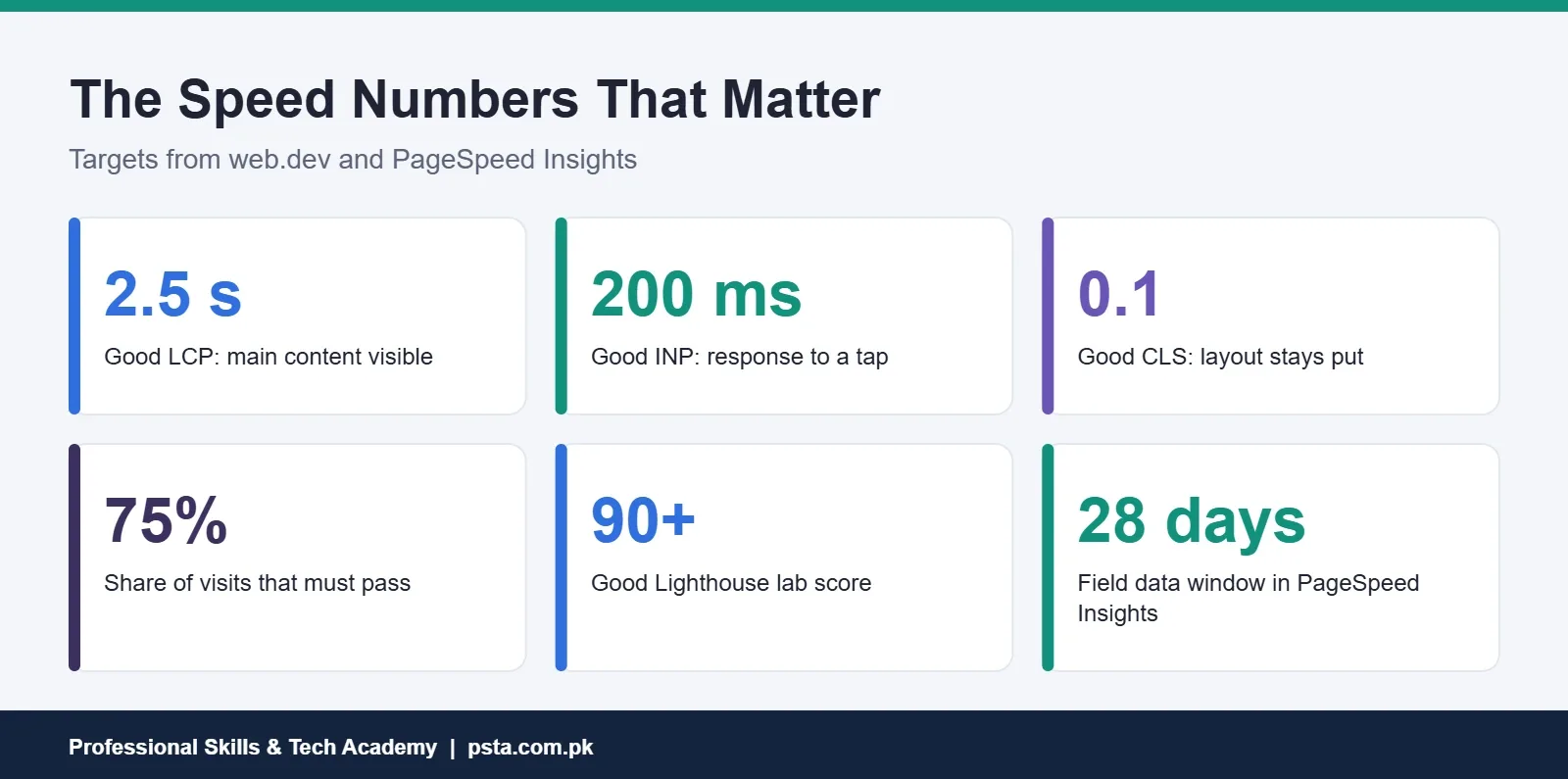
- • Good Core Web Vitals are LCP of 2.5 s or less, INP of 200 ms or less and CLS of 0.1 or less, at the 75th percentile.
- • Measure on mobile in PageSpeed Insights before changing anything, and save the results.
- • WordPress recommends PHP 8.3 or newer and MySQL 8.0 or MariaDB 10.11 or newer.
- • One well-configured caching plugin usually gives the biggest easy gain.
- • Resize images, use WebP and never lazy-load the hero image that is your LCP element.
- • Delete unused plugins and back up before any database clean-up.
Table of contents 13 sections
- What Does "Fast" Mean for a WordPress Site?
- How Do You Measure Speed Before Changing Anything?
- What Slows a WordPress Site Down?
- Hosting and Server: Check These First
- Caching: The Biggest Easy Win
- Images: Where Most Pages Get Heavy
- Themes, Page Builders and Plugins
- Mistakes That Undo Your Work
- Database Clean-Up Without Breaking Anything
- Do You Need a CDN?
- Your WordPress Speed Optimization Checklist
- Learning Speed Optimization in PSTA's WordPress Course
- Test One Page, Fix One Thing
Before you read further, try a quick self-test on your own WordPress site. Answer yes or no to each question:
- Have you tested your homepage on PageSpeed Insights in the last month, on mobile?
- Do you know which PHP version your hosting runs?
- Is a page caching plugin active and configured?
- Are your largest images in WebP and sized to the width they're shown at?
- Have you deleted, not just deactivated, plugins you no longer use?
If you said no to two or more, this WordPress speed optimization checklist will pay off quickly. It starts with measurement. Then it works through hosting, caching, images, plugins and the database, in the order that usually gives the biggest gains for the least effort.
Here's what the guide covers:
- The three Core Web Vitals and the scores Google calls "good"
- How to read PageSpeed Insights without chasing the wrong number
- Server, caching and image fixes, with the reason behind each one
- Plugin and database clean-up that's safe for beginners
- A printable checklist to run on every site you build
What Does "Fast" Mean for a WordPress Site?
Google's Core Web Vitals turn "fast" into three numbers. According to web.dev's Core Web Vitals guide, a page is in good shape when it meets all three at the 75th percentile of real visits:
- Largest Contentful Paint (LCP) of 2.5 seconds or less. This is how long the biggest image or text block takes to appear.
- Interaction to Next Paint (INP) of 200 milliseconds or less. This measures how quickly the page responds when someone taps or clicks.
- Cumulative Layout Shift (CLS) of 0.1 or less. This tracks how much the layout jumps around while loading.
| Metric | Good | Needs improvement | Poor |
|---|---|---|---|
| LCP (loading) | 2.5 s or less | 2.5 to 4.0 s | Over 4.0 s |
| INP (responsiveness) | 200 ms or less | 200 to 500 ms | Over 500 ms |
| CLS (visual stability) | 0.1 or less | 0.1 to 0.25 | Over 0.25 |
The bands come from web.dev's detailed pages on LCP and CLS, along with its INP guide. The 75th percentile part matters. It means three out of four visits should meet the target, so a fast result on your office broadband doesn't prove much. Your visitors on a mid-range phone and a mobile connection are the ones who count.
That's why WordPress speed optimization should always be judged on mobile results. Also try the site yourself on an ordinary phone using mobile data, not office Wi-Fi. If a page feels slow in your own hand, the numbers will usually agree.
How Do You Measure Speed Before Changing Anything?
Always measure first, and write the numbers down. Without a baseline, you can't tell whether a change helped.
- Open PageSpeed Insights and test your homepage and one typical inner page, such as a product or blog post.
- Check the Mobile tab first.
- Note the field data at the top, if your site has enough traffic to show it, and the lab performance score below.
- Save a screenshot with the date.
Google's PageSpeed Insights documentation explains the two kinds of data. Field data comes from real Chrome users over the previous 28 days. Lab data comes from Lighthouse, which simulates a page load on a mid-tier phone. The lab score runs from 0 to 100: 90 and above is good, 50 to 89 needs improvement, and below 50 is poor.
Two habits will save you frustration. First, judge success by the Core Web Vitals, not by chasing a perfect 100. Second, remember field data updates over a 28-day window, so a fix today won't show fully in that section for a few weeks.
What Slows a WordPress Site Down?
Most slow WordPress sites have problems in one or more of six areas. The WordPress project's own optimization guide covers most of them, and the rest of this checklist follows the same order.
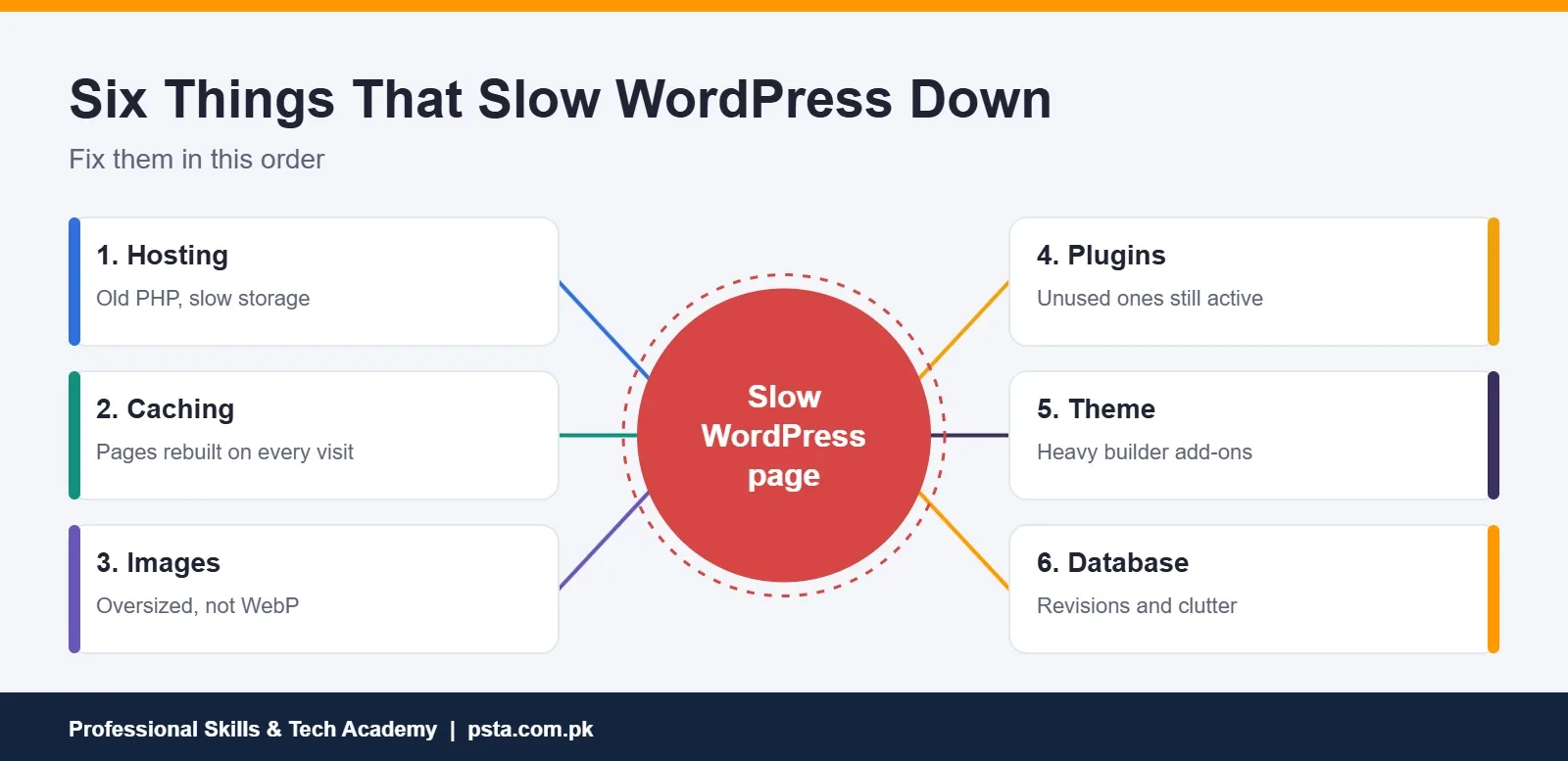
You don't need to fix everything at once. Work from the top: a slow server or missing cache will hold the site back no matter how well you compress your images.
Hosting and Server: Check These First
- PHP version. The WordPress requirements page recommends PHP 8.3 or greater. Newer PHP releases usually run WordPress faster, so check your hosting control panel and upgrade if you're behind. Test the site afterward, because an old plugin may not support the new version.
- Database version. The same page recommends MySQL 8.0 or greater, or MariaDB 10.11 or greater.
- Server location. If most of your visitors are in Pakistan, choose a data center reasonably close to them rather than whichever region is cheapest. Distance adds delay to every request.
- Resource limits. On shared hosting, a plan with more CPU and memory, or faster SSD or NVMe storage, can make a clear difference for busy sites.
If your site is still slow after the steps below, hosting is the most likely limit. Our WordPress website cost breakdown helps you budget for a better plan.
Caching: The Biggest Easy Win
Without caching, WordPress rebuilds each page from PHP and database queries every time someone visits. A caching layer saves the finished page and serves the saved copy instead. The official guide describes three levels:
- Page caching. A caching plugin stores pages as static files. Install one well-maintained plugin from the WordPress directory, enable page caching and test the site while logged out.
- Browser caching. Cache-Control and Expires headers tell visitors' browsers to reuse images, CSS and scripts instead of downloading them again. Most caching plugins can set these for you.
- Object caching. A persistent object cache, such as Redis or Memcached, cuts repeated database queries. Your host usually needs to enable it, so ask support whether it's available.
Use one caching plugin, not two. Overlapping caches can serve outdated pages and make problems hard to trace. If your host already provides server caching, check its documentation before adding a plugin.
Images: Where Most Pages Get Heavy
Images are often the largest files on a page, and the hero image is frequently the LCP element itself. Work through these checks:
- Resize before uploading. A 4000-pixel phone photo shown at 800 pixels wastes bandwidth. Resize it first.
- Use WebP. The WordPress optimization guide suggests WebP for smaller file sizes.
- Compress. Run images through a compression tool or plugin, and check the result still looks sharp.
- Don't lazy-load the hero image. WordPress has added lazy loading to images by default since version 5.5. A later core team post explains why the first image shouldn't be lazy-loaded: it delays the content visitors see first and hurts LCP. If a plugin forces lazy loading on every image, exclude the hero.
Sliders deserve a special mention. A homepage slider loads several large images before the visitor sees anything useful. A single, well-compressed hero image is almost always faster.
Themes, Page Builders and Plugins
Every plugin can add scripts, styles and database queries. The official advice is simple: deactivate and delete the ones you don't need, then test the rest one at a time to find any that slow the site.
A practical way to do this on a live site is to work on a staging copy, which some hosts can create in one click. Deactivate plugins one by one, re-test with PageSpeed Insights, and note which change moved the numbers.
Page builders such as Elementor make design easier but add their own code. You don't have to abandon them. Do use the builder's performance settings and avoid stacking add-on packs you barely use. Keep pages simpler where speed matters most, such as landing pages for ads. If you're choosing a theme from scratch, a lightweight theme gives you a faster starting point than a heavy multipurpose one.
Mistakes That Undo Your Work
- Installing several speed plugins at once. Two plugins minifying or caching the same files can break layouts and cancel each other out.
- Testing while logged in. Caching plugins often skip logged-in users, so test in a private browser window.
- Forgetting to clear the cache. After a design change, clear the cache or visitors may see the old version.
- Adding heavy widgets back. Chat pop-ups, social feeds and extra font families each add requests. Re-test after adding any of them.
Database Clean-Up Without Breaking Anything
Over time, the database fills with old post revisions, spam comments, expired temporary data and tables left by deleted plugins. The official guide recommends:
- Cleaning out clutter with a database optimization plugin
- Limiting how many revisions WordPress keeps for each post
- Using the InnoDB storage engine and converting older MyISAM tables
Take a full backup before any clean-up. Database plugins delete data permanently, and a backup is your only undo button. If you haven't secured backups yet, our WordPress security checklist covers them.
Do You Need a CDN?
A content delivery network stores copies of your images, CSS and scripts on servers in many locations. It then serves each visitor from the nearest one. The WordPress guide says a CDN works best alongside a caching plugin.
For a local business whose visitors are mostly in one city, good hosting and caching may be enough. For a store or blog with visitors across Pakistan and abroad, a CDN usually helps. Add it after caching and images are sorted, so you can measure what it adds.
When you do add one, check two things afterward. Make sure images and scripts actually load from the CDN address, and confirm that pages still update when you publish changes. A CDN that serves stale files can look like a broken site to your visitors.
Your WordPress Speed Optimization Checklist
Run through this list on every site you build or take over. Tick each item only after you've re-tested.
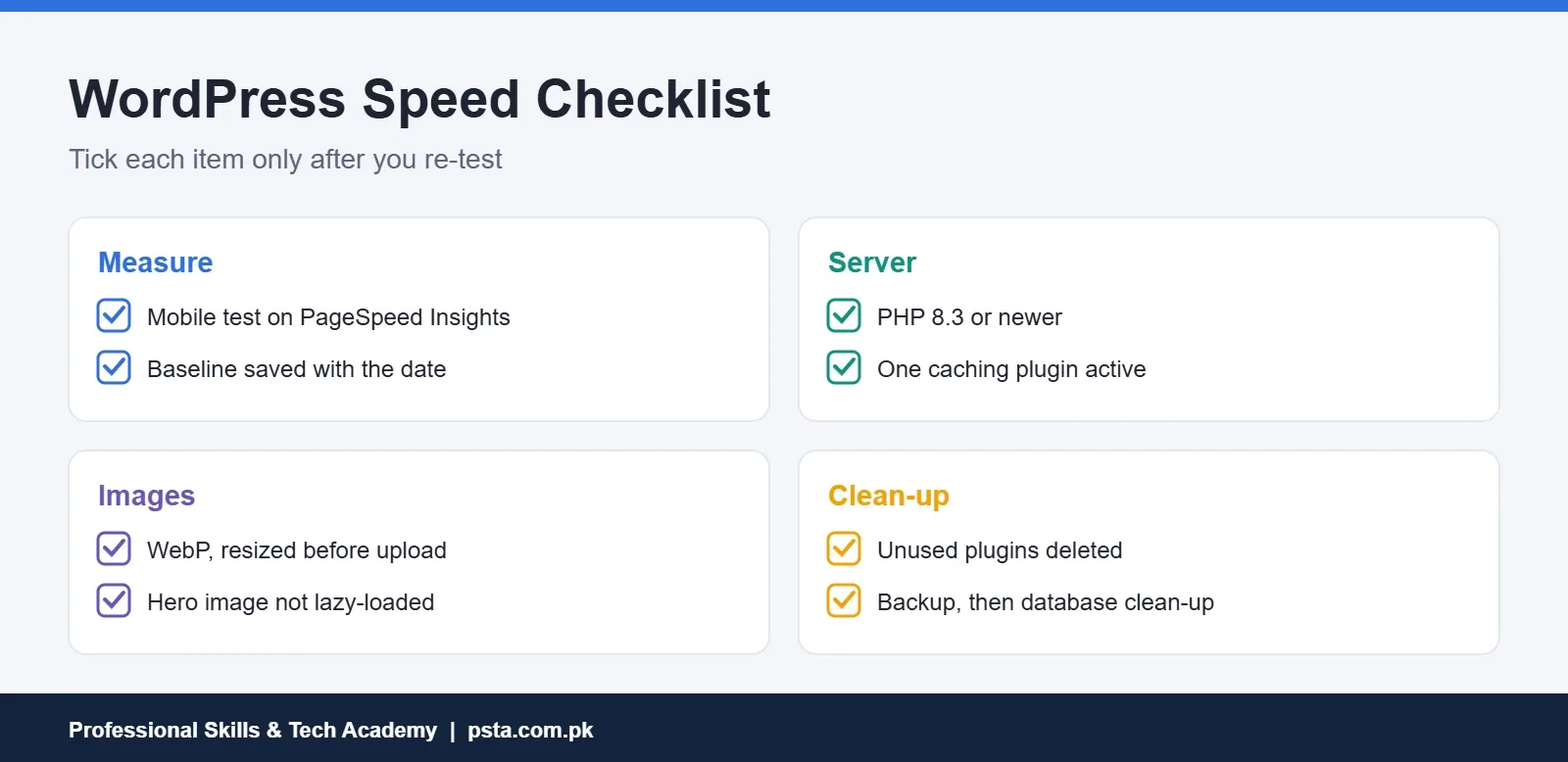
Freelancers can turn this list into a service. A before-and-after PageSpeed report with clear notes on what changed is easy for a client to understand and value.
Learning Speed Optimization in PSTA's WordPress Course
PSTA's Complete WordPress Website Development course includes a module on SEO and website speed optimization. It comes after domain and hosting setup, themes with Elementor and Gutenberg, plugins and WooCommerce. Security and freelancing portfolio modules follow. The course runs for 12 weeks at beginner level, and its page lists the fee as Rs. 22,000.
You can study at the Abbottabad campus, join live online classes from another city, or combine both. If you'd like to go beyond WordPress into code, look at the Full-Stack Web Development course. The course list compares every program, the admission form takes a few minutes, and our team answers batch questions on WhatsApp at +92 314 5424399.
Test One Page, Fix One Thing
Pick your slowest important page, probably the homepage, and run PageSpeed Insights on mobile. Look at the LCP element it identifies, fix that one thing, whether it's an oversized image, a missing cache or a slider, and test again. One measured fix teaches you more about WordPress speed optimization than ten plugins installed on faith.
Frequently asked questions
What is a good PageSpeed Insights score for WordPress?
In the lab section, 90 to 100 counts as good, 50 to 89 needs improvement and below 50 is poor. More important are the Core Web Vitals from real visits: LCP of 2.5 seconds or less, INP of 200 milliseconds or less and CLS of 0.1 or less. A site can pass those with a lab score in the 80s.
Which caching plugin should I use on WordPress?
Choose one well-maintained caching plugin from the official WordPress plugin directory, or use the caching your host already provides. What matters most is running only one, enabling page caching and testing while logged out. Two caching plugins together can serve outdated pages and make problems difficult to trace.
Does lazy loading make WordPress faster?
For images further down the page, yes, and WordPress has added lazy loading to images by default since version 5.5. The exception is the first large image visitors see. Lazy-loading that hero image delays your Largest Contentful Paint, so make sure no plugin forces lazy loading on it.
Which PHP version is best for WordPress speed?
WordPress recommends PHP 8.3 or greater, and newer PHP releases usually run WordPress faster. You can change the version from most hosting control panels. Make a backup and test the site afterward, because an older plugin or theme might not support the newer version.
Does Elementor slow down WordPress?
Page builders add their own code, so a builder page is usually heavier than a simple block editor page. You can still get good results by using the builder's performance settings, avoiding add-on packs you don't need and keeping important landing pages simple. Measure before and after any change rather than guessing.
Why are my PageSpeed Insights results different every time?
Lab results vary a little between runs because network and server conditions change. Field data is steadier, because it reflects real Chrome visits over the previous 28 days. Run the lab test two or three times and compare averages, and judge long-term progress by the field data and Core Web Vitals.
Do I need a CDN for a WordPress site in Pakistan?
Not always. If most visitors are in one city or region, good hosting nearby plus caching may be enough. A CDN helps more when visitors come from across the country or abroad. Add it after caching and images are sorted, then confirm files load from the CDN and updates still appear.
Sources & references
- Web Vitals (web.dev) web.dev
- Largest Contentful Paint (web.dev) web.dev
- Cumulative Layout Shift (web.dev) web.dev
- About PageSpeed Insights (Google for Developers) developers.google.com
- Optimization (WordPress Advanced Administration Handbook) developer.wordpress.org
- WordPress requirements wordpress.org
- Refining WordPress core's lazy-loading implementation make.wordpress.org
Last reviewed & updated on by Umar Qureshi. Written by the PSTA team in Abbottabad, Pakistan.

Umar Qureshi

Complete WordPress Website Development Course: Beginner to Pro
Turn this guide into a career: hands-on training with real projects, online across Pakistan or on-campus in Abbottabad · 12 Weeks.


Comments
No comments yet — ask a question or share your experience.