Quick answer
To set up Google Analytics 4, create an account and property with Pakistan time and rupee currency, add a web data stream with enhanced measurement, and install the G- Measurement ID on your site using one method only. Check the Realtime report within 30 minutes, then set data retention to 14 months and exclude office traffic.
Key takeaways
- • GA4 setup takes six steps: account, property, web data stream, Measurement ID, Google tag and a Realtime check.
- • New data can take up to 30 minutes to appear in the Realtime report.
- • Set data retention to 14 months; it affects Explorations and funnel reports, not standard reports.
- • Test the internal traffic filter before activating it, because an active filter's effect is permanent.
- • Enhanced measurement tracks scrolls at 90% depth, outbound clicks, site search, video, downloads and forms.
- • Standard properties can mark up to 30 key events, such as purchases and lead forms.
Table of contents 20 sections
- What Do You Need Before You Start?
- How to Set Up Google Analytics 4 in Six Steps
- Step 1: Create an Account
- Step 2: Create a Property
- Step 3: Add a Web Data Stream
- Step 4: Copy Your Measurement ID
- Step 5: Add the Google Tag to Your Website
- Step 6: Check the Realtime Report
- Settings to Change on Day One
- Data Retention: Choose 14 Months
- Exclude Your Own Staff Visits
- What Does GA4 Track Automatically?
- Key Events: Track What Actually Matters
- Giving Your Team or Agency Access
- Linking GA4 to Google Ads
- Common GA4 Setup Mistakes
- Where to Look First in Your Reports
- How Long Until the Data Is Useful?
- Learning Analytics in PSTA's Digital Marketing Course
- Check Your Realtime Report Tomorrow
To set up Google Analytics 4, you create an account and a property, add a web data stream and place the Google tag on your site. Then you confirm it works in the Realtime report. Google's setup guide for websites warns that new data can take up to 30 minutes to appear. Don't panic if the first check shows nothing.
This walkthrough follows that official order. It also covers the settings most small business sites in Pakistan should change on day one. Finally, it shows how to track the actions that matter, such as enquiries and orders.
By the time you finish, you'll have:
- A working GA4 property with the right time zone and currency
- The tag installed on WordPress, Shopify, Wix or a custom site
- Data retention and internal traffic settings fixed from the start
- Key events set up for the actions you care about
- A short list of setup mistakes to avoid
What Do You Need Before You Start?
Gather these before you open Analytics, and the setup goes smoothly:
- A Google account owned by the business, not a staff member's personal account. If that person leaves, you don't want to lose access.
- Admin access to your website, whether that's the WordPress dashboard, the Shopify or Wix admin, or the code files.
- Your website's full address, including https.
- Your office's public IP address, if you want to exclude staff visits. Searching "what is my IP" from the office network shows it.
If you're setting this up for a client, ask them to create the account and add you as a user. That way, the business keeps ownership of its data from day one.
How to Set Up Google Analytics 4 in Six Steps
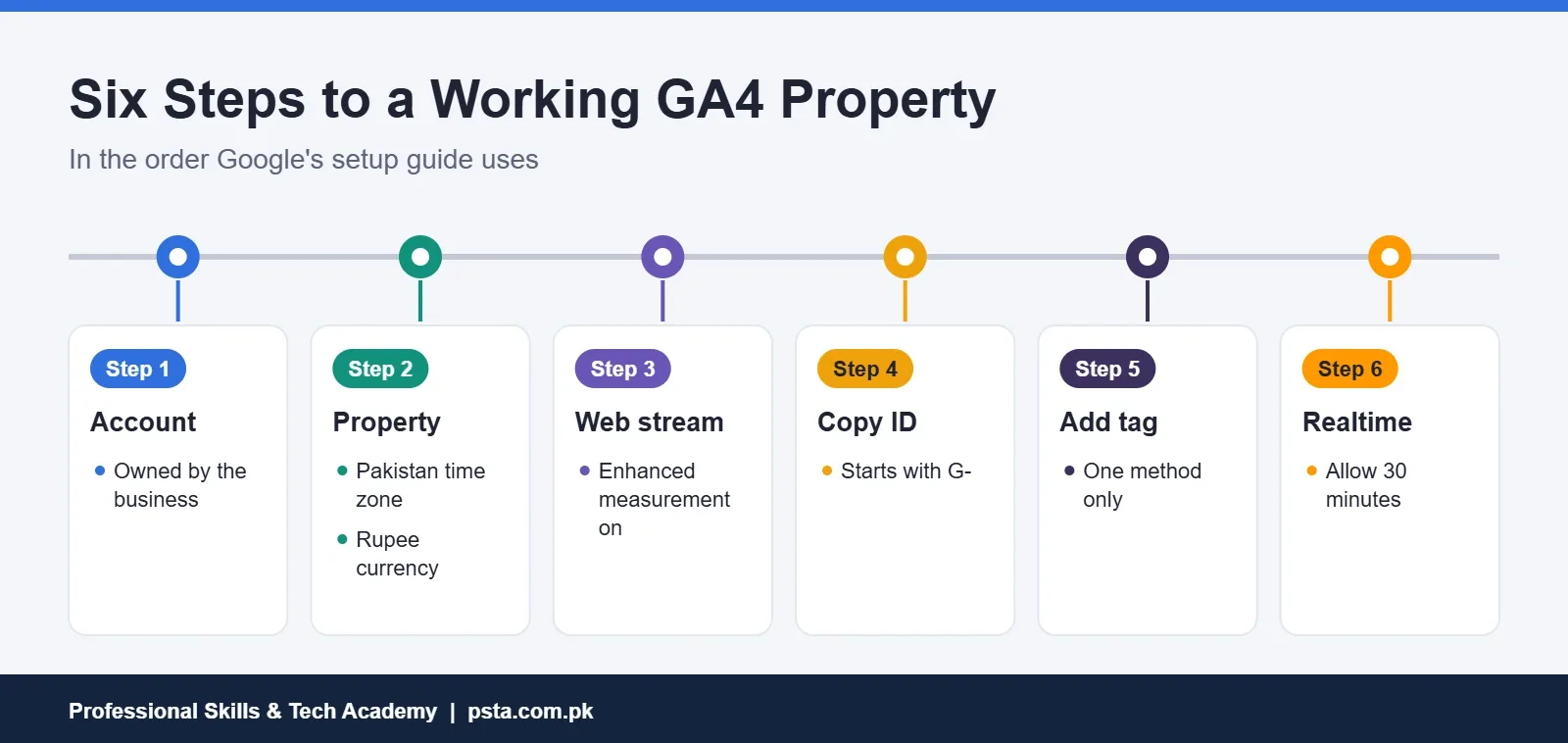
Here is the full sequence. Each step below matches a screen in the Admin area.
Step 1: Create an Account
Go to analytics.google.com and select Start measuring. If you already use Analytics, open Admin, select Create and then Account. Name the account after the business, review the data-sharing settings and continue.
Step 2: Create a Property
Name the property after the website. Then set two fields carefully:
- Reporting time zone: choose Pakistan if your business runs on Pakistan time. Otherwise, daily reports split your day at the wrong hour.
- Currency: choose Pakistani rupee if you sell in rupees, so revenue figures make sense.
Next, pick your industry and business size, choose how you plan to use Analytics, and accept the terms.
Step 3: Add a Web Data Stream
Under Data collection and modification, open Data streams, select Add stream and choose Web. Enter your website address and a stream name. Leave enhanced measurement on. It tracks several useful actions without extra code, as explained later in this guide.
Step 4: Copy Your Measurement ID
Open the new stream and copy the Measurement ID from Stream details. It starts with "G-". You'll paste this into your website in the next step.
Step 5: Add the Google Tag to Your Website
How you add the tag depends on how the site is built:
- Shopify, Wix, Squarespace and similar builders: look for a Google Analytics field in the settings and paste the Measurement ID there.
- WordPress: use a plugin that has a Google Analytics field and paste the ID, or add the full tag through a header-code plugin.
- Custom sites: in the stream, open the Google tag section, select View tag instructions, then Install manually. Paste the full snippet immediately after the opening head tag on every page.
- Google Tag Manager: add a Google Analytics configuration tag with your Measurement ID.
Use only one of these methods. Installing the tag twice, for example through a plugin and a theme setting, can record duplicate page views. Your numbers then look better than they are.
Step 6: Check the Realtime Report
Open your website on your phone, then open Reports > Realtime in Analytics. Your visit should appear within half an hour. If it doesn't, check that the Measurement ID matches and that the page you opened actually contains the tag.
Settings to Change on Day One
A few settings are easy to miss and can't fix data you've already collected. Change them right after setup.
Data Retention: Choose 14 Months
Open Data collection and modification > Data retention. Standard properties can keep user-level and event data for either 2 months or 14 months, according to Google's data retention page. Choose 14 months. This setting only affects Explorations and funnel reports, not the standard reports. Still, those are exactly the tools you'll want when comparing this season with last.
Exclude Your Own Staff Visits
If your team visits the site all day, their clicks inflate your traffic. Google's internal traffic guide uses two parts:
- In your web stream, open Configure tag settings, then Define internal traffic, and add your office IP address.
- In Data filters, create an Internal Traffic filter set to Exclude.
Leave the filter in Testing state for a day or two and confirm it works. Google warns that once a filter is active, its effect on data is permanent, and filters can take 24 to 36 hours to take effect.
What Does GA4 Track Automatically?
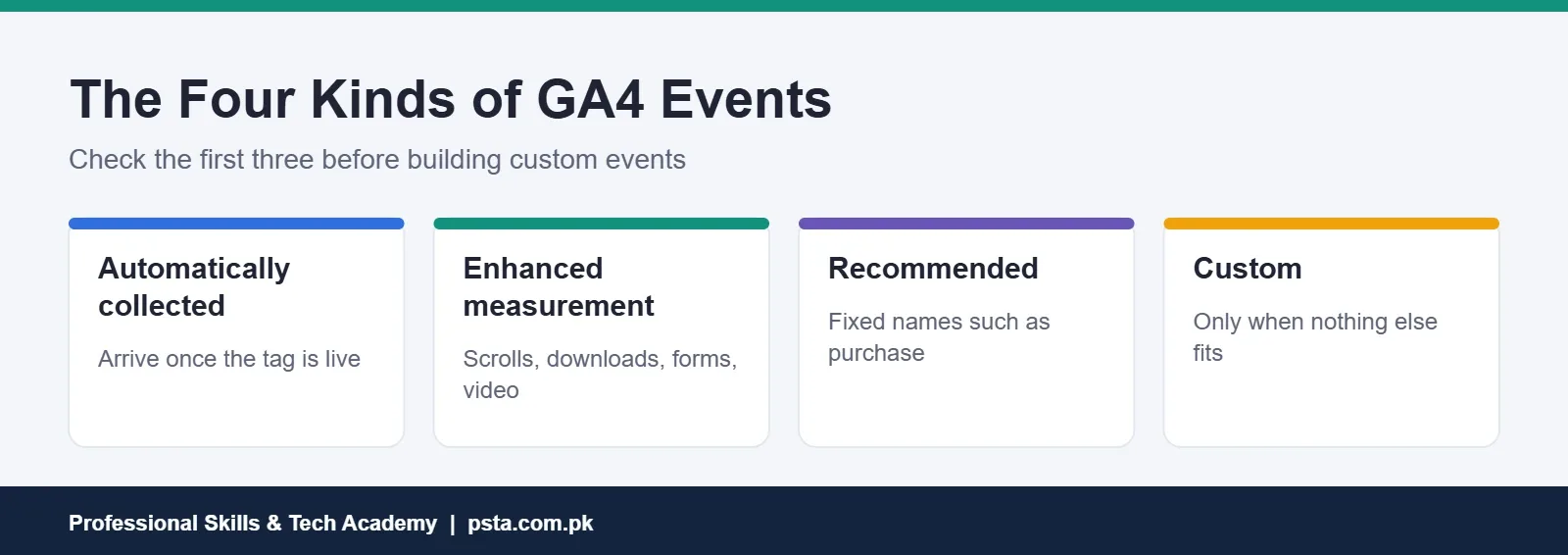
Google's guide to event types sorts GA4 events into four groups. Knowing which group an action belongs to tells you whether you need to do anything.
The enhanced measurement page lists what that setting collects without code:
- Page views, which are always collected
- Scrolls, the first time a visitor reaches 90% of a page's depth
- Outbound clicks on links to other websites
- Site search, when a search results page loads
- Video engagement on embedded YouTube videos
- File downloads, such as a price list or brochure PDF
- Form interactions, including when someone starts and submits a form
For actions outside this list, Google advises checking the recommended events first and creating custom events only when nothing else fits.
Key Events: Track What Actually Matters
Traffic numbers alone don't pay the bills. Key events are the actions that count as success, such as a lead form submission or a completed purchase. In GA4, you mark an event as a key event by opening Admin > Data display > Events and selecting the star next to its name.
Google's key events guide notes that standard properties can have up to 30 key events. Some events, such as purchase, are marked by default. Here are sensible starting points for different businesses:
| Business | Action to track | Event to mark as key |
|---|---|---|
| Online store | Completed order | purchase |
| Academy or clinic | Enquiry form sent | form_submit or a lead event |
| Supplier or factory | Catalogue download | file_download |
| Service business | Click to call or WhatsApp | A custom click event |
Keep the list short. If everything is a key event, nothing stands out in your reports.
Giving Your Team or Agency Access
Sooner or later, someone else will need to see or change your Analytics. Add them as a user with their own Google account instead of sharing your password. Give each person the lowest role that lets them do the job.
Roles matter for everyday tasks. Google's key events guide, for example, says marking an existing event as a key event needs the Editor role or higher. Creating a new key event needs the Marketer role or higher. A person who only reads reports doesn't need either.
When an agency or freelancer finishes working with you, remove their access. Because you set up Google Analytics 4 under the business's own account, nothing is lost when they leave.
Linking GA4 to Google Ads
If you run Google Ads, connect the two accounts. Google's key events guide explains that you can create Google Ads conversions from your Analytics key events, from either interface. Ads can then optimize toward the actions you defined, such as enquiries, instead of just clicks.
One detail surprises people: Google Ads conversions appear in Google Ads and in the Advertising section of Analytics, not in the standard reports. If you're new to Ads, our guide to Google Ads for beginners explains budgets and match types before you spend.
Common GA4 Setup Mistakes
Most broken GA4 setups trace back to a handful of wrong assumptions. Here are the ones worth correcting early:
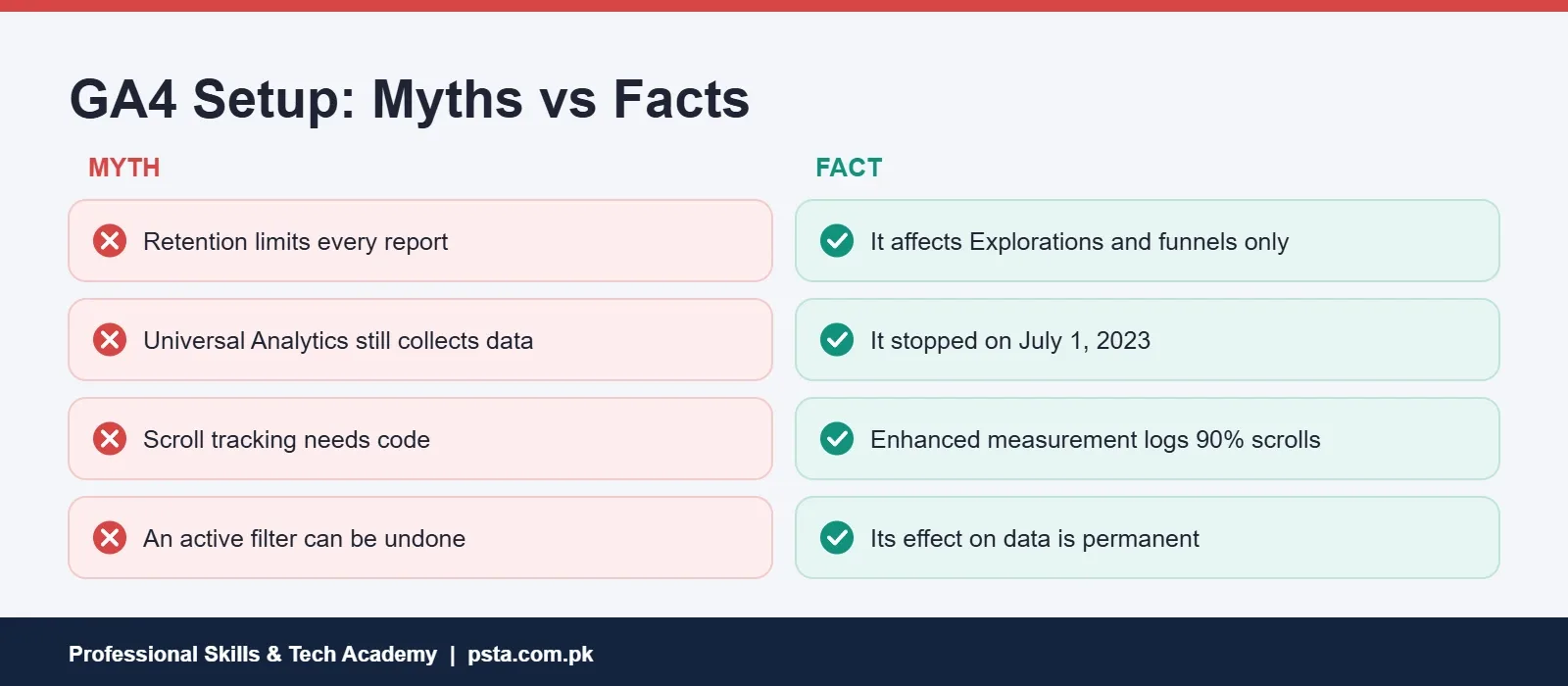
One more point for anyone working from older tutorials: Universal Analytics is gone. Google's sunset notice says standard properties stopped processing data on July 1, 2023. Access to their data ended starting the week of July 1, 2024. If a guide talks about "views" and "goals," it was written for the old system.
Where to Look First in Your Reports
After a week of data, three reports answer most small business questions:
- Realtime shows who's on the site now. It's ideal for checking that a new ad or WhatsApp broadcast is sending visitors.
- Traffic acquisition, under Acquisition, shows which channels bring visitors: search, social, direct or referral.
- Pages and screens, under Engagement, shows which pages get attention and which get ignored.
Pair these with your search data. Our on-page SEO checklist helps you improve the pages these reports flag as weak. Our keyword research guide helps you find what people search for.
How Long Until the Data Is Useful?
Realtime works within minutes, but trends need time. A single day can swing because of one WhatsApp share or a holiday. Wait at least two to four weeks before drawing conclusions, and compare like with like: this Monday against last Monday, not against a busy Friday.
Write down any big event that might change traffic, such as a sale, a new ad campaign or a site redesign. A simple note in a shared sheet saves you guessing later about why a line on the chart jumped.
Learning Analytics in PSTA's Digital Marketing Course
Google Analytics and campaign performance reporting is a module in PSTA's Advanced Digital Marketing course. It sits alongside SEO, Google Ads, Meta Ads, email marketing and freelancing, and students finish by reporting campaign results with Google Analytics and Meta insights. The course is 12 weeks long at advanced level. Its listed fee is currently Rs. 30,000.
You can attend in person in Abbottabad, join the live online batch from another city, or switch between the two. If ads are your main interest, see the Social Media Marketing and Meta Ads course. Compare everything on the courses page, apply through the admission form, or send questions about start dates to +92 314 5424399 on WhatsApp.
Check Your Realtime Report Tomorrow
Once the tag is live, visit your own site from your phone tomorrow morning and watch the Realtime report. If you set up Google Analytics 4 correctly, your visit will show within half an hour. Then mark one key event, the single action that matters most to your business. A week from now, you'll know where your visitors come from and whether they do the one thing you need them to do.
Frequently asked questions
How long does it take for data to show in Google Analytics 4?
Google says new data can take up to 30 minutes to appear in the Realtime report after you install the tag. Standard reports fill in over the following day or so. If nothing shows after half an hour, check that the Measurement ID on your site matches the one in your data stream and that the tag loads on the page.
What is a Measurement ID in GA4?
It's the code that links your website to your Analytics data stream. You'll find it under Admin, Data streams, then your web stream, in the Stream details section. It starts with G-. Builders such as Shopify and Wix only need this ID, while custom sites use the full Google tag snippet that contains it.
Can I install Google Analytics 4 on WordPress without a plugin?
Yes. Copy the full Google tag snippet from your data stream's tag instructions and paste it immediately after the opening head tag on every page, usually through your theme's header settings or a child theme. A plugin is simpler for most beginners. Whichever you choose, use only one method so page views aren't recorded twice.
What should I set data retention to in GA4?
Choose 14 months, the longer of the two options available to standard properties. Retention only affects Explorations and funnel reports, but those are the tools you'll use to compare this year with last. Changing it later doesn't bring back data that has already expired, so set it on day one.
How do I stop my own visits from counting in GA4?
Define internal traffic in your web stream's tag settings by adding your office IP address, then create an Internal Traffic data filter set to Exclude. Leave it in Testing state first and confirm it works, because Google warns that an active filter's effect on data is permanent. Filters can take 24 to 36 hours to apply.
What is the difference between key events and conversions in GA4?
Key events are the important actions you mark in Google Analytics, such as purchases or lead form submissions. Conversions now refer to Google Ads conversions, which you can create from your key events. Google Ads conversions appear in Google Ads and in the Advertising section of Analytics, not in the standard reports.
Is Universal Analytics still working?
No. Google says standard Universal Analytics properties stopped processing data on July 1, 2023, and access to their data ended starting the week of July 1, 2024. Any website still relying on an old UA tracking code isn't collecting data, so it needs a Google Analytics 4 property and the Google tag.
Sources & references
- Set up Analytics for a website and/or app (Google Analytics Help) support.google.com
- Data retention (Google Analytics Help) support.google.com
- Filter out internal traffic (Google Analytics Help) support.google.com
- About events (Google Analytics Help) support.google.com
- Enhanced measurement events (Google Analytics Help) support.google.com
- Mark events as key events (Google Analytics Help) support.google.com
- Universal Analytics has been replaced by Google Analytics 4 (Google Analytics Help) support.google.com
Last reviewed & updated on by Umar Qureshi. Written by the PSTA team in Abbottabad, Pakistan.

Umar Qureshi

Advanced Digital Marketing Course in Pakistan and Abbottabad
Turn this guide into a career: hands-on training with real projects, online across Pakistan or on-campus in Abbottabad · 12 Weeks.



Comments
No comments yet — ask a question or share your experience.