Quick answer
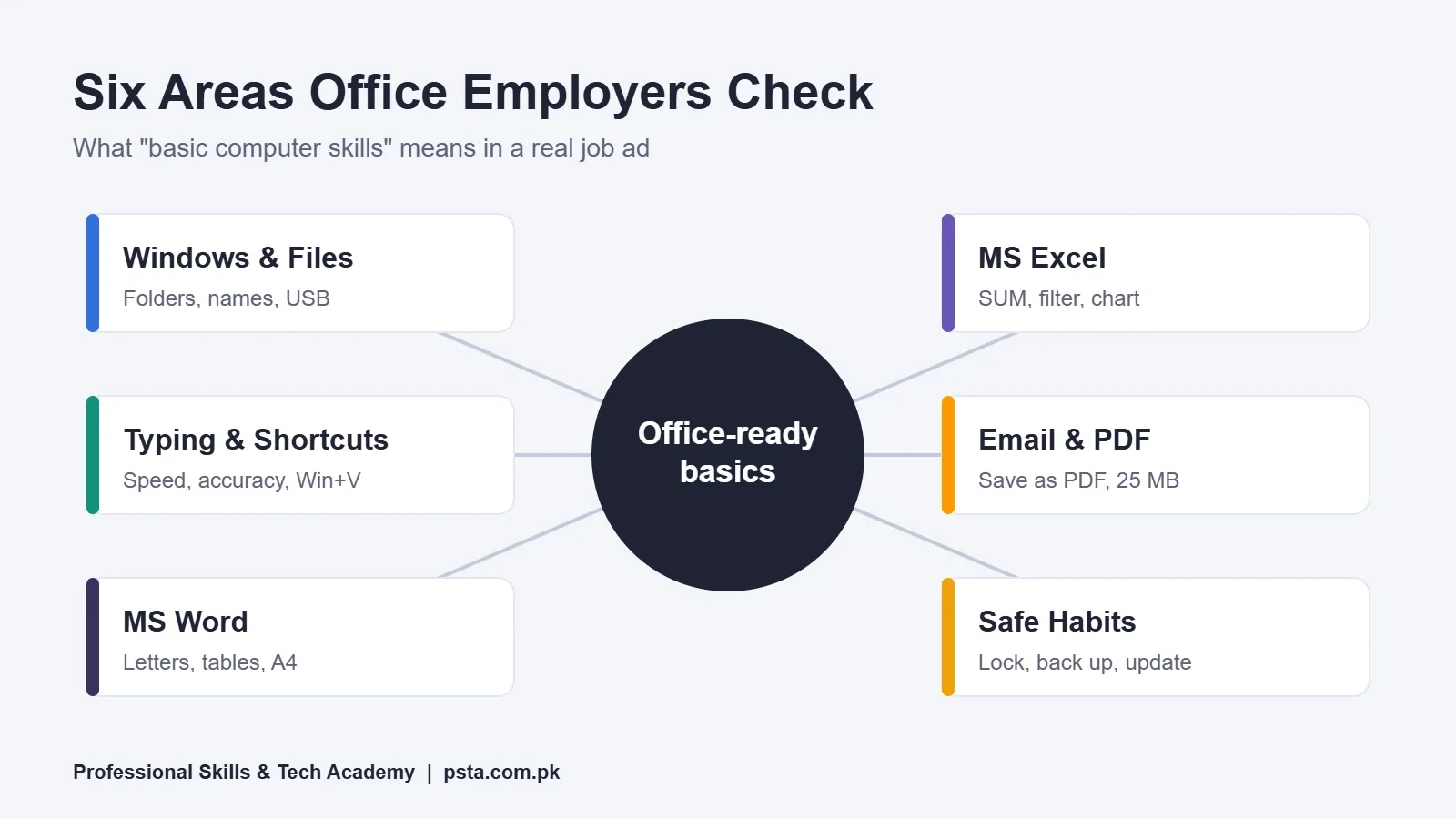
Basic computer skills for office jobs cover six areas: Windows and file management, typing and shortcuts, MS Word letters, Excel records, email with PDFs, and safe habits such as locking your screen. Practice each with a small timed task, and most beginners can become office-ready in about six weeks of daily practice.
Key takeaways
- • Office ads usually mean MS Office, steady typing and tidy file handling, not programming.
- • Name files with the date first so folders sort themselves.
- • SUM, AVERAGE, COUNT, IF, sort, filter and one chart cover most office Excel work.
- • Gmail's personal attachment limit is 25 MB; bigger files become Drive links.
- • A free Microsoft account gives web Word, Excel and PowerPoint plus 5 GB of storage.
- • Windows 10 support ended on October 14, 2025, so learn on Windows 11 if you can.
Table of contents 14 sections
- What Do Employers Mean by "Basic Computer Skills"?
- Area 1: Windows, Files and Folders
- Area 2: Typing and Keyboard Shortcuts
- Area 3: MS Word for Letters and Applications
- Area 4: Excel for Records and Simple Reports
- Area 5: Email, PDFs and Sharing Files
- Area 6: Safe Computer Habits at Work
- Is Windows 10 Still Fine for Office Work?
- Basic Computer Skills Checklist at a Glance
- Can You Practice Without Buying MS Office?
- How Long Does It Take to Become Office-Ready?
- How to Show These Skills in a Practical Test
- Where PSTA's Office Automation Course Fits
- Tonight's Task: Tick Your First Five Boxes
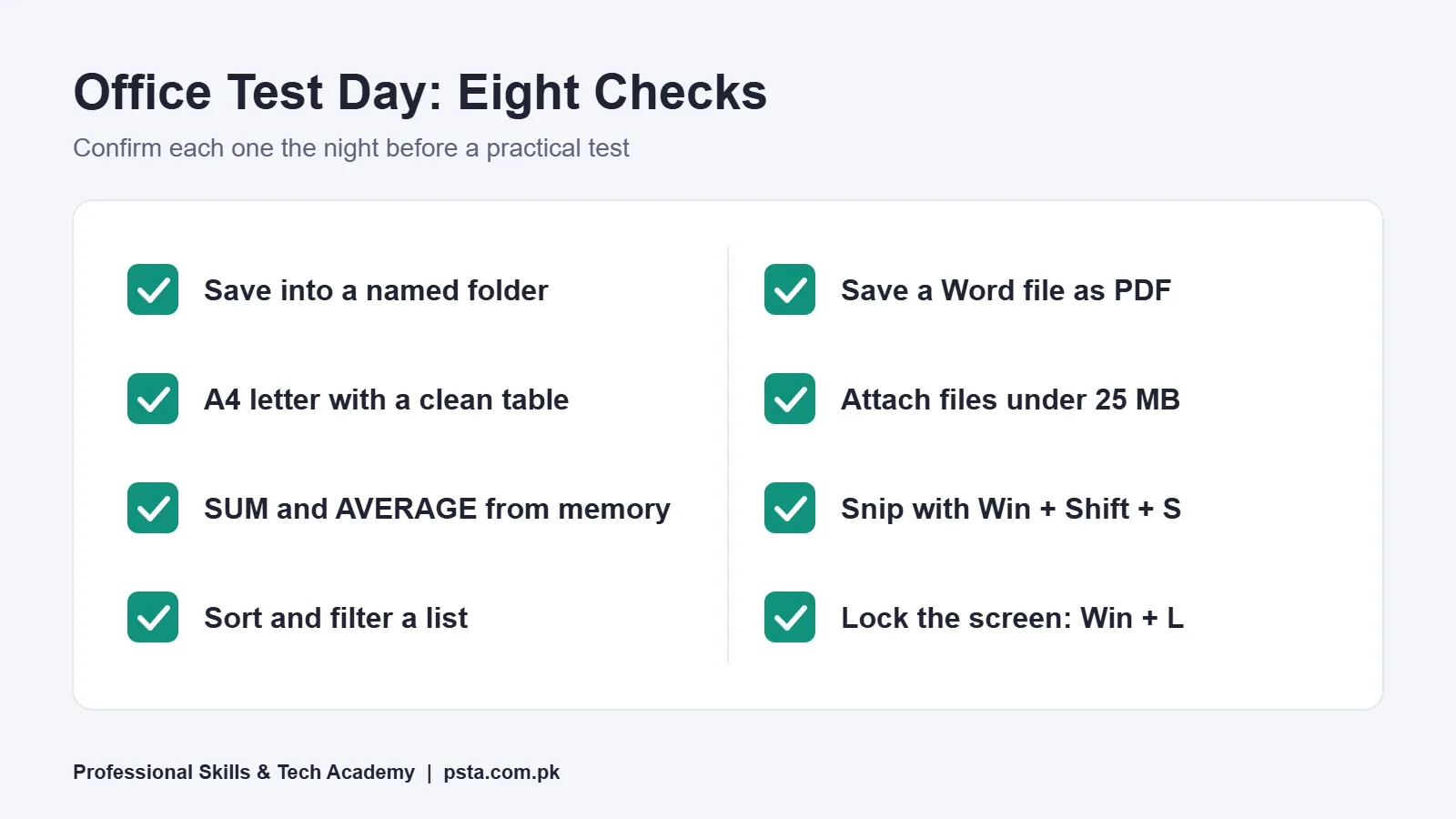
Here's a quick test of your basic computer skills: open a blank Word file, type a short leave application, save it as a PDF inside a new folder, and email it to yourself. Time it. If you finish in under 10 minutes without hunting for menus, you already have the core of what most office employers check. If you stalled anywhere, that step is where your practice should start.
This checklist breaks basic computer skills for office jobs into six areas and 24 small, testable skills. In this guide, you'll find:
- What Pakistani job ads actually mean when they ask for "computer knowledge"
- All 24 checks, grouped by area, with a way to test each one yourself
- A six-week practice plan you can follow on a home laptop or a shared PC
- Free tools that let you practice Word and Excel without buying a license
- How to prove these skills in a practical test or interview
What Do Employers Mean by "Basic Computer Skills"?
Most ads use vague phrases like "computer literate" or "MS Office required." When I compare real listings, basic computer skills turn out to mean something specific. On Indeed Pakistan's listings for computer operator jobs on October 17, 2026, Abbottabad listings asked for basic computer knowledge and MS Office. A data entry clerk post in Islamabad listed Excel, Word and a typing speed of 40+ WPM, with pay of Rs. 65,000 to 70,000 a month.
Put simply, an office manager wants someone who can be handed a task and finish it without help. That task might be a letter for the principal, a stock list for a pharmacy distributor, or a booking record at a travel agency. Nobody expects programming. They expect speed, neat formatting and no lost files.
The six areas below cover that expectation. Each has four checks. Tick a box only when you can do the task from memory on an unfamiliar computer.
Area 1: Windows, Files and Folders
Lost files cause more office stress than any formula. A receptionist who saves everything to the Desktop with names like "New Document (4)" slows the whole team down. These four checks fix that habit.
- Create a sensible folder structure. Make a folder per month or per client, then subfolders such as Letters, Invoices and Reports.
- Name files so they sort themselves. Start with the date in year-month-day order, for example 2026-10-17 Fee Reminder. Files then line up by date automatically.
- Move, copy and rename without the mouse menu. Use Ctrl+C, Ctrl+X, Ctrl+V and F2 to rename. Know where Recycle Bin items go and how to restore one.
- Use a USB drive and the Downloads folder safely. Copy files off a USB before editing them, and eject it properly before pulling it out.
Self-test: someone hands you a USB with 15 mixed files. Can you sort them into named folders in five minutes?
Area 2: Typing and Keyboard Shortcuts
Typing is often the first thing an office test measures, and our office automation course page makes the same point. Speed matters, but so does accuracy. A fast typist who leaves errors in a bank letter creates rework for the manager.
- Touch-type at a steady speed. Aim for the speed your target ads mention. Before you set a goal, compare the WPM figures listed in our article on typing speed for jobs.
- Use the everyday shortcuts. Ctrl+Z to undo, Ctrl+A to select all, Ctrl+S to save and Alt+Tab to switch windows.
- Turn on clipboard history. Press Windows key + V to see recently copied items. Microsoft says clipboard history keeps up to 25 entries, which helps when you copy names and phone numbers from several places.
- Take a screenshot of one area. Press Windows key + Shift + S to open the Snipping Tool overlay. Offices use this for error messages, payment confirmations and quick instructions.
Area 3: MS Word for Letters and Applications
Word is where most office paperwork starts: leave applications, notices, salary certificates and replies to customers. The aim isn't fancy design. It's a clean page that looks the same when printed.
- Set page size and margins first. Choose A4 or Legal before typing, because changing it later moves every line.
- Format with styles, not spaces. Use alignment, line spacing and Heading styles instead of pressing the spacebar to push text across.
- Build a simple table. Insert one for a fee schedule or duty roster, then adjust column widths so nothing wraps awkwardly.
- Use Print Preview before printing. Check that a one-page letter stays on one page. Paper and toner aren't free.
If you want a writing model for the letter itself, our walkthrough on how to write a job application email shows the structure most managers expect.
Area 4: Excel for Records and Simple Reports
In many small offices, Excel is the database. A courier franchise tracks parcels in it, a school keeps fee records in it, and a clinic logs appointments in it. You don't need advanced formulas to be useful. You need clean data and a few reliable functions. Clean lists are also the heart of data entry skills.
- Enter data in a proper list. One header row, one record per row, no blank rows in the middle and dates typed as real dates.
- Use SUM, AVERAGE, COUNT and simple IF. These four handle totals, averages, head counts and pass or fail flags.
- Sort, filter and freeze the top row. Long lists stay readable when the headings don't scroll away.
- Make one clear chart. A column chart of monthly sales or attendance is usually enough for a manager's report.
When you're comfortable with these, try our salary sheet in Excel walkthrough. If an interview is coming up, the Excel interview questions guide covers the next level.
Area 5: Email, PDFs and Sharing Files
Many office tasks end with "send it to me." That means the file must be in the right format, the right size and attached to a polite, clear email.
- Save a Word file as PDF. In the Windows desktop app, Microsoft's steps are File, then Save As or Save a Copy, then pick PDF from the file type list.
- Write a professional email. A specific subject line, a greeting, two or three short lines and your name and phone number.
- Know attachment limits. For personal Gmail accounts, Google sets a 25 MB limit. Larger files are turned into a Google Drive link automatically.
- Share a cloud link with the right permission. Decide whether the other person should view or edit before you send.
Area 6: Safe Computer Habits at Work
Employers trust staff with customer data, bank details and payroll files. A few habits protect both the office and you.
- Lock the screen when you leave the desk. Windows key + L takes one second.
- Keep a backup of important files. A second copy on a USB drive or in cloud storage saves a week of retyping.
- Don't open unexpected attachments. Confirm with the sender by phone if an invoice or "urgent notice" arrives from an unknown address.
- Install updates when asked. Restart at the end of the day instead of postponing for weeks.
Is Windows 10 Still Fine for Office Work?
Plenty of Pakistani offices still run older PCs. Microsoft ended Windows 10 support on October 14, 2025. Those computers still work, but they no longer get regular security updates. Microsoft says Microsoft 365 apps will keep getting security updates on Windows 10 until October 10, 2028, and its consumer Extended Security Updates program runs until October 12, 2027. Learn on Windows 11 if you can, but expect to meet Windows 10 at work.
Basic Computer Skills Checklist at a Glance
Print this summary and keep it beside your keyboard. Every row pairs an area with one task that proves you've got it.
| Area | Checks | Prove it with this task |
|---|---|---|
| Windows and files | 1 to 4 | Sort 15 mixed files into dated, named folders in five minutes |
| Typing and shortcuts | 5 to 8 | Type a 150-word notice with few errors, then snip and paste a screen area |
| MS Word | 9 to 12 | Produce a one-page A4 letter with a table that prints cleanly |
| MS Excel | 13 to 16 | Build a 30-row fee list with totals, a filter and one chart |
| Email and PDFs | 17 to 20 | Email a PDF report with a clear subject line to a test address |
| Safe habits | 21 to 24 | Back up a folder, lock the screen and spot one fake invoice email |
Can You Practice Without Buying MS Office?
Yes. Cost stops many students before they start, but it doesn't have to. Microsoft's free productivity apps page says a free Microsoft account gives you web and mobile versions of Word, Excel, PowerPoint, OneDrive and Outlook, plus 5 GB of cloud storage.
The web versions run in a browser, so a basic laptop or a cyber cafe PC is enough for practice. Some advanced features are only in the desktop apps, so ask your instructor or employer which version they use. For the basic computer skills in this checklist, the free versions cover nearly everything.
How Long Does It Take to Become Office-Ready?
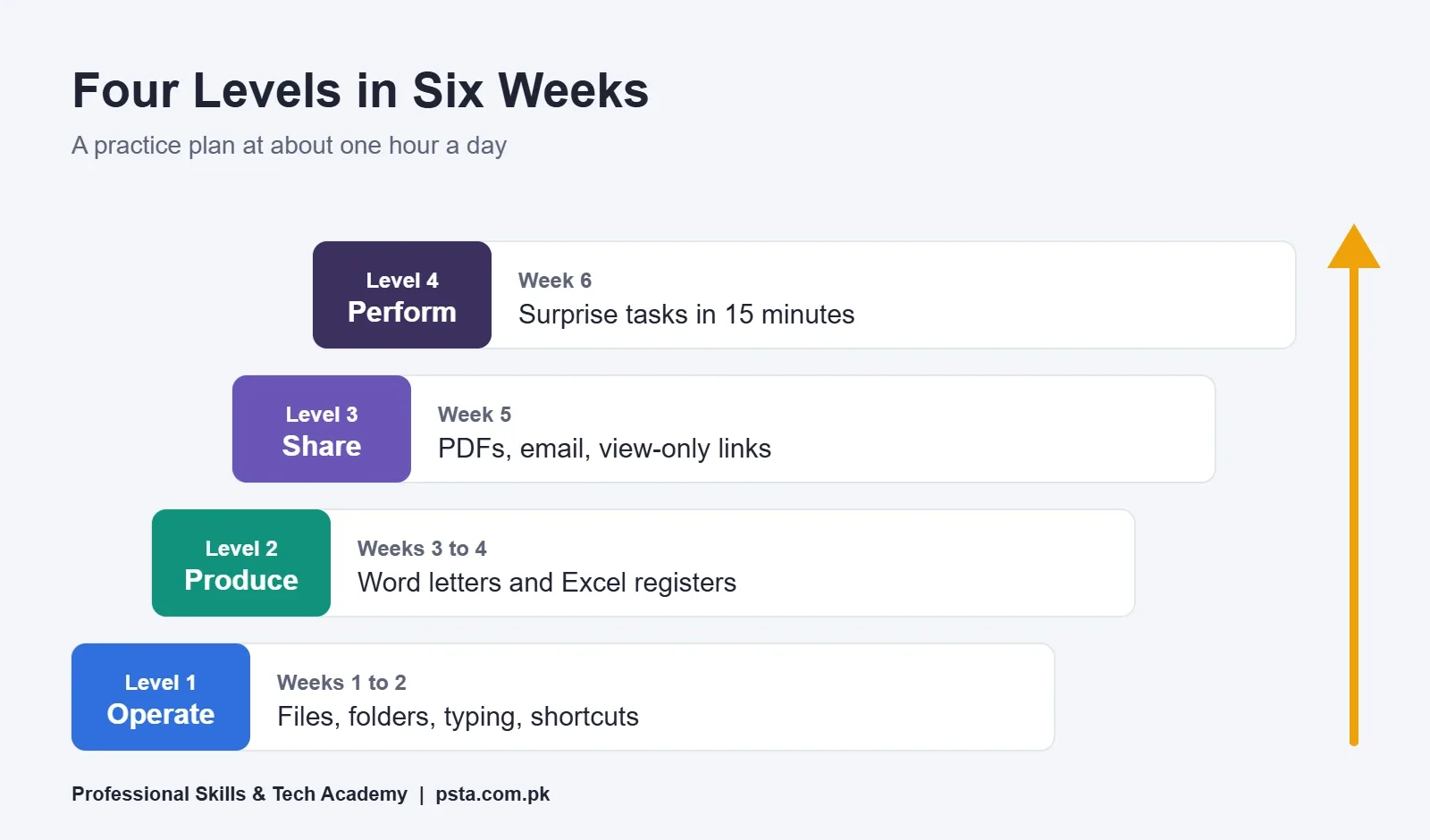
With about an hour a day, most beginners I teach can build these basic computer skills in roughly six weeks. Treat that as a planning estimate, not a promise. Your starting point and practice time decide the real number.
- Week 1, files and Windows. Build a folder structure for a pretend office and rename 50 sample files.
- Week 2, typing. Practice 20 minutes daily and record your speed every Friday. Learn the shortcuts in Area 2.
- Week 3, Word. Write five documents: a leave application, a notice, a salary certificate, an experience letter and a table-based roster.
- Week 4, Excel. Create a fee register and a stock list, then add totals, filters and one chart to each.
- Week 5, sharing. Convert your Word files to PDF, email them to yourself and share one folder as view-only.
- Week 6, timed practice. Ask a friend to give you surprise tasks with a 15-minute limit.
How to Show These Skills in a Practical Test
Many private offices test basic computer skills with a short task instead of a written exam. Calm, tidy work beats rushed work in these tests.
- Read the whole task before typing. Note the page size, file name and where to save.
- Save early and save often. Press Ctrl+S in the first minute, then keep saving.
- Check spelling and alignment last. Use Print Preview in Word and check that Excel totals add up.
- Name the file the way they asked. If they gave no rule, use your name and the task name.
- Bring proof. A printed sample letter and a small Excel sheet in a folder show more than the words "MS Office expert" on a CV.
Where PSTA's Office Automation Course Fits
If you'd rather build MS Office skills with a teacher checking your work, the Certified Office Automation Course covers the same basic computer skills as this checklist. Over 12 weeks it begins with how the operating system works and then covers file management, printing, English and Urdu typing, Word, Excel, PowerPoint, office tasks and basic maintenance. It ends with a final practical exam.
Right now the course costs Rs. 12,000 (down from Rs. 15,000), and you can split that into two installments. New batches start every month, and you can attend in Mandian, study from home through live classes, or combine the two. Students who struggle with speed often add the English and Urdu typing course alongside it. Other short programs are listed together on the PSTA courses page, and the online admission page is there whenever you decide. To ask which evening or weekend slot is open, WhatsApp the office (+92 314 5424399).
Tonight's Task: Tick Your First Five Boxes
You don't need every basic computer skill in one week. Open your laptop tonight, make a folder called Office Practice, and do checks 1, 2, 6, 17 and 21. That's folders, file names, shortcuts, a PDF and a locked screen. Write the date beside each tick. Come back tomorrow for the next five.
Frequently asked questions
What are basic computer skills for an office job?
They are the everyday tasks an office expects without training: managing files and folders, typing accurately, writing and formatting letters in Word, keeping simple records in Excel, saving files as PDF and sending them by email. Safe habits, such as locking your screen and keeping backups, are part of the package too.
Can I learn basic computer skills at home without buying MS Office?
Yes. Microsoft says a free Microsoft account gives you web and mobile versions of Word, Excel, PowerPoint, OneDrive and Outlook with 5 GB of cloud storage. A browser is enough to practice letters, registers and presentations, though some advanced features are only in the paid desktop apps.
How long does it take to learn basic computer skills?
With about an hour of practice a day, most beginners can cover files, typing, Word, Excel and email in around six weeks. Typing speed usually takes longest, so keep a short daily typing session going even after you feel comfortable with the software.
Is 40 WPM typing enough for a data entry job?
It depends on the ad. One Islamabad data entry clerk listing on Indeed Pakistan in October 2026 asked for 40+ WPM, while many government posts set their own test speed. Read the requirement in each ad and work on accuracy too, since a fast test full of mistakes rarely impresses an employer.
Should I learn on Windows 10 or Windows 11?
Learn on Windows 11 if you have the choice, because Microsoft ended Windows 10 support on October 14, 2025. Many offices still run Windows 10 machines, but the file, typing and Office skills are almost identical on both, so practice on either version carries over.
Which matters more for office jobs, Word or Excel?
Most receptionist and clerk roles use Word daily for letters and notices, while data entry, accounts and stock roles lean on Excel. Learn Word first for confidence, then spend extra time on Excel lists, totals and filters, since practical tests often include a short spreadsheet task.
Do I need a certificate to prove my computer skills?
A certificate helps your CV pass the first screening, but most employers still give a short practical test. Bring a printed letter and a small Excel sheet you made yourself. If you study with PSTA, employers can verify your certificate online at psta.com.pk/certificate.
Sources & references
- Indeed Pakistan: Computer operator jobs pk.indeed.com
- Microsoft Support: Windows 10 support has ended on October 14, 2025 support.microsoft.com
- Microsoft: Clipboard history in Windows microsoft.com
- Microsoft Support: Use Snipping Tool to capture screenshots support.microsoft.com
- Microsoft Support: Save or convert to PDF support.microsoft.com
- Google Gmail Help: Attachment size limits support.google.com
- Microsoft: Free Microsoft 365 productivity apps microsoft.com
Last reviewed & updated on by Umar Qureshi. Written by the PSTA team in Abbottabad, Pakistan.

Umar Qureshi
Certified Office Automation Course: Master MS Office & Computer Basics
Turn this guide into a career: hands-on training with real projects, online across Pakistan or on-campus in Abbottabad · 12 Weeks.
Comments
No comments yet — ask a question or share your experience.