Quick answer
Beginners need about 20 Git commands, and six of them (status, add, commit, switch, pull and push) cover most daily work. Install Git, set your name and email, save work in small commits, use branches for new features, and learn git restore and git revert so you can undo mistakes safely.
Key takeaways
- • Git runs on your computer; GitHub stores a shared copy of your repositories online.
- • Six commands handle daily work: status, add, commit, switch, pull and push.
- • Set init.defaultBranch to main once so local and GitHub branch names match.
- • Use git restore and git revert to undo safely; be careful with git reset --hard.
- • GitHub asks for a personal access token or credential helper, not your password.
- • Seven short practice sessions are enough to make the core commands routine.
Table of contents 12 sections
- Git and GitHub: What's the Difference?
- How Does Git Track Your Work?
- Before You Start: Install Git and Set Your Identity
- Git Commands for Beginners: The Core Glossary
- Starting and Saving Work, Step by Step
- Branching Without Fear
- Working With GitHub: Clone, Push and Pull
- How Do You Undo a Mistake in Git?
- A Seven-Day Practice Plan
- Is a GitHub Profile Worth Building in Pakistan?
- Practising Git Alongside PSTA's Full-Stack Course
- Make Your First Commit Tonight
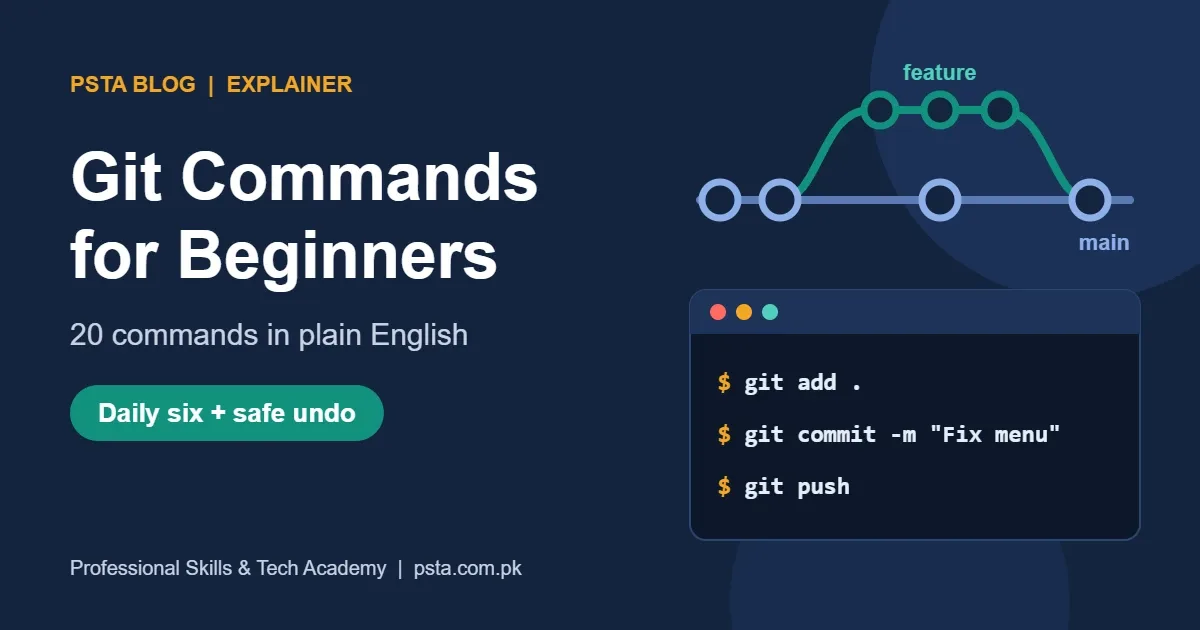
Students starting web development often ask how many Git commands they need to learn before their first internship. Fewer than you'd think. The Git commands for beginners in this guide come to about 20, and you'll use six of them almost every day: status, add, commit, switch, pull and push.
The rest are for setup, branching and fixing mistakes. You'll learn them faster once the daily six feel automatic. In this guide you'll find:
- The real difference between Git and GitHub, in two short paragraphs
- A one-page glossary of commands with what each one does and when to type it
- Safe ways to undo a bad commit without losing your work
- A seven-day practice plan you can follow on any Windows laptop
- Why a tidy GitHub profile helps when you apply to software houses in Pakistan
Git and GitHub: What's the Difference?
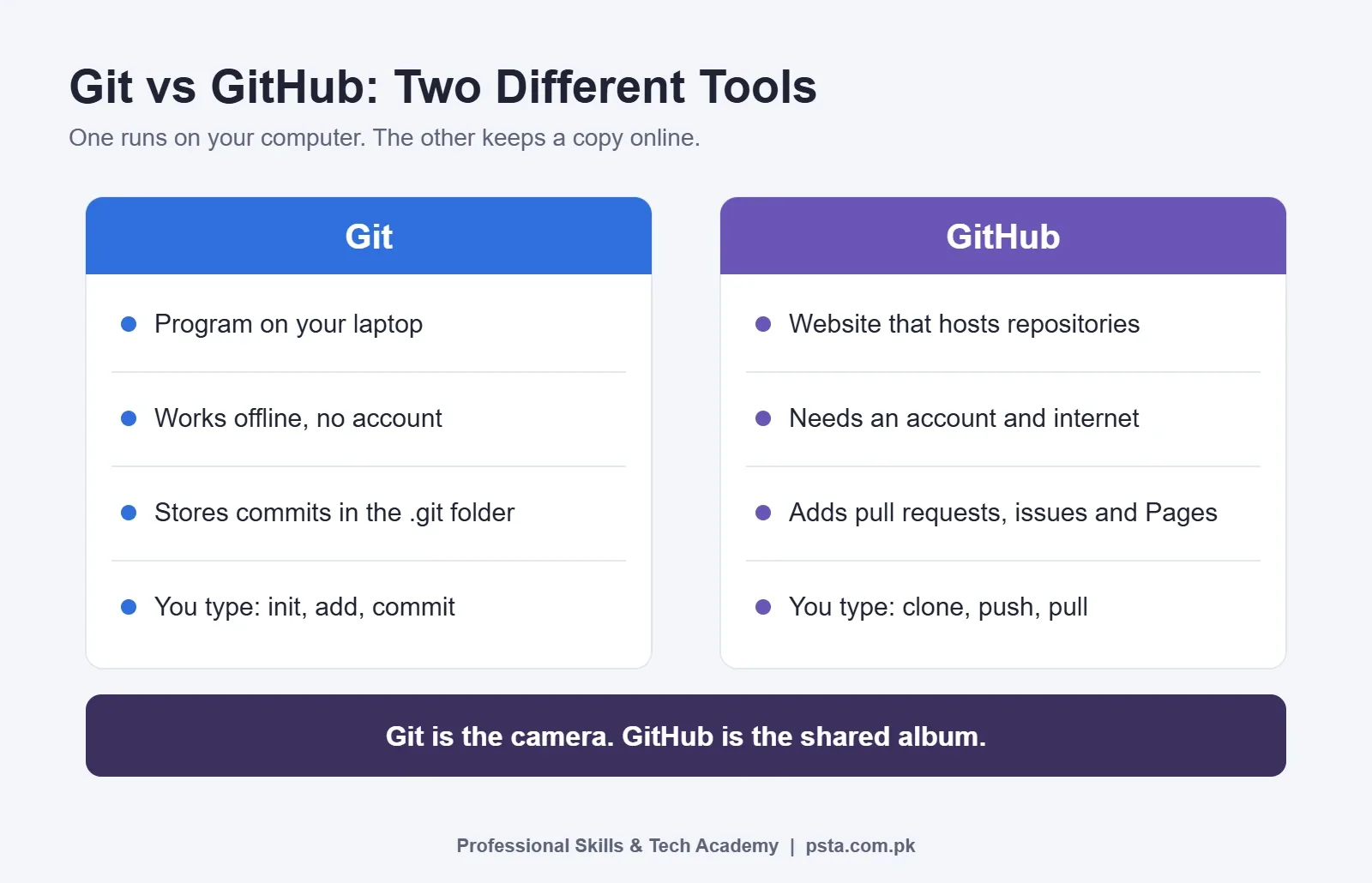
Git is a free version control program that runs on your own computer. It records snapshots of your project folder, so you can see what changed, when and why. It works without internet, and it doesn't need an account.
GitHub is a website that stores copies of Git projects online. It adds things Git doesn't have: a web page for each project, pull requests for code review, issue tracking and free hosting for simple sites. Think of Git as the camera and GitHub as the shared album. GitLab and Bitbucket are other albums that work with the same camera.
This matters because many beginners install GitHub Desktop, click a few buttons and never learn what's happening underneath. That works until a merge goes wrong. Learning the commands first means you can fix problems in any tool, including the Git panel inside VS Code.
How Does Git Track Your Work?
Git keeps your work in three places. Once you see them, every command makes more sense.
| Area | What it holds | Command that moves work forward |
|---|---|---|
| Working tree | The files you are editing right now in VS Code | git add sends changes to the staging area |
| Staging area (index) | Changes you've chosen for the next snapshot | git commit saves them to the repository |
| Repository | Your full history of commits, stored in the hidden .git folder | git push copies new commits to GitHub |
The staging area confuses most people at first. Here's why it exists. Say you fixed a login bug and also changed the footer color. Those are two different ideas. With staging, you add only the login file, commit it with a clear message, then commit the footer separately. Your history now tells a clean story, which helps a lot when you need to find where a bug came from.
Before You Start: Install Git and Set Your Identity
On Windows, download Git for Windows from the official git-scm.com install page. When this guide was written, the page listed version 2.56.0(2), released on October 5, 2026. The default installer options are fine for beginners. It also installs Git Bash, a terminal where every command in this guide works exactly as shown.
Next, tell Git who you are. Every commit carries a name and email, so use the email linked to your GitHub account:
git config --global user.name "Your Name"
git config --global user.email [email protected]
git config --global init.defaultBranch main
git config --list
The third line needs a word of explanation. According to the Pro Git book's setup chapter, git init creates a branch called master by default, and Git 2.28 and later let you choose another name. GitHub names new branches main, so setting this once avoids a mismatch later. The last line prints your settings so you can check for typos.
Git Commands for Beginners: The Core Glossary
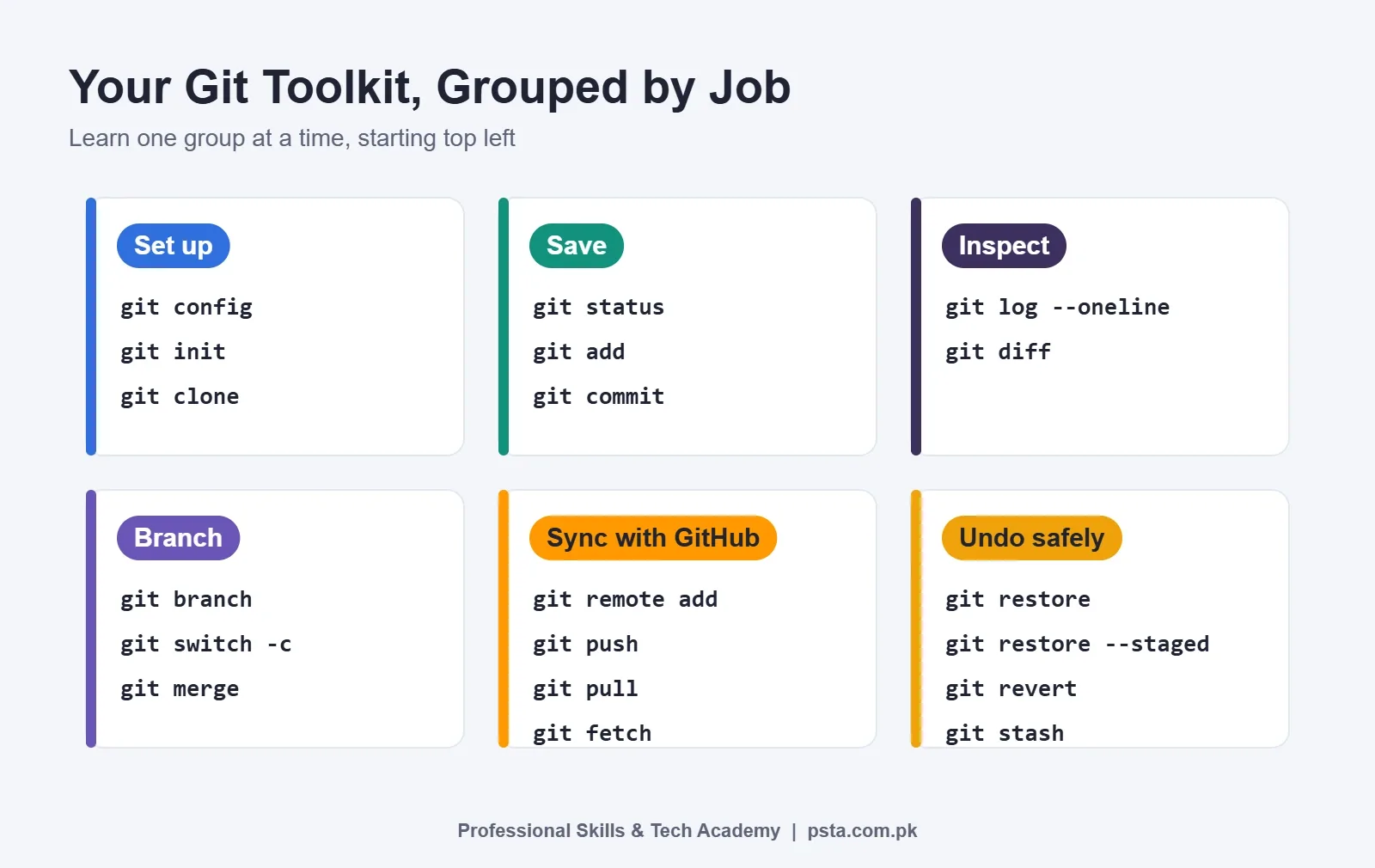
These 20 Git commands for beginners cover setup, saving, branching, syncing and undoing. Treat the table as your Git cheat sheet and keep it open in a browser tab for your first two weeks. You don't need to memorize it. After a few days of real use, most of it sticks on its own.
| Command | What it does | When you use it |
|---|---|---|
git init |
Turns the current folder into a Git repository | Once, at the start of a new project |
git clone <url> |
Downloads a full copy of a repository from GitHub | Joining a team project or a course repo |
git status |
Shows changed, staged and untracked files | Before and after almost every other command |
git add <file> |
Stages a file for the next commit | When a change is ready to be saved |
git add . |
Stages every change in the folder | Only after git status shows nothing unexpected |
git commit -m "msg" |
Saves staged changes as a snapshot with a message | After each small, complete piece of work |
git log --oneline |
Lists commits, one line each | Checking history or finding a commit ID |
git diff |
Shows line-by-line changes not yet staged | Reviewing your edits before you add them |
git branch |
Lists branches, or creates one when you give a name | Seeing where you are |
git switch -c <name> |
Creates a new branch and moves you onto it | Starting a feature or a fix |
git switch <name> |
Moves you to an existing branch | Going back to main |
git merge <name> |
Brings another branch's commits into the current one | Finishing a feature |
git remote add origin <url> |
Links your local repo to a GitHub repo | Once, before your first push |
git push -u origin main |
Uploads commits and remembers the link | First push of a branch; later just git push |
git pull |
Downloads new commits and merges them in | Start of every work session on a shared repo |
git fetch |
Downloads new commits without merging | Checking what teammates did before you merge |
git restore <file> |
Throws away unstaged edits to a file | Undoing changes you don't want |
git restore --staged <file> |
Unstages a file but keeps your edits | You added the wrong file |
git revert <commit> |
Creates a new commit that cancels an old one | Undoing a commit that's already on GitHub |
git stash |
Parks unfinished changes so you can switch tasks | An urgent fix interrupts your work |
Starting and Saving Work, Step by Step
Most Git commands for beginners exist to support one loop, and you'll repeat it many times a day. Try it in an empty folder called practice:
- Run
git initonce to start tracking the folder. - Create or edit a file, for example index.html.
- Run
git status. The file appears in red as untracked or modified. - Run
git add index.html. Checkgit statusagain and the file turns green. - Run
git commit -m "Add homepage layout". - Run
git log --onelineto see your new commit at the top.
Write commit messages as short instructions in the present tense: "Fix mobile menu overlap", not "changes" or "final final 2". A reviewer at a software house will read your history, and vague messages make even good code look careless.
One more habit: add a file named .gitignore before your first commit. List folders like node_modules and files like .env in it. Git will then skip them, which keeps your repository small and keeps passwords and API keys off GitHub.
Branching Without Fear
A branch is a separate line of work. You can try an idea on a branch, and if it fails, main is untouched. The official git switch documentation describes git switch -c as creating a branch and then switching to it in one safe step. The older git checkout -b does the same job, and you'll still see it in many tutorials.
A realistic example: you're building a restaurant website for a client in Abbottabad and they ask for an online menu. You'd work like this:
git switch -c online-menu
# edit files, then add and commit as usual
git switch main
git merge online-menu
If Git reports a merge conflict, don't panic. It means both branches changed the same lines. Open the file, look for the <<<<<<< and >>>>>>> markers, keep the correct version, delete the markers, then add and commit. VS Code highlights conflicts and offers buttons to accept either side.
Working With GitHub: Clone, Push and Pull
To put a local project online, create an empty repository on GitHub without a README. Copy its URL, then run git remote add origin <url> followed by git push -u origin main. After that first push, plain git push is enough.
Guides on GitHub for beginners often skip this part. The first push is where many people get stuck, because GitHub rejects their account password. That's expected. GitHub's authentication docs say that on the command line over HTTPS you enter a personal access token where Git asks for a password, or you let a credential helper such as Git Credential Manager handle sign-in. Never paste a token into a file you commit, and treat it like a password.
On a shared project, start every session with git pull. If you skip it, your push may be rejected because GitHub has commits you don't. When that happens, pull, sort out any conflict, and push again. Never force-push to a shared main branch unless your team lead asks you to.
How Do You Undo a Mistake in Git?
Git is forgiving once you know which undo fits which situation. Use this as a quick guide:
- You edited a file and want the last committed version back:
git restore index.html. Those edits are gone for good, so be sure. - You staged the wrong file:
git restore --staged config.js. The git restore documentation explains that--stagedresets the staging area while leaving your working files alone. - Your last commit message has a typo and you haven't pushed yet:
git commit --amend -m "Correct message". - A bad commit is already on GitHub:
git revert <commit-id>. It adds a new commit that cancels the old one, so your teammates' history stays intact.
Be careful with git reset --hard, which you'll find in many forum answers. It discards uncommitted work with no warning. Run git status first, and if you're unsure, git stash your changes so you have a way back.
A Seven-Day Practice Plan
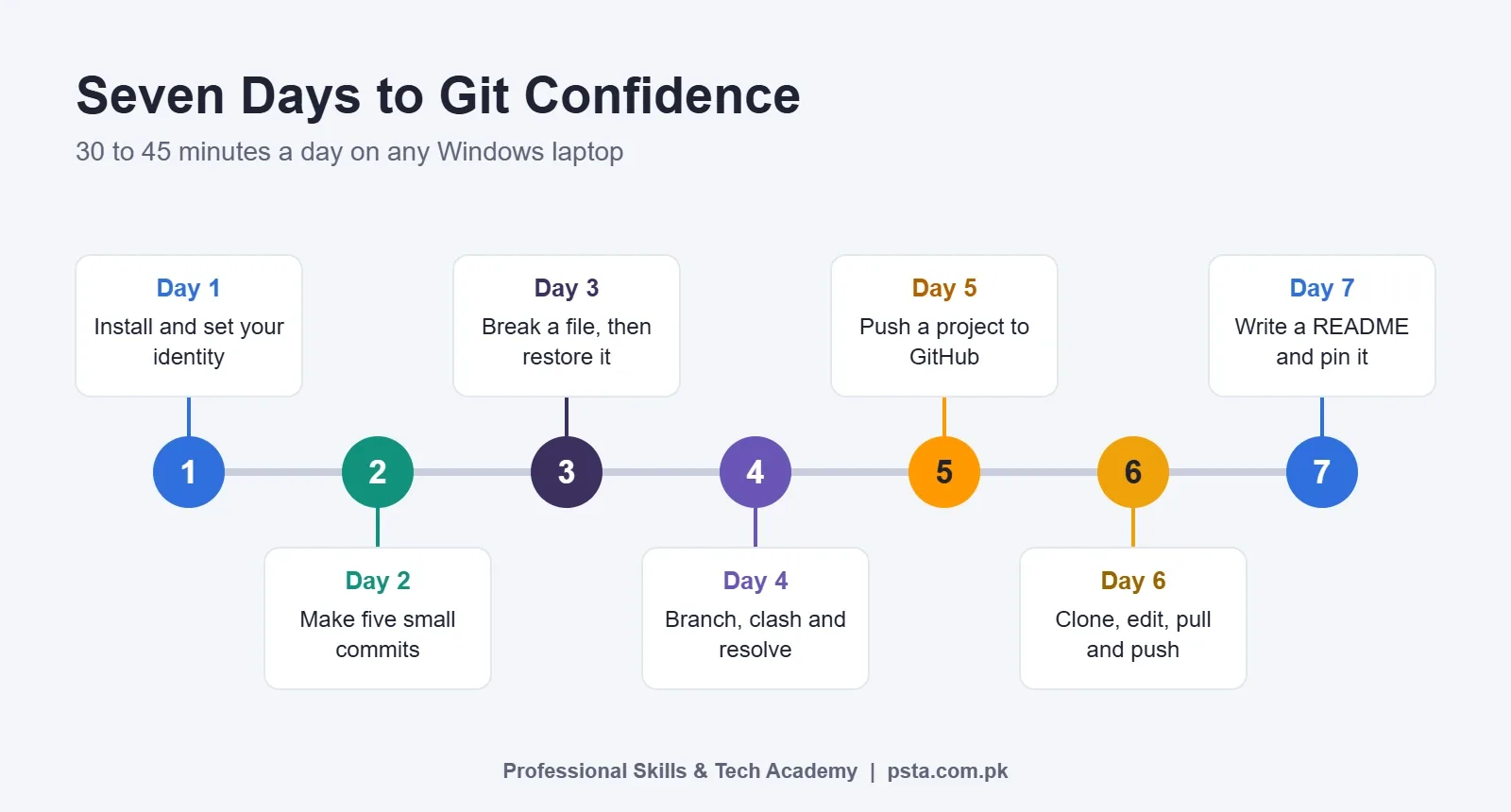
Reading a list of Git commands for beginners doesn't build the habit. Typing them does. Give it 30 to 45 minutes a day for one week:
- Day 1: Install Git, set your name, email and default branch, and create a free GitHub account.
- Day 2: In a practice folder, make five small commits. Read the log after each one.
- Day 3: Use
git diffandgit restoreon purpose. Break a file, then bring it back. - Day 4: Create two branches, change the same line in both, and merge them to cause a conflict. Resolve it.
- Day 5: Push an existing project, such as a portfolio page, to GitHub and set up sign-in.
- Day 6: Clone a repository, edit it on a laptop or a friend's machine, and practise pull and push.
- Day 7: Write a README with screenshots and a live link. Pin the repository on your profile.
Is a GitHub Profile Worth Building in Pakistan?
For anyone aiming at web development work, yes. GitHub's Octoverse 2025 report says more than 180 million developers now use the platform. It adds that over 36 million joined in a single year and that nearly 1 billion commits were pushed in 2025. Git is the shared working language of that whole community.
For a fresh graduate, a GitHub link does practical work. A hiring manager at a software house in Islamabad, Lahore or Peshawar can open your projects, read your commit messages and judge your habits before you meet. A client on Upwork can do the same. Three well-documented projects with steady commits say more than a CV line that reads "familiar with Git."
If you're enrolled in a college, university or diploma program, check GitHub Education too. GitHub's student application page asks that you be at least 13 years old, enrolled in a degree- or diploma-granting program and able to show proof such as a dated student ID or enrollment letter. Approved students get the Student Developer Pack of free tools.
Once your projects are on GitHub, you can publish static ones for free. Our comparison of free web hosting for students covers GitHub Pages and the main alternatives. If you're still choosing what to build, the frontend developer roadmap for Pakistan suggests projects in a sensible order.
Practising Git Alongside PSTA's Full-Stack Course
PSTA's Full-Stack Web Development course runs for six months, uses AI tools throughout, and is built for beginners with no coding background. You move from HTML5 and CSS3 to modern JavaScript, React, Node.js with Express, MongoDB and MySQL, then PHP and WordPress for local client work. A module on AI for developers covers ChatGPT and GitHub Copilot, and the course ends with a capstone MERN application that you build and deploy live.
The current fee is Rs. 45,000 (regular Rs. 60,000), payable in two installments. You can join on campus at Mandian, Old College Road, opposite FIMS College, Abbottabad, join live online classes from any city, or combine the two. A new batch begins every month. Each project you build in the course is a natural repository for your GitHub profile, so the seven-day plan above fits well in your first weeks.
If you'd like a narrower start, look at the JavaScript programming course or the React.js course. The full list of programs sits on the courses page. When you're ready, the admission page explains how to enroll, and questions about class slots get answered on WhatsApp (+92 314 5424399).
Make Your First Commit Tonight
Pick one small thing you've already built, even a single HTML page. Install Git, run git init in that folder, and make one commit with a clear message. Then push it to a new GitHub repository. That one repository is the first entry in a portfolio that grows every time you code. Once these Git commands for beginners feel routine, learn pull requests next.
Frequently asked questions
Is Git hard to learn for beginners?
The basics are not hard. Most students are comfortable with status, add, commit, push and pull within a week of daily practice. What feels difficult at first is the staging area and merge conflicts. Both become clear once you cause a conflict on purpose and fix it yourself, which is why the practice plan in this guide includes that exercise on day four.
Can I learn Git before I know how to code?
Yes. Git tracks any kind of file, so you can practise with a simple text file or a one-page HTML site. In fact, learning Git early is a good idea, because every project you build afterwards gets a clean history from the first day instead of a folder full of copies named final and final2.
What is the difference between git pull and git fetch?
Fetch downloads new commits from GitHub but leaves your current files alone, so you can look at what changed first. Pull does a fetch and then merges those commits into your branch straight away. Beginners usually use pull. Fetch is useful on team projects when you want to review a teammate's work before merging it.
Why does GitHub reject my password when I push?
GitHub does not accept your account password for Git operations over HTTPS. When Git asks for a password, you enter a personal access token instead, or you let a credential helper such as Git Credential Manager handle the sign-in through your browser. You can also switch to SSH keys, which many developers prefer on their own laptop.
Should I use GitHub Desktop or the command line?
Learn the command line first, then use whatever tool you like. Typed commands show you exactly what Git is doing, and every tutorial, forum answer and interviewer uses them. Once you understand the commands, GitHub Desktop or the Git panel in VS Code becomes a convenient shortcut rather than a black box you can't fix.
How often should I commit my work?
Commit whenever you finish one small, complete change: a fixed bug, a new section, a working form. For most beginners that means several commits in a two-hour session. Small commits with clear messages make it easy to find where a problem started and to undo one change without losing the others.
Is Git free to use?
Yes. Git is free, open-source software that you download from git-scm.com for Windows, macOS or Linux. Creating a GitHub account costs nothing either. Students enrolled in a degree or diploma program can also apply for GitHub Education, which adds a pack of free developer tools.
Sources & references
- Git for Windows download (git-scm.com) git-scm.com
- Pro Git: First-Time Git Setup git-scm.com
- git-switch documentation git-scm.com
- git-restore documentation git-scm.com
- About authentication to GitHub (GitHub Docs) docs.github.com
- Apply to GitHub Education as a student (GitHub Docs) docs.github.com
- Octoverse 2025 (GitHub Blog) github.blog
Last reviewed & updated on by Umar Qureshi. Written by the PSTA team in Abbottabad, Pakistan.

Umar Qureshi

Full-Stack Web Development Course with AI Tools
Turn this guide into a career: hands-on training with real projects, online across Pakistan or on-campus in Abbottabad · 6 Months.

Comments
No comments yet — ask a question or share your experience.