Quick answer
Export YouTube videos as H.264 in an MP4 file at the frame rate you recorded, with AAC audio at 48 kHz. YouTube recommends 8 Mbps for 1080p at 30 fps, 12 Mbps at 60 fps and 35 to 45 Mbps for 4K. New uploads look blurry until HD processing finishes.
Key takeaways
- • Use H.264 in MP4, progressive scan, VBR, 4:2:0 and Rec. 709 color for normal SDR uploads.
- • YouTube recommends 8 Mbps for 1080p at 24 to 30 fps and 12 Mbps at 48 to 60 fps.
- • Export at the frame rate you recorded; indoors under 50 Hz lighting, 25 or 50 fps reduces flicker.
- • Premiere Pro's YouTube 1080p Full HD preset, Resolve's Deliver page and CapCut's resolution menu all reach the same settings.
- • Upload as Private and wait for HD processing, which can take hours for long 4K videos.
Table of contents 15 sections
- Export Settings for YouTube at a Glance
- What Bitrate Should You Use for Each Resolution?
- Codec, Bitrate and Frame Rate in Plain Words
- Should You Export at 25, 30 or 60 fps?
- Premiere Pro Export Settings, Step by Step
- DaVinci Resolve Export Settings in the Free Version
- CapCut Export Settings on Mobile and Desktop
- On a Phone
- On a Laptop
- One Master File for YouTube, Reels and Shorts
- A Pre-Upload Routine That Saves Re-Exports
- Why Does My Video Look Blurry After Uploading?
- How Big Will Your File Be?
- Practicing Exports in PSTA's Video Editing Course
- Export a 10-Second Test Clip Today
The export settings for YouTube that matter most fit on one line: H.264 video in an MP4 file, the same frame rate you recorded at, AAC audio at 48 kHz, and about 8 Mbps for a 1080p video at 30 frames per second. That 8 Mbps figure comes straight from YouTube's recommended upload encoding settings, and it is the number most beginners get wrong in both directions.
This guide turns YouTube's official numbers into exact clicks for the three editors our students use most. By the end, you will know:
- Which codec, bitrate and audio settings to pick for 720p, 1080p, 1440p and 4K
- How to choose between 25, 30 and 60 fps when you shoot in Pakistan
- The export steps in Premiere Pro, DaVinci Resolve and CapCut
- How to make one master file that also works for Reels and Shorts
- Why a fresh upload looks blurry and how long to wait before you worry
Export Settings for YouTube at a Glance
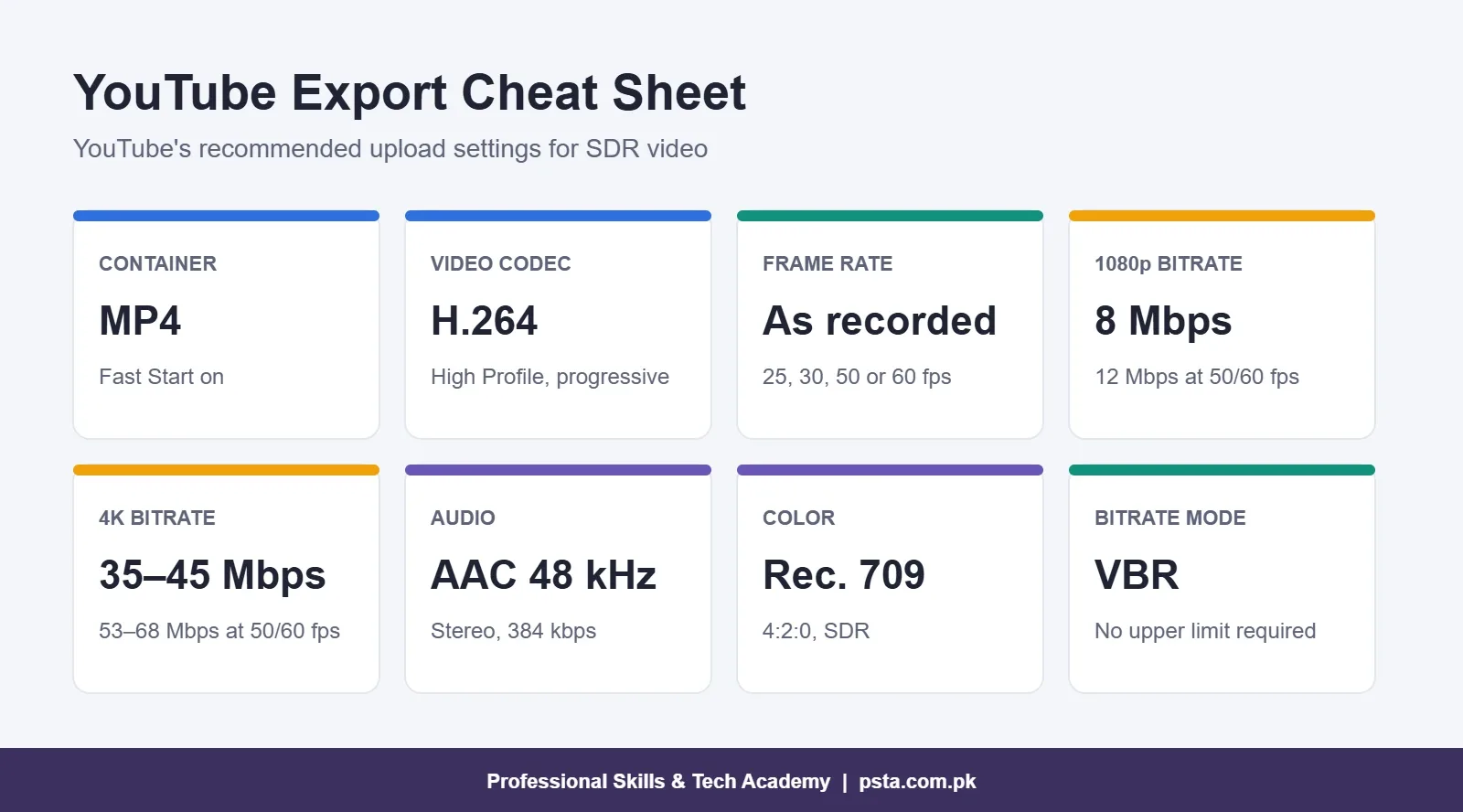
If you only read one section, read this one. These values match what YouTube asks for and what Adobe's own YouTube preset uses. They suit vlogs, tutorials, podcasts, product videos and most client work.
| Setting | What to choose | Why |
|---|---|---|
| Container | MP4 | YouTube's first choice; turn on Fast Start if your editor offers it |
| Video codec | H.264, High Profile | Plays everywhere and YouTube re-encodes it cleanly |
| Scan | Progressive | YouTube asks you to remove interlacing before upload |
| Frame rate | Same as your footage | Changing it causes stutter or blended frames |
| Bitrate mode | Variable (VBR) | Spends data on busy shots and saves it on still ones |
| Bitrate (1080p, 30 fps) | 8 Mbps | YouTube's SDR recommendation |
| Chroma subsampling | 4:2:0 | Standard for delivery files |
| Color | Rec. 709 (BT.709) | YouTube's expected color space for normal (SDR) video |
| Audio | AAC, 48 kHz, stereo, 384 kbps | YouTube's stereo audio recommendation |
YouTube's page also lists finer encoder details: two consecutive B-frames, a closed GOP of half the frame rate and CABAC entropy coding. You rarely type these yourself. Good H.264 presets in Premiere Pro and Resolve already handle them, so leave the advanced encoder tab alone unless a client hands you a written spec.
What Bitrate Should You Use for Each Resolution?
Bitrate is the part of your export settings for YouTube that changes quality the most. It is the amount of data your video uses every second. Too low and dark scenes turn blocky, especially smoke, water, crowds and confetti at weddings. Too high and the file grows without any visible gain, because YouTube compresses everything again after upload anyway.
Here is the official YouTube bitrate table for standard (SDR) uploads, taken from its encoding help page:
| Resolution | 24, 25 or 30 fps | 48, 50 or 60 fps |
|---|---|---|
| 2160p (4K) | 35–45 Mbps | 53–68 Mbps |
| 1440p (2K) | 16 Mbps | 24 Mbps |
| 1080p | 8 Mbps | 12 Mbps |
| 720p | 5 Mbps | 7.5 Mbps |
| 480p | 2.5 Mbps | 4 Mbps |
Treat these as a floor, not a ceiling. YouTube says no bitrate limit is required, so many editors go a little higher, for example 10 to 12 Mbps for a 1080p30 video with fast motion. If you edit HDR footage from a newer phone, YouTube lists higher figures (10 Mbps for 1080p at 30 fps), but most beginners should export SDR until they understand HDR grading.
Codec, Bitrate and Frame Rate in Plain Words
The codec is the compression method, such as H.264 or H.265 (also called HEVC). The bitrate is how much data that method may use. The frame rate is how many pictures play each second. A good export keeps the frame rate unchanged, picks a widely supported codec, and gives it enough bitrate for the resolution.
Should You Export at 25, 30 or 60 fps?
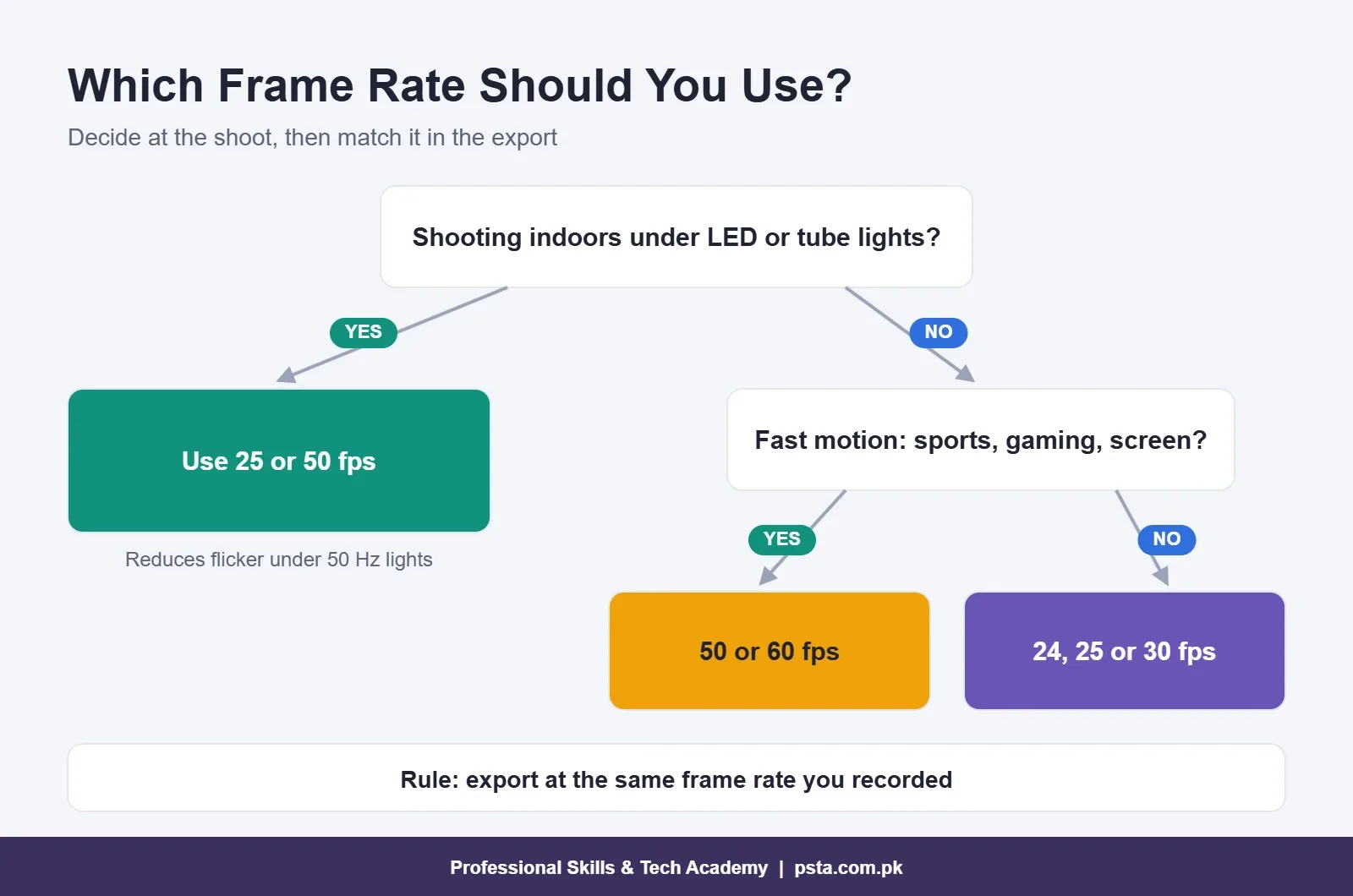
Among all export settings for YouTube, frame rate has the simplest rule: export at the frame rate you recorded. YouTube's guide says this directly and lists 24, 25, 30, 48, 50 and 60 fps as common rates. Converting 30 fps footage to 25 fps, or the reverse, drops or blends frames, and viewers notice it as a small stutter on pans.
The harder question is what to record, because that decides your export. Pakistan's mains power runs at 230 V and 50 Hz. Cheap LED panels and tube lights can flicker at a rate tied to that frequency, and a camera set to 30 or 60 fps may show rolling bands indoors. Recording at 25 or 50 fps usually removes that banding. Outdoors in daylight, either family works.
- Talking-head videos, classes and podcasts indoors: 25 fps
- Gaming, sports and screen recordings with fast movement: 50 or 60 fps
- Short films with a cinematic feel: 24 or 25 fps
- Phone footage you didn't set up yourself: check the clip's properties and match it
Older camcorders and some CCTV-style recorders produce interlaced video, marked with an "i" such as 1080i. YouTube asks you to deinterlace first, so 1080i60 becomes 1080p30. Premiere Pro and Resolve both have a deinterlace option in clip settings.
Premiere Pro Export Settings, Step by Step
Recent versions of Premiere Pro have a separate Export mode. Adobe's own YouTube export guide describes a preset route and a manual route. Here is the manual route to the right export settings for YouTube, with the reasons behind each choice:
- Select your sequence, then click Export in the header bar (or use File > Export > Media File).
- Set Format to H.264. The file will save as .mp4.
- Start from the YouTube 1080p Full HD preset. If you don't see it, open More Presets and search for it.
- Open the Video section. Keep Frame Rate and Aspect matched to the source, and set Field Order to Progressive.
- Under Bitrate Settings, choose VBR, 1 pass and set the target to 8 Mbps for 1080p (Adobe suggests 45 Mbps for 4K).
- In the Audio section, choose AAC, 48,000 Hz, Stereo.
- Check the estimated file size at the bottom, then click Export.
Premiere Pro can also upload straight to YouTube if you switch on the YouTube destination and sign in. That is handy for a personal channel. For client work, export a file first, because the client will want to review it before anything goes public.
One common mistake is a sequence that doesn't match the footage. If you drop 1080p 25 fps clips into a 4K 30 fps sequence, every export starts from the wrong base. Right-click your first clip and choose New Sequence From Clip to avoid this from day one.
DaVinci Resolve Export Settings in the Free Version
Resolve exports from the Deliver page, the rocket icon at the bottom of the screen. The free version is enough for YouTube work. According to Storyblocks' comparison of Resolve Free and Studio, the free edition exports up to 4K UHD at up to 60 fps, while Studio goes up to 32K and 120 fps.
- Open the Deliver page. In Render Settings, pick a preset from the row at the top if one fits, or stay on Custom Export.
- Set Format to MP4 and Codec to H.264.
- Set the resolution to match your timeline. Don't export above your footage's native size.
- Leave the frame rate equal to the timeline frame rate. Resolve locks this to the project setting, so fix it before you start editing.
- Under Quality, you can keep Automatic or restrict the bitrate. Restricting to around 10,000 to 12,000 Kb/s gives you predictable 1080p files.
- In the Audio tab, confirm AAC at 48 kHz.
- Click Add to Render Queue, then Render All in the queue panel.
If you prefer fewer clicks, File > Quick Export offers ready-made presets, including YouTube. These defaults are fine for most uploads, as Boris FX's Resolve export guide also notes. Our earlier comparison of Premiere Pro vs DaVinci Resolve covers which editor to learn first.
CapCut Export Settings on Mobile and Desktop
Many of our students start on CapCut because it runs on a phone. Its export menu is simpler, but the same export settings for YouTube apply. CapCut's help page on 2K and 4K exports explains where each option lives.
On a Phone
Before tapping Export, tap the resolution label beside the Export button (it usually shows "1080P"). Choose 1080P for most uploads. 2K and 4K appear only on phones that support them, and only when your clips are that sharp to begin with. If every clip is 1080p, CapCut won't offer 4K, and upscaling wouldn't add real detail anyway. Higher frame rates can also cap the top resolution on weaker phones.
On a Laptop
Click Export in the top-right corner. Set Resolution, then Frame Rate (up to 60 fps, depending on the source), then Bitrate. Pick the higher bitrate option for YouTube uploads, since YouTube recompresses the file. The desktop app needs Windows 10 64-bit or macOS 12 or later. CapCut notes that free accounts on the web version may face watermarks or bitrate limits on 4K exports.
One Master File for YouTube, Reels and Shorts
Most clients our students meet want more than one platform. A clothing brand in Lahore or a school in Abbottabad will usually ask for a long YouTube version and a vertical cut for Instagram and Facebook. Plan the vertical version as its own sequence (1080 × 1920, 9:16) rather than cropping the wide export later.
Meta's developer documentation for publishing Reels through its API lists clear limits, and they make sensible Instagram Reels export settings for normal uploads too:
| Item | Meta's Reels limit | What it means for you |
|---|---|---|
| Container | MP4 or MOV | Your YouTube MP4 settings work |
| Codec | H.264 or HEVC, progressive, closed GOP, 4:2:0 | Same codec family as YouTube |
| Frame rate | 23 to 60 fps | 25 and 30 fps both pass |
| Width | 1,920 pixels maximum | Export vertical at 1080 × 1920, not 4K |
| Bitrate | VBR, 25 Mbps maximum | Keep vertical exports below this |
| Audio | AAC, up to 48 kHz, 128 kbps | Stereo AAC is fine |
| Length and size | 3 seconds to 15 minutes, 300 MB maximum | Long reels need a moderate bitrate |
YouTube, for its part, accepts vertical and square uploads and adapts the player to them. So a 1080 × 1920 file at 8 to 12 Mbps can go to YouTube Shorts, Instagram and Facebook without a separate export. For cover images and post dimensions, our 2026 guide to social media post sizes lists every format.
A Pre-Upload Routine That Saves Re-Exports
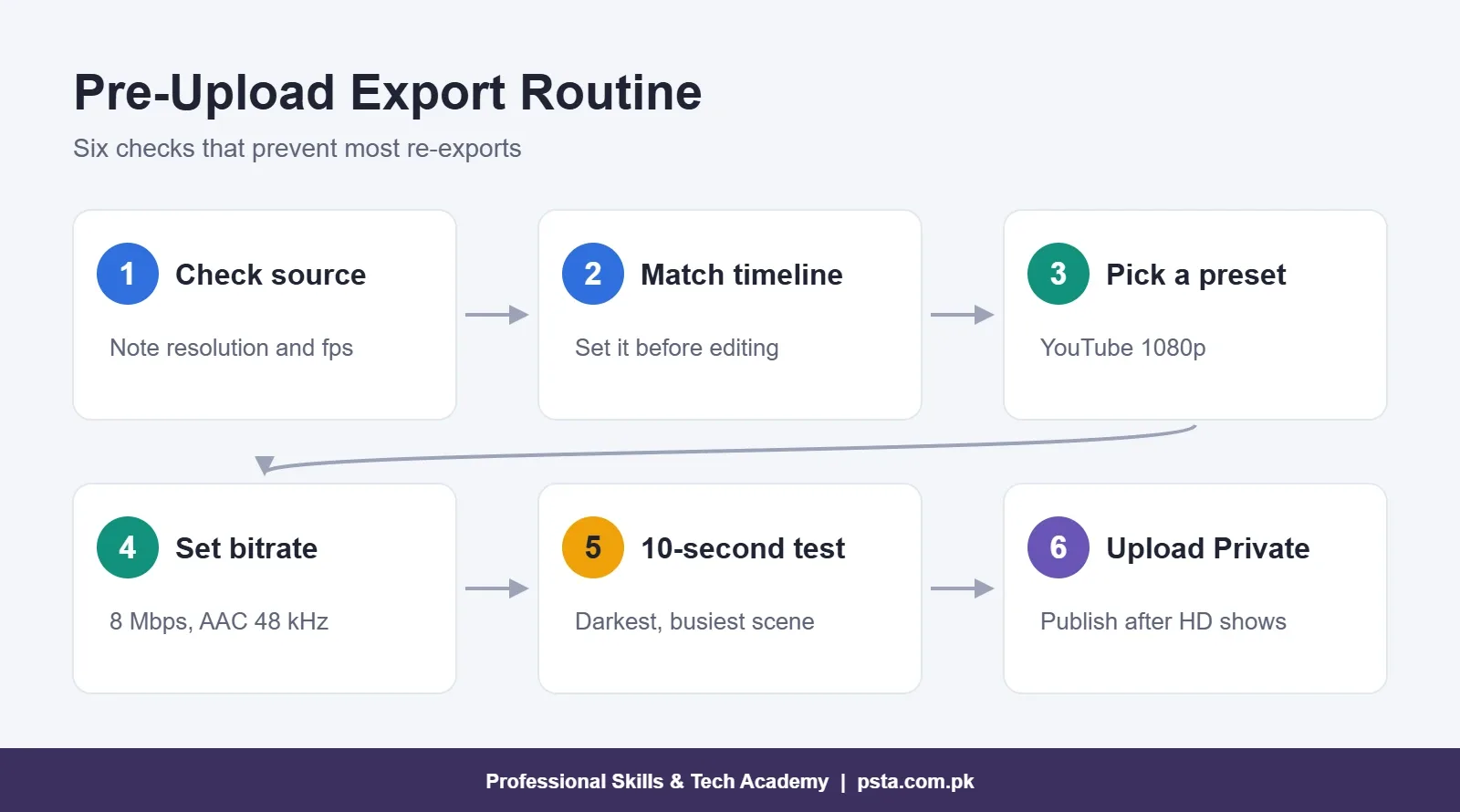
A failed 4K render can cost you an hour on a mid-range laptop, and a re-upload on a slow connection costs another evening. A short routine before every final export prevents most of that pain:
- Check the source. Note resolution and frame rate from the clip properties.
- Match the sequence or timeline to that source before you edit.
- Pick a preset (YouTube 1080p in Premiere Pro, a Quick Export YouTube preset in Resolve) instead of building one from zero.
- Set bitrate and audio using the table above.
- Export a 10-second test of your darkest or busiest scene and watch it full screen.
- Export the full file, upload it as Private or Unlisted, and wait for HD processing before you publish.
Why Does My Video Look Blurry After Uploading?
A video that looks blurry after upload usually has nothing wrong with its export settings for YouTube. YouTube's help page on low video quality after upload explains that new uploads are first processed in low quality so they finish faster. The 1080p and 4K versions arrive later, sometimes several hours later.
YouTube gives a concrete example: a 60-minute 4K video at 30 fps can take up to four hours to finish high-resolution processing, and 60 fps takes longer. Because 4K files are roughly four times bigger than 1080p, they take roughly four times longer. To check progress, open the video, click the gear icon and look under Quality. If 1080p is missing, processing is still running.
If the video still looks soft after HD processing finishes, check these causes in order:
- The export resolution was lower than you thought (a 720p preset left selected)
- The bitrate was set very low, often a leftover WhatsApp or email preset
- The footage itself was soft, such as a dirty phone lens or digital zoom
- Your channel isn't verified; YouTube suggests verification for the best processing time
This is why the Private upload in step 6 matters. You can publish once the HD version is ready, so your first viewers never see the blurry phase. Waiting also gives you time to add a proper thumbnail; our YouTube thumbnail guide walks through that.
How Big Will Your File Be?
You can estimate file size before you render with simple math. Multiply the bitrate in Mbps by the length in seconds, then divide by 8 to get megabytes.
| Video | Bitrate | Length | Approximate size |
|---|---|---|---|
| 1080p, 30 fps | 8 Mbps | 10 minutes | About 600 MB |
| 1080p, 60 fps | 12 Mbps | 10 minutes | About 900 MB |
| 4K, 30 fps | 40 Mbps | 10 minutes | About 3 GB |
| Vertical reel, 1080 × 1920 | 10 Mbps | 60 seconds | About 75 MB |
Stereo audio at 384 kbps adds about 29 MB per 10 minutes. These estimates matter on home broadband or mobile data. Run a speed test before a big upload, and if your upload speed is low, schedule long 4K files overnight. For most tutorial and vlog channels, a clean 1080p upload is the practical choice.
Practicing Exports in PSTA's Video Editing Course
Export settings are one module in PSTA's Mastering Video Editing & Visual Effects (VFX) course, taught in Premiere Pro and After Effects. The course page lists a 12-week, beginner-level program that currently costs Rs. 22,000 instead of the regular Rs. 25,000, split into 2 installments if you prefer. You can attend in person in Mandian, Abbottabad, join the live online batch from your own city, or combine the two.
You practice exports on real projects: a YouTube vlog, a color-graded scene, a green screen promo and a one-minute showreel for your Fiverr or Upwork profile. If you also design thumbnails and ad creatives, the Graphic Designing course pairs well with it. Browse every program on the courses page, read how enrollment works on the admission page, or message +92 314 5424399 on WhatsApp to ask about the next batch.
Export a 10-Second Test Clip Today
Open your last project and export only 10 seconds of the darkest or busiest scene twice: once at 4 Mbps and once at 8 Mbps. Upload both as Unlisted, wait until 1080p appears in the Quality menu, and compare them on a phone and a laptop. Ten minutes of testing your own export settings for YouTube will teach you more about bitrate than any table, and you'll trust your settings on the next client deadline. If you are still choosing hardware for this work, read our laptop for video editing myths and facts first.
Frequently asked questions
What is the best bitrate for a 1080p YouTube video?
YouTube recommends 8 Mbps for 1080p video at 24, 25 or 30 fps and 12 Mbps at 48, 50 or 60 fps for standard SDR uploads. YouTube says no upper limit is required, so many editors export at 10 to 12 Mbps for fast-moving 1080p30 footage to keep detail in busy scenes.
Should I export my YouTube video in H.264 or H.265?
H.264 in an MP4 file is YouTube's recommended codec and the safest choice for most creators. H.265 (HEVC) gives smaller files at similar quality, but it encodes more slowly on many laptops. Since YouTube re-encodes every upload anyway, H.264 at the recommended bitrate is the practical default.
Is it better to upload in 4K even if I shot in 1080p?
No. Exporting 1080p footage at 4K only enlarges the same pixels, so it adds file size and upload time without adding real detail. CapCut, for example, won't offer 4K export when every clip is 1080p. Export at your footage's native resolution and give it the bitrate YouTube recommends.
Why is my YouTube video only showing 360p after upload?
YouTube processes a low-quality version first so the upload finishes faster, then adds 1080p and 4K later. YouTube says a 60-minute 4K video at 30 fps can take up to four hours for high-resolution processing. Upload as Private or Unlisted and publish once HD appears in the Quality menu.
What audio settings should I use when exporting for YouTube?
Use AAC audio at a 48 kHz sample rate in stereo. YouTube recommends 384 kbps for stereo, 128 kbps for mono and 512 kbps for 5.1 surround. Premiere Pro's YouTube preset already uses AAC at 48 kHz, and in Resolve or CapCut you only need to check that the audio tab shows the same values.
Can I use the same export for YouTube Shorts and Instagram Reels?
Yes, if you edit a separate vertical sequence at 1080 x 1920. Meta's Reels publishing specs allow H.264 or HEVC in MP4 or MOV, 23 to 60 fps, up to 25 Mbps and 300 MB, while YouTube accepts vertical uploads. A 1080 x 1920 file at 8 to 12 Mbps works on both.
Does DaVinci Resolve free version export 4K for YouTube?
Yes. The free version of DaVinci Resolve exports up to 4K UHD at up to 60 fps, which covers almost all YouTube work. The paid Studio version adds higher resolutions and frame rates, up to 32K and 120 fps, plus extra features that most beginners will not need for normal uploads.
Sources & references
- YouTube recommended upload encoding settings support.google.com
- YouTube Help: Low video quality after upload support.google.com
- Adobe: Best Premiere Pro export settings for YouTube adobe.com
- Meta for Developers: IG User Media (Reels specifications) developers.facebook.com
- CapCut Help: How do I export 2K/4K videos in CapCut? capcut.com
- Storyblocks: DaVinci Resolve Free vs Studio storyblocks.com
- Boris FX: How to export video from DaVinci Resolve borisfx.com
- WorldStandards: Pakistan plug, voltage and frequency worldstandards.eu
Last reviewed & updated on by Umar Qureshi. Written by the PSTA team in Abbottabad, Pakistan.

Umar Qureshi

Mastering Video Editing & Visual Effects (VFX)
Turn this guide into a career: hands-on training with real projects, online across Pakistan or on-campus in Abbottabad · 12 Weeks.


Comments
No comments yet — ask a question or share your experience.