Quick answer
Verify your channel first, then design at 1920 × 1080 or larger in 16:9. Use one main subject, three or four bold words and strong contrast. Check the design at phone size, export JPG or PNG (under 2 MB for app uploads), upload it in YouTube Studio and A/B test up to three versions.
Key takeaways
- • Custom thumbnails need a verified YouTube account; A/B testing also needs advanced features.
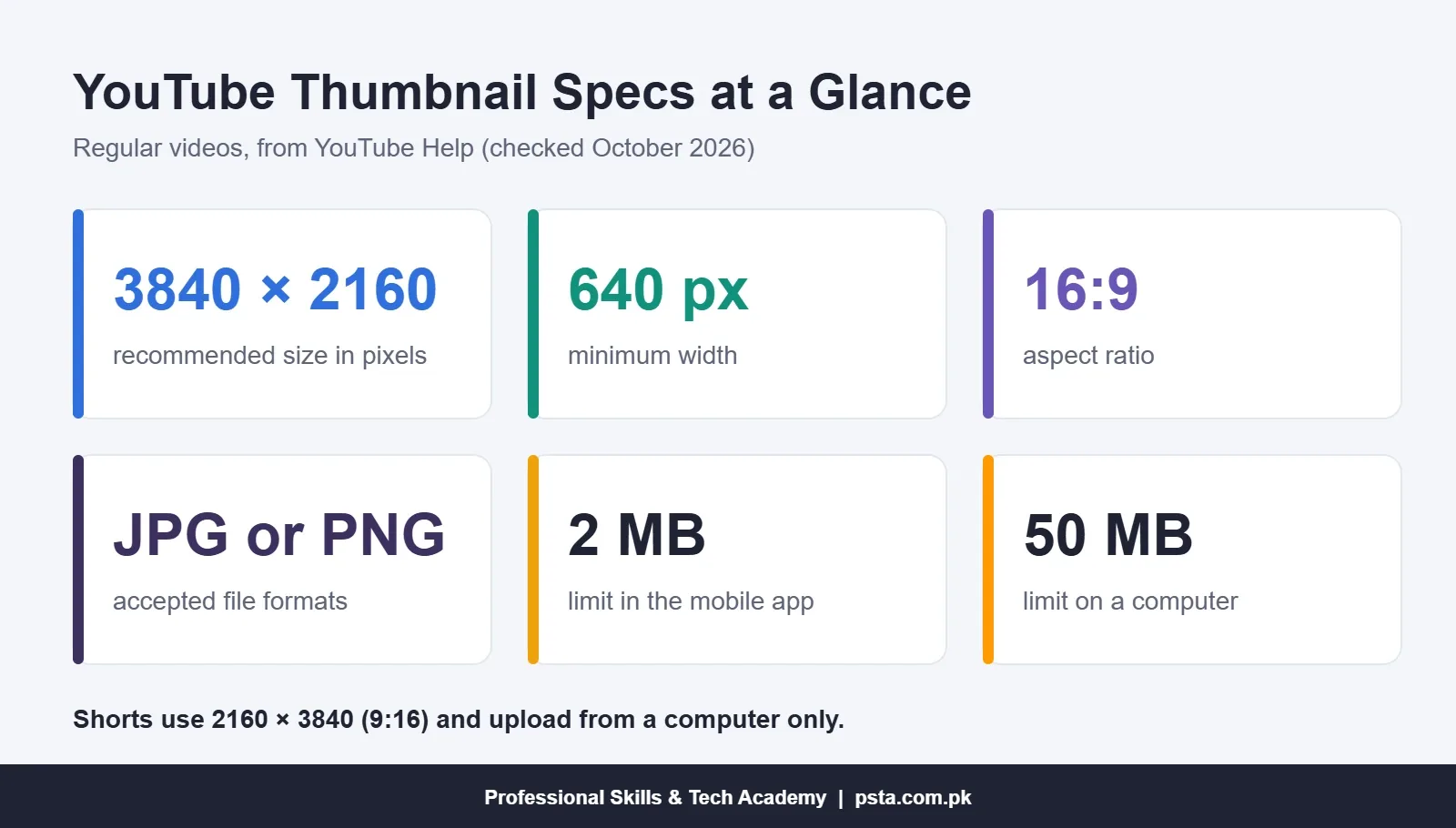
- • YouTube now recommends 3840 × 2160 px in 16:9, with a 640 px minimum width.
- • File limits are 2 MB in the mobile app and 50 MB in YouTube Studio on a computer.
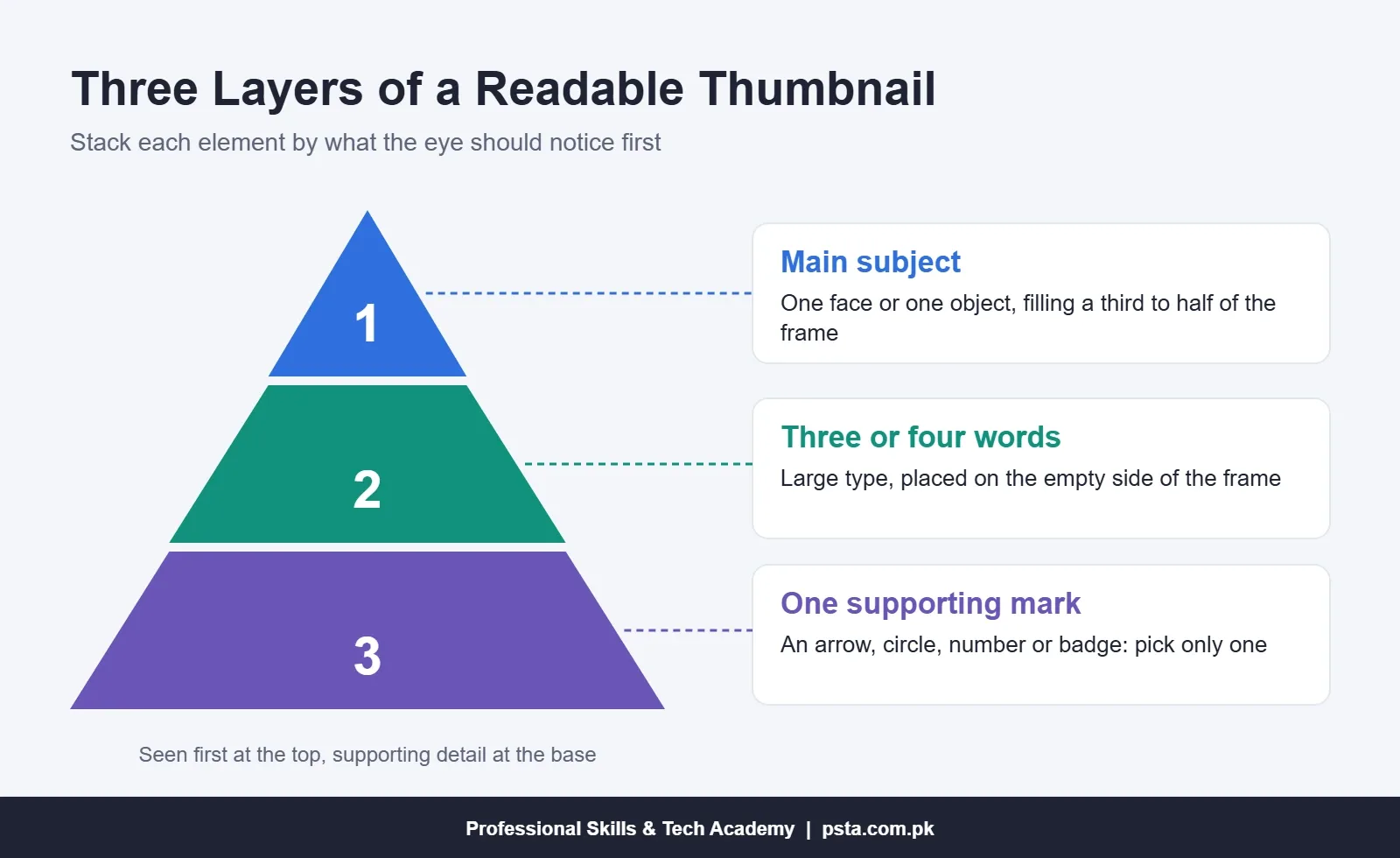
- • Use three layers: one main subject, three or four words, and one supporting mark.
- • YouTube picks A/B test winners by watch time, so clickbait thumbnails rarely win.
Table of contents 13 sections
- Can You Make a YouTube Thumbnail on a New Channel?
- What Size Should a YouTube Thumbnail Be in 2026?
- Step 1: Decide What the Thumbnail Must Promise
- Step 2: Choose a Main Image That Reads at Phone Size
- Step 3: Set Up the Canvas in Canva, Photoshop or Photopea
- Step 4: Arrange the Layout in Three Layers
- Step 5: Add Three or Four Words of Text
- Step 6: Fix Contrast and Run the Squint Test
- Steps 7 and 8: Export the File and Upload It in YouTube Studio
- Step 9: How Do You A/B Test Thumbnails on YouTube?
- Reading Click-Through Rate Without Chasing Clickbait
- Designing Thumbnails for Real Channels in PSTA's Graphic Design Course
- Redesign One Old Thumbnail This Evening
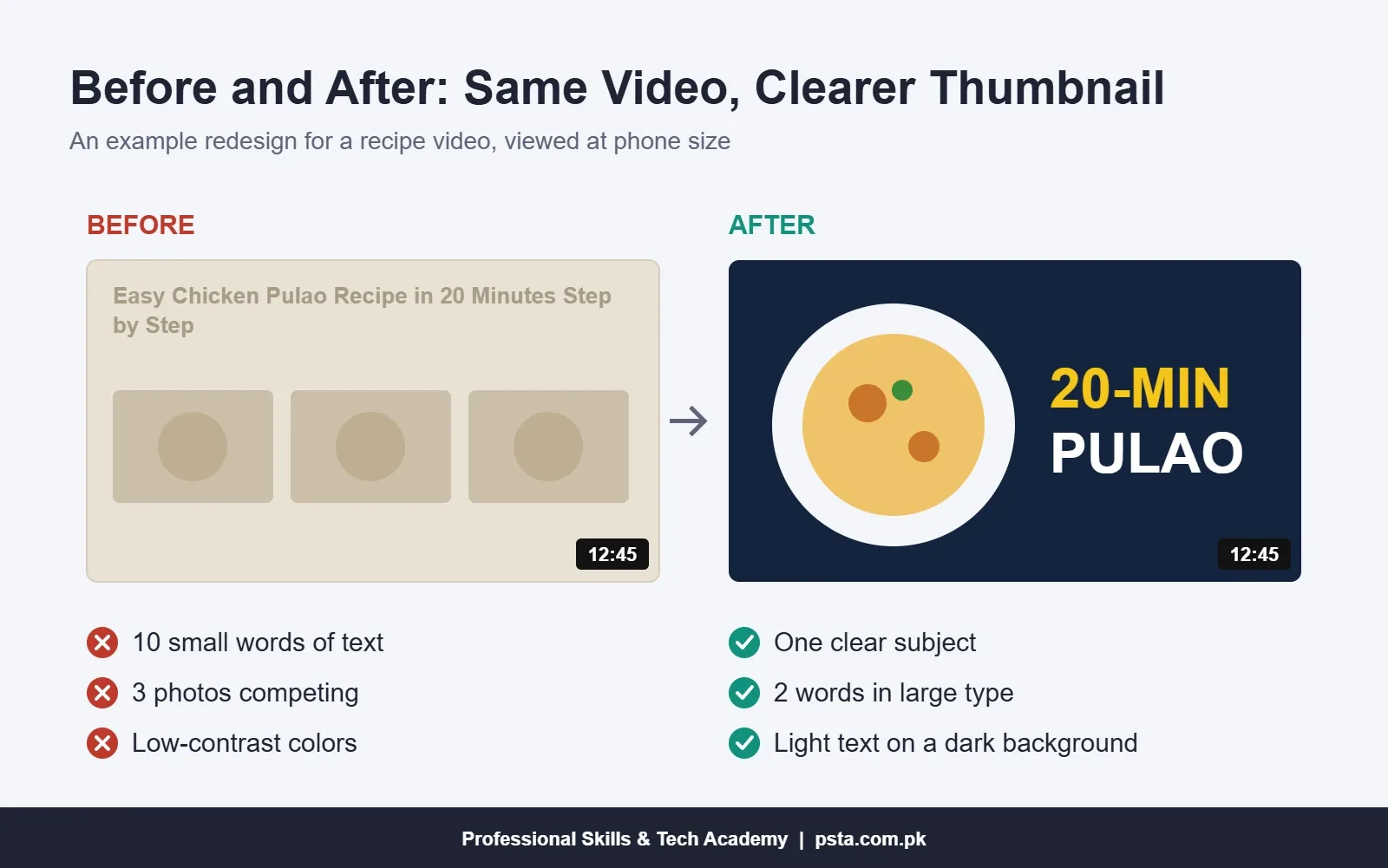
Here is an example many new creators will recognize. A home baker in Abbottabad wants to make a YouTube thumbnail for her chicken pulao video, so she drops in three photos, types "Easy Chicken Pulao Recipe in 20 Minutes Step by Step" across the top and uploads it from her phone. On her laptop it looks fine. In the YouTube app, where the image is smaller than a matchbox, nobody can tell what the video is about.
That gap between the design screen and the phone screen is what this guide closes. DataReportal's Digital 2026 Pakistan report puts YouTube's audience in the country at 54.3 million users in late 2025, so that small rectangle has a lot of competition. Below you'll find YouTube's current rules for anyone who wants to make a YouTube thumbnail properly, then a nine-step workflow you can repeat for every upload.
What you'll take away:
- Whether your channel can upload a custom thumbnail yet, and how to switch the option on
- The 2026 size, format and file limits, including one number most older guides still get wrong
- A three-layer layout that stays readable on a small phone screen
- How to export, upload and A/B test up to three versions
- How to read click-through rate without drifting into clickbait
Can You Make a YouTube Thumbnail on a New Channel?
Anyone can upload a video, but custom thumbnails are locked until you verify your account. YouTube's help page on video thumbnails says your account must be verified before you can upload one, and Shorts thumbnails need verification too. Until then, YouTube picks a frame from the video for you, and it rarely picks the best one.
Verification needs only a mobile phone that can receive a text message or a call:
- Open YouTube Studio on a computer and go to Settings, then Channel, then Feature eligibility.
- Expand Intermediate features and choose the verify option.
- Pick a text message or a voice call, enter your number and type in the code you receive.
According to vidIQ's guide to YouTube feature tiers, one phone number can verify only two channels a year, so don't spend it on test channels. The same step also opens up videos longer than 15 minutes. A/B testing sits one tier higher, under "advanced features", which needs channel history or ID verification on top of the phone check. We'll come back to that in Step 9. If you also plan to earn from your channel, our YouTube monetization requirements checklist for Pakistan covers the rest of the path.
What Size Should a YouTube Thumbnail Be in 2026?
Most tutorials still give the YouTube thumbnail size as 1280 × 720 pixels with a 2 MB limit. YouTube's own help page now gives different figures. Its target for a regular video is 3840 × 2160 in 16:9, and the narrowest file it takes is 640 px wide. The file limit depends on where you upload: 2 MB from the mobile app, but 50 MB from YouTube Studio on a computer.
| Specification | Regular Videos | Shorts |
|---|---|---|
| Recommended size | 3840 × 2160 px | 2160 × 3840 px |
| Minimum | 640 px wide | 640 px tall |
| Aspect ratio | 16:9 | 9:16 |
| File formats | JPG or PNG | JPG or PNG |
| Maximum file size | 2 MB (app), 50 MB (computer) | 50 MB (computer) |
| Where you can upload | YouTube Studio or the mobile app | YouTube Studio on a computer only |
So is 1280 × 720 wrong? No. It's well above the minimum, and YouTube's A/B testing page asks for at least that size. Anything smaller gets downscaled to 480p for the whole test. My advice to students is simple: design at 1920 × 1080, or at 3840 × 2160 if your laptop handles large files comfortably, and you'll never have to rebuild a thumbnail because the rules changed.
One detail catches vertical-video creators. If a vertical video carries a 16:9 thumbnail, YouTube swaps in an auto-generated 4:5 image on the home, explore and subscription pages. Your custom version still appears in the watch feed and history. For the sizes on every other platform, keep our social media post sizes cheat sheet open in another tab.
Step 1: Decide What the Thumbnail Must Promise
Before you make a YouTube thumbnail in any design tool, finish this sentence: "After clicking, the viewer will get ___." For a laptop review, that might be "the real battery result after a full workday." For a mobile repair channel, it could be "a phone that charges again without a new port."
The thumbnail shows that promise in one picture. The title adds the detail. They should work as a pair, so avoid repeating the title's words on the image. If the title reads "How I Fixed My Phone's Charging Port at Home", the thumbnail can say "NOT CHARGING?" next to a sharp close-up of the port.
Write the promise sentence in your video notes for every upload. If you can't fill the blank, the problem is the video idea, not the design.
Step 2: Choose a Main Image That Reads at Phone Size
Three kinds of main image work reliably: a close-up face with one clear expression, the product or result itself, or a split frame showing the problem and the fix. A wide shot of a room, a crowded bazaar or a full-length photo shrinks into noise on a phone.
A few habits make this step faster:
- Shoot the thumbnail photo on purpose. Take 10 to 15 stills while you record, near a window or in daylight, instead of hunting for a usable frame later.
- Leave room for text. Frame yourself or the product on the left or right third, so the other side stays empty.
- Use only images you own or have rights to. A picture from a Google search or a frame from another creator's video isn't yours to reuse.
- Cut the subject out cleanly. A background remover lets you place the subject on a plain color. On Canva's thumbnail page, tools like Magic Eraser, Magic Grab and Magic Expand are marked Pro, so check which features your plan includes.
Step 3: Set Up the Canvas in Canva, Photoshop or Photopea
Any of these three tools will produce a professional thumbnail. Pick the one that fits your budget and how much control you want. Our review of graphic design software for beginners compares them in more depth.
| Tool | Cost to Start | Best For | Watch Out For |
|---|---|---|---|
| Canva | Free plan; some tools need Pro | Fast work from templates, mobile editing | Popular templates look alike, so change the layout |
| Adobe Photoshop | Paid subscription | Precise cutouts, retouching, layer control | Steeper learning curve and a heavier laptop load |
| Photopea | Free in a web browser | Photoshop-style layers with no install | Very large files can feel slow on older PCs |
Whichever tool you use to make a YouTube thumbnail, set the canvas up the same way:
- Create a custom design at 1920 × 1080 px. In Photoshop, use File, then New, with RGB color.
- Add guides about 60 px in from each edge. Keep all text inside them.
- Mark the bottom-right corner as a no-text zone, because YouTube places the video length there.
- Build three groups: background, subject and text. You'll reuse them as a template for every future upload.
Step 4: Arrange the Layout in Three Layers
Viewers scan a thumbnail in well under a second, so it needs a clear order of attention. Think of it as three layers stacked by importance.
- Layer 1, the main subject: one face or one object, filling roughly a third to half of the frame. This is what the eye lands on first.
- Layer 2, the words: three or four words in large type, placed in the empty side of the frame.
- Layer 3, one supporting mark: an arrow, a circle, a small number or a channel badge. Choose one, not all of them.
Put the subject on one vertical third and the text on the opposite third. If two elements fight for attention, remove the weaker one. Students often worry that a simple thumbnail looks empty. On a phone it looks confident.
Step 5: Add Three or Four Words of Text
Thumbnail text should add what the picture can't show on its own: a question, a result, a number or a contrast. "Rs. 900 vs Rs. 9,000 Earbuds" tells the viewer why two products sit side by side. "My Review" adds nothing.
Practical rules for the text layer:
- Use a heavy sans-serif typeface and set the cap height to roughly a fifth of the frame height or more.
- Add a dark outline or soft shadow so the words survive any background.
- Keep the same font and color pair on every video. After 10 uploads, people start to recognize your channel before they read the name.
- For Urdu text, go bigger and bolder than you would in English. Nastaliq has thin strokes and small dots that disappear at phone size, so keep it to two or three words.
- Match the language of your title. If the title is in Roman Urdu, an English-only thumbnail can confuse the same viewer.
Step 6: Fix Contrast and Run the Squint Test
Contrast is what separates a thumbnail from the gray and white of the YouTube page around it. Place a light subject on a dark background, or the reverse. Strong pairs include yellow on navy, white on deep red and black on bright orange. Lift saturation slightly, but keep skin tones natural.
Then test it the way viewers will see it:
- Zoom your canvas out until the thumbnail is about 4 cm wide on screen, or send the JPG to your own phone on WhatsApp.
- Squint, or hold the phone at arm's length, for two seconds.
- Ask yourself three questions. Can you see the subject? Can you read every word? Do you know what the video promises?
- If any answer is no, cut text, enlarge the subject or raise the contrast, then test again.
Check it against both a white and a black background too, since many viewers browse YouTube in dark mode.
Steps 7 and 8: Export the File and Upload It in YouTube Studio
Canva's thumbnail page describes the trade-off well: JPEG gives a smaller file, while PNG keeps higher quality. Use JPG for photo-heavy thumbnails and PNG for flat graphics with sharp text. If you upload from the YouTube app, keep the file under 2 MB.
To upload from a computer, following YouTube's help steps:
- Sign in to YouTube Studio and choose Content from the left menu.
- Open the video and click the edit (pencil) icon.
- Under Thumbnail, click Upload file and choose your image.
- Click SAVE. The change can take a little while to appear on YouTube.
For Shorts, open the Shorts tab inside Content and follow the same steps. A phone won't let you set a custom Shorts thumbnail; that option exists only in the desktop version of YouTube Studio.
Two limits are worth knowing. YouTube applies daily upload limits for thumbnails, and Community Guidelines strikes reduce how many you can upload. Repeat violations can remove custom thumbnail access for 30 days. Thumbnails showing nudity, hate speech, violence or dangerous acts can be rejected and earn a strike.
Step 9: How Do You A/B Test Thumbnails on YouTube?
YouTube's built-in A/B test for titles and thumbnails lets you upload up to three versions and show them to different viewers. You can test thumbnails only, titles only, or both together. The tool lives in YouTube Studio on desktop, and your channel needs advanced features switched on.
The important detail is how YouTube picks the winner. It uses watch time, not click-through rate. A thumbnail that pulls clicks but loses viewers in the first minute won't win. Tests usually finish within two weeks and end with one of three labels: Winner, Performed Same or Inconclusive. With an inconclusive result, the first version you uploaded stays as the default.
Shorts, scheduled live streams, premieres that haven't ended yet, videos made for kids, mature-audience videos and private videos can't be tested. Editing the title or thumbnail mid-test stops it, and you'll need to start again.
For a useful test, change only one thing between versions. Try your face against the product alone, or text against no text. If all three versions differ in five ways, a winner won't teach you anything about your audience.
Reading Click-Through Rate Without Chasing Clickbait
Impressions click-through rate tells you how often people who saw your thumbnail on YouTube went on to watch. YouTube's impressions and CTR FAQ says half of all channels and videos fall between 2% and 10%, and new videos or ones under 100 views can swing wider. Compare each video against your own channel average rather than a number from someone else's niche.
The same FAQ warns against using clickbait to push CTR up. A high CTR combined with low average view duration is a sign that the thumbnail promised something the video didn't deliver. YouTube's spam and deceptive practices policy also bans maliciously misleading titles, thumbnails and descriptions. The promise sentence from Step 1 is your safeguard: if the video delivers it, the thumbnail is honest.
Designing Thumbnails for Real Channels in PSTA's Graphic Design Course
Thumbnails sit right where design meets marketing, and you improve fastest when someone reviews your work against a phone screen. In PSTA's Graphic Designing course, you learn Photoshop for image editing and banners in Week 2 and Canva templates and social graphics in Week 5. Week 8 brings in Canva AI, Adobe Firefly and mockup tools. Weeks 10 and 11 turn your work into a portfolio for Behance and Fiverr, where thumbnail design is a common small job.
The course is beginner level and runs for 12 weeks. The current fee is Rs. 18,000 (regular Rs. 20,000), split into two installments, with fresh batches opening monthly. Students in Abbottabad usually sit in the Mandian classroom, across from FIMS College. Learners in other cities join the same lessons live, and a few switch between the two.
If you also cut your own videos, the Video Editing & VFX course covers Premiere Pro, After Effects and exporting for YouTube over 12 weeks, ending with a YouTube vlog edit and a showreel. Other programs are listed on the courses page, see the steps on the admission page, or ask about batch timings by WhatsApp on +92 314 5424399.
Redesign One Old Thumbnail This Evening
Open YouTube Studio, find a video with a lower click-through rate than your channel average, and rebuild its thumbnail with the three-layer layout from Step 4. Cut the text to four words or fewer, run the squint test on your phone, and upload it. Each time you make a YouTube thumbnail this way, the process gets faster. If your channel already has advanced features, run it as an A/B test against the old version instead. Either way, you'll learn more from one honest before-and-after than from another hour of watching design tutorials.
Frequently asked questions
Can I make a YouTube thumbnail on my phone?
Yes. Canva's mobile app can produce a full thumbnail, and the YouTube app accepts custom thumbnails for regular videos if the file is 2 MB or smaller. Shorts are the exception: custom Shorts thumbnails can only be added in YouTube Studio on a computer. Whichever device you design on, preview the final image at real phone size before you upload it.
Why don't I see the option to upload a custom thumbnail?
The usual reason is that your account isn't verified yet. In YouTube Studio on a computer, open Settings, then Channel, then Feature eligibility, and verify your phone number under Intermediate features. YouTube also applies daily thumbnail upload limits, and Community Guidelines strikes reduce how many thumbnails you can upload, so check for those if verification is already done.
Is 1280 × 720 still a good size for a YouTube thumbnail?
It still works. It is well above YouTube's 640 px minimum width and meets the 1280 × 720 minimum YouTube asks for in A/B tests. YouTube's help page now recommends 3840 × 2160 for regular videos, though, so designing at 1920 × 1080 or larger gives you a sharper image on big screens and room to crop later.
Can I change a thumbnail after the video is published?
Yes. In YouTube Studio, open Content, choose the video, click the edit icon, then use Upload file under Thumbnail and click Save. The new image can take a little while to show everywhere. If an A/B test is running on that video, changing the thumbnail stops the test, so wait for the result first.
Should my thumbnail text be in Urdu or English?
Use the language of your title and your audience. If most viewers search in Urdu, Urdu text makes sense, but Nastaliq loses its thin strokes and dots at small sizes, so set it larger and bolder than English and keep it to two or three words. Test it on a phone before you publish.
Can I use pictures from Google in my thumbnail?
Not safely. An image appearing in Google search doesn't mean you have permission to reuse it, and the same applies to frames from other creators' videos. Shoot your own photos while recording, or use images from a source whose license clearly allows commercial use. Your own face or product also makes the thumbnail more recognizable over time.
What is a good click-through rate for a YouTube thumbnail?
YouTube's own FAQ says half of all channels and videos have an impressions click-through rate between 2% and 10%, with new videos and those under 100 views swinging more widely. Compare each video against your channel's average instead of other niches, and treat a high CTR paired with low view duration as a warning sign of clickbait.
How long does a YouTube thumbnail A/B test take?
YouTube says tests can take a few days or up to two weeks, depending on impressions and other factors. The winner is chosen by watch time, not clicks. If the result is inconclusive, the first version you uploaded stays as the default, and you can still change it manually afterwards.
Sources & references
- YouTube Help: Add video thumbnails support.google.com
- YouTube Help: A/B test titles and thumbnails support.google.com
- YouTube Help: Impressions and click-through rate FAQ support.google.com
- YouTube Help: Spam, deceptive practices and scams policies support.google.com
- vidIQ: How to unlock YouTube features vidiq.com
- Canva: YouTube thumbnail maker canva.com
- DataReportal: Digital 2026 Pakistan datareportal.com
Last reviewed & updated on by Umar Qureshi. Written by the PSTA team in Abbottabad, Pakistan.
Umar Qureshi

Ultimate Graphic Designing Course in Pakistan: Master Photoshop, Illustrator, CorelDRAW & AI Tools (Practical & Beginner Friendly)
Turn this guide into a career: hands-on training with real projects, online across Pakistan or on-campus in Abbottabad · 12 Weeks.
Comments
No comments yet — ask a question or share your experience.