Quick answer
The right free video editing software depends on your laptop. DaVinci Resolve is the most capable but asks for 16 GB of RAM. Shotcut and Kdenlive are open source with no paid tier. Clipchamp exports watermark-free up to 1080p, and CapCut charges only for Pro items and 4K or 60fps exports.
Key takeaways
- • DaVinci Resolve 21's free version exports up to 3840 x 2160 at 60fps but asks for 16 GB of RAM.
- • Shotcut and Kdenlive are open source, with no paid tier and no watermark.
- • Clipchamp's free plan exports watermark-free up to 1080p, while 4K needs a Microsoft 365 plan.
- • CapCut desktop asks for Pro when you use Pro-tagged items or export at 4K or 60fps.
- • Pick an editor by your RAM and graphics memory first, then by features.
Table of contents 14 sections
- How We Judged Each Editor
- Free Video Editing Software Compared at a Glance
- DaVinci Resolve Free: Most Power, Heaviest Demands
- Check Your Hardware First
- CapCut Desktop: Fastest for Reels, If You Avoid Pro Items
- Microsoft Clipchamp: The Simplest Start, With a 1080p Ceiling
- Shotcut: Light, Open Source and Format-Friendly
- Kdenlive: Pro-Style Tools Without a Bill
- Which Free Editor Fits Your Laptop?
- Do Free Editors Put a Watermark on Your Video?
- A Sensible Order to Learn Them
- When Should You Move to Paid Software?
- Where PSTA's Video Editing Course Fits In
- Install One Editor and Cut a 30-Second Clip Today
Example: a second-year student in Abbottabad installs the best-known free video editing software she can find for her first paid job, a 40-second Instagram reel for a local bakery. Her laptop freezes on the first render. The software was fine. It simply wanted more memory than her machine had.
That mismatch is the most common problem we see with beginners. Picking free video editing software is less about finding the "best" editor and more about matching the editor to your laptop, your output and your patience. This review compares five free editors for Windows PCs using facts from each developer's own pages, checked in November 2026.
Here is what this review covers:
- Which five free editors are worth installing, and what each one quietly limits
- The RAM and graphics card numbers to check before you download anything
- Which editors export without a watermark, and at what resolution
- A simple order for moving from easy tools to professional ones
- When paying for software, or for training, starts to make sense
How We Judged Each Editor
Every free video editing software option below was checked against the same five questions. These are the questions a client or a slow laptop will ask you sooner or later.
- Is the free version really free? Some editors are free to open but charge at export time.
- What is the export ceiling? 1080p is enough for most social media work. 4K matters for YouTube and some clients.
- What hardware does it expect? Official minimums only. We did not guess.
- Is it still maintained? A recent release means bugs get fixed and new camera formats keep working.
- Does the skill transfer? Time spent learning should carry over to paid tools and real jobs.
Prices and plan details change often. Treat the figures here as correct on the date of writing, and confirm on the official page before you buy anything.
Free Video Editing Software Compared at a Glance
The table puts the most useful facts side by side. Read the row for your situation first, then jump to the full review of that editor.
| Editor | Free export limit | Runs on | Open source | Best for |
|---|---|---|---|---|
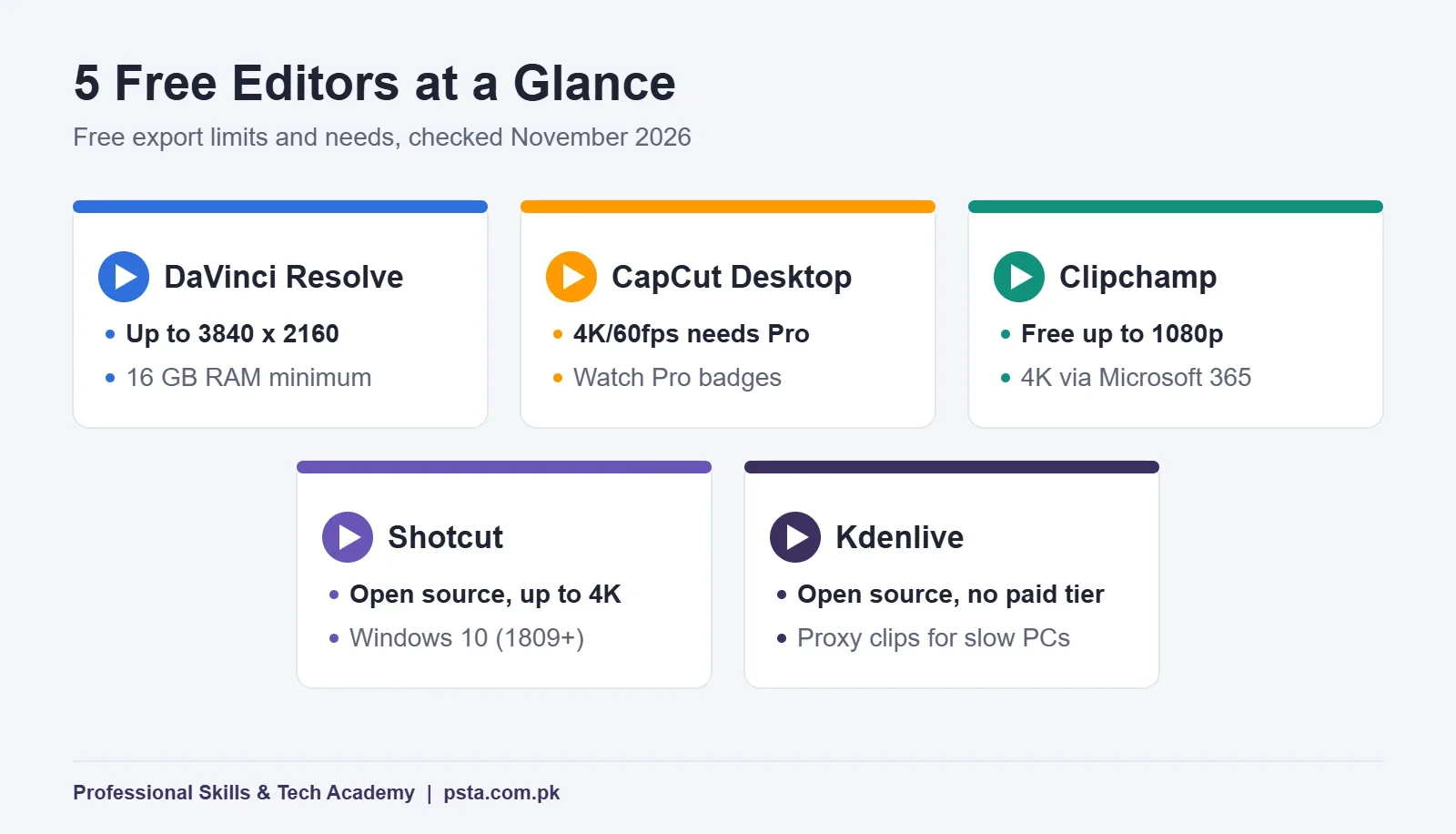
| DaVinci Resolve (free) | Up to 3840 x 2160, 8-bit, 60fps | Windows 10 or later, 16 GB RAM | No | Color work and long YouTube edits |
| CapCut desktop | Free unless you use Pro items or 4K/60fps | Desktop, web and mobile apps | No | Short reels built from templates |
| Microsoft Clipchamp | Watermark-free up to 1080p | Personal and work accounts | No | Quick edits and slideshows |
| Shotcut | Up to 4K, no paid tier | Windows 10 (1809+), Mac, Linux | Yes | Older laptops and mixed formats |
| Kdenlive | No paid tier | Windows, macOS, Linux, BSD | Yes | Learners who want pro-style tools for free |
Two of these, Shotcut and Kdenlive, have no paid version at all. The other three are free products made by companies that also sell an upgrade. That is not a problem, but it explains why their free versions have clear ceilings.
DaVinci Resolve Free: Most Power, Heaviest Demands
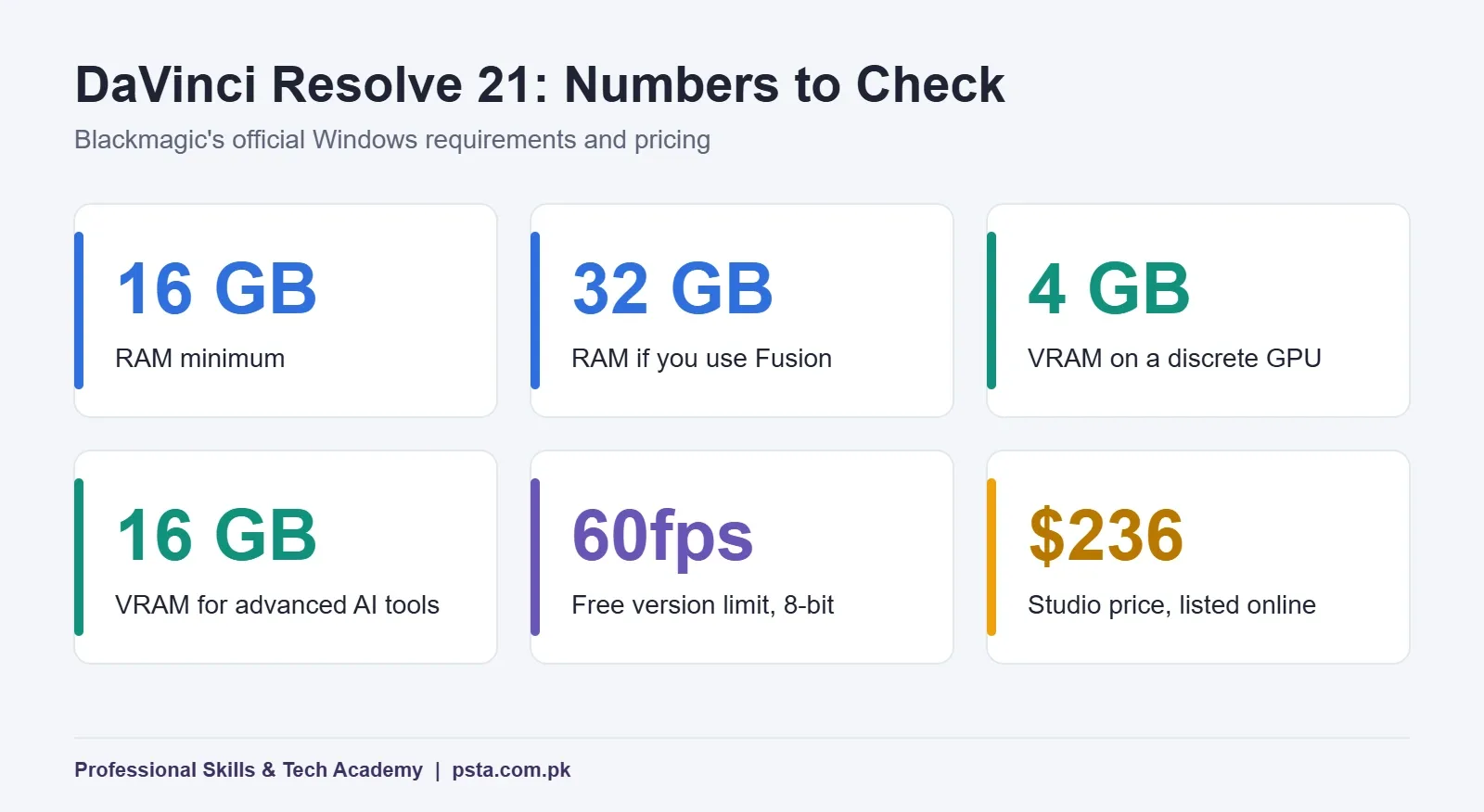
DaVinci Resolve comes from Blackmagic Design and is now on version 21. The free version is a full professional editor, not a trial. According to Blackmagic's product page, it handles 8-bit footage at up to 60 frames per second and resolutions up to Ultra HD, 3840 x 2160.
The paid Studio version adds 10-bit support, frame rates up to 120fps, resolutions beyond 4K and the DaVinci Neural Engine AI tools. When we checked, Blackmagic's online store listed Studio at $236, down from $295.
Check Your Hardware First
This is where many students get stuck. The official DaVinci Resolve 21 readme asks for Windows 10 Creators Update or later and 16 GB of system memory, or 32 GB if you use Fusion for effects. Your graphics can be integrated, or a separate card carrying 4 GB of VRAM or more.
The advanced AI tools want 16 GB of VRAM. Background rendering needs 12 GB of VRAM plus 32 GB of RAM. NVIDIA users should install Studio driver 581.57 or newer.
Choose it if: you have 16 GB of RAM, you want to learn color grading properly, or you plan to edit long YouTube videos. Skip it for now if: your laptop has 8 GB of RAM. It may open, but you are below the stated minimum.
CapCut Desktop: Fastest for Reels, If You Avoid Pro Items
CapCut is popular because it turns phone clips into short vertical videos quickly. Templates, effects and AI tools are built in. For a shop owner who needs three reels a week, that speed matters.
The catch is the export step. CapCut's own help page explains that free users can preview many advanced features but need Pro to export them. On desktop, the triggers are Pro-tagged resources, some advanced keyframe effects and 4K or 60fps export.
Lowering the resolution does not help. CapCut states that removing the watermark from Pro materials needs Pro at any resolution. On mobile, exports beyond a length limit can also trigger the prompt, and that limit varies by region.
Practical habit: before you build an edit around a template or effect, look for the Pro badge. Swapping it out at minute 55 of a client job is painful.
Microsoft Clipchamp: The Simplest Start, With a 1080p Ceiling
Clipchamp is Microsoft's editor for beginners, and the Clipchamp free plan is clear about its limits. Microsoft's support page says personal free accounts get watermark-free exports up to 1080p, along with core editing tools and free stock media.
Premium features come through qualifying Microsoft 365 subscriptions. They add 4K exports, premium stock media, premium filters and effects, and a brand kit.
One detail surprises people. Microsoft's 4K support article confirms you can import 4K clips on any plan. Exporting in 4K is the paid part. The same article warns that 4K files can slow down importing and editing, and suggests compressing clips to 1080p if you will not export in 4K.
Choose it if: you are editing a class presentation, a slideshow or simple social posts. Outgrow it when: you need multi-track audio mixing, detailed color work or a 4K deliverable.
Shotcut: Light, Open Source and Format-Friendly
Shotcut is a free, open-source, cross-platform editor for Windows, Mac and Linux. There is no paid upgrade, no Pro badge and no export watermark. The latest version on the Shotcut download page is 26.9.27, and new releases arrive roughly every two months.
Its biggest strength is format support. Shotcut uses FFmpeg, so it reads hundreds of audio and video formats. You edit files directly without an import step, and one project can mix phone clips, screen recordings and camera footage at different frame rates. It supports resolutions up to 4K.
On Windows, it needs Windows 10 build 1809 (the October 2018 Update) or later on a 64-bit machine. Windows 7 and 8 users are limited to an old 2022 release, which we would not use for new projects.
The trade-off: the interface looks plain at first, and its dockable panels take some arranging. Give yourself a week to get comfortable with it.
Kdenlive: Pro-Style Tools Without a Bill
Kdenlive is built by a mostly volunteer team in the KDE community and runs on Linux, Windows, macOS and BSD. Version 26.08.2 was released on 13 October 2026, according to the Kdenlive website.
For a free tool, the feature list is long. Kdenlive supports proxy clips for smoother playback on low-end systems, multicam editing, nested sequences and automatic backups. It also includes LUT support, color scopes such as the waveform and vectorscope, and automatic transcription for subtitles.
The project is moving quickly. The April 2026 release added animated transition previews, speed changes across several clips at once and audio thumbnails in sequences, as AlternativeTo reported.
Choose it if: you want to learn real editing concepts, such as tracks, keyframes and scopes, on a modest laptop without paying anything.
Which Free Editor Fits Your Laptop?
Choose free video editing software from the machine you already own, not from a ranking. Here is the simple rule we give new students.
- 8 GB RAM, no graphics card: start with Shotcut or Kdenlive. Use Kdenlive's proxy clips when playback stutters.
- 8 GB RAM, mostly reels: CapCut desktop or Clipchamp will feel quicker. Keep exports at 1080p.
- 16 GB RAM and a 4 GB graphics card: you meet DaVinci Resolve's stated minimum. This is the point where it becomes a sensible main editor.
- Any machine, school or office work: Clipchamp causes the least friction.
If you are planning to buy a laptop for editing, read our guide on myths and facts about laptops for video editing before spending money.
Do Free Editors Put a Watermark on Your Video?
Most clients will not accept a video with someone else's logo on it, so this question matters. Whether you get a video editor without watermark depends on the tool.
- DaVinci Resolve free, Shotcut and Kdenlive: no watermark, because none of them sells watermark removal.
- Clipchamp: no watermark up to 1080p on the free plan, per Microsoft's support page.
- CapCut: clean exports are possible on desktop, but Pro-tagged items require Pro to export without a watermark. On mobile, cancelling the Pro prompt exports with a CapCut watermark.
Before any client project, export a 10-second test from your editor. Watch the full file on your phone. It takes two minutes and saves an awkward conversation.
A Sensible Order to Learn Them
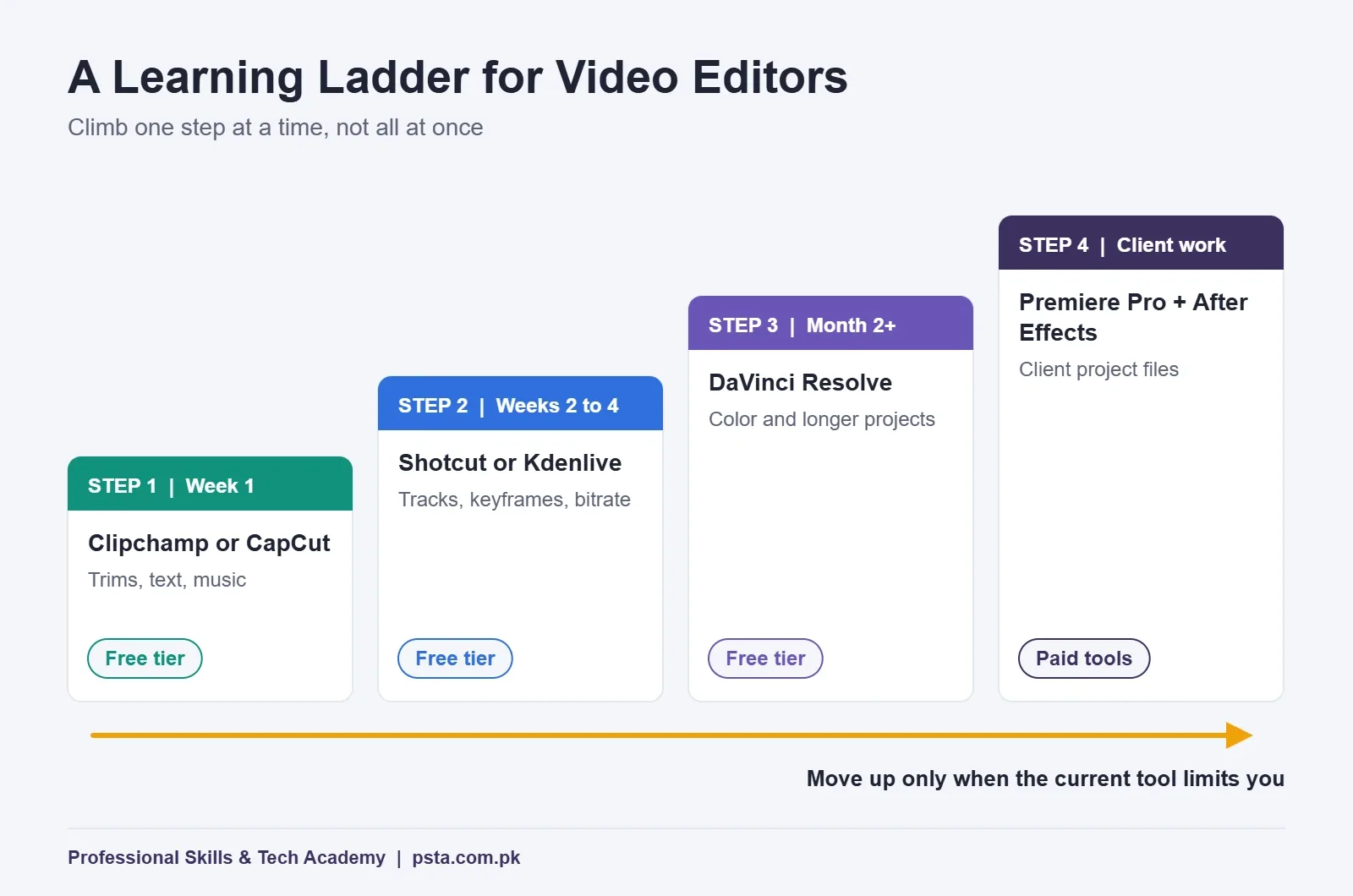
You do not need all five. Most students do well with one easy editor and one serious one. Here is the order we suggest.
- Week 1: make three short videos in Clipchamp or CapCut. Learn trimming, text and music levels.
- Weeks 2 to 4: move to Shotcut or Kdenlive. Learn tracks, keyframes and exporting to a set bitrate.
- Month 2 onward: if your hardware allows, learn DaVinci Resolve for color and longer projects.
- Client work: add Premiere Pro and After Effects when clients or agencies start asking for project files.
Our post on video editing projects for beginners gives you practice briefs for each stage. When you reach exporting, the YouTube export settings guide covers the numbers to use.
When Should You Move to Paid Software?
Free video editing software is enough to learn editing and to deliver simple paid work. Paying starts to make sense in three situations.
First, a client sends you a Premiere Pro or After Effects project and expects you to work inside it. If an agency works in Adobe tools, you will need them too. Second, your work needs features the free tiers lock, such as 10-bit footage in Resolve or 4K exports in Clipchamp. Third, you are editing every day and the time saved by paid AI tools is worth more than the subscription.
Until one of those is true, keep your money. Spend the time building a portfolio instead. If you are still deciding between the two big professional editors, read our comparison of Premiere Pro vs DaVinci Resolve.
Where PSTA's Video Editing Course Fits In
Free editors teach you the buttons. A structured course teaches you the decisions: where to cut, how to match shots, how to mix voice under music, and how to deliver files a client can use.
Our Video Editing and VFX course uses Adobe Premiere Pro for editing, color, sound and export, and After Effects for visual effects and motion graphics. It is a 12-week, beginner-level program. You can attend on campus in Mandian, Abbottabad, join live online from any city, or mix both. Fees are currently Rs. 22,000 against a regular Rs. 25,000, split into two installments.
The projects include a YouTube vlog edit, a color-graded short scene, a green screen product promo, plus a one-minute showreel you can put on Fiverr and Upwork. Concepts like tracks, keyframes and color correction versus grading carry over directly from whichever free editor you practiced on.
If you also make thumbnails and post designs, it is worth adding the Graphic Designing course alongside editing. You can browse all programs on the courses page, see how to apply on the admission page, or ask about batch timings on WhatsApp at +92 314 5424399.
Install One Editor and Cut a 30-Second Clip Today
Open your laptop's system information and note the RAM and graphics memory. Pick one editor from the table that fits those numbers. Then film 10 short clips of anything on your desk with your phone and cut them into a 30-second video with music and one title.
Export it, watch it on your phone and note one thing that looks wrong. Fixing that one thing tomorrow is how editing skill actually grows.
Frequently asked questions
Which free video editing software is best for a low-end PC?
If your laptop has 8 GB of RAM and no graphics card, start with Shotcut or Kdenlive. Both are free and open source, and Kdenlive offers proxy clips that make playback smoother on slower machines. DaVinci Resolve's official minimum is 16 GB of RAM, so it is better saved for a stronger computer.
Is DaVinci Resolve really free?
Yes. The free version of DaVinci Resolve is a full editor, not a time-limited trial. It handles 8-bit footage up to 60fps and Ultra HD 3840 x 2160. The paid Studio version adds 10-bit support, higher frame rates, resolutions beyond 4K and the Neural Engine AI tools. Blackmagic listed Studio at $236 in November 2026.
Which is the best free video editor without watermark?
DaVinci Resolve's free version, Shotcut and Kdenlive do not add a watermark at all. Clipchamp's free plan exports watermark-free up to 1080p. CapCut desktop can export clean video too, but anything using Pro-tagged templates, effects or fonts needs a Pro subscription to export without a watermark.
Can I export 4K video with free software?
Yes, with the right editor. DaVinci Resolve's free version exports up to 3840 x 2160, and Shotcut supports resolutions up to 4K. Clipchamp lets free users import 4K clips, but 4K export needs a qualifying Microsoft 365 plan. CapCut desktop treats 4K or 60fps export as a Pro feature.
Does the Clipchamp free plan export in 1080p?
Yes. Microsoft's support page says personal free accounts get watermark-free exports up to 1080p, along with core editing tools and free stock media. Premium features, including 4K export, premium effects and a brand kit, come through qualifying Microsoft 365 subscriptions. That makes the free plan enough for most social media posts.
Should I learn a free editor before Premiere Pro?
It helps. Tracks, keyframes, audio levels and export settings work the same way in every editor, so practice in Shotcut, Kdenlive or Resolve carries over. Move to Premiere Pro and After Effects when clients or agencies send you Adobe project files, or when you join a course built around those tools.
Can I do freelance video editing with free software?
You can. Clients judge the finished file, not the software that made it, so a clean export from DaVinci Resolve or Kdenlive works for most reels and YouTube edits. If a brief asks for Premiere Pro project files, you will need Premiere Pro, so read every job post carefully before you accept it.
Sources & references
- DaVinci Resolve 21 product page blackmagicdesign.com
- About DaVinci Resolve 21: readme and system requirements blackmagicdesign.com
- Why Am I Prompted to Join CapCut Pro When Exporting? capcut.com
- What are the Clipchamp paid plans and how do they work? support.microsoft.com
- 4K video support in Clipchamp support.microsoft.com
- Shotcut download and system requirements mltframework.github.io
- Kdenlive: Free and Open Source Video Editor kdenlive.org
- Kdenlive 26.04 release coverage, AlternativeTo alternativeto.net
Last reviewed & updated on by Umar Qureshi. Written by the PSTA team in Abbottabad, Pakistan.

Umar Qureshi

Mastering Video Editing & Visual Effects (VFX)
Turn this guide into a career: hands-on training with real projects, online across Pakistan or on-campus in Abbottabad · 12 Weeks.
Comments
No comments yet — ask a question or share your experience.