Quick answer
To run C++ in VS Code on Windows, install VS Code and Microsoft's C/C++ extension, then install MSYS2 and its UCRT64 GCC toolchain with one pacman command. Add C:\msys64\ucrt64\bin to your user PATH, reopen VS Code, confirm g++ --version works, and use the play button to build, run and debug.
Key takeaways
- • The C/C++ extension adds IntelliSense and debugging, but it does not include a compiler or debugger.
- • Install the full MSYS2 UCRT64 toolchain so you get gcc, g++ and gdb together.
- • Most 'not recognized' errors come from a wrong PATH entry or a window opened before you saved it.
- • Run programs with the C/C++ play button so cin input works in the Terminal.
- • Since November 2024, MSYS2 disables wildcards, so list every .cpp file in tasks.json for multi-file projects.
Table of contents 13 sections
- What Do You Need to Set Up C++ in VS Code?
- Which C++ Compiler Should You Use on Windows?
- Steps 1 and 2: Install VS Code and the C/C++ Extension
- Steps 3 and 4: Install MSYS2 and the GCC Toolchain
- Step 5: Add the Compiler to Your PATH
- How Do You Check That g++ Is Working?
- Steps 6 and 7: Build and Run C++ in VS Code
- Step 8: Debug Your Program With Breakpoints
- What Are tasks.json, launch.json and c_cpp_properties.json?
- Why Do You See "g++ Is Not Recognized"? Five Common Errors
- Should You Install Code Runner Too?
- Getting Help With C++ Setup at PSTA
- Compile One Program Before Your Next Lab
Take this example. Hamza, a first-semester BSCS student, installs VS Code the night before his first lab, pastes a "Hello World" program and presses Run. Instead of output, he gets a red line saying 'g++' is not recognized as an internal or external command. Nothing is wrong with his code. VS Code is only an editor, and he never installed a compiler for it to call.
Setting up C++ in VS Code on Windows takes three pieces: the editor, Microsoft's C/C++ extension, and a compiler such as GCC from MSYS2. Once all three are installed and Windows knows where the compiler lives, the Run button works. This guide walks you through each piece in order, using the same steps I use on student laptops in our lab.
After working through it, you'll be able to:
- Check whether your laptop meets the requirements before you download anything
- Install the MinGW-w64 GCC compiler through MSYS2 with one command
- Add the compiler to your PATH and confirm it works
- Build, run and debug a program that takes keyboard input
- Fix the five setup errors students hit most often
What Do You Need to Set Up C++ in VS Code?
Check three things first. The official MSYS2 site says the installer needs 64-bit Windows 10 (version 1809) or newer. Microsoft's VS Code requirements page recommends at least a 1.6 GHz processor and 1 GB of RAM, and says the editor takes under 500 MB once installed. Most laptops students use for classes today will qualify.
Plan your internet use too. The MSYS2 page shows the GCC package set as roughly 70 MiB to download and about 488 MiB after installation. The full toolchain we install below is larger, because it also includes the debugger and build tools. If you share a slow connection at home, download it at a quiet hour or on campus Wi-Fi.
| Item | What to Check | Source |
|---|---|---|
| Windows version | 64-bit Windows 10 (1809) or Windows 11 | MSYS2 |
| VS Code disk space | Under 500 MB installed | VS Code docs |
| RAM and CPU | 1 GB RAM and 1.6 GHz CPU or better | VS Code docs |
| GCC package set | About 70 MiB download, 488 MiB installed | MSYS2 |
| Account rights | Permission to edit your own user environment variables | Your PC |
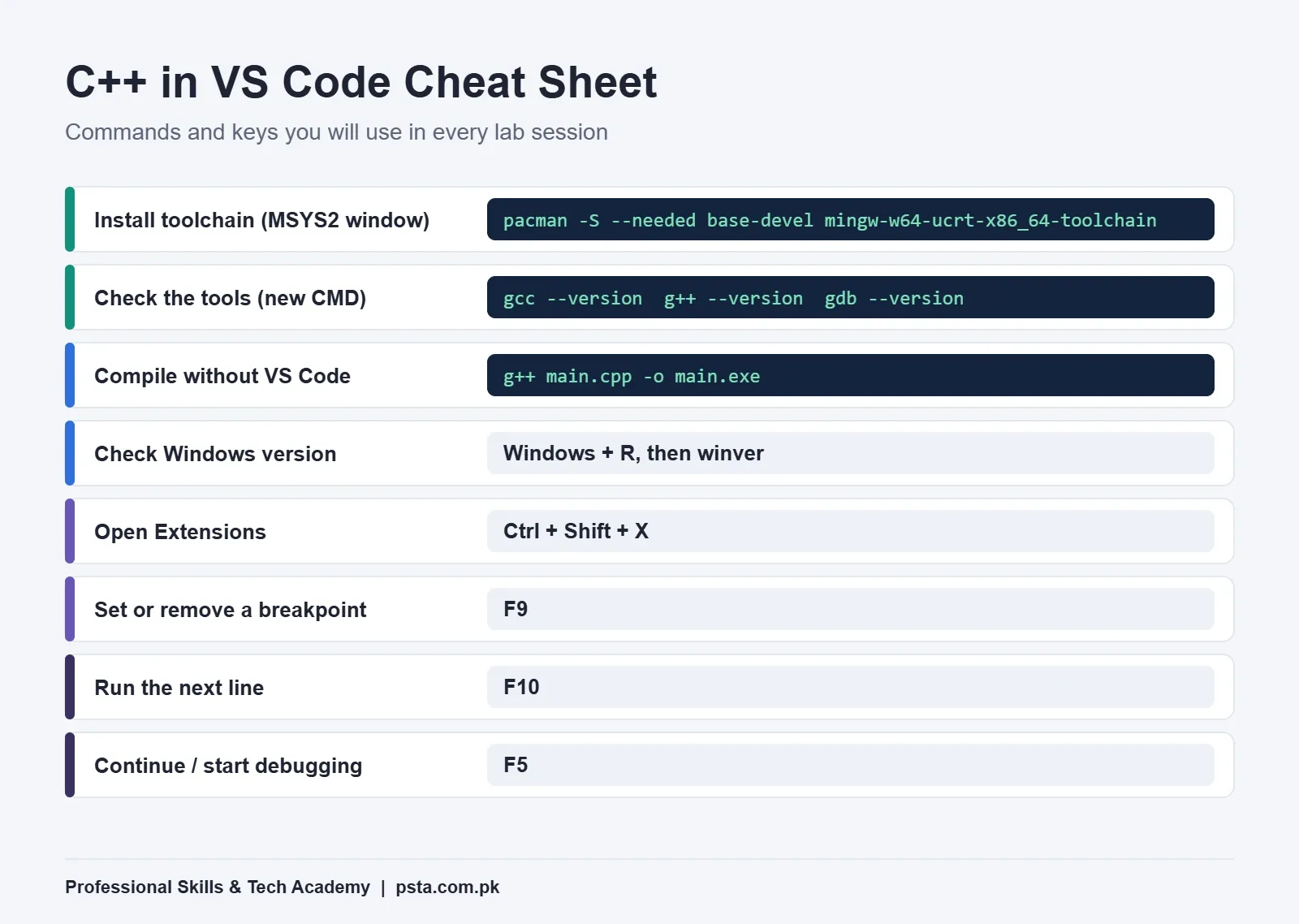
To check your Windows version, press Windows + R, type winver and press Enter. A university lab PC may block installers, so do this on your own laptop if you can.
Which C++ Compiler Should You Use on Windows?
The C/C++ extension does not include a compiler or debugger. Microsoft's C++ in VS Code overview says this plainly and links three Windows tutorials: GCC through MinGW, Microsoft C++ (MSVC), and GCC on WSL. Each works. They suit different students.
| Option | Good For | Trade-Off |
|---|---|---|
| MinGW-w64 GCC (MSYS2) | University labs and assignments, since most course material uses g++ commands | Needs a PATH entry, which beginners often get wrong |
| MSVC (Microsoft C++) | Students heading toward Windows desktop or game development | A larger download, and its error messages look different from lab notes |
| GCC on WSL | Students who want a Linux setup for servers or competitive programming | Adds a whole Linux layer, which is a lot on day one |
For a first-year student, I recommend MinGW-w64 through MSYS2. It's the setup Microsoft's own step-by-step guide walks through, and the g++ commands you'll type match what most teachers write on the board. The rest of this guide uses it.
Inside MSYS2 you'll see several "environments." The MSYS2 documentation on environments advises UCRT64 if you're unsure, and notes that the older MINGW64 environment is being deprecated as of March 2026. That's why every path below contains ucrt64.
Steps 1 and 2: Install VS Code and the C/C++ Extension
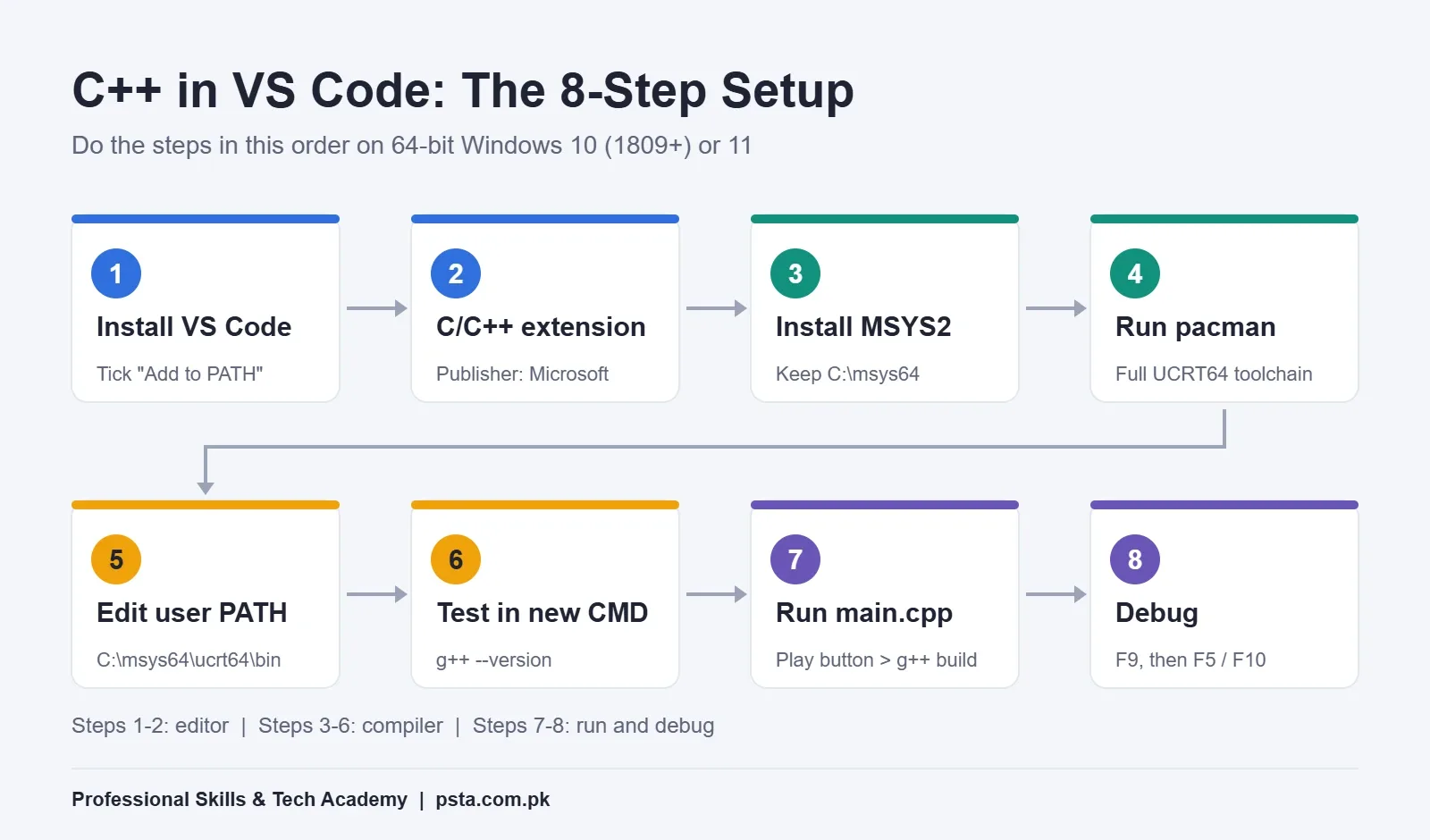
- Download VS Code for Windows from code.visualstudio.com and run the user installer. On the "Select Additional Tasks" screen, tick Add to PATH so you can open folders with the
codecommand later. - Open VS Code and press Ctrl + Shift + X to open Extensions.
- Search for "C/C++" and install the one published by Microsoft. Its Marketplace listing shows more than 105 million installs, so it's easy to spot. It adds IntelliSense (code suggestions), debugging and code browsing.
Skip look-alike extensions with similar names for now. One well-supported extension is easier to troubleshoot than five overlapping ones.
Steps 3 and 4: Install MSYS2 and the GCC Toolchain
At the time of writing, the MSYS2 homepage offers msys2-x86_64-20260927.exe for normal Intel and AMD laptops. The version date will change over time, so always take the newest file from the official site rather than a third-party download page.
- Run the installer and keep the default folder,
C:\msys64. Changing it means every path in this guide changes too. - Leave Run MSYS2 now ticked and click Finish. A terminal window opens.
- Type this command and press Enter:
pacman -S --needed base-devel mingw-w64-ucrt-x86_64-toolchain - When it asks which packages to install, press Enter to accept all of them. When it asks to proceed, type
Yand press Enter. - Wait for the download to finish. Don't close the window halfway, or you'll end up with a partial toolchain.
This command comes straight from Microsoft's Using GCC with MinGW guide. It installs the compiler, the gdb debugger and the build tools together. The MSYS2 homepage shows a shorter command that installs GCC alone, but that leaves out gdb, and you need gdb for breakpoints later.
Which GCC will you get? The MSYS2 package page listed version 16.2.0 when I checked in October 2026. That's far newer than the compilers bundled with old Dev-C++ or Turbo C++ setups some notes still mention.
Step 5: Add the Compiler to Your PATH
Windows doesn't search C:\msys64 on its own. You have to tell it where g++.exe lives.
- Press the Windows key, type "environment" and open Edit environment variables for your account.
- Under "User variables," select Path and click Edit.
- Click New and paste
C:\msys64\ucrt64\bin. - Click OK on every window to save.
- Close all open Command Prompt, PowerShell and VS Code windows. Programs only read the new PATH when they start.
Step 5 is the one most students rush. A missing \bin at the end, a typo in ucrt64, or a VS Code window that stayed open causes most "not recognized" errors I see in class.
How Do You Check That g++ Is Working?
Open a new Command Prompt (not the MSYS2 window) and run these three commands one at a time:
gcc --version
g++ --version
gdb --version
Each should print a version line. If all three respond, your compiler and debugger are ready. If any says "not recognized," jump to the troubleshooting section below before you continue.
You can also compile without VS Code at all. Save a file as hello.cpp, open Command Prompt in that folder and run g++ hello.cpp -o hello.exe, then hello.exe. If that works, any later problem is in VS Code's settings, not your compiler. It's also a useful skill to have before a lab exam or viva.
Steps 6 and 7: Build and Run C++ in VS Code
Keep every program in its own folder. VS Code stores build settings per folder, and one tidy folder per assignment saves confusion later.
- In Command Prompt, run
mkdir C:\cpp\lab01, thencd C:\cpp\lab01, thencode .to open the folder in VS Code. Avoid spaces and Urdu characters in folder names. - Create a file called
main.cppand paste this program. It reads input, which tests more than a plain "Hello World" does:#include <iostream> #include <string> using namespace std; int main() { string name; int marks; cout << "Enter your name: "; getline(cin, name); cout << "Enter your marks out of 100: "; cin >> marks; cout << name << (marks >= 50 ? " passed" : " needs another try") << endl; return 0; } - Click the play button at the top right of the editor and choose C/C++: g++.exe build and debug active file.
- The program builds and runs in the Terminal panel at the bottom. Type your name and marks there and press Enter.
The first time you run, VS Code creates a hidden .vscode folder with a tasks.json file. You'll see what it does in a moment.
Step 8: Debug Your Program With Breakpoints
Debugging is where C++ in VS Code beats running g++ by hand. You can pause the program and watch each variable change.
- Click in the margin to the left of the
cout << nameline, or press F9. A red dot appears. - From the play button's dropdown, choose Debug C/C++ File and pick the g++ configuration.
- Enter your input in the Terminal. The program stops at the red dot.
- Look at the Variables pane on the left. You'll see the current values of
nameandmarks. - Press F10 to run one line at a time, or F5 to continue to the end.
Microsoft's guide notes that after this first debug session, F5 reads its settings from launch.json. If you want the debugger to pause at the start of main every time, set "stopAtEntry": true in that file.
What Are tasks.json, launch.json and c_cpp_properties.json?
These three files sit inside .vscode and control how your folder builds and runs. You don't need to write them by hand, but you should know which one to open when something breaks.
| File | What It Controls | When You'd Edit It |
|---|---|---|
| tasks.json | The g++ build command and its arguments | To add flags like -Wall or build several files |
| launch.json | Debugger settings, including the gdb path | To stop at entry or fix a wrong debugger path |
| c_cpp_properties.json | IntelliSense settings and C++ standard | When red squiggles appear under valid code |
One detail catches students once projects grow. Microsoft's guide explains that since November 2024, MSYS2 turns off wildcard support for mingw-w64 by default. A tasks.json argument like ${workspaceFolder}/*.cpp will no longer pick up every file. For an OOP project with main.cpp, student.cpp and student.h, list each .cpp file by name in the args, or move to CMake when the project gets bigger.
Why Do You See "g++ Is Not Recognized"? Five Common Errors
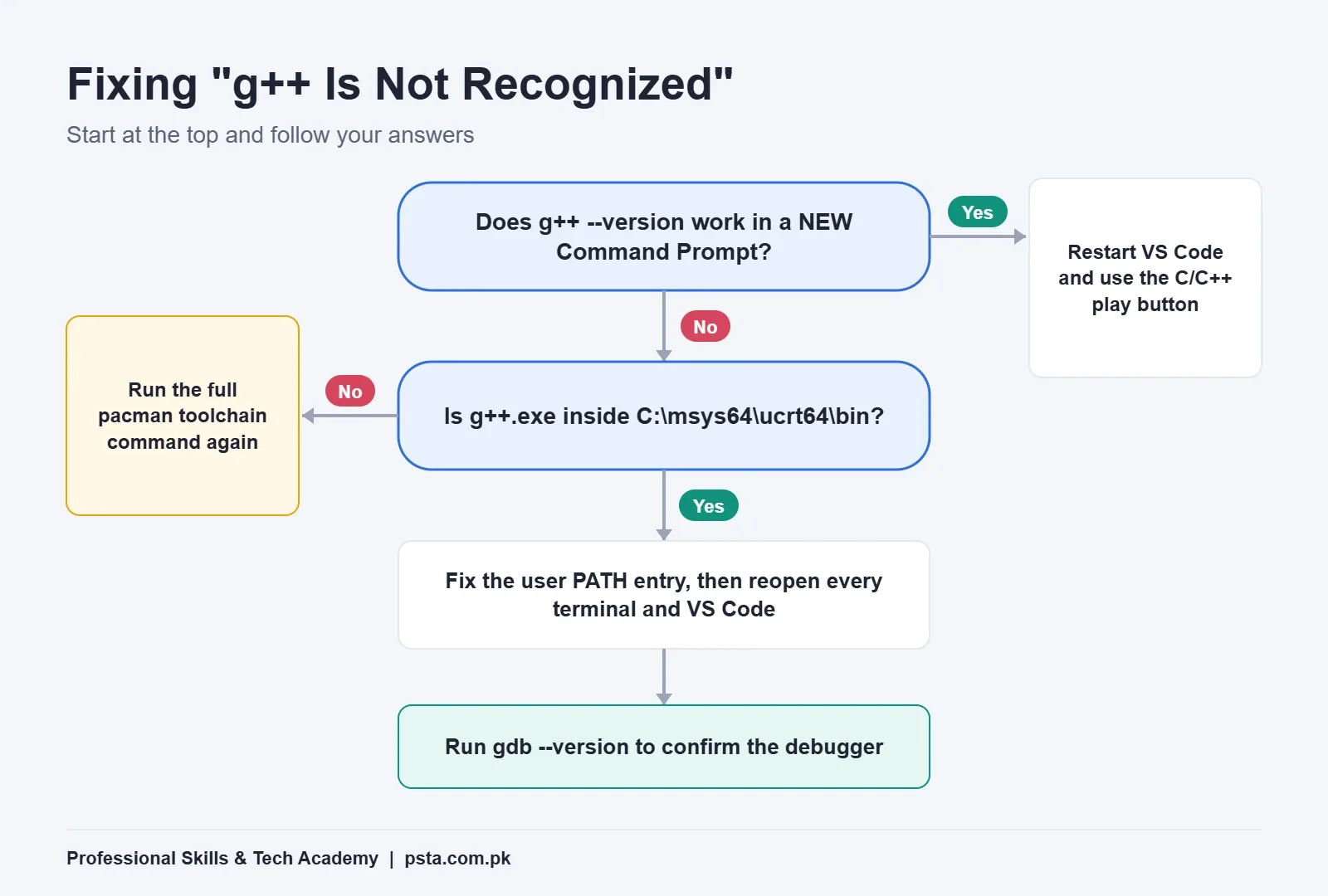
Most setup problems fall into a short list. Work through the flowchart below from the top, then match your message to the table.
| Error or Symptom | Likely Cause | Fix |
|---|---|---|
| 'g++' is not recognized | PATH entry missing, mistyped, or VS Code opened before you saved it | Recheck C:\msys64\ucrt64\bin, then restart VS Code |
| g++ works but gdb doesn't | You installed GCC alone | Run the full pacman toolchain command again |
| "The value of miDebuggerPath is invalid" | The gdb package is missing | Install the toolchain, or check the gdb path in launch.json |
| Program won't accept typed input | Code is running in the read-only Output tab | Run with the C/C++ play button, which uses the Terminal |
| "undefined reference" in a multi-file project | Only the active file was compiled | List every .cpp file in tasks.json |
If your Windows version predates Windows 10, the UCRT toolchain won't run. Microsoft's guide offers the older mingw-w64-x86_64-toolchain package for that case, with C:\msys64\mingw64\bin as the path. Since MINGW64 is being phased out, treat that as a short-term fix and update Windows when you can.
Should You Install Code Runner Too?
Many YouTube tutorials tell you to install Code Runner to run C++ in VS Code and press Ctrl + Alt + N. It's popular, with more than 42 million installs on its Marketplace page. It's also the reason many students think cin is broken.
By default, Code Runner prints results in the Output tab, which doesn't take keyboard input. Its own listing describes a code-runner.runInTerminal setting that moves runs to the Terminal. If you install it, turn that setting on straight away. My advice for beginners: learn the C/C++ play button and the debugger first. Add Code Runner later if you want a quicker shortcut for small tests.
Getting Help With C++ Setup at PSTA
Module 1 of our C++ programming course for beginners covers setting up your tools, so you get help with C++ in VS Code before the real coding starts, instead of fighting PATH errors alone at home. From there, the 12-week course moves through variables and cin/cout, if/else, loops, functions, arrays and strings, and an introduction to classes and objects, ending with a small project you build from scratch.
The course page lists the fee as Rs. 12,000 and the level as beginner. You can attend at our Mandian campus on Old College Road, Abbottabad, join live online from anywhere in Pakistan, or mix both. If you've finished the course and want ideas for practice, our guide to C++ projects for beginners matches projects to each semester. Still choosing a first language? Read C++ vs Python for beginners, or look at the Python course and JavaScript course. Once your code lives in folders, basic Git commands help you keep versions safe.
You can see every program on our courses page. When you're ready, the admission form takes a few minutes, or send a WhatsApp message to +92 314 5424399 if you'd like to ask about the next batch first.
Compile One Program Before Your Next Lab
Don't wait for an assignment deadline to find out your setup for C++ in VS Code is broken. Tonight, run g++ --version in a fresh Command Prompt, then build the marks program above and set one breakpoint. If all three work, you're ready for class. If one fails, the troubleshooting table tells you which step to repeat.
Frequently asked questions
Does VS Code come with a C++ compiler?
No. VS Code is an editor, and Microsoft's documentation says the C/C++ extension does not include a compiler or debugger. You need to install one yourself. On Windows, the three options Microsoft documents are GCC through MinGW-w64 (via MSYS2), Microsoft's own MSVC compiler, and GCC inside WSL. For most first-year students, the MSYS2 route matches the g++ commands used in class.
Should I choose UCRT64 or MINGW64 in MSYS2?
Choose UCRT64. The MSYS2 documentation suggests it as the default when you're unsure, and it lists the older MINGW64 environment as being deprecated from March 2026. MINGW64 only makes sense on Windows versions older than Windows 10, which lack the UCRT runtime. If you're on Windows 10 or 11, stick to the ucrt64 paths shown in this guide.
Why won't my C++ program accept input in VS Code?
Your program is probably running in the Output tab, which is read-only. This usually happens with the Code Runner extension's default setting. Run the file with the C/C++ play button instead, which builds and runs it in the Terminal panel where you can type. If you prefer Code Runner, turn on its code-runner.runInTerminal setting.
Can I set up C++ in VS Code on an old laptop or Windows 7?
An old laptop is usually fine, since VS Code recommends only a 1.6 GHz processor and 1 GB of RAM. Windows 7 is the real problem. MSYS2 needs 64-bit Windows 10 version 1809 or newer, so its installer won't run there. Update Windows if you can, or use your university lab PC until you do.
How do I compile several C++ files together in VS Code?
Open tasks.json and replace the single active-file argument with each .cpp file listed by name, such as main.cpp and student.cpp. Don't rely on a *.cpp wildcard, because MSYS2 has turned off wildcard support for mingw-w64 by default since November 2024. Once a project grows past a handful of files, a build tool like CMake is easier to manage.
Do I need the internet every time I compile C++?
No. You need a connection to download VS Code, the extension and the MSYS2 toolchain, and later to install updates with pacman. Once everything is installed, g++ and gdb run entirely on your laptop. You can write, compile and debug programs offline, which helps during load-shedding or when mobile data runs low.
Is Dev-C++ or Code::Blocks easier than VS Code for beginners?
Both can compile small programs with less setup, and if your teacher uses one in the lab, practicing in it at home is sensible. VS Code takes a little longer to configure, but the same editor works later for Python, JavaScript and web projects. Whichever you pick, learn to compile once from the command line so you understand what the IDE does for you.
Sources & references
- Using GCC with MinGW (VS Code Docs) code.visualstudio.com
- C/C++ for Visual Studio Code code.visualstudio.com
- MSYS2 Installation msys2.org
- MSYS2 Environments msys2.org
- MSYS2 Package: mingw-w64-gcc packages.msys2.org
- VS Code System Requirements code.visualstudio.com
- C/C++ Extension on VS Marketplace marketplace.visualstudio.com
- Code Runner on VS Marketplace marketplace.visualstudio.com
Last reviewed & updated on by Umar Qureshi. Written by the PSTA team in Abbottabad, Pakistan.

Umar Qureshi
Best C++ Programming Course for Beginners in Pakistan
Turn this guide into a career: hands-on training with real projects, online across Pakistan or on-campus in Abbottabad · 12 Weeks.
Comments
No comments yet — ask a question or share your experience.