Quick answer
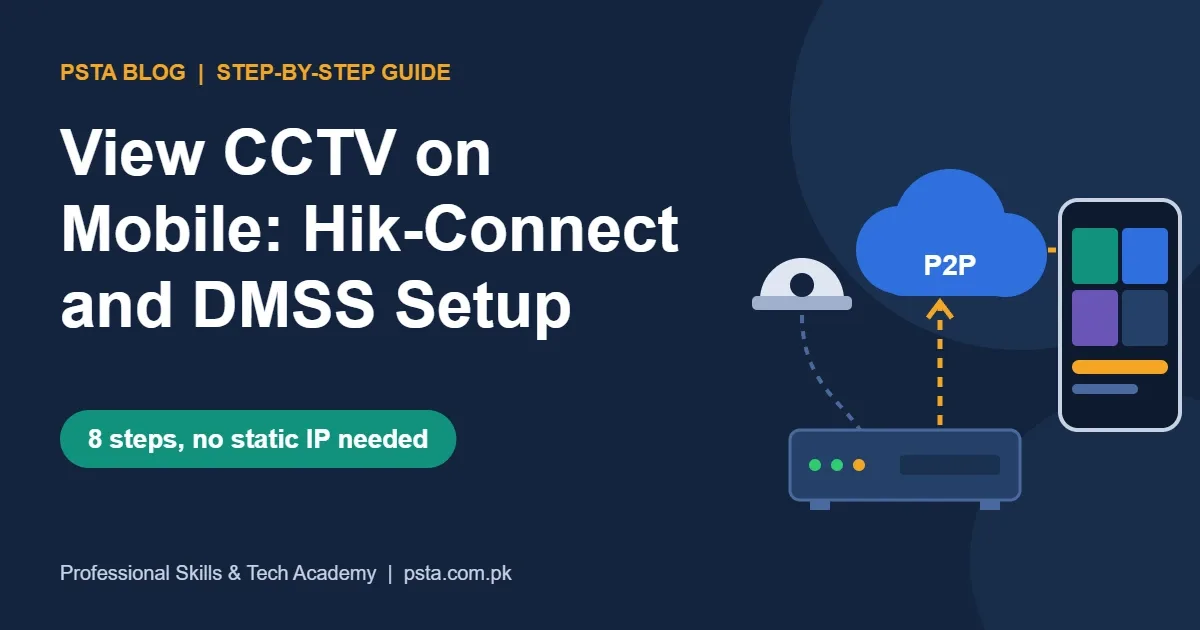
To view CCTV on mobile, connect the DVR or NVR to the router, set DNS to 8.8.8.8, and turn on Hik-Connect (Hikvision) or P2P (Dahua) until the status shows Online. Then install Hik-Connect or DMSS, scan the recorder's QR code, and enter the verification code or admin password. No static IP is needed.
Key takeaways
- • Check the recorder on a local monitor first: live picture, playback and correct time.
- • Turn on Hik-Connect or Dahua P2P and wait for the status to show Online before using the phone.
- • Hik-Connect asks for the verification code you create; DMSS asks for the recorder's admin password.
- • Use the sub-stream for live view on mobile data, and test with Wi-Fi switched off.
- • Share cameras through the app instead of the admin login, and keep firmware updated.
Table of contents 17 sections
- Hik-Connect vs DMSS: Which App Does Your Recorder Use?
- Step 1: Gather What You Need and Check the Recorder
- Check the Recorder on a Local Monitor
- Step 2: Connect the Recorder to the Internet
- Step 3: Switch On Hik-Connect or P2P on the Recorder
- On a Hikvision Recorder
- On a Dahua Recorder
- Steps 4 and 5: Install the App and Add Your Recorder
- Adding a Hikvision Recorder in Hik-Connect
- Adding a Dahua Recorder in the DMSS App
- Step 6: How Do You View CCTV on Mobile Data Without Freezing?
- Step 7: Share Cameras With Family Without Sharing the Admin Password
- Step 8: Test From Outside the Building
- Why Does the App Say "Device Offline"?
- Is P2P Safer Than Opening Ports on the Router?
- Setting Up Remote Viewing in PSTA's CCTV Course
- Check One System From Mobile Data Tonight
To view CCTV on mobile, you switch on the recorder's cloud service (Hik-Connect on Hikvision, P2P on Dahua), install the matching app, and add the recorder by scanning its QR code. You don't need a static IP or any router port changes. If the recorder already shows a picture on its own monitor, the phone side is the quick part.
When CCTV remote viewing fails, the cause is almost always a setting on the recorder, not the app itself. This guide covers those settings in the order you should check them.
In this guide, you'll find:
- What to check on the recorder before you touch the phone
- The exact menus for Hik-Connect setup and Dahua P2P, plus how to add the device in each app
- How to watch on mobile data without the picture freezing
- How to give family members access without handing over the admin password
- A fault-finding order for the "device offline" message
Hik-Connect vs DMSS: Which App Does Your Recorder Use?
Look at the brand on the recorder's front panel or the label underneath. Hikvision recorders use Hik-Connect. Dahua recorders use DMSS, which replaced the older gDMSS and iDMSS apps. If the logo has worn off, the menu wording is a clue. Hikvision menus mention "Platform Access", while Dahua menus have a "P2P" page.
| Item | Hikvision | Dahua |
|---|---|---|
| Phone app | Hik-Connect | DMSS |
| Recorder menu | Configuration > Network > Hik-Connect (Platform Access in Expert Mode) | Settings > Network > P2P |
| Status you want to see | Connection Status: Online | P2P status: Online |
| Add the device by | Scanning the QR code or typing the serial number | Scan QR Code or Manually Enter SN |
| Code asked in the app | Verification code you create on the recorder | The recorder's admin password |
The menu paths above come from the Hikvision NVR user manual (V4.76) and the Dahua Wiki guide to adding a device via P2P. Older firmware may label things slightly differently, but the words "Hik-Connect", "Platform Access" and "P2P" stay the same.
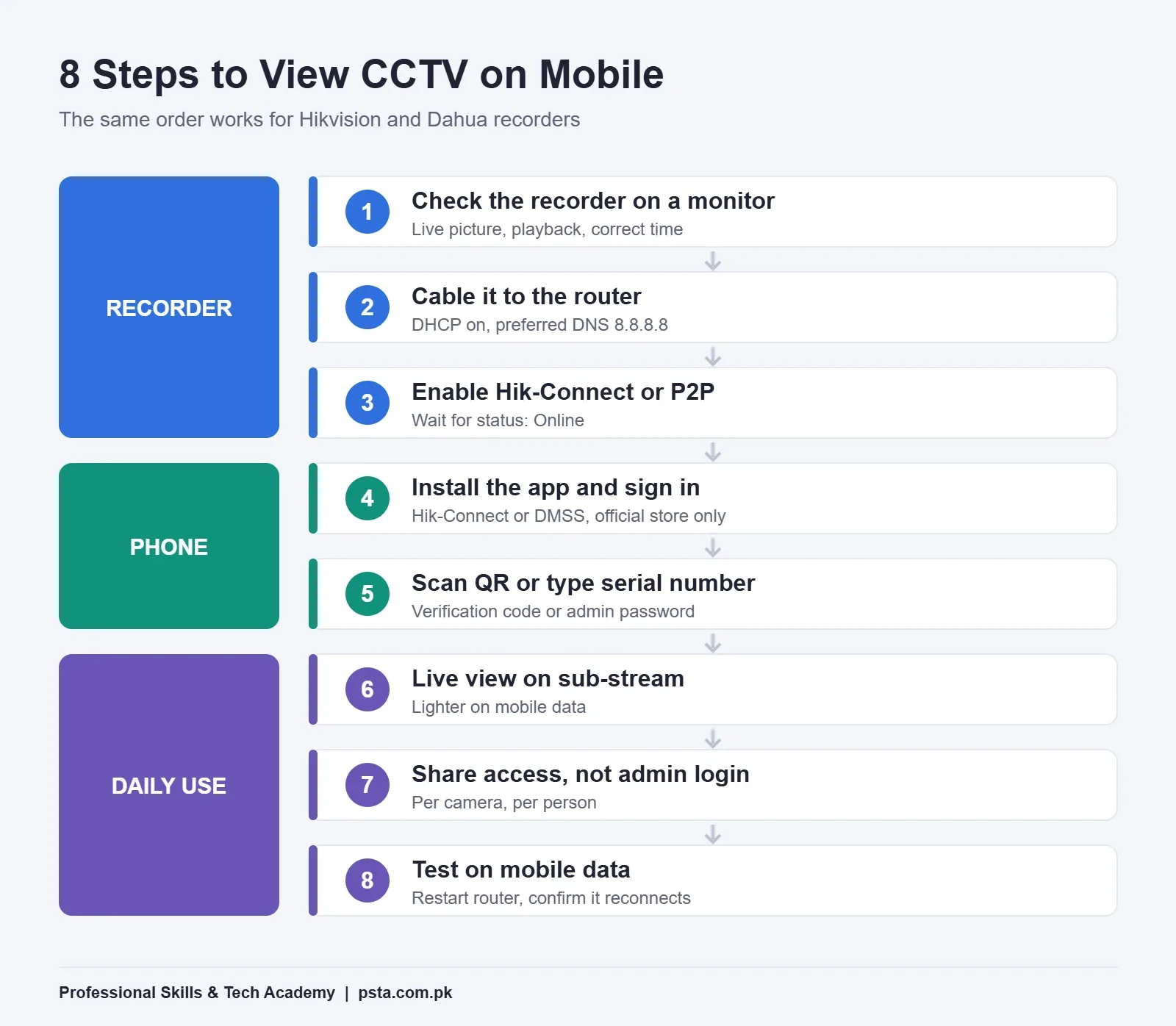
Step 1: Gather What You Need and Check the Recorder
Gather these before you try to view CCTV on mobile. The list is the same whether you are connecting a DVR to mobile or an NVR. Missing one item is the usual reason a short job turns into a long afternoon.
- A working recorder. The DVR or NVR should already record and show cameras on a local monitor.
- The admin password. You need it for the app on Dahua and to change settings on both brands. If the installer kept it, ask for it now.
- An internet connection at the site. A router with a spare LAN port and a working connection, such as fiber or DSL. A pocket Wi-Fi device can work but drops more often.
- A network cable. Cat6 from the recorder to the router is the most reliable link.
- Your phone. The current Hik-Connect app needs Android 6.0 or iOS 11.0 or later, according to Hikvision's Hik-Connect mobile client datasheet.
Check the Recorder on a Local Monitor
Connect a monitor to the recorder and log in as admin. Check three things before going online:
- Every camera shows a live picture.
- Playback works for yesterday, which proves the hard drive is recording.
- The date, time and time zone are correct. Wrong time makes playback search confusing later.
Also note the firmware version in the system information page. If the recorder is several years old, plan a firmware update from the manufacturer's official site. We will come back to why that matters in the security section.
Step 2: Connect the Recorder to the Internet
Plug a cable from the recorder's LAN port into the router. Then open the recorder's network settings.
- DHCP on: The easiest choice. The router hands the recorder an IP address, a gateway and DNS servers automatically. The Hikvision manual notes that automatic DNS is only available when DHCP is enabled.
- Static IP: Better for shops where the router is restarted often. Choose an address in the router's range that no other device uses, and type the router's address as the gateway.
For DNS, Hikvision's support team suggests 8.8.8.8 as the preferred server, with the ISP's DNS, the gateway address, 8.8.4.4 or 1.1.1.1 as the alternate. Set it even if DHCP is on, because a recorder that can't resolve names will never reach the cloud platform.
Step 3: Switch On Hik-Connect or P2P on the Recorder
On a Hikvision Recorder
- Go to Configuration > Network > Hik-Connect.
- Tick Enable, read the service terms, accept them and click OK.
- Create a verification code. Write it down somewhere safe, because the app will ask for it.
- Click Apply and wait a minute. Connection Status should change to Online.
The same page offers Stream Encryption. If you turn it on, the verification code is needed every time someone opens live view remotely. That is a good setting for offices, though some families find the extra prompt annoying.
From a laptop on the same network, you can do this through the web page too. Type the recorder's IP address into a browser, log in, and open Configuration > Network > Advanced Settings > Platform Access, as the Hik-Connect help page describes.
On a Dahua Recorder
- Go to Settings > Network > P2P.
- Tick Enable and save.
- Wait until the status reads Online. Note the serial number and its QR code, which you will scan in the app.
Do not move to the phone until the status says Online. If it stays offline, jump to the fault-finding section below first.
Steps 4 and 5: Install the App and Add Your Recorder
Install the app from the Play Store or App Store only. Avoid APK files shared on WhatsApp groups, because you can't tell what has been changed in them.
Adding a Hikvision Recorder in Hik-Connect
- Create a Hik-Connect account with your email or phone number and choose Pakistan as the region.
- Tap the plus sign and scan the QR code shown on the recorder's Hik-Connect page. You can also type the serial number.
- If the cloud service was off, the app opens an "Enable Hik-Connect Service" page. Agree to the terms and create the device encryption password. Hikvision's help page confirms this password is the same thing as the verification code.
- Name the device, for example "Shop Main Gate".
Back on the recorder, Bind Status should now show Yes. If the recorder is already bound to someone else's account, such as the installer's, the owner of that account must unbind it first. On the recorder's Hik-Connect page, the Unbind button handles this.
Adding a Dahua Recorder in the DMSS App
- Open DMSS, pick your region and sign in or create an account.
- On the Home tab, tap the plus sign and choose Scan QR Code. Allow camera access when asked.
- Scan the serial number QR code, or choose Manually Enter SN and type it.
- Leave the security code field empty and tap Next.
- Enter the recorder's admin password. The username is fixed as admin, and this is not your DMSS account password.
- Name the device, set the time zone and tap Get Started.
If you added a recorder in DMSS without logging in, it is stored as a local device on that phone only. The Dahua Wiki explains how to transfer a local device to your account from the Me tab, so a new phone can pick it up later.
Step 6: How Do You View CCTV on Mobile Data Without Freezing?
Pakistan has a large and growing 4G user base. A Cabinet Division reply to the Senate, reported by ProPakistani, put 4G users at 141.4 million in 2024-25. Most owners will check cameras on mobile data, so plan for a weaker connection than the office Wi-Fi.
- Use the sub-stream for live view. Both apps let you switch between a main stream (full quality) and a sub-stream (lighter). Keep live view on the sub-stream and switch up only when you need to read a face or a number plate.
- Turn on Sub-Stream Self-Adaptive Bitrate on Hikvision recorders that offer it. The manual says it adjusts bitrate automatically when the network is poor.
- Open fewer cameras at once. Hik-Connect in personal mode can show 16 live channels and play back 4 at the same time, per the datasheet. On mobile data, four live tiles are usually enough.
- Check the upload speed at the site. Your phone can only receive what the site's internet can send. If the shop's connection has a weak upload, every remote viewer will feel it.
Hik-Connect also has a data traffic statistics view in its settings. Check it after a week so you know what remote viewing really costs on your package.
Step 7: Share Cameras With Family Without Sharing the Admin Password
A common habit is to give the admin password to everyone in the house or every manager in the shop. Then nobody knows who changed a setting or deleted a recording. Sharing through the app is cleaner.
- In Hik-Connect personal mode, one channel can be shared with up to 10 other accounts, according to the datasheet. Share only the cameras each person needs. A cashier rarely needs the back office camera.
- Give live view to most people and playback only to those who investigate incidents.
- If staff leave, remove their share the same day.
- For local users created on the recorder itself, the Hikvision manual describes a Guest role with only live view, playback and log search permissions. That is a safer choice than sharing admin.
Step 8: Test From Outside the Building
A test on the shop's Wi-Fi doesn't prove you can view CCTV on mobile from anywhere, because the phone and recorder are on the same network. Turn Wi-Fi off and test on mobile data. Then check these four things:
- Live view opens on every camera within a few seconds.
- Playback of last night works on at least one camera.
- The recorder time matches your phone time.
- Restart the router, wait five minutes, and confirm the device comes back online by itself.
The last test matters most. Load-shedding restarts routers often, and a setup that doesn't recover by itself will fail on the day the owner needs it.
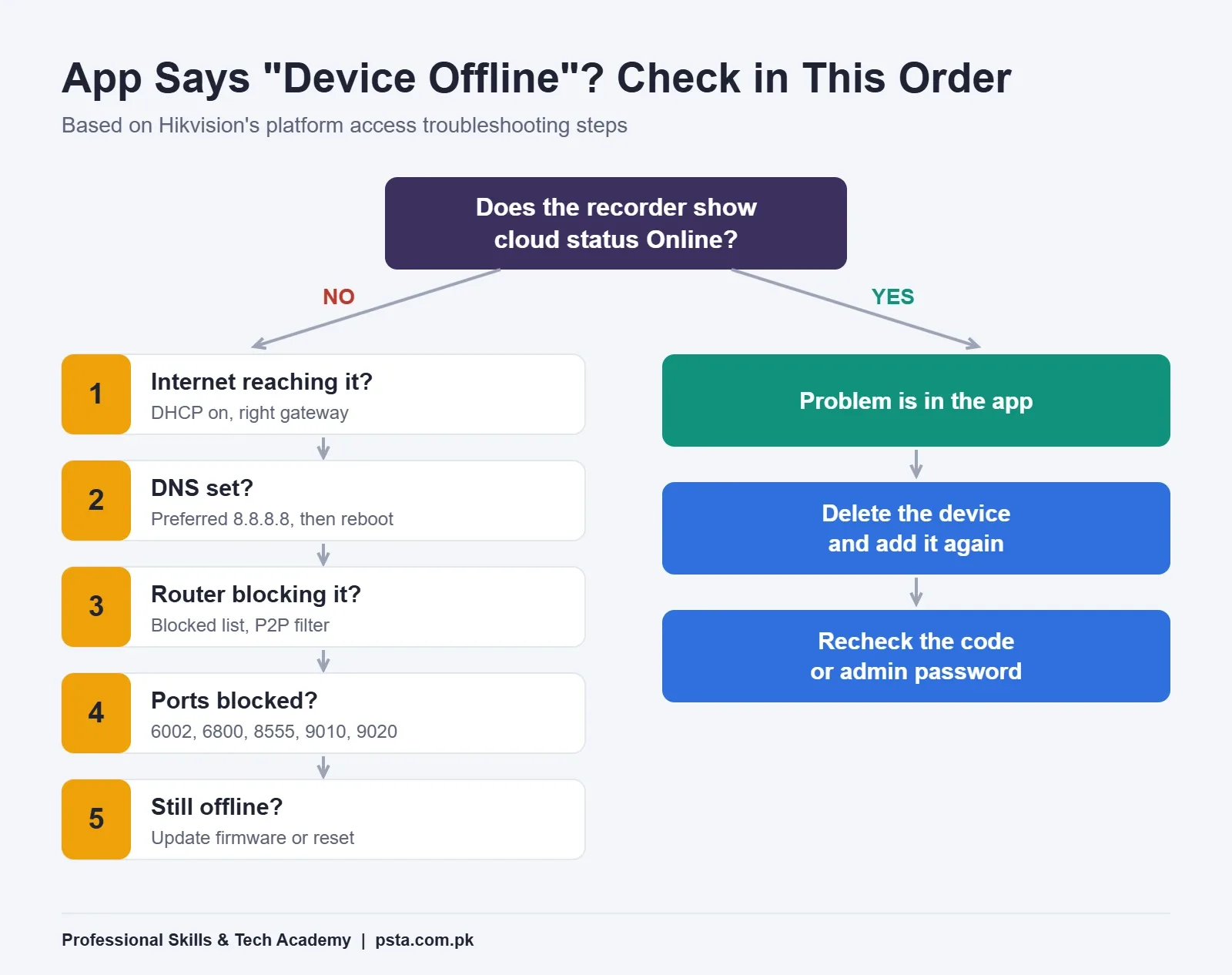
Why Does the App Say "Device Offline"?
Work through these in order. Hikvision's offline troubleshooting article gives the same sequence for a Hik-Connect offline status, and the logic applies to Dahua as well.
- Is the recorder getting internet at all? Check that DHCP is on, or that a static address uses the right gateway and subnet. On a Hikvision recorder, the Net Detect tool can ping the gateway and DNS server.
- Is DNS set? Set the preferred DNS to 8.8.8.8 and reboot the recorder.
- Is the server address right? On Hikvision, the article lists dev.hik-connect.com and litedev.hik-connect.com, plus US equivalents.
- Is the router blocking it? Look for the recorder in the router's blocked devices list. Some router security settings also block peer-to-peer traffic.
- Are outbound ports closed? On strict office networks, ask the IT person to confirm ports 6002, 6800, 8555, 9010 and 9020 are not blocked for Hik-Connect.
- Still offline? Update the firmware, or reset the recorder to defaults and set it up again.
If the cloud status is Online on the recorder but the app shows offline, the problem is on the phone side. Delete the device from the app and add it again, and check that you entered the right verification code or admin password.
One more Hikvision detail: in Expert Mode, turning on ISUP disables other platform access. If someone connected the recorder to a central monitoring platform through ISUP, Hik-Connect will not work at the same time.
Is P2P Safer Than Opening Ports on the Router?
With P2P CCTV access, the recorder makes an outgoing connection to the manufacturer's platform, so you don't open inbound ports to the internet. Port forwarding puts the recorder's own web page in front of anyone who scans for it. That is how old, unpatched recorders get found.
A 2022 study by CYFIRMA, reported by BleepingComputer, found about 80,000 of 285,000 internet-facing Hikvision web servers still exposed to CVE-2021-36260. That flaw had been fixed by a firmware update in September 2021. The same report notes that lists of camera passwords circulate on hacking forums.
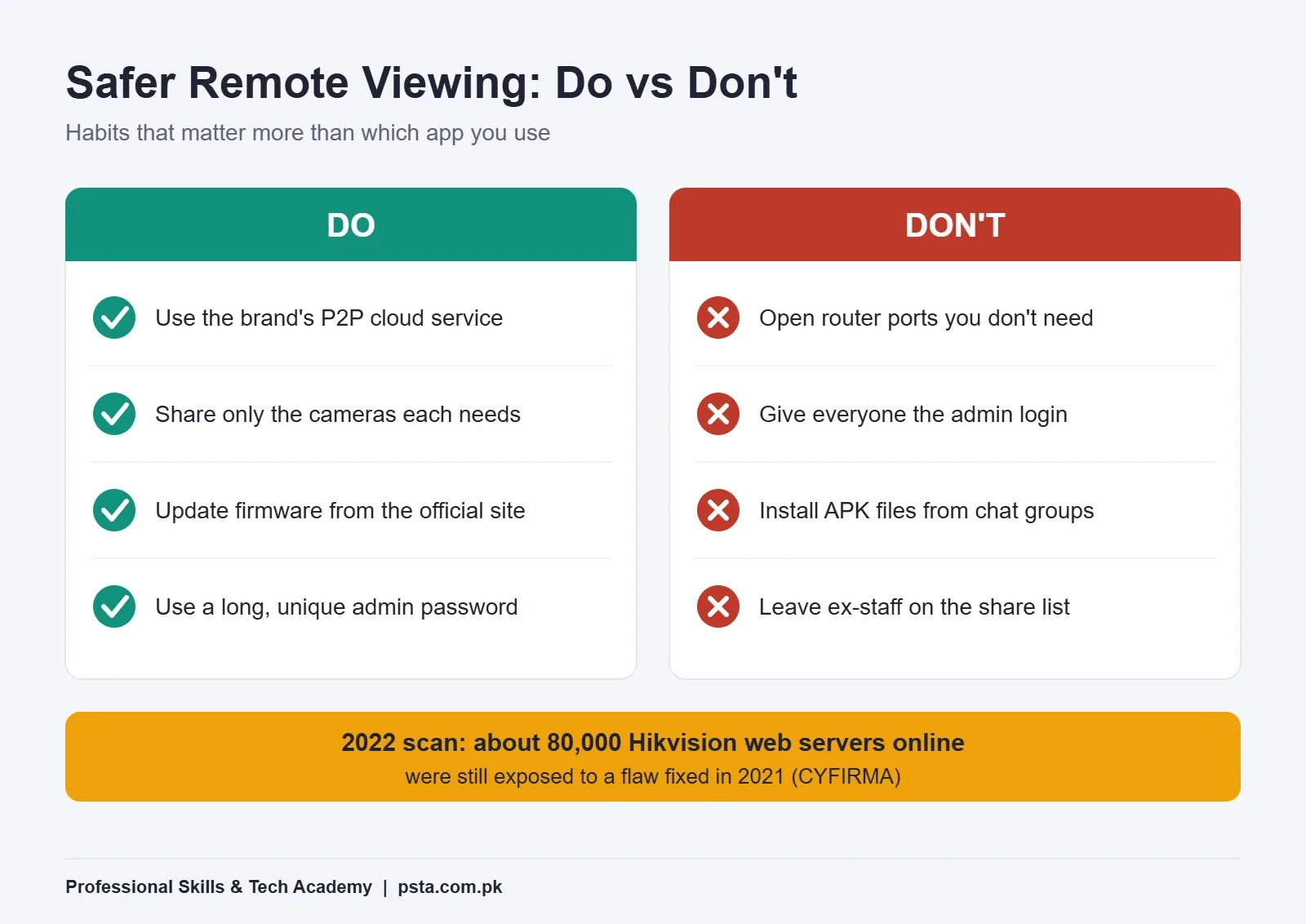
So P2P alone doesn't make a system safe. These habits do most of the work:
- Use a long admin password that isn't used anywhere else.
- Remove old port forwarding rules from the router if you switch to P2P.
- Update recorder firmware from the official manufacturer site.
- Give each person their own app access instead of the admin login.
- Remove unknown accounts from the share list during each service visit.
Our article on CCTV installation mistakes covers other settings installers forget at handover.
Setting Up Remote Viewing in PSTA's CCTV Course
Remote access has its own module in PSTA's CCTV Surveillance & AI Security Technician course (CPCST). The module covers port forwarding, P2P cloud services and VPNs, alongside IP networking, subnetting and system hardening. Students practice on Hikvision, Dahua and Uniview equipment in the lab.
- Length: 12 weeks, beginner level
- Fee: Rs. 22,000 at the time of writing (listed regular price Rs. 25,000)
- Study options: the Abbottabad campus, live online classes, or a mix of both
- Related topics in the course: storage sizing and choosing IP or analog cameras
Curious how attackers find exposed recorders in the first place? Consider PSTA's Cyber Security & Ethical Hacking course after this one. Fees for every program sit side by side on our full course list. When you're ready, the admission page explains how to apply, and batch timings are one quick question away on WhatsApp (+92 314 5424399). You'll find the campus on Old College Road in Mandian, across from FIMS College.
Check One System From Mobile Data Tonight
The best way to learn how to view CCTV on mobile is to do it on a real system. Pick one recorder you have access to, at home or at a relative's shop. Turn off your phone's Wi-Fi, open the app and try live view and last night's playback. If either fails, start at the top of the fault-finding list and note which step fixed it. That one note will save you time on the next ten installs.
Frequently asked questions
Do I need a static IP to view CCTV on my phone?
No. Hik-Connect and Dahua P2P let the recorder connect out to the manufacturer's cloud platform, and the app finds it through that link. You only need a working internet connection at the site, correct DNS settings and the cloud status showing Online. Static IP and port forwarding are older methods that also expose the recorder's web page to the internet.
Where do I find the Hik-Connect verification code?
On the recorder, open System Configuration, then Network, then Advanced, then Platform Access. In the web interface, go to Configuration, Network, Advanced, Platform Access and click the eye icon to reveal it. You create this code the first time you enable Hik-Connect, and the app also calls it the device encryption password.
Why does my CCTV app work on Wi-Fi but not on mobile data?
On the same Wi-Fi, the phone and recorder are on one local network, so the app can reach the recorder directly. On mobile data, everything must pass through the cloud service and the site's internet. Check that the recorder's cloud status is Online, that DNS is set, and that the site connection has enough upload speed.
The installer added my DVR to his own account. What should I do?
Ask the installer to unbind the recorder from his Hik-Connect account, or use the Unbind button on the recorder's Hik-Connect page with the admin password. After that, add it to your own account and share access with the installer only if he still needs it for service visits. Change the admin password once the handover is done.
Does DMSS need a security code when adding a Dahua recorder?
According to the Dahua Wiki P2P guide, you leave the security code empty when adding a recorder by its serial number QR code. The app then asks for the recorder's admin password. The username is fixed as admin, and this password is not the same as your DMSS account password.
How many people can watch the same camera on Hik-Connect?
In personal mode, Hikvision's datasheet says one channel can be shared with up to 10 Hik-Connect accounts, and sub-accounts are not supported. For larger teams, Hik-Connect offers a team mode with sub-accounts and roles. For a shop or family, share only the cameras each person needs and remove access when someone leaves.
How much mobile data does CCTV live view use?
It depends on the stream bitrate each camera sends, so there is no single figure. Viewing on the sub-stream uses far less than the main stream, and opening fewer cameras at once helps. Hik-Connect includes a data traffic statistics view in its settings, so check it after a week of normal use to see your real usage.
Sources & references
- Hikvision Network Video Recorder User Manual V4.76 assets.hikvision.com
- Hik-Connect Help: Enabling Hik-Connect Service hik-connect.com
- Hikvision Support: Troubleshooting Platform Access Offline on Device supportusa.hikvision.com
- Hik-Connect Mobile Client Datasheet V6.7.0 pinfo.hikvision.com
- Dahua Wiki: Add Dahua Device via P2P (DMSS) dahuawiki.com
- Dahua Wiki: Transfer a Local Device to Account dahuawiki.com
- BleepingComputer: Over 80,000 Exploitable Hikvision Cameras Exposed Online bleepingcomputer.com
- ProPakistani: Telecom Revenue and 4G Users (Cabinet Division Data) propakistani.pk
Last reviewed & updated on by Umar Qureshi. Written by the PSTA team in Abbottabad, Pakistan.

Umar Qureshi

Certified Professional CCTV Surveillance & AI Security Technician (CPCST)
Turn this guide into a career: hands-on training with real projects, online across Pakistan or on-campus in Abbottabad · 12 Weeks.
Comments
No comments yet — ask a question or share your experience.