Quick answer
About 30 basic HTML tags build most web pages. Learn the page skeleton first, then text and heading tags, links and images with alt text, lists, tables and forms, and semantic layout tags such as header, nav, main and footer. Skip deprecated tags like center and font, and style everything with CSS.
Key takeaways
- • About 30 tags cover most pages; look up the rest when a project needs them.
- • Use one h1 per page and never skip heading levels.
- • Write descriptive alt text for every meaningful image.
- • Give every form input a matching label.
- • Use header, nav, main and footer instead of a page made only of divs.
- • Check each practice page with the W3C validator.
Table of contents 12 sections
- What Is an HTML Tag, Exactly?
- How Many HTML Tags Do You Really Need to Learn?
- The Skeleton Every Page Starts With
- Basic HTML Tags for Text and Headings
- Tags for Links, Images and Media
- Lists, Tables and Forms in One Place
- Semantic HTML: Tags That Describe the Layout
- Which Head Tags Help Google Understand Your Page?
- Six Beginner Mistakes With Basic HTML Tags
- A One-Week Plan to Practice These Tags
- Learning HTML as Step One at PSTA
- Write Your First Page Tonight
Three small questions first. Without looking anything up, could you name the tag that holds a page's title in the browser tab, the one that marks the main heading, and the attribute that describes an image for blind users? If you hesitated on any of the three, this guide to basic HTML tags is for you. You will learn the 30 or so tags that build almost every real web page, how they fit together, and the mistakes that cost beginners marks, clients and Google traffic. It is written by an instructor at PSTA (Professional Skills & Tech Academy), where HTML is the first module of the web development track.
Here is what this cheat sheet of HTML tags for beginners covers:
- The skeleton every HTML page needs, line by line
- An HTML tags list grouped by job: text, links, media, lists, tables and forms
- Semantic HTML tags that make a page easier to read for people, screen readers and search engines
- Six beginner habits that create broken or inaccessible pages
- A one-week practice plan to move from reading tags to building pages
What Is an HTML Tag, Exactly?
An HTML tag is a label in angle brackets that tells the browser what a piece of content is. Most tags come in pairs: an opening tag such as <p> and a closing tag such as </p>. Everything between them, plus the two tags, is called an element. A few elements, such as <img> and <br>, have no closing tag because they hold no text inside.
Tags can also carry HTML attributes, which add extra details. In <a href="/courses">, the word href is an attribute that tells the link where to go. Attributes always sit inside the opening tag, written as a name, an equals sign and a value in quotes.
The rules for all of this live in the HTML Living Standard, which the WHATWG keeps updating rather than releasing numbered versions. You do not need to read the standard as a beginner. You need a short list of tags you understand well, and a reliable reference for the rest.
How Many HTML Tags Do You Really Need to Learn?
You need about 30 basic HTML tags to build most pages, out of more than a hundred that exist. MDN's HTML elements reference lists well over a hundred elements, sorted into groups such as document metadata, content sectioning, text content, forms and tables. Many of them are specialist tools you may touch once a year.
The same MDN page keeps a separate group for obsolete and deprecated elements, including <center>, <font> and <marquee>. MDN tells developers not to use them in new projects. If an old tutorial or a YouTube video from years ago teaches these, close it and move on. Layout and color now belong to CSS, not HTML.
So the smart plan is depth over breadth. Learn the core set of basic HTML tags below until you can type them without looking. Look everything else up when a project needs it.
The Skeleton Every Page Starts With
Every HTML page shares the same frame, and it uses the first basic HTML tags you will meet. Type it from memory a few times and it will stick. Here is the order, with what each line does:
<!DOCTYPE html>tells the browser to use modern standards mode. It is a declaration, not a tag, and it goes on the very first line.<html lang="en">wraps the whole page. Thelangattribute tells screen readers and translation tools which language the text is in.<head>holds information about the page that visitors do not see on the page itself.<meta charset="utf-8">lets the page show any character correctly, including Urdu text.<meta name="viewport" content="width=device-width, initial-scale=1">makes the page fit phone screens.<title>sets the text in the browser tab and the usual blue headline in Google results.<body>holds everything people actually see.
This HTML structure is not a formality. The WebAIM Million 2026 report, which tests the home pages of the top one million websites, found a valid HTML5 doctype on 93.2% of them. It also found that 13.5% of home pages were missing a document language. That second mistake takes one attribute to fix.
Basic HTML Tags for Text and Headings
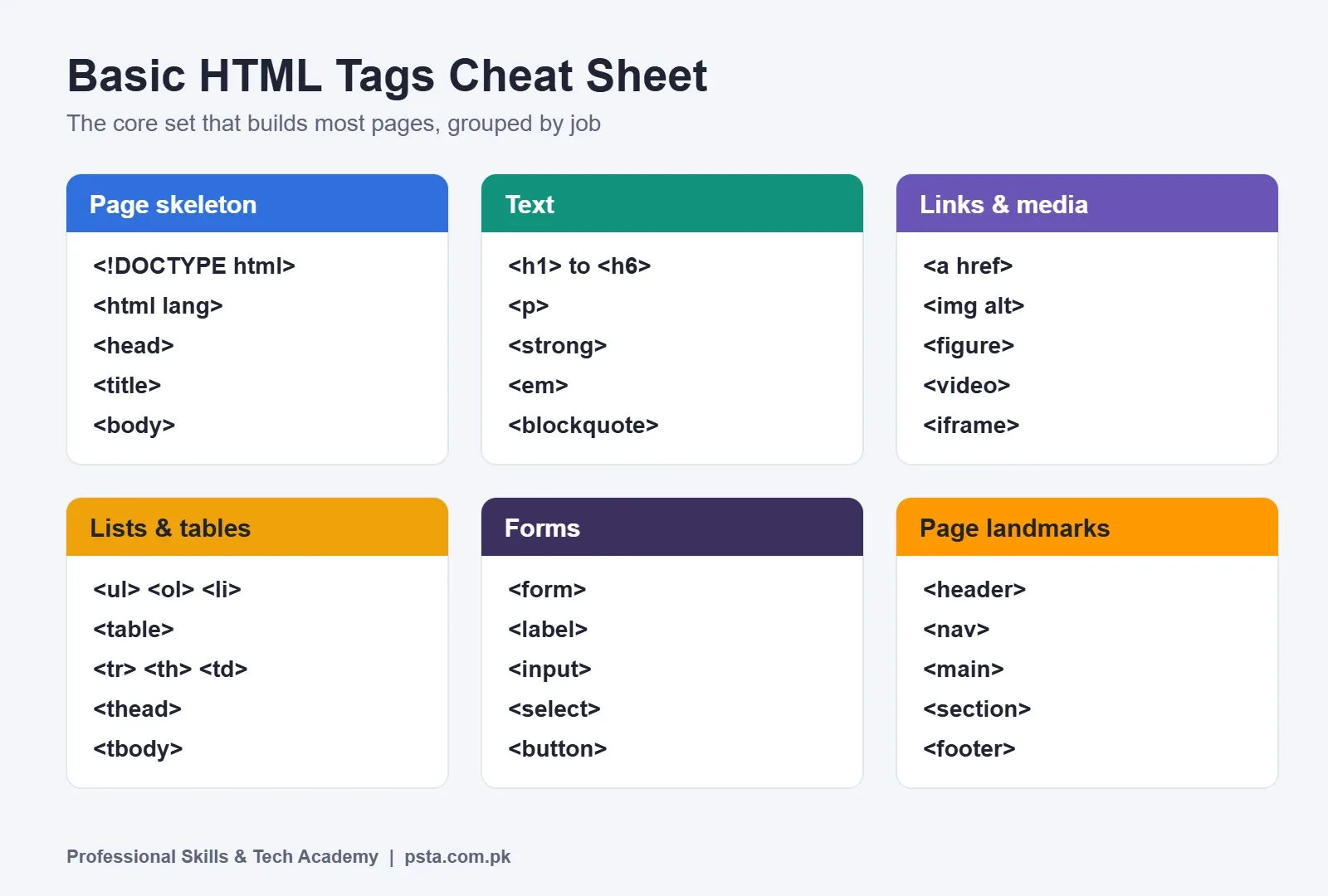
Text tags make up most of what you write. These basic HTML tags handle headings, paragraphs and emphasis:
<h1>to<h6>: six heading levels, from the page title down to small sub-points.<p>: a paragraph of text.<strong>: text with strong importance, usually shown in bold.<em>: stressed text, usually shown in italics.<br>: a line break inside a paragraph, such as an address.<hr>: a thematic break between two topics.<blockquote>: a quotation from another source.<code>: a short piece of computer code inside a sentence.
Headings deserve extra care. MDN's heading elements page advises one <h1> per page and nesting the rest in order, without skipping levels. Many sites still get this wrong. WebAIM's 2026 data shows skipped heading levels on 41.8% of home pages, and more than one <h1> on 18.1% of them.
A simple rule helps: choose a heading by its place in the outline, never by its size. If you want a smaller font, change it with CSS later.
Tags for Links, Images and Media
Links and images are where beginners make the most visible mistakes. Learn these basic HTML tags for media well:
<a href="...">: a link. Use clear link text such as "see the course outline" instead of "click here".<img src="..." alt="...">: an image. Thealtattribute describes the picture for people who cannot see it.<figure>and<figcaption>: an image with its caption, kept together.<video>and<audio>: media files with built-in play controls when you add thecontrolsattribute.<iframe>: another page shown inside yours, such as an embedded map or YouTube video.
The alt attribute matters for two audiences. Google's image SEO guidance calls alt text the most important attribute for giving search engines information about an image. And for screen-reader users, missing alt text turns a picture into silence or a meaningless file name. WebAIM found missing alternative text on 53.1% of the home pages it tested in 2026.
Write alt text the way you would describe the image over the phone. "Bar chart of monthly sales, March highest" helps. "image1.jpg" does not.
Lists, Tables and Forms in One Place
These three groups of basic HTML tags turn plain text into organized content. The table below is a quick HTML tags list for them, with the job each tag does.
| Group | Tag | What It Does |
|---|---|---|
| Lists | <ul> |
A bulleted list where order does not matter |
| Lists | <ol> |
A numbered list where order matters, such as steps |
| Lists | <li> |
One item inside either list |
| Tables | <table> |
Wraps a whole data table |
| Tables | <thead>, <tbody> |
Separate the header row from the data rows |
| Tables | <tr>, <th>, <td> |
A row, a header cell and a data cell |
| Forms | <form> |
Wraps inputs and sends them somewhere |
| Forms | <label> |
Names an input, so a click on the label focuses it |
| Forms | <input> |
A field; its type sets text, email, number and more |
| Forms | <select>, <option> |
A drop-down list of choices |
| Forms | <textarea> |
A multi-line text box for messages |
| Forms | <button> |
A clickable button that submits or runs code |
Use tables for data only, such as fee lists, timetables or results. Using a table to arrange a page layout was common twenty years ago, and it still shows up in old templates. CSS Grid and Flexbox do that job properly now.
Forms are where accessibility often breaks. In WebAIM's 2026 test, 51% of home pages had form inputs with no label. Every <input> you write should have a matching <label>, connected through the for and id attributes. Placeholder text inside a box is not a label, because it disappears as soon as someone starts typing.

Semantic HTML: Tags That Describe the Layout
Semantic HTML means choosing tags that say what a section is, not just how it looks. A page built only from <div> tags works, but neither a screen reader nor a search engine can tell the menu from the article. These semantic tags fix that, and they belong on your list of basic HTML tags:
<header>: the top area with the logo and site name.<nav>: the main menu or another group of navigation links.<main>: the main content of the page, used once.<article>: a complete piece that makes sense alone, such as a blog post.<section>: a themed part of a page, normally with its own heading.<aside>: side content, such as related links.<footer>: the bottom area with contact details and copyright.
Use <div> and <span> only when no meaningful tag fits, usually as a hook for CSS styling. The payoff is real. Screen readers let users jump straight to the main content or the menu when these landmarks exist. Yet WebAIM found a <main> element or main landmark on only 46.1% of home pages in 2026. Using it puts your work ahead of more than half of the top sites.
Which Head Tags Help Google Understand Your Page?
Two head tags have the most direct effect on how your page appears in search: <title> and the meta description. Both sit inside <head>, and visitors never see them on the page itself.
Google's title link guidelines ask for a descriptive and concise title on every page, and warn against vague ones such as "Home". A good title names the topic first, then the brand: "Admission Form | ABC School Abbottabad" beats "Page 1".
The meta description is written as <meta name="description" content="...">. Google may show it as the short summary under your title, although it sometimes writes its own snippet from the page text. Keep it to one or two plain sentences that tell searchers what they will find.
These tags will not rank a weak page by themselves. They do make sure a good page is described accurately, which is half the battle on a results screen full of competitors.
Six Beginner Mistakes With Basic HTML Tags
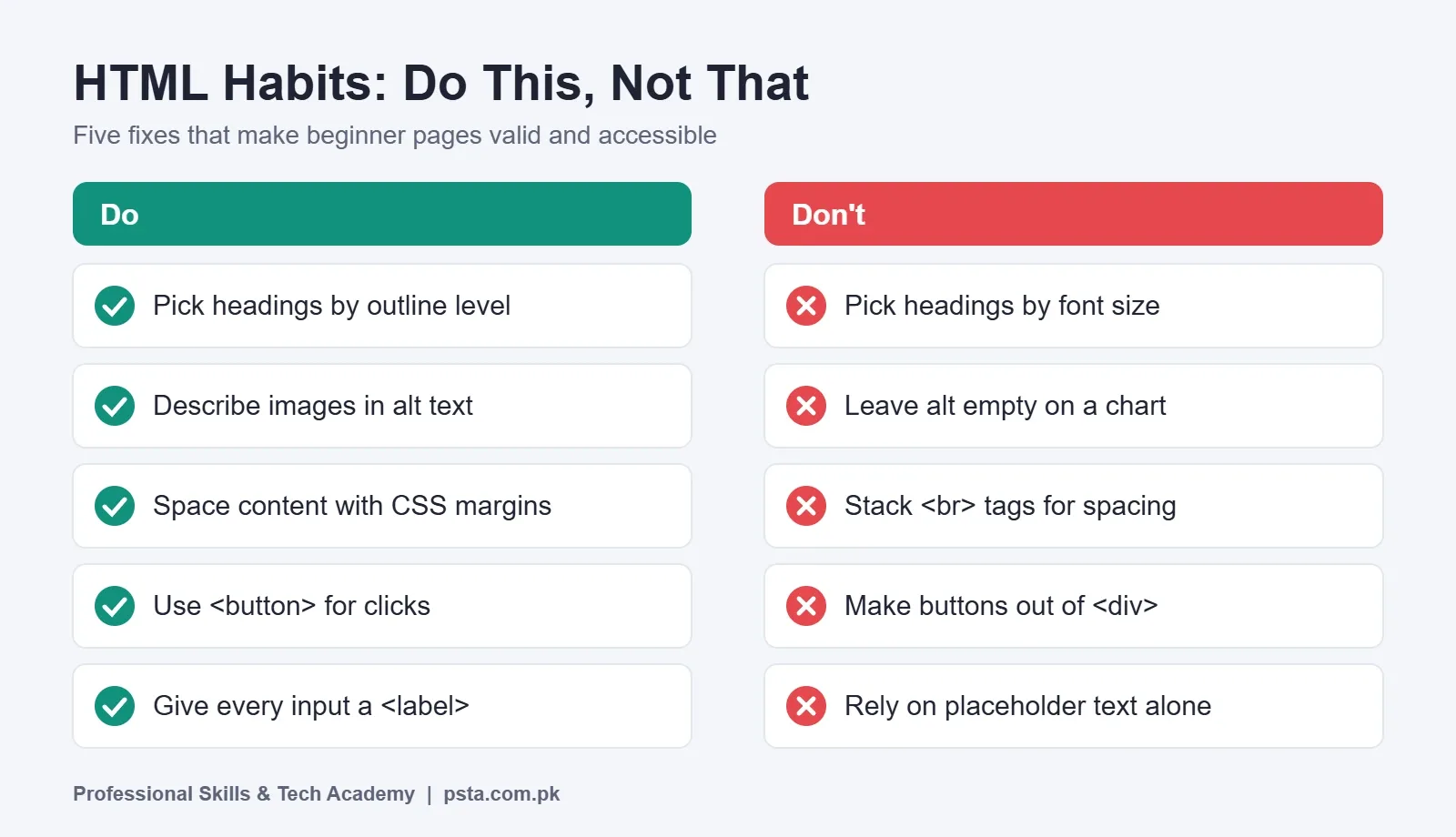
These are the habits that show up again and again when students first use basic HTML tags in projects and freelance test tasks:
- Picking headings by size. An
<h4>used because it "looks right" breaks the outline. Fix the size in CSS. - Leaving alt text empty on meaningful images. Describe charts, product photos and diagrams. Use
alt=""only for pure decoration. - Using
<br>for spacing. Stacking line breaks to push content down is a layout job. Use margins in CSS. - Making buttons out of divs. A clickable
<div>cannot be reached with the keyboard by default. Use<button>. - Forgetting to close tags. Browsers try to guess, and their guesses create odd bugs. Indent nested tags so a missing closing tag stands out.
- Copying deprecated tags.
<center>and<font>still appear in old templates. Replace them with CSS every time you find them.
Run your page through the free W3C Markup Validation Service after each practice session. It lists unclosed tags, wrong nesting and missing attributes, with line numbers.
A One-Week Plan to Practice These Tags
Reading a list of basic HTML tags does not make them stick. Building small pages does. Spend 45 to 60 minutes a day on this plan, using only a text editor such as VS Code and a browser:
| Day | Build This | Tags You Practice |
|---|---|---|
| 1 | A blank page with a correct skeleton and title | doctype, html, head, meta, title, body |
| 2 | A one-page profile about yourself | h1 to h3, p, strong, em, a |
| 3 | A photo page for a local shop's products | img with alt, figure, figcaption |
| 4 | A weekly class timetable | table, thead, tbody, tr, th, td |
| 5 | A contact form with name, phone and message | form, label, input, textarea, button |
| 6 | Rebuild Day 2 with page landmarks | header, nav, main, section, footer |
| 7 | Validate and fix all six pages | Everything above, checked by the validator |
This order is close to how formal courses in Pakistan teach it. NAVTTC's Web Designing and Web Engineering lesson plan, a six-month course, gives its second week to HTML basics in Notepad before CSS and JavaScript arrive in week three. HTML first, then styling, then behavior, is the order that works.
When the week is over, your next step is CSS for layout and then JavaScript. Our guide to DOM manipulation in JavaScript shows how the tags you just learned become interactive, and the frontend developer roadmap lays out the months after that.
Learning HTML as Step One at PSTA
If you would rather learn with a trainer checking your code, PSTA's Full-Stack Web Development Course with AI Tools starts exactly here. According to the course page, Module 1 covers semantic HTML5, CSS3, Flexbox and Grid, before the course moves on to JavaScript, React, Node.js and databases. The course runs for six months, is marked beginner level with no coding experience needed, and currently lists a fee of Rs. 45,000 payable in two installments.
You can study on campus in Abbottabad, through live online classes from anywhere in Pakistan, or in a hybrid mix. If you only want the front-end side for now, the 12-week JavaScript Programming Course is a shorter route. People who want client websites without heavy coding often prefer the WordPress course. Every program, with its duration and level, sits side by side on the PSTA courses list at psta.com.pk.
Write Your First Page Tonight
Open a text editor, type the seven-line skeleton from memory, add one <h1>, one paragraph and one image with honest alt text, and open the file in your browser. Those few basic HTML tags are the start of every website you will build. If you want structured feedback on your code, you can apply online or message the team on WhatsApp (+92 314 5424399) with a link to your first page.
Frequently asked questions
What are basic HTML tags?
Basic HTML tags are the small set of elements used on almost every web page: the skeleton tags (html, head, title, body), headings and paragraphs, links and images, lists, tables, forms and layout tags such as header, nav, main and footer. About 30 of them cover most beginner and freelance projects.
How long does it take to learn HTML?
Most beginners can learn the core tags in one to two weeks with an hour of daily practice. Writing clean, accessible HTML takes longer, because it comes from building real pages and fixing validator errors. HTML is usually learned alongside CSS, which handles layout and design.
Is HTML a programming language?
No. HTML is a markup language. It describes what each part of a page is, such as a heading, a list or a form, but it has no logic like loops or conditions. Programming starts when you add JavaScript to make the page respond to what users do.
Which HTML tags are deprecated?
Tags such as center, font and marquee are listed by MDN as obsolete or deprecated and should not be used in new projects. Their jobs now belong to CSS. If an old tutorial or template still uses them, replace them with CSS rules as soon as you can.
What is the difference between a tag and an attribute?
A tag names the type of element, such as p for a paragraph or img for an image. An attribute adds extra information inside the opening tag, such as href for a link's address or alt for an image description. Attributes are written as a name, an equals sign and a value in quotes.
Do I need to learn HTML before WordPress?
You can build a WordPress site without writing HTML, because page builders create it for you. Knowing basic HTML still helps a lot. It lets you fix layout problems, edit theme files safely, write proper headings and alt text, and understand what clients mean when something breaks.
Can I learn HTML on a mobile phone?
You can read lessons and try small snippets on a phone with an online editor, but a laptop or desktop is far better. You need to type code comfortably, keep the editor and browser side by side, and use developer tools to inspect your pages.
Sources & references
- MDN Web Docs: HTML elements reference developer.mozilla.org
- MDN Web Docs: Heading elements developer.mozilla.org
- WHATWG: HTML Living Standard html.spec.whatwg.org
- WebAIM: The WebAIM Million 2026 webaim.org
- Google Search Central: Title links developers.google.com
- Google Search Central: Image SEO best practices developers.google.com
- NAVTTC: Web Designing and Web Engineering lesson plan navttc.gov.pk
Last reviewed & updated on by Umar Qureshi. Written by the PSTA team in Abbottabad, Pakistan.

Umar Qureshi

Full-Stack Web Development Course with AI Tools
Turn this guide into a career: hands-on training with real projects, online across Pakistan or on-campus in Abbottabad · 6 Months.
Comments
No comments yet — ask a question or share your experience.