Quick answer
DOM manipulation in JavaScript means reading and changing a page's elements after it loads. Select elements with querySelector, build new ones with createElement and append, show user text with textContent instead of innerHTML, react to clicks with addEventListener, and use one parent listener (event delegation) for items added later.
Key takeaways
- • The DOM is the browser's live tree of your HTML; changing it updates the screen, not your file.
- • Load scripts with defer so every element exists before your code looks for it.
- • Use textContent for anything a user typed; MDN calls innerHTML a common route for XSS.
- • One listener on a parent can handle clicks for every child through event delegation.
- • Put styles in CSS classes and switch them with classList instead of inline styles.
Table of contents 15 sections
- What Is the DOM, in Plain Words?
- Why Is DOM Manipulation in JavaScript Worth Learning First?
- The Project: A Class Attendance List
- Step 1: Write the HTML and Load the Script the Right Way
- Step 2: How Do You Select Elements With querySelector in JavaScript?
- Step 3: Create Element in JavaScript and Add It to the Page
- Step 4: Handle the Form With an addEventListener Example
- textContent vs innerHTML: Which One Should You Use?
- Step 5: Event Delegation in JavaScript for the Present and Remove Buttons
- Step 6: Change Styles With classList, Not Inline Styles
- Step 7: Test, Inspect and Break It on Purpose
- Common DOM Mistakes Beginners Make
- Where to Take This Project Next
- Learning the DOM Properly in PSTA's JavaScript Course
- Your Task for Tonight: Ten Lines That Change a Page
Try this quick self-test on DOM manipulation in JavaScript before you read on. Can you change the words on a web page after it loads, add a new list item when someone clicks a button, and explain why textContent is safer than innerHTML for user input? If you said no to any of these, this is the skill you're missing, and this guide fills that gap by building one small project from start to finish.
In this JavaScript DOM tutorial, we'll build a class attendance list, the kind a teacher at an academy could use to mark who showed up. Every step adds one DOM skill, so by the end you'll have working code and a clear picture of how pages change in the browser. Along the way, you will learn:
- What the DOM is and how the browser builds its node tree
- How to select elements with querySelector in JavaScript
- How to create, update and remove elements safely
- How one listener can handle many clicks through event delegation
- The mistakes that break beginner projects, and how to avoid them
What Is the DOM, in Plain Words?
The DOM (Document Object Model) is the browser's live, tree-shaped copy of your HTML. When a page loads, the browser reads your tags and turns each one into an object your JavaScript can read and change. Change the object, and the screen updates.
MDN's DOM scripting introduction calls each entry in this tree a node. The html element is the root. An element directly inside another is a child, elements that share a parent are siblings, and anything nested at any depth is a descendant. Learn these five words first. Every DOM method you'll meet assumes you know them.
Your file on disk never changes. The DOM is a working copy that lives in the browser tab, which is why a refresh wipes out whatever your script did.
Why Is DOM Manipulation in JavaScript Worth Learning First?
Because almost every interactive website still runs on it. JavaScript was used by 66% of everyone who answered the Stack Overflow 2025 Developer Survey, and HTML/CSS by 61.9%. Among professional developers, the JavaScript figure was 68.8%.
Frameworks like React handle the DOM for you, but they don't remove the need to understand it. When a React button doesn't respond, the bug often makes sense only if you know how events and elements behave underneath. Students who skip straight to a framework tend to hit this wall within weeks.
There's a practical reason too. Many small freelance jobs in Pakistan are fixes to existing sites: a menu that won't open, a form that needs a live price total, a gallery filter. Those are DOM tasks, and you can do them without any framework.
The Project: A Class Attendance List
Here's what the finished page does. A teacher types a student's name and presses Add. The name appears in a list with a Present button and a Remove button. A counter at the top shows how many students are marked present. Nothing is saved to a server, which keeps the focus on the DOM.
Create a folder with two files, index.html and app.js. Open the HTML file in Chrome or Firefox, and keep the developer tools open (F12) so you can watch the Elements panel change as your code runs.
Step 1: Write the HTML and Load the Script the Right Way
Start with plain markup. Give the elements your script needs clear IDs or classes.
<form id="add-form">
  <input id="student-name" placeholder="Student name">
  <button type="submit">Add</button>
</form>
<p>Present: <span id="present-count">0</span></p>
<ul id="attendance-list"></ul>
<script src="app.js" defer></script>
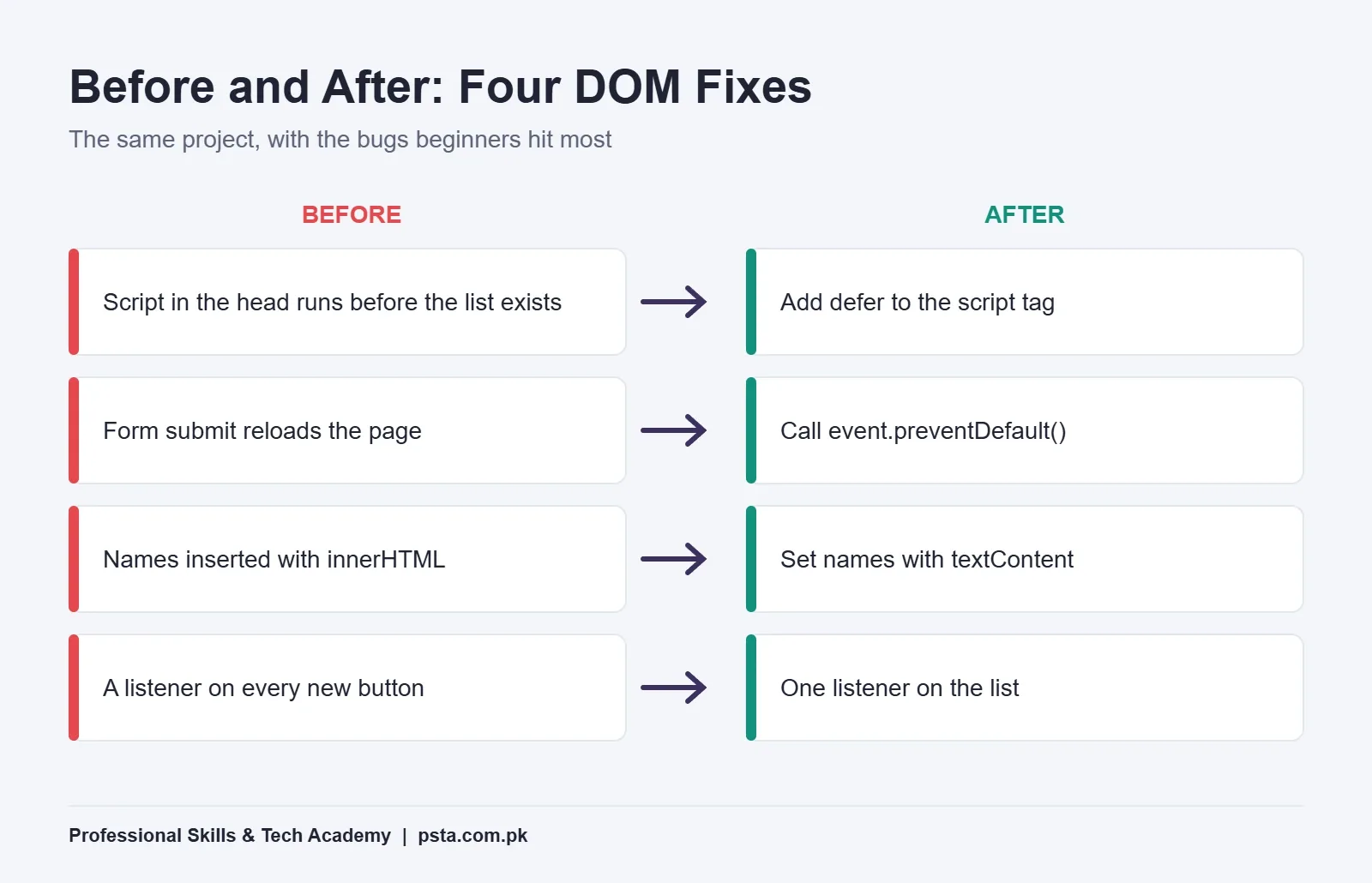
Notice the defer attribute. According to MDN's reference for the script element, a deferred script downloads while the HTML is parsed and runs only after parsing finishes, before the DOMContentLoaded event. That means every element exists by the time your code looks for it. Without defer, a script placed in the head runs too early and finds nothing.
Step 2: How Do You Select Elements With querySelector in JavaScript?
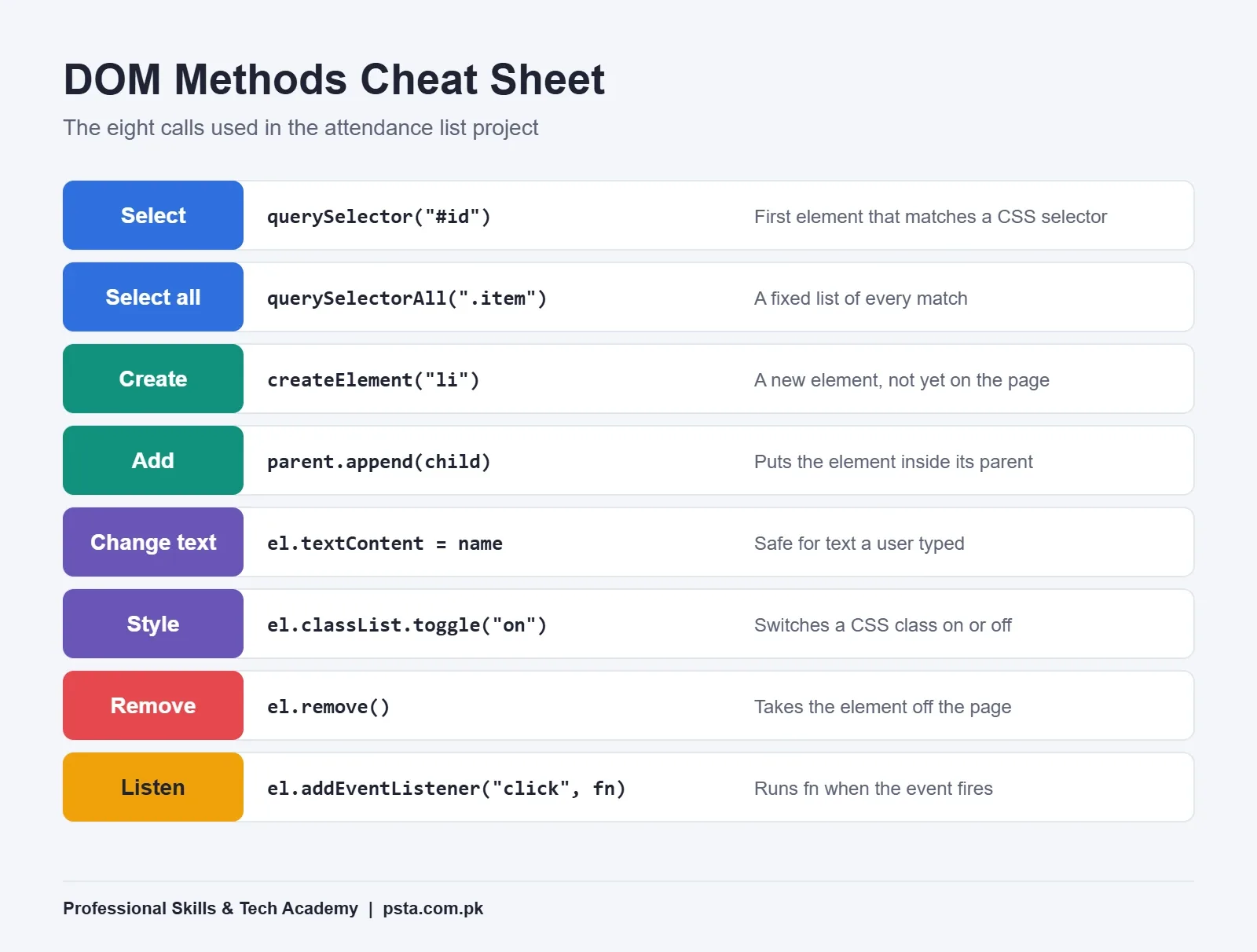
Use document.querySelector() with any CSS selector, and it returns the first matching element, or null if nothing matches. MDN recommends it as the modern default, with querySelectorAll() when you need every match.
const form = document.querySelector("#add-form");
const nameInput = document.querySelector("#student-name");
const list = document.querySelector("#attendance-list");
const countEl = document.querySelector("#present-count");
Select each element once, at the top of your file, and store it in a const. Searching the page again inside every function is slower to read and easier to get wrong. If one of these logs as null in the console, check the spelling of the ID and the # before it.
The older methods, getElementById() and getElementsByTagName(), still work. One trap with the second: it returns a live collection that changes as the page changes, while querySelectorAll() returns a fixed snapshot. Beginners who loop over a live collection while removing items often skip elements without knowing why.
Step 3: Create Element in JavaScript and Add It to the Page
To add a student, you build a new list item in memory, fill it, then attach it to the list. Three methods do the work: createElement(), the textContent property and append().
function addStudent(name) {
  const li = document.createElement("li");
  li.className = "student";

  const label = document.createElement("span");
  label.textContent = name;

  const presentBtn = document.createElement("button");
  presentBtn.textContent = "Present";
  presentBtn.dataset.action = "present";

  const removeBtn = document.createElement("button");
  removeBtn.textContent = "Remove";
  removeBtn.dataset.action = "remove";

  li.append(label, presentBtn, removeBtn);
  list.append(li);
}
The dataset.action lines add data-action attributes to each button. You'll use them in Step 5 to tell the buttons apart without giving every one its own listener.
One detail from MDN catches people out. If you pass an element that's already on the page to appendChild() or append(), the browser moves it rather than copying it. Use cloneNode() when you really want a second copy.
Step 4: Handle the Form With an addEventListener Example
Now connect the form. Listen for its submit event, stop the page from reloading, read the input and call your function.
form.addEventListener("submit", (event) => {
  event.preventDefault();
  const name = nameInput.value.trim();
  if (name === "") return;
  addStudent(name);
  nameInput.value = "";
  nameInput.focus();
});
Without event.preventDefault(), the browser submits the form the old way and reloads the page, and your new list item vanishes a split second after it appears. This is one of the most common questions beginners ask, and the fix is this single line.
Listening for submit on the form, rather than click on the button, has a bonus. Pressing Enter in the input also adds the student, because that triggers submit too.
textContent vs innerHTML: Which One Should You Use?
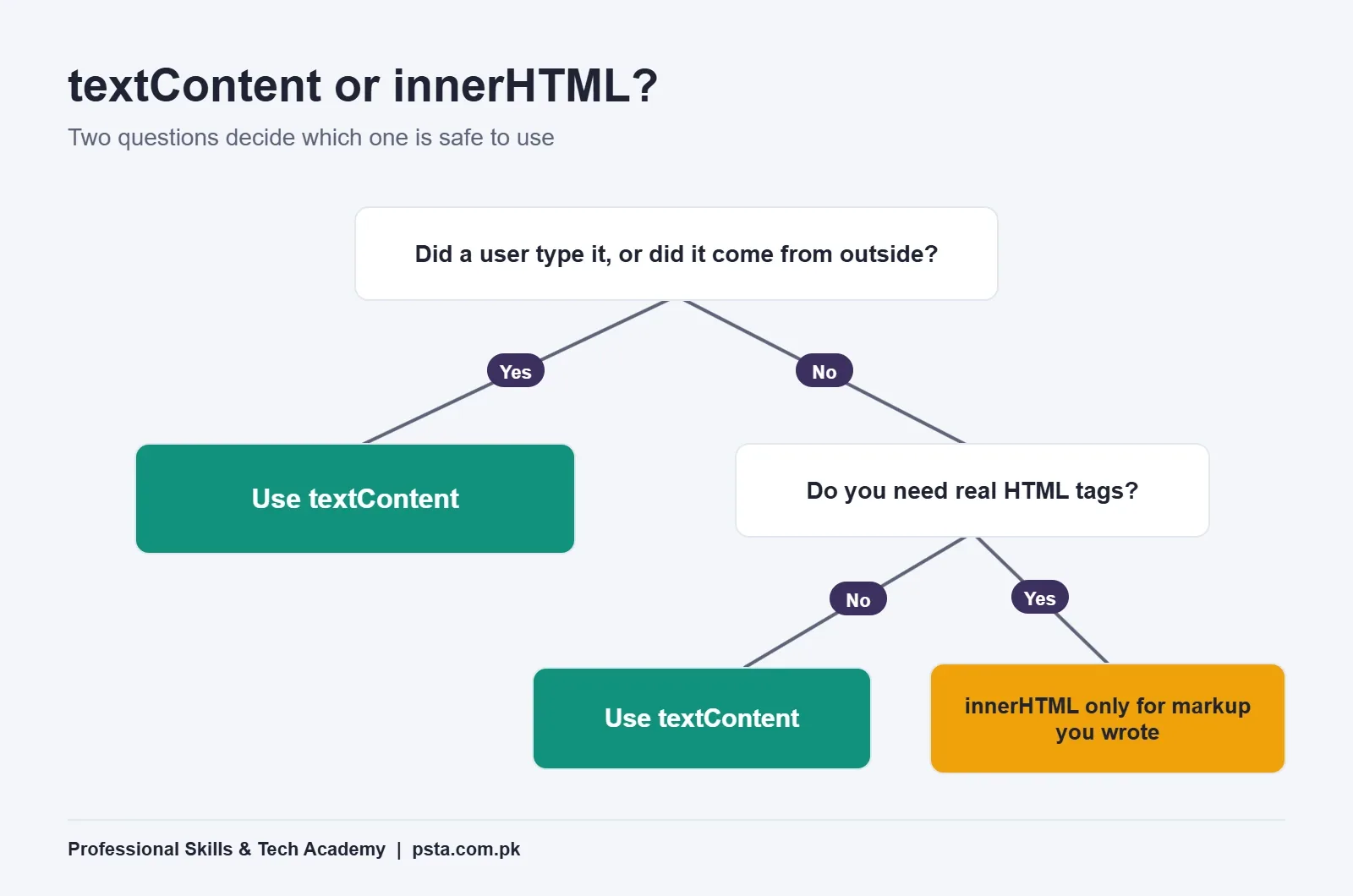
Use textContent whenever you're showing text a user typed. It treats the value as plain text, so any tags in it appear on screen as characters instead of running as code. Use innerHTML only for markup you wrote yourself and fully trust.
MDN's innerHTML page is direct about the risk. It describes innerHTML as probably the most common route for cross-site scripting (XSS) attacks, where unsanitized user strings are injected into the page. Blocking script tags isn't enough, because an attacker can hide code in something like an image's error handler.
Picture a student name typed as a small image tag with a script in its error handler. With innerHTML, that code could run in the browser of everyone who views the list. With textContent, the teacher just sees an odd-looking name. For our attendance list, that's why Step 3 sets the name with textContent.
| Property | Reads HTML tags? | Safe for user input? | Use it for |
|---|---|---|---|
| textContent | No, shows them as text | Yes | Names, messages, counts |
| innerHTML | Yes, builds elements | No, unless sanitized | Trusted markup you wrote |
| createElement + append | Not needed | Yes | Building items piece by piece |
Step 5: Event Delegation in JavaScript for the Present and Remove Buttons
Each student has two buttons, and the list grows as the class arrives. You could attach a listener to every button as you create it, but there's a cleaner way. Attach one listener to the list and let clicks travel up to it.
This works because of event bubbling. MDN's guide to event bubbling explains that a click fires on the innermost element first, then on each ancestor in turn. Event delegation uses that behavior on purpose: one parent listener handles events from all its children, including children added later.
list.addEventListener("click", (event) => {
  const btn = event.target.closest("button");
  if (!btn) return;
  const li = btn.closest("li");

  if (btn.dataset.action === "present") {
    li.classList.toggle("is-present");
  }
  if (btn.dataset.action === "remove") {
    li.remove();
  }
  updateCount();
});
event.target is the element that was actually clicked, and it stays the same as the event bubbles. event.currentTarget is the element whose listener is running, here the list. In delegation, you almost always want target, and closest() walks up from it to the nearest matching ancestor.
Step 6: Change Styles With classList, Not Inline Styles
Marking a student present should change how the row looks. Put the look in your CSS and let JavaScript switch a class on and off.
.is-present { background: #e6f6f1; font-weight: bold; }That's what li.classList.toggle("is-present") did in Step 5. MDN treats class-based styling as the cleaner approach for larger projects, because your design stays in the stylesheet. If you do set inline styles, remember JavaScript uses camelCase: style.backgroundColor, not background-color. Mixing the two silently does nothing.
Now the counter. Count the present rows each time something changes.
function updateCount() {
  const present = list.querySelectorAll(".is-present").length;
  countEl.textContent = present;
}
Counting from the DOM each time is simple and reliable for a list this size. In bigger apps you'd keep the data in an array and redraw the page from it, which is the idea React is built on.
Step 7: Test, Inspect and Break It on Purpose
Run through this short test list before you call the project done:
- Add three names and press Enter for one of them.
- Mark two present and check the counter reads 2.
- Remove one present student and check the counter drops to 1.
- Submit an empty name and confirm nothing is added.
- Type a name containing angle brackets and confirm it shows as plain text.
- Watch the Elements panel in developer tools while you click, and see the class appear and disappear.
If something fails, add console.log(event.target) inside the listener. Seeing which element received the click solves most delegation bugs within a minute.
Common DOM Mistakes Beginners Make
These come up again and again when students try DOM manipulation in JavaScript for the first time:
- Running the script before the HTML exists. Use
defer, or move the script tag to just before the closing body tag. - Forgetting preventDefault() on forms. The page reloads and your changes vanish.
- Using innerHTML for user text. Switch to textContent.
- Adding listeners inside a loop that runs many times. The same click fires the handler twice or more. Delegate instead.
- Calling a method on null. A misspelled selector returns null, and the next line throws an error.
- Building whole static pages in JavaScript. MDN advises writing static content in HTML, since script-generated content is harder to maintain and may not be read by search engines.
Where to Take This Project Next
Once the basic list works, each of these upgrades teaches one more skill you'll use on real sites:
- Save the list in
localStorageso a refresh doesn't clear it. - Add a search box that hides names that don't match, using
querySelectorAll()and a loop. - Show the date at the top and add a Mark All Present button.
- Load a starter class list from a JSON file with the Fetch API.
For more practice ideas, see our list of JavaScript projects for beginners. If you're still unsure when to use const or let in code like this, read var vs let vs const, and when you're ready for timers and fetch requests, the JavaScript event loop explainer is the next step.
Learning the DOM Properly in PSTA's JavaScript Course
PSTA (Professional Skills & Tech Academy) teaches this material in its JavaScript Programming Course: Beginner to React. The course page lists it as a 12-week, beginner-level program, with a fee of Rs. 24,000 at the time of writing. Classes run in three modes, campus study in Abbottabad, hybrid, or live online for learners elsewhere in Pakistan, and a fresh batch starts every month.
Two modules focus on DOM manipulation in JavaScript, the same ground this guide covered: one on selecting elements, editing content and styles, and creating and deleting elements, and another on forms, event listeners and user interaction. Later modules move to promises, the Fetch API, ES6 features and React basics, finishing with portfolio projects on GitHub.
Once the fundamentals feel comfortable, the React.js course and the Full-Stack Web Development course build on this foundation. You can compare options on the courses page and apply through admission.
Your Task for Tonight: Ten Lines That Change a Page
Don't wait for a full project. Open any HTML file you have, add a button and a paragraph, and write ten lines of JavaScript that change the paragraph's text when the button is clicked. Use querySelector, addEventListener and textContent. Once that works, you've done real DOM manipulation in JavaScript, and the attendance list above is your next build. Questions along the way? Message PSTA on WhatsApp at +92 314 5424399.
Frequently asked questions
What is DOM manipulation in simple words?
It means using JavaScript to change a web page after it has loaded. The browser turns your HTML into a tree of objects called the DOM. When your script edits one of those objects, for example by changing its text or adding a new item, the page on screen updates straight away without a reload.
Should I learn DOM manipulation before React?
Yes. React manages the DOM for you, but its events, forms and rendering only make full sense once you have changed a page by hand. A week or two of plain JavaScript projects, like the attendance list in this guide, makes your first React components far easier to debug.
Why does my querySelector return null?
Usually because the element does not exist yet or the selector is misspelled. Check that IDs start with # and classes with a dot, and load your script with the defer attribute or at the end of the body so the HTML is parsed before your code runs.
Is innerHTML bad to use?
Not always. It is fine for short markup you wrote yourself. The risk comes when you insert text from users or other sites, because MDN warns that innerHTML is a common route for cross-site scripting. For names, comments and messages, use textContent instead.
What is the difference between event.target and event.currentTarget?
event.target is the element that was actually clicked, and it stays the same while the event bubbles up. event.currentTarget is the element whose listener is running at that moment. In event delegation you usually read target, then use closest() to find the item you need.
Which is better, appendChild or append?
Both add a node inside a parent. append() can take several nodes or plain strings in one call, while appendChild() takes exactly one node and returns it. Either works for beginner projects. Remember that passing an element already on the page moves it instead of copying it.
How long does it take to learn DOM manipulation?
If you already know variables, functions and loops, a few weeks of steady practice is enough to build small interactive pages comfortably. Build one project per week, such as a list, a quiz and a form with live validation, and read the browser console whenever something fails.
Sources & references
- DOM scripting introduction (MDN) developer.mozilla.org
- Element: innerHTML property (MDN) developer.mozilla.org
- Event bubbling (MDN) developer.mozilla.org
- The script element (MDN) developer.mozilla.org
- Stack Overflow 2025 Developer Survey: Technology survey.stackoverflow.co
Last reviewed & updated on by Umar Qureshi. Written by the PSTA team in Abbottabad, Pakistan.

Umar Qureshi

JavaScript Programming Course in Abbottabad: Beginner to React
Turn this guide into a career: hands-on training with real projects, online across Pakistan or on-campus in Abbottabad · 12 Weeks.

Comments
No comments yet — ask a question or share your experience.