Quick answer
Sign in with a business Google account and add a Domain property (DNS verification) or a URL-prefix property (HTML tag, file, Analytics or Tag Manager). Keep the verification token in place, submit your sitemap, inspect your homepage with URL Inspection, then check Performance and Page indexing weekly once data appears.
Key takeaways
- • Choose a Domain property if you can edit DNS; it covers every subdomain plus http and https.
- • Never delete the DNS record, HTML file or tag after verifying, or access expires after a grace period.
- • Submit one sitemap in the Sitemaps report and aim for a Success status.
- • Request indexing only for a few important pages; it has daily limits and no guarantee.
- • Spend 15 minutes a week on Performance and Page indexing instead of checking daily.
Table of contents 19 sections
- What Does Google Search Console Actually Show You?
- Before You Start: Three Things to Have Ready
- Google Search Console Setup in 7 Steps
- Step 1: Sign In With the Right Account
- Step 2: Choose a Property Type
- Step 3: Verify Ownership
- Step 4: Leave the Verification Token in Place
- Step 5: Submit Your Sitemap
- Step 6: Inspect Your Most Important Pages
- Step 7: Wait, Then Read Your Data
- Domain Property or URL-Prefix: Which Should You Pick?
- How to Read Your First Performance Report
- Why Are Some of Your Pages Not Indexed?
- When Should You Request Indexing for a Page?
- Giving Your Team or Agency Access Safely
- A 15-Minute Weekly Routine for Small Sites
- Setup Problems Beginners Hit Most Often
- Building SEO Skills in PSTA's Digital Marketing Course
- Do This Before Friday: Inspect Your Homepage
Example scenario: a home bakery in Abbottabad skips Google Search Console setup when its WordPress site goes live in March. By May, the owner wonders why nobody finds it on Google. She can't tell whether Google has even seen the pages. Twenty minutes in Search Console would have answered that in week one, for free.
Search Console is Google's own dashboard for site owners. It tells you which pages Google has indexed, which searches show your site, and what's stopping other pages from appearing. With Google handling 95.1% of searches in Pakistan in September 2026, according to StatCounter, this is the one search tool every Pakistani site owner should open regularly.
Here's what this guide covers:
- Which property type to choose, and why the choice matters later
- How to verify your website in Search Console without a developer
- How to submit a sitemap to Google and read its status
- How to use the URL Inspection tool and when to request indexing
- How to read the Performance and Page indexing reports in under 15 minutes a week
What Does Google Search Console Actually Show You?
Think of Search Console as the view from Google's side of the counter. Your analytics tool tells you what visitors did after they landed. Search Console tells you what happened before that: whether Google crawled the page, whether it stored the page in its index, and how often your link appeared in results.
The reports you'll use most as a beginner are these:
- Performance: clicks, impressions, click-through rate and average position for your search queries and pages.
- Page indexing: how many of your URLs are indexed and the reasons the rest are not.
- Sitemaps: where you hand Google a list of your important URLs.
- URL Inspection: a page-by-page check of the indexed version and a live test.
What it won't do is rank you. Search Console reports and diagnoses. Rankings still depend on useful content, clean pages and the basics in our on-page SEO checklist. If you already set up analytics using our GA4 setup guide, the two tools work well side by side.
Before You Start: Three Things to Have Ready
Ten minutes of preparation makes your Google Search Console setup far smoother and saves a day of back-and-forth with a hosting company. Collect these first:
- A Google account the business will keep. Don't use an intern's personal Gmail. When that person leaves, your access can leave with them.
- Login details for the place your domain is managed. That's the registrar or hosting panel where you bought the domain. You'll need it for DNS verification.
- Access to the website itself. A WordPress admin login, a Shopify or Wix dashboard, or file access through cPanel. This is your backup route if DNS access is a problem.
If a web developer or agency built the site, ask them now who controls the domain. In small businesses here, the honest answer is often "the developer's account," and that's worth fixing before anything else.
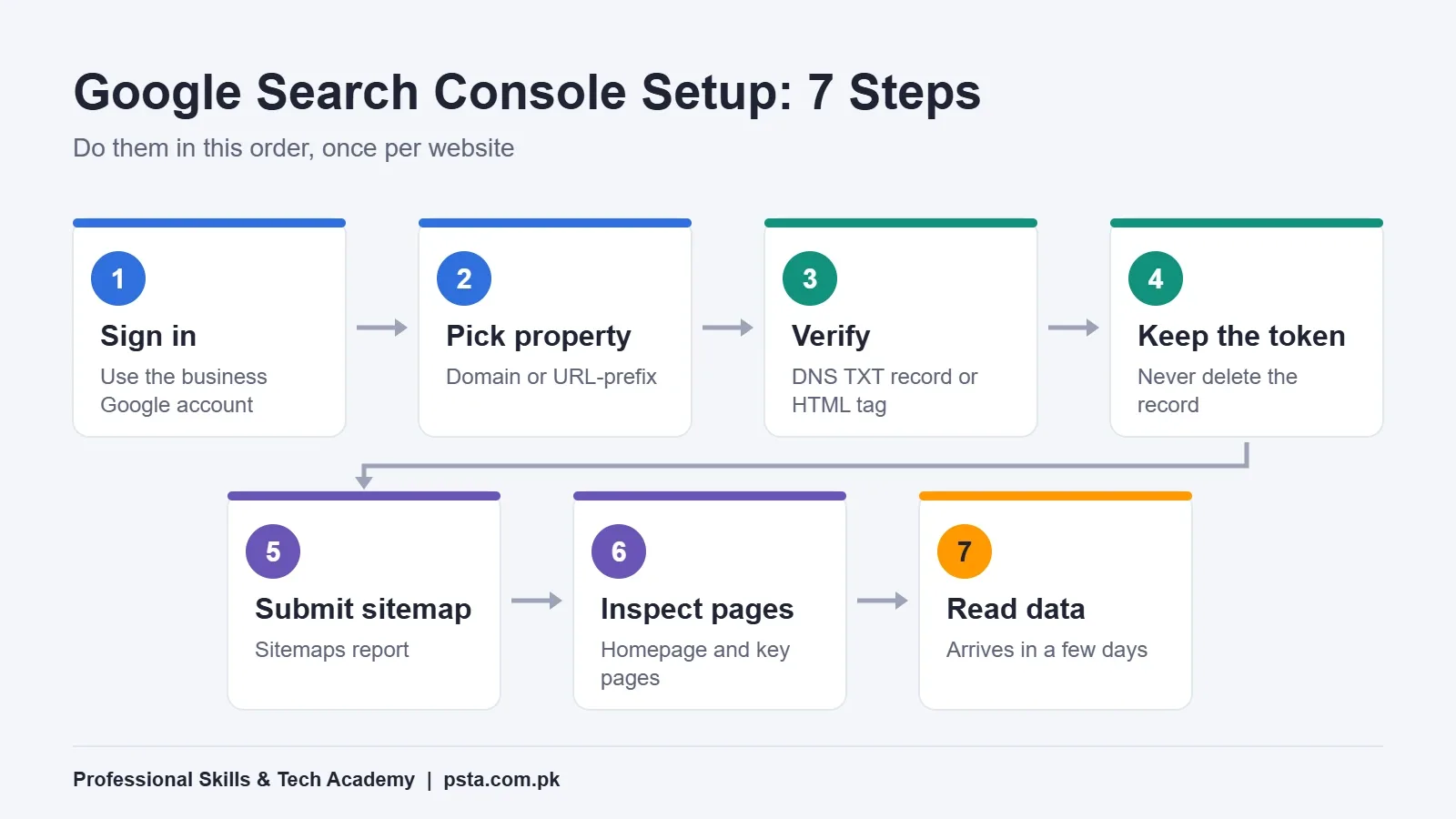
Google Search Console Setup in 7 Steps
Follow these in order. Each step depends on the one before it, and skipping ahead is the usual reason people end up with half-verified properties.
Step 1: Sign In With the Right Account
Open Search Console and sign in with the business Google account. You can hold up to 1,000 properties in one account, according to Google's help page on adding a property, so a freelancer managing several client sites can keep them all in one place.
Step 2: Choose a Property Type
Click "Add property." You'll see two options: Domain and URL-prefix. A Domain property covers all subdomains and both http and https. A URL-prefix property covers only addresses that start with the exact prefix you type, including the protocol. The next section compares them in detail.
Step 3: Verify Ownership
Google needs proof that you control the site. For a Domain property, the only method is a DNS record. Search Console gives you a TXT value; you paste it into the DNS settings at your registrar and save. For a URL-prefix property, you can upload an HTML file, add an HTML meta tag, or use your existing Google Analytics or Tag Manager code. Google's verification guide says a new DNS record can take up to two or three days before your provider starts serving it. If verification fails on the first try, wait a day and click Verify again.
Step 4: Leave the Verification Token in Place
This catches many beginners. Verification isn't a one-time event. Google keeps checking that the DNS record, file or tag is still there. Delete it during a site redesign and you'll get a warning, and after a grace period your access expires. Make a note in your site documentation: "Do not remove the Google TXT record."
Step 5: Submit Your Sitemap
A sitemap is a file that lists the URLs you want Google to know about. Most WordPress SEO plugins, Shopify and Wix generate one for you, so first open your site and look for it. Common addresses are /sitemap.xml or /sitemap_index.xml. Then go to Sitemaps, paste the address into "Add a new sitemap" and click Submit.
Google's Sitemaps report documentation lists three statuses. "Success" means Google read it without errors. "Has errors" means it was read but some entries had problems; the valid URLs still go into the crawl queue. "Couldn't fetch" means Google couldn't retrieve the file at all. One sitemap can hold up to 50,000 URLs or 50MB uncompressed, which is far more than a typical shop or institute site needs.
Step 6: Inspect Your Most Important Pages
Paste your homepage URL into the search bar at the top of Search Console. This is the URL Inspection tool. It shows whether that page is on Google, which canonical URL Google picked, and when it was last crawled. Click "Test live URL" to see how Googlebot fetches the page right now. Repeat for your main service, course or product pages.
Step 7: Wait, Then Read Your Data
Google says data should start appearing in a property within a few days. Data collection begins when the property is added, so the earlier you set it up, the sooner you have a history to compare against. Use the waiting time to add your team, which we cover further down.
Domain Property or URL-Prefix: Which Should You Pick?
If you can reach your DNS settings, choose a Domain property. It catches every version of your site in one place: www and non-www, http and https, plus subdomains like shop. or blog.. You won't miss traffic because Google indexed a version you forgot about.
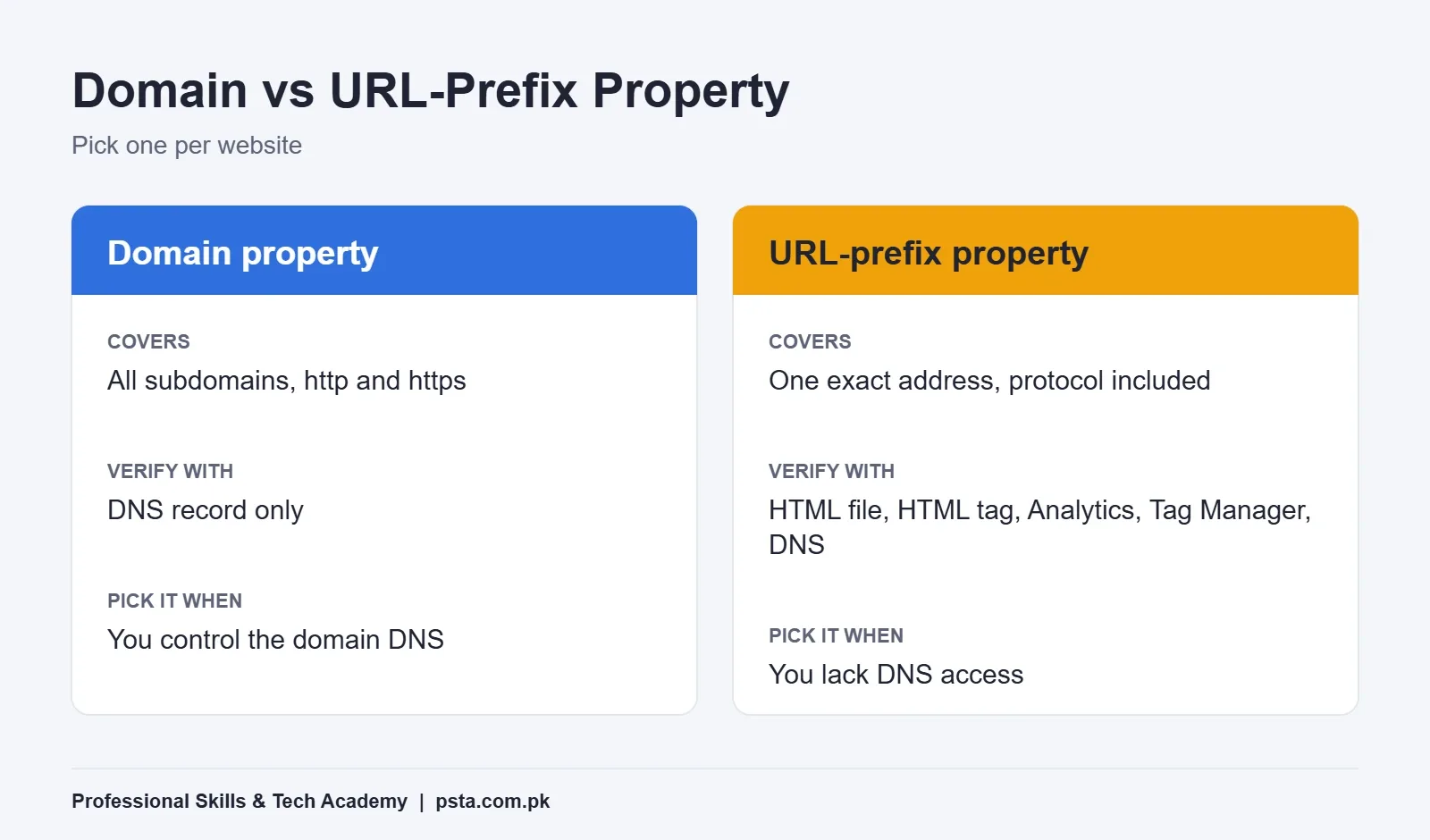
Choose URL-prefix when DNS is out of reach. A common case: a developer registered the domain years ago and has stopped replying. You can still verify through an HTML tag in WordPress and start collecting data today. There's a bonus too. According to Google, verifying a URL-prefix property through DNS also verifies the matching Domain property automatically.
| Point to Compare | Domain Property | URL-Prefix Property |
|---|---|---|
| What it covers | All subdomains and protocols | One exact prefix, protocol included |
| Verification methods | DNS record only | HTML file, HTML tag, Google Analytics, Tag Manager, DNS |
| Who usually picks it | Owners with registrar access | Staff, freelancers and agencies with site access only |
| Main risk | Verification stalls if DNS access is lost | Missing data from www or http versions |
Many professionals keep both: a Domain property for the full picture, and a URL-prefix property for a specific section, such as a blog folder they want to watch separately.
How to Read Your First Performance Report
Open Performance, then "Search results." You'll see four numbers along the top. Here's what each one means, using Google's own definitions:
| Metric | Meaning | What to Watch For |
|---|---|---|
| Impressions | How often a link to your site appeared in results | Rising impressions mean Google is testing you on more queries |
| Clicks | How often someone clicked through to your site | Your real search visits |
| CTR | Clicks divided by impressions | A low CTR on a high-impression page points to a weak title |
| Average position | The average of your topmost position for each query | Pages sitting between positions 8 and 20 are worth improving first |
Position needs a small explanation. For each query, Google records the highest spot your link held, then averages those figures. If you sit at position 2 for one query and position 3 for another, your average is 2.5. Ads don't count as positions.
Now click the "Queries" tab. These are the actual words people typed. For a computer institute in Mansehra, you might find searches for course fees, timings or a specific software. Each one is a hint about what your page should answer more clearly. Pair this list with the method in our keyword research guide and you'll stop guessing what to write next.
Two more details help. The newest data is preliminary and can change for a few hours; it shows as a dotted line on the chart. And the report holds up to 16 months of history, as Search Engine Land reported when the longer range reached the API. That's enough to compare this Ramadan or exam season with the last one.
Why Are Some of Your Pages Not Indexed?
Open "Pages" under Indexing. The chart splits your URLs into indexed and not indexed, with a table of reasons underneath. Don't panic at a big "not indexed" number. Google's Page indexing report guide says duplicate and low-value URLs are normally left out, and that's expected. Your job is to make sure the homepage and key pages are indexed.
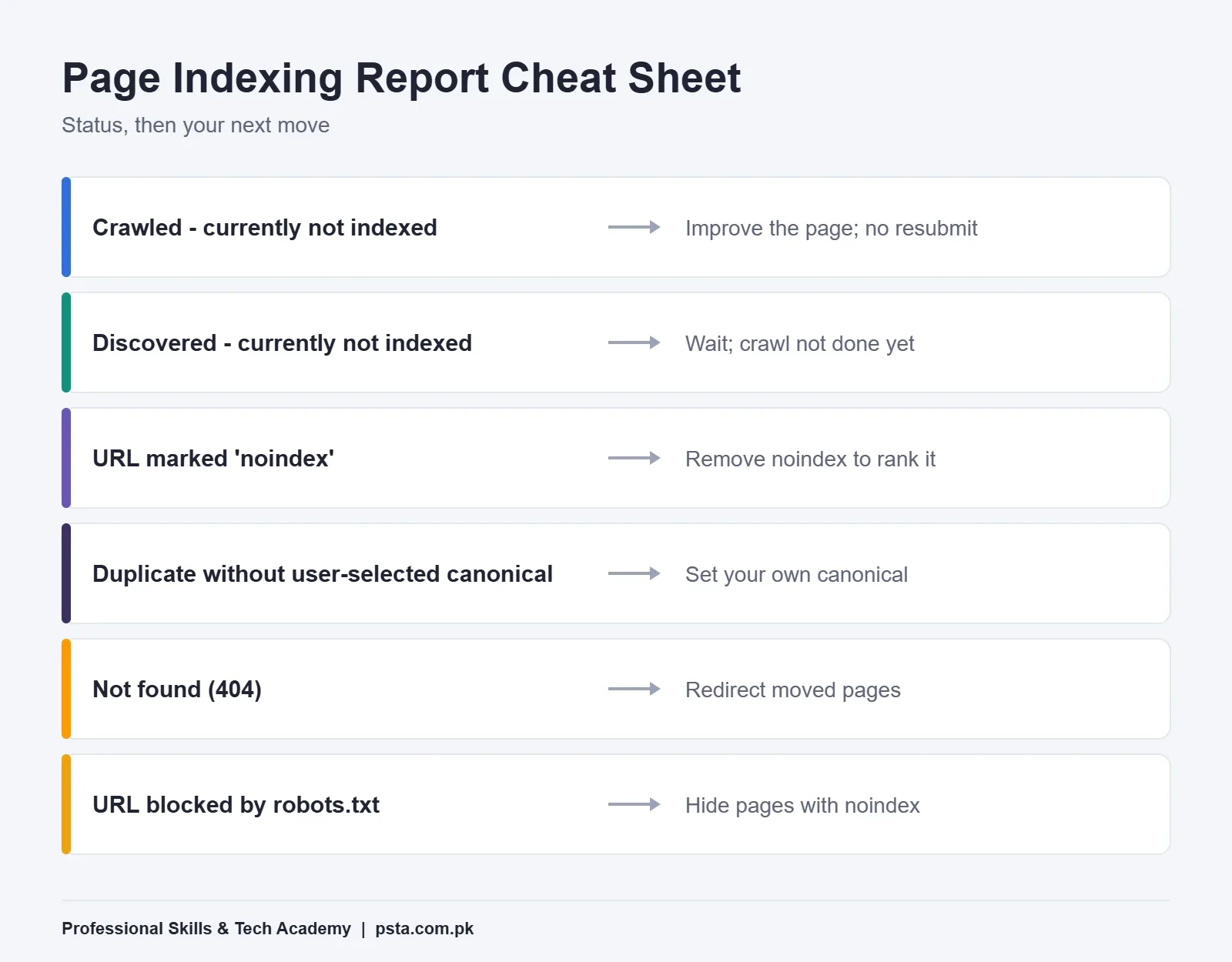
Here's how to treat the reasons you'll meet most often:
- Crawled - currently not indexed: Google fetched the page but chose not to store it yet. It may still be indexed later, and resubmitting won't help. Make the page more useful instead.
- Discovered - currently not indexed: Google knows the URL exists but hasn't crawled it yet. On a new site, patience usually solves this.
- URL marked 'noindex': the page tells Google to stay away. On WordPress, check that "Discourage search engines" was switched off after launch.
- Duplicate without user-selected canonical: Google picked another URL as the main version. That isn't an error. Set a canonical only if Google chose the wrong page.
- Not found (404): fix it only if you link to that URL or list it in your sitemap. If the page moved, add a redirect.
- URL blocked by robots.txt: blocking crawling doesn't guarantee a page stays out of results. Use a noindex tag to keep a page hidden.
After fixing an issue across the site, open it in the report and click "Validate fix." Google says validation typically takes up to about two weeks, so click it once and leave it alone.
When Should You Request Indexing for a Page?
Use "Request indexing" in the URL Inspection tool for a small number of important pages: a new course page, a rewritten service page, or a page you've just fixed. Each property has daily limits on inspections and indexing requests, and Google's URL Inspection help is clear that a request doesn't guarantee the page will be indexed.
Timing also needs patience. Google says indexing typically takes about a day after a request, and it can take a week or two. For dozens of new URLs, update your sitemap instead of requesting each one by hand. You also can't request indexing if the live test shows the page is non-indexable, so fix the noindex or error first.
Giving Your Team or Agency Access Safely
Go to Settings, then "Users and permissions." A verified owner has the highest level of control in Search Console. Keep that role for the business itself. When you hire an SEO freelancer, add them as a user rather than asking them to verify their own ownership. When the contract ends, you remove one user and nothing else breaks.
This matters in Pakistan's freelance-heavy market. Many small brands change marketers every few months, and the clean handover is the one nobody remembers. If you also run a Google Business Profile, apply the same rule there.
A 15-Minute Weekly Routine for Small Sites
Once setup is done, you don't need to live inside Search Console. A short weekly check catches most problems early:
| Day | Report | What to Check | Time |
|---|---|---|---|
| Monday | Performance | Clicks and impressions against the previous week | 5 minutes |
| Monday | Performance, Queries tab | New queries with impressions but few clicks | 4 minutes |
| Wednesday | Pages (indexing) | Any new reason affecting key pages | 3 minutes |
| After publishing | URL Inspection | Live test on the new page, then request indexing | 2 minutes |
| Monthly | Sitemaps | Status still shows Success | 1 minute |
Write the weekly clicks figure in a simple spreadsheet. After three months, you'll see whether your content work is moving anything, which is far more convincing to a client or employer than a screenshot.
Setup Problems Beginners Hit Most Often
A few problems come up again and again when students do a Google Search Console setup on real business sites:
- No data after a week: Google notes this can mean the site isn't in Google Search yet, or the property URL is wrong, such as http instead of https.
- DNS verification keeps failing: the TXT record was added to the wrong domain, or the provider hasn't started serving it yet. Check the record, wait a day, then retry.
- Sitemap shows "Couldn't fetch": open the sitemap address in a browser. If it doesn't load for you, it won't load for Google either. Run a live URL inspection on it.
- Verification lost after a redesign: the new theme removed the HTML tag. Put it back, or switch to DNS so theme changes can't break it.
Building SEO Skills in PSTA's Digital Marketing Course
A Google Search Console setup is one task inside a wider SEO workflow. In the Advanced Digital Marketing course, you build a business website on WordPress or Wix, apply on-page SEO to its main pages, set up local SEO with a Google Business Profile, and learn to read Google Analytics and Meta insights for real reporting. The course runs for 12 weeks and the fee is Rs. 30,000 (regular Rs. 35,000), payable in two installments.
Classes take place at our Mandian campus on Old College Road, opposite FIMS College, or live online from any city, with a hybrid option for students who split their week. No marketing experience is needed; the course starts from the basics. If you'd rather build the site side first, our WordPress development course pairs well with it.
You can compare options on the all courses page, fill in the admission form when you're ready, or message us on WhatsApp at +92 314 5424399 to ask about batch timings.
Do This Before Friday: Inspect Your Homepage
Pick one site you look after, even a portfolio. Finish the Google Search Console setup for it, then inspect the homepage. If it says "URL is on Google," note the date of the last crawl. If it doesn't, the reason shown on that screen is your first SEO task. Either way, you'll know more about your site's search health than most owners do.
Frequently asked questions
Is Google Search Console free?
Yes. Search Console is a free Google service for anyone who can prove they own or manage a website. You only need a Google account and access to either your domain DNS settings or the website itself. There are no paid tiers, and one account can hold up to 1,000 properties, which suits freelancers managing several client sites.
How long does Search Console verification take?
HTML tag and HTML file verification usually work as soon as the code is live on your site. DNS verification can be slower: Google says a new DNS record may take up to two or three days before your provider starts serving it. If verification fails, wait a day and try again rather than adding duplicate records.
Should I choose a Domain property or a URL-prefix property?
Choose a Domain property if you can edit your DNS records, because it covers all subdomains and both http and https in one view. Choose URL-prefix if you only have website access, such as a WordPress login, or you want to track one section, like a blog folder, separately from the rest of the site.
Why does my Search Console show no data?
New properties usually start showing data within a few days. If there is still nothing after that, your site may not be appearing in Google Search yet, or the property address may be wrong, for example http instead of https. Check the property URL first, then inspect your homepage with the URL Inspection tool.
Does submitting a sitemap get my pages indexed?
No. A sitemap helps Google discover your URLs, and Google fetches it soon after you submit. Crawling the listed pages can take time, some URLs may not be crawled at all, and being discovered does not guarantee indexing. Useful, well-linked pages still matter more than the sitemap itself.
How often can I use Request indexing?
Each property has daily limits on URL inspections and indexing requests, so save it for important new or updated pages. Google says a request does not guarantee indexing and that it typically takes about a day, sometimes a week or two. For many new pages, update your sitemap instead of requesting each URL by hand.
Can I give my SEO freelancer access without sharing my password?
Yes. Open Settings, then Users and permissions, and invite the freelancer's personal Google login as a user. Keep the owner role with the business account. When the work ends, remove that user, and your verification, data history and other settings stay exactly as they were.
Sources & references
- Add a website property to Search Console support.google.com
- Verify your site ownership support.google.com
- Sitemaps report support.google.com
- URL Inspection tool support.google.com
- What are impressions, position, and clicks? support.google.com
- Page indexing report support.google.com
- Search engine market share in Pakistan (StatCounter) gs.statcounter.com
- Search Console API now has 16 months of data (Search Engine Land) searchengineland.com
Last reviewed & updated on by Umar Qureshi. Written by the PSTA team in Abbottabad, Pakistan.

Umar Qureshi

Advanced Digital Marketing Course in Pakistan and Abbottabad
Turn this guide into a career: hands-on training with real projects, online across Pakistan or on-campus in Abbottabad · 12 Weeks.

Comments
No comments yet — ask a question or share your experience.