Quick answer
To install Oracle 19c on Windows, download WINDOWS.X64_193000_db_home.zip (about 3.1 GB), extract it into a short Oracle home path and run setup.exe as administrator. Choose a single instance database, Desktop class and the Virtual Account, keep the container database option, then connect with SQL*Plus and open your PDB.
Key takeaways
- • Oracle lists 2 GB RAM and 10 GB disk as the minimum for 19c on Windows x64, but 8 GB RAM and an SSD make practice far smoother.
- • Windows 11 is supported from Release Update 19.13; the public 19.3 download is fine for learning, not for production.
- • Extract the db_home zip into the Oracle home folder and run setup.exe from there, never from oui\bin.
- • Pick the Virtual Account on the Oracle Home User screen; Oracle advises against the built-in LocalSystem account.
- • After install, check lsnrctl status, open your PDB with SAVE STATE and create practice users inside the PDB.
- • Oracle extended 19c Premier Support to December 31, 2029, so the skills stay relevant for years.
Table of contents 19 sections
- Install Oracle 19c on Windows: What the Whole Job Involves
- Will Your Laptop Handle Oracle 19c?
- Which Windows Versions Does Oracle Support for 19c?
- Oracle 19c Download: Getting the Right File
- Step-by-Step: From Zip File to a Running Database
- Steps 1 to 3: Folders and Extraction
- Steps 4 to 8: The Setup Wizard Screens
- The Oracle Home User Screen, Explained
- Desktop Class Settings Worth Getting Right
- First Connection: SQL*Plus, the Listener and Your PDB
- Check the Listener
- Log In and Open the PDB
- Create a Practice User Inside the PDB
- Optional: Enterprise Manager Express
- Why Won't It Connect? A Troubleshooting Order
- Removing a Failed Install Cleanly
- Is Oracle 19c Still Worth Installing in 2026?
- Practicing Database Work in PSTA's Oracle Course
- Tonight's 10-Minute Task
If you try to install Oracle 19c on Windows and your first login attempt ends with "ORA-12541: TNS:no listener", don't wipe the laptop and start again. That message usually points to a stopped listener service or a wrong connection string, not a broken install. Failed setups usually trace back to a handful of choices made in the first 10 minutes: the wrong zip file, the wrong folder, or a skipped screen in the installer.
This guide walks through those choices in the order you'll meet them. It's written for students and junior developers in Pakistan who want a working Oracle Database 19c on their own Windows 10 or Windows 11 laptop for practice.
Here's what this walkthrough covers:
- The hardware and Windows editions Oracle actually lists for 19c
- Which file to download and how to check it isn't corrupted
- Every installer screen, including the confusing Oracle Home User step
- How to connect with SQL*Plus and open your pluggable database
- A troubleshooting order for the errors beginners hit most
Install Oracle 19c on Windows: What the Whole Job Involves
Oracle ships 19c for Windows as a ready-made "image". You don't run a classic installer from a temporary folder. Instead, you unzip the image into the folder that becomes your Oracle home, then start setup.exe from inside it. The setup wizard installs the software and, if you choose, creates a starter database in the same run.
Plan for four stages:
- Prepare: check RAM, disk space and your Windows edition.
- Download and extract: one zip file of about 3.1 GB.
- Run the wizard: roughly eight screens, then a long progress bar.
- Connect and test: log in, open the pluggable database, create a practice user.
On a laptop with an SSD, the wizard part is mostly waiting. Budget a quiet evening rather than a 15-minute break between classes, and keep the charger plugged in. A power cut halfway through database creation can leave you with a half-built install. If your area has load-shedding, run it on a UPS or pick a time when the power schedule is clear.
Will Your Laptop Handle Oracle 19c?
Oracle's hardware requirements page for Windows x64 sets a low floor. The numbers below are the official minimums, with our classroom advice beside them.
| Item | Oracle 19c system requirements (minimum) | What works better for practice |
|---|---|---|
| Processor | 64-bit AMD64 or Intel EM64T | Any recent Core i5 or Ryzen 5 |
| RAM | 2 GB | 8 GB or more, so Windows and the database aren't fighting |
| Virtual memory | Equal to RAM (between 2 and 16 GB); 16 GB if RAM is larger | Let Windows manage it, but don't switch it off |
| Disk space | 10 GB for Typical or Advanced install | 25 GB or more free on an SSD, to leave room for the zip, data files and growth |
| Screen | 1024 x 768 minimum | Full HD, so installer screens aren't cut off |
The 2 GB figure is a minimum for the software to install, not a comfortable working size. With Chrome, VS Code and SQL Developer open on a 4 GB laptop, expect slow queries and a lot of disk activity. If you're choosing between adding RAM and buying an SSD, the SSD usually makes the bigger day-to-day difference for database practice.
Which Windows Versions Does Oracle Support for 19c?
Oracle's operating system checklist lists Windows 10 x64 and Windows 11 x64 in their Pro, Enterprise and Education editions, along with Windows Server 2012 R2 through 2025. Two details matter for students:
- Windows 11 is supported from Release Update 19.13 onward. The public download is the base 19.3 release, which is older than that. You can use it for learning, but on Windows 11 it isn't the certified combination. Never treat a 19.3 install on Windows 11 as a production server.
- Home editions aren't on the list. If your laptop runs Windows 10 or 11 Home, Oracle doesn't list it, so if something odd happens with services or permissions, that's the first thing to suspect. For a class setup it's workable; for anything a client depends on, use a listed edition.
You also need to sign in to Windows with an account that has administrator rights. Oracle's installation steps start with logging in as an Administrator user.
Oracle 19c Download: Getting the Right File
Go to Oracle's Oracle Database 19c (19.3) for Windows download page. You'll see several zip files. The one you want is the database home:
- File: WINDOWS.X64_193000_db_home.zip
- Size: 3,105,763,999 bytes (about 3.1 GB)
- SHA256: starts with 64d920182078 (the full value is on the download page)
The client, grid, gateways and examples zips are separate products. Students sometimes download the client zip by mistake because it's smaller, then wonder why there's no option to create a database. You'll need to accept Oracle's license agreement and sign in with an Oracle account before the download starts.
On a slow or unstable connection, a 3.1 GB download can arrive damaged without any warning. Check it before you extract. Open Command Prompt in your Downloads folder and run:
certutil -hashfile WINDOWS.X64_193000_db_home.zip SHA256Compare the output with the SHA256 value on Oracle's page. If even one character differs, download again. This one check saves hours of chasing strange installer errors later.
Step-by-Step: From Zip File to a Running Database
This is the main sequence to install Oracle 19c on Windows. Follow it in order and don't skip ahead to setup.exe before step 3.
Steps 1 to 3: Folders and Extraction
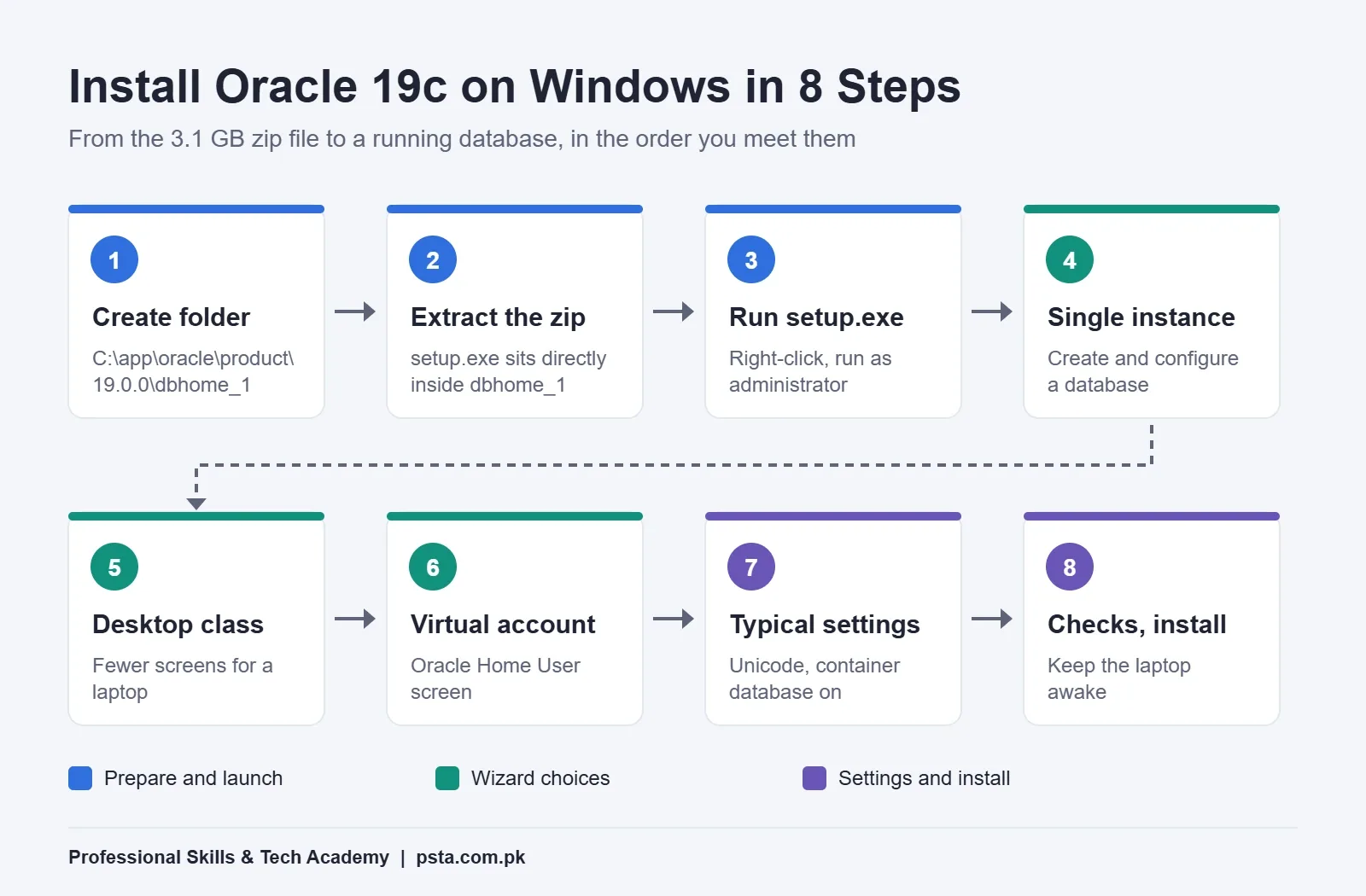
- Create the Oracle home folder. Use a short path with no spaces. Oracle's own example is
C:\app\oracle\product\19.0.0\dbhome_1. Avoid the Desktop, Downloads and OneDrive folders. - Extract the zip into that folder. Right-click the zip, choose Extract All, and point it at the dbhome_1 folder. When it finishes, you should see
setup.exedirectly inside dbhome_1, not inside an extra subfolder. - Run setup.exe from the Oracle home. Right-click it and choose Run as administrator. Oracle's guide is clear that you should run
setup.exefrom the Oracle home only, not the copy under theoui\binfolder.
Steps 4 to 8: The Setup Wizard Screens
- Configuration option. Choose "Create and configure a single instance database". The other choice, "Set Up Software Only", installs the program files without a database, which is what DBAs use when they plan to build the database separately.
- System class. Choose Desktop class for a laptop. Server class opens many more screens that matter on real servers but slow a beginner down.
- Oracle Home User. Choose "Use Virtual Account" (explained in the next section).
- Typical install configuration. Set the Oracle base, database file location, edition, character set, global database name, password and pluggable database name. Details follow below.
- Prerequisite checks, summary, install. The wizard checks memory, swap and free disk space, shows a summary, and then installs. When the configuration assistants finish, close the wizard.
On a modest laptop, step 8 is the long one. The progress bar can sit on the database creation stage for a while. Leave it alone and don't put the laptop to sleep.
The Oracle Home User Screen, Explained
This screen confuses almost everyone the first time, because Linux installs don't have it. Windows services need an account to run under, and this screen chooses that account. Oracle's platform guide on the Oracle Home User describes four options:
| Option | What it does | Use it when |
|---|---|---|
| Use Virtual Account | Runs the services without a password you have to manage | Practice laptops and most single-instance installs |
| Use Existing Windows User | Runs services as a standard local or domain user you already have | Office machines with an IT policy on service accounts |
| Create New Windows User | The installer creates a local user with the name and password you give | You want a named account but don't have one yet |
| Use Windows Built-in Account | Runs services as the high-privilege LocalSystem account | Avoid for a database install |
For a single-instance database, Oracle recommends a virtual account or a standard Windows user rather than the built-in account, because LocalSystem has far more power over the machine than a database needs. The Oracle home user virtual account option is the simplest safe choice for a student laptop.
One edge case: Oracle's Windows known-issues list for 19c notes that external procedures can fail with ORA-28575 when a virtual account is used. You won't touch external procedures in your first months of SQL and PL/SQL, so it's not a reason to pick another option now.
Desktop Class Settings Worth Getting Right
The Typical Install Configuration screen packs most of your decisions into one form. Here's how to fill each field sensibly.
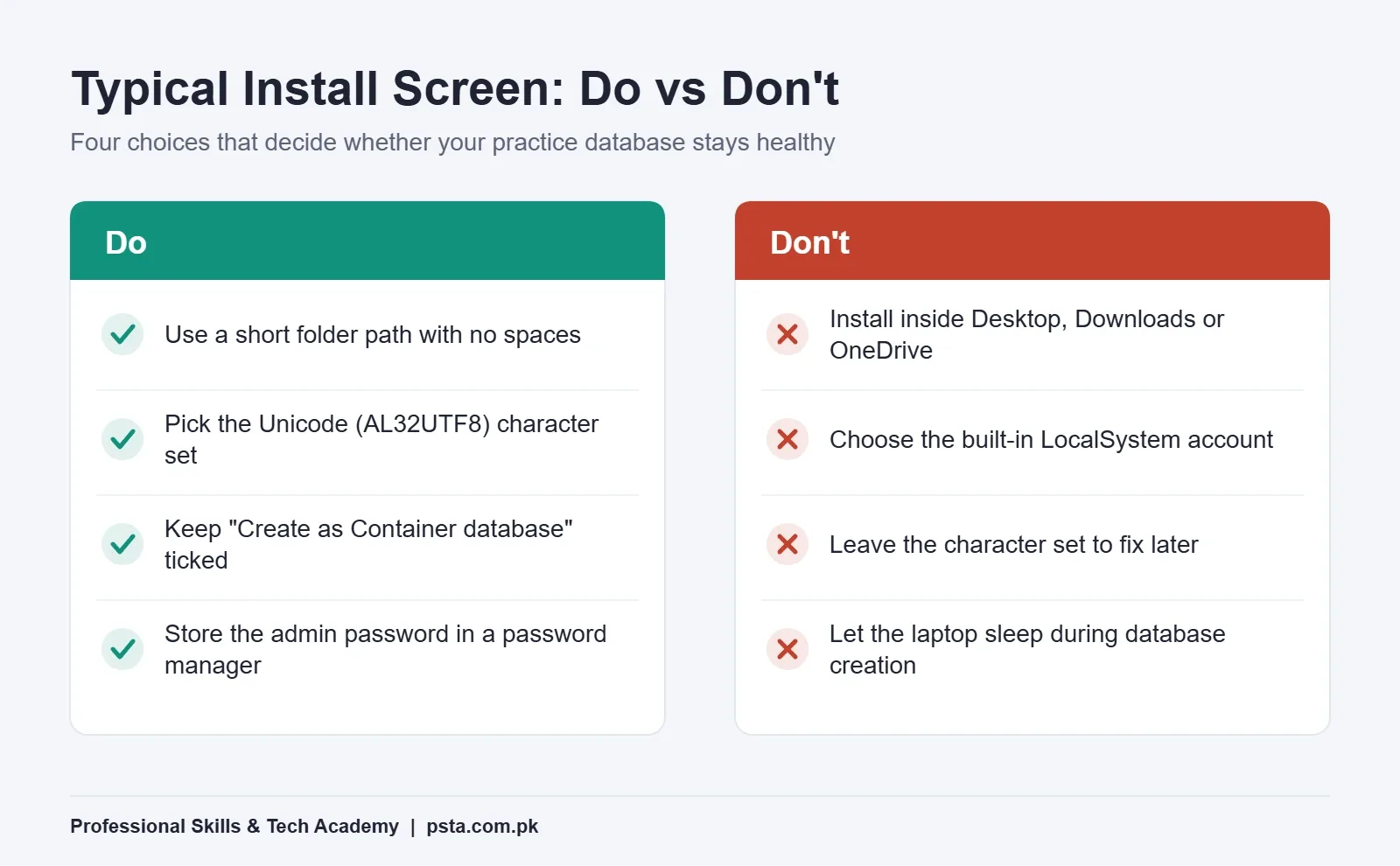
- Oracle base and database file location: Keep them on the same SSD, in short paths without spaces. Write them down.
- Database edition: Enterprise Edition is fine for learning on your own machine and matches what most course material assumes.
- Character set: Choose Unicode (AL32UTF8). If you ever store Urdu text, customer names with special characters or data from web forms, you'll be glad you did. Changing the character set later is painful.
- Global database name: The suggested default is orcl. Keeping it makes tutorials easier to follow.
- Password: This one password goes to SYS, SYSTEM and the PDB admin account. Pick something you'll remember and store it in a password manager, not on a sticky note on the laptop.
- Create as Container database: Leave this ticked and note the pluggable database name. Modern Oracle work happens inside PDBs, and job interviews ask about them.
First Connection: SQL*Plus, the Listener and Your PDB
When the wizard closes, test the install before you do anything else. Open a new Command Prompt so it picks up the updated PATH.
Check the Listener
Oracle's networking guide explains that the default listener is called LISTENER and uses TCP port 1521. That Oracle listener port 1521 is the door every client connection knocks on. Run:
lsnrctl statusLook for "Services Summary" near the bottom. Your database name and your PDB name should both appear. If they don't, wait a minute and run it again, because the database registers itself with the listener shortly after startup.
Log In and Open the PDB
The simplest SQL Plus connect command for the administrator is sqlplus / as sysdba. You land in the root container. Now check the state of your pluggable database:
SELECT name, open_mode FROM v$pdbs;If your PDB shows MOUNTED rather than READ WRITE, open it and tell Oracle to remember that state after a restart. The ORACLE-BASE article on CDB and PDB startup covers this feature, which arrived in 12.1.0.2:
ALTER PLUGGABLE DATABASE orclpdb OPEN;
ALTER PLUGGABLE DATABASE orclpdb SAVE STATE;
Replace orclpdb with the name you chose. The save only sticks if the PDB is already open, so run the two lines in that order.
Create a Practice User Inside the PDB
Don't practice as SYS. Switch into the PDB first, because ordinary users belong there, not in the root container:
ALTER SESSION SET CONTAINER = orclpdb;
CREATE USER student IDENTIFIED BY ChooseAStrongOne1;
GRANT CREATE SESSION, CREATE TABLE, CREATE VIEW, CREATE SEQUENCE TO student;
ALTER USER student QUOTA 200M ON users;
Now connect as that user with the Easy Connect format, host:port/service:
sqlplus student@localhost:1521/orclpdbIf this works, you've managed to install Oracle 19c on Windows properly, and the setup is ready for real practice. Try the examples from our SQL joins guide on a couple of small tables.
Optional: Enterprise Manager Express
The installer also sets up a browser console. A SQLShack installation walkthrough reaches it at https://localhost:5500/em and signs in as SYS. Your browser will warn about the certificate on localhost; that's expected on a personal machine.
Why Won't It Connect? A Troubleshooting Order
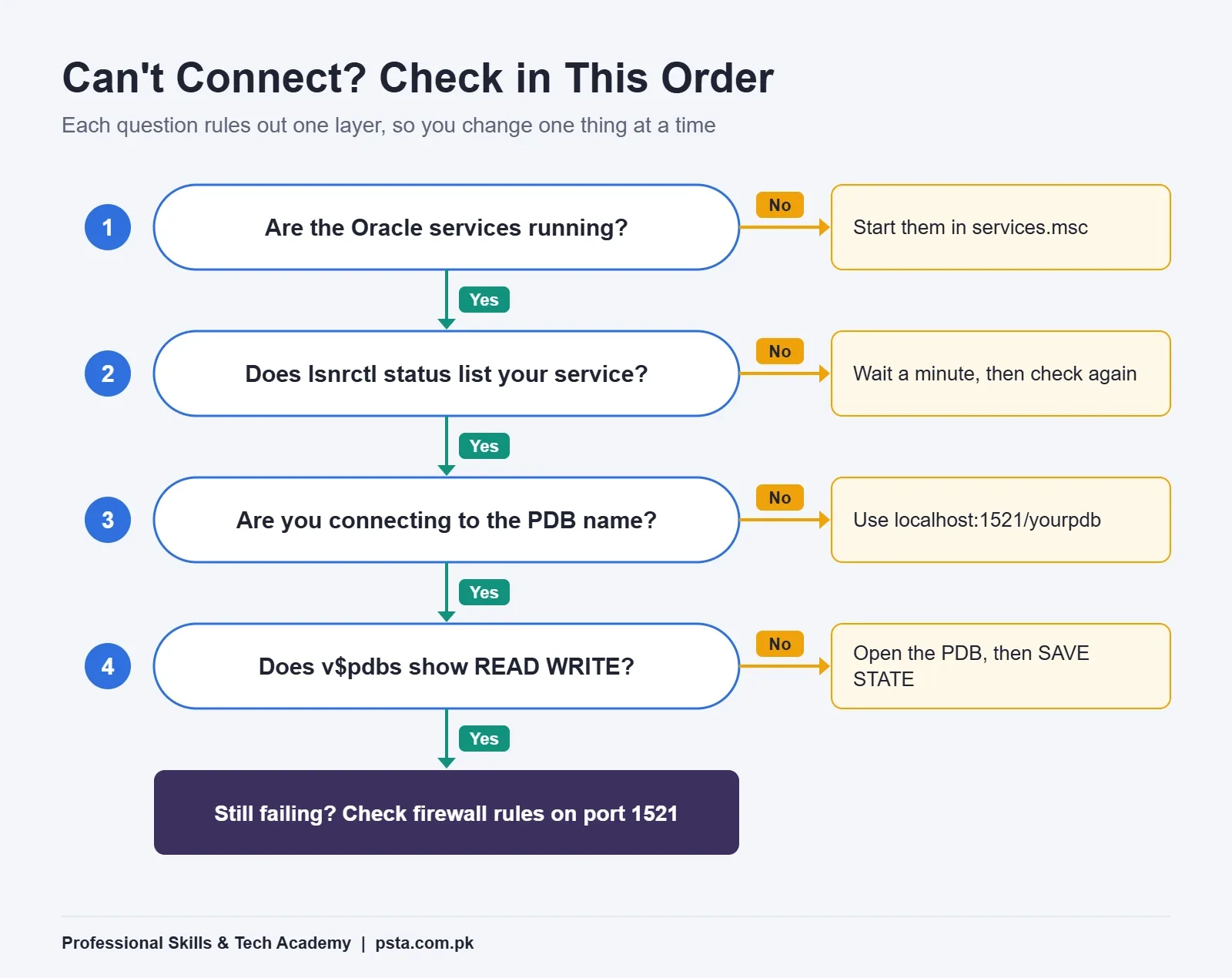
When something fails, check in this order. Each step rules out one layer, so you don't change five things at once.
- Are the Oracle services running? Press Win + R, type
services.msc, and sort by name. Find the services whose names start with "Oracle". The database service and the listener service should both show Running. Start them if they don't. - Does the listener know your service? Run
lsnrctl statusagain. A missing service name usually means the database isn't fully started. - Are you connecting to the right name? Practice users live in the PDB. Connecting to orcl instead of your PDB name is a classic mix-up.
- Is the PDB open? Query
v$pdbsas shown above. MOUNTED means it isn't accepting normal logins yet. - Is something else blocking port 1521? Rare on a personal laptop, but a third-party firewall or another database tool can get in the way.
Removing a Failed Install Cleanly
Sometimes starting fresh really is faster. Use the deinstall tool from the Oracle home (deinstall\deinstall.bat) rather than deleting folders first. Oracle's known-issues list mentions that deinstall can fail with "file in use" errors because services are still running, leaving the Oracle home behind. If that happens, stop the Oracle services, restart Windows, and then remove the leftover folder by hand.
Is Oracle 19c Still Worth Installing in 2026?
Yes, for a learner it's a sensible choice. 19c is Oracle's long-term release, and The Register reported that Oracle extended Premier Support for it to December 31, 2029, with Extended Support to December 31, 2032. That means banks, telecoms and large companies running 19c aren't under pressure to leave it soon, and the admin skills you build on it carry over to newer releases.
What changes between versions is mostly new features on top. Tablespaces, users and roles, the listener, RMAN backups and the CDB/PDB model all work the same way you'll practice here. If you're still deciding between database platforms, our comparison of Oracle vs MySQL lays out where each one tends to be used.
Practicing Database Work in PSTA's Oracle Course
A working install is only the starting line. In the Oracle Database 19c Masterclass, installation and Oracle Net configuration form part of Module 4, alongside tablespace management, user security, roles, profiles and auditing. It's a 12-week, beginner-level program that moves from SQL fundamentals to PL/SQL, architecture, RMAN backup and recovery, performance tuning, and finally multitenant (CDB/PDB) labs with a capstone project.
Right now the masterclass costs Rs. 33,000, down from its regular Rs. 45,000. Classes run at our Abbottabad campus on Old College Road in Mandian, opposite FIMS College. If you live elsewhere in Pakistan, you can take the same sessions live online, or combine the two. A fresh batch opens each month.
If your interest leans toward writing procedures rather than running servers, read our explainer on SQL vs PL/SQL first. Preparing for job tests? Keep our list of SQL interview questions for freshers open and try each answer on your new install. Fees for every program sit on the all courses page, and you can apply through admission or send a question on WhatsApp at +92 314 5424399.
Tonight's 10-Minute Task
Before you download anything, open Settings, then System, then About on your laptop. Note three things: installed RAM, free space on your SSD, and your exact Windows edition. Compare them with the tables above. If all three pass, start the 3.1 GB download tonight so it's ready, and verify its SHA256 hash in the morning before you extract it.
Frequently asked questions
Can I install Oracle 19c on Windows 11 Home?
Oracle's certified list for 19c includes Windows 11 Pro, Enterprise and Education, not Home. The installation steps are the same on a Home laptop, so you can follow this guide for practice. Treat it as a learning setup only, and if services or permissions behave strangely, remember the edition is outside Oracle's supported list.
Is Oracle 19c free to download for learning?
Oracle publishes the 19.3 Windows zip on its download page, and you must accept the license agreement and sign in with an Oracle account before downloading. Read the license terms shown on that page to confirm what your use allows. For production use in a business, check licensing with Oracle or an authorized partner.
How much RAM do I need for Oracle 19c on a laptop?
Oracle's documented minimum for Windows x64 is 2 GB of RAM, with virtual memory equal to RAM up to 16 GB. That minimum only lets the software install. For comfortable practice with SQL Developer and a browser open, 8 GB or more works much better, and an SSD helps even more.
Which file should I download for Oracle 19c on Windows?
Download WINDOWS.X64_193000_db_home.zip from Oracle's 19c Windows download page. It is 3,105,763,999 bytes, roughly 3.1 GB. The client, grid, gateways and examples zips are different products and will not create a database. Check the SHA256 hash with certutil before you extract the file.
Should I choose Desktop class or Server class?
Choose Desktop class on a personal laptop. It asks fewer questions and creates a working container database with sensible defaults. Server class exposes more settings for storage, memory and management that matter on production servers. You can learn those settings later in a DBA course once the basics feel familiar.
Why does SQL*Plus say ORA-12541 no listener after installation?
That error means the client could not reach a listener on the host and port you used. Open services.msc and make sure the Oracle listener service is running, then run lsnrctl status. Also confirm you are connecting to localhost on port 1521 with your PDB name as the service.
How do I make my pluggable database open automatically?
Connect as SYSDBA, open the PDB with ALTER PLUGGABLE DATABASE yourpdb OPEN, then run ALTER PLUGGABLE DATABASE yourpdb SAVE STATE. The saved state only records if the PDB is already open in READ WRITE or READ ONLY mode. After that, the PDB opens on its own whenever the container database restarts.
Sources & references
- Oracle Database 19c Hardware Requirements for Windows x64 docs.oracle.com
- Operating System Checklist for Oracle Database on Windows docs.oracle.com
- Installing the Oracle Database Software (19c, Windows) docs.oracle.com
- Oracle Database 19c (19.3) for Windows Downloads oracle.com
- Using Oracle Home User for Oracle Database and Client docs.oracle.com
- Issues Affecting Microsoft Windows for Oracle Database 19c docs.oracle.com
- Configuring the Network Environment (Oracle 19c 2 Day DBA) docs.oracle.com
- The Register: Oracle extends 19c database support to 2032 theregister.com
Last reviewed & updated on by Umar Qureshi. Written by the PSTA team in Abbottabad, Pakistan.

Umar Qureshi

Oracle Database 19c Masterclass: SQL, PL/SQL & Administration
Turn this guide into a career: hands-on training with real projects, online across Pakistan or on-campus in Abbottabad · 12 Weeks.
Comments
No comments yet — ask a question or share your experience.