Quick answer
To organize computer files, keep all your work inside Documents, use four to six broad folders no more than three levels deep, name files with the date first and hyphens instead of spaces, rename downloads straight away, and keep three copies of important files: laptop, USB drive and free cloud storage.
Key takeaways
- • Turn on file name extensions in File Explorer so you can see .docx, .pdf and .exe at a glance.
- • Use four to six top-level folders inside Documents and stop at three levels deep.
- • Name files date first (2026-11-20-topic), with hyphens instead of spaces and v01, v02 versions.
- • Windows blocks nine characters in file names, including the colon, slash and question mark.
- • Follow CISA's 3-2-1 backup rule using a USB drive plus free OneDrive (5 GB) or Google (15 GB) storage.
Table of contents 32 sections
- Why Do Beginners Lose Files on Their Own Computer?
- Part 1: Know Where Windows Keeps Your Work (Items 1 to 4)
- Item 1: Open File Explorer and Find the Standard Folders
- Item 2: Turn On File Name Extensions
- Item 3: Learn Six Common Extensions
- Item 4: Choose One Home for Your Own Work
- Part 2: Build a Folder Structure You Can Explain in One Sentence (Items 5 to 8)
- Item 5: Create Four to Six Top-Level Folders
- Item 6: Stop at Three Levels Deep
- Item 7: Keep the Desktop for Today Only
- Item 8: Make an Archive Folder
- Part 3: A File Naming Convention That Sorts Itself (Items 9 to 13)
- Item 9: Use the Same Order Every Time
- Item 10: Write Dates Year First
- Item 11: Swap Spaces for Hyphens or Underscores
- Item 12: Pad Numbers With a Zero
- Item 13: Number Versions Instead of Writing Final
- Which Characters Can't Go in a Windows File Name?
- Part 4: Daily Habits for File Management for Beginners (Items 14 to 16)
- Item 14: Rename Downloads Straight Away
- Item 15: Use Save As and Pick the Folder Yourself
- Item 16: Do a Weekly Ten-Minute Tidy
- Part 5: Back Up Before Something Goes Wrong (Items 17 to 20)
- Item 17: Follow the 3-2-1 Backup Rule
- Item 18: Turn On Free Cloud Backup
- Item 19: Keep a USB or External Copy and Test It
- Item 20: Keep Private Documents Separate
- How Do You Organize Computer Files You Already Have?
- Example Folder Structures You Can Copy
- The 20-Point Checklist to Organize Computer Files at a Glance
- File Handling Inside PSTA's Office Automation Course
- Spend 20 Minutes on Your Downloads Folder
Before you learn how to organize computer files, take this quick self-test and answer each question with a plain yes or no. Be honest, because nobody is marking it except you.
- Could you open last month's most important document in under 30 seconds?
- Does your Desktop fit on one screen without icons stacked on top of each other?
- Do you have fewer than three files called "final" for the same assignment or letter?
- Can you see whether a file ends in .docx, .pdf or .jpg just by reading its name?
- If your laptop was stolen tonight, would your CV and certificates still exist somewhere else?
Five yes answers means your habits are already solid, and this guide will tidy the edges. Three or fewer is very common for anyone who never had a lesson on it, and the 20-point checklist below was written for you. It needs no paid software, only Windows, File Explorer and about an hour of attention.
Here is what this checklist covers:
- Where Windows saves things by default, and how to read file types at a glance
- A three-level folder structure that a student, office assistant or shop owner can copy
- A file naming convention that keeps files in date order without any effort
- The characters Windows refuses in a file name, so saving never fails
- A backup routine based on the 3-2-1 backup rule, using free cloud storage you probably already have
Why Do Beginners Lose Files on Their Own Computer?
Most beginners lose files because they accept whatever location the computer suggests. A form downloads into Downloads, a photo lands in Pictures, a Word file saves into Documents, and a WhatsApp attachment goes somewhere else again. After a few months, nothing is truly lost, but nothing can be found either.
The second cause is vague names like "New Microsoft Word Document (3).docx". The third is having no second copy, so one dropped laptop or failed drive wipes out years of work.
Every item in this checklist fixes one of those three problems: location, names or copies. To organize computer files for good, tick each item only after you have done it on your own machine.
Part 1: Know Where Windows Keeps Your Work (Items 1 to 4)
You can't organize computer files well until you know the places Windows already uses. Spend ten minutes here before you create a single new folder.
Item 1: Open File Explorer and Find the Standard Folders
Press the Windows key and E together to open File Explorer. The left panel shows Desktop, Downloads, Documents, Pictures, Music and Videos. Microsoft's OneDrive backup guide calls these the standard folders that every computer has. Your work lands there unless you choose otherwise.
Item 2: Turn On File Name Extensions
Windows hides the end of each file name by default. Microsoft support explains that a file name has two parts separated by a period, and the short ending identifies the file type. To show it in Windows 11, open File Explorer and choose View, then Show, then File name extensions.
Item 3: Learn Six Common Extensions
Once extensions are visible, you can tell files apart without opening them. Learn these six first; they cover most of what an office or a college sends you.
| Extension | What it is | Usually opened with |
|---|---|---|
| .docx | Word document | Microsoft Word, Google Docs |
| .xlsx | Excel workbook | Microsoft Excel, Google Sheets |
| Portable Document Format file | Edge, Chrome or any PDF reader | |
| .jpg | JPEG photo | Photos app |
| .zip | Compressed folder of files | File Explorer (Extract All) |
| .exe | Program that runs when opened | Windows itself, so be careful |
The last row matters for safety. A file called "fee-challan.pdf.exe" is a program pretending to be a PDF, and visible extensions expose that trick at once.
Item 4: Choose One Home for Your Own Work
Pick a single starting point for everything you create, usually the Documents folder. One home means one place to search and one place to back up when you organize computer files later.
Part 2: Build a Folder Structure You Can Explain in One Sentence (Items 5 to 8)
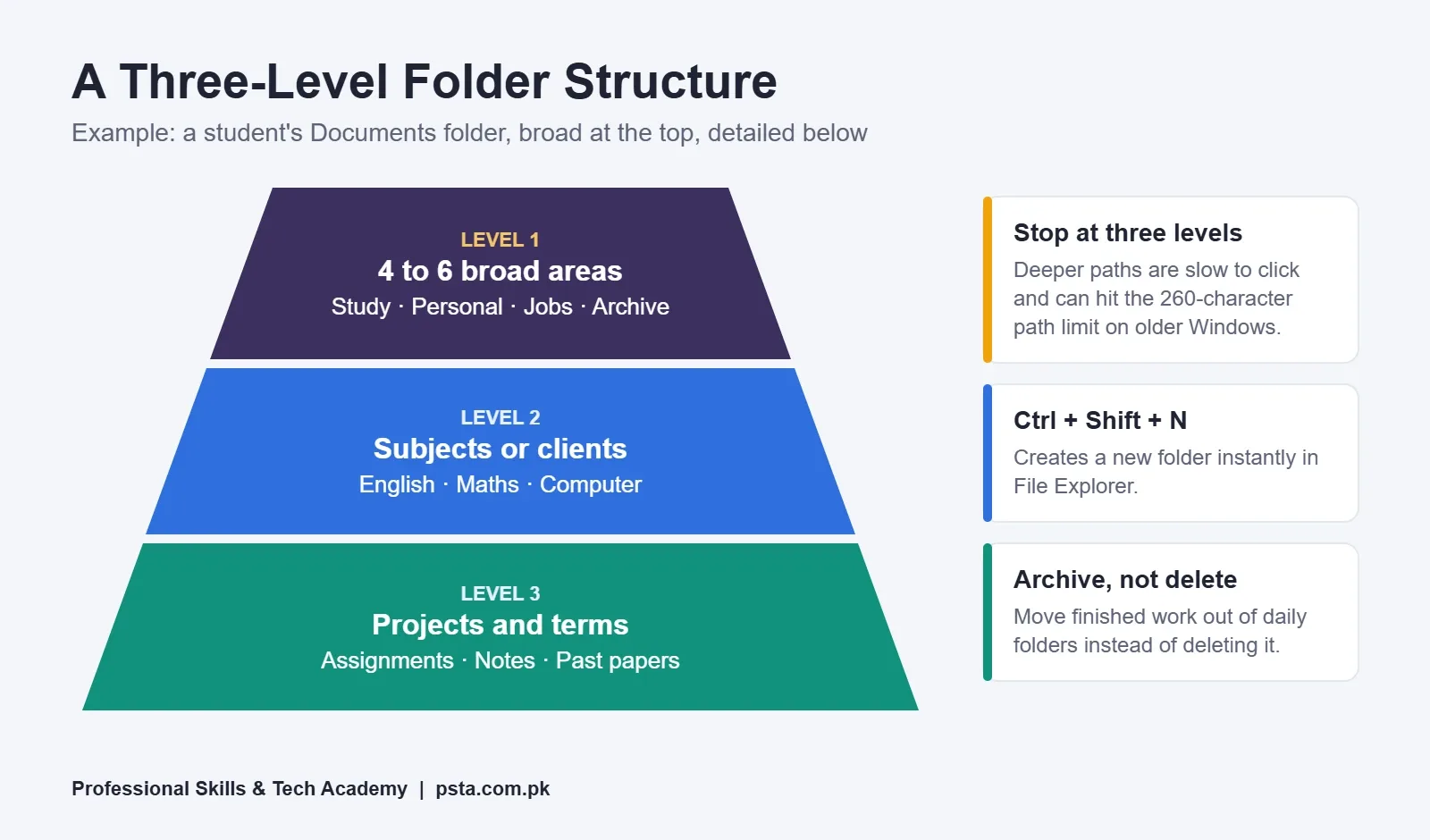
A good folder structure works like a cupboard with labelled shelves. Microsoft's Windows learning center article on creating folders to organize files suggests thinking in levels: broad categories at the top, more specific folders inside them. It also gives the shortcut Ctrl + Shift + N, which creates a new folder in File Explorer instantly.
Item 5: Create Four to Six Top-Level Folders
Inside Documents, make only a handful of broad folders. A college student might use Study, Personal, Jobs and Archive. An office assistant might use Clients, Accounts, HR, Templates and Archive. If you need more than six, two of them probably belong together.
Item 6: Stop at Three Levels Deep
Add subfolders only when a folder feels crowded. Three levels suit most people: area, then subject or client, then term or project. Deeper paths are slow to click through, and Windows has a limit too, explained below.
Item 7: Keep the Desktop for Today Only
The Microsoft article above advises keeping only broad folders on the desktop. Go one step further: let the Desktop hold shortcuts and today's files only, and move each file to its folder before you shut down.
Item 8: Make an Archive Folder
Move last year's semester, an old job's letters or a closed client into Archive. Your daily folders stay short, and nothing is deleted by mistake.
The pyramid below shows how the three levels fit together, using a student's Documents folder as the example. The widest layer at the bottom holds the most files; the top holds the fewest, broadest choices.
Part 3: A File Naming Convention That Sorts Itself (Items 9 to 13)
A file naming convention is a fixed pattern you use for every file name. Universities publish them for staff because they save so much searching. The Trinity College Dublin filename guidelines are a clear example, and the items below follow the same thinking.
Item 9: Use the Same Order Every Time
Choose an order such as date, then topic, then detail, and never change it. For example: 2026-11-20-electricity-bill-november.pdf. When every name follows one pattern, sorting by name also sorts by date, which is the quickest way to organize computer files without extra tools.
Item 10: Write Dates Year First
Trinity College recommends writing dates as year, month, day, for example 2026_11_20 or 20261120. Written this way, File Explorer lists files in true date order. Dates written day-first, like 20-11-2026, scatter across months when sorted.
Item 11: Swap Spaces for Hyphens or Underscores
The same guidelines advise hyphens or underscores instead of spaces. Spaces become %20 when a file goes online, which makes links ugly and sometimes broken.
Item 12: Pad Numbers With a Zero
Name a series lesson-01, lesson-02 and so on, not lesson-1 and lesson-2. Trinity College points out that zero-padding keeps a set of 12 files in the right order. Without it, lesson-10 sorts before lesson-2.
Item 13: Number Versions Instead of Writing Final
Add v01, v02 and v03 to drafts. Write "final" only once, when the work is truly submitted. This one habit ends the classic "final-final-new.docx" problem.
Here is how those rules change real file names you might find on a student's or an office assistant's computer:
| Before | After | Rule applied |
|---|---|---|
| New Microsoft Word Document (3).docx | 2026-11-18-cv-ali-v02.docx | Date first, topic, version |
| IMG_20261103_4471.jpg | 2026-11-03-cnic-front.jpg | Describe the content |
| assignment final FINAL.docx | 2026-11-15-english-essay-final.docx | One "final" only |
| lesson 1.pdf ... lesson 10.pdf | lesson-01.pdf ... lesson-10.pdf | Zero-padding, no spaces |
| sales nov.xlsx | 2026-11-sales-shop.xlsx | Year and month first |
Which Characters Can't Go in a Windows File Name?
Windows blocks nine characters in file and folder names: < > : " / \ | ? and *. If you type one, Windows refuses the name. Microsoft also says names should not end with a space or a period. Certain words, such as CON, PRN, AUX and NUL, are reserved for the system.
These rules come from Microsoft's developer documentation on naming files, paths and namespaces. The same page notes that before Windows 10 version 1607, a full path could be at most 260 characters. Later versions need a registry or Group Policy change to lift that limit.
This is why Item 6 says to stop at three levels. A path ten folders deep, each with a long name, can break copying to a USB drive or an older computer. The colon rule also explains why a time like 10:30 can't go in a file name; write 1030 instead.
Part 4: Daily Habits for File Management for Beginners (Items 14 to 16)
Good folders and names fall apart without small daily habits. File management for beginners is mostly about doing three things at the moment a file arrives, rather than cleaning up once a year.
Item 14: Rename Downloads Straight Away
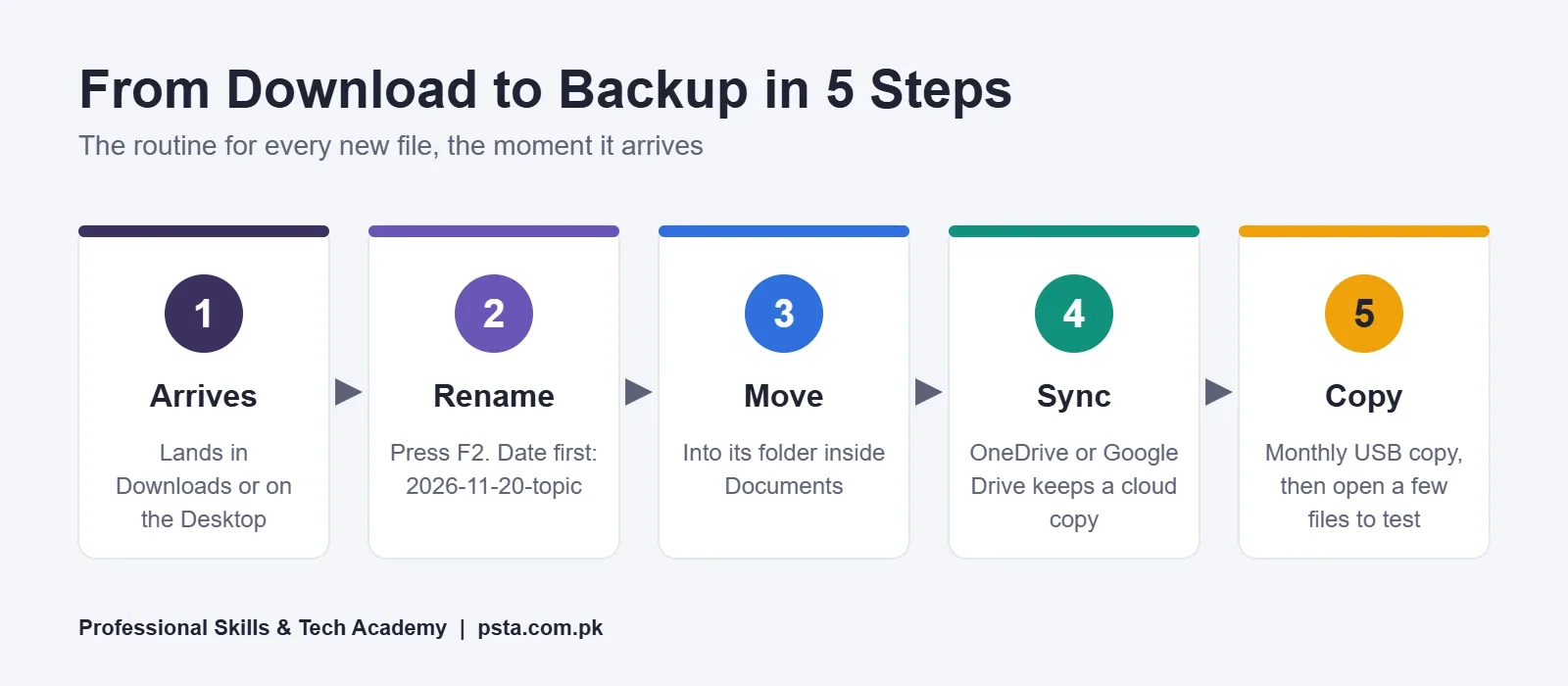
The moment a challan, admit card or bank statement downloads, rename it with your file naming convention. Press F2 in File Explorer to rename the selected file. It takes ten seconds now and saves ten minutes later.
Item 15: Use Save As and Pick the Folder Yourself
In Word or Excel, use Save As (F12 in most Office apps) for every new file. Look at where the dialog is pointing before you click Save. If it isn't your chosen folder, change it first. This single habit prevents most lost documents.
Item 16: Do a Weekly Ten-Minute Tidy
Once a week, empty Downloads and the Desktop into their proper folders and delete true duplicates. A weekly tidy keeps the pile small, and small piles are how you organize computer files without ever needing a big rescue day.
The process below is a simple routine for every new file, from the moment it arrives until it is safely backed up.
Part 5: Back Up Before Something Goes Wrong (Items 17 to 20)
Item 17: Follow the 3-2-1 Backup Rule
The US Cybersecurity and Infrastructure Security Agency (CISA) describes the 3-2-1 backup rule as 3 copies of important files on 2 types of storage, with 1 copy kept off-site. For a student, that can be the laptop, a USB drive and a cloud folder. CISA also recommends a backup that runs automatically and regularly.
Item 18: Turn On Free Cloud Backup
You probably already have free cloud space. Microsoft's storage FAQ says a free Microsoft account includes 5 GB of cloud storage. Google's help page on how Google storage works says each Google Account includes up to 15 GB, shared across Gmail, Google Drive and Google Photos.
On Windows, OneDrive can back up Desktop, Documents and Pictures automatically. Open OneDrive settings, go to Sync and backup, choose Manage backup and switch on the folders you want. Keep phone videos out of it if your free space is small, because they fill 5 GB quickly.
Item 19: Keep a USB or External Copy and Test It
Copy your Documents folder to a USB drive or external hard drive once a month, then open two or three random files from the copy. A backup you have never tested is only a hope.
Item 20: Keep Private Documents Separate
Scans of your CNIC, degrees, bank statements and password lists should sit in one clearly named folder, such as Personal, then IDs. Never share that folder as a whole, and never keep a password list in a plain document. When someone asks for a copy of a document, send that one file, not the folder.
How Do You Organize Computer Files You Already Have?
Build the new structure first, then move old files into it in small batches by year or by type. Don't try to sort everything in one sitting.
- Create your top-level folders inside Documents first (Item 5), plus an Unsorted folder.
- Move everything from the Desktop and Downloads into Unsorted. Your screen is clean instantly.
- In Unsorted, sort by Date modified. Handle the newest month first, because you need those files most.
- Rename and move each file into its proper folder. Delete obvious duplicates and old installers.
- Anything older than a year that you are unsure about goes straight into Archive, unchanged.
- Turn on cloud backup (Item 18) only after the cleanup, so you don't upload junk.
This is the calmest way to organize computer files after years of saving everywhere. Spreading it over a week keeps it from feeling like a punishment.
Example Folder Structures You Can Copy
Here are example layouts for three common situations. Change the names, but keep the three-level shape whenever you organize computer files for work, study or a shop.
| Who | Level 1 (Documents) | Level 2 | Level 3 |
|---|---|---|---|
| College or DIT student | Study, Personal, Jobs, Archive | Study: one folder per subject | Assignments, Notes, Past papers |
| Office assistant | Clients, Accounts, HR, Templates, Archive | Clients: one folder per client | Letters, Invoices, Contracts |
| Shop owner | Sales, Stock, Suppliers, Bills, Archive | Sales: one folder per year | One file per month |
Every layout has an Archive folder, because finished work needs somewhere to go. When you organize computer files for a family member, start from the row closest to their life.
The 20-Point Checklist to Organize Computer Files at a Glance
Print this list or copy it into a note on your phone. It is everything you need to organize computer files on one page.
- Open File Explorer and find the standard folders.
- Turn on file name extensions.
- Learn .docx, .xlsx, .pdf, .jpg, .zip and .exe.
- Choose Documents as the one home for your work.
- Create four to six top-level folders.
- Stop at three levels deep.
- Keep the Desktop for today's files only.
- Make an Archive folder.
- Use one naming order every time.
- Write dates year first.
- Use hyphens or underscores, not spaces.
- Pad numbers with a zero.
- Number versions; write "final" once.
- Rename downloads straight away.
- Use Save As and choose the folder yourself.
- Tidy Downloads and Desktop weekly.
- Follow the 3-2-1 backup rule.
- Turn on free cloud backup.
- Keep a USB copy and test it monthly.
- Keep private documents in one separate folder.
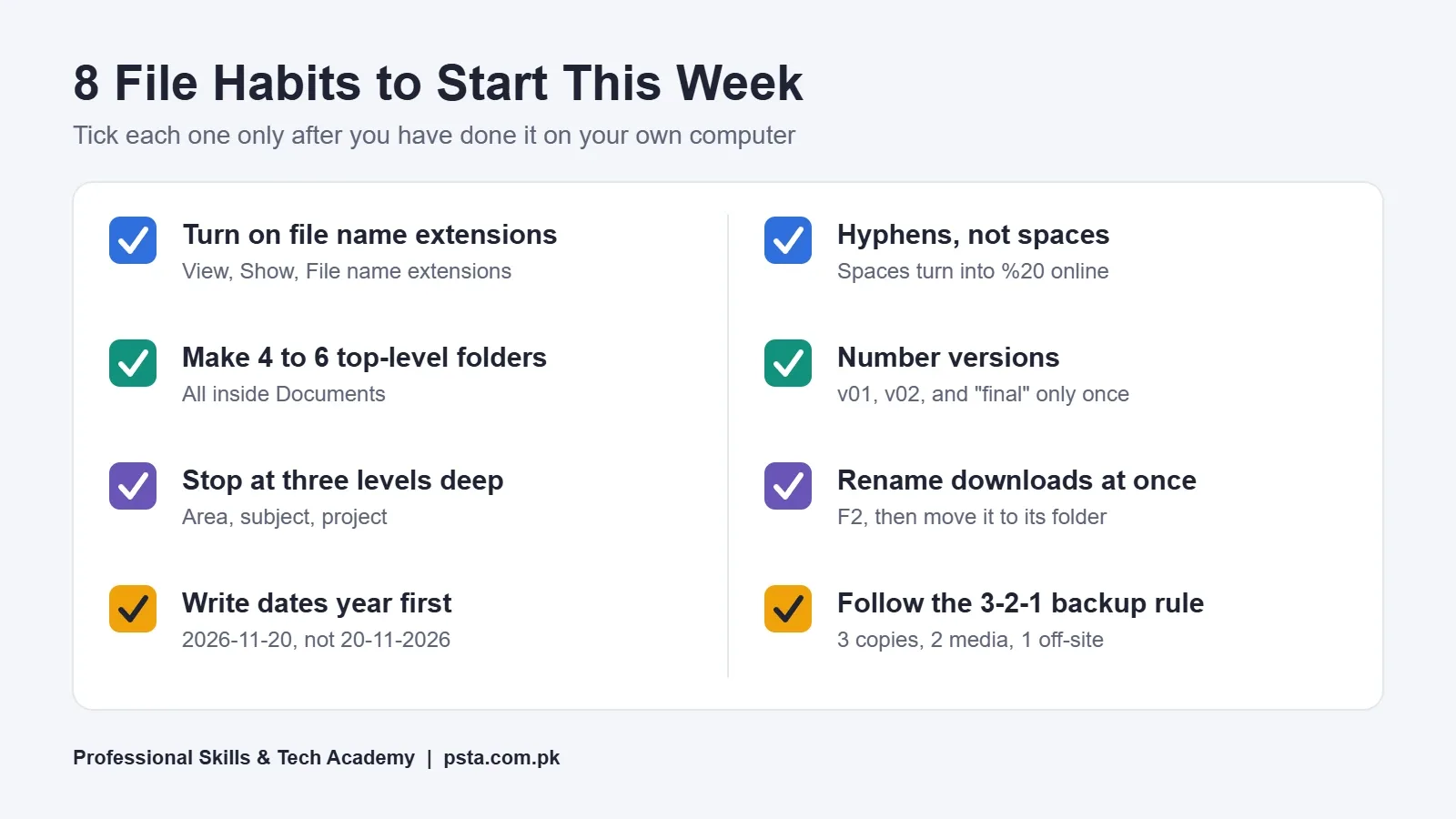
The card below groups the most important habits so you can save it as a reminder. If you only manage eight items this week, start with these.
File Handling Inside PSTA's Office Automation Course
File management is the second part of the outline for the Office Automation course at PSTA (Professional Skills & Tech Academy); the module is called File Management, USB, Printing and Internet Basics. The course page on psta.com.pk lists it as a 12-week, beginner-level course with a current fee of Rs. 12,000 (discounted from Rs. 15,000), payable in 2 installments.
After that foundation, the course moves through English and Urdu typing, Microsoft Word, Excel and PowerPoint, office tasks such as reports and data entry, and basic maintenance. Listed projects include a formatted CV, an Excel sales sheet with a chart and a multi-page office report. That means you practice how to organize computer files on real work. For keyboard speed in Word, see our guide to MS Word shortcut keys.
Classes run at the Abbottabad campus (Mandian, Old College Road, opposite FIMS College), as live online sessions you can attend from any city in Pakistan, or as a hybrid of both. Batches open monthly, and lessons are scheduled Monday through Saturday, with time slots that start at 9:00 AM and finish by 9:30 PM. Employers can confirm that a certificate is genuine on the certificate verification page.
If you need a longer program, the one-year DIT covers office skills alongside wider IT subjects. If you are not sure which skills an employer expects first, read our list of basic computer skills for office jobs, or browse all PSTA courses.
Spend 20 Minutes on Your Downloads Folder
Don't try all 20 items at once. The easiest first step to organize computer files is small: open File Explorer, turn on file name extensions, and create your top-level folders inside Documents. Then give your Downloads folder 20 minutes: rename and move the ten files you are most likely to need again.
Next week, retake the self-test from the top of this page and count your yes answers again. Want to learn these habits alongside Word, Excel and typing with a trainer? You can apply for admission online or ask a question on WhatsApp at +92 314 5424399.
Frequently asked questions
What is the easiest way to organize computer files as a beginner?
Start small. Turn on file name extensions in File Explorer, then create four to six broad folders inside Documents, such as Study, Personal, Jobs and Archive. Save every new file into one of them with Save As, and rename downloads as soon as they arrive. Once those habits feel normal, add naming rules and backups.
How many folders and subfolders should I make?
Four to six top-level folders are enough for most people, with subfolders added only when a folder becomes crowded. Try not to go deeper than three levels, such as area, subject and project. Deeper trees take longer to click through, and very long paths can cause copy errors on older versions of Windows.
What is a good file naming convention for students?
Put the date first in year-month-day order, then the subject, then a short detail, joined with hyphens. For example, 2026-11-15-english-essay-v02.docx. This keeps files in date order when sorted by name, avoids problems with spaces online, and shows which draft is newest without opening anything.
Why does Windows say my file name is not valid?
Windows does not allow nine characters in file or folder names: less than, greater than, colon, double quote, forward slash, backslash, vertical bar, question mark and asterisk. Names also cannot end with a space or a period, and words such as CON, PRN, AUX and NUL are reserved. Remove the character and save again.
Should I keep files on the Desktop?
Use the Desktop for shortcuts and the files you are working on today, then move each file to its proper folder before you shut down. A crowded Desktop makes files hard to find, and OneDrive only backs up the Desktop if you switch that folder on in its backup settings.
Is free cloud storage enough to back up my files?
For documents, often yes. A free Microsoft account includes 5 GB of cloud storage, and each Google Account includes up to 15 GB shared across Gmail, Drive and Photos. Phone videos fill that space quickly, so back up documents and certificates to the cloud and keep large media on a USB or external drive.
Do I need special software to organize my files?
No. File Explorer, which comes with Windows, can create folders, rename files with F2, sort by date, search by name and pin folders to Quick access. OneDrive, also built into Windows, can back up Desktop, Documents and Pictures. Paid tools only help with very large cleanups, such as renaming hundreds of photos at once.
Sources & references
- Create new folders to organize files (Microsoft Windows) microsoft.com
- Common file name extensions in Windows (Microsoft Support) support.microsoft.com
- Naming Files, Paths, and Namespaces (Microsoft Learn) learn.microsoft.com
- Filename guidelines (Trinity College Dublin IT Services) tcd.ie
- Back Up Business Data (CISA) cisa.gov
- Microsoft storage FAQs (Microsoft Support) support.microsoft.com
- How your Google storage works (Google Drive Help) support.google.com
- Back up your folders with OneDrive (Microsoft Support) support.microsoft.com
Last reviewed & updated on by Umar Qureshi. Written by the PSTA team in Abbottabad, Pakistan.

Umar Qureshi

Certified Office Automation Course: Master MS Office & Computer Basics
Turn this guide into a career: hands-on training with real projects, online across Pakistan or on-campus in Abbottabad · 12 Weeks.

Comments
No comments yet — ask a question or share your experience.