
Quick answer
A pivot table in Excel summarizes a long list without formulas. Clean the data into one header row, convert it to a table with Ctrl + T, then use Insert > PivotTable. Put labels in Rows or Columns and numbers in Values. Group dates by month, use Show Values As for percentages, and refresh after changes.
Key takeaways
- • Clean data first: one header row, no merged cells, no subtotal rows, real numbers and real dates.
- • Convert the list to an Excel table so new rows reach the pivot table after a refresh.
- • Labels go in Rows or Columns; numbers go in Values, where Excel adds them up by default.
- • Right-click a date and choose Group to see months and quarters instead of daily rows.
- • Show Values As gives percentages, ranks and running totals without a single formula.
- • Wrong totals usually mean a missed refresh, numbers stored as text, blanks or extra spaces.
Table of contents 12 sections
- What Is a Pivot Table in Excel, in Plain Words?
- The Example Business We'll Use
- Clean the Sheet First: Five Checks
- Build the Pivot Table in Excel: The Core Clicks
- Which Box Should Each Field Go In?
- Group Daily Dates Into Months and Quarters
- Show Values as Percentages, Ranks and Running Totals
- Add Slicers and a PivotChart for the Weekly Meeting
- Why Is My Pivot Table Showing Wrong Numbers?
- Pivot Table vs SUMIFS vs Power BI: When to Use Which
- Practicing Excel Reports in PSTA's Office Automation Course
- A 30-Minute Exercise for This Evening
Try this quick self-test to see how much a pivot table in Excel could help you. Your manager sends you a sheet with 1,240 rows of sales and asks three things: which product category earned the most, how the two branches compare, and which month was weakest. If your plan involves sorting, copying and adding with a calculator, this tool will save you most of that afternoon. If you already know how to drag fields into Rows and Values, skip ahead to the sections on grouping dates, percentages and slicers.
A pivot table reads a long list of records and turns it into a short summary you can rearrange with the mouse. No formulas are typed, and the source data stays untouched. This Excel pivot table for beginners walkthrough builds one report from start to finish for an example business, so every click has a reason behind it.
Here is what you'll be able to do after this walkthrough:
- Prepare a messy sales sheet so Excel can summarize it correctly
- Build a category-by-branch report in under five minutes
- Turn daily dates into months and quarters with one right-click
- Show each category as a share of total sales and rank the results
- Add slicers and a chart, and fix the errors that confuse most beginners
What Is a Pivot Table in Excel, in Plain Words?
Think of a pivot table in Excel as a question-answering machine for a list. You give it a table where each row is one record, such as one sale, one fee payment or one attendance entry. Then you tell it which column to group by and which column to add up. Excel does the grouping and the totals for you.
The word "pivot" means you can turn the report around. Put branches across the top and categories down the side, then swap them with one drag. The numbers recalculate instantly because Excel isn't editing your data. It only reads it.
In Pakistani offices, you'll find a pivot table in Excel behind school fee collection summaries, shop sales reports, stock movement sheets and HR attendance counts. Interviewers for office and data entry jobs often ask about them, which is why our list of Excel interview questions for office jobs touches on summarizing data.
The Example Business We'll Use
To keep things concrete, this guide follows one example: a stationery shop with two branches, one in Abbottabad and one in Mansehra. The business is invented for teaching, and so are its numbers. The owner keeps every sale from January to June 2026 in one sheet with 1,240 rows and six columns.
| Column | Sample Value | Data Type |
|---|---|---|
| Date | 14-Mar-2026 | Date |
| Branch | Mansehra | Text |
| Category | Notebooks | Text |
| Item | A4 register, 200 pages | Text |
| Qty | 12 | Number |
| Amount (Rs.) | 4,680 | Number |
The owner wants a one-page summary every Monday. Doing it with filters and the SUM function takes about an hour each week. A pivot table in Excel does it in minutes, and next week it only needs a refresh.
Clean the Sheet First: Five Checks
Most problems with a pivot table in Excel start in the source data, not in the pivot table itself. Microsoft's guide to creating a PivotTable asks for clean, tabular data with one header row and unique column labels. Before you click Insert, run these five checks:
- One header row. Delete title rows like "Sales Record 2026" above the headers, and unmerge any merged cells.
- A name for every column. A blank header or two columns both called "Amount" will cause trouble later.
- No subtotal rows inside the data. If someone typed "Total January" halfway down, delete that row. The pivot table will calculate totals itself.
- Numbers stored as numbers. Amounts typed with "Rs." inside the cell are text. Keep the currency in the header instead.
- Real dates in the Date column. A date typed as 14.03.2026 is often stored as text, and text can't be grouped into months.
Then click any cell in the data and press Ctrl + T to turn it into an Excel table, which Microsoft also recommends. A table grows when you add rows below it, so your pivot table picks up new sales after a refresh. If your data arrives from several branch files, our Power Query guide for beginners shows how to combine and clean them first.
Build the Pivot Table in Excel: The Core Clicks
With a clean table in place, the build itself is quick. These steps follow Microsoft 365 and Excel 2021 or 2024 on Windows. Older versions use the same idea with slightly different ribbon names.
- Click any cell inside the sales table.
- Go to Insert and choose PivotTable.
- Confirm the table name in the source box, choose New Worksheet, and press OK.
- In the field list on the right, tick Category. Because it's text, Excel places it in Rows.
- Tick Amount (Rs.). Because it's a number, Excel places it in Values and adds it up.
- Drag Branch into the Columns box.
That's it. You now have four category rows, two branch columns and grand totals on both sides. Rename the header "Sum of Amount (Rs.)" to "Sales" by clicking it and typing, and apply number formatting through Value Field Settings so the commas stay in place after every refresh.
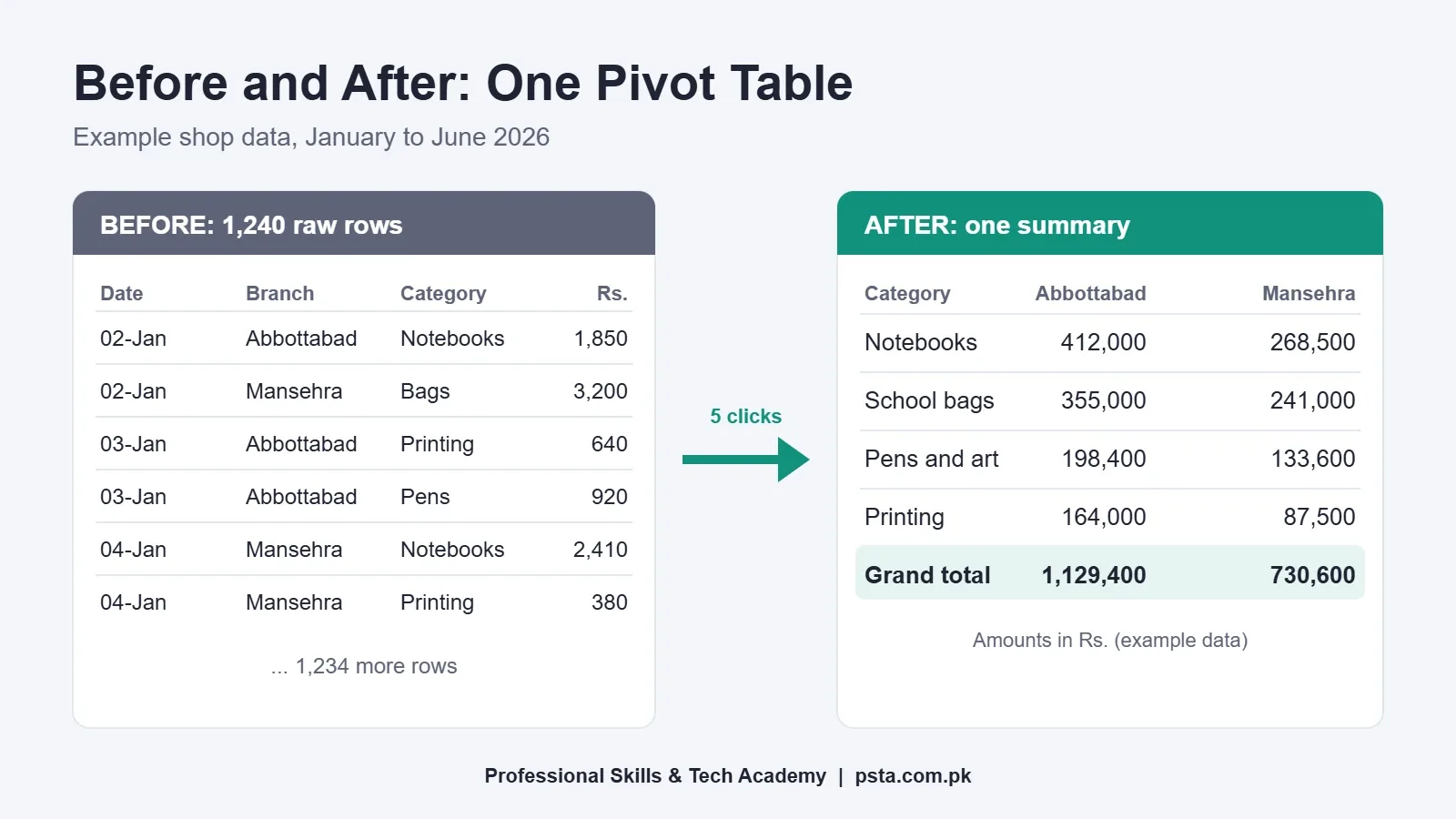
For our example shop, the finished summary reads like this:
| Category | Abbottabad (Rs.) | Mansehra (Rs.) | Total (Rs.) |
|---|---|---|---|
| Notebooks | 412,000 | 268,500 | 680,500 |
| School bags | 355,000 | 241,000 | 596,000 |
| Pens and art supplies | 198,400 | 133,600 | 332,000 |
| Printing and photocopy | 164,000 | 87,500 | 251,500 |
| Grand total | 1,129,400 | 730,600 | 1,860,000 |
Two questions from the self-test are already answered. Notebooks earned the most, and Abbottabad sold more than Mansehra in every category.
Which Box Should Each Field Go In?
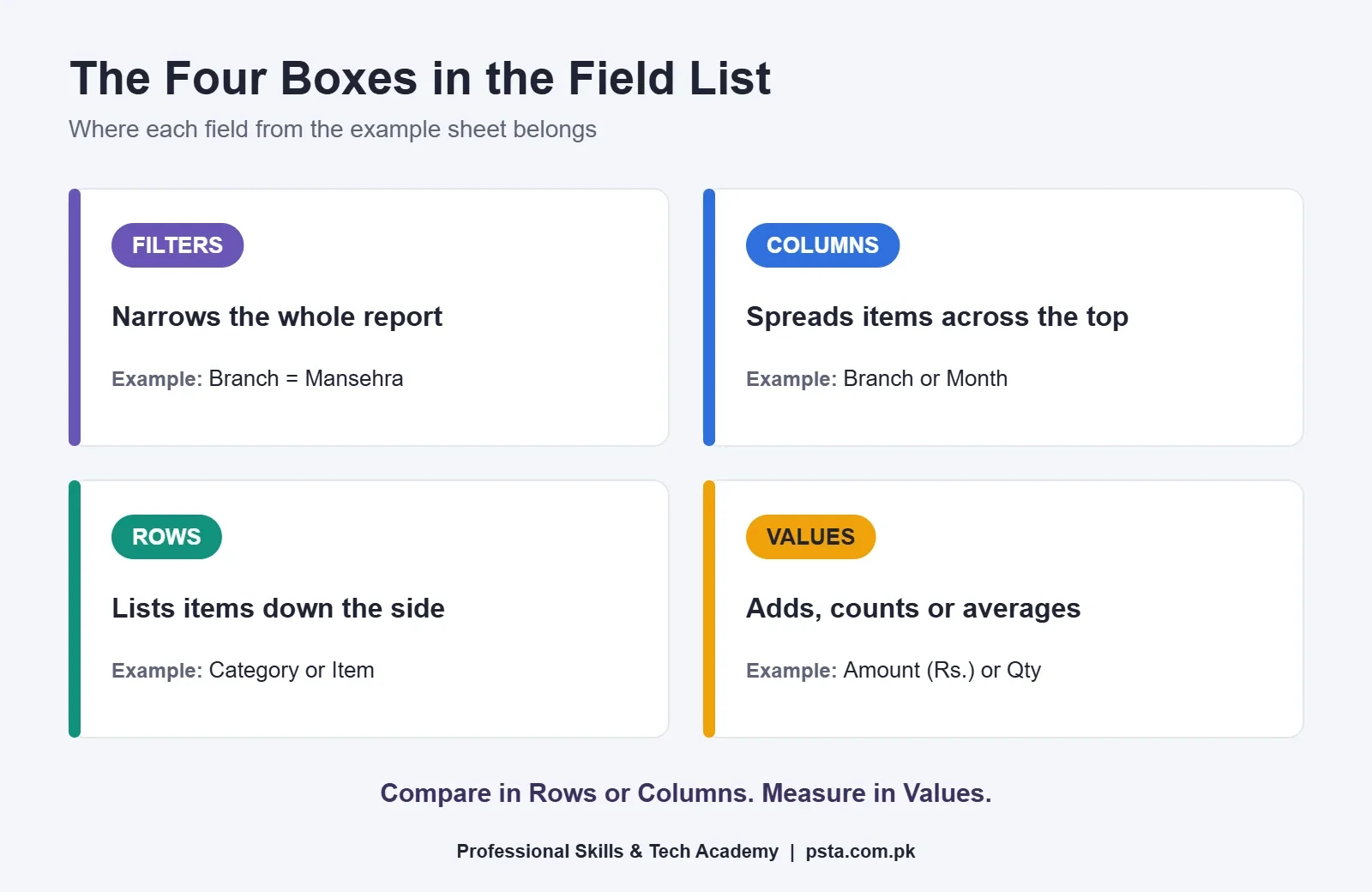
The PivotTable Fields pane has four boxes, and beginners often freeze here. A simple rule helps: put the things you want to compare in Rows or Columns, and put the thing you want to measure in Values. Filters is for narrowing the whole report down.
| Area | What It Does | Example Field |
|---|---|---|
| Rows | Lists each item down the left side | Category, Item |
| Columns | Spreads items across the top | Branch, Month |
| Values | Adds, counts or averages a number | Amount, Qty |
| Filters | Limits the entire report to a choice | Branch = Mansehra |
Keep Columns short. Two branches or six months fit nicely across a screen. Two hundred items across the top won't. If a field has many values, it belongs in Rows.
You can also place the same field twice in Values. Drop Amount in once as a Sum and again as a Count, and you'll see both total sales and the number of transactions side by side.
Group Daily Dates Into Months and Quarters
The third self-test question asked for the weakest month. Your sheet has a date for every sale, and if you don't group dates in a pivot table, a raw Date field would give you around 150 separate rows. Grouping fixes that. The steps below follow Microsoft's page on grouping data in a PivotTable.
- Drag Date into Rows and remove Category for now.
- Right-click any date in the pivot table and choose Group.
- Check the Starting at and Ending at boxes, then select Months under By. Add Quarters too if you want a two-level view.
- Press OK.
Newer Excel versions often group time fields automatically when you add them. If Excel refuses to group your dates, the usual cause is a blank cell or a text entry hiding somewhere in the Date column. Filter that column in the source table, look for anything that isn't a real date, fix it, and refresh.
Grouping works on numbers as well. You can group order amounts into bands such as Rs. 0 to 999, Rs. 1,000 to 1,999 and so on by setting a step value in the same dialog.
Show Values as Percentages, Ranks and Running Totals
Totals in rupees tell the owner how much was sold. Percentages tell him where the money really comes from. Right-click any number in the Values area, choose Show Values As, and pick a calculation from Microsoft's list of Show Values As options. You don't need a single formula.
| Option | Question It Answers | Example Result |
|---|---|---|
| % of Grand Total | What share of all sales is this? | Notebooks = 36.6% |
| % of Column Total | What share of this branch's sales is this? | Bags in Mansehra |
| Difference From | How much higher or lower than a base item? | Mansehra vs Abbottabad |
| Running Total In | What's the cumulative figure so far? | Sales to date by month |
| Rank Largest to Smallest | Which item is first, second, third? | Category ranking |
In our example, switching to % of Grand Total shows notebooks at 36.6%, school bags at 32.0%, pens and art supplies at 17.8% and printing at 13.5%. The owner now knows that two categories bring in more than two-thirds of the revenue.
A good habit is to add Amount to Values a second time and apply the percentage only to the copy. Then the report shows rupees and share next to each other, which is far easier to read in a meeting.
Add Slicers and a PivotChart for the Weekly Meeting
Filters in the field list work, but they're hidden in small drop-down arrows. A slicer in Excel is a panel of big clickable buttons that anyone can use, even someone who has never touched a pivot table.
- Click inside the pivot table.
- Go to Insert and choose Slicer.
- Tick Branch and Category, then press OK.
- Click a button to filter. Hold Ctrl to choose more than one, and use the Clear Filter icon to reset.
If you build a second pivot table from the same source, such as a month-by-month view, select the slicer and use Report Connections on the Slicer tab. One click on "Mansehra" then filters both reports together. Microsoft's slicer guide notes that this only works for pivot tables sharing the same data source.
For a visual, click inside the pivot table, go to Insert, choose PivotChart and pick a clustered column chart, as described in Microsoft's PivotChart steps. The chart follows the pivot table, so when you click a slicer, the chart changes too. Print the sheet or share a screenshot, and the Monday report is done.
Why Is My Pivot Table Showing Wrong Numbers?
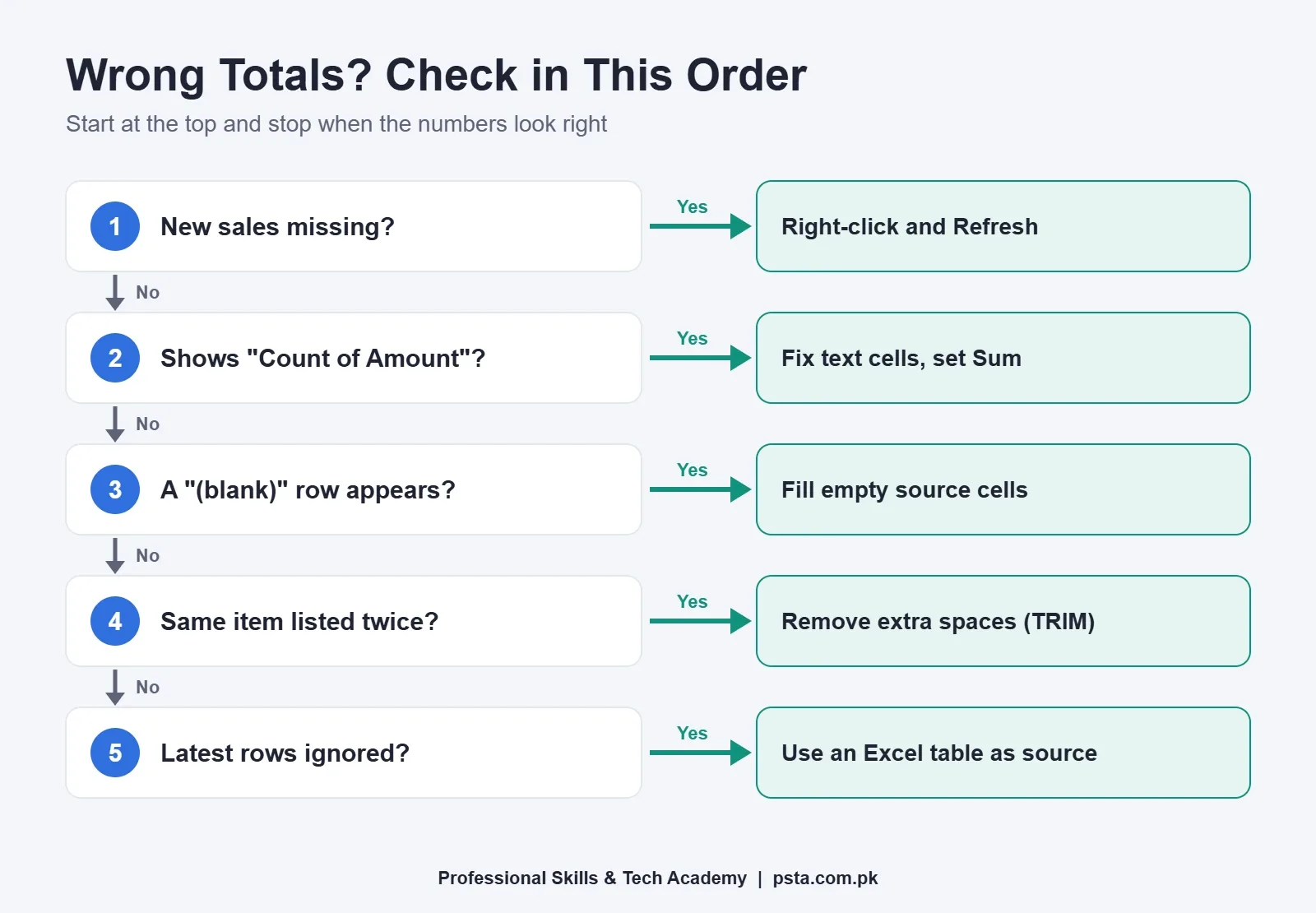
When totals look strange, the cause is almost always one of a handful of things. Work through them in this order before you rebuild anything.
- New sales are missing. Pivot tables don't update on their own, so you need to refresh a pivot table after every change to the source. Right-click inside and choose Refresh, or use Refresh All on the PivotTable Analyze tab to update every pivot table in the file.
- It says "Count of Amount" instead of "Sum". Excel counts a value field when it treats it as text, often because a few cells contain spaces, dashes or "Rs.". Fix those cells, then change the field to Sum in Value Field Settings.
- A "(blank)" row appears. Some rows have an empty Category or Branch. Fill them in at the source.
- The same item shows twice. "Notebooks" and "notebooks " with a trailing space are different values to Excel. Use TRIM or Find and Replace on the source column.
- The range stopped short. If you selected cells instead of an Excel table, new rows below the old range are ignored. Convert the data to a table and change the source once.
Pivot Table vs SUMIFS vs Power BI: When to Use Which
A pivot table in Excel isn't always the right tool. Here's how I'd decide for typical office work in Pakistan:
| Situation | Better Choice | Why |
|---|---|---|
| Quick summary you'll explore by dragging | Pivot table | Fastest to build and rearrange |
| A fixed report layout, such as a printed form | SUMIFS formulas | Cells stay exactly where you put them |
| Looking up one value from another sheet | XLOOKUP | It fetches; it doesn't summarize |
| Several large tables refreshed daily for a team | Power BI | Built for models, sharing and dashboards |
If lookups are your weak spot, read our comparison of VLOOKUP vs XLOOKUP. If you find yourself building the same pivot tables every week for a whole team, that's the point where the Power BI course becomes worth your time.
Practicing Excel Reports in PSTA's Office Automation Course
Reading about a pivot table in Excel helps. Building ten of them on real-looking data is what makes it stick. PSTA's Certified Office Automation Course runs for 12 weeks at beginner level, and its Excel module covers tables, formulas, formatting and charts. Those are exactly the foundations a clean pivot table depends on. One of the course projects is a monthly expense or sales sheet with totals, formatting and a trend chart.
The current fee is Rs. 12,000 (regular Rs. 15,000), payable in two installments. You can study at the Mandian campus on Old College Road in Abbottabad, join live classes online from any city, or mix the two. If you'd like to go further into reporting, ask about pivot table practice when you contact us, or look at the one-year DIT diploma for a broader qualification. Admission details are on the admission page, and all programs are listed on the courses page. You can also message the team on WhatsApp at +92 314 5424399.
A 30-Minute Exercise for This Evening
Open any list you already have: a household expense record, a class fee register or an old sales sheet. Turn it into an Excel table, insert a pivot table, and answer three questions with it: which group is largest, which month is lowest, and what share each group holds. Then add one slicer. If you can do that without looking back at this page, you already have the pivot table skills needed for most office reporting tasks.
Frequently asked questions
Does a pivot table change my original data?
No. A pivot table only reads the source list and builds a separate summary from it. You can drag fields around, group dates or delete the whole pivot table, and your original rows stay exactly as they were. To change a number in the report, correct it in the source data and then refresh the pivot table.
Why is my pivot table not showing new rows I added?
Pivot tables do not update by themselves. Right-click inside the report and choose Refresh. If new rows still do not appear, the source was probably a fixed cell range rather than an Excel table. Convert your data with Ctrl + T, point the pivot table at that table once, and later additions will be picked up on every refresh.
Why does my pivot table say Count instead of Sum?
Excel counts a value field when it reads some of its cells as text. Common culprits are amounts typed with Rs. inside the cell, stray spaces, dashes or numbers pasted from a website. Fix those cells so the column holds only numbers, then open Value Field Settings and choose Sum.
How do I show percentages instead of rupee totals?
Right-click any number in the Values area, choose Show Values As and select % of Grand Total, % of Column Total or % of Row Total. A neat trick is to add the same amount field to Values twice and apply the percentage to the second copy, so the report shows rupees and shares side by side.
Why can't I group dates into months in my pivot table?
Grouping by month needs every cell in the date column to be a real Excel date. One blank cell, or one date typed as text such as 14.03.2026, can stop grouping from working. Filter the source column, fix or remove those entries, refresh the pivot table and try Group again.
Can one slicer filter two pivot tables at once?
Yes, if both pivot tables are built from the same data source. Select the slicer, open the Slicer tab, choose Report Connections and tick the second pivot table. After that, clicking a branch or category in the slicer filters both reports together, which is handy for a one-page weekly summary.
Should I learn pivot tables or Power BI first?
Start with pivot tables. They teach the same core idea of grouping and summarizing data, and you can use them in almost any office that runs Excel. Move to Power BI when you need to combine several large tables, refresh reports daily or share interactive dashboards with a team.
Sources & references
- Create a PivotTable to analyze worksheet data support.microsoft.com
- Group or ungroup data in a PivotTable support.microsoft.com
- Show different calculations in PivotTable value fields support.microsoft.com
- Use slicers to filter data support.microsoft.com
- Create a PivotChart support.microsoft.com
- Certified Office Automation Course psta.com.pk
Last reviewed & updated on by Umar Qureshi. Written by the PSTA team in Abbottabad, Pakistan.

Umar Qureshi

Certified Office Automation Course: Master MS Office & Computer Basics
Turn this guide into a career: hands-on training with real projects, online across Pakistan or on-campus in Abbottabad · 12 Weeks.



Comments
No comments yet — ask a question or share your experience.