Quick answer
The Windows shortcut keys to learn first are Ctrl+C, X, V and Z for text, Alt+Tab and Windows key+arrows for windows, Windows key+Shift+S for screenshots, Windows key+V for clipboard history, Ctrl+Shift+N and F2 in File Explorer, and Windows key+L to lock your PC. Add one group a week.
Key takeaways
- • Start with text editing keys: Ctrl+A, C, X, V, Z, Y and Ctrl+Shift+arrows work in almost every app.
- • Windows key+Left or Right arrow snaps two windows side by side, and Windows key+Z opens snap layouts.
- • On Windows 11, PrtScn selects a region to the clipboard by default; Windows key+PrtScn saves a full-screen file.
- • Turn on clipboard history with Windows key+V to keep up to 25 recent copies and pin the ones you reuse.
- • Shift+Delete skips the Recycle Bin, so keep it for files you're certain about.
- • Lock your PC with Windows key+L whenever you leave your desk.
Table of contents 15 sections
- How Do Windows Shortcut Keys Work?
- Text Editing: Keys You'll Use Every Hour
- Moving the Cursor Without the Mouse
- Windows Shortcut Keys for Managing Open Windows
- Virtual Desktops for Two Kinds of Work
- Screenshot Shortcuts: Which Key Captures What?
- Clipboard History: The Shortcut Most People Never Switch On
- Emoji and Symbols Without Searching
- File Explorer Shortcuts for Faster Filing
- When the PC Freezes or You Step Away
- Do These Windows Shortcut Keys Work on Windows 10?
- Which Shortcuts Should You Learn First?
- Shortcut Myths That Slow Learners Down
- Practicing Shortcuts in PSTA's Office Automation Course
- Put the Mouse Aside for One Task Tomorrow
Before you read a list of Windows shortcut keys, try a 30-second self-test. Without touching the mouse, can you capture only one part of your screen, paste something you copied five copies ago, and lock your PC before you walk away for tea? If you managed all three, skim the tables and pick up the extras. If you managed one or none, this guide is written for you.
Most office staff we train know Ctrl+C and Ctrl+V and stop there. That's a pity, because Windows ships with keys for almost everything you do in a working day: switching windows, filing documents, grabbing screenshots for a WhatsApp group and recovering a frozen screen. Every combination below is checked against Microsoft's official list of keyboard shortcuts in Windows, and each one is tied to a real office task.
In this guide, you'll find:
- How Windows shortcut keys work and which keys act as the "base" of each one
- Text, window, screenshot and File Explorer shortcuts grouped by the job they do
- Clipboard history, the hidden feature that saves the most retyping
- Which keys behave the same on Windows 10 and which need Windows 11
- A three-week order for learning them, so they stick without a cram session
How Do Windows Shortcut Keys Work?
A shortcut is two or three keys pressed together. You hold the first key (or the first two), then tap the last one and let go. For Windows key+E, you hold the key with the Windows logo, tap E, and File Explorer opens.
Almost every combination starts from one of four base keys:
- Ctrl handles editing inside an app: copy, paste, undo, select all.
- Alt handles menus and moving between windows.
- Shift usually extends a selection or reverses a direction.
- The Windows key controls Windows itself: Settings, snapping, screenshots, locking.
Pressed alone, the Windows key opens or closes the Start menu. That simple rule makes the rest easier to guess. If a shortcut changes your whole screen rather than one document, it probably begins with the Windows key.
One practical point for shared offices: some laptops have an Fn key that changes what the top row does. If F2 adjusts brightness instead of renaming a file, hold Fn as well, or switch the Fn lock in your laptop's settings.
Text Editing: Keys You'll Use Every Hour
These Windows shortcut keys work in Word, Excel cells, browsers, email and most web forms. If you learn nothing else, learn this group.
| Keys | What it does | Office example |
|---|---|---|
| Ctrl+A | Selects all text | Select a whole letter before changing its font |
| Ctrl+C / Ctrl+X | Copies or cuts the selection | Move a paragraph from page 3 to page 1 |
| Ctrl+V | Pastes the last copied item | Drop a customer's address into an invoice |
| Ctrl+Shift+V | Pastes as plain text | Paste from a website without its colors and fonts |
| Ctrl+Z / Ctrl+Y | Undoes, then redoes | Bring back a line you deleted by mistake |
| Ctrl+Backspace | Deletes the word to the left | Fix a misspelled word in one press |
| Ctrl+Shift+Right arrow | Selects one word at a time | Select a name without dragging the mouse |
| Ctrl+F / Ctrl+H | Finds, or finds and replaces | Change "2025" to "2026" across a notice |
Microsoft notes that plain-text paste may not work in every app. In older programs, paste into Notepad first and copy again from there.
Moving the Cursor Without the Mouse
Ctrl+Left arrow and Ctrl+Right arrow jump a word at a time. Ctrl+Home goes to the start of a document, and Ctrl+End goes to the end. Add Shift to any of these and you select as you move. Shift+End, for example, selects from the cursor to the end of the line, which is handy when you're cleaning up pasted lists.
Speed with these keys depends on touch typing. If you still look down to find Ctrl, practice in our English and Urdu Typing course first, and the shortcuts will follow.
Windows Shortcut Keys for Managing Open Windows
A typical office screen has a browser, an Excel sheet, a Word file and WhatsApp Web open at once. These keys stop you hunting along the taskbar.
- Alt+Tab switches between open windows. Keep holding Alt and tap Tab again to move further along the list.
- Windows key+D shows the desktop, and pressing it again brings your windows back.
- Windows key+M minimizes all windows. Windows key+Home minimizes every window except the one you're using.
- Windows key+Up arrow maximizes the active window, and Windows key+Down arrow minimizes it.
- Windows key+Left or Right arrow snaps a window to one half of the screen.
- Windows key+Z opens snap layouts, so you can place three or four windows in a grid.
- Windows key+Shift+Left or Right arrow moves a window to the other monitor if you use two screens.
- Windows key+1, 2, 3 and so on open the app pinned at that position on your taskbar, or switch to it if it's already open.
Here's how this looks at a real desk. An accounts assistant at a distributor checks bank deposits against an Excel ledger. She presses Windows key+Left arrow on the bank portal and Windows key+Right arrow on the ledger, and both sit side by side. No window resizing, no dragging.
Virtual Desktops for Two Kinds of Work
Windows key+Tab opens Task View, where you see every open window. Windows key+Ctrl+D creates a fresh desktop, Windows key+Ctrl+Left or Right arrow moves between desktops, and Windows key+Ctrl+F4 closes the one you're on. A part-time freelancer can keep client work on one desktop and university assignments on another, then switch with a single combination.
Screenshot Shortcuts: Which Key Captures What?
Offices send screenshots all day: an error message to IT, a payment confirmation to accounts, a chart to a manager. Windows 11 gives you five Windows shortcut keys for this, and choosing the right one saves cropping later.
| Keys | What it captures | Where it goes |
|---|---|---|
| PrtScn | A region you select (Windows 11 default) | Clipboard |
| Alt+PrtScn | The active window only | Clipboard |
| Windows key+Shift+S | A region you select | Clipboard, with Snipping Tool for markup |
| Windows key+PrtScn | The full screen | A file in Pictures > Screenshots |
| Windows key+Shift+R | A screen recording of a region | An MP4 file in Videos > Screen Recordings |
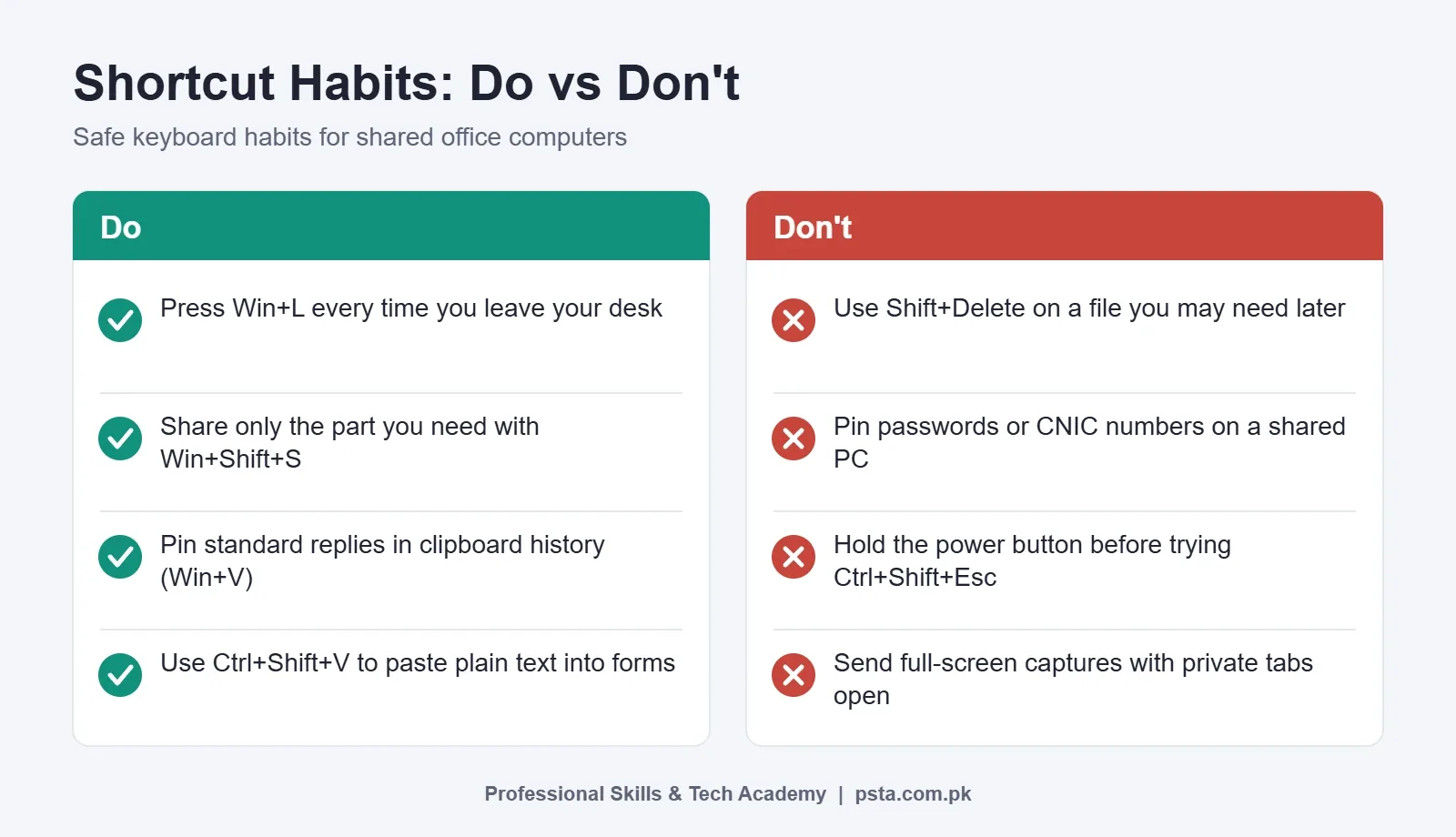
According to Microsoft, the region-select behavior of PrtScn can be turned off in Settings > Accessibility > Keyboard if you prefer the old full-screen capture. When you only need to share one part of the screen, select just that region. It keeps unrelated tabs, names and balances out of a group chat.
Clipboard History: The Shortcut Most People Never Switch On
Normally, Ctrl+V pastes only the last thing you copied. Windows key+V opens clipboard history, a list of recent copies you can paste from. It isn't on by default. Press Windows key+V once and select Turn on, or switch on Clipboard history in Settings > System > Clipboard.
Microsoft's clipboard help page lists the limits you should know:
- History holds up to 25 copied entries, and older ones drop off as new ones arrive.
- Each item can be up to 4 MB, in text, HTML or bitmap image format.
- History clears every time you restart, except the items you pin.
- Sync across devices is optional and tied to your Microsoft or work account.
Pinning is where the real time saving sits. A receptionist can pin the academy's address, bank account title and a standard reply, then paste any of them in two keystrokes. On a shared computer, though, don't pin passwords, CNIC numbers or anything private, because the next person can open the same list.
Emoji and Symbols Without Searching
Windows key+Period (.) opens the emoji panel. It's useful for social media posts, and it also holds symbols that aren't on a standard keyboard, which beats copying them from a website.
File Explorer Shortcuts for Faster Filing
Most filing work is creating, naming and finding folders. These Windows shortcut keys for File Explorer cover nearly all of it.
- Press Windows key+E to open File Explorer.
- Press Ctrl+Shift+N to create a new folder, type its name and press Enter.
- Select a file and press F2 to rename it. This is far faster than right-clicking for a batch of scanned forms.
- Press Alt+Up arrow to move up one folder level, and Alt+Left arrow to go back to the previous folder.
- Press Ctrl+L or Alt+D to jump to the address bar, then type or paste a path.
- Press Ctrl+E or Ctrl+F to reach the search box.
- Press Ctrl+T for a new tab and Ctrl+W to close it, just like a browser.
- Press Alt+Enter to see a file's properties, including its size and date.
A word of caution about deleting. Delete (or Ctrl+D) sends a file to the Recycle Bin. Shift+Delete deletes it permanently, without the Recycle Bin. Keep Shift+Delete for files you're certain about. If your folders are already a mess, our guide to organizing computer files gives you a folder plan to apply these keys to.
When the PC Freezes or You Step Away
These are the Windows shortcut keys that rescue a bad moment or protect your work.
- Ctrl+Shift+Esc opens Task Manager directly, so you can close a frozen program. Try it before you reach for the power button.
- Ctrl+Alt+Del opens the security screen, where you can lock, switch user, sign out or open Task Manager.
- Windows key+L locks the computer. Make it a habit every time you leave your chair.
- Windows key+Ctrl+Shift+B wakes the device when the screen goes blank or black.
- Windows key+X opens the Quick Link menu, the same menu you get from right-clicking Start.
- Windows key+R opens the Run box, and Windows key+I opens Settings.
- Alt+F4 closes the active window. With no windows open, it brings up the shutdown prompt.
Windows key+H opens voice typing, which turns speech into text using Microsoft's online speech recognition. Try it for long English drafts, then correct the result with the editing keys above.
Do These Windows Shortcut Keys Work on Windows 10?
Mostly, yes. Text editing, Alt+Tab, File Explorer keys and Windows key+L work on both versions. One difference to remember: Microsoft's Windows 10 list says PrtScn copies the whole screen there. Microsoft's shortcut page keeps a separate Windows 10 tab, so check there when a key does nothing. Some newer Windows 11 shortcuts depend on specific features or on your hardware. Windows key+C opens Copilot where it's available, and Windows key+J opens Recall only on devices that meet its requirements.
Pakistan's offices are split between the two versions. StatCounter's figures for October 2026 put Windows 11 at 51.85% and Windows 10 at 47.88% of desktop Windows use in Pakistan. That split matters, since Windows 10 reached its end of support on October 14, 2025. Microsoft no longer sends security updates to those PCs unless they're enrolled in the consumer Extended Security Updates program, which runs until October 12, 2027. If you're learning today, learn on Windows 11 where you can.
Which Shortcuts Should You Learn First?
Don't try to memorize every one of the Windows shortcut keys at once. Microsoft's official page lists well over a hundred combinations, many of them for accessibility tools or specific hardware. Instead, climb in four levels and add one level a week.
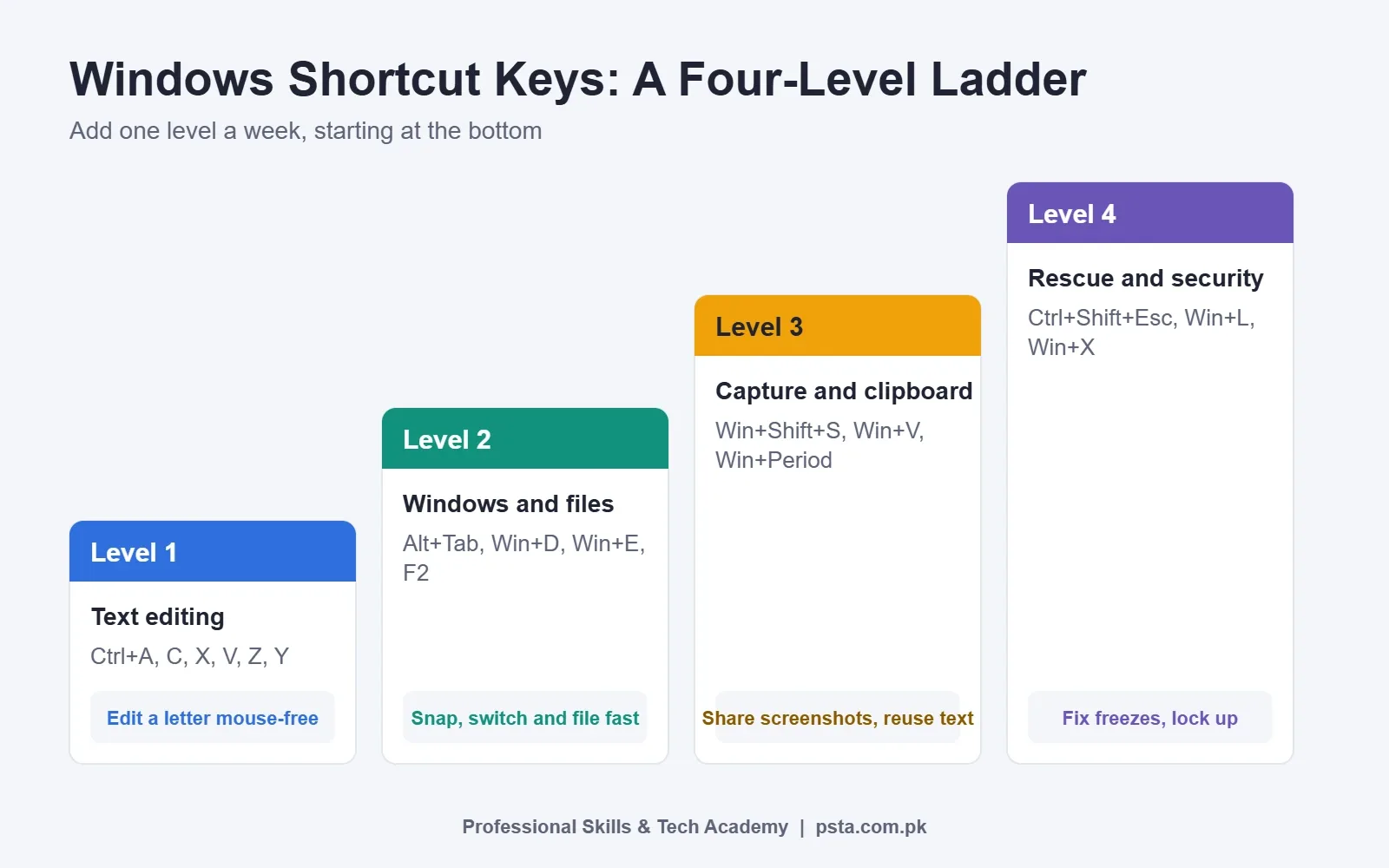
| Week | Focus | Keys to practice | Daily drill (10 minutes) |
|---|---|---|---|
| Week 1 | Text editing | Ctrl+A, C, X, V, Z, Y, Ctrl+Backspace, Ctrl+Shift+arrows | Retype and edit one page of a letter without the mouse |
| Week 2 | Windows and files | Alt+Tab, Windows key+D, arrows, Z, E; Ctrl+Shift+N, F2 | Create, name and file ten documents in a new folder set |
| Week 3 | Capture and clipboard | Windows key+Shift+S, PrtScn, Windows key+V, Windows key+Period | Pin three standard replies and use them in five messages |
| Ongoing | Power keys | Ctrl+Shift+Esc, Windows key+X, R, L, Alt+F4 | Lock the PC every time you stand up |
Once these feel natural, move to the app-specific sets. Our MS Word shortcut keys guide and Excel shortcut keys guide pick up exactly where this one stops. If you're preparing for a government test, computer shortcut keys are worth revising, and our computer operator test preparation guide includes practice MCQs.
Shortcut Myths That Slow Learners Down
A few beliefs keep beginners away from Windows shortcut keys for longer than necessary. Here are the ones we correct most often in class.
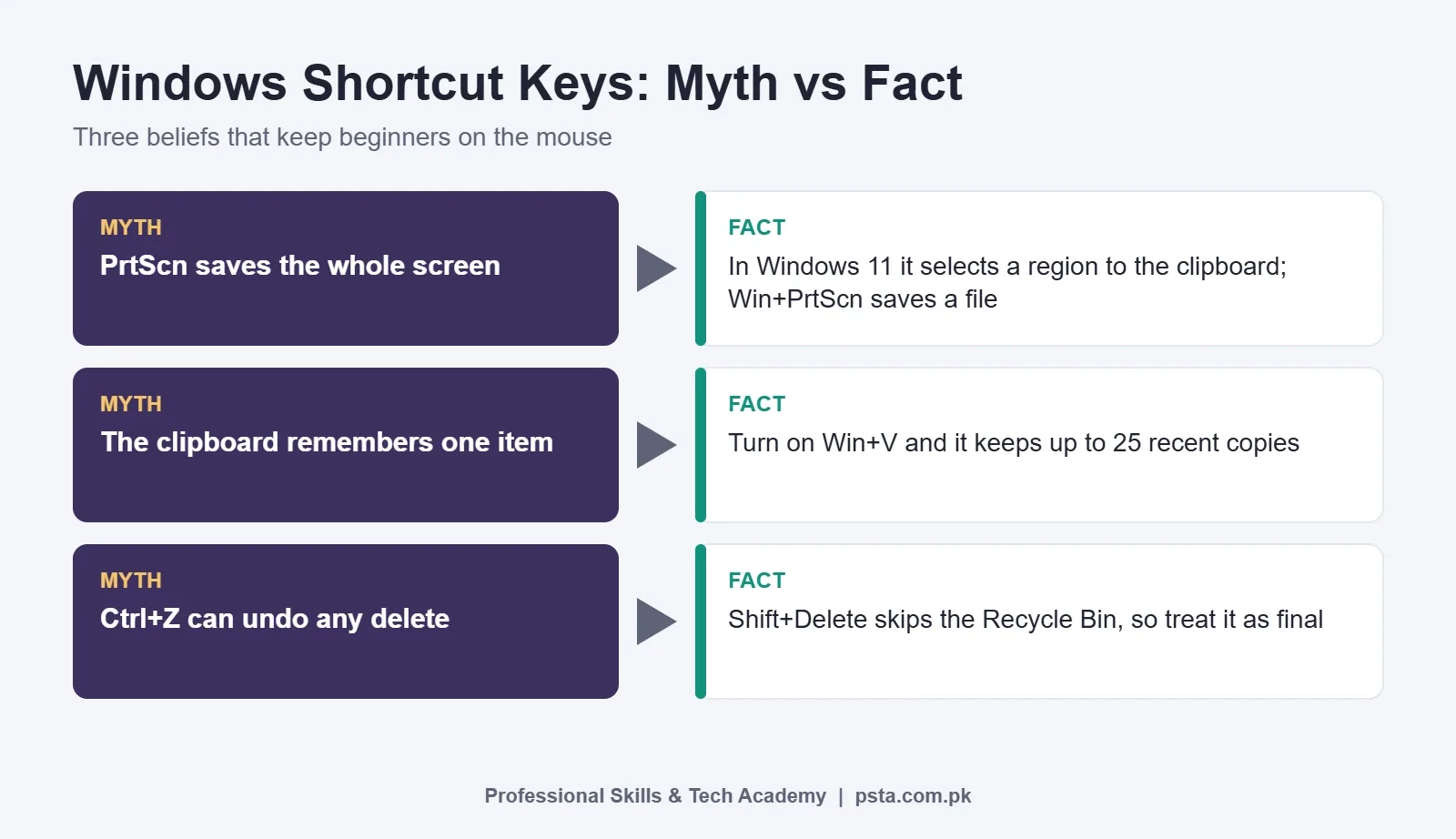
"PrtScn saves a picture of the whole screen." On Windows 11, PrtScn lets you select a region and copies it to the clipboard by default. Windows key+PrtScn is the one that saves a full-screen file.
"The clipboard only remembers one thing." That's true until you turn on clipboard history. After that, Windows key+V shows up to 25 recent copies.
"Ctrl+Z can rescue any mistake." Undo works inside the app you're using. Shift+Delete skips the Recycle Bin entirely, so treat it as final.
"You need a special keyboard." Any standard keyboard with a Windows key works. A dedicated Copilot key is a convenience, not a requirement.
Practicing Shortcuts in PSTA's Office Automation Course
Windows shortcut keys stick when you use them on real work, not when you read a list. In PSTA's Certified Office Automation Course, keyboard work runs through the whole 12-week outline. You start with the operating system and file handling, build typing speed in both English and Urdu, then use the same keys while you format CVs in Word, build sheets and charts in Excel, design slides, and finish timed data entry tasks.
- Level: beginner, starting from switching on a computer
- Duration: 12 weeks, with a final practical exam and a certificate you can verify at psta.com.pk/certificate
- Fee: Rs. 12,000 at the current offer price (the regular fee is Rs. 15,000), with a two-installment option
- Mode: in class at our Mandian campus in Abbottabad (Old College Road, across from FIMS College); live online anywhere in Pakistan; or a mix of both
- Batches: one starts each month; ask on WhatsApp which time slot suits you
Planning a longer IT path? The one-year DIT program is the route to consider if you want a full diploma. You can compare every option on our courses page, message us on WhatsApp (+92 314 5424399) with any question, or fill in the admission form when you're ready to book a seat.
Put the Mouse Aside for One Task Tomorrow
Pick one routine job you do every day, such as filing scanned forms or sending a screenshot to your manager. Do it tomorrow with Windows shortcut keys only, even if it's slower the first time. By Friday, those combinations will be in your fingers, and you can add the next group from the table above.
Frequently asked questions
What is the shortcut key for a screenshot in Windows 11?
Press Windows key+Shift+S to select part of the screen and copy it to the clipboard. On Windows 11, PrtScn does the same by default. Alt+PrtScn copies only the active window, and Windows key+PrtScn saves the full screen as a file in the Screenshots folder inside Pictures. Paste a copied screenshot into WhatsApp, Word or email with Ctrl+V.
How can I see everything I copied on my computer?
Press Windows key+V to open clipboard history. The first time, select Turn on. After that, Windows keeps up to 25 recent copied items, each up to 4 MB. The list clears when you restart, except items you pin. Click any entry to paste it where your cursor is, which saves copying the same text again.
What is the shortcut to lock a Windows computer?
Press Windows key+L. Your screen locks immediately and your open files stay as they are, so you can sign back in and carry on. You can also press Ctrl+Alt+Del and choose Lock. On a shared office PC, locking every time you stand up keeps your email, banking tabs and documents away from passers-by.
How do I open Task Manager with the keyboard?
Press Ctrl+Shift+Esc to open Task Manager directly. Select the program that has stopped responding and choose End task. Ctrl+Alt+Del also leads to Task Manager through the security screen. Try this before forcing a shutdown with the power button, because a hard shutdown can lose unsaved work in every open program.
Why does a shortcut key not work on my laptop?
Many laptops use an Fn key for brightness and volume on the top row, so F2 or F5 may need Fn as well. Some shortcuts also depend on your Windows version or hardware: Copilot and Recall keys need supported devices, and Windows 10 behaves differently for PrtScn. Check Microsoft's shortcut page for your version.
What is the keyboard shortcut for a new folder?
In File Explorer, press Ctrl+Shift+N to create a new folder, type its name and press Enter. To rename an existing file or folder, select it and press F2. Open File Explorer itself with Windows key+E. Together these three keys handle most daily filing without right-clicking through menus.
How do I split my screen into two windows?
Click the first window and press Windows key+Left arrow to snap it to the left half. Then pick the second window and press Windows key+Right arrow. For three or four windows, press Windows key+Z to open snap layouts and choose a grid. Windows key+Up arrow maximizes a window again.
Do Windows shortcut keys work in MS Word and Excel?
Yes. Text editing keys such as Ctrl+C, Ctrl+V, Ctrl+Z, Ctrl+F and Ctrl+Shift+arrows work inside Word and Excel as well. Each Office app also has its own set, such as Excel's keys for moving between sheets. Learn the Windows keys first, then add the app-specific shortcuts you use most.
Sources & references
- Keyboard shortcuts in Windows (Microsoft Support) support.microsoft.com
- Using the clipboard (Microsoft Support) support.microsoft.com
- Windows 10 support has ended on October 14, 2025 (Microsoft Support) support.microsoft.com
- Desktop Windows Version Market Share Pakistan (StatCounter) gs.statcounter.com
- Speech, voice activation, inking, typing, and privacy (Microsoft Support) support.microsoft.com
Last reviewed & updated on by Umar Qureshi. Written by the PSTA team in Abbottabad, Pakistan.

Umar Qureshi

Certified Office Automation Course: Master MS Office & Computer Basics
Turn this guide into a career: hands-on training with real projects, online across Pakistan or on-campus in Abbottabad · 12 Weeks.
Comments
No comments yet — ask a question or share your experience.