Quick answer
Start with one plugin per job. For most beginner sites that means UpdraftPlus for backups, Wordfence for security and Rank Math for SEO, then a caching plugin that matches your server, Contact Form 7, Site Kit and a WhatsApp button. Add WooCommerce only if you sell. The free versions cover most small sites.
Key takeaways
- • Install one well-maintained plugin per job and delete anything you have deactivated.
- • Back up first: UpdraftPlus schedules free backups to Google Drive or Dropbox.
- • Wordfence free gets firewall rules and malware signatures 30 days after paying users.
- • LiteSpeed Cache needs a LiteSpeed server for page caching, so ask your host first.
- • WooCommerce includes cash on delivery in its core plugin.
- • Pay for an upgrade only when the free limit costs you time or money.
Table of contents 19 sections
- How We Judged Each Plugin
- Why Does a Short Plugin List Matter?
- The 8 WordPress Plugins for Beginners at a Glance
- Protect the Site First: UpdraftPlus and Wordfence
- UpdraftPlus (Backups)
- Wordfence (Security)
- Which SEO Plugin Should a Beginner Use?
- Speed and Tracking: LiteSpeed Cache and Site Kit
- LiteSpeed Cache (Speed)
- Site Kit by Google (Tracking)
- Talking to Customers: Contact Form 7 and Click to Chat
- Contact Form 7 (Forms)
- Click to Chat (WhatsApp)
- Do You Need WooCommerce?
- In What Order Should You Install Them?
- Free vs Paid: When Is an Upgrade Worth It?
- Plugins and Habits Beginners Can Skip
- How PSTA's WordPress Course Handles Plugins
- Tonight's Task: Audit Your Plugin List
Which plugins should I install first? New students ask that in almost every WordPress class, usually right after they open the plugin screen and see how much is on offer. The real answer is shorter than most "top 30" lists suggest. WordPress plugins for beginners should cover a handful of jobs (backups, security, SEO, speed, forms, tracking and customer chat) with one well-maintained plugin per job. The WordPress.org directory says you can browse over 78,000 free plugins, so the hard part is saying no.
This review covers eight free plugins we actually set up on student and small-business sites, what each one does well, where it falls short, and when the paid version is worth it.
In this review, you'll find:
- The eight jobs a beginner site needs a plugin for, and one pick for each
- Version, rating and install figures for every plugin, checked on WordPress.org in November 2026
- The order to install them in, so a mistake on day one doesn't cost you the site
- What the free versions leave out, with current upgrade prices where the vendor publishes them
- Plugins and habits you can safely skip
How We Judged Each Plugin
We judged WordPress plugins for beginners the way we'd judge them for a paying client. A plugin earns a place on a beginner's site only if it passes four checks you can see on its WordPress.org page. These are the same signals the official Learn WordPress tutorial points to.
- Last updated. Every plugin below received an update within the last two weeks when we checked. A plugin untouched for a year is a risk, however good its reviews look.
- Tested up to. All eight showed WordPress 7.1.4 as their tested version when we checked.
- Active installations. A large user base means bugs get reported and fixed quickly.
- Rating and support replies. Read the one-star reviews too. They tell you what breaks.
We added a fifth test for Pakistani sites: does the free version cover what a local shop, clinic, academy or freelancer portfolio needs? For most businesses here that means a WhatsApp button, cash on delivery and pages that load on a mid-range phone over mobile data.
Why Does a Short Plugin List Matter?
WordPress runs a huge share of the web. W3Techs reports that 39.2% of all websites use WordPress, which also makes it a common target. Their usual way in isn't WordPress itself. In Patchstack's mid-year 2025 report, its research counted 3,044 vulnerabilities in plugins, 386 in themes and a single one in WordPress core.
Every plugin you add is extra code that has to be kept up to date. Two plugins that do the same job, such as two caching tools, can also clash and produce errors that are hard to trace. So the rule we teach is simple: one plugin per job, delete anything you've deactivated, and install nothing you can't explain to a client.
The 8 WordPress Plugins for Beginners at a Glance
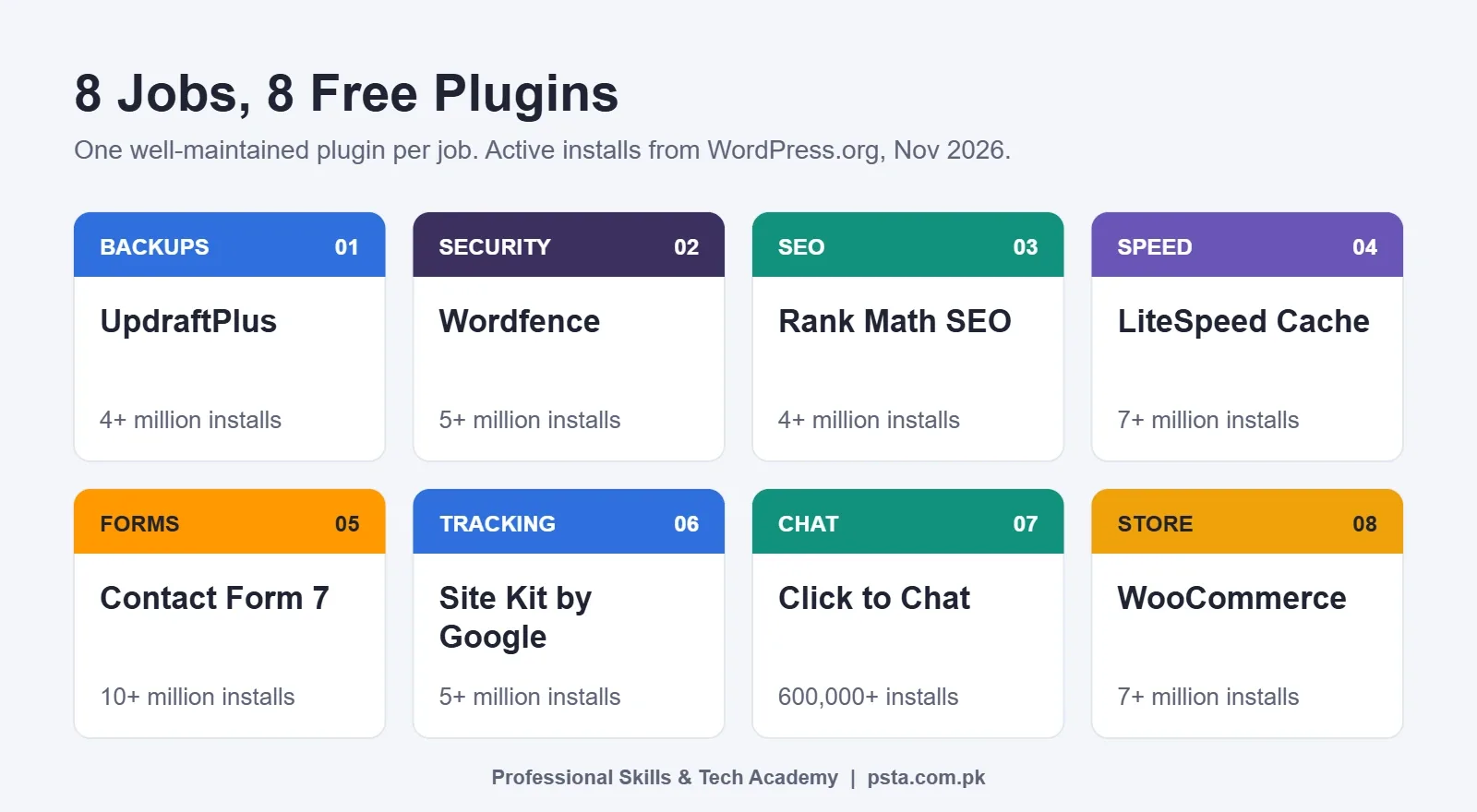
Here is the full shortlist of essential WordPress plugins. Figures come from each plugin's WordPress.org page as checked on 13 November 2026, so they'll drift a little over time.
| Job | Plugin | Active installs | Rating | Free version is enough for |
|---|---|---|---|---|
| Backups | UpdraftPlus | 4+ million | 4.8 / 5 | Scheduled backups to Google Drive or Dropbox |
| Security | Wordfence | 5+ million | 4.7 / 5 | Firewall, malware scan, two-factor login |
| SEO | Rank Math SEO | 4+ million | 4.8 / 5 | Titles, sitemaps, schema, redirects |
| Speed | LiteSpeed Cache | 7+ million | 4.8 / 5 | Full page caching on LiteSpeed hosting |
| Forms | Contact Form 7 | 10+ million | 4.0 / 5 | Contact and inquiry forms |
| Tracking | Site Kit by Google | 5+ million | 4.2 / 5 | Search Console and Analytics inside the dashboard |
| Chat | Click to Chat | 600,000+ | 4.8 / 5 | A WhatsApp button with a pre-filled message |
| Store | WooCommerce | 7+ million | 4.5 / 5 | Products, cart and cash on delivery |
Install counts on WordPress.org are rounded bands, not exact totals. Use them to compare plugins, not as precise user numbers.
Protect the Site First: UpdraftPlus and Wordfence
UpdraftPlus (Backups)
A WordPress backup plugin comes first because it's the undo button for every other mistake. The UpdraftPlus plugin page lists free scheduled backups, every few hours up to monthly, sent to Google Drive, Dropbox, Amazon S3, FTP or email. That's enough for most small sites.
Where it falls short: automatic backups before each update, incremental backups and destinations such as OneDrive or Backblaze B2 are Premium features. Our advice for beginners is to schedule a daily database backup and a weekly files backup to a Google Drive folder that isn't on the same server.
Wordfence (Security)
As a WordPress security plugin, Wordfence gives you a web application firewall, a malware scanner, two-factor authentication through apps such as Google Authenticator, and login CAPTCHA, all in the free version.
Where it falls short: the Wordfence plugin page states that firewall rules and malware signatures reach free users 30 days after paying customers. For a portfolio or blog, that trade-off is usually acceptable. For a store taking orders every day, compare the cost of Premium with the cost of a day offline. Our WordPress security checklist covers the settings to change after you install it.
Which SEO Plugin Should a Beginner Use?
Pick one WordPress SEO plugin: Rank Math SEO or Yoast SEO. Both are solid, and both rate 4.8 out of 5 on WordPress.org. Yoast has the larger user base at 10+ million active installs, while Rank Math has 4+ million.
We start students on Rank Math because its free version includes a setup wizard, schema markup for more than 16 content types, a redirect manager and a 404 monitor. If a client's site already runs Yoast, keep it. Switching mid-project gains little and can create duplicate settings.
Never run both at once. Two SEO plugins can print two sets of meta tags and two sitemaps, which confuses search engines.
Paid option: on its pricing page, Rank Math PRO showed about $67.08 for the first year, renewing at about $107.88 a year, for unlimited personal sites. Client sites need the Business plan. A beginner doesn't need PRO to rank a local business page.
Speed and Tracking: LiteSpeed Cache and Site Kit
LiteSpeed Cache (Speed)
Some shared hosting plans run LiteSpeed web servers, so ask your host before choosing a caching plugin. The LiteSpeed Cache plugin page says a LiteSpeed server is required for its cache features. Its general features, such as CSS, JavaScript and HTML minification, work on any server.
Where it falls short: image optimization runs through the QUIC.cloud service, which charges above certain usage levels. If your host uses Apache or Nginx instead, pick a different caching plugin and keep only one. Our WordPress speed optimization guide shows how to measure the result before and after.
Site Kit by Google (Tracking)
Site Kit connects Search Console, Google Analytics, PageSpeed Insights, Tag Manager and AdSense, and shows their key numbers inside your dashboard. It's free and open source. For a beginner, its value is that you don't have to paste tracking code into theme files.
Where it falls short: the dashboard shows summaries. For deeper reports you'll still open Google Analytics itself.
Talking to Customers: Contact Form 7 and Click to Chat
Contact Form 7 (Forms)
With 10+ million active installs, Contact Form 7 is one of the most used plugins in the directory. It's light and flexible, and it does one job: sending form entries to your email.
Where it falls short: its 4.0 rating is the lowest on this list, and most complaints are about setup. You build forms with short tags rather than drag and drop, and by default entries go to email only; the same developer's Flamingo add-on keeps a copy in the dashboard. Send a test message after every change, and add spam protection before you share the page.
Click to Chat (WhatsApp)
If your customers would rather message you than fill in a form, add a chat button. As a WhatsApp plugin for WordPress, Click to Chat by HoliThemes adds a floating WhatsApp button with eight preset styles. You can pre-fill the message with the page title or URL, so you know which service the visitor was reading about.
Where it falls short: it opens a chat; it doesn't automate replies. On WooCommerce product pages it can include the product name and price in the message, which saves a few back-and-forth messages per order.
Do You Need WooCommerce?
Only if you'll take orders on the site itself. WooCommerce turns WordPress into a store with products, a cart and checkout. It needs PHP 7.4 or newer, and the plugin page recommends PHP 8.0 or above.
For Pakistani sellers, the useful detail is that cash on delivery is part of core WooCommerce. The WooCommerce COD documentation shows you enable it under WooCommerce, Settings, Payments, then Take offline payments. You can also limit COD to certain shipping methods, which helps if one courier zone returns too many parcels.
Card and wallet payments need a separate gateway plugin, usually supplied by the bank or payment company. Install those only from the provider's own instructions.
In What Order Should You Install Them?
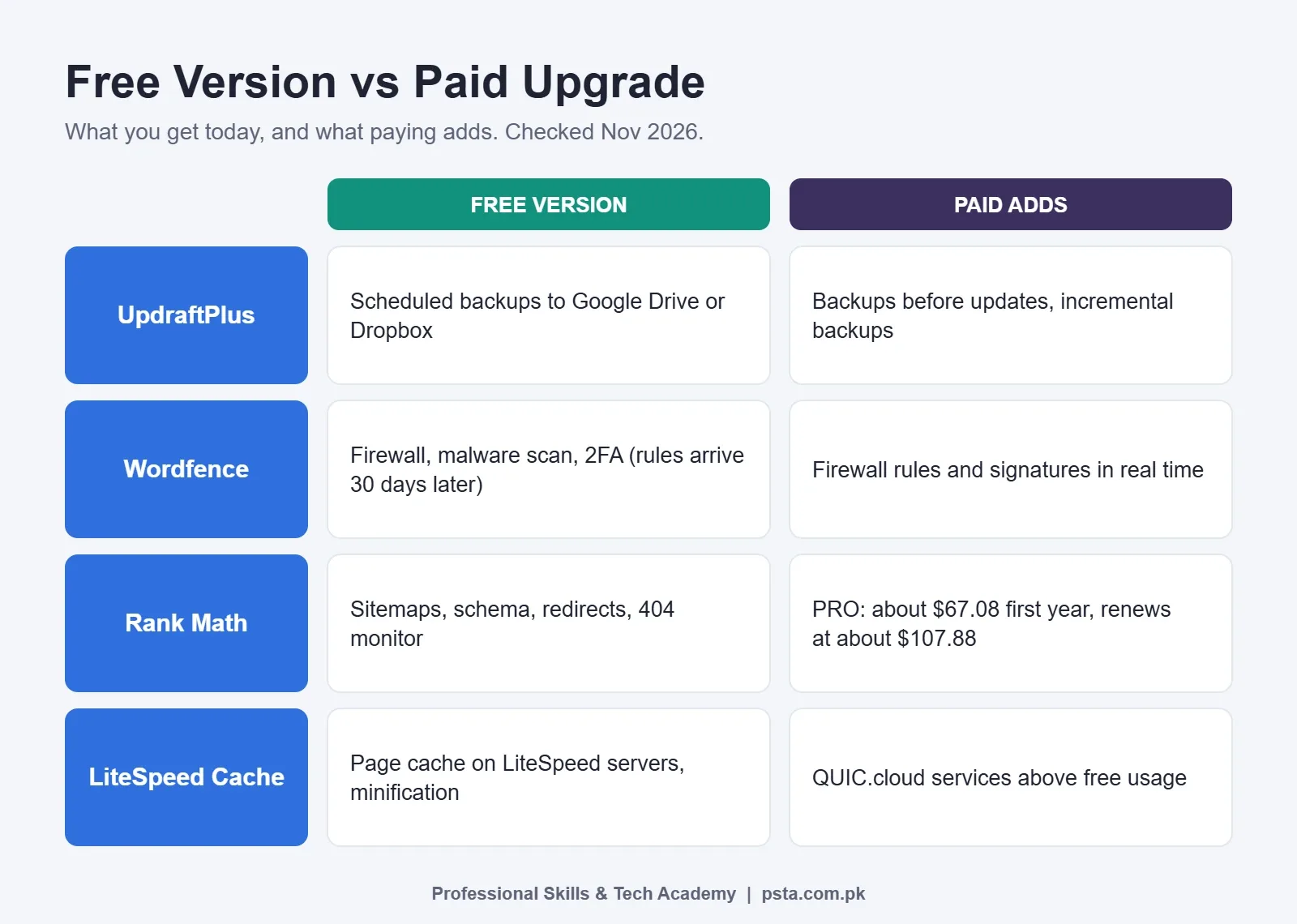
Install order matters as much as the WordPress plugins for beginners you choose. A backup taken before anything else changes means you can always get back to a clean start.
- Update WordPress core and your theme, then delete the sample plugins you don't use.
- Install UpdraftPlus, connect Google Drive and run a full backup.
- Install Wordfence, turn on two-factor login for every admin account and run a first scan.
- Install Rank Math and finish its setup wizard.
- Ask your host which web server it runs, then add the matching caching plugin.
- Add Contact Form 7, Site Kit and Click to Chat, testing each one before moving on.
- Add WooCommerce last, and only for a store. Take another backup when it's configured.
Practicing on a copy first is a good habit. Our guide to installing WordPress on localhost with XAMPP gives you a test site on your own laptop.
Free vs Paid: When Is an Upgrade Worth It?
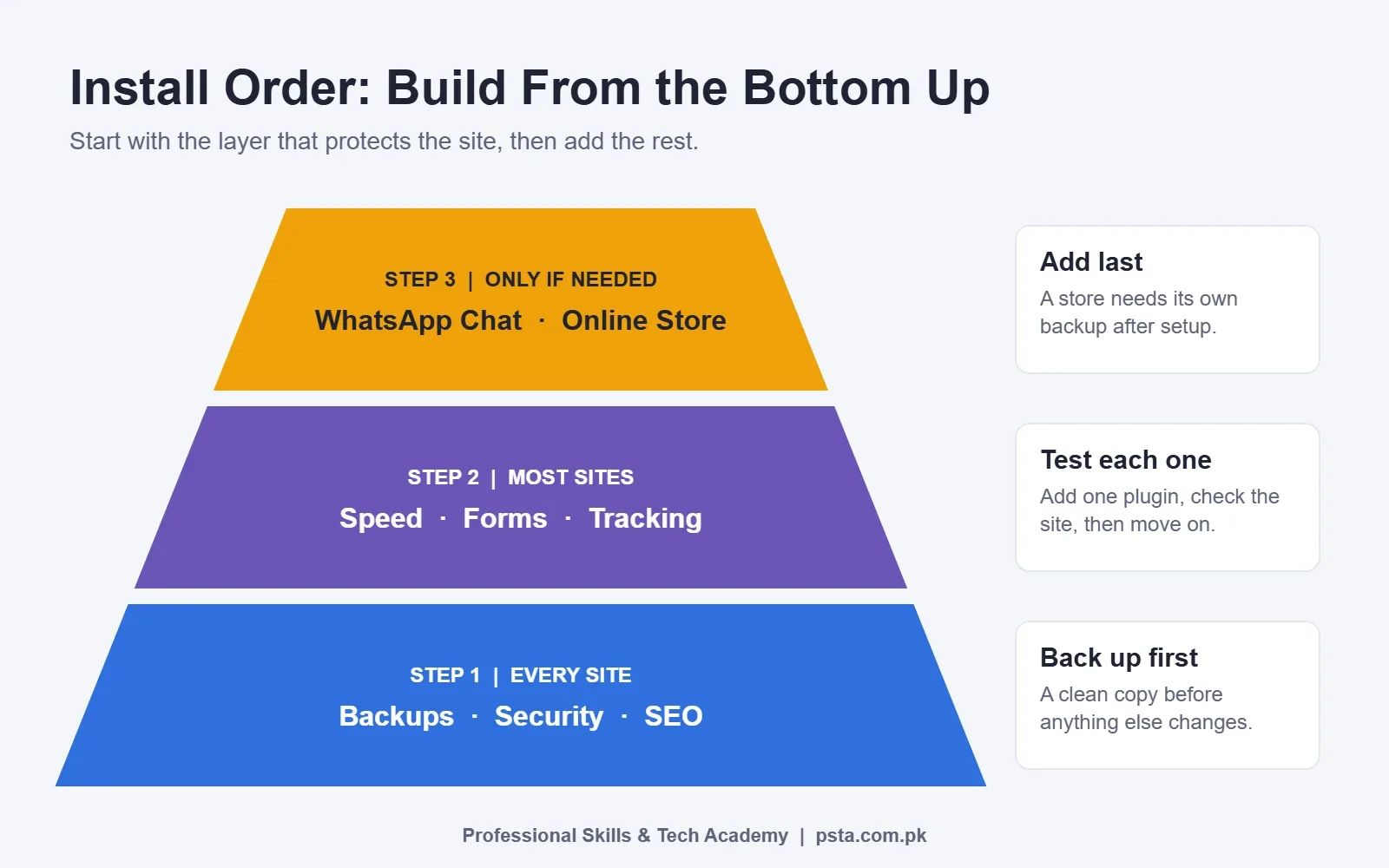
Every plugin on this list is among the free WordPress plugins in the official directory, and the free versions cover most small sites. Upgrade when the free version's limit costs you money or time, not because a dashboard banner asks you to.
| Plugin | What free leaves out | Upgrade when |
|---|---|---|
| UpdraftPlus | Backups before updates, incremental backups, OneDrive and B2 | The site changes daily, such as a busy store |
| Wordfence | Real-time firewall rules and malware signatures (free gets them 30 days later) | The site takes payments or customer data |
| Rank Math | The extra modules listed for PRO on its pricing page | You manage SEO for several sites of your own |
| LiteSpeed Cache | QUIC.cloud services above the free usage level | You optimize large image libraries |
One firm rule: never install "nulled" copies of paid plugins from download sites. Those files are modified outside the official channel, they don't receive updates, and you can't check what code was changed.
Plugins and Habits Beginners Can Skip
- A second plugin for the same job. It's a mistake we fix on student sites all the time. One SEO tool, one cache, one security plugin.
- Heavy all-in-one bundles that switch on dozens of modules you'll never use.
- Plugins for things your theme already does, such as social icons or simple sliders.
- Abandoned plugins. If the last update is more than a year old, look for an alternative.
- Deactivated leftovers. A deactivated plugin still sits on the server. Delete what you don't use.
If you build with a page builder, settle that choice early too. Our Elementor vs Gutenberg guide compares the two editors side by side.
How PSTA's WordPress Course Handles Plugins
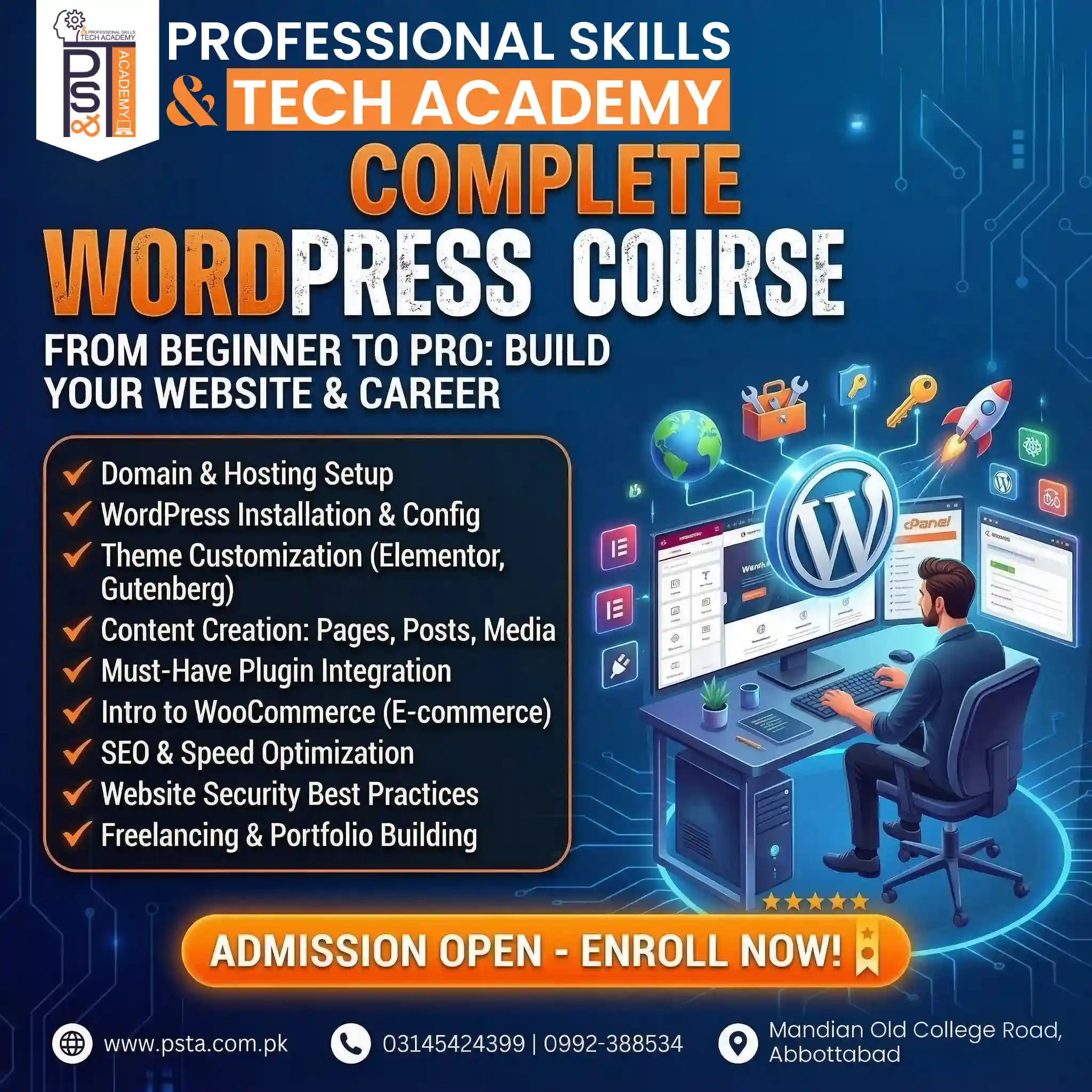
Choosing and configuring plugins has its own module, Must-Have Plugin Integration, in PSTA's Complete WordPress Website Development Course. Around it sit modules on domain and hosting setup, theme customization with Elementor and Gutenberg, WooCommerce, SEO and speed, website security, and freelancing with a portfolio.
It is a beginner-level program of 12 weeks, and you can start without any coding background. The listed fee is Rs. 22,000. You can join on our Abbottabad campus, online, or in a hybrid mix, and a new batch starts every month. If you later want to write custom code rather than rely on plugins, the Full-Stack Web Development course is the next step.
Compare options on the courses page, see how to enroll on the admission page, or send a question on WhatsApp at +92 314 5424399.
Tonight's Task: Audit Your Plugin List
Open Plugins, then Installed Plugins, on your site. Next to each name, write the job it does. Delete any plugin without a clear job, any duplicate, and anything not updated in the past year. Then make sure a backup plugin is active and has a recent copy stored off the server. Good WordPress plugins for beginners are the ones you can explain, and that ten-minute audit fixes more beginner sites than any new plugin will.
Frequently asked questions
How many plugins should a beginner WordPress site have?
There is no fixed safe number. What matters is that every plugin does a job you can name, is updated regularly and does not duplicate another plugin. A typical small business site in our classes runs backups, security, SEO, caching, a form, tracking and a WhatsApp button. Delete deactivated plugins, because their files still sit on the server.
Can I use Rank Math and Yoast SEO together?
No. Pick one SEO plugin. Running both can output two sets of meta tags and two XML sitemaps, which sends mixed signals to search engines. For a new site, Rank Math's free version covers sitemaps, schema and redirects. If a client's site already runs Yoast, keep Yoast rather than switching mid-project.
Is the free version of Wordfence enough?
For a blog or portfolio it usually is. The free version includes the firewall, malware scanner and two-factor login, but new firewall rules and malware signatures arrive 30 days after Premium users get them. If the site takes payments or stores customer data, compare the Premium price with the cost of the site going offline.
Will LiteSpeed Cache work on any hosting?
Only partly. Its page caching needs a LiteSpeed web server, which some shared hosting plans use. Its minification of CSS, JavaScript and HTML works on any server. Ask your host which web server it runs before installing it. On Apache or Nginx hosting, choose a different caching plugin and keep just one active.
Does WooCommerce support cash on delivery in Pakistan?
Yes. Cash on delivery is built into core WooCommerce. You switch it on under WooCommerce, Settings, Payments, in the offline payments section. You can also restrict it to certain shipping methods. Card and mobile wallet payments need a separate gateway plugin, which you should install by following your payment provider's own instructions.
Is it safe to use nulled premium plugins?
No. Nulled plugins are paid plugins redistributed by third parties outside the official channel. You cannot check what code was changed, and they do not receive security updates. Use the free version from WordPress.org instead, or buy a license from the developer. The free versions in this review are enough for most small sites.
How do I update plugins without breaking my site?
Take a backup first, then update one plugin at a time and check the home page, a form and the checkout after each one. If something breaks, deactivate the last plugin you updated or restore the backup. On busy sites, test updates on a local or staging copy before applying them to the live site.
Sources & references
- W3Techs: Usage statistics of WordPress w3techs.com
- WordPress.org Plugin Directory wordpress.org
- Patchstack: 2025 Mid-Year WordPress Vulnerability Report patchstack.com
- UpdraftPlus on WordPress.org wordpress.org
- Wordfence Security on WordPress.org wordpress.org
- LiteSpeed Cache on WordPress.org wordpress.org
- WooCommerce Docs: Cash on Delivery woocommerce.com
- Rank Math Pricing rankmath.com
Last reviewed & updated on by Umar Qureshi. Written by the PSTA team in Abbottabad, Pakistan.

Umar Qureshi
Complete WordPress Website Development Course: Beginner to Pro
Turn this guide into a career: hands-on training with real projects, online across Pakistan or on-campus in Abbottabad · 12 Weeks.
Comments
No comments yet — ask a question or share your experience.