
Quick answer
Most cameras that stop showing a picture are not dead. Read the DVR message first, confirm power with the IR glow and an adapter swap, lock every connector, and match the TVI, AHD or CVI signal type. If that fails, move a known-good camera onto the cable and port to isolate the faulty part.
Key takeaways
- • "No Video" on a Hikvision DVR means nothing is connected to that port; "Video Loss" means a connected camera dropped out.
- • Check power first: look for the faint IR glow, then swap the adapter with one from a working camera.
- • A rolling or black-and-white picture usually means the camera and DVR use different formats (TVI, AHD or CVI).
- • The swap test (bench, cable, port, camera) isolates the faulty part before you buy anything.
- • IP cameras need a link light, a run under 100 m and a valid address; Hikvision SADP finds and activates them.
- • Night haze comes from IR bouncing off dust, webs or nearby walls, so clean the dome and remount.
Table of contents 13 sections
- What Does "No Video" or "Video Loss" Actually Mean?
- CCTV Camera Not Working? Three Quick Checks First
- Step 1: Prove the Camera Is Getting Power
- Why Power Faults Are So Common in Pakistan
- Step 2: Check Connectors and the Cable Run
- Step 3: Match the Signal Type Between Camera and DVR
- Step 4: Isolate the Fault With the Swap Test
- Why Is My IP Camera Not Working on the NVR?
- Why Is the Night Picture White, Hazy or Full of Bugs?
- What If the Camera Works Only Some of the Time?
- When Should You Replace Instead of Repair?
- Fault-Finding Practice in PSTA's CCTV Technician Course
- Start a Fault Log on Your Next Service Visit
"Why is my CCTV camera not working when the other three are fine? Channel 4 just says Video Loss. Is the camera dead?" Students ask us some version of this almost every week, and the answer is usually no. When one camera goes dark, the fault is far more often in the power adapter, a connector or a setting than in the camera itself, and a methodical test usually finds it within one visit.
This guide walks you through that test in the order a working technician follows. You will learn:
- What the different on-screen messages on a DVR or NVR are telling you
- How to confirm power, cabling and signal type without any special meter
- The swap test that pins the fault on the camera, the cable or the recorder
- Why IP cameras fail differently, and the tool that finds a "missing" camera on the network
- How to fix a hazy, glaring or bug-covered night picture
What Does "No Video" or "Video Loss" Actually Mean?
Before you write off a CCTV camera not working on one channel, read the screen carefully, because the words matter. On Hikvision DVRs, the "No Video" label appears on a channel that has no camera connected to its BNC port, according to Hikvision's support note on No Video. So no video on DVR channels you never wired is normal, not a fault; you can simply hide that tile from the live view layout.
"Video Loss" is different. CCTV video loss usually means a camera was connected and the recorder has stopped receiving its picture. That points to power, cabling, a connector or a mismatch in signal type. A blank monitor with no menu at all is a third case: there the problem is the display or the recorder's video output, not the cameras.
| What you see | Most likely cause | First test |
|---|---|---|
| "No Video" on an unused channel | Nothing connected to that port | None needed; hide the tile |
| "Video Loss" on one channel | Power, cable or connector for that camera | Look for the IR glow, then swap adapters |
| Several channels lost at once | A shared adapter or splitter | Check the common power supply |
| Picture rolling, black-and-white or garbled | Signal type mismatch (TVI, AHD, CVI) | Match camera output to DVR input |
| IP channel offline on an NVR | PoE, cable length or IP address | Check the switch port link light |
| White haze or glare at night only | IR reflecting off dust, webs or a nearby surface | Clean the dome, check mounting |
CCTV Camera Not Working? Three Quick Checks First
A few minutes at the recorder saves an hour on the roof.
- Is it the camera or the monitor? Right-click on the live view. If the recorder menu appears, the monitor and DVR output are fine, and you are dealing with a camera channel. Swann's DVR video loss guide starts with this exact check.
- How many channels are affected? One channel suggests that camera's power or cable. Several channels at once suggest something they share, usually one adapter feeding a splitter.
- When did it start? Ask the owner. "After the storm", "after the electrician came" or "after the power came back" each point you in a different direction.
Write the answers down. On a service call, that short note also protects you if the customer later blames you for a fault that existed before you arrived.
Step 1: Prove the Camera Is Getting Power
When an analog or HD-over-coax CCTV camera is not working at all, power is the first suspect. Start at the wall socket and the power strip, then follow the cable to any splitter. Cup your hands around the camera lens and look for a faint red glow from the IR LEDs; Swann's guide uses this as a quick sign that the camera has power. No glow in a dark spot usually means no power.
Next, swap the camera's adapter with one from a working camera. If the fault moves with the adapter, you have found it. Where one adapter feeds several cameras through a splitter and all of them drop together, the adapter is the prime suspect.
Why Power Faults Are So Common in Pakistan
Our grid puts heavy stress on cheap 12 V adapters. In April 2026, Dawn reported that the government confirmed six to seven hours of average load management, far above its public commitment. Every outage and restart cycles the adapters off and on, and weak adapters turn up again and again on systems students bring into our lab. Two habits help:
- Feed the cameras from one quality, surge-protected supply instead of a bundle of loose adapters.
- Put the recorder and camera supply on backup power. Our UPS for CCTV guide shows how to size it for your outage pattern.
Step 2: Check Connectors and the Cable Run
If power is fine, look at the joints. Every BNC connector, balun and DC plug should be firmly locked at both the camera end and the recorder end. Swann's guide calls out connectors that are not fully seated, and in a crowded DVR cabinet they are easy to miss.
Then walk the cable route if you can. Things to look for on local sites:
- Water inside an outdoor junction or connector box after rain. Green corrosion on a BNC pin is a giveaway.
- Cable chewed by rats where it runs through ceilings or along roof parapets.
- A cable crushed under a door frame or a water tank stand.
- Joints twisted together and wrapped in tape, which loosen as the roof heats and cools.
Re-terminate any connector that looks doubtful. A new BNC costs far less than another visit. Our list of CCTV installation mistakes covers how to route cable so these faults do not return.
Step 3: Match the Signal Type Between Camera and DVR
A picture that rolls, shows only black and white, or appears as colored noise often means the camera and recorder are speaking different formats. HD-over-coax cameras send analog, TVI, AHD or CVI signals, and the recorder must accept that type. Swann's guide notes that some cameras switch their output with a small button or a joystick on the cable tail.
On a mixed system, where a customer added a cheap camera to a branded DVR, check both datasheets. Many recorders detect the format automatically, but a camera stuck in an unsupported mode can still refuse to display. Use the button or joystick on the camera tail to cycle through formats until the picture locks. Our guide to reading CCTV camera specifications explains where the supported formats appear on a datasheet.
Step 4: Isolate the Fault With the Swap Test
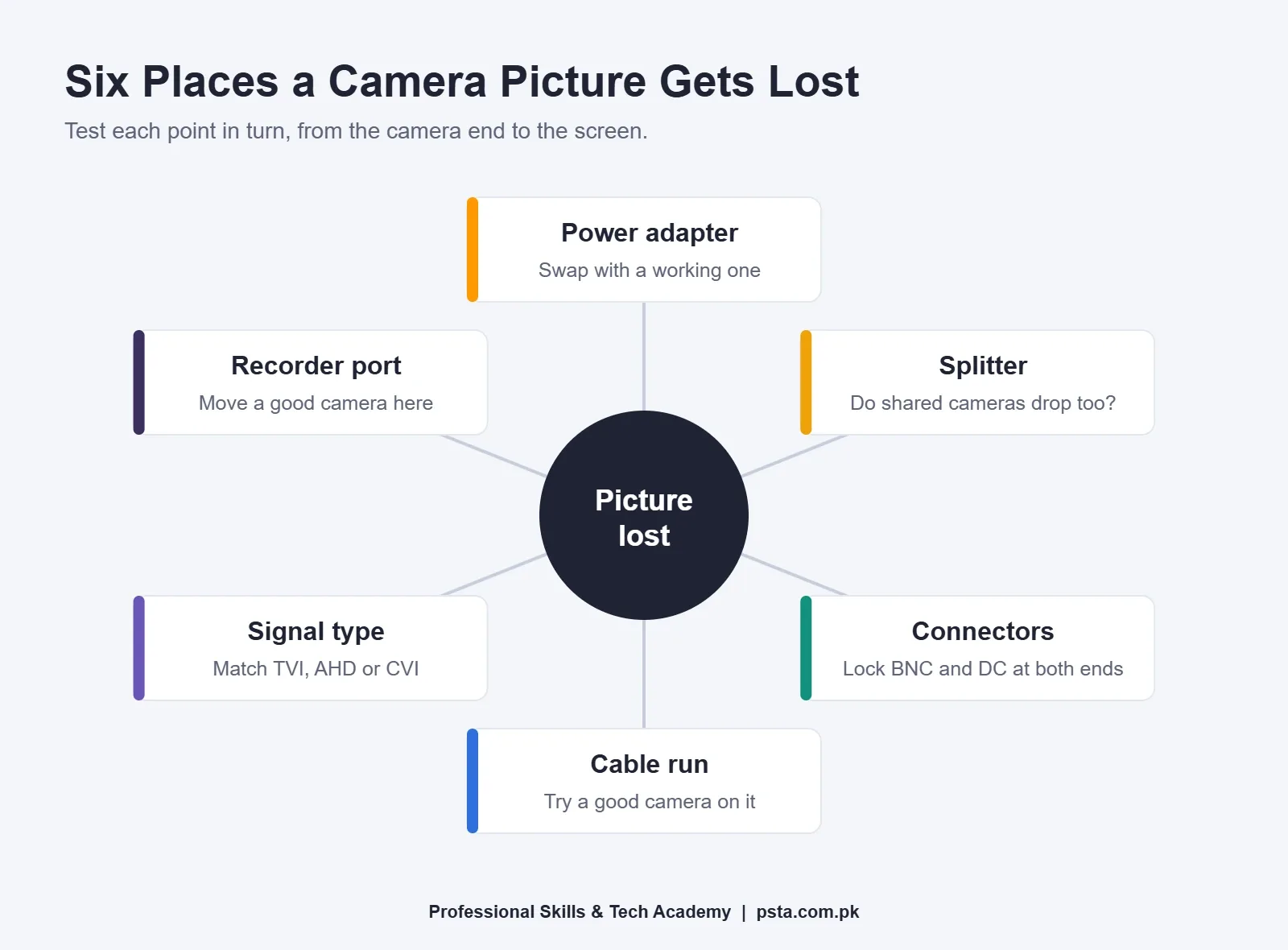
When the quick checks do not explain why a CCTV camera is not working, stop guessing and isolate. The method below follows the logic in Swann's guide and is the same one we drill in class:
- Bench test. Disconnect everything. Connect one camera, one known-good power supply and one short cable straight to the recorder. If it works, the camera and recorder are fine.
- Cable test. Move a known-good camera to the suspect cable run. If the good camera now fails, the cable or a joint along it is faulty.
- Port test. Plug a known-good camera into each recorder port in turn. A port that always fails points to the recorder.
- Camera test. If the suspect camera fails on a good cable, a good port and a good adapter, only then call the camera dead.
This order matters. Each test removes one suspect, so you never replace a working camera because of a cheap connector. The graphic below shows the six places a picture can be lost between the camera and the screen.
Why Is My IP Camera Not Working on the NVR?
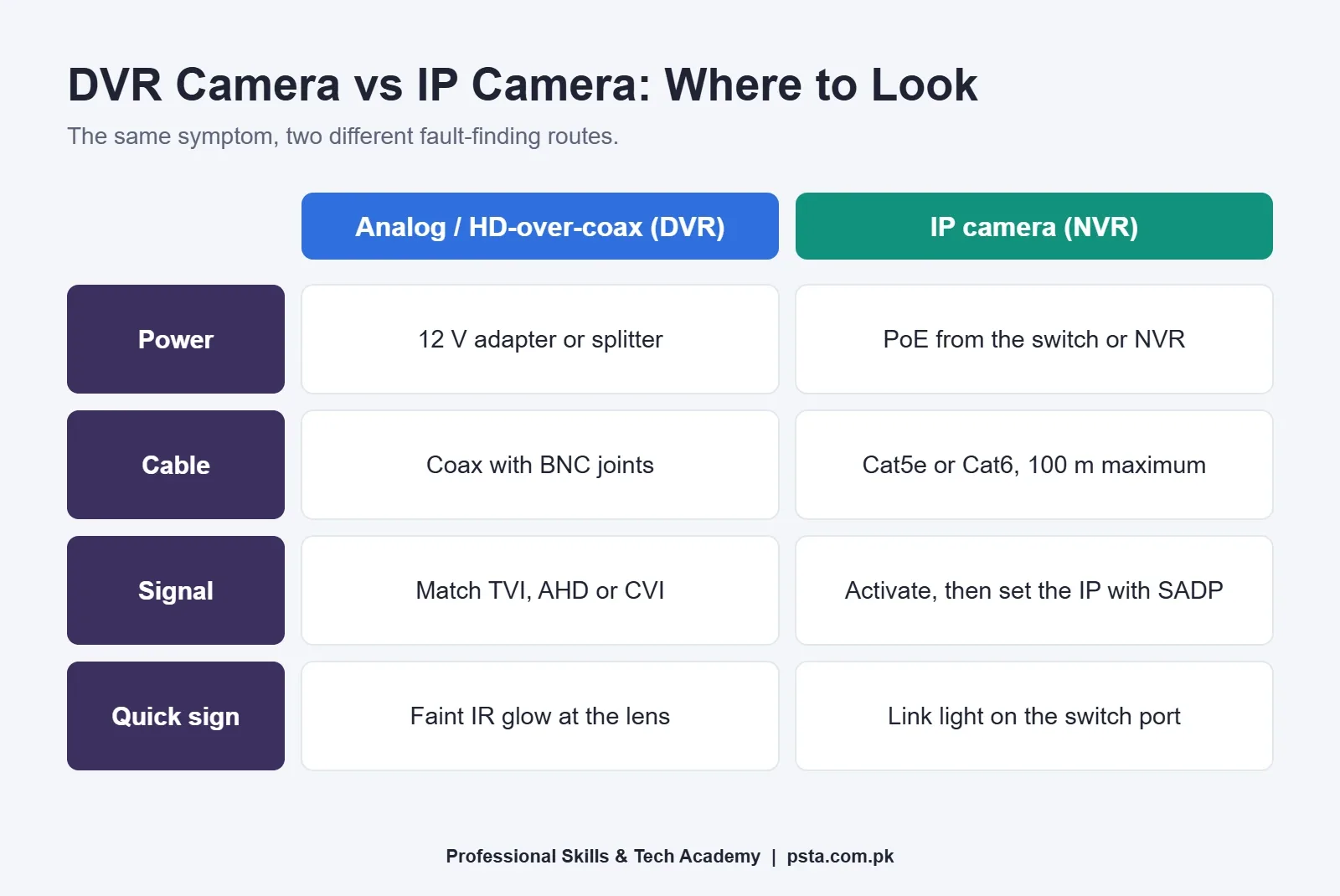
An IP camera offline on the NVR has failed in a different place, because power and video travel over one network cable and the camera needs a valid network address. Work through these:
- Link light. Check the PoE switch or NVR port. No light means no connection, so suspect the cable or the RJ45 crimp.
- PoE cable length. PoE runs, including patch cords, are limited to 100 meters under the 802.3af, 802.3at and 802.3bt standards, as Netgear's PoE cable guide explains. The same guide treats Cat5e as the minimum for all three and recommends Cat6. A run past 100 m may light up but drop out under load.
- Power budget. If cameras go offline at night when IR switches on, the switch may be running out of watts. Our PoE switch sizing guide walks through the arithmetic.
- Address and activation. A new or reset Hikvision camera must be activated with a password and may sit on an IP address outside your NVR's range. Hikvision's SADP tool guide describes a Windows program that finds Hikvision devices on the network, activates them with a strong password, and lets you set DHCP or a static IP. Run it from a laptop plugged into the same switch.
If the cameras show on the NVR but the mobile app says "Device Offline", the problem is the internet link or cloud setting, not the camera. Our Hik-Connect and DMSS setup guide covers that case. The comparison below sets the two fault-finding routes side by side.
Why Is the Night Picture White, Hazy or Full of Bugs?
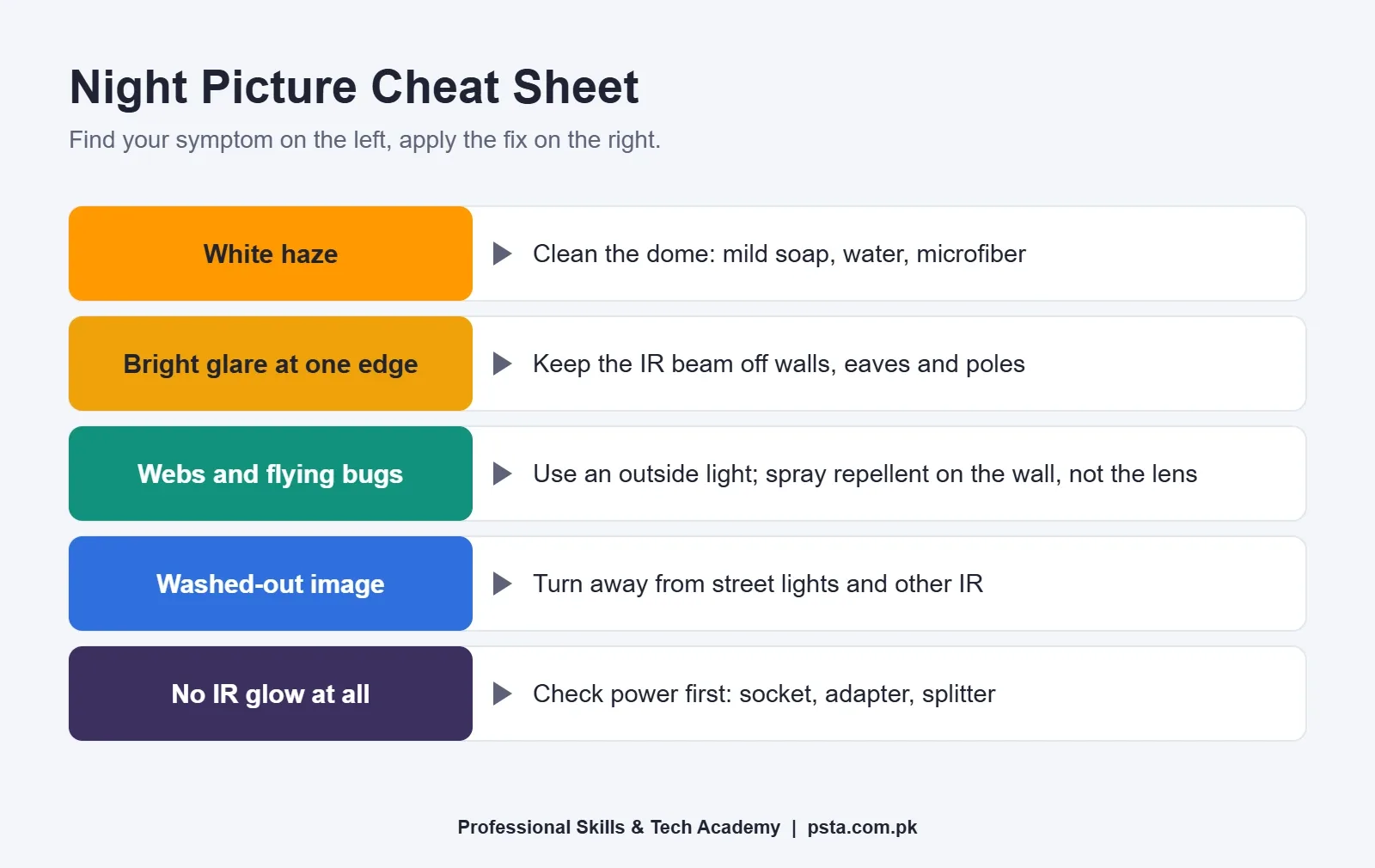
Most CCTV night vision complaints are not failures at all. A camera that looks perfect by day and turns into a white blur at night usually has infrared light bouncing back into the lens. An Axis white paper on IR reflections lists the usual causes: dirt, dust, spider webs or water drops on the dome, nearby walls, eaves or poles reflecting IR, other lights shining into the camera, and a lens tilted so far that IR leaks past its rubber seal.
The fixes follow directly:
- Clean the dome with mild soap, water and a soft microfiber cloth. In dusty cities, put this on a regular schedule.
- Move the camera so its beam does not hit a wall, a chajja or a pole just in front of it.
- Keep the dome's rubber ring seated and avoid extreme lens tilts.
- Turn the camera away from street lights and neighboring cameras' IR.
Insects are the other night-time headache. Reolink's article on bugs and night vision explains that the IR LEDs give off a little heat that draws insects, and spiders follow them and spin webs over the lens. Its suggestions include using an external light with the camera's IR turned off, spraying a water-based repellent on the wall rather than the lens, and mounting cameras away from porch lights. The cheat sheet below matches each night symptom to its fix.
What If the Camera Works Only Some of the Time?
A CCTV camera not working only some of the time is the hardest case, because everything looks fine when you arrive. Clues worth chasing:
- Drops after power returns. An adapter that is weakening may fail only on restart. Swap it and watch for a few days.
- Drops in the afternoon. A loose joint on a hot roof can open as it expands. Re-terminate joints on sun-exposed runs.
- Drops in rain. Water is getting into a connector or junction box. Seal it properly and add a drip loop.
- Drops at night. IR raises power draw. Compare the adapter rating or PoE budget with the camera's maximum consumption on its datasheet.
Check the recorder's log too. Most DVRs and NVRs record when a channel lost video, and matching those times to outages or weather often reveals the pattern.
When Should You Replace Instead of Repair?
Replace a part only after the swap test proves it faulty. Some rules of thumb from our service work:
- A camera that fails on a known-good cable, port and adapter is rarely worth repairing at board level. Replace it with one that matches the recorder's signal type.
- A recorder port that fails every test can often be left unused if spare channels exist. Replace the recorder only when the customer needs that channel.
- A cable run with repeated faults, especially old coax with taped joints, is better replaced end to end than patched again.
Tell the customer what you tested and what you found. A short written note builds trust and helps the next technician who works on the site.
Fault-Finding Practice in PSTA's CCTV Technician Course
Reading about a CCTV camera not working is a good start, but troubleshooting really sticks when you hunt down a fault someone has planted on a live system. Our CPCST program, short for Certified Professional CCTV Surveillance & AI Security Technician, runs for 12 weeks and is built for beginners. Its modules include coaxial and twisted-pair transmission, DVR setup and power management, IP networking and subnetting, NVR deployment, PoE switching, remote access, AI analytics, and a dedicated unit on advanced troubleshooting, maintenance and system hardening. You also learn site surveys and how to write quotations.
The course page currently shows the fee as Rs. 22,000, down from Rs. 25,000, so check there before you apply. You can study face to face in Mandian, Abbottabad (Old College Road, across from FIMS College), or join the same classes live online from any city. Browse the full list on our courses page, start an application through admission, or ask about the next batch on WhatsApp at +92 314 5424399.
Start a Fault Log on Your Next Service Visit
Next time you find a CCTV camera not working on a job, write down the channel, the message on screen, what you tested and what fixed it. After a dozen visits you will have your own record of the faults common in your area, and you will reach for the right test first. That habit, more than any tool, is what separates a quick technician from one who swaps parts until something works.
Frequently asked questions
Why does my DVR show "No Video" on some channels?
On Hikvision recorders, "No Video" simply means no camera is plugged into that channel's BNC port. If you only installed four cameras on an eight-channel DVR, the other four tiles will show it. Nothing is broken. You can change the live view layout to hide unused channels so the screen looks cleaner for the owner.
How do I know if my CCTV power adapter is faulty?
Swap it with the adapter from a camera that works. If the dead camera comes back and the working one now fails, the adapter is the problem. Also check for a faint red IR glow at the lens in a dark spot. If several cameras on one adapter and splitter drop together, test that shared supply first.
Why does my CCTV camera work in the day but not at night?
The camera usually works, but its infrared light is reflecting back into the lens. Dust, spider webs or water drops on the dome, or a wall or eave close in front of the camera, cause a white haze. Clean the dome with mild soap and a microfiber cloth, and remount the camera so its beam has a clear view.
Why is my CCTV picture black and white or rolling?
A rolling, black-and-white or garbled picture often means the camera sends a format the recorder does not expect, such as AHD into a TVI-only input. Check both datasheets. Many HD-over-coax cameras let you change the output with a button or small joystick on the cable tail. Cycle through the formats until the picture locks.
How do I find an IP camera that disappeared from the NVR?
First check for a link light on the switch or NVR port. If the light is on, the camera may be inactive or on a different IP range, especially after a reset. For Hikvision cameras, run the free SADP tool on a Windows laptop connected to the same switch. It lists devices, activates them and lets you set the IP address.
How far can I run a PoE cable to an IP camera?
The PoE standards 802.3af, 802.3at and 802.3bt allow up to 100 meters, and that total includes patch cords at both ends. Use Cat5e as the minimum and Cat6 where you can. Longer runs may work briefly and then drop out when the camera draws more power at night. Add a PoE extender or switch for longer distances.
Should I repair or replace a dead CCTV camera?
Replace it only after testing it on a known-good cable, recorder port and power supply. If it still shows nothing, board-level repair rarely makes sense for a standard camera. Buy a replacement that matches the recorder's signal type, such as TVI or AHD for a DVR, so it displays correctly the first time you connect it.
Sources & references
- What does it mean "No Video"? (Hikvision Support) supportusa.hikvision.com
- Video Loss Troubleshooting for DVRs (Swann Support) support.swann.com
- What Category of Ethernet Cable Should You Use for PoE? (NETGEAR) netgear.com
- IR reflections in dome cameras (Axis white paper) whitepapers.axis.com
- Flying Bugs on Night Vision Cameras: Causes and Solutions (Reolink) reolink.com
- How to Download and Use the SADP Tool (Hikvision) legacy.hikvision.com
- Govt admits up to seven hours of power outages (Dawn) dawn.com
Last reviewed & updated on by Umar Qureshi. Written by the PSTA team in Abbottabad, Pakistan.

Umar Qureshi

Certified Professional CCTV Surveillance & AI Security Technician (CPCST)
Turn this guide into a career: hands-on training with real projects, online across Pakistan or on-campus in Abbottabad · 12 Weeks.


Comments
No comments yet — ask a question or share your experience.