Quick answer
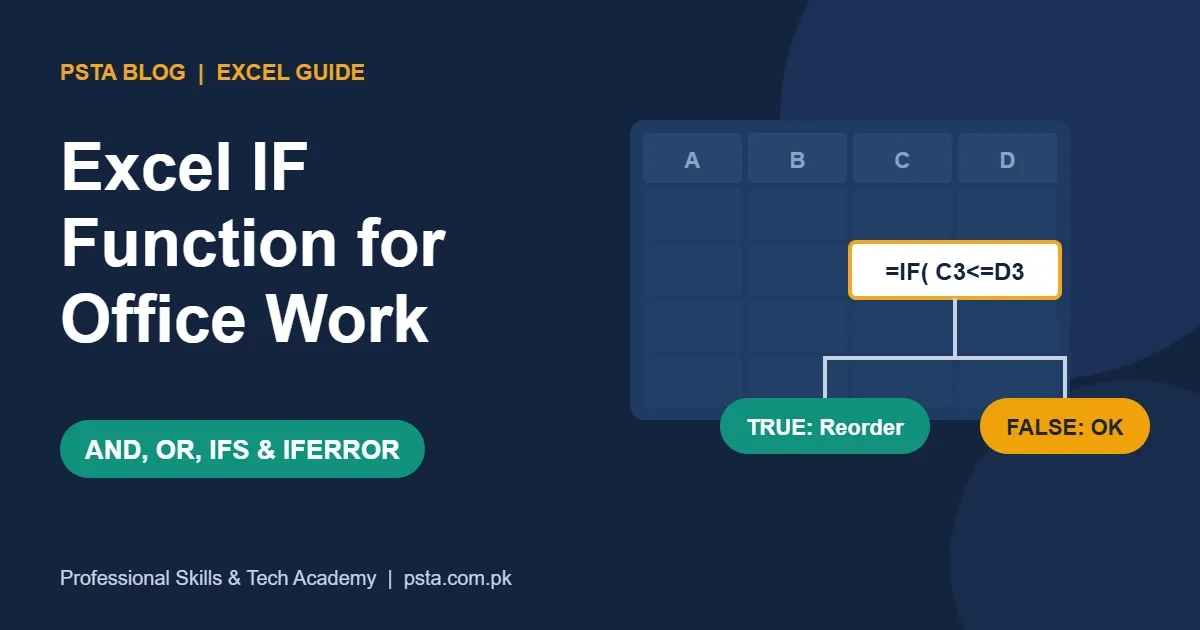
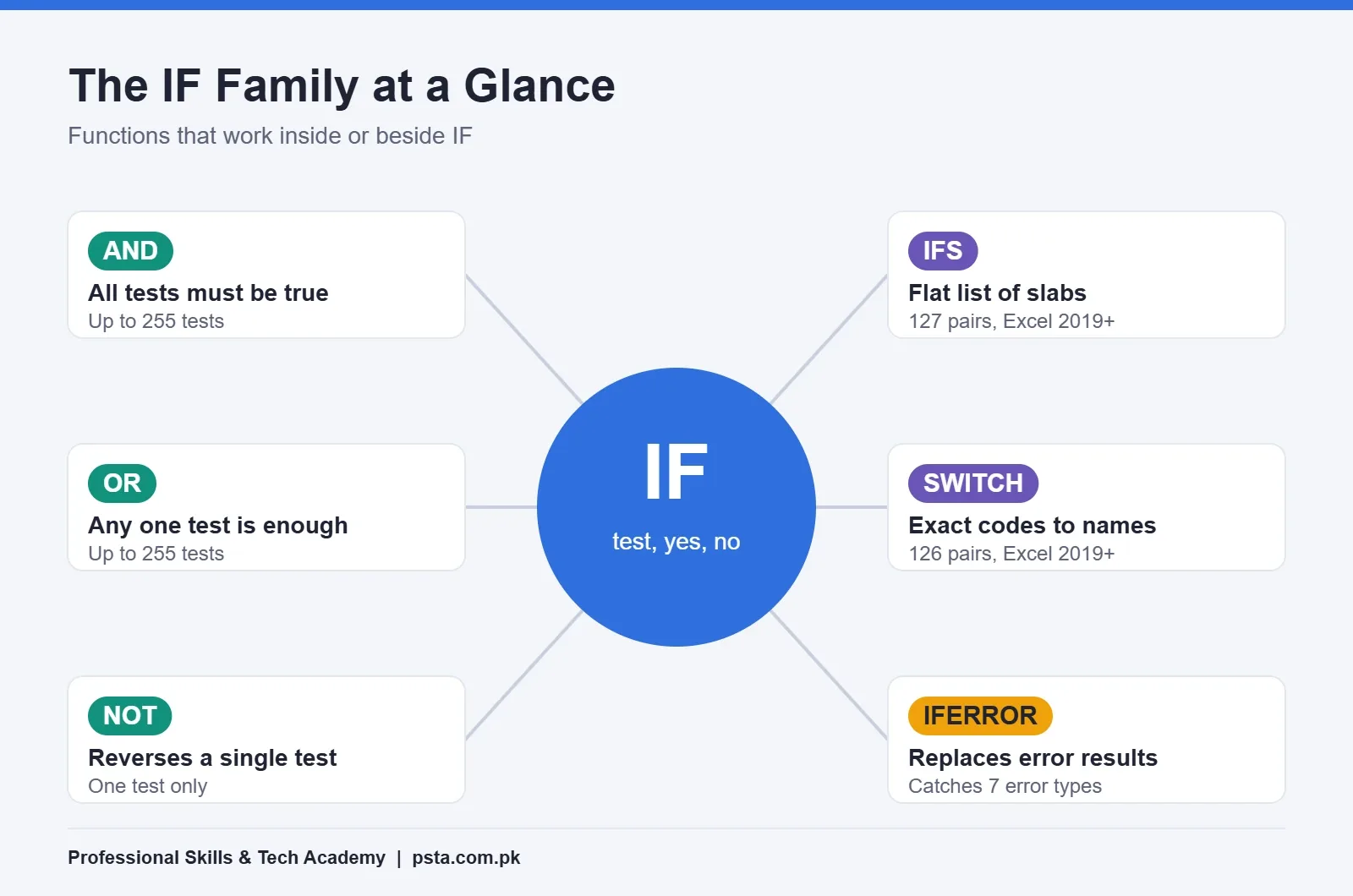
The Excel IF function checks one condition and returns one result when it is true and another when it is false: =IF(test, value_if_true, value_if_false). Add AND or OR for several conditions, use IFS or a lookup table for slabs such as grades, and wrap a working formula in IFERROR only when errors are expected.
Key takeaways
- • IF has three parts: a test, a result for TRUE and a result for FALSE.
- • AND needs every condition to be true and OR needs just one; each accepts up to 255 conditions.
- • Excel allows 64 nested IFs, but IFS or a lookup table is far easier to read for slabs.
- • IFS and SWITCH need Excel 2019 or newer and return #N/A when nothing matches and there is no default.
- • Add IFERROR last, because it also hides real mistakes such as a misspelled function.
Table of contents 23 sections
- What Does the Excel IF Function Do?
- The Example Sheet Used in This Guide
- Excel IF Function Syntax, Argument by Argument
- Four Single-Condition Formulas for Office Work
- 1. Reorder Alert on a Stock List
- 2. Pass or Fail on a Test Sheet
- 3. Overtime Pay
- 4. Flag Missing Data
- How Do You Test Two Conditions at Once?
- AND: Every Condition Must Be True
- OR: Any One Condition Is Enough
- NOT: Reverse a Condition
- A Date Condition: Overdue Invoices
- Nested IF, IFS or a Lookup Table: Which Should You Use for Slabs?
- Option 1: Nested IF
- Option 2: The IFS Function
- Option 3: A Lookup Table
- When Is SWITCH Better Than IF?
- Handling Errors and Blank Cells With IFERROR
- Why Is My IF Formula Not Working?
- Using IF Logic in Conditional Formatting
- Practicing IF Formulas in PSTA's Office Automation Course
- Turn One Manual Column Into a Formula This Week
Here's an example we use in class. A stationery wholesaler in Abbottabad keeps a stock sheet of 300 items. Every Friday, an assistant scrolls down the list and types "Reorder" next to anything running low. It takes an hour, and a few items always get missed. One Excel IF function in one column does the same check in under a second, and it re-checks every time a number changes.
This guide teaches the Excel IF function the way office work actually uses it: on stock lists, overtime, commissions, fee records and grade sheets. Every formula below has been written so you can copy it, change the cell references and use it at work tomorrow.
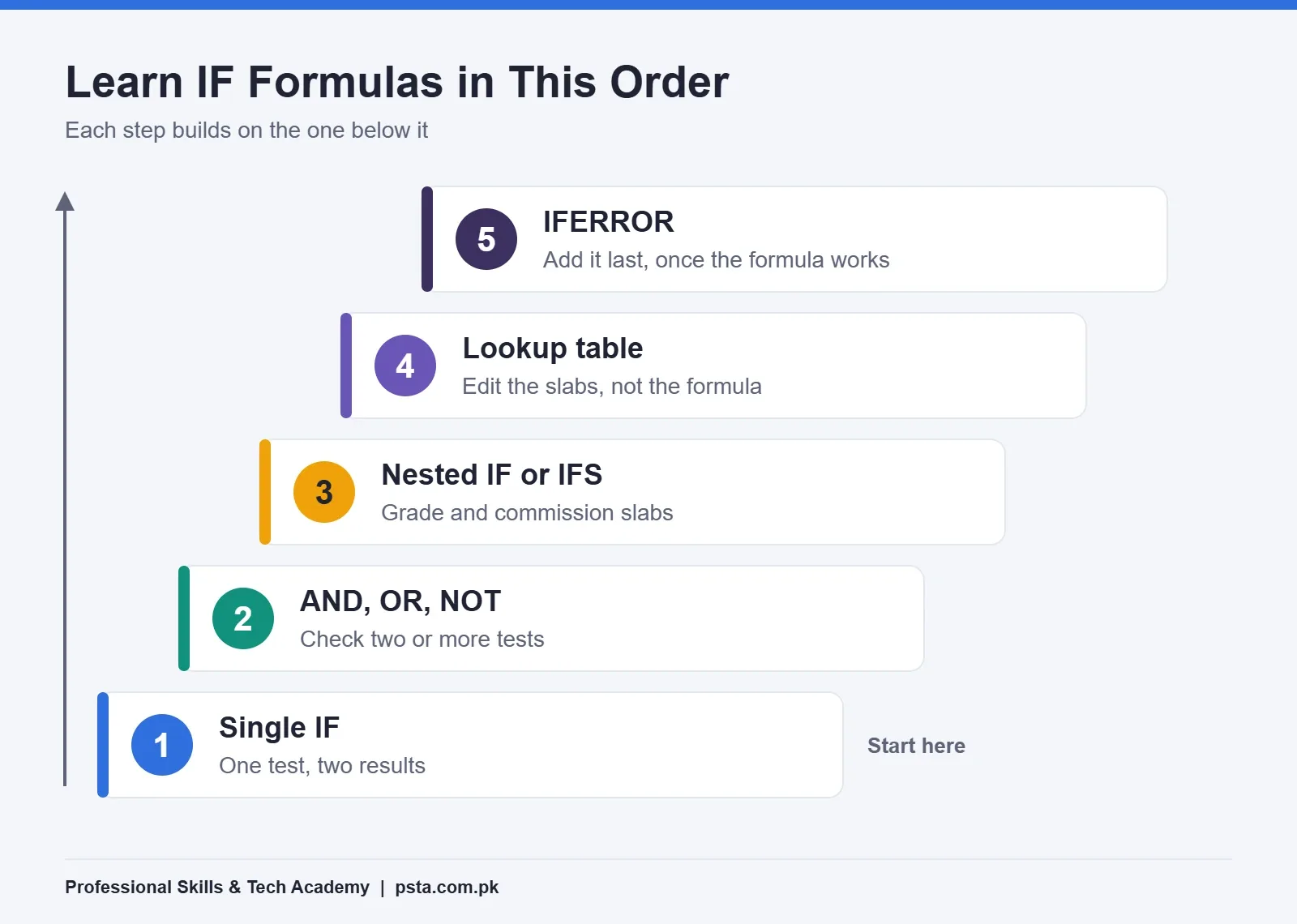
After working through the examples, you should be comfortable doing five things:
- Read and write the three parts of an IF formula without guessing.
- Test two or more conditions with AND, OR and NOT.
- Pick between nested IF, IFS, SWITCH and a lookup table for slab-based results.
- Hide error messages with IFERROR, and know when you shouldn't.
- Fix the five mistakes that break most beginner formulas.
What Does the Excel IF Function Do?
The Excel IF function asks a yes-or-no question about a cell, then returns one result for "yes" and another for "no". That's all it does. The power comes from what you put inside the question and the two answers.
A clerk might think, "If the stock is at or below the reorder level, write Reorder, otherwise write OK." Excel wants that same sentence in a fixed order: the test, the result when true, then the result when false. Once you can say a rule out loud in that shape, you can turn it into a formula.
Microsoft's own guide to IF and its common pitfalls lists the function in every current version, from Excel 2016 to Microsoft 365 and Excel for the web. So the basic formulas in this guide will work on almost any office computer in Pakistan, including older ones.
The Example Sheet Used in This Guide
To keep things concrete, every formula refers to one practice sheet. The business is imaginary, but the columns are the kind you'll meet in a real office. Row 2 holds the first record, so formulas start in row 2 and are filled down.
| Column | What it holds | Sample value in row 2 |
|---|---|---|
| A | Staff name or item name | Ayesha |
| B | Test marks out of 100 | 67 |
| C | Stock quantity | 18 |
| D | Reorder level | 25 |
| E | Hours worked in a day | 10 |
| F | Overtime rate per hour (Rs.) | 250 |
| G | Monthly sales (Rs.) | 620000 |
| H | Customer returns this month | 1 |
| I | Payment status | Pending |
| J | Invoice date | 01-Oct-2026 |
| K | Customer city | Mansehra |
| L | Order value (Rs.) | 7400 |
Type a few rows like these into a blank workbook before you read further. Trying each formula on your own sheet teaches far more than reading it.
Excel IF Function Syntax, Argument by Argument
The pattern is =IF(logical_test, value_if_true, [value_if_false]). The square brackets mean the last part is optional. If you leave it out and the test is false, Excel simply shows FALSE in the cell, which usually looks unfinished on a report.
| Part | What goes here | Example |
|---|---|---|
| logical_test | A comparison that is either TRUE or FALSE | C2<=D2 |
| value_if_true | Text, a number, a cell or another formula | "Reorder" |
| value_if_false | The same choices, used when the test fails | "OK" |
The comparison signs you'll use most are = (equal), <> (not equal), >, <, >= and <=. Text results go inside double quotes. Numbers and cell references don't.
Four Single-Condition Formulas for Office Work
1. Reorder Alert on a Stock List
=IF(C2<=D2,"Reorder","OK")
With 18 in stock and a reorder level of 25, the cell shows Reorder. Fill it down 300 rows and the Friday hour of scrolling disappears. Add a filter on this column, and the purchase list is ready.
2. Pass or Fail on a Test Sheet
=IF(B2>=40,"Pass","Fail")
The 40 here is a sample cut-off. A smarter version keeps the cut-off in its own cell, say N1, and the formula becomes =IF(B2>=$N$1,"Pass","Fail"). When the passing mark changes, you edit one cell instead of hundreds of formulas. The dollar signs lock that reference when you fill down.
3. Overtime Pay
=IF(E2>8,(E2-8)*F2,0)
Ayesha worked 10 hours, so she gets 2 extra hours at Rs. 250, which is Rs. 500. Anyone at 8 hours or less gets 0. Notice the true result is a calculation, not text. IF can return any value Excel can work out.
4. Flag Missing Data
=IF(I2="","Status missing",I2)
Two quote marks with nothing between them mean "empty". This formula copies the status when it exists and warns you when someone forgot to fill it in. It's a cheap way to catch gaps before a report goes to your manager.
How Do You Test Two Conditions at Once?
Real rules often have more than one part, and a single test inside the Excel IF function can't cover them. That's where an IF formula with multiple conditions comes in, built with AND, OR and NOT. You place them inside the test part of IF. According to Microsoft's page on using IF with AND, OR and NOT, AND and OR can each check up to 255 conditions, while NOT takes only one.
AND: Every Condition Must Be True
Say the company pays a 2% bonus only when monthly sales reach Rs. 500,000 and returns stay at 2 or fewer:
=IF(AND(G2>=500000,H2<=2),G2*2%,0)
Ayesha's Rs. 620,000 in sales with 1 return passes both checks, so she earns Rs. 12,400. Miss either condition and the result is 0.
OR: Any One Condition Is Enough
Now a delivery rule: free delivery inside Abbottabad, or on any order of Rs. 5,000 and above:
=IF(OR(K2="Abbottabad",L2>=5000),"Free","Rs. 300")
The Mansehra customer ordered Rs. 7,400, so the second condition is true and delivery is free. The Rs. 300 charge is a sample figure you'd replace with your own rate.
NOT: Reverse a Condition
=IF(NOT(I2="Paid"),"Follow up","")
Any status other than Paid gets a follow-up note. The same idea can be written as I2<>"Paid", which many people find easier to read. Use whichever you'll still understand in six months.
A Date Condition: Overdue Invoices
=IF(AND(I2<>"Paid",TODAY()-J2>30),"Overdue","")
Excel stores dates as numbers, so subtracting the invoice date from TODAY() gives the age in days. This formula marks an unpaid invoice older than 30 days. Because TODAY() updates daily, the sheet keeps itself current.
Nested IF, IFS or a Lookup Table: Which Should You Use for Slabs?
Slabs are results that depend on ranges: grades, commission tiers, discount bands. Take these sample grade slabs, which you'd adjust to your own board or company policy: 80 and above is A+, 70 is A, 60 is B, 50 is C, 40 is D, and anything lower is Fail.
Option 1: Nested IF
=IF(B2>=80,"A+",IF(B2>=70,"A",IF(B2>=60,"B",IF(B2>=50,"C",IF(B2>=40,"D","Fail")))))
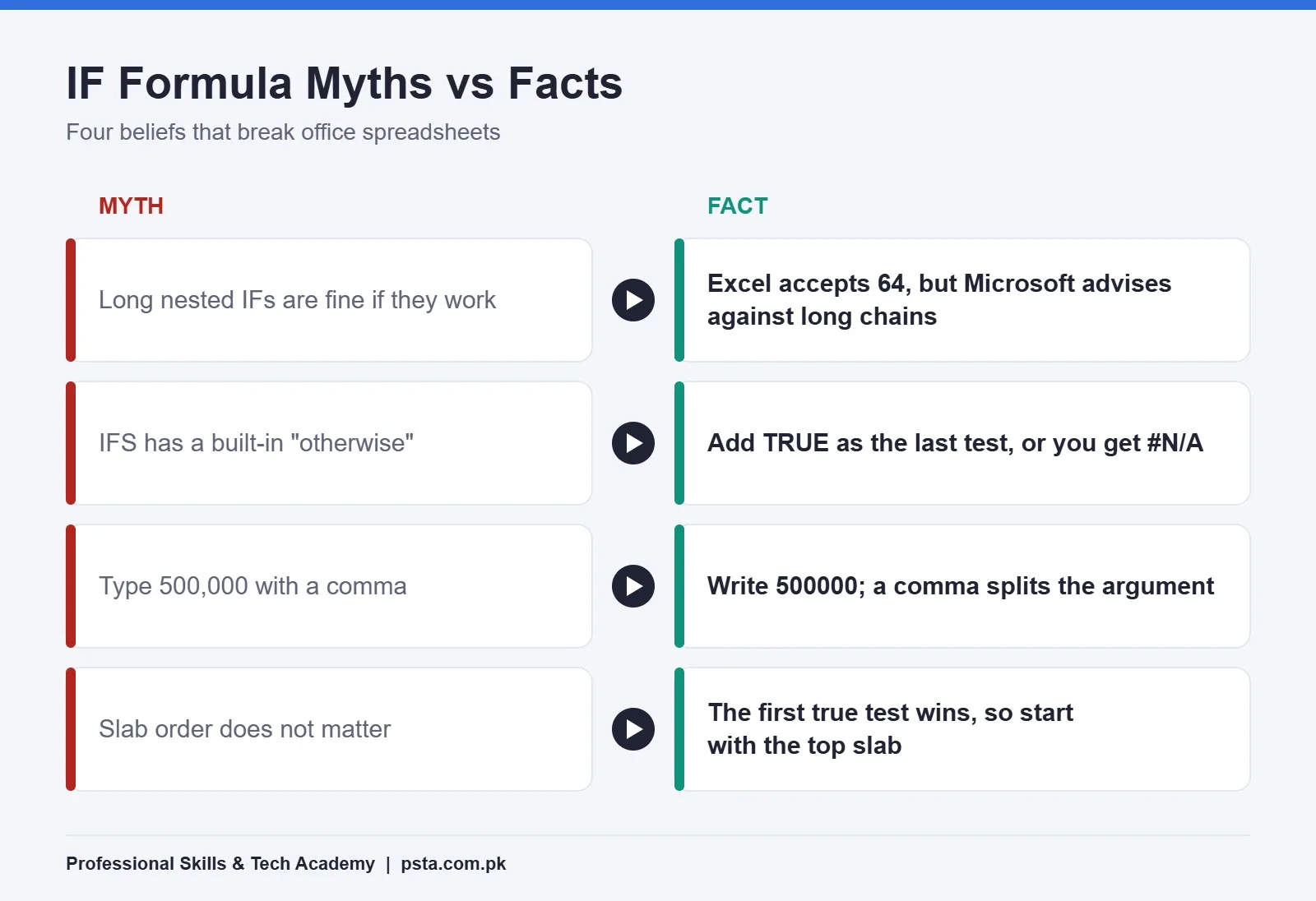
Each new IF sits in the false part of the one before it. It works everywhere, but count those closing brackets. Microsoft says Excel will accept up to 64 nested IFs and also says plainly that it's not advisable. Long chains are hard to check and harder for a colleague to edit.
Option 2: The IFS Function
=IFS(B2>=80,"A+",B2>=70,"A",B2>=60,"B",B2>=50,"C",B2>=40,"D",TRUE,"Fail")
IFS reads as a flat list of test-and-result pairs, with no brackets piling up. The IFS function page allows up to 127 pairs. Note the final TRUE,"Fail". IFS has no automatic "otherwise", so without that last pair a mark of 25 returns #N/A.
Option 3: A Lookup Table
Put the slabs in a small table on a Settings sheet, sorted from lowest to highest: 0 Fail, 40 D, 50 C, 60 B, 70 A, 80 A+. Then use an approximate-match lookup:
=VLOOKUP(B2,Settings!$A$2:$B$7,2,TRUE)
Microsoft recommends this route for long slab lists, and the reason is practical. When the policy changes, you edit the table, not the formula. Anyone can see the rules at a glance. If you're on Microsoft 365, our VLOOKUP vs XLOOKUP guide shows the newer way to do the same lookup.
| Method | Best for | Works in | Main drawback |
|---|---|---|---|
| Nested IF | 2 to 3 slabs | Excel 2016 and newer | Brackets and order mistakes |
| IFS | 4 to 8 slabs that rarely change | Excel 2019, 2021, 2024, Microsoft 365 | #N/A without a TRUE default |
| Lookup table | Many slabs, or rules that change | Excel 2016 and newer (VLOOKUP) | Table must be sorted ascending |
One rule applies to all three: test from the top slab down when you use "greater than or equal". IF and IFS stop at the first true test. If you start with B2>=40, a student with 95 also passes that test and gets a D.
When Is SWITCH Better Than IF?
SWITCH is for exact matches against a fixed list, such as codes. Suppose branch codes in column M need full names:
=SWITCH(M2,"ATD","Abbottabad","MSR","Mansehra","HRP","Haripur","Unknown")
The last value, with no partner, is the default. The SWITCH documentation allows up to 126 value-and-result pairs and returns #N/A if nothing matches and no default is given. Like IFS, it needs Excel 2019 or newer. SWITCH can't test ranges such as "above 80", so keep slabs on IFS or a lookup table.
Handling Errors and Blank Cells With IFERROR
Some formulas fail on certain rows. Dividing sales by returns, for example, gives #DIV/0! when returns are zero. IFERROR catches that:
=IFERROR(G2/H2,0)
Microsoft's IFERROR page lists seven errors it handles: #N/A, #VALUE!, #REF!, #DIV/0!, #NUM!, #NAME? and #NULL!. That's useful, and it's also the danger. A misspelled function name gives #NAME?, and IFERROR will quietly turn it into 0. Your report then looks clean while being wrong.
Microsoft's advice on fixing #VALUE! errors in IF is the habit to keep: get the formula working first, then add error handling. Wrap only the part you expect to fail, and pick a result that stands out, such as "Check", when a silent 0 could mislead someone.
Why Is My IF Formula Not Working?
When we check student sheets, the same five problems with the Excel IF function come up again and again.
- Commas inside numbers. Typing 500,000 inside a formula splits it into two arguments. Write 500000. Microsoft's error guide makes this exact point.
- Missing quotes around text.
=IF(I2=Paid,...)gives #NAME? because Excel thinks Paid is a name. Write "Paid". - Numbers stored as text. Marks pasted from a website or a WhatsApp list may be text. A test like B2>=40 then behaves oddly. Look for left-aligned numbers or a small green triangle, and convert them.
- Slabs tested in the wrong order. As shown above, the first true test wins. Start from the highest slab.
- Hidden spaces. "Paid " with a trailing space isn't equal to "Paid". Wrap the cell in TRIM, or clean the column once.
When a formula still misbehaves, open the Formulas tab and use Evaluate Formula. It steps through the calculation one piece at a time, so you can see exactly which test returns the wrong answer.
Using IF Logic in Conditional Formatting
You don't always need a new column. To color unpaid, overdue invoices red, select the rows, go to Home, Conditional Formatting, New Rule, and choose "Use a formula to determine which cells to format". Enter the test only, without IF:
=AND($I2<>"Paid",TODAY()-$J2>30)
Microsoft's AND, OR and NOT guide notes a common slip here. If you forget the equals sign, Excel wraps your formula in quotes and the rule never fires. The dollar sign before the column letters keeps every cell in the row looking at columns I and J.
Practicing IF Formulas in PSTA's Office Automation Course
In our Certified Office Automation Course, the Excel IF function and other formulas are taught on the kind of sheets you just saw: expense lists, sales records and data entry tasks with a time limit. The course runs for 12 weeks at beginner level, and Excel tables, formulas, formatting and charts form one full module alongside Word, PowerPoint and typing practice.
The current fee is Rs. 12,000 (regular Rs. 15,000), payable in 2 installments, and a new batch starts every month. You can join at our Mandian campus on Old College Road, opposite FIMS College, attend live online from any city, or mix the two. The certificate can be checked at psta.com.pk/certificate.
If you'd rather go further with data, the Power BI course builds on these same logical tests inside dashboards. The one-year DIT diploma covers office automation along with networking and programming. Batch timings change each month, so ask on WhatsApp (+92 314 5424399), browse all courses, or fill in the admission form when you're ready.
Turn One Manual Column Into a Formula This Week
The fastest way to make the Excel IF function stick is to use it on your own data. Open a sheet you already use at work or college. Find one column that someone fills in by hand with words like Yes, Due, Pass or Reorder. Write the rule as a sentence, then as an IF formula, and test it on ten rows where you already know the right answer. If all ten match, fill it down.
Once that works, try the same sheet with AND or IFS. When you're preparing for a job test, our Excel interview questions and salary sheet walkthrough show where IF fits alongside other Excel formulas in bigger tasks.
Frequently asked questions
How do I use the IF function in Excel with two conditions?
Put AND or OR inside the test. Use =IF(AND(A2>=50,B2="Yes"),"Approve","Reject") when both conditions must be met, or swap AND for OR when either one is enough. Each of these functions accepts up to 255 conditions, though two or three keep a formula easy for colleagues to check.
What is the difference between IF and IFS in Excel?
IF checks one test and gives two possible results, so several outcomes need IFs nested inside each other. IFS lists many test-and-result pairs in a single flat formula and returns the result of the first true test. IFS needs Excel 2019 or newer and returns #N/A if no test is true, so end it with TRUE and a default.
How many IF functions can you nest in Excel?
Excel accepts up to 64 nested IF functions in one formula. Microsoft itself advises against long chains because they are hard to build correctly and hard for anyone else to maintain. If you need more than three or four levels, a lookup table or the IFS function is usually the cleaner choice.
Why does my IF formula show FALSE instead of a blank cell?
You probably left out the third argument, value_if_false. When the test fails and that part is missing, Excel displays FALSE. Add two double quotes as the last argument, for example =IF(C2
Can an IF formula return a calculation instead of text?
Yes. Either result can be a number, a cell reference or a full calculation. For example, =IF(E2>8,(E2-8)*F2,0) pays overtime only for hours beyond eight and returns zero otherwise. Just leave calculations and numbers outside quotation marks, because anything in quotes is treated as text.
Which Excel version do I need for IFS and SWITCH?
Both functions are available in Excel 2019, Excel 2021, Excel 2024 and Microsoft 365, on Windows and Mac. They are not in Excel 2016, which many older office computers still run. If a workbook will be opened on such a machine, stick with nested IF or a VLOOKUP slab table.
Should I wrap every IF formula in IFERROR?
No. IFERROR replaces any error with your chosen value, including mistakes you would want to see, such as a misspelled function name or a deleted reference. Microsoft suggests getting the formula working first and adding error handling afterwards. Use it where errors are expected, like dividing by a cell that can be zero.
Sources & references
- Microsoft Support: IF function, nested formulas and avoiding pitfalls support.microsoft.com
- Microsoft Support: IFS function support.microsoft.com
- Microsoft Support: Using IF with AND, OR and NOT functions in Excel support.microsoft.com
- Microsoft Support: IFERROR function support.microsoft.com
- Microsoft Support: How to correct a #VALUE! error in the IF function support.microsoft.com
- Microsoft Support: SWITCH function support.microsoft.com
Last reviewed & updated on by Umar Qureshi. Written by the PSTA team in Abbottabad, Pakistan.

Umar Qureshi

Certified Office Automation Course: Master MS Office & Computer Basics
Turn this guide into a career: hands-on training with real projects, online across Pakistan or on-campus in Abbottabad · 12 Weeks.


Comments
No comments yet — ask a question or share your experience.