
Quick answer
The percentage formula in Excel is =part/total, formatted with Ctrl+Shift+%. Do not multiply by 100. Use =price*(1+rate) for increases, =price*(1-rate) for discounts, =(new-old)/old for change, and =sale/(1-rate) to find an original price. Lock totals with $ signs before you copy a formula down a column.
Key takeaways
- • Excel stores percentages as decimals, so =42/50 gives 0.84 and Percent Style shows 84%.
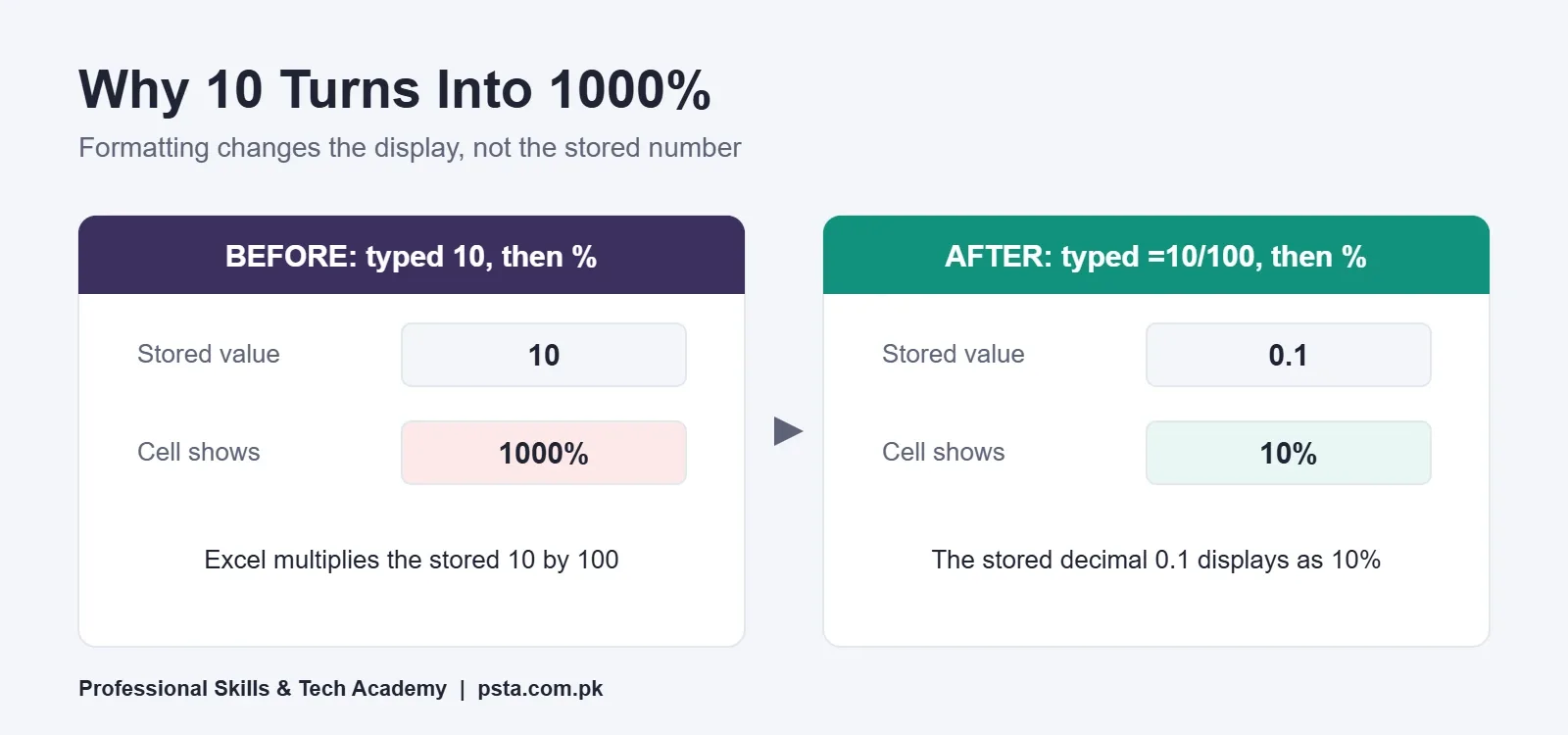
- • Formatting a cell that already holds 10 shows 1000%; calculate the decimal first or type 10%.
- • Lock the total with $ signs (press F4) before copying a share-of-total formula down a column.
- • Percentage change divides by the old value: =(new-old)/old.
- • Two discounts of 20% and 10% make 28% off, not 30%; find original prices by dividing by what remains.
Table of contents 17 sections
- The Example Sheet: A Stationery Shop's Month
- What Is the Basic Percentage Formula in Excel?
- How Do You Show the Answer as a Percentage?
- Why Does Excel Show 1000% Instead of 10%?
- Task 1: Each Product's Percent of Total Sales
- Task 2: Raise Prices by a Percentage
- Task 3: Apply a Discount
- What About Two Discounts in a Row?
- Task 4: Month-on-Month Percentage Change
- Task 5: Find the Original Price From a Sale Price
- Task 6: A Percentage of a Number
- Task 7: A Class Marks Sheet With Percentages
- Which Percentage Formula Do You Need?
- Rounding: When 10% Is Really 9.75%
- Mistakes to Watch For
- Practise Real Office Sheets With PSTA
- Try This Before You Close Excel
Quick self-test before you read on: a school bag costs Rs. 2,400 and the shop gives 15% off. Can you write one Excel formula that shows the new price, without a calculator? If you hesitated, this guide is for you. The percentage formula in Excel is simply part divided by total, and every other percentage job, from discounts to monthly growth, is a small twist on that one idea. PSTA (Professional Skills & Tech Academy) trainers teach it using a single shop sheet, and that is how this walkthrough works too.
Here is what the worked example covers:
- The one formula behind every percentage, and how to format the answer
- Why a cell suddenly shows 1000% and how to stop it
- Share of total, price increases and discounts on a real-looking sheet
- Month-on-month change, reverse prices and stacked discounts
- Rounding traps that make totals look wrong
The Example Sheet: A Stationery Shop's Month
Every number below is an example we made up for practice, not data from a real shop. Picture a small stationery shop that tracks sales in Excel. Column A holds the product, column B holds November sales in rupees, and row 6 holds the total.
| Cell | Product (A) | November sales (B) |
|---|---|---|
| Row 2 | Notebooks | Rs. 64,000 |
| Row 3 | Pens | Rs. 38,000 |
| Row 4 | School bags | Rs. 52,000 |
| Row 5 | Geometry boxes | Rs. 26,000 |
| Row 6 | Total | =SUM(B2:B5) gives Rs. 180,000 |
Type this into a blank workbook as you read. Ten minutes of typing teaches more than an hour of watching.
What Is the Basic Percentage Formula in Excel?
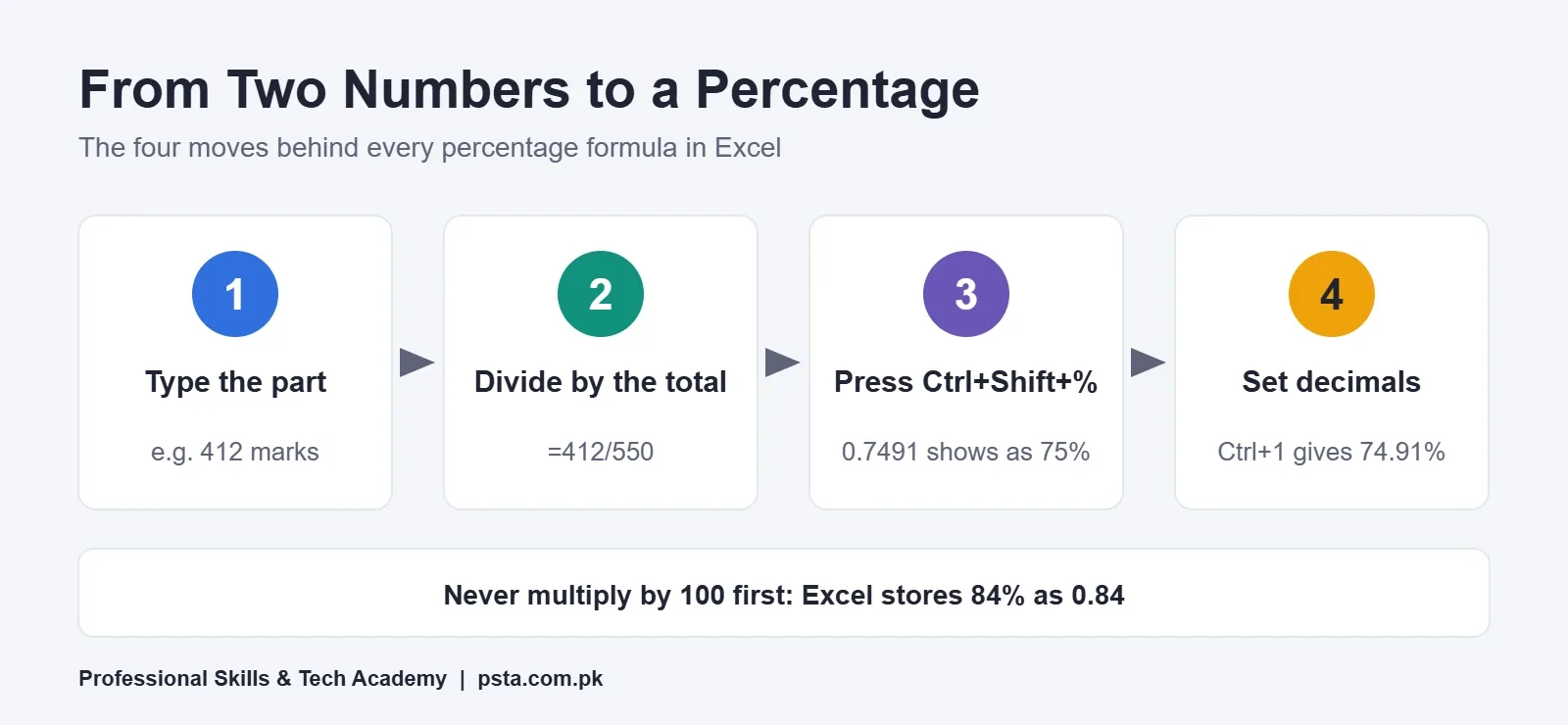
The basic percentage formula in Excel is =part/total, then Percent Style to display it. Microsoft's own Calculate percentages page shows =42/50 returning 0.84, which becomes 84.00% once formatted. Excel never needs you to multiply by 100.
That last point is where most beginners go wrong. They write =42/50*100, get 84, then apply the percent format and see 8400%. Excel stores a percentage as a decimal. The format only changes how that decimal is shown.
A school example makes it concrete. If a student scored 412 out of 550 in a test, type =412/550. Excel returns 0.749090..., which shows as 74.91% with two decimal places.
How Do You Show the Answer as a Percentage?
Select the cells and press Ctrl+Shift+%, or click the % button on the Home tab. Microsoft's Format numbers as percentages guide lists both routes. To choose decimal places, open Format Cells with Ctrl+1, pick Percentage and type the number of places. Setting 0 shows 10% instead of 10.00%.
Why Does Excel Show 1000% Instead of 10%?
Because the cell already held 10 before you applied the format. Microsoft explains that formatting an existing number as a percentage multiplies it by 100, so 10 is shown as 1000.00%. The fix is to calculate the decimal first, such as =10/100, which gives 0.1 and displays as 10%.
Empty cells behave differently. According to the same Microsoft guide, if you format a blank cell as a percentage first and then type 10, Excel reads it as 10%. Typing a number with the % sign, like 15%, also formats the cell for you, as freeCodeCamp's percentage tutorial points out. In practice, the safest habit is to type rates with the % sign every time.
Task 1: Each Product's Percent of Total Sales
The shop owner wants to know which product brings in the most money, so you need each product's percent of total. In C2, type:
=B2/$B$6
Format C2 as a percentage and drag it down to C5. Notebooks show 35.56%, pens 21.11%, bags 28.89% and geometry boxes 14.44%. Together they make 100%.
The dollar signs matter. They lock the reference to the total in B6, so it does not slide down to B7, B8 and so on as you copy the formula. The IONOS guide to Excel percentages uses the same pattern and notes you can press F4 after clicking the cell reference to add the dollar signs. Forget them and each copied formula divides by the wrong cell, which often ends in #DIV/0! errors.
Task 2: Raise Prices by a Percentage
Suppliers raised costs, so the shop adds 10% to a Rs. 2,400 school bag. Put the price in B9 and the rate, typed as 10%, in C9. Then:
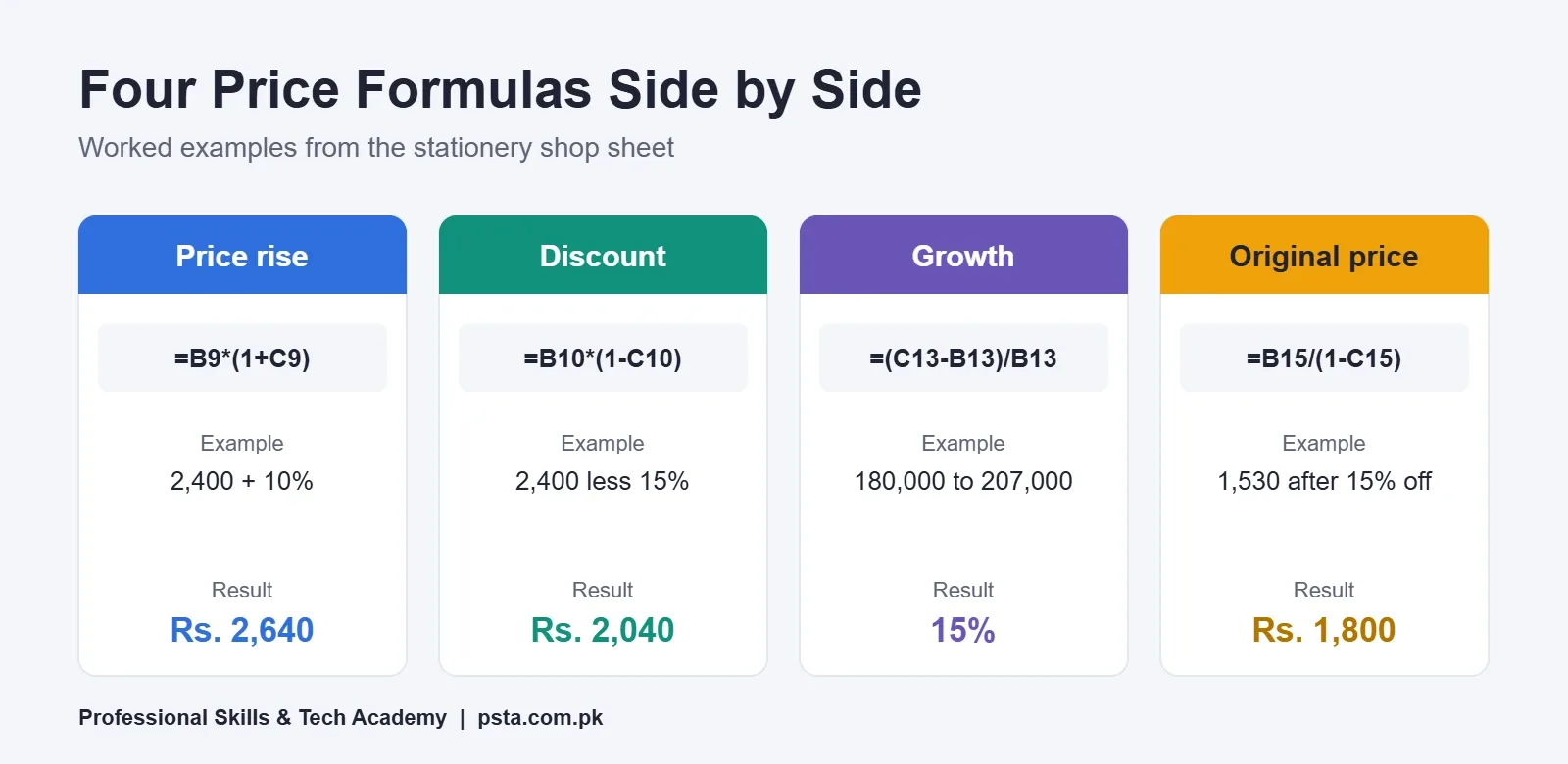
=B9*(1+C9)
The answer is Rs. 2,640. Microsoft's example uses the same shape, =113*(1+0.25), which gives 141.25. The brackets are not optional. Without them, Excel multiplies first and adds afterwards, and you get a nonsense result.
Task 3: Apply a Discount
The discount formula in Excel is the price-rise formula with a minus sign. For the self-test question at the top, the bag costs Rs. 2,400 with 15% off. Put 15% in C10 and use:
=B10*(1-C10)
Excel returns Rs. 2,040. If you only want the discount amount itself, use =B10*C10, which gives Rs. 360. Microsoft's guide shows both forms, with =113*(1-0.25) returning 84.75 for a price cut.
What About Two Discounts in a Row?
Many shops run "20% off, plus an extra 10% at the counter." That is not 30% off. Multiply what remains after each discount instead: 0.80 times 0.90 is 0.72. The customer pays 72% of the price, which is a 28% total discount. freeCodeCamp's tutorial works through the same arithmetic. In a sheet, write =B11*(1-C11)*(1-D11).
Task 4: Month-on-Month Percentage Change
Percentage change in Excel answers the owner's favorite question: are we growing? December sales come in at Rs. 207,000 against November's Rs. 180,000. To find the growth, put November in B13, December in C13 and type:
=(C13-B13)/B13
The result is 0.15, shown as 15%. Always divide by the old value, not the new one. Microsoft's example follows this rule: =(2500-2342)/2342 returns 0.06746, displayed as 6.75%.
When sales fall, the same formula gives a negative answer. Microsoft shows =(2425-2500)/2500 returning -3.00%. You can make negatives stand out with the custom format 0.00%;[Red]-0.00%, which Microsoft lists in its formatting guide. Our conditional formatting in Excel walkthrough shows more ways to color a whole row.
Task 5: Find the Original Price From a Sale Price
A customer asks, "This was Rs. 1,530 after 15% off. What was the full price?" Many people try adding 15% back. That gives Rs. 1,759.50, which is wrong. Instead, divide by what remains:
=B15/(1-C15)
Rs. 1,530 divided by 0.85 gives Rs. 1,800, the true original price. Microsoft's version of this example divides 15 by 0.75 to get 20.
Task 6: A Percentage of a Number
Sometimes the rate is known and you need the amount. A shopkeeper who pays a 5% commission on Rs. 180,000 of sales types:
=B6*5%
The answer is Rs. 9,000. IONOS notes that =A2*5% and =A2*0.05 give the same result. Microsoft's sales tax example works the same way: =800*0.089 returns 71.2. When the rate changes often, keep it in its own cell and point to it, so you update one cell instead of twenty formulas.
Task 7: A Class Marks Sheet With Percentages
Teachers and students often need to calculate percentage in Excel for a whole class at once. Suppose column B holds each student's obtained marks and the total marks, 550 in this example, sit in cell E1. In C2, type:
=B2/$E$1
Format the column as a percentage with two decimals and fill it down. A student with 412 marks shows 74.91%, and one with 498 marks shows 90.55%. Because E1 is locked, you can change the total once if the paper changes, and every row updates.
To add a remark, combine it with IF. For example, =IF(C2>=0.5,"Pass","Fail") marks anyone at 50% or above as passing. Notice the 0.5: inside a formula you compare against the decimal, or type 50% directly. Our guide to the Excel IF function shows how to extend this into grade bands.
One caution for result sheets. If the official result is rounded to whole numbers, round the same way in your sheet. Otherwise a student sitting just below the pass mark on screen may round up to it on paper, or the other way around. Ask the exam office which rule they use.
Which Percentage Formula Do You Need?
Use this table as a quick reference whenever you forget which Excel percentage formula fits. Each row uses cells from the example sheet.
| Question you are asking | Formula | Example result |
|---|---|---|
| What share of the total is this? | =B2/$B$6 | 35.56% |
| What is the price after a rise? | =B9*(1+C9) | Rs. 2,640 |
| What is the price after a discount? | =B10*(1-C10) | Rs. 2,040 |
| How much did it grow or fall? | =(C13-B13)/B13 | 15% |
| What was the price before the discount? | =B15/(1-C15) | Rs. 1,800 |
| What is X% of this amount? | =B6*5% | Rs. 9,000 |
Rounding: When 10% Is Really 9.75%
Excel calculates with the full stored value, not the rounded number you see. Microsoft's 2011 blog post, How to do percentages in Excel, warns that a cell can show 10% while it actually holds 9.75%. That explains why a column of rounded percentages sometimes adds up to 99.99% or 100.01%.
Two habits help. First, check the true value by selecting the cell and looking at the formula bar, or the Sample box in Format Cells. Second, show enough decimals for the job. A marks sheet usually needs two decimal places. A sales summary for the owner may need none.
Mistakes to Watch For
The percentage formula in Excel is short, so errors usually come from habits rather than the math. Watch for these:
- Multiplying by 100 and then applying Percent Style, which gives 8400% instead of 84%.
- Formatting a cell that already holds 10, which turns it into 1000%.
- Leaving out the dollar signs on the total, so copied formulas divide by the wrong cells.
- Dropping the brackets in =B9*(1+C9) or =B10*(1-C10).
- Dividing by the new value when calculating growth.
- Adding a discount back instead of dividing by what remains.
- Adding two discounts together instead of multiplying what remains after each.
These exact mistakes come up in office job tests too. If you are preparing for one, our computer operator test preparation guide lists the other Excel skills examiners check. For summing by category before you take a percentage, see SUMIF and COUNTIF in Excel.
Practise Real Office Sheets With PSTA
Percentages, totals and charts are part of the Microsoft Excel module in PSTA's Office Automation course. According to its course page, the program runs for 12 weeks at Beginner level and costs Rs. 12,000, down from a regular Rs. 15,000, split into two installments. Among the projects it lists, you build an Excel sheet of monthly expenses or sales, complete with formulas and a chart, close to the shop example here.
The same course covers English and Urdu typing, Word for letters and CVs, PowerPoint and a timed data entry task. Learners join at the Abbottabad campus, through live online classes from any city in Pakistan, or in a hybrid mode, and the certificate can be checked on the PSTA certificate verification page. Compare it with other options on the full course list.
Try This Before You Close Excel
Rebuild the stationery shop sheet from memory and add a column for each product's share of total. Then change one sale figure and watch every percentage update. If they all move correctly, your references are right.
When you want a trainer to check your sheets, apply through PSTA admission or ask a question on WhatsApp (+92 314 5424399). Course details are also on psta.com.pk.
Frequently asked questions
How do I calculate percentage of marks in Excel?
Divide obtained marks by total marks, for example =B2/550 or =B2/$E$1 if the total sits in E1, then press Ctrl+Shift+% to show it as a percentage. Use Ctrl+1 to set two decimal places. Do not multiply by 100, because the percent format already does that for display.
Why is my Excel percentage showing as 1000% or 8400%?
The cell holds a whole number rather than a decimal. Either you typed 10 before formatting, or your formula multiplied by 100. Excel's percent format multiplies the stored value by 100 for display. Remove the *100 from your formula, or type rates with the % sign, such as 10%.
What is the formula for percentage increase in Excel?
To raise a value, use =price*(1+rate), such as =B9*(1+C9) with 10% in C9. To measure how much something grew, use =(new-old)/old, such as =(C13-B13)/B13. Keep the brackets in both formulas, or Excel will multiply or divide before it adds or subtracts. Format the growth result as a percentage.
How do I subtract a percentage from a price in Excel?
Multiply the price by one minus the rate: =B10*(1-C10). With Rs. 2,400 and 15% in C10, the answer is Rs. 2,040. If you only want the discount amount, use =B10*C10, which gives Rs. 360 in the same example. Keep the rate in its own cell so one change updates every price.
How do I find the original price before a discount?
Divide the sale price by what remained after the discount: =B15/(1-C15). A Rs. 1,530 item sold at 15% off came from Rs. 1,800, because 1,530 divided by 0.85 is 1,800. Adding 15% back to the sale price gives the wrong answer.
Why do my percentages add up to 99.99% instead of 100%?
Each cell is rounded on screen, but Excel adds the full stored values. A cell can show 10% while holding 9.75%. Show more decimal places to see the true figures, or round the values with a formula if your report must total exactly 100%.
What does the dollar sign do in =B2/$B$6?
It makes the reference absolute, so B6 stays fixed when you copy the formula down the column. Without it, the copied formulas point to B7, B8 and other cells below the total. Click the reference in the formula bar and press F4 to add the dollar signs quickly.
Sources & references
- Calculate percentages (Microsoft Support) support.microsoft.com
- Format numbers as percentages in Excel (Microsoft Support) support.microsoft.com
- How to do percentages in Excel (Microsoft 365 Blog) microsoft.com
- How to Calculate Percentage in Excel (freeCodeCamp) freecodecamp.org
- How to use the percentage formula in Excel (IONOS Digital Guide) ionos.com
Last reviewed & updated on by Umar Qureshi. Written by the PSTA team in Abbottabad, Pakistan.

Umar Qureshi

Certified Office Automation Course: Master MS Office & Computer Basics
Turn this guide into a career: hands-on training with real projects, online across Pakistan or on-campus in Abbottabad · 12 Weeks.

Comments
No comments yet — ask a question or share your experience.