
Quick answer
COUNTIF counts rows that meet one condition, such as =COUNTIF(D2:D13,"Cash"). SUMIF adds a second column for those rows, such as =SUMIF(D2:D13,"Cash",F2:F13). For two or more conditions, use COUNTIFS or SUMIFS, and remember that SUMIFS puts the column to add first. Put text criteria in quotes.
Key takeaways
- • COUNTIF(range, criteria) counts matching rows; SUMIF(range, criteria, sum_range) adds a second column for those rows.
- • Criteria aren't case sensitive, and text or comparisons such as ">=4500" must sit inside double quotes.
- • Wildcards work in both: ? matches one character and * matches any run of characters.
- • COUNTIFS and SUMIFS handle up to 127 range and criteria pairs, but SUMIFS takes the sum range first.
- • Most zero results come from missing quotes, extra spaces, numbers stored as text or ranges of different sizes.
Table of contents 15 sections
- The Example Sheet: One Week at a Mobile Accessories Counter
- What Do SUMIF and COUNTIF Actually Do?
- Question 1: How Many Sales Were Paid in Cash?
- Question 2: How Much Money Came In as Cash?
- What Happens If You Leave Out sum_range?
- SUMIF and COUNTIF With Wildcards, Numbers and Blanks
- When One Condition Isn't Enough: COUNTIFS and SUMIFS
- Watch the Argument Order
- Totals Between Two Dates
- Building the Weekly Summary Block
- Why Does My SUMIF or COUNTIF Return Zero?
- Which Should You Learn First?
- Where These Formulas Show Up at Work
- Practicing Excel Formulas at PSTA
- Try It on Your Own Numbers
Try this short SUMIF and COUNTIF self-test before you read on. A shop has 12 sales in an Excel sheet. Can you write one formula that counts the cash sales, one that adds up the cash money, and one that totals only the earbuds paid in cash? If any of the three would send you scrolling and counting by hand, these are the two functions to learn next.
This guide works through a single example sheet from top to bottom. Every formula below uses the same 12 rows, and every result has been checked, so you can type the data into Excel yourself and get the same numbers.
By the time you finish, you will be able to:
- Count rows that meet one condition with COUNTIF and add matching amounts with SUMIF
- Use wildcards, number comparisons and cell references as criteria
- Move up to COUNTIFS and SUMIFS when a question has two or more conditions
- Build a small weekly summary that updates itself when new sales are added
- Fix the usual reasons a formula returns 0 or the wrong total
The Example Sheet: One Week at a Mobile Accessories Counter
Picture a small mobile accessories counter in a Mansehra Road market. This is an example we built for teaching, not a real shop. The owner records every sale in Excel: date, item, category, how the customer paid and the amount in rupees. Payments arrive as cash, JazzCash or Easypaisa, which is normal for a Pakistani retail counter.
Type the table below into a blank sheet. Put the headings in row 1, so the data sits in A2:F13.
| A: Date | B: Item | C: Category | D: Payment | E: Qty | F: Amount (Rs.) |
|---|---|---|---|---|---|
| 1-Nov-2026 | Charger 20W | Chargers | Cash | 2 | 3,000 |
| 1-Nov-2026 | Earbuds Pro | Audio | JazzCash | 1 | 4,500 |
| 2-Nov-2026 | USB-C Cable | Cables | Cash | 3 | 1,350 |
| 2-Nov-2026 | Phone Cover | Covers | Easypaisa | 2 | 1,200 |
| 3-Nov-2026 | Charger 20W | Chargers | JazzCash | 1 | 1,500 |
| 3-Nov-2026 | Power Bank 10000 | Power Banks | Cash | 1 | 5,200 |
| 4-Nov-2026 | Earbuds Pro | Audio | Cash | 2 | 9,000 |
| 4-Nov-2026 | USB-C Cable | Cables | Easypaisa | 2 | 900 |
| 5-Nov-2026 | Phone Cover | Covers | Cash | 4 | 2,400 |
| 5-Nov-2026 | Power Bank 10000 | Power Banks | JazzCash | 2 | 10,400 |
| 6-Nov-2026 | Charger 20W | Chargers | Cash | 3 | 4,500 |
| 6-Nov-2026 | Earbuds Pro | Audio | Easypaisa | 1 | 4,500 |
Enter the amounts as plain numbers (3000, not "Rs. 3,000"). Use a number format to show commas. If you type the rupee sign into the cell, Excel stores text, and SUMIF will skip it. The week's total, =SUM(F2:F13), should come to Rs. 48,450.
What Do SUMIF and COUNTIF Actually Do?
Both functions walk down a column, test each cell against a condition you give, and act only on the rows that pass. COUNTIF counts those rows. SUMIF adds a number from each of them.
Microsoft's COUNTIF reference gives the syntax as COUNTIF(range, criteria). The SUMIF reference gives it as SUMIF(range, criteria, [sum_range]). So SUMIF has one extra argument: the column it should add.
- range is the column Excel checks, such as the Payment column D2:D13.
- criteria is the test, such as "Cash" or ">=4500".
- sum_range is the column Excel adds when a row passes, such as Amount F2:F13.
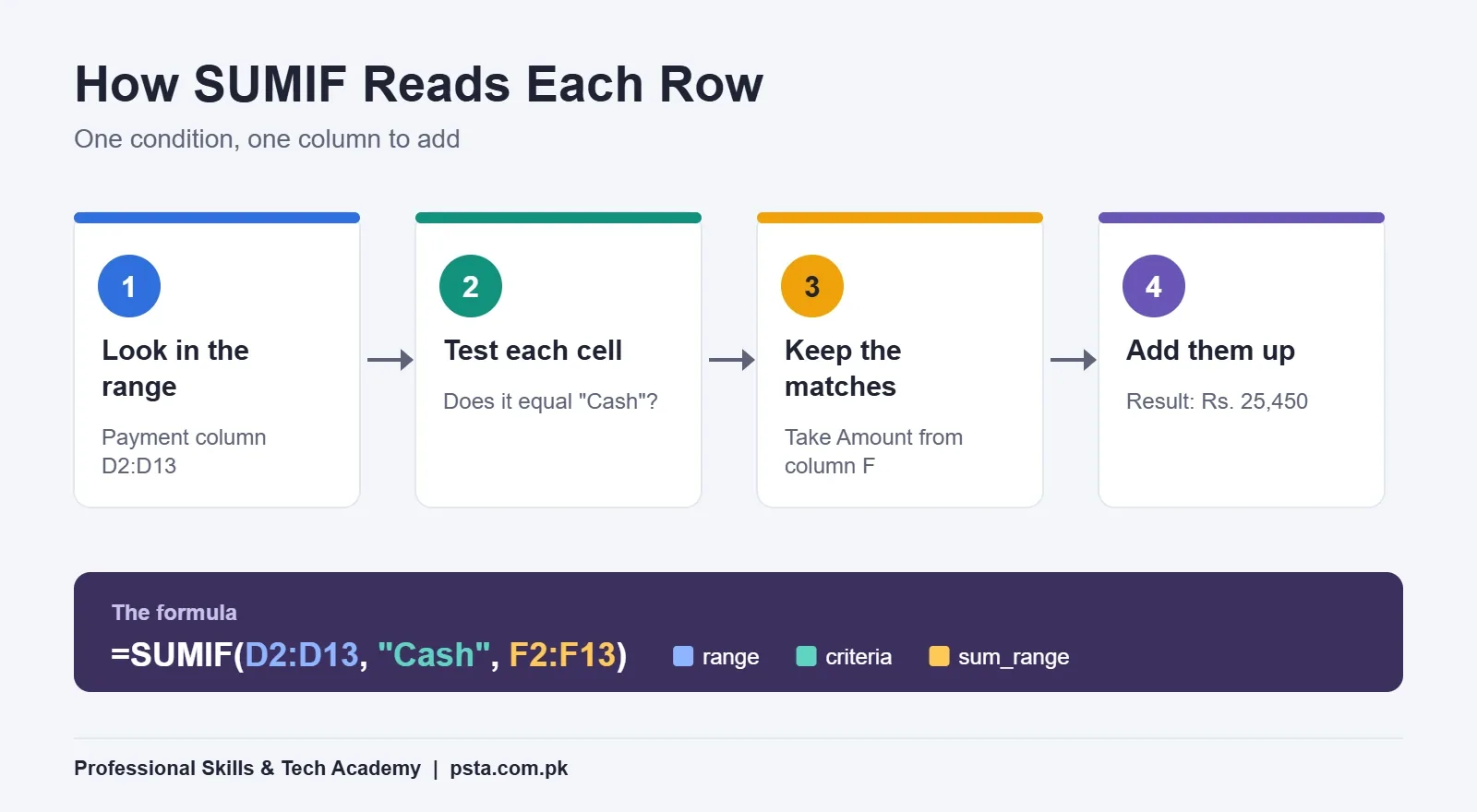
Read every formula in this guide as a sentence: "Look in this column, keep the rows that match this, then count them (or add up that column)." Once you can say it out loud, writing it gets easy.
Question 1: How Many Sales Were Paid in Cash?
The owner wants to know how many customers paid cash this week. That's a count with one condition, so COUNTIF is the right tool.
- Click an empty cell, for example H2.
- Type
=COUNTIF(D2:D13,"Cash")and press Enter. - The answer is 6.
Two details matter here. The word Cash sits inside double quotes because it's text. And the match ignores capital letters: Microsoft notes that COUNTIF criteria aren't case sensitive, so "cash", "CASH" and "Cash" all return 6.
Hard-typing "Cash" works, but a cell reference is better. Type Cash into H1, then write =COUNTIF(D2:D13,H1). Now you can change H1 to JazzCash and the count updates to 3 without touching the formula. This one habit saves more time than most shortcut keys.
Question 2: How Much Money Came In as Cash?
Counting customers is useful. Knowing how much cash should be in the drawer is more useful. For that, you need SUMIF.
=SUMIF(D2:D13,"Cash",F2:F13) returns Rs. 25,450.
Excel checks D2:D13 for "Cash" and, on each matching row, adds the value from F. Change the criteria to "JazzCash" and you get Rs. 16,400; "Easypaisa" gives Rs. 6,600. Add the three and you're back to the full Rs. 48,450, which is a quick way to prove nothing was missed.
What Happens If You Leave Out sum_range?
The third argument is optional. When you skip it, SUMIF adds the cells in the range you tested. That's handy when the condition and the money live in the same column. For example, =SUMIF(F2:F13,">=4500") adds every sale of Rs. 4,500 or more and returns Rs. 38,100.
Keep range and sum_range the same size. Microsoft warns that when they differ, Excel builds its own block starting at the first cell of sum_range, which can make it add the wrong cells. A formula that "works" with mismatched ranges is a bug waiting for the next row of data.
SUMIF and COUNTIF With Wildcards, Numbers and Blanks
Text matches don't have to be exact. Both functions accept two wildcards, according to Microsoft's documentation: a question mark matches any single character, and an asterisk matches any run of characters. To search for a real ? or *, put a tilde (~) in front of it.
| What you want | Formula | Result |
|---|---|---|
| Rows where the item name contains "cable" | =COUNTIF(B2:B13,"*cable*") |
2 |
| Money from any item starting with "Charger" | =SUMIF(B2:B13,"Charger*",F2:F13) |
Rs. 9,000 |
| Sales of Rs. 4,500 or more | =COUNTIF(F2:F13,">=4500") |
6 |
| Money from every payment that isn't cash | =SUMIF(D2:D13,"<>Cash",F2:F13) |
Rs. 23,000 |
| Rows with any text in the Item column | =COUNTIF(B2:B13,"*") |
12 |
Notice the pattern for comparisons. The operator and the number go together inside quotes, as in ">=4500". If the number lives in a cell, join them with an ampersand: ">="&H1. A missing ampersand is a mistake we correct often in practical work.
Blank cells have their own trick. Microsoft's SUMIF page shows that a criteria of "" picks up rows where the tested cell is empty. On a real shop sheet, that's how you catch sales someone forgot to label with a category.
When One Condition Isn't Enough: COUNTIFS and SUMIFS
Now the owner asks a sharper question: how much did earbuds bring in as cash? That has two conditions, category and payment, so you need the plural versions.
=SUMIFS(F2:F13,C2:C13,"Audio",D2:D13,"Cash") returns Rs. 9,000.
=COUNTIFS(C2:C13,"Chargers",D2:D13,"Cash") returns 2.
A row is counted only when every condition is true at the same time. Microsoft's COUNTIFS page explains that the function counts the number of times all criteria are met, and it allows up to 127 range and criteria pairs. You'll rarely need more than three.
Watch the Argument Order
Here's where students lose marks. In SUMIF, the column you add comes last. In SUMIFS, it comes first. The SUMIFS reference calls this out directly, because people copy a SUMIF, add a condition and forget to move sum_range to the front.
| Function | First argument | Conditions allowed | Example result on our sheet |
|---|---|---|---|
| COUNTIF | Range to test | 1 | Cash sales: 6 |
| SUMIF | Range to test | 1 | Cash money: Rs. 25,450 |
| COUNTIFS | First range to test | Up to 127 pairs | Charger sales in cash: 2 |
| SUMIFS | Range to add | Up to 127 pairs | Earbuds paid in cash: Rs. 9,000 |
We suggest writing SUMIFS even when you have only one condition. The order then never changes, and adding a second condition later is just two more arguments.
Totals Between Two Dates
Dates are numbers to Excel, so you can use the same comparison style. To total sales from 4 to 6 November:
=SUMIFS(F2:F13,A2:A13,">="&DATE(2026,11,4),A2:A13,"<="&DATE(2026,11,6)) returns Rs. 31,700.
Using DATE() avoids the confusion between day-month and month-day settings that trips up many Windows PCs in Pakistan. Better still, put the start and end dates in two cells and point the formula at them.
Building the Weekly Summary Block
Single answers are nice. The real payoff of SUMIF and COUNTIF is a small summary block the owner can glance at every evening. Put the five category names in H5:H9, then fill three columns next to them:
- Sales count in I5:
=COUNTIF($C$2:$C$13,H5) - Units sold in J5:
=SUMIF($C$2:$C$13,H5,$E$2:$E$13) - Amount in K5:
=SUMIF($C$2:$C$13,H5,$F$2:$F$13)
The dollar signs lock the data ranges, so you can drag the three formulas down to row 9 and only the category cell changes. Here is what the block should show:
| Category | Sales | Units | Amount (Rs.) |
|---|---|---|---|
| Audio | 3 | 4 | 18,000 |
| Power Banks | 2 | 3 | 15,600 |
| Chargers | 3 | 6 | 9,000 |
| Covers | 2 | 6 | 3,600 |
| Cables | 2 | 5 | 2,250 |
| Total | 12 | 24 | 48,450 |
The block tells a story the raw list hides. Covers moved as many units as chargers but brought in far less money, while two power bank sales earned more than all the chargers together. That kind of reading is exactly what a manager wants from the person who keeps the sheet.
If you convert the data to an Excel Table (Ctrl + T) first, you can write =SUMIF(Sales[Category],H5,Sales[Amount]) instead. New rows are then included automatically, and you never have to edit the range again.
Why Does My SUMIF or COUNTIF Return Zero?
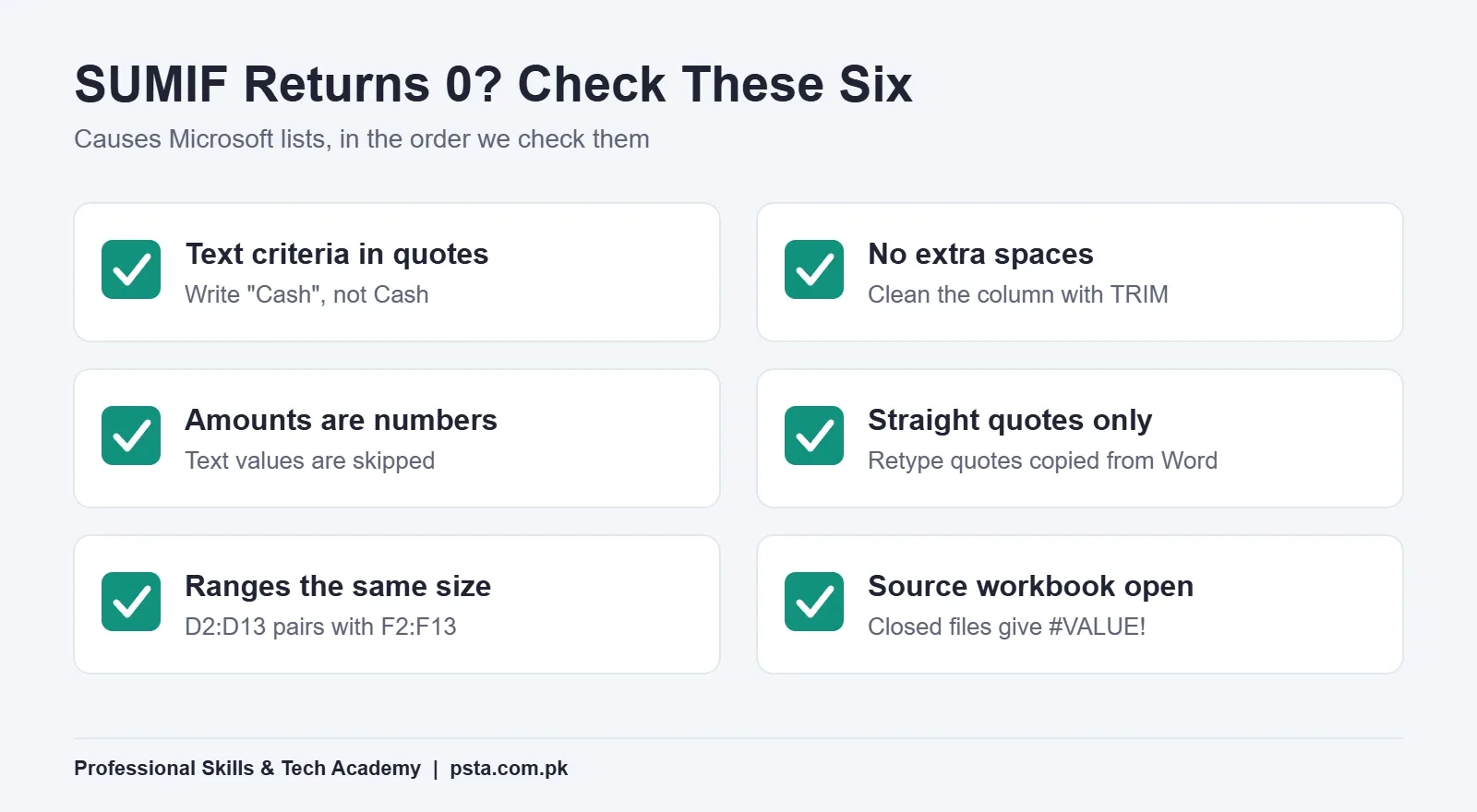
A result of 0, or a total that's slightly off, nearly always comes from the data or the quotes rather than the function. Microsoft's pages list the usual causes, and they match what we fix most often in class:
- Text criteria without quotes.
=COUNTIF(D2:D13,Cash)looks for a named range called Cash. Write "Cash". - Extra spaces. "Cash " with a trailing space doesn't match "Cash". Microsoft suggests cleaning such data with TRIM or CLEAN.
- Numbers stored as text. Amounts pasted from WhatsApp or a PDF often arrive as text. SUMIF ignores them, so the total comes out short.
- Curly quotes. Formulas copied from Word or a website may carry curly quotation marks. Retype them in Excel.
- Mismatched ranges. D2:D13 with F2:F12 gives wrong results in SUMIF and an error in SUMIFS.
- Long text. Microsoft notes that both functions return wrong results when matching strings longer than 255 characters.
- Closed source file. A formula pointing to another workbook returns #VALUE! until that workbook is open.
One limit isn't a mistake at all. COUNTIF can't count cells by their fill or font color. If your office marks unpaid bills in red, add a Status column with the word "Unpaid" instead, then count that. It's also easier for the next person to read. Our guide to conditional formatting in Excel shows how to color cells from such a column automatically.
Which Should You Learn First?
Learn them in the order the questions get harder. Each step reuses everything from the step before, so nothing is wasted.
- COUNTIF with typed text. Count one payment type. Get comfortable with quotes.
- COUNTIF with a cell reference and operators. Switch to H1, then try ">=" with an ampersand.
- SUMIF with sum_range. Total money by payment type, then check the parts add up to the SUM.
- COUNTIFS and SUMIFS. Add a second condition and practice the new argument order.
- A summary block with locked ranges. Drag formulas down a list of categories, then convert the data to a Table.
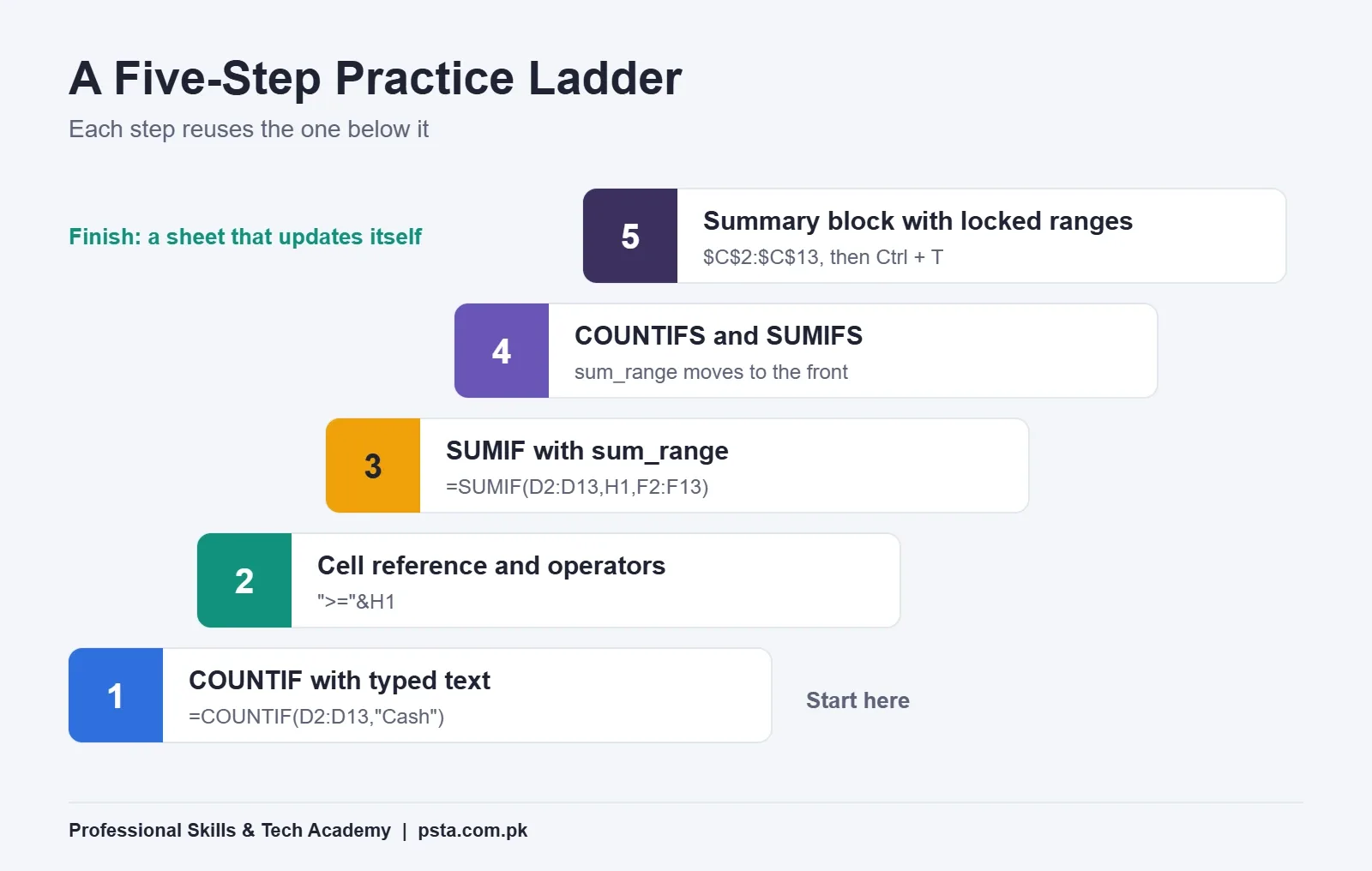
If you type the data yourself, steps 1 to 3 usually fit into one sitting. Give steps 4 and 5 another practice session or two. If you're shaky on logical tests, read our Excel IF function guide first, because the criteria in these formulas follow the same thinking.
Where These Formulas Show Up at Work
SUMIF and COUNTIF turn up in everyday office sheets in Pakistan, even when the job title says nothing about data. A few examples of the sheets you may meet:
- Retail and wholesale counters: daily totals by payment method, as in our example, or outstanding udhaar by customer.
- School and college offices: how many students paid fees this month, and the total collected per class.
- Clinics and labs: number of patients per doctor or per test type.
- Admin and HR: leave days per employee, or overtime hours by department.
- Online sellers: orders delivered versus returned per courier, and COD money still pending.
When a sheet grows past a few thousand rows or needs charts that update across many views, the next tools are a pivot table in Excel and, later, Power BI. Learn SUMIF and COUNTIF first anyway. They teach you to think in conditions, and that's the base for both.
Practicing Excel Formulas at PSTA
PSTA's Office Automation course is a 12-week beginner program that covers Excel tables, formulas, formatting and charts alongside Word, PowerPoint and English and Urdu typing. One of its projects is a monthly expense or sales sheet with totals, averages and a trend chart, which is the natural place to use the formulas in this guide. The listed fee is Rs. 12,000 (regular Rs. 15,000), payable in two installments, and you can join at the Abbottabad campus, live online from any city, or a mix of both.
Office Automation also forms part of the first semester of our one-year DIT diploma, which adds networking, web pages, Python and design if you want a broader base. Learners who already handle data at work and want dashboards can look at the Power BI course. You can compare all programs on the courses page, and when you've picked one, the admission form takes a few minutes.
Try It on Your Own Numbers
Open a blank workbook tonight and type the 12 example rows. Then answer the three self-test questions from the top of this page without looking back: cash sales count, cash total, and earbuds paid in cash. When you get 6, Rs. 25,450 and Rs. 9,000, swap in a week of real figures from your family shop, your college canteen or your own expenses, and build the summary block again.
Frequently asked questions
What is the difference between SUMIF and COUNTIF?
COUNTIF tells you how many rows meet a condition, while SUMIF adds up a number from those rows. On a sales sheet, COUNTIF answers how many customers paid cash, and SUMIF answers how much cash came in. SUMIF needs one extra argument, the sum range, which is the column of amounts to add.
Is COUNTIF case sensitive?
No. Microsoft's documentation says COUNTIF criteria aren't case sensitive, so "cash", "Cash" and "CASH" give the same count. If you truly need an exact-case match, you need a different approach, such as SUMPRODUCT with the EXACT function, but most office sheets never require it.
Why does my SUMIF formula return 0?
The usual causes are text criteria without quotes, extra spaces in the data, amounts stored as text, curly quotation marks copied from Word, or a sum range that is a different size from the criteria range. Check each one in that order. TRIM removes stray spaces, and retyping quotes in Excel fixes the curly-quote problem.
Can SUMIF add values between two dates?
Yes, but you need SUMIFS because there are two conditions: on or after the start date and on or before the end date. Join each operator to a date with an ampersand, for example ">="&DATE(2026,11,4). Keeping the start and end dates in their own cells makes the formula easier to reuse.
How many conditions can COUNTIFS and SUMIFS handle?
Microsoft lists a limit of 127 range and criteria pairs for both functions. In practice, office sheets rarely need more than two or three. Every criteria range must be the same size as the first range, or as the sum range in SUMIFS, otherwise the formula returns an error.
Can COUNTIF count cells by color?
No. COUNTIF can't count cells by fill or font color, according to Microsoft. The cleaner fix is to add a column that holds the status as text, such as Paid or Unpaid, and count that column instead. You can still color the rows automatically with conditional formatting based on the same column.
Should I learn SUMIF or pivot tables first?
Start with SUMIF and COUNTIF. They teach you to think in conditions and they work in small sheets you can check by eye. Pivot tables are faster for large data and many groupings, and they make more sense once you already understand what a conditional total is.
Sources & references
- COUNTIF function - Microsoft Support support.microsoft.com
- SUMIF function - Microsoft Support support.microsoft.com
- COUNTIFS function - Microsoft Support support.microsoft.com
- SUMIFS function - Microsoft Support support.microsoft.com
- Sum values based on multiple conditions - Microsoft Support support.microsoft.com
Last reviewed & updated on by Umar Qureshi. Written by the PSTA team in Abbottabad, Pakistan.

Umar Qureshi

Certified Office Automation Course: Master MS Office & Computer Basics
Turn this guide into a career: hands-on training with real projects, online across Pakistan or on-campus in Abbottabad · 12 Weeks.


Comments
No comments yet — ask a question or share your experience.