Quick answer
Good WiFi router security comes from a few settings: replace the default admin password, use WPA3 Personal or WPA2 with AES, set a 16+ character passphrase, turn off WPS, UPnP and remote management, install firmware updates and give visitors a guest network. Replace routers that no longer receive updates.
Key takeaways
- • Change the default router admin password before anything else.
- • Use WPA3 Personal, or WPA2 with AES on older devices; never WEP or WPA.
- • Turn off WPS, UPnP and remote management unless you truly need them.
- • Install firmware updates; PKCERT warned about router flaws in November 2025.
- • Check connected devices monthly and replace routers that get no updates.
Table of contents 24 sections
- Why Does WiFi Router Security Matter for a Pakistani Home?
- Before You Start: Open Your Router's Admin Page
- The 12-Point WiFi Router Security Checklist
- 1. Change the Router Admin Password
- 2. Rename Your Network
- 3. Choose the Right Encryption
- 4. Set a Long Wi-Fi Passphrase
- 5. Disable WPS
- 6. Turn Off UPnP
- 7. Turn Off Remote Management
- 8. Install the Latest Firmware
- 9. Give Visitors a Guest Network
- 10. Check Connected Devices Every Month
- 11. Keep the Router Somewhere Safe
- 12. Replace a Router That No Longer Gets Updates
- Where to Find Each Setting
- WPA3 vs WPA2: Which Should You Pick?
- Which Fixes Should You Do First?
- What If You Share the Connection or Don't Own the Router?
- A Monthly Five-Minute Routine
- Common Mistakes That Undo Your Settings
- How Does Home Network Security Connect to a Cyber Security Career?
- Take Router Hardening Further at PSTA
- Tonight's Ten-Minute Task
Try a quick self-test before you read on. Do you know the password that opens your router's settings page? Do you know which encryption your Wi-Fi uses? Has the box in your lounge received an update since the day it arrived? If you answered "no" to even one, your WiFi router security has gaps, and this checklist from PSTA (Professional Skills & Tech Academy) closes them one setting at a time.
Most of the work happens on a single admin page that you can open from your phone. You need no new hardware for the first ten points.
In this checklist you will learn:
- The 12 settings and habits that matter most, in the order to tackle them
- WPA3 vs WPA2, and which option to pick on an older router
- Why you should disable WPS, UPnP and remote management
- What Pakistan's national CERT told router owners in late 2025
- How to tell when a router is too old to keep
Why Does WiFi Router Security Matter for a Pakistani Home?
Your router is the front door for every phone, laptop, smart TV and camera in the house. If someone controls it, they can watch traffic, redirect you to fake sites or use your connection for their own work. Families in Pakistan often share one connection across many people, run a shop's WhatsApp orders from it and keep a CCTV recorder on the same network. That makes one weak setting expensive.
The risk is not theoretical. In November 2025, Pakistan's PKCERT issued advisory NCA-50.031125 about serious flaws in several TP-Link Omada business gateways, as TechJuice reported. ProPakistani's coverage said the bugs scored between 8.6 and 9.8 on the CVSS severity scale and that fixed firmware was released in October 2025. Those were office devices, but the lesson applies at home too: routers get bugs, and only updates fix them.
Before You Start: Open Your Router's Admin Page
Every setting below lives in the router's admin page. Here is how to reach it.
- Connect your phone or laptop to the router's Wi-Fi or plug in a cable.
- Look at the sticker under the router. It usually lists the admin address (a number such as 192.168.1.1), the default username and the default password.
- Type that address into your browser and sign in.
- If your internet company manages the router and the login fails, call their helpline and ask how to change settings yourself.
Write down nothing on paper that you leave next to the router. Save new passwords in a password manager instead.
The 12-Point WiFi Router Security Checklist
The first eight points are settings. The last four are habits and decisions. Work through them in order, because the early ones remove the most risk for the least effort.
1. Change the Router Admin Password
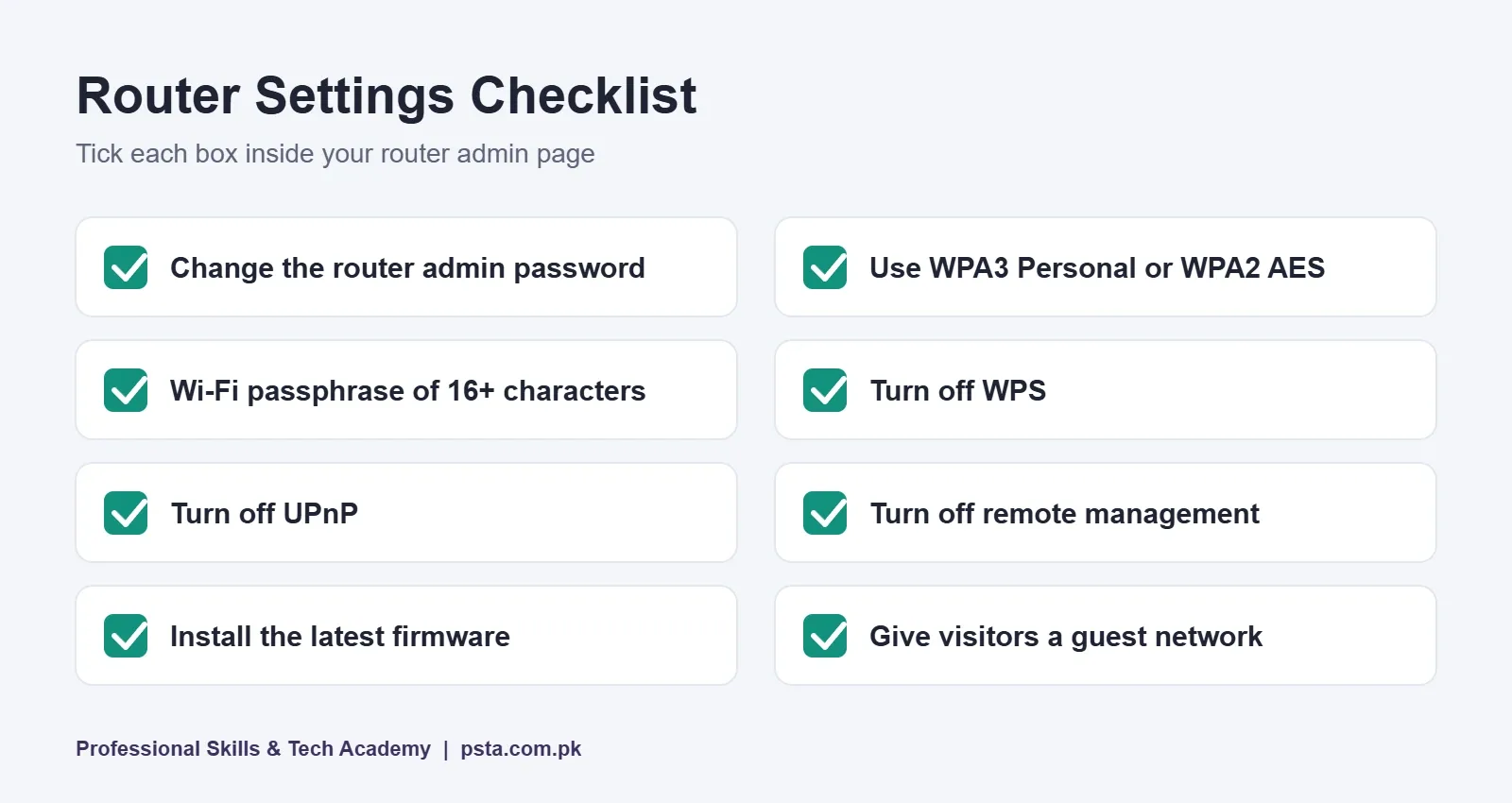
The default admin login is printed on the box and often shared across thousands of units. The FTC's guide on securing a home Wi-Fi network tells owners to replace the default username and password. To change router admin password settings, look for a menu called Administration, Management or System. Pick a long, random password that you use nowhere else.
2. Rename Your Network
A default name like the brand plus a few digits tells a stranger which model you own. Choose a neutral name. Avoid your family name, house number or shop name.
3. Choose the Right Encryption
Open the Wireless Security page and look at the security mode. CISA's Project UpSkill module on home Wi-Fi names WPA3 Personal and WPA2 with AES as the only two forms it considers safe. If you see WEP or plain WPA, change it today.
4. Set a Long Wi-Fi Passphrase
The same CISA module suggests 5 to 7 unrelated words that add up to at least 16 characters. A phrase like that is easy to type on a guest's phone and hard to guess. Change it whenever someone who no longer needs access has it.
5. Disable WPS
WPS lets a device join by pressing a button or typing a short PIN. It trades safety for convenience. Both the FTC and CISA advise you to turn it off. To disable WPS, check the Wireless or WPS menu and untick it.
6. Turn Off UPnP
UPnP lets apps and devices open ports on your router without asking you. Games and some cameras use it during setup. CISA's advice is to switch UPnP off afterwards, once the device works.
7. Turn Off Remote Management
Remote management lets someone reach the admin page from the internet. Unless your internet company needs it, switch it off. PKCERT's advisory on the TP-Link gateways went further for affected devices and advised disabling remote management ports 80, 443, 8080 and 8443 unless they are clearly needed.
8. Install the Latest Firmware
Firmware is the router's own software. A router firmware update fixes bugs like the ones in the 2025 advisory. Look for Firmware Upgrade or Software Update in the admin menu. Turn on automatic updates if your model offers them, and check by hand every few months if it does not.
9. Give Visitors a Guest Network
A guest network keeps visitors' phones away from your laptops, printer and CCTV recorder. CISA recommends creating one. Give it its own passphrase and change that more often.
10. Check Connected Devices Every Month
Most admin pages list connected clients by name. Once a month, scroll through the list. If you see a device you can't identify, change the Wi-Fi passphrase, and every known device will need to reconnect.
11. Keep the Router Somewhere Safe
CISA also advises storing the router in a secure physical spot. Anyone who can press the reset button can return it to factory settings and its printed default password. Keep it out of reach of customers in a shop or visitors in a hostel.
12. Replace a Router That No Longer Gets Updates
Check the maker's support page for your model. If the last firmware release is years old, or the model only offers WEP or WPA, plan a replacement. A cheap new router that still receives fixes is safer than an expensive old one that doesn't.
Where to Find Each Setting
Menu names differ by brand, but these are the usual places to look.
| Setting | Common menu name | What to choose |
|---|---|---|
| Admin password | Administration, Management, System | Long, unique password |
| Network name (SSID) | Wireless, WLAN, Wi-Fi | Neutral name, no personal details |
| Security mode | Wireless Security, WLAN Security | WPA3 Personal, or WPA2 with AES |
| WPS | WPS, Wireless, Advanced | Off |
| UPnP | Advanced, NAT, Forwarding | Off after setup |
| Remote management | Remote Access, Management | Off unless your ISP needs it |
| Firmware | System Tools, Firmware Upgrade | Latest version, automatic if offered |
| Guest network | Guest Network, Guest WLAN | On, with its own passphrase |
WPA3 vs WPA2: Which Should You Pick?
Pick WPA3 Personal if every device in the house supports it. If an older phone or TV can't connect, choose WPA2 with AES, or a mixed WPA2/WPA3 mode if your router offers one. The FTC calls WPA3 the newer and best encryption available and describes WPA and WEP as outdated and not secure.
New hardware is moving in this direction already. The Wi-Fi Alliance's security page says WPA3 is mandatory for Wi-Fi CERTIFIED devices, and that Protected Management Frames are required on all new certified devices. So the WPA3 vs WPA2 choice usually comes down to how old your oldest gadget is.
- All devices bought in the last few years: try WPA3 Personal first.
- One or two older devices: use the mixed mode, then plan to replace them.
- Router offers only WEP or WPA: replace the router.
Which Fixes Should You Do First?
If you only have ten minutes tonight, change the admin password and switch the encryption. Those two steps stop the most common problems. Firmware updates and router replacement need a little more time, so put them on this month's list.

Some popular tips sit at the bottom of the list. Hiding your network name and filtering devices by MAC address make setup harder for you, while the settings above do far more to protect you. Do them only after the basics.
What If You Share the Connection or Don't Own the Router?
Many people searching how to secure wifi router settings live in a joint family, a rented flat or a hostel. You may not be the person who set the router up, and the internet company may hold the admin login. You can still do a lot.
- Ask for the admin details. Whoever pays for the connection usually has them, or can get them from the provider.
- Agree on one person who manages it. Shared control often means nobody changes anything.
- Protect your own devices. Keep your phone and laptop updated, use a screen lock, and avoid logging in to banking apps on a network you don't trust.
- Use mobile data for sensitive tasks if the shared Wi-Fi is clearly unmanaged.
Good WiFi router security in a shared home is partly a conversation. Show the person in charge this checklist and offer to sit with them for ten minutes.
A Monthly Five-Minute Routine
Settings drift. Someone resets the router, a technician changes a menu, or a new device asks to open a port. A short routine catches these changes early.
- Sign in to the admin page and confirm it still asks for your new password.
- Check the firmware page for a newer version.
- Scroll the connected devices list and match each one to a person.
- Confirm WPS, UPnP and remote management are still off.
- Change the guest passphrase if you have had many visitors.
Put a reminder on your phone for the first day of each month. Over a year, that is about an hour spent keeping WiFi router security where you left it.
Common Mistakes That Undo Your Settings
- Sharing the admin password with the Wi-Fi password. Guests need the Wi-Fi passphrase only. Keep the admin login to yourself.
- Pressing reset to fix a slow connection. A factory reset brings back the default password and settings. If you reset, run this checklist again.
- Leaving UPnP on after a camera install. Finish the setup, confirm the app works, then switch it off.
- Ignoring the ISP router. Even if your internet company supplied it, you can usually change the Wi-Fi name, passphrase and security mode.
- Forgetting other accounts. A safe router doesn't protect a reused email password. Turn on two-factor authentication for your main accounts as well.
How Does Home Network Security Connect to a Cyber Security Career?
Everything in this checklist is part of home network security, and it is also the first rung of professional network defense. Hardening a router is the same thinking a security analyst applies to an office firewall: remove defaults, close what you don't use, patch quickly and watch for strangers.

If you enjoyed working through these settings, you may like a structured course that takes the same ideas further. Related reading on the PSTA blog includes whether password managers are safe and signs your phone may be hacked.
Take Router Hardening Further at PSTA
PSTA's Cyber Security Course for Beginners runs for 12 weeks at beginner level. The course page lists labs where you map a test network, run vulnerability scans and configure firewalls, VPNs and intrusion detection. Join at the Abbottabad campus, follow the live online classes from your own city, or mix the two. Batches open monthly, with class slots spread from 9:00 AM to 9:30 PM, Monday through Saturday.
Already comfortable with networks? The Ethical Hacking and Penetration Testing course is the next step. Every PSTA program is listed side by side on psta.com.pk under all courses.
Tonight's Ten-Minute Task
Open your router's admin page on your phone, change the admin password and confirm the security mode reads WPA3 or WPA2 with AES. That is two of the 12 points done before bed. When you want guided practice on real network defense, fill in the PSTA admission form, or message the team first on WhatsApp (+92 314 5424399) with any doubts.
Frequently asked questions
How do I find my router admin password in Pakistan?
Check the sticker under or behind the router. It usually shows the admin address, username and default password. If your internet company changed it, call their helpline and ask how to sign in. Once you are in, replace the default with a long, unique password and save it in a password manager.
Is WPA2 still safe for home Wi-Fi?
WPA2 with AES is still considered safe by CISA, so it is fine when some of your devices cannot use WPA3. Avoid WPA2 with TKIP, plain WPA and WEP. If every device in the house supports WPA3 Personal, switch to it, or use a mixed WPA2/WPA3 mode during the move.
Should I hide my Wi-Fi network name?
Hiding the network name gives little protection, because the name can still be detected by tools, and it makes connecting harder for your own family. Spend that effort on a strong passphrase, current encryption and firmware updates instead. Choose a neutral name that does not reveal your family, shop or address.
How often should I change my Wi-Fi password?
Change it when someone who no longer needs access still knows it, after a technician visit, or if you see an unknown device on the connected list. A long passphrase does not need monthly changes. A guest network passphrase can be changed more often because visitors come and go.
Can someone hack my router from outside my house?
It is possible when remote management is switched on, ports are left open by UPnP, or the firmware has known bugs. In November 2025 PKCERT warned about flaws in some TP-Link business gateways. Turning off remote access and installing updates removes most of that outside exposure.
Do I need a new router for WPA3?
Only if your current router cannot offer WPA3 after a firmware update. Check the security mode menu first, then the maker support page for your model. If the router offers only WEP or WPA, or stopped getting updates years ago, replacing it is the safer choice.
Does a VPN replace router security?
No. A VPN encrypts traffic between your device and the VPN server, but it does not stop someone from changing your router settings or joining your Wi-Fi. Secure the router first, then decide whether a VPN fits a specific need, such as using public Wi-Fi on the move.
Sources & references
- How To Secure Your Home Wi-Fi Network (FTC) consumer.ftc.gov
- Module 5: Securing Your Home Wi-Fi (CISA Project UpSkill) cisa.gov
- Security (Wi-Fi Alliance) wi-fi.org
- PKCERT Sounds High-Alert Over TP-Link Flaws (TechJuice) techjuice.pk
- Critical Security Flaws in These Internet Routers Allow Hackers Full Control (ProPakistani) propakistani.pk
Last reviewed & updated on by Umar Qureshi. Written by the PSTA team in Abbottabad, Pakistan.

Umar Qureshi
Cyber Security & Ethical Hacking Course in Abbottabad - PSTA
Turn this guide into a career: hands-on training with real projects, online across Pakistan or on-campus in Abbottabad · 12 Weeks.

Comments
No comments yet — ask a question or share your experience.