Quick answer
Google Tag Manager stores your tracking codes and fires each one at the right moment. A beginner setup takes seven steps: create a container, install its snippet in the head, add the Google tag, build a WhatsApp click event, test in Tag Assistant, publish a named version and mark the event as a key event in GA4.
Key takeaways
- • GTM delivers tracking codes; GA4, Google Ads and the Meta Pixel do the measuring.
- • Create one Web container per website and paste its snippet as high in the head as possible.
- • Fire the Google tag on Initialization - All Pages so it loads before other tags.
- • Track WhatsApp taps with a Just Links trigger filtered to Click URL contains wa.me.
- • Test every change in Tag Assistant Preview, then publish a clearly named version.
- • Star the event in GA4 Admin to make it a key event; standard reports can take 24 hours.
Table of contents 19 sections
- What Does Google Tag Manager Actually Do?
- Tags, Triggers and Variables in Plain Words
- Tag: The Code That Runs
- Trigger: The Moment It Runs
- Variable: The Detail You Check
- Before You Start: What You Need
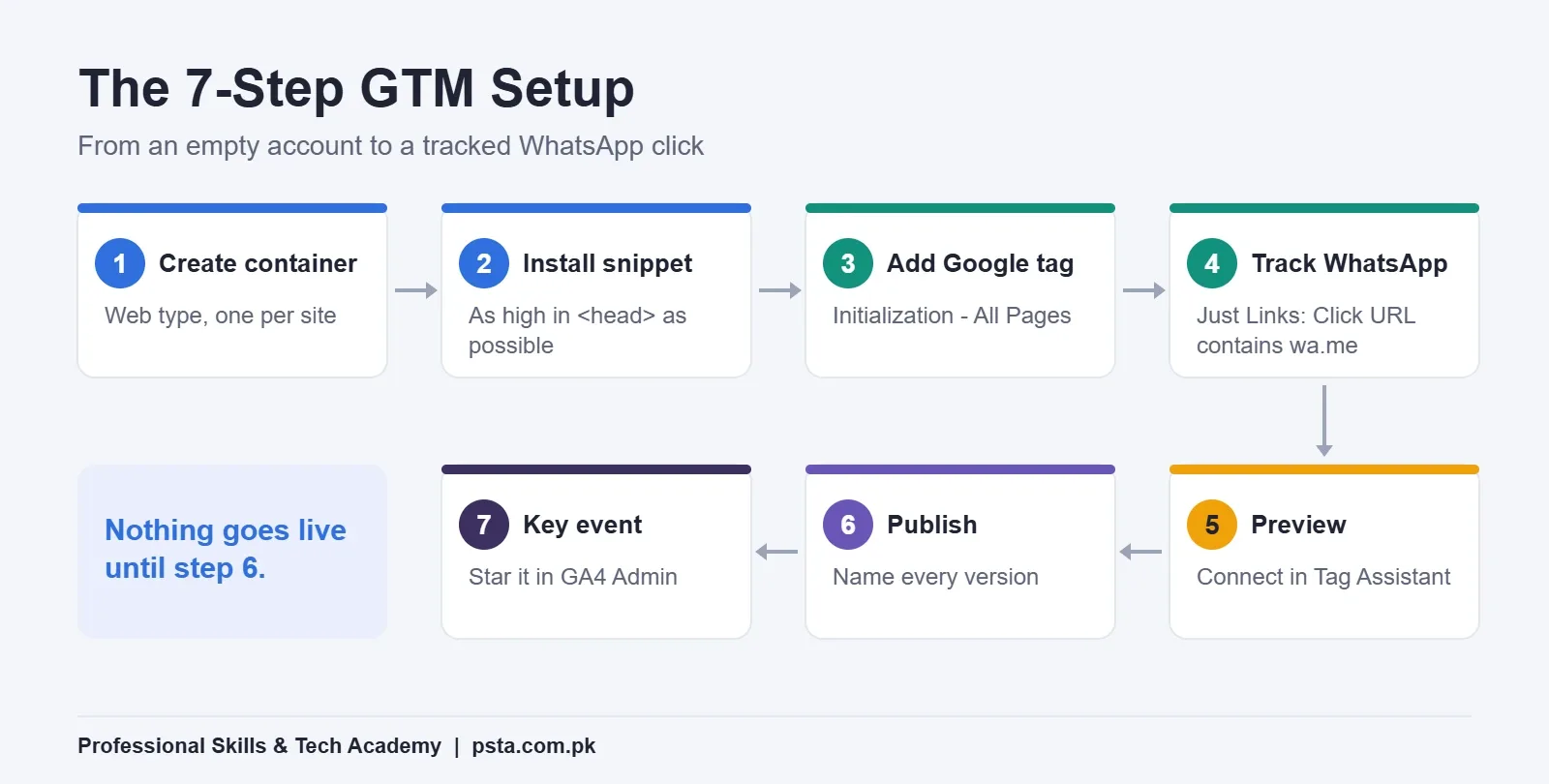
- Google Tag Manager for Beginners: The 7-Step Setup
- Step 1: Create Your Account and Container
- Step 2: Install the Container Snippet
- Step 3: Add the Google Tag for GA4
- Step 4: Track a WhatsApp Button Click
- Step 5: Test Everything in Tag Assistant Preview
- Step 6: Publish a Named Version
- Step 7: Mark the Event as a Key Event in GA4
- Which GTM Trigger Fits Which Job?
- How Do You Know Your Tracking Still Works After Launch?
- Beginner Mistakes That Break GTM Tracking
- Practising Tag Manager in PSTA's Digital Marketing Course
- Set Up One Click Event Before the Weekend
A common belief among new marketers is that Google Tag Manager collects data on its own. It doesn't. Google Tag Manager for beginners is easier to learn once you see it as a delivery system: it holds your tracking codes and fires each one at the right moment, while tools like GA4 or the Meta Pixel do the actual measuring.
That small shift changes how you set it up. You stop pasting scripts into every page, and you start asking two questions for each code: what should run, and when. This Google Tag Manager tutorial walks you through a full GTM setup on a real-style small business site, from an empty account to a published container that tracks WhatsApp clicks.
In the next few minutes, you'll learn:
- What tags, triggers and variables mean, without jargon
- How to create a container and install its snippet correctly
- How to send page views and a WhatsApp click event to GA4
- How to test in Tag Assistant before anything goes live
- The beginner mistakes that quietly break tracking, and how to avoid them
What Does Google Tag Manager Actually Do?
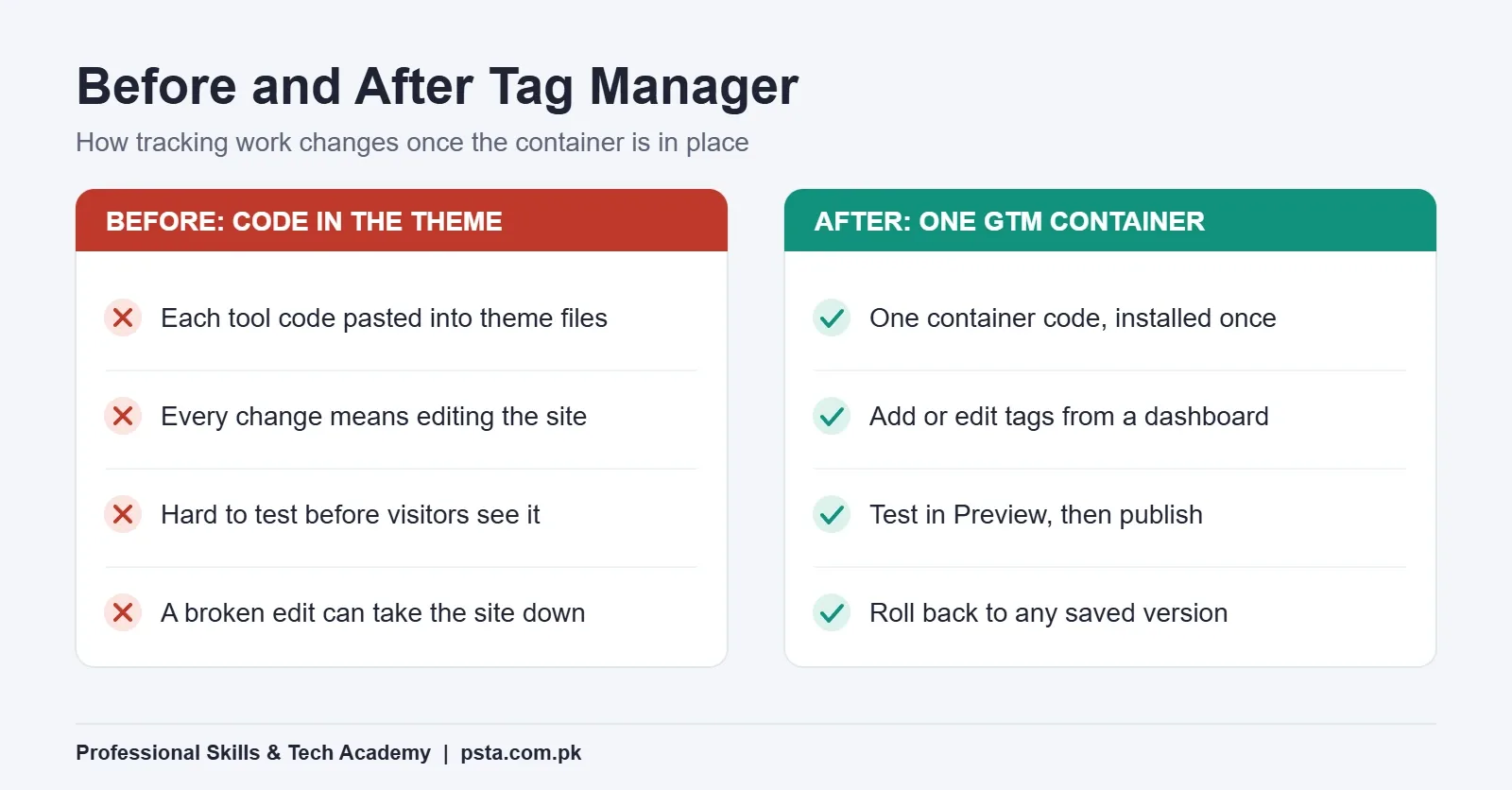
Every marketing tool asks you to add a piece of code to your website. GA4 wants one, Google Ads wants one, the Meta Pixel wants one, and Microsoft Clarity wants another. Without a manager, each of those codes lives inside your theme files, and every change needs someone who can edit them.
Tag Manager replaces that pile with one container code. You install it once. After that, you add, edit and remove tracking codes from a web dashboard at tagmanager.google.com, then publish the changes. The website files stay untouched.
For a freelancer in Pakistan, this matters in a practical way. Many clients run WordPress, Shopify or Wix sites built by someone who has since disappeared. If you can get Tag Manager installed once, you can handle every future tracking request without touching their theme again.
Google offers two editions. Its free versus 360 comparison pitches the free version at individuals and small to medium-sized companies, with 3 workspaces for parallel projects and help through the Help Center and forums. Approval workflows and zones are reserved for the paid 360 edition. A beginner won't miss either.
Tags, Triggers and Variables in Plain Words
Three words do most of the work inside GTM. Learn them first and the dashboard stops looking crowded.
Tag: The Code That Runs
A tag is a snippet that sends information somewhere. The Google tag sends page data to GA4. A GA4 Event tag sends a named action, such as a button click. A Meta Pixel tag sends data to Meta.
Trigger: The Moment It Runs
A trigger listens for something to happen on the page, like a page view, a click or a form submission. One rule never changes: every tag needs at least one trigger, or it never fires. Out of the box, a trigger fires on every event of its type, so you narrow it with filters.
Variable: The Detail You Check
A variable holds a value that changes, such as the URL of the clicked link or the text on a button. Filters use them. A filter has three parts: a variable, an operator such as "contains" or "equals", and a value. "Click URL contains wa.me" is a complete filter.
Put together, a tracking rule reads like a sentence: send this tag when this trigger happens, but only if this variable matches.
Before You Start: What You Need
Google Tag Manager for beginners goes faster when everything is ready before you log in. Gather these first, so you don't stop halfway through.
- A Google account you'll keep using. For client work, the client should create it and give you user access, so the setup stays theirs.
- Admin access to the website, or a person who can paste one code into its header.
- A GA4 property and its Google tag ID. If you haven't made one yet, follow our guide to setting up Google Analytics 4 first.
- A desktop browser. Tag Assistant, the testing tool, works best on a computer, not a phone.
- One clear goal to track. For most local shops in Pakistan, that goal is a tap on the WhatsApp button.
Google Tag Manager for Beginners: The 7-Step Setup
The example below uses a made-up Abbottabad bakery site with an "Order on WhatsApp" button. Swap in your own site as you go. The steps follow Google's official help pages, and each step links to the page it's based on.
Step 1: Create Your Account and Container
- Go to tagmanager.google.com and sign in.
- Open the Accounts tab and select Create Account.
- Enter the business name as the account name and pick the country.
- Under Container Setup, type the website address as the container name, for example www.bakery-example.pk.
- Choose Web as the target platform, click Create and accept the terms.
Google's account and container guide explains the structure: the account sits at the top for one company, and you create one container per website or app. You don't need a separate container for each page. The other container types listed are iOS, Android, AMP and Server, which you can ignore for now.
Step 2: Install the Container Snippet
Right after you create the container, Tag Manager shows the installation code. According to Google's install instructions, you paste the first code block as high in the <head> of the page as you can. Older tutorials also mention a second <noscript> block for the <body>. That belonged to the previous snippet version. If a site already uses the old snippet, Google says you don't need to retag it.
On WordPress, Shopify or Wix, use the "Select your platform" option in that same dialog and follow the builder's own route. That avoids editing theme files by hand, which is where most broken sites come from. If you build sites in WordPress, our WordPress development course covers safe header edits with a child theme.
Finish by entering your website address in the install dialog and clicking Test.
Step 3: Add the Google Tag for GA4
- Open Tags and click New. Name it "Google tag - GA4".
- Under Tag Configuration, choose Google tag.
- Paste your Google tag ID into the Tag ID field.
- Under Triggering, pick Initialization - All Pages.
- Save.
Google's Google tag setup page recommends the Initialization trigger so this tag loads before your other tags. It also notes a delay of up to 30 minutes before data begins arriving after you publish, so don't panic if GA4 looks empty straight away.
Step 4: Track a WhatsApp Button Click
If you only track WhatsApp clicks and nothing else, you'll still answer the question most Pakistani shop owners actually ask. This is the event they care about, because that tap is where the sale begins. The button usually links to a wa.me address, the way our own PSTA WhatsApp link does.
- Create a new tag and choose Google Analytics: GA4 Event.
- Enter your measurement ID and an event name such as whatsapp_click. Use lowercase with underscores.
- In Triggering, click the plus icon to make a new trigger.
- Choose Click - Just Links, then select Some Link Clicks.
- Set the filter to Click URL, contains, wa.me.
- Name the trigger "Click - WhatsApp link" and save both.
Google's click trigger page explains the choice. Just Links listens only to <a> link elements, while All Elements catches clicks on anything, including images and buttons. A WhatsApp button is almost always a link, so Just Links keeps the data clean. Google also suggests narrowing every click trigger with "Some Clicks" filters, which is exactly what the wa.me rule does.
If Click URL doesn't appear in the variable list, open Variables, click Configure under Built-In Variables and tick the click variables. You can also match the button's words with a Click Text condition instead, which helps when the link address changes often.
Step 5: Test Everything in Tag Assistant Preview
- In your workspace, click Preview at the top right. Tag Assistant opens in a new tab.
- Type your site address and click Connect.
- Your site opens with a "Connected" badge in the bottom corner.
- Click the WhatsApp button once, then return to the Tag Assistant tab.
- Check that "Google tag - GA4" fired on page load and the WhatsApp event fired on the click.
Google's preview and debug page notes that only you, or people you share a preview link with, see this debug view. Normal visitors see nothing. If the site breaks or refuses to load in preview, untick "Include debug signal in the URL" and connect again.
Tag Assistant lists every event on the left. Click the link-click event and look under Tags Fired. If your tag sits under Tags Not Fired, open it to see which filter condition failed. Most of the time, the cause is a typo in the filter value.
Step 6: Publish a Named Version
- Click Submit at the top right.
- Choose Publish and Create Version.
- Write a version name such as "GA4 base tag + WhatsApp click".
- Add a one-line description of what changed.
- Click Publish.
Nothing you build in GTM reaches visitors until this step. Each publish saves a snapshot, and the versions help page describes two ways back if something goes wrong: publish an earlier version from the Versions list, or set it as the latest version and edit from there. Clear version names make that rescue fast.
Step 7: Mark the Event as a Key Event in GA4
GA4 receives whatsapp_click, but it treats it like any other event until you flag it. In GA4, open Admin, then Events under Data display, find the event and click the star icon. That's the method on Google's key events page.
Two details from that page help beginners. A standard GA4 property can hold up to 30 key events, so you won't run out. And standard reports can take up to 24 hours to show a new key event, while the Realtime report updates within minutes. Test with Realtime, then judge results the next day.
Which GTM Trigger Fits Which Job?
Most beginners only need a handful of GTM triggers. Google lists 11 trigger types, from page view and click to scroll depth, YouTube video, timer and trigger group. The table matches common small-business jobs to the right one.
| What you want to track | Trigger type | Filter to add |
|---|---|---|
| Every page view for GA4 | Initialization - All Pages | None |
| Taps on a WhatsApp button | Click - Just Links | Click URL contains wa.me |
| Taps on a phone number | Click - Just Links | Click URL starts with tel: |
| A "Thank you" page after an order or form | Page View | Page Path contains /thank-you |
| A contact form sent successfully | Form Submission | Check Validation on, plus Page URL filter |
| Readers reaching the end of a long page | Scroll Depth | Vertical, 90 percent |
| Plays of an embedded YouTube video | YouTube Video | Start and Complete |
A note on forms. Google's form trigger has a Check Validation option. With it on, the trigger fires only when the form is actually sent. With it off, it fires on every attempt, including ones with empty required fields. Some form plugins send data without reloading the page. If the form trigger never fires on your site, track the thank-you page or the success message instead.
How Do You Know Your Tracking Still Works After Launch?
Tracking breaks quietly. A designer changes the WhatsApp button, a new theme drops the header code, or someone deletes a trigger. Nobody notices until the monthly report shows zero leads.
Build a five-minute habit instead:
- Once a week, open GA4 Realtime and tap the WhatsApp button yourself on your phone.
- Confirm whatsapp_click appears within a few minutes.
- After any website change, run Preview mode again before you close the job.
- Keep a short log of each version you publish, with the date and the reason.
Once GA4 event tracking is reliable, the same container can carry your Meta Pixel and your Google Ads conversion tags. Our walkthroughs on Meta Pixel setup and click to WhatsApp ads show where those events feed into ad campaigns.
Beginner Mistakes That Break GTM Tracking
Google Tag Manager for beginners usually goes wrong in the same few places. These are the errors we correct most often when students bring their first client sites to class.
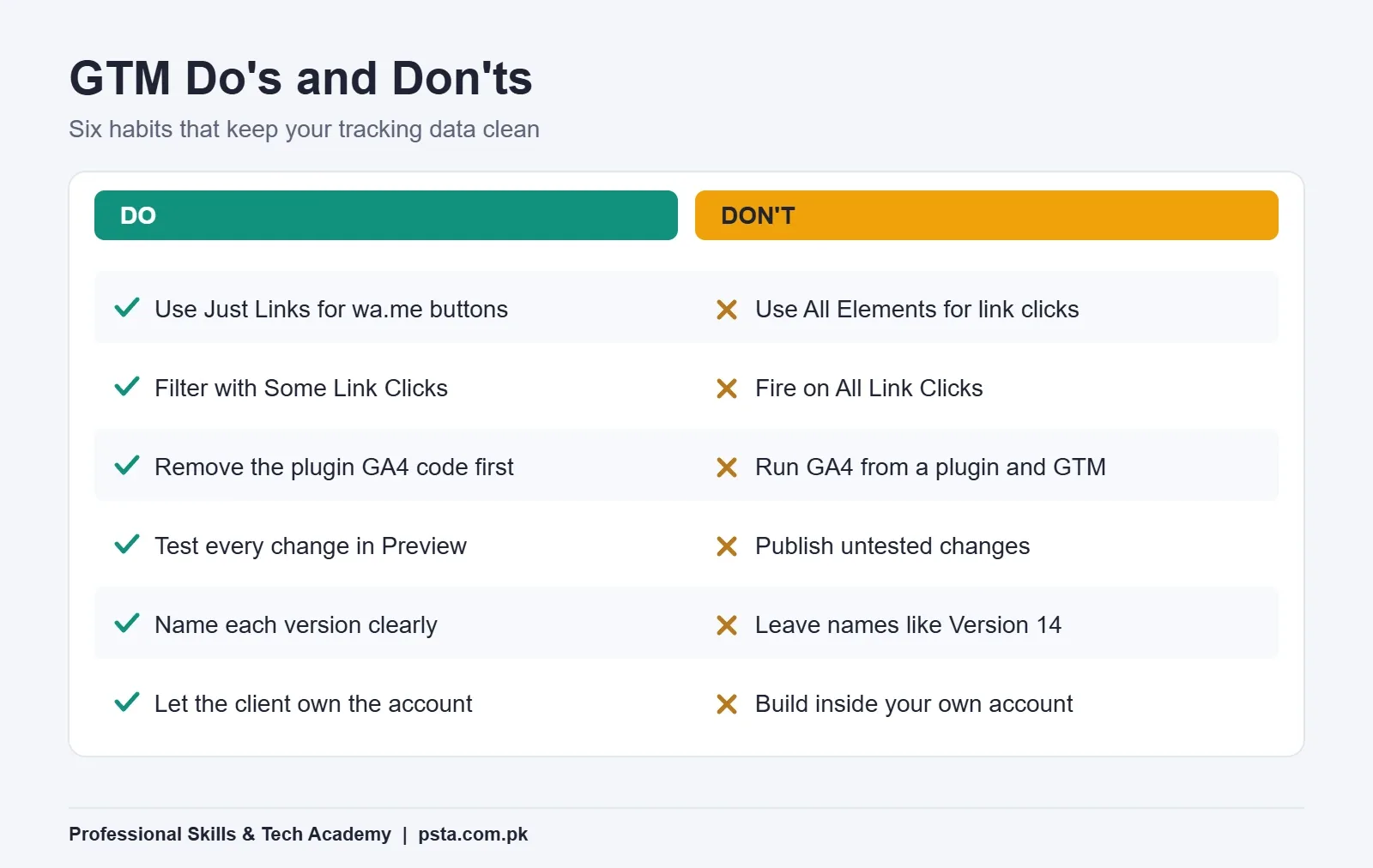
- Installing GA4 twice. The site already has a GA4 code from a plugin, and you add the Google tag in GTM as well. Page views double. Remove one before you publish.
- Using All Elements for link clicks. It catches clicks on icons and text inside the button, so one tap can look like several. Use Just Links for links.
- Leaving a trigger unfiltered. "All Link Clicks" sends an event for every menu link. Your WhatsApp count becomes meaningless.
- Skipping Preview. Publishing untested changes is the fastest way to lose a week of data.
- Vague version names. "Version 14" tells you nothing at midnight when you need to roll back.
- Working inside your own Google account for a client. When the contract ends, the client loses the setup. Have the client create the account and invite you.
Practising Tag Manager in PSTA's Digital Marketing Course
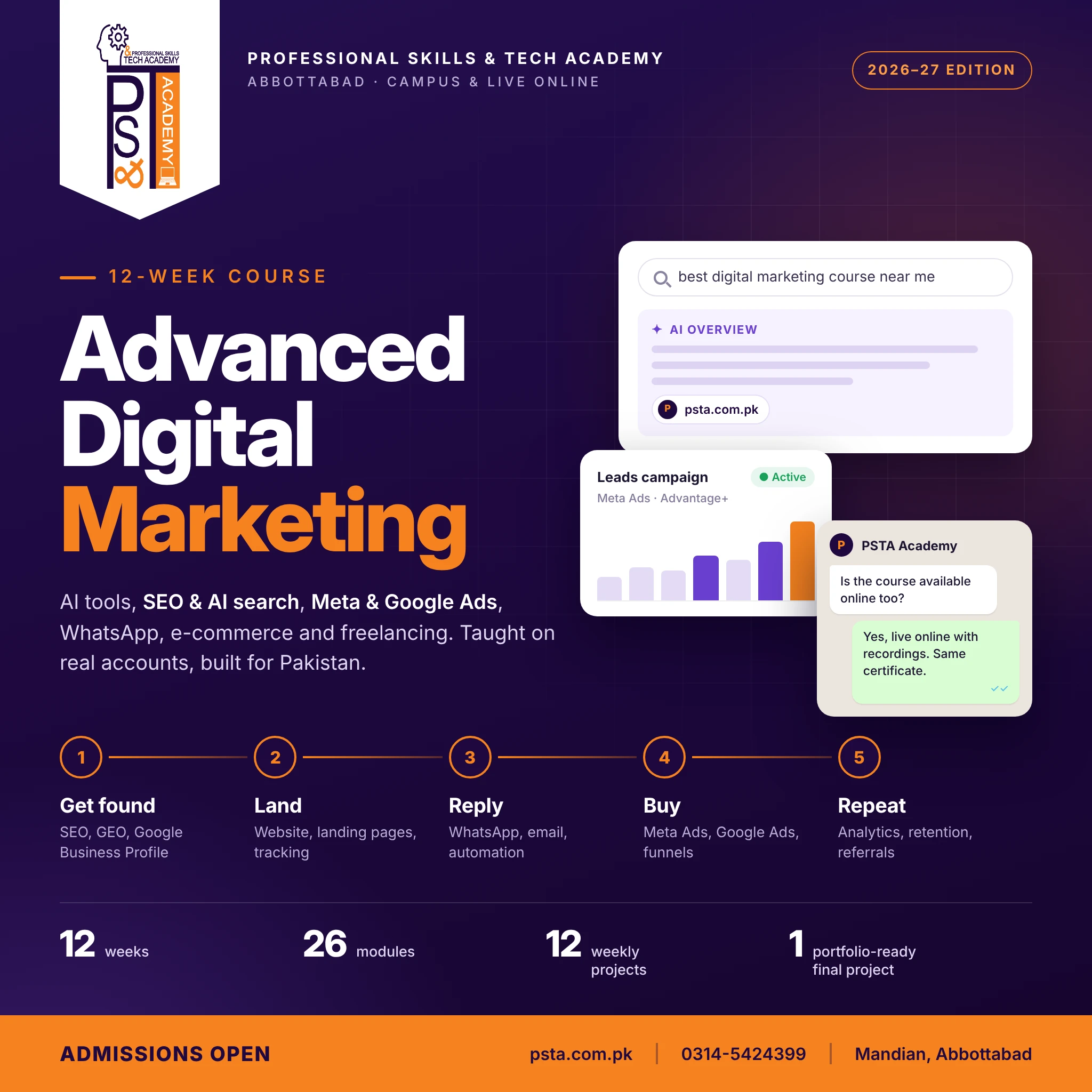
Reading about tags helps, but tracking only clicks into place when you set it up on a live page and watch the events arrive. That's how we teach it in the Advanced Digital Marketing course.
The course runs for 12 weeks across 26 modules. Its Website, Landing Pages and Tracking module covers GA4, Tag Manager and the Meta Pixel, and the week 3 deliverable is a live landing page with tracking installed. Week 11 returns to GA4 analytics, so you learn to read the data you set up earlier.
- Fee: Rs. 30,000, reduced from the regular Rs. 35,000, and you can split it into 2 installments
- Batches: a new batch starts every month, with morning, afternoon, evening and weekend slots
- Ways to join: classes at the Abbottabad campus in Mandian (opposite FIMS College), live online sessions, or a hybrid of both
- Level: starts from the basics, so no marketing background is needed
If paid ads are your main interest, our SMM and Meta Ads course goes deeper on campaigns that use these events. Browse every program on the courses page. When you are ready, the admission form takes a few minutes, and timing questions can go to our WhatsApp line, +92 314 5424399.
Set Up One Click Event Before the Weekend
Don't try to track everything at once. Pick one site, your own or a friend's shop, and finish Steps 1 to 6 for a single WhatsApp click. Test it in Preview, publish it with a clear name, then tap the button from your phone and find the event in GA4 Realtime.
When that one event works end to end, you've covered the core of Google Tag Manager for beginners. Every other tag you add later follows the same pattern of tag, trigger and filter.
Frequently asked questions
Is Google Tag Manager free to use?
Yes, for most people. Google's comparison page aims the free version at individuals and small to medium-sized companies, with 3 workspaces and support through the Help Center and forums. The paid Tag Manager 360 edition adds approval workflows, zones, unlimited workspaces and direct support, which large companies use. A freelancer or local shop will not need it.
Do I still need GA4 if I install Google Tag Manager?
Yes. Tag Manager only delivers codes; it does not store or report data. GA4 is where page views and events are measured and shown in reports. In practice, you install GTM once, then add the Google tag inside it so GA4 receives data. The same container can later carry Google Ads and Meta Pixel tags as well.
Can I add Google Tag Manager to WordPress without editing code?
Usually, yes. The install dialog in GTM has a "Select your platform" option with routes for common website builders and content systems. Following that route avoids editing theme files by hand. If you do paste the snippet manually, use a child theme or a header-code option, so a theme update does not wipe your tracking.
Why is my tag not firing in Preview mode?
Open the event in Tag Assistant and look under Tags Not Fired. The tag details show which trigger condition failed. Common causes are a typo in the filter value, the wrong trigger type, such as All Elements instead of Just Links, or a click variable that was never enabled under Built-In Variables. Fix it, save and refresh the preview.
How long does it take for data to appear in GA4?
Google says data from the Google tag can take up to 30 minutes to start arriving after you publish. A newly starred key event can take up to 24 hours to show in standard GA4 reports, while the Realtime report updates within a few minutes. Test in Realtime first, then check standard reports the next day.
What is the difference between All Elements and Just Links click triggers?
Just Links listens only to clicks on HTML link elements, the a tags that most buttons with a URL use. All Elements listens to clicks on anything, including images, icons and text inside a button. For WhatsApp, phone and email links, Just Links gives cleaner counts. Use All Elements only when the clickable item is not a link.
Can I undo a change after publishing in GTM?
Yes. Every publish creates a saved version. Open Versions, choose the last working version and publish it again, or set it as the latest version and edit from there. This is why a clear version name matters: under pressure, "GA4 base tag + WhatsApp click" tells you far more than a plain version number.
Sources & references
- Compare Free and 360 Versions - Google Tag Manager marketingplatform.google.com
- Create an account and container - Tag Manager Help support.google.com
- Install a web container - Tag Manager Help support.google.com
- Set up your Google tag in Google Tag Manager support.google.com
- Click trigger - Tag Manager Help support.google.com
- Preview and debug containers - Tag Manager Help support.google.com
- Publishing, versions, and approvals - Tag Manager Help support.google.com
- Mark events as key events - Analytics Help support.google.com
Last reviewed & updated on by Umar Qureshi. Written by the PSTA team in Abbottabad, Pakistan.

Umar Qureshi
Advanced Digital Marketing Course in Pakistan and Abbottabad
Turn this guide into a career: hands-on training with real projects, online across Pakistan or on-campus in Abbottabad · 12 Weeks.
Comments
No comments yet — ask a question or share your experience.