Quick answer
Urdu in Photoshop renders correctly when four things line up: Photoshop 23.0 or later with its Unified Text Engine, Unicode text, an OpenType Nastaliq font such as Noto Nastaliq Urdu or Gulzar, and right-to-left direction with Middle Eastern Features on. Add generous fixed leading so dots don't clash.
Key takeaways
- • Separate letters usually mean an outdated Photoshop or pasted text that isn't Unicode.
- • The old Preferences > Type engine switch was removed in Photoshop 23.0, so older tutorials no longer match.
- • Keep Middle Eastern Features on to get right-to-left paragraph controls.
- • Noto Nastaliq Urdu and Gulzar are free Nastaliq fonts; AXT and Type 1 fonts no longer load.
- • Set fixed leading near 1.8 times the font size and keep a test PSD for every PC.
Table of contents 15 sections
- Why Does Urdu in Photoshop Break Apart?
- Four Checks Before You Change Any Setting
- Problem 1: Letters Show Up Separate or as Boxes
- Cause: An Old Photoshop or Non-Unicode Text
- Fix
- Problem 2: Old Tutorials Send You to a Menu That Isn't There
- Problem 3: Words Run Left to Right
- Mixed English and Urdu on One Line
- Problem 4: Dots and the Bari Ye Clash With the Line Above
- Which Urdu Fonts for Photoshop Should You Use?
- How to Write Urdu in Photoshop on a Fresh Setup
- Can You Paste Urdu From InPage or Word?
- A 10-Minute Test Before Client Work
- Practising Urdu Layouts in PSTA's Graphic Designing Course
- Save an Urdu Test File on Every PC You Use
Why does Urdu fall apart into loose, unjoined letters the moment you type it in Photoshop, when the same words look perfect in Word? That's one of the most common questions in our design classes. The good news: getting Urdu in Photoshop to render properly is rarely about one secret setting. It comes down to four things lining up: a current Photoshop version, Unicode text, a proper Nastaliq font and the right text direction.
This guide works like a repair manual. Find the symptom you're seeing, read the cause, then apply the fix. Here's what it covers:
- Why Nastaliq text is harder for software to draw than English
- Four checks to run before you change any setting
- Fixes for broken letters, reversed words and clashing dots
- Which Urdu fonts for Photoshop are free and well built
- A clean setup routine for a new PC, plus a short test file to keep
Why Does Urdu in Photoshop Break Apart?
English letters sit side by side on a flat line. Urdu letters change shape depending on where they sit in a word and which letter comes next. Google Fonts describes Nastaliq as a highly cursive style that connects letters into clusters at a sloping angle, and notes that it needs software support for complex text layout, called shaping.
The Google Fonts team explained the difficulty in a 2023 article on why so few digital Nasta'liq fonts exist. Letters join on several levels in a cascading pattern, dots and vowel marks must be placed so they don't collide, and the bari ye (ے) sweeps backward under the letters before it. The same article notes that Urdu is a first language for over 70 million people and a second language for over 160 million more.
So when Urdu in Photoshop shows up as separate letters, something in that chain has failed. Either the software isn't shaping the text, the font lacks the right rules, or the characters themselves aren't proper Urdu codes.
Four Checks Before You Change Any Setting
Most broken Urdu in Photoshop comes from one of these four causes. Check them in order, because each one takes less than a minute.
| Check | What to look for | Why it matters |
|---|---|---|
| Photoshop version | Help > About Photoshop shows 23.0 or later | Older versions need the legacy Middle Eastern setup |
| Text source | Text typed fresh, or copied from a Unicode source | Non-Unicode text turns into shapes or boxes |
| Font | An OpenType Nastaliq font with Urdu support | The font carries the joining and dot rules |
| Keyboard | An Urdu layout added in Windows settings | Lets you type directly instead of pasting |
If all four pass and the text still looks wrong, move to the symptom sections below.
Problem 1: Letters Show Up Separate or as Boxes
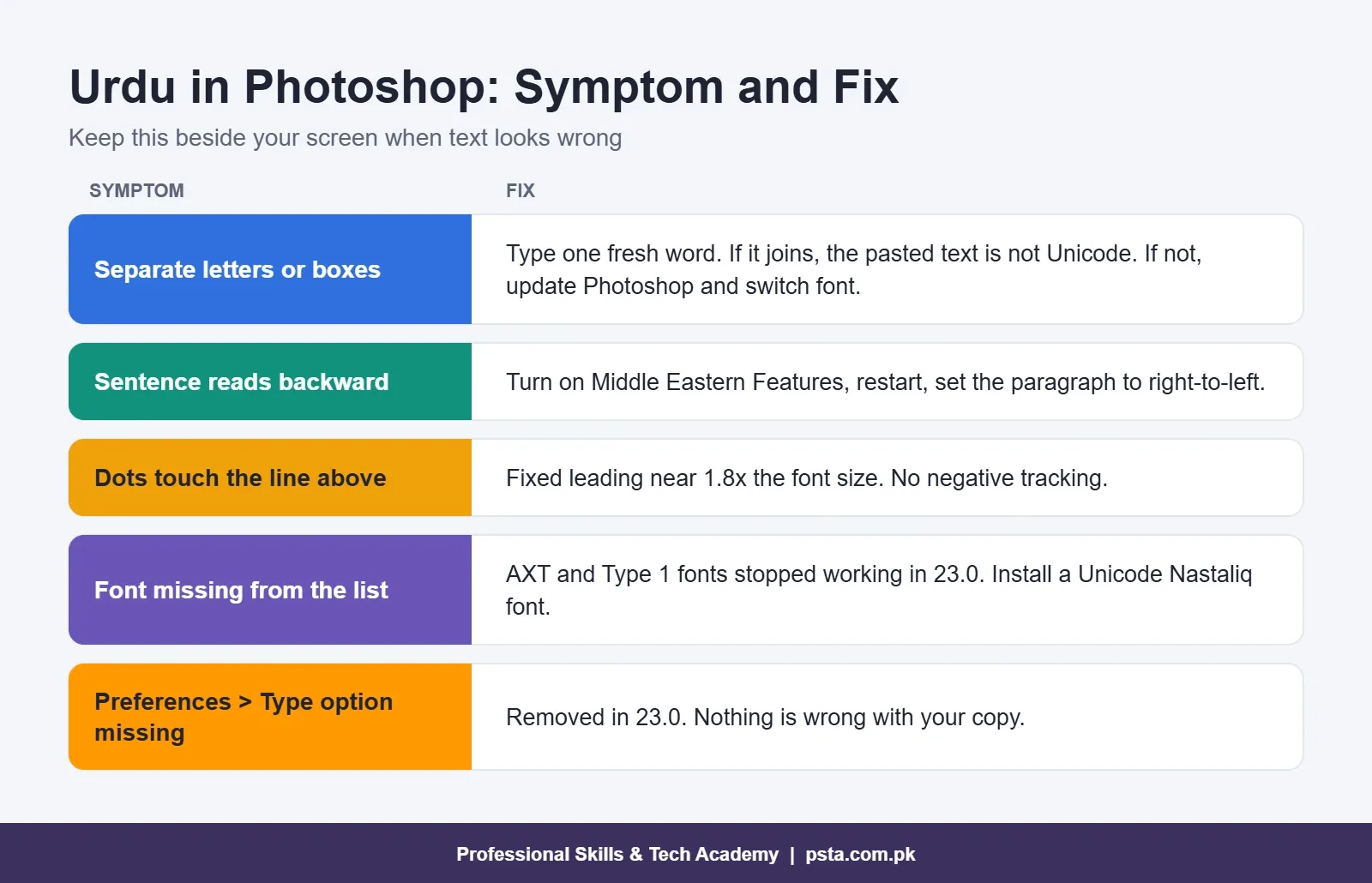
This is the classic symptom of Urdu in Photoshop going wrong. You type or paste a sentence and every letter stands alone, or you get empty rectangles.
Cause: An Old Photoshop or Non-Unicode Text
Adobe introduced the Unified Text Engine in Photoshop 23.0 (October 2021). It uses the open-source HarfBuzz shaping engine for Arabic-script text and FriBidi for right-to-left and mixed-direction lines. Urdu is written in an Arabic-based script, so it relies on this engine for joining. If your copy hasn't been updated since before that release, you're missing all of that.
The second cause is the text itself. In one Adobe Community thread from 2022, Urdu pasted from another typing program appeared as icons and shapes. The poster later confirmed the source text wasn't Unicode, and converting it fixed the problem.
Fix
- Update to a current Photoshop release through the Creative Cloud app.
- Delete the broken layer and type one fresh word using an Urdu keyboard layout.
- If the fresh word joins correctly, your pasted text was the problem. Convert it to Unicode before pasting again.
- If the fresh word still breaks, change the font to Noto Nastaliq Urdu and test again.
Problem 2: Old Tutorials Send You to a Menu That Isn't There
Many tutorials on Urdu in Photoshop from 2020 and earlier tell you to open Edit > Preferences > Type and switch the text engine to Middle Eastern, then restart. Students try this, can't find the option and assume their copy is faulty.
It isn't. When Adobe launched the Unified Text Engine, its community manager wrote in the Photoshop 23.0 announcement that the composer switch under Preferences > Type had been removed. New type layers support all scripts by default, and Middle Eastern features stay available in the Properties panel whenever a type layer is selected.
There's one exception worth knowing. If you open an older PSD whose type layers were made with the legacy engine, you can switch that layer back to the legacy composer from the Paragraph panel's flyout menu. That's useful when a client sends you a 2019 poster file to edit and you don't want the text to reflow.
Problem 3: Words Run Left to Right
Your letters join, but the sentence reads backward, or punctuation lands on the wrong side. That means the paragraph direction is set to left-to-right.
In current versions, right-to-left controls belong to the Middle Eastern features. An Adobe Community Expert explained in a thread about text direction that Photoshop's language setting can be switched between Default Features and Middle Eastern Features, with a restart after the change. Choosing Default Features hides the right-to-left options, so keep Middle Eastern Features on if you design in Urdu regularly.
With that set, select your type layer, open Window > Properties and set the paragraph to right-to-left. Do this before typing long text. Changing direction after a full paragraph is in place can shuffle mixed English words and numbers around.
Mixed English and Urdu on One Line
Shop banners often mix both, such as a phone number inside an Urdu sentence. Type the Urdu first, then insert the English or digits. FriBidi handles the order, but long runs of Latin text inside Urdu are easier to manage as a separate text layer.
Problem 4: Dots and the Bari Ye Clash With the Line Above
Nastaliq is tall, and this is where Urdu in Photoshop needs manual care. Letters climb diagonally, and dots sit above and below the main strokes. With Photoshop's normal leading, the descending tail of one line often crashes into the dots of the next.
The fix is simple and manual:
- Select the text and open the Character panel.
- Replace Auto leading with a fixed value. Start at about 1.8 times the font size and adjust by eye.
- Zoom to 100% and look for touching dots, especially around words ending in ے.
- Avoid negative tracking on Urdu. Squeezing letters breaks the natural spacing of clusters.
If one line still touches another, shorten it. A headline usually reads better split into two short lines than squashed into one.
Which Urdu Fonts for Photoshop Should You Use?
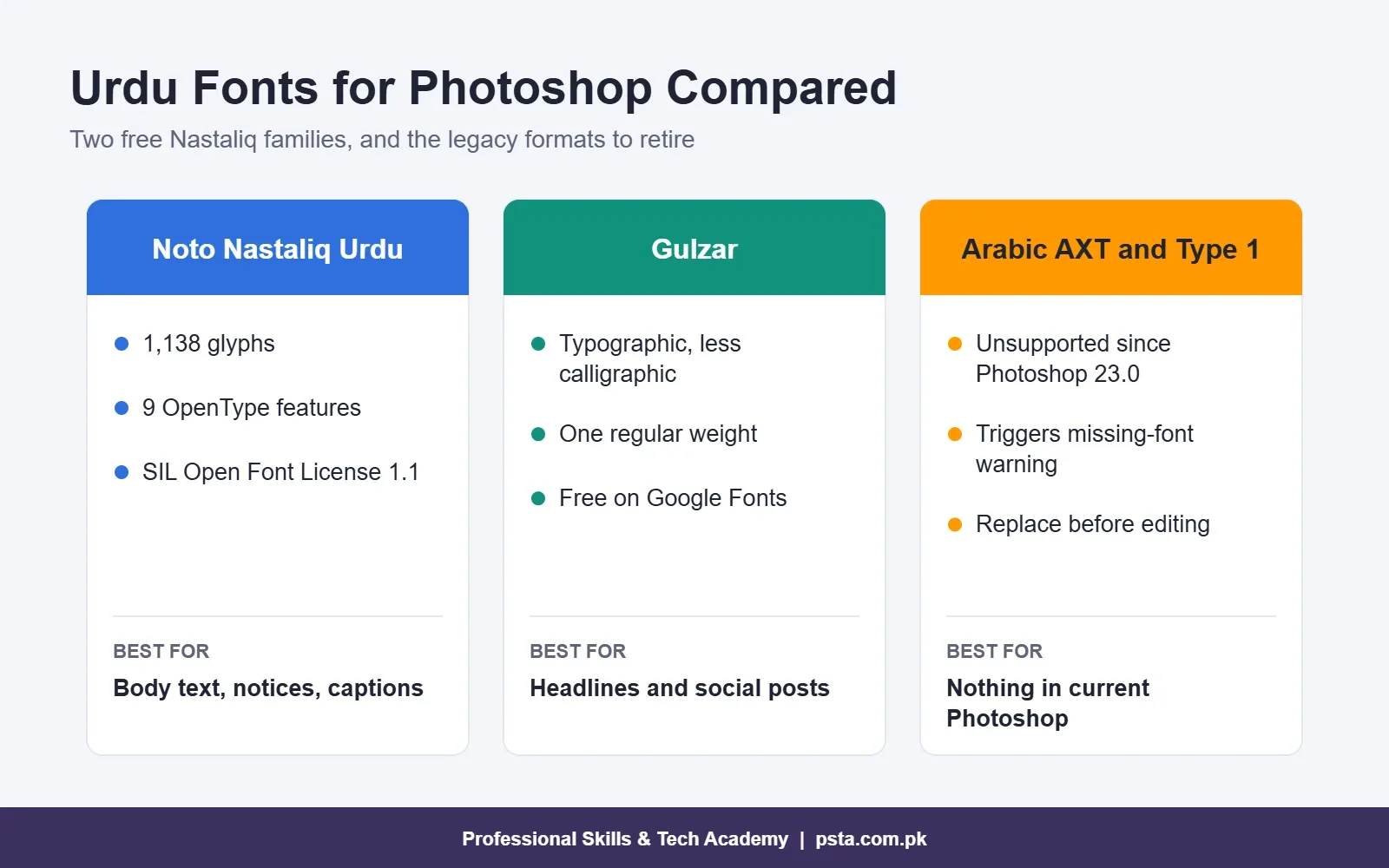
The font does a lot of the work for Urdu in Photoshop, so choose one built for Unicode shaping. According to the same Google Fonts article, Google Fonts currently offers two Nasta'liq Urdu families: Noto Nastaliq Urdu and Gulzar.
The Noto Nastaliq Urdu page lists 1,138 glyphs, nine OpenType features and 281 supported characters, released under the SIL Open Font License 1.1. That license allows free use in client work, including commercial posters. Gulzar takes a more typographic, less calligraphic approach, which suits clean social media headlines.
| Font type | Best for | Notes |
|---|---|---|
| Noto Nastaliq Urdu | Body text, notices, long captions | Free, open license, variable weights |
| Gulzar | Modern headlines and social posts | Free on Google Fonts, single regular weight |
| Arabic AXT and Type 1 fonts | Nothing in current Photoshop | Adobe dropped support in version 23.0 |
That last row matters. Adobe's 23.0 announcement states that Photoshop no longer supports Type 1 fonts or Arabic AXT fonts, and files using them trigger the missing-font workflow. If an old Urdu font won't show in the font list, this is usually why. You'll find more on choosing tools in our guide to graphic design software for beginners.
How to Write Urdu in Photoshop on a Fresh Setup
Setting up a new laptop or a lab PC? Follow this order once and Urdu in Photoshop should work from the first word, with no troubleshooting later.
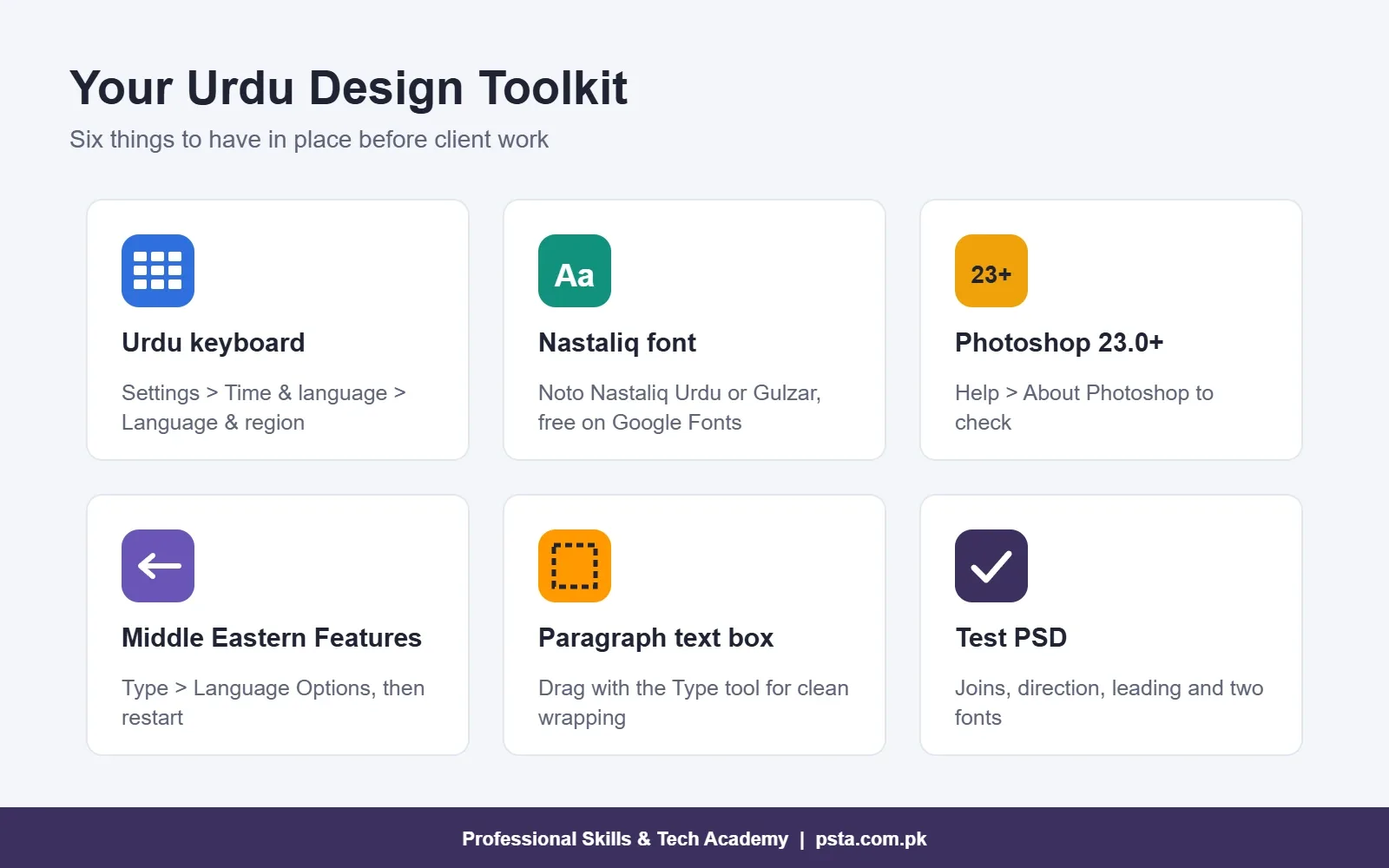
- Add an Urdu keyboard. Microsoft's language and keyboard guide walks through it: Start > Settings > Time & language > Language & region, then Language options and Add a keyboard. Hold the Windows logo key and press Spacebar to switch layouts. Our post on Urdu typing on a computer covers the layouts in more detail.
- Install a Unicode Nastaliq font. Download Noto Nastaliq Urdu or Gulzar from Google Fonts, right-click the file and choose Install.
- Update Photoshop. Confirm version 23.0 or later. Adobe also advises installing the Windows language and font packs for the language you plan to use, as noted in its page on creating documents with international languages.
- Turn on Middle Eastern Features. Choose it under Type > Language Options, then restart Photoshop.
- Create a paragraph text box. Drag a box with the Type tool rather than clicking once. Fixed boxes wrap right-to-left lines more predictably.
- Set font, direction and leading first. Then switch your keyboard to Urdu and type.
Can You Paste Urdu From InPage or Word?
From Word, usually yes. Word documents typed with a Windows Urdu keyboard are Unicode, so they paste cleanly into a type layer.
From InPage, be careful. Local print shops still do much of their Urdu work there, and text from other typing programs isn't always stored as Unicode. If pasted text turns into symbols, that's the sign. Convert it to Unicode first, then paste. If you only need a few lines, retyping is often faster than converting.
One more tip: Adobe notes that the language you set in the Character panel affects only hyphenation and spelling. Picking a language there won't fix broken joining on its own.
A 10-Minute Test Before Client Work
Before you quote for a wedding card or a shop banner in Urdu, prove that Urdu in Photoshop works on your setup. Make a small PSD with these lines and keep it on your desktop:
- A word ending in ے, such as a common shop name
- A sentence with a phone number in the middle
- Two lines of body text at your normal size, to test leading
- A headline in Gulzar and a caption in Noto Nastaliq Urdu
Export it as a PNG and view it on your phone. If everything joins, reads right to left and nothing touches, your machine is ready. When you change PCs or update Photoshop, open the file again and compare. If you design for social platforms, our social media post sizes cheat sheet will help you set the canvas correctly.
Practising Urdu Layouts in PSTA's Graphic Designing Course
Urdu design work is steady in Pakistan's local market: wedding cards, school notices, shop boards and event posters. Our Graphic Designing course spends Week 2 on Photoshop and Week 6 on Urdu posters and flyers in InPage, and one of the five portfolio projects is an Urdu event poster.
The course runs for 12 weeks at the beginner level. The fee is Rs. 18,000 (regular Rs. 20,000), payable in two installments. Classes run in three ways. Students near Abbottabad sit at a lab PC on our Mandian campus, facing FIMS College on Old College Road. Students in other cities join the same class live over the internet, and some combine the two. Each live class is saved as a recording, which helps when a Paragraph panel step needs a second look.
If your typing speed is the bottleneck, the English and Urdu Typing course pairs well with design. Browse the full course list if you're weighing other skills, read our roadmap for becoming a graphic designer in Pakistan, or ask about the next batch on WhatsApp at +92 314 5424399.
Save an Urdu Test File on Every PC You Use
Pick one machine today, run the four checks for Urdu in Photoshop, and build the test PSD described above. It takes 10 minutes and spares you from debugging in front of a client. When you're ready for structured practice, the admission page lists the steps to enroll.
Frequently asked questions
Why are Urdu letters not joining in Photoshop?
Usually the text is not Unicode, or Photoshop is older than version 23.0. Type one fresh word with a Windows Urdu keyboard. If that word joins, the pasted text was the problem and needs converting to Unicode. If it still breaks, update Photoshop and switch to a Nastaliq font such as Noto Nastaliq Urdu.
Where is the Middle Eastern text engine option in Preferences?
In Photoshop 23.0 and later it no longer exists. Adobe removed the text engine switch under Preferences > Type when it launched the Unified Text Engine in October 2021. New type layers handle Arabic-script languages, including Urdu, by default. Right-to-left options come from Middle Eastern Features under Type > Language Options.
Which free Urdu fonts work well in Photoshop?
Google Fonts offers two Nastaliq families: Noto Nastaliq Urdu and Gulzar. Noto Nastaliq Urdu suits body text and longer captions, while Gulzar has a cleaner, more typographic look for headlines. Both are OpenType fonts, which means Photoshop can apply their joining and dot-placement rules correctly.
Can I use Jameel Noori Nastaleeq in Photoshop?
Many designers in Pakistan install it, and it can work if your copy is an OpenType file. Users on the Adobe forums have reported spacing differences between Photoshop and Word with some Nastaleeq fonts, so test it in a short PSD first. If it looks uneven, compare it with Noto Nastaliq Urdu.
How do I make Urdu text go right to left in Photoshop?
Turn on Middle Eastern Features under Type > Language Options and restart Photoshop. Then select the type layer, open Window > Properties and set the paragraph direction to right-to-left. Set the direction before typing long text, since changing it later can shuffle English words and numbers inside the line.
Why does Urdu text pasted from InPage show strange symbols?
Text from some Urdu typing programs is not stored as Unicode, so Photoshop reads it as unrelated characters or icons. Convert the text to Unicode before pasting, or retype short lines with a Windows Urdu keyboard. Text from Word typed with that keyboard is already Unicode and pastes cleanly.
What leading should I use for Nastaliq text?
Nastaliq letters rise diagonally and carry dots above and below, so Photoshop's Auto leading is often too tight. Start with fixed leading around 1.8 times the font size, then adjust by eye at 100% zoom. Avoid negative tracking, because squeezing letters spoils the spacing between joined clusters.
Sources & references
- Overview of Unified Text Engine (Adobe) helpx.adobe.com
- Create documents using international languages, scripts, and text (Adobe) helpx.adobe.com
- Unified Text Engine in Photoshop 23.0 (Adobe Community) community.adobe.com
- Change text from Right to Left to Left to Right (Adobe Community) community.adobe.com
- Issue in Urdu font/text in Photoshop (Adobe Community) community.adobe.com
- Manage the language and keyboard/input layout settings in Windows (Microsoft Support) support.microsoft.com
- Noto Nastaliq Urdu (Google Fonts) fonts.google.com
- Why are there so few digital Nasta'liq Urdu fonts? (Google Fonts blog) fonts.googleblog.com
Last reviewed & updated on by Umar Qureshi. Written by the PSTA team in Abbottabad, Pakistan.
Umar Qureshi

Ultimate Graphic Designing Course in Pakistan: Master Photoshop, Illustrator, CorelDRAW & AI Tools (Practical & Beginner Friendly)
Turn this guide into a career: hands-on training with real projects, online across Pakistan or on-campus in Abbottabad · 12 Weeks.


Comments
No comments yet — ask a question or share your experience.